

Overview
The AMG portal provides a centralized interface through which users can access asset management, service desk, procurement, change management, visitor management, and other available functions. The navigation area allows users to move between modules and access the information and actions available according to their assigned access permissions.
Signing In to AMG
Users access the AMG portal through the organization's configured login method. After successful authentication, the user is directed to the AMG interface and can access the modules available to their account.
Understanding the AMG Interface
The AMG interface provides navigation options for accessing different areas of the platform. The available menus and functions may vary according to the user's role and permissions.
Navigating the Main Menu
Users can navigate to the required module from the main menu. The available menu options include:
- Dashboard
- My Items
- Gate Pass
- Files Tracker
- Licenses
- Service Tickets
- Procurements
- Change Management
- Tasks
- Technical FAQ
- Knowledge Document
- Email Logs
- Visitor
- Newsletters
Dashboard
The Dashboard provides an overview of relevant information available to the user. Users can access dashboard information and navigate to related sections from the available options.
My Items
My Items provides access to items associated with the logged-in user. Users can review the items available to them from this section.
Gate Pass
The Gate Pass section provides access to gate-pass-related information. Users can access available gate-pass options according to their permissions.
Files Tracker
Files Tracker provides access to file-related information available to the user.
Licenses
The Licenses section provides access to available license-related functions, including the options provided for license synchronization and management.
Service Tickets
Service Tickets provides access to service-ticket-related functions. Users can access their tickets and other available ticket options according to their permissions.
Procurements
The Procurements section provides access to procurement-related information and functions available to the user.
Change Management
Change Management provides access to change-related activities and information available to the user.
Tasks
The Tasks section provides access to tasks assigned or available to the user.
Technical FAQ
Technical FAQ provides access to technical questions and answers available within the AMG portal.
Knowledge Document
Knowledge Document provides access to available knowledge and documentation resources.
Email Logs
Email Logs provides access to available email-related records within the portal.
Visitor
The Visitor section provides access to visitor-management-related functions available to the user.
Newsletters
The Newsletters section provides access to available newsletter information within the portal.
Access Based on User Permissions
The modules and actions displayed to a user depend on the access permissions assigned to their account. Users may therefore see different menus or functions based on their role and permissions.
Navigating Between Modules
Users can select the required module from the navigation menu to access its available functions. Within each module, users can use the available menus, search options, filters, and actions to locate and manage the required information.
Steps
Accessing the AMG Portal
-
Open the AMG portal using the URL provided by your organization.
-
Enter your login credentials and sign in to the portal.
-
After successful sign-in, the dashboard is displayed.
Navigating the AMG
-
Review the information and widgets displayed on the Dashboard.
-
Use the navigation menu to access the required module.
-
Select the required module from the available menu options.
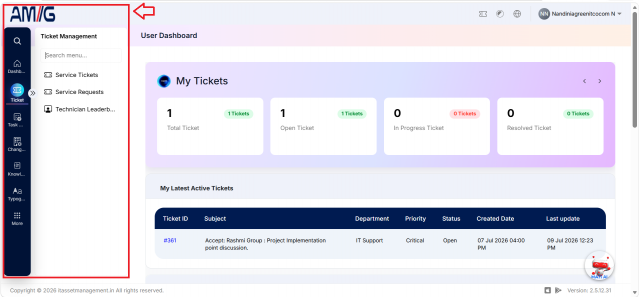
Accessing AMG Modules
-
Select My Items to access items associated with the user.
-
Select Gate Pass to access All Gate Passes, My Gate Passes, and Expire Gate Passes, based on the available permissions.
-
Select Files Tracker to access file-related information.
-
Select Licenses to access Sync Licenses and other available license functions.
-
Select Service Tickets to access My Tickets, Archived Tickets, and other available ticket options.
-
Select Procurements to access procurement-related information.
-
Select Change Management to access change-related information.
-
Select Tasks to access available tasks.
-
Select Technical FAQ to access technical frequently asked questions.
-
Select Knowledge Document to access available knowledge documents.
-
Select Email Logs to access email-related records.
-
Select Visitor to access visitor-related information.
-
Select Newsletters to access available newsletters.
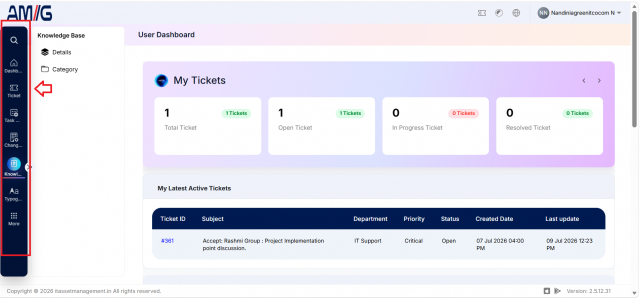
Navigating Within a Module
-
Open the required module from the navigation menu.
-
Select the required sub-menu or option available within the module.
-
Use the available search and filter options to locate specific information.
-
Select the required record to view its available details.
-
Use the available actions according to the user's assigned permissions.
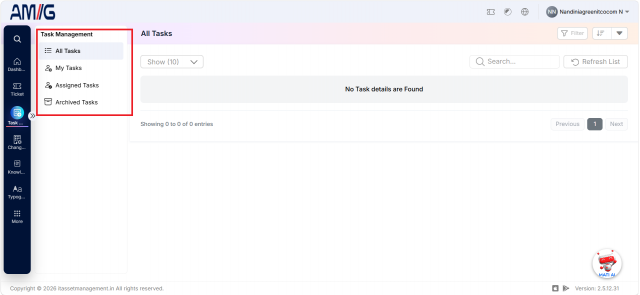
Access Based on Permissions
-
Sign in to the AMG portal.
-
Review the modules and options displayed in the navigation menu.
-
Access the functions available to the assigned user role and permissions.