

Overview
Introduction to AMG
The AMG (Asset Management Group) portal provides users with access to asset management and IT service management features based on the permissions assigned by the administrator. It enables users to view their dashboard, manage support tickets, track ticket status, and access available modules and resources. Click here Asset Management Global for more information
How to Sign In?
Click here for Sign In Guide SIGN IN
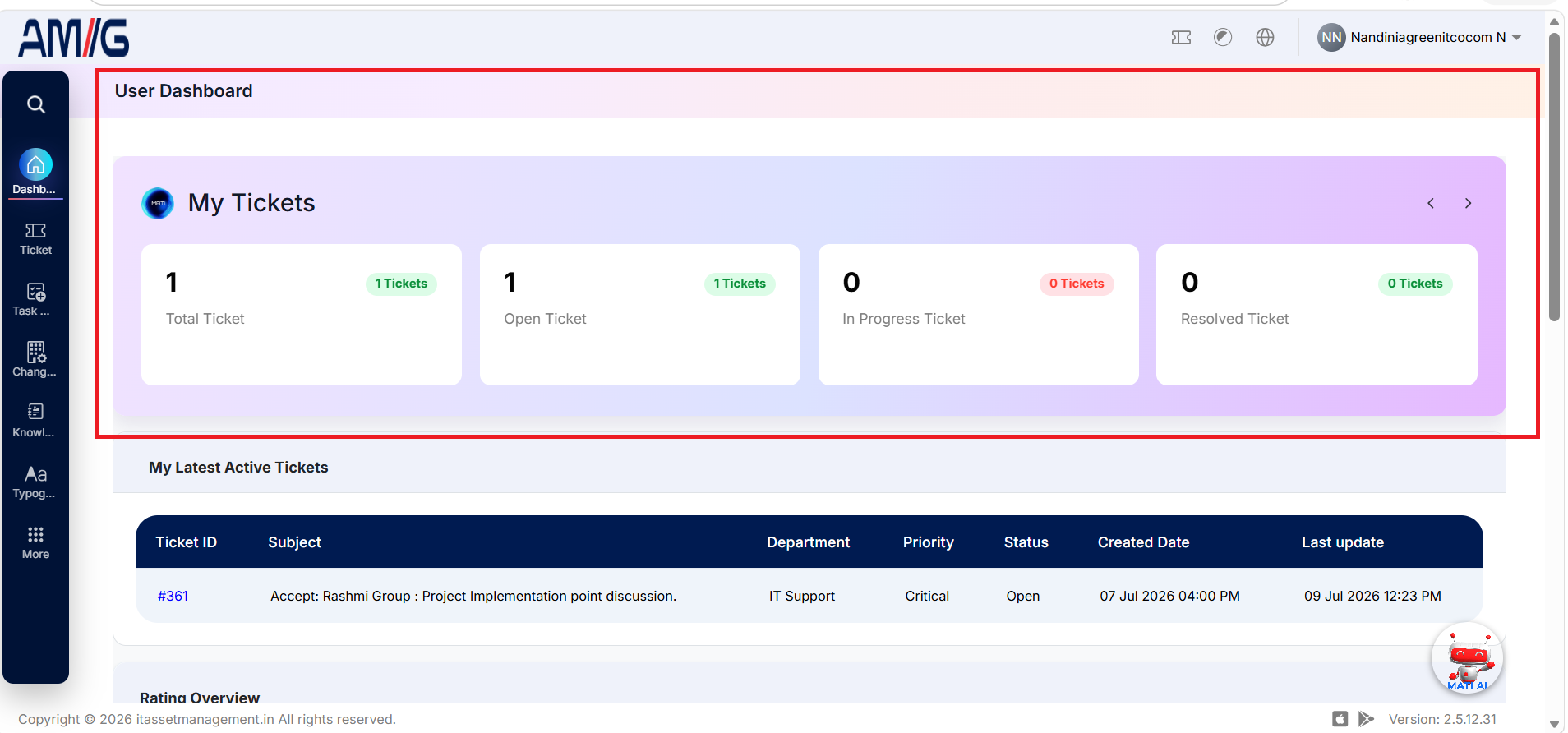
User Dashboard
1. Overview
The User Dashboard helps users:
- Monitor the total number of tickets they have created.
- Track the current status of submitted tickets.
- Identify tickets requiring action from the user or a vendor.
- Review resolved tickets and reopen tickets when further attention is required.
- View technician rating information related to their ticket-resolution experience.
- Access the latest active ticket details directly from the Dashboard.
For more information Click here Dashboard Guide
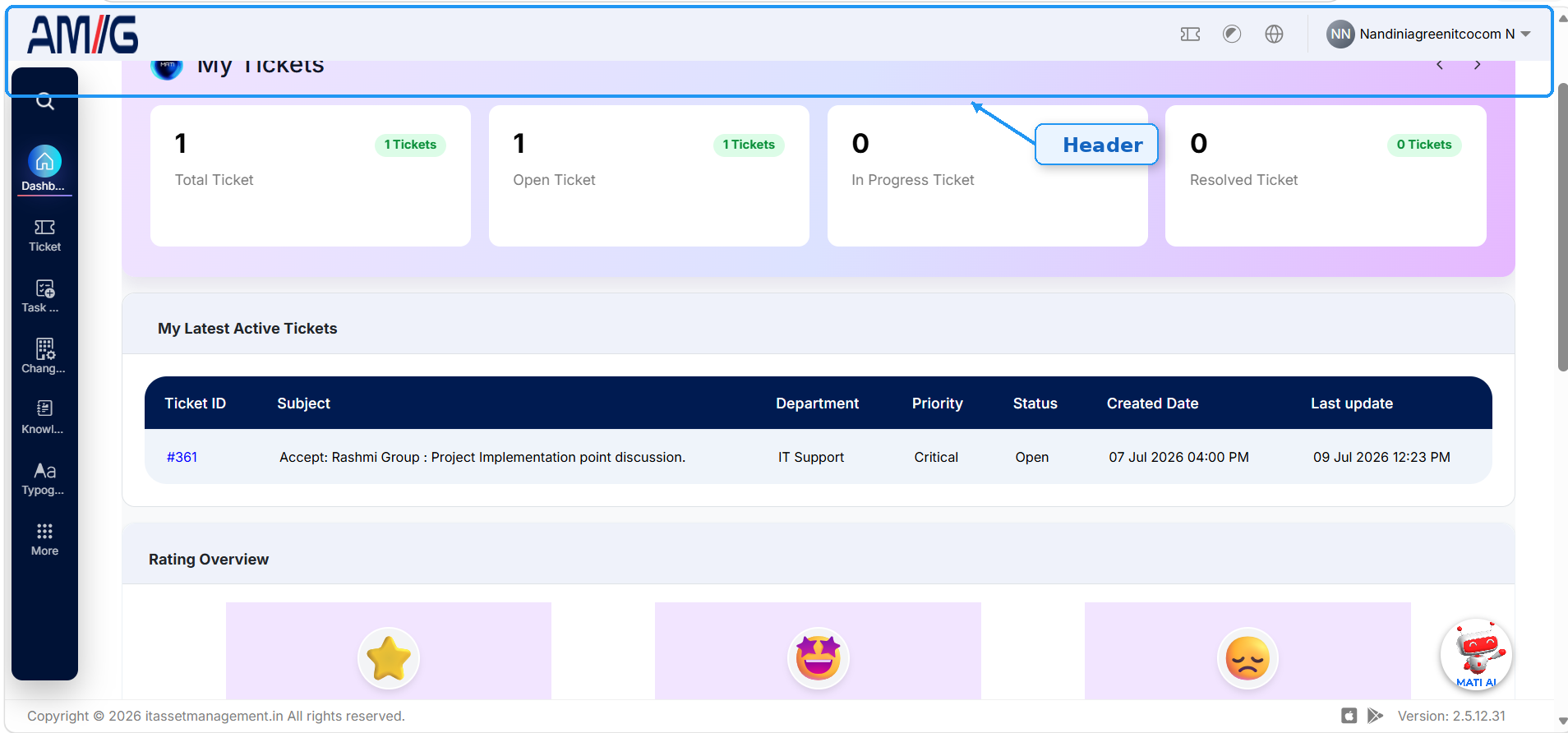
Header
The Header is the top navigation bar of the AMG Portal and remains visible across all pages. It provides quick access to important system functions and user settings. Header Components:
Company Logo
Displays the client-specific company logo configured for the organization.

Quick Action Icons
Log Ticket
Log Ticket: Allows users to create and submit a ticket to report an issue or request support.

Dark Mode
The Dark Mode option allows the user to change the portal display mode.

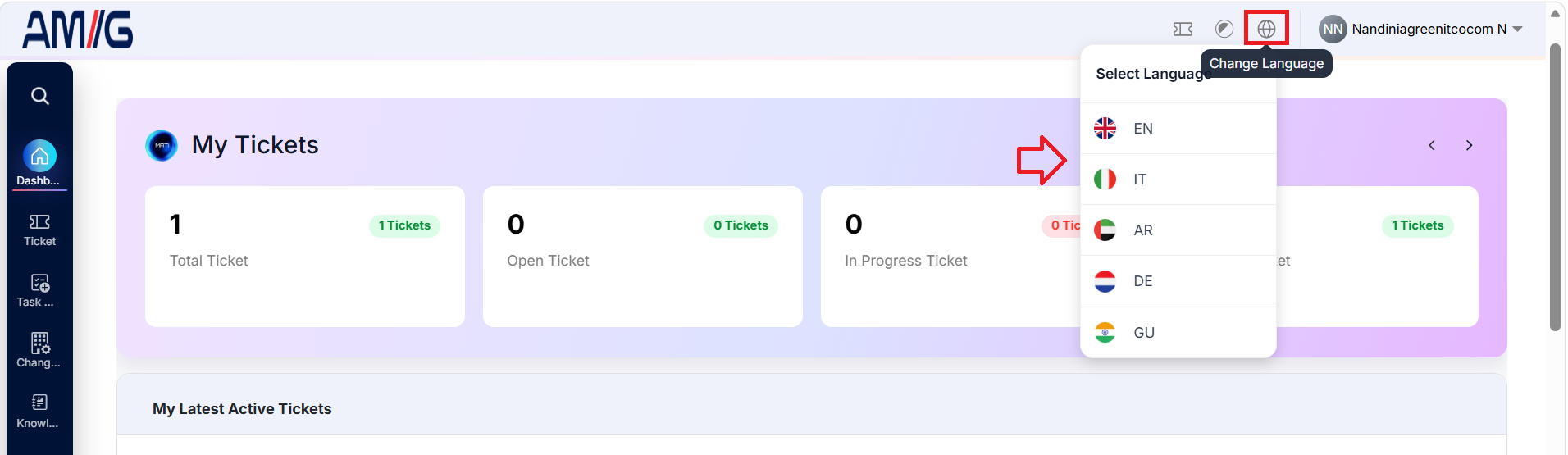
Language Icon
Allows users to change the application language to their preferred language.
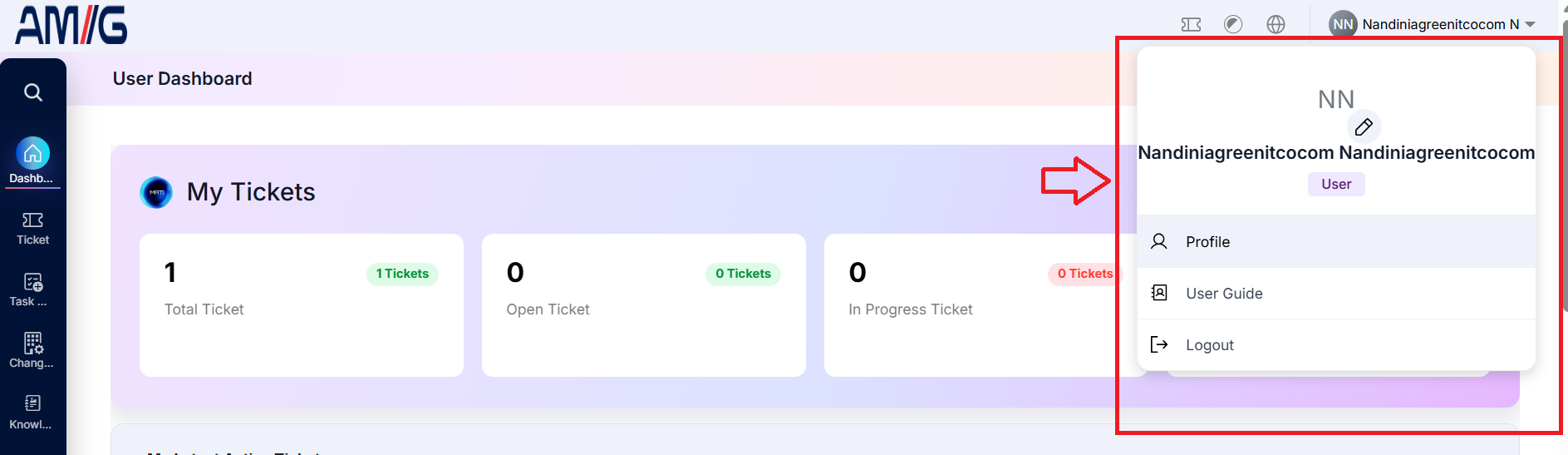
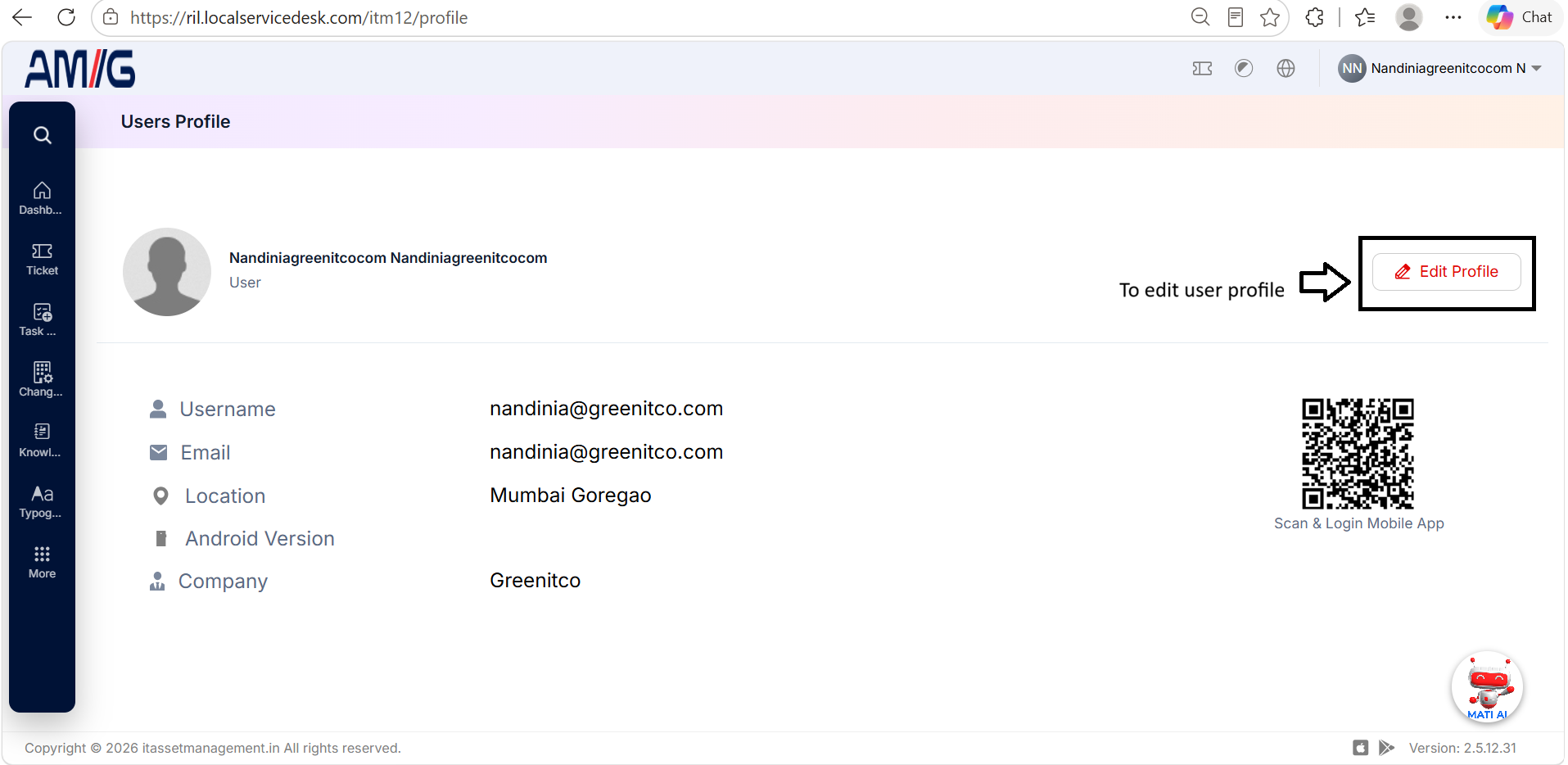
User Profile
The profile area displays the user's initials and account name and provides access to the available user-account options.

Steps
- Step 1. Locate the logged-in user's name on the right side of the Header.
- Step 2. Click the username or dropdown arrow to view the available options: Profile, User Guide, and Log Out.
- Step 3. Click Profile to view the user's account information.
- Step 4. The Profile page displays the following details:
- Username: Displays the user's username.
- Email: Displays the user's registered email address.
- Location: Displays the user's location.
- Android Version: Displays the Android version, if available.
- Company: Displays the company name.
- Step 5. Use the displayed scanner code to log in to the mobile application.
- Step 6. Select User Guide from the dropdown menu to access the user guide.
- Step 7. Select Log Out from the dropdown menu to sign out of the application.
Side Menu
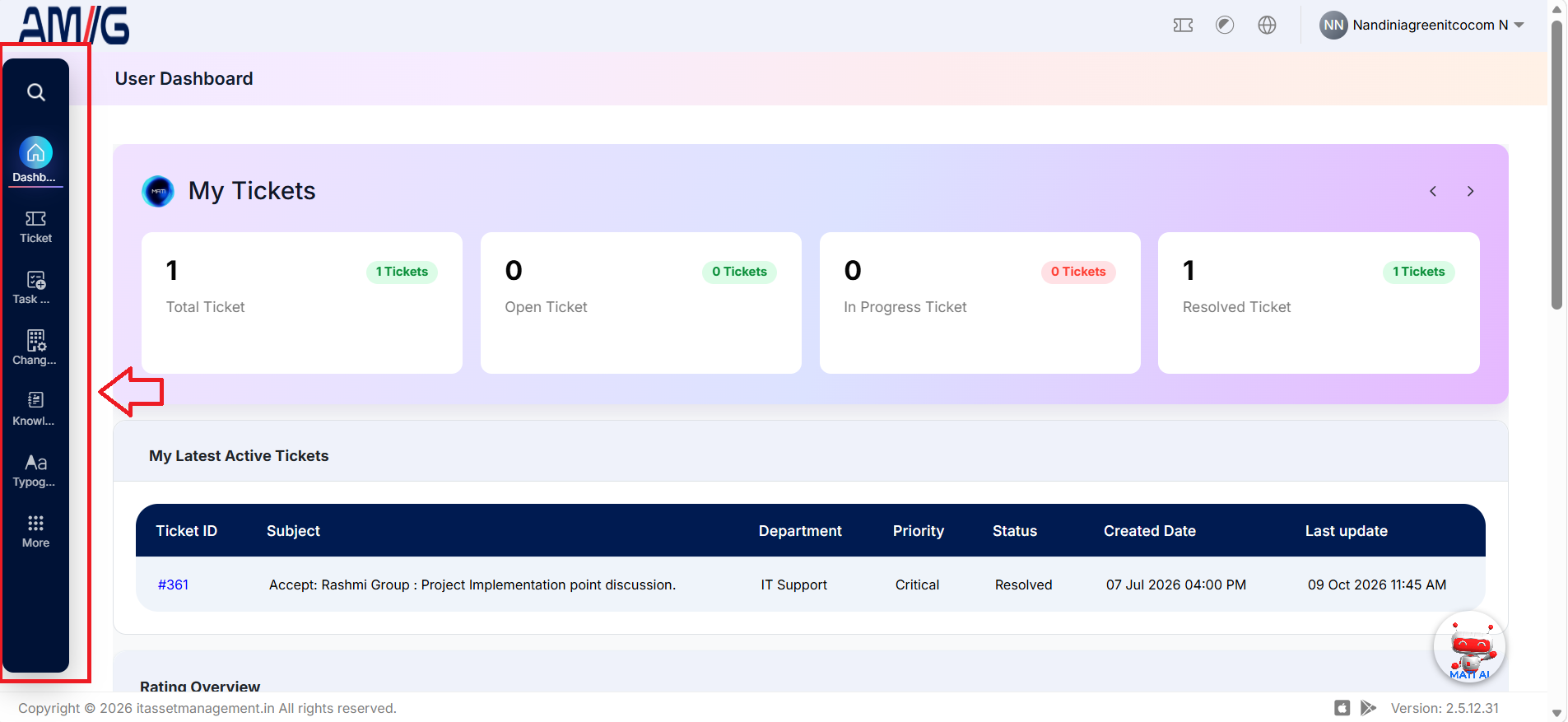
The Side Menu is displayed on the left side of the AMG portal and provides navigation to the available modules. The menu options visible to each user depend on the access permissions granted by the administrator.
Steps
-
- Locate the Side Menu on the left side of the portal.
-
- View the modules and options available in the menu based on the permissions assigned by the administrator.
-
- Click Dashboard to access the User Dashboard.
-
- Select any other available module to navigate to its respective section.
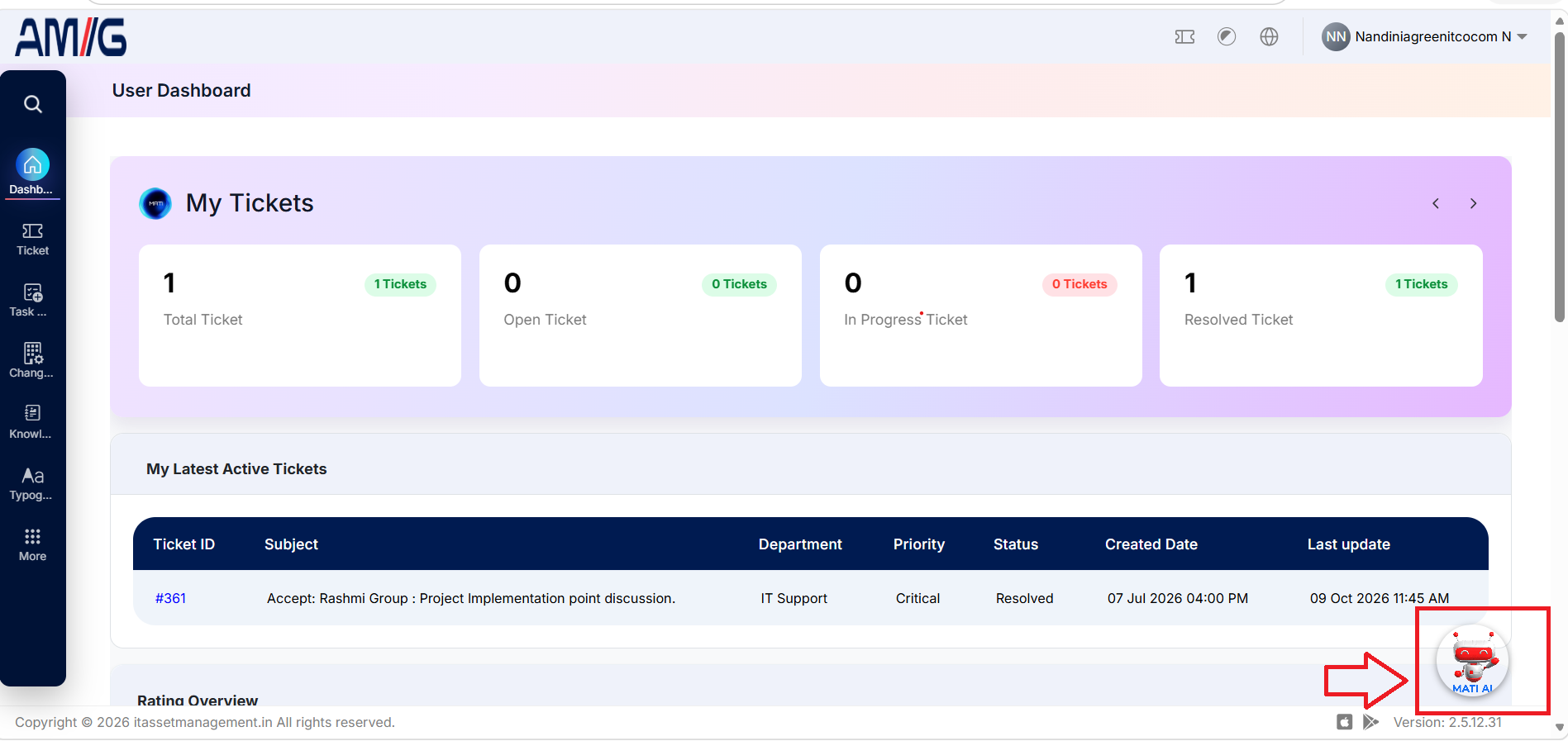
My Latest Active Tickets
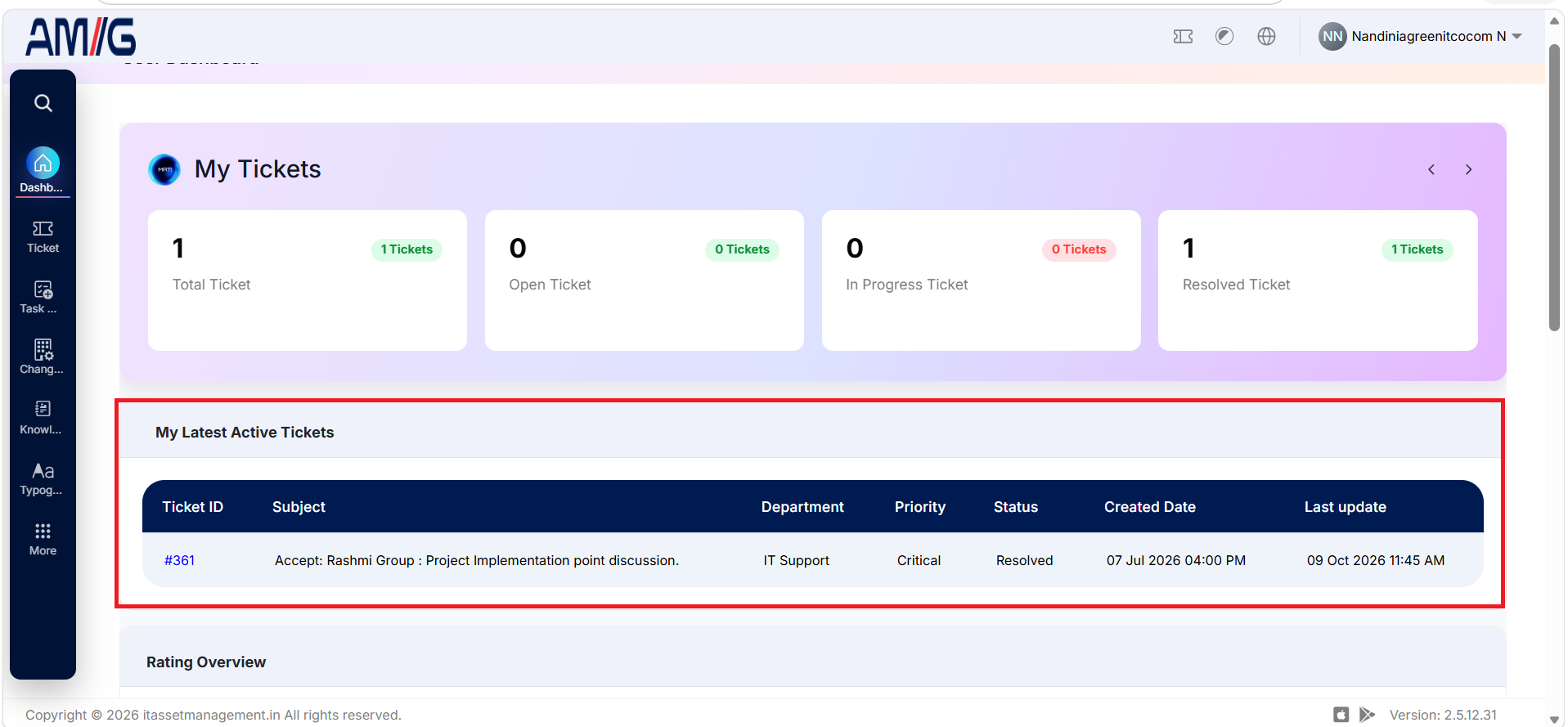
The My Latest Active Tickets section displays ticket records associated with the logged-in user, allowing the user to review ticket details and check the latest status and update information.
The table includes the following columns:
| Column | Description |
|---|---|
| Ticket ID | Displays the unique ticket number. Click the Ticket ID to open the corresponding ticket details. |
| Subject | Displays the subject or summary of the issue or request reported in the ticket. |
| Department | Displays the department responsible for handling the ticket. |
| Priority | Displays the priority assigned to the ticket, indicating its urgency. |
| Status | Displays the current status of the ticket, such as Open, In Progress, or Resolved. |
| Created Date | Displays the date and time when the ticket was created. |
| Last Update | Displays the date and time when the ticket was last updated. |
Steps to view ticket details:
- Locate the My Latest Active Tickets section on the User Dashboard.
- Review the displayed ticket information.
- Click the required Ticket ID, such as 361, to open the ticket details.
- Review the ticket information, current status, and latest update.
Knowledge Document
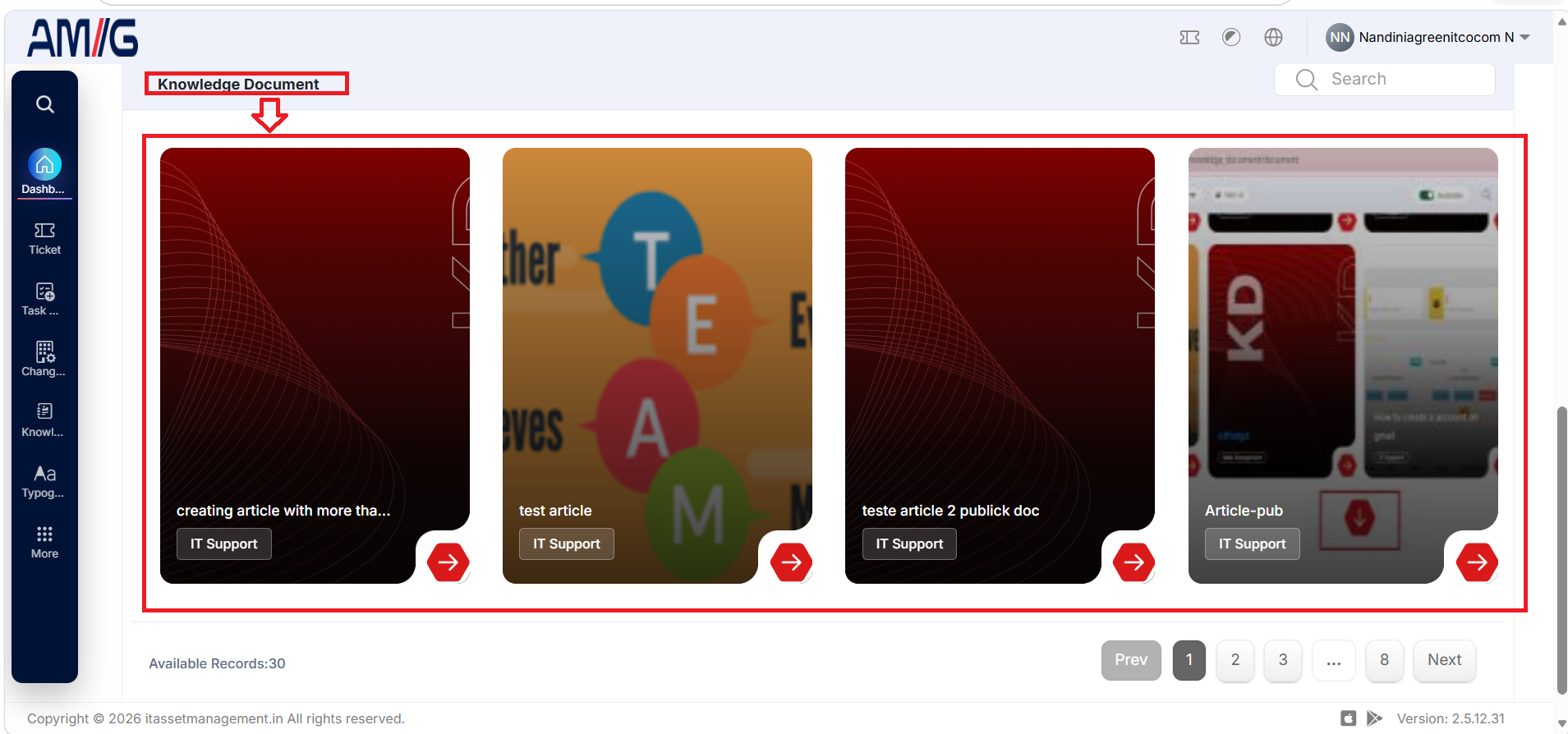
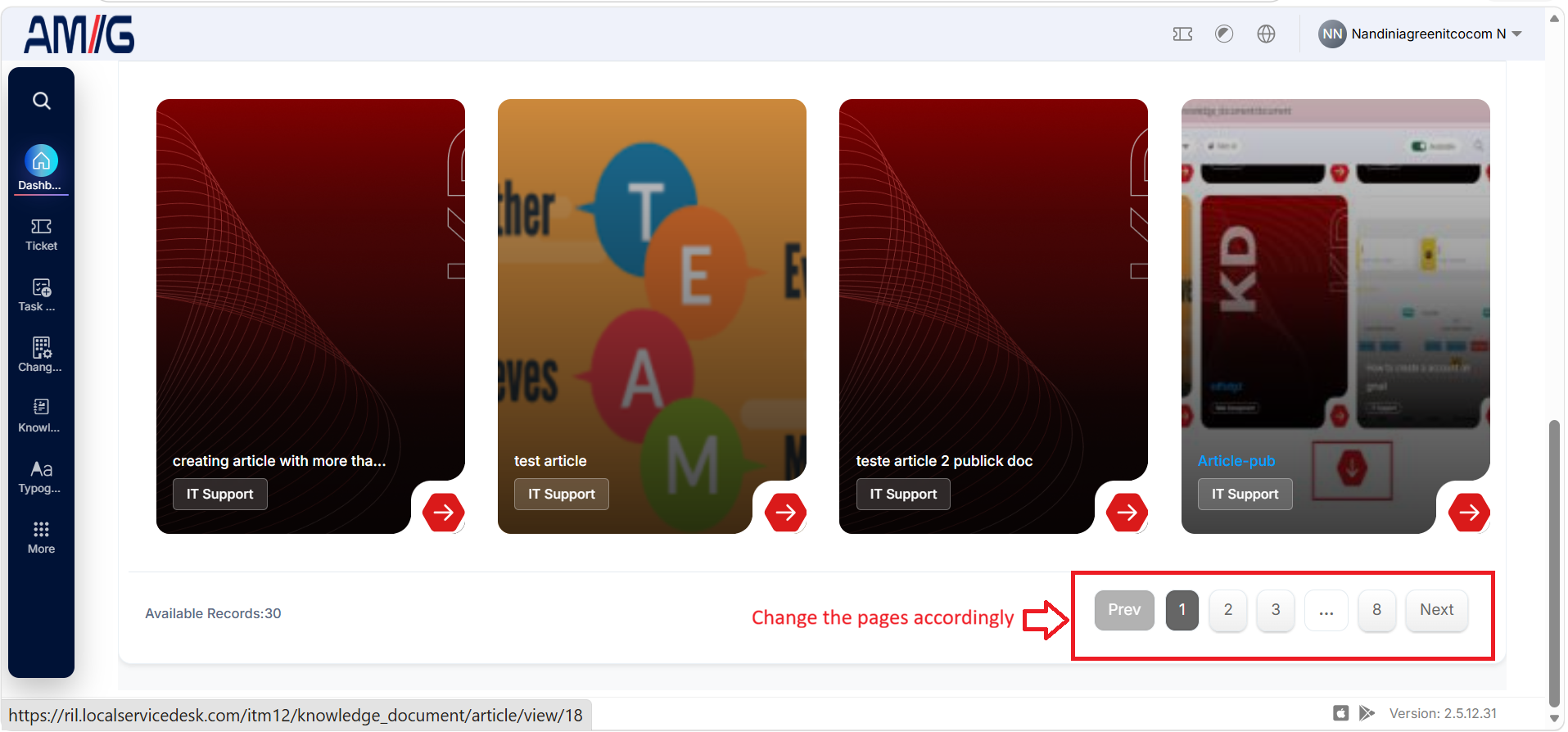
The Knowledge Document section displays available knowledge articles.
Each knowledge document can display information such as:
- Article title
- Related category
- Article access option
Selecting a knowledge document opens the corresponding article. The displayed knowledge documents can be browsed using the available pagination controls.
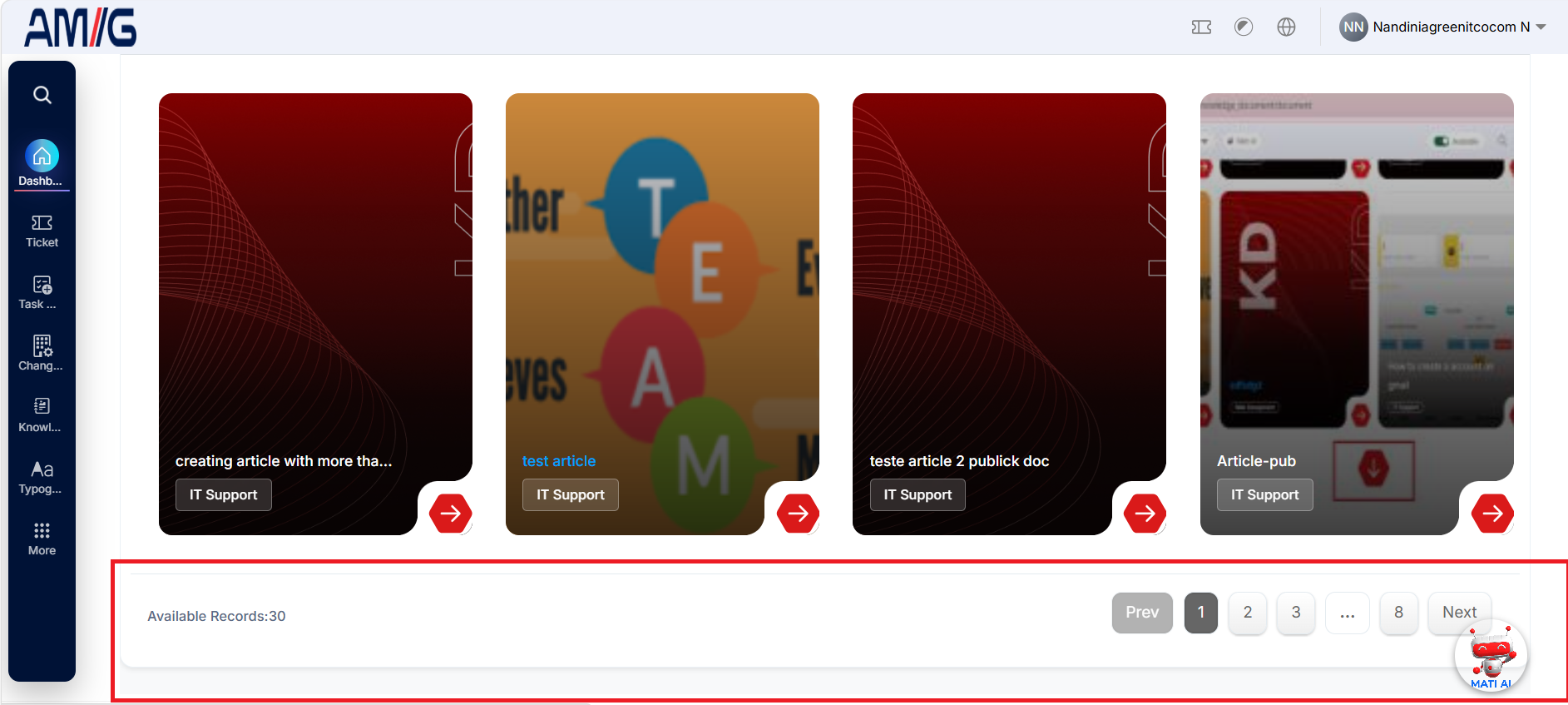
Available Records
The Available Records section displays the total number of available knowledge records.
The page provides pagination controls to navigate through the available records.
The pagination options shown include:
- Prev
- Page numbers
- Next
Users can select a page number to view additional records.
MATI AI
MATI AI is displayed as an AI assistant option.
The MATI AI option is available from the floating control displayed on the page. The user can select the MATI AI option to access the available AI-assisted functionality.
Footer
The Footer is displayed at the bottom of the User Dashboard.
It contains the following information:
- Copyright © 2026 itassetmanagement.in All rights reserved.
- Application version information
The version displayed in the provided screenshot is Version: 2.5.12.31.
[NOTE] The menus, ticket counts, records, and available actions displayed on the User Dashboard may vary according to the user's access and the current data in the AMG portal.