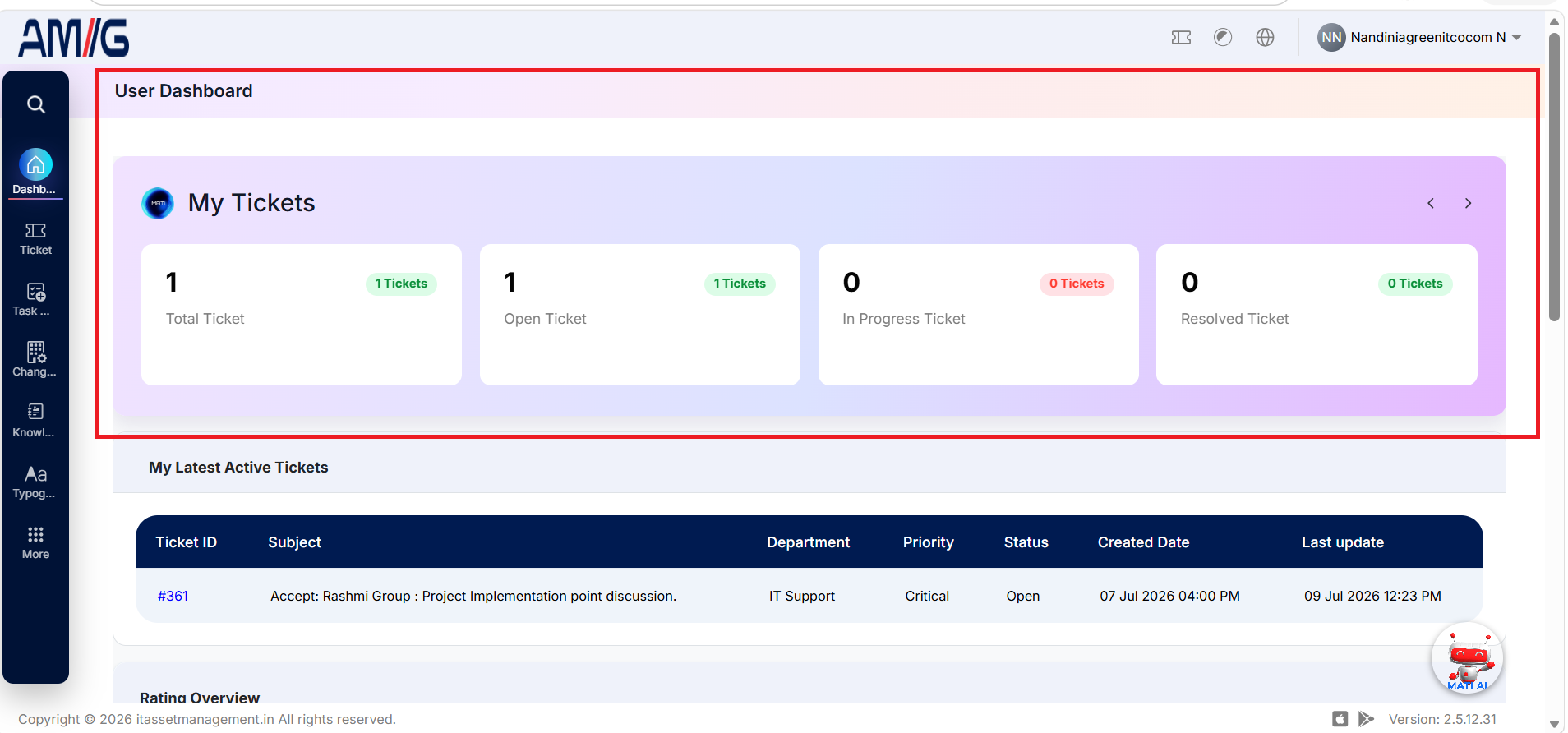
User Dashboard
1. Overview
The User Dashboard provides the logged-in user with an overview of their tickets, ticket statuses, and technician performance ratings. It helps users track the progress of their submitted tickets, identify tickets that require their action, and review feedback related to ticket resolution.
The Dashboard displays ticket counts and rating information based on the user's tickets and the available records.
2. My Tickets
The My Tickets section displays the number of tickets associated with the logged-in user, categorized according to their current status.
2.1 Total Ticket
The Total Ticket card displays the total number of tickets created by the logged-in user. It provides an overview of the user's submitted support requests.
Steps:
- Locate the Total Ticket card on the User Dashboard.
- View the displayed ticket count.
- Select the ticket count or the available Tickets option to open the ticket listing.
2.2 Open Ticket
The Open Ticket card displays the number of tickets created by the user that have not yet been resolved and remain in the Open status.
These tickets require attention from the support team.
Steps:
- Locate the Open Ticket card.
- View the number of tickets currently in the Open status.
- Select the ticket count to view the corresponding ticket listing.
2.3 In Progress Ticket
The In Progress Ticket card displays the number of tickets on which the technician or support team is actively working.
It helps users identify requests that are being addressed.
Steps:
- Locate the In Progress Ticket card.
- View the number of tickets currently being worked on.
- Select the ticket count to view the corresponding ticket listing and check the ticket details.
2.4 Resolved Ticket
The Resolved Ticket card displays the number of the user's tickets that have been marked as Resolved by the technician.
Users can review these tickets and confirm whether the reported issues have been addressed satisfactorily.
Steps:
- Locate the Resolved Ticket card.
- View the number of resolved tickets.
- Select the ticket count to access the corresponding ticket listing.
- Open a ticket to review its details and resolution.
2.5 Waiting For User Ticket
The Waiting For User Ticket card displays the number of tickets that require additional information, documentation, confirmation, or another action from the user before the ticket can proceed.
Steps:
- Locate the Waiting For User Ticket card.
- View the number of tickets awaiting user action.
- Select the ticket count to view the corresponding ticket listing.
- Open the relevant ticket and provide the requested information or complete the required action.
2.6 Waiting For Vendor Ticket
The Waiting For Vendor Ticket card displays the number of tickets that require a response, information, support, or action from an external vendor before further progress can be made.
Steps:
- Locate the Waiting For Vendor Ticket card.
- View the number of tickets awaiting vendor action.
- Select the ticket count to view the corresponding ticket listing.
- Open a ticket to review its details and check the pending vendor-related action, where available.
2.7 Reopened Ticket
The Reopened Ticket card displays the number of tickets that were previously marked as Resolved but were reopened because the user was not satisfied with the resolution or the reported issue required further attention.
Reopening a ticket allows the support team to review the issue again and continue working toward an acceptable resolution.
Steps:
- Locate the Reopened Ticket card.
- View the number of reopened tickets.
- Select the ticket count to view the corresponding ticket listing.
- Open the relevant ticket to review its details and follow-up actions.
3. Technician Rating
The Technician Rating section provides rating information related to the technician's performance in resolving the user's tickets. It helps users review resolution-related feedback and understand the ratings recorded for their tickets.
3.1 Overall Rating
The Overall Rating displays the overall rating associated with the technician's performance on the user's tickets, based on the ratings recorded for ticket resolution.
It helps users evaluate their experience with the support provided, including how effectively and promptly their tickets were resolved.
3.2 Highest Rating
The Highest Rating displays the highest rating recorded for the technician based on the available ticket-rating information.
It helps users identify the highest performance rating achieved among the applicable ratings.
3.3 Last Rating
The Last Rating displays the most recent rating recorded for the user's ticket resolution experience.
It allows users to review their latest feedback regarding the technician's performance on a resolved ticket.
4. My Latest Active Tickets
The My Latest Active Tickets section displays the user's latest active tickets in a table format. It provides a quick view of ticket information without requiring the user to search through the complete ticket listing.
The table includes the following columns:
| Column | Description |
|---|---|
| Ticket ID | Displays the unique identifier assigned to the ticket. |
| Subject | Displays the subject or summary of the reported issue or request. |
| Department | Displays the department associated with the ticket. |
| Priority | Displays the priority assigned to the ticket. |
| Status | Displays the current status of the ticket. |
| Created Date | Displays the date and time when the ticket was created. |
| Last Update | Displays the date and time when the ticket was last updated. |
Steps to view ticket details:
- Locate the My Latest Active Tickets section on the Dashboard.
- Review the ticket information displayed in the table.
- Click the required Ticket ID to open the corresponding ticket details.
5. Purpose of the User Dashboard
The User Dashboard helps users:
- Monitor the total number of tickets they have created.
- Track the current status of submitted tickets.
- Identify tickets requiring action from the user or a vendor.
- Review resolved tickets and reopen tickets when further attention is required.
- View technician rating information related to their ticket-resolution experience.
- Access the latest active ticket details directly from the Dashboard.