

Use Comment on a Ticket to add information to one of your tickets, answer a question from the support team, or attach a file they have asked for.
Step 1: Select the relevant ticket, or open the required ticket from the My Tickets list.
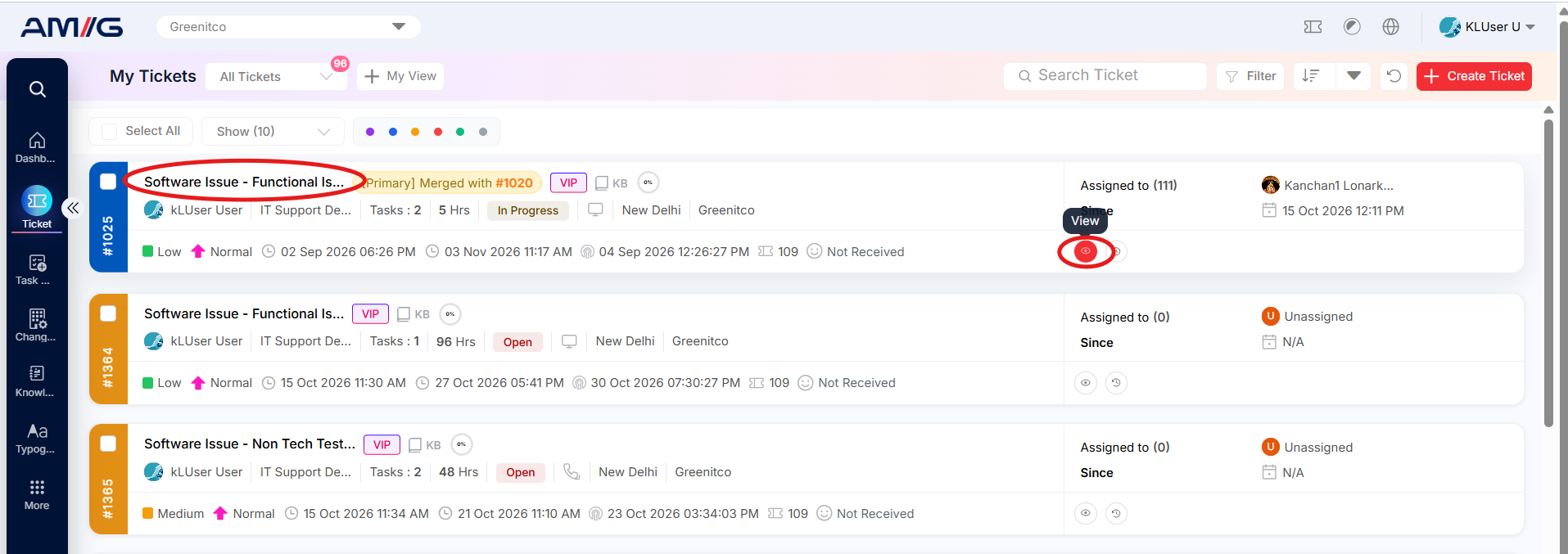 Step 2: Check the ticket subject and ID to confirm that you have opened the correct ticket.
Step 3: In the conversation area, enter your message or comment.
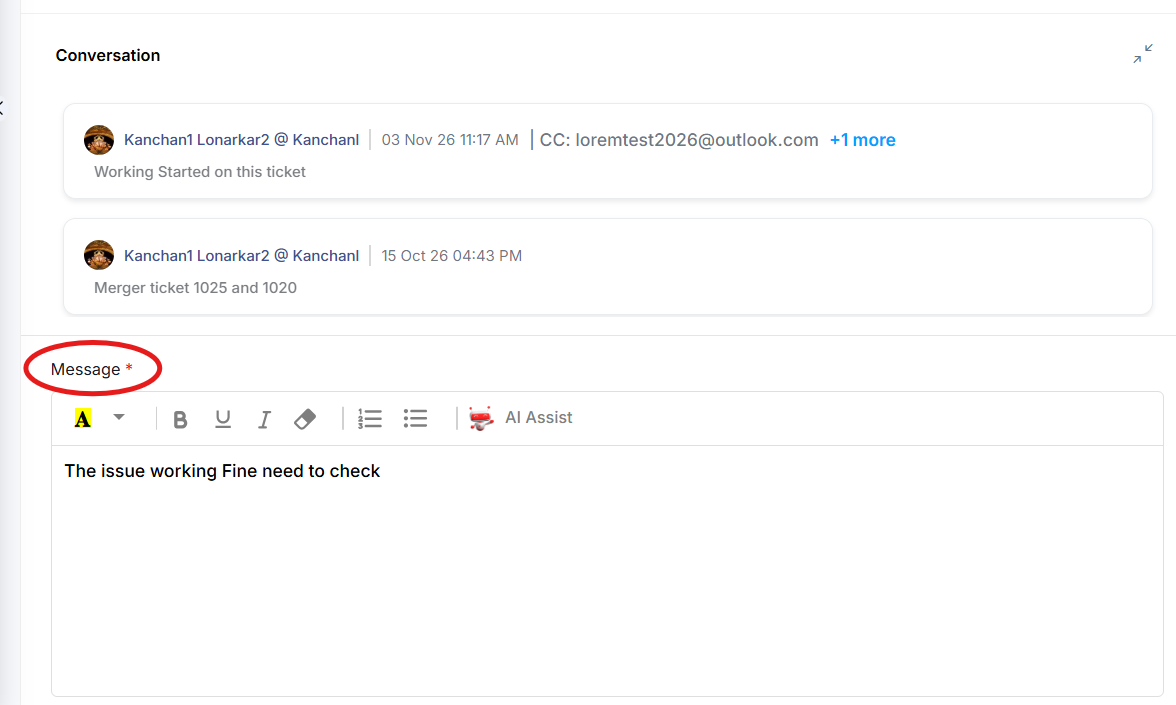
Step 4: Attach supporting files and add CC email recipients, if required.
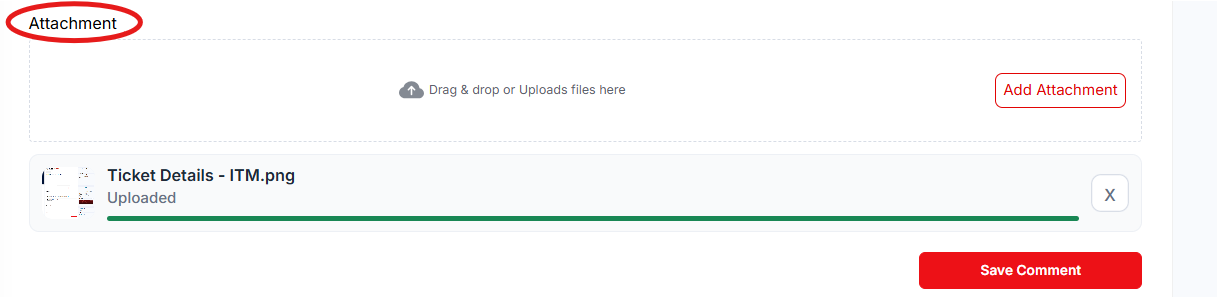 Step 5: Click Save Comment. Your comment appears in the ticket conversation and the people working on the ticket are notified.
The conversation area displays previous comments and messages associated with the ticket. It helps users review the communication history and understand the discussion between the people involved.
Table: Conversation area options
| Option | Description |
|---|---|
| Message or comment | Enter the message or comment to be added to the ticket. |
| Attach Files | Attach relevant files to provide supporting information, where file attachments are available. |
| CC Email Recipients | Add email addresses of additional recipients who should receive the relevant email notification. |
| Save Comment | Save the comment or message to the ticket. Review the content and the selected options before saving. |
Before saving: Verify the message, attachments and CC recipients to ensure that the information is recorded and shared appropriately.
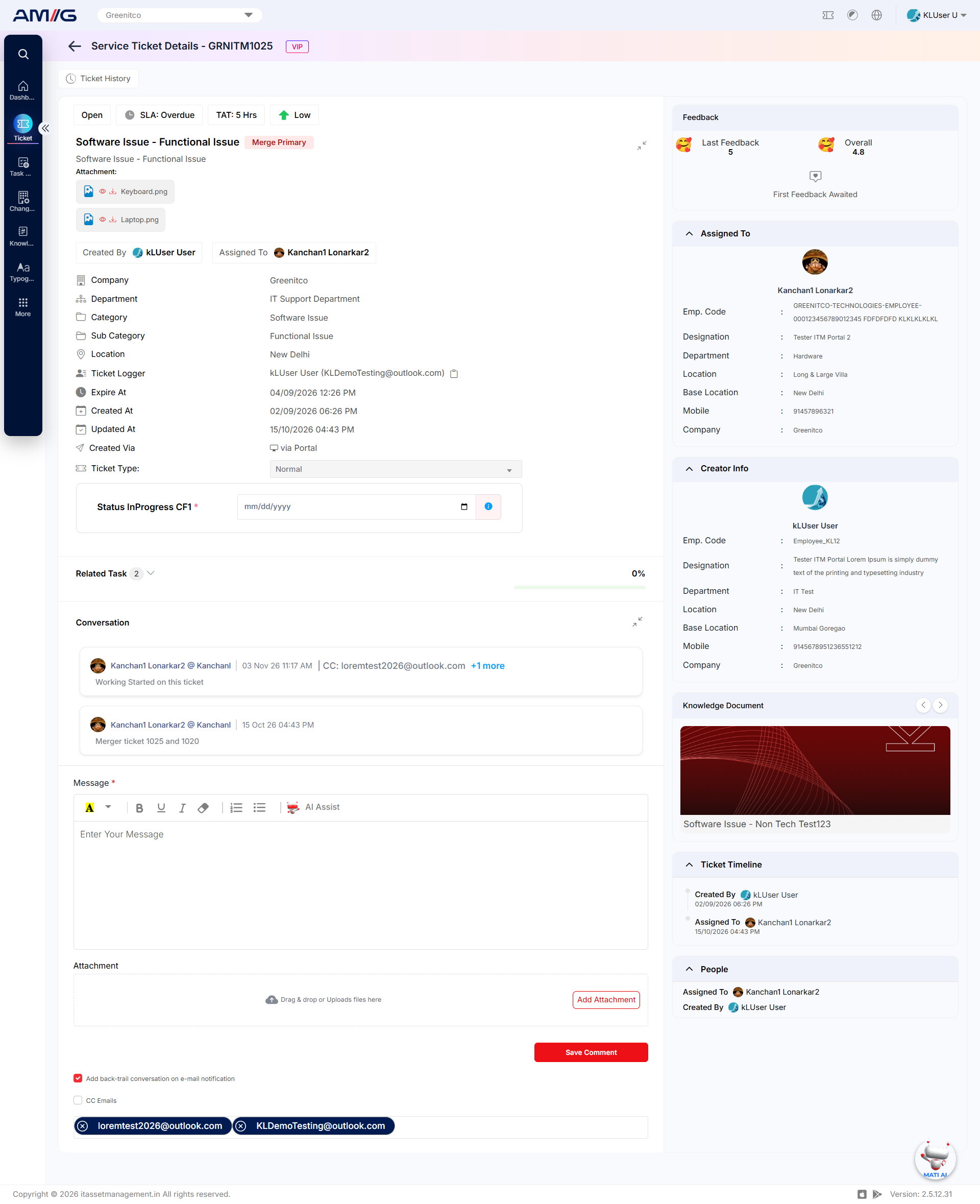
Figure: Ticket Details screen – conversation and ticket timeline