

Use Raise a Service Request to ask for something new, such as access, equipment or a service.
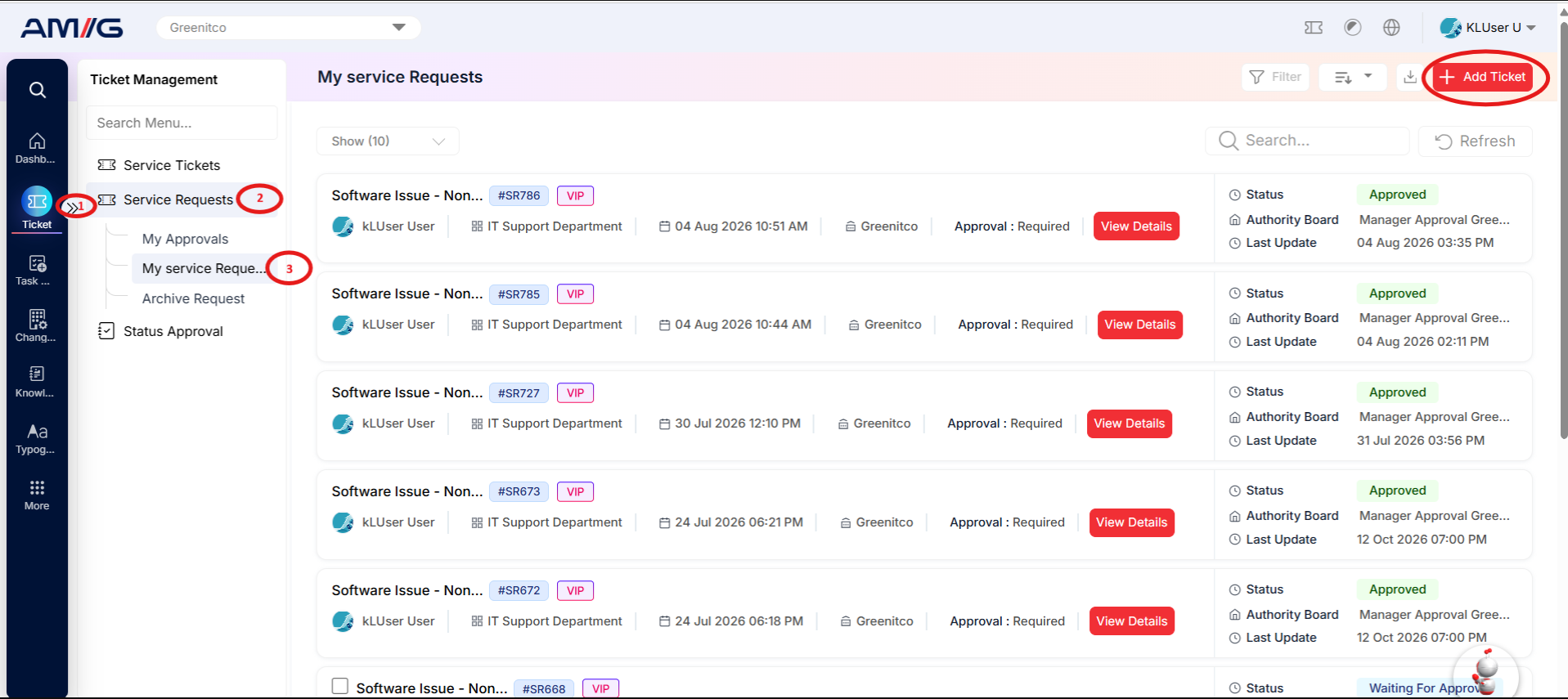
Step 1: Select Raise a Service Request. The Create Ticket form opens. Fields marked with an asterisk (*) are required.
 Step 2: Select the Company, Department, User (Ticket Raiser), and Problem Category. Select a Priority and enter the TAT in hours.
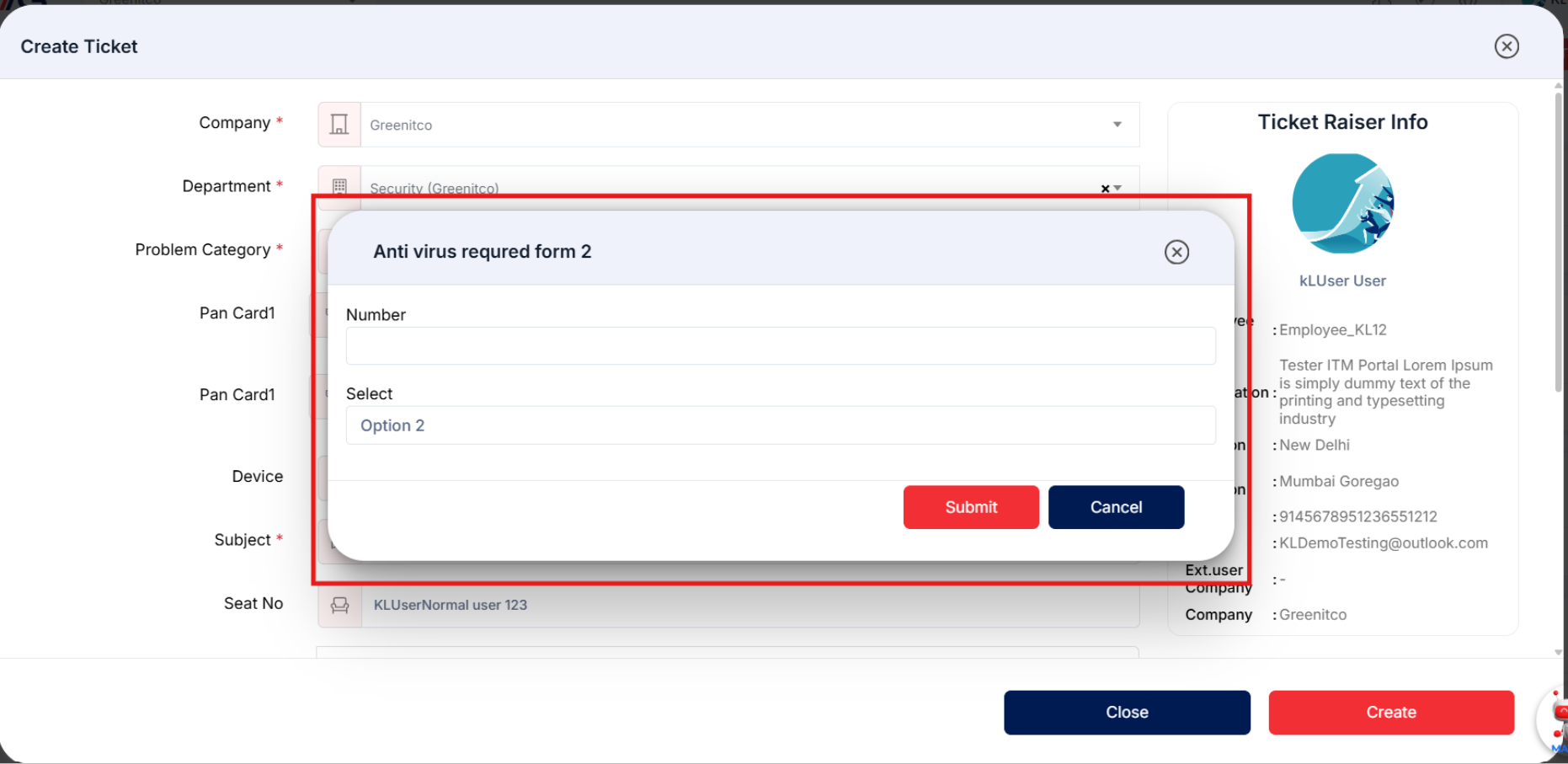
Step 3: If a dynamic form is configured for the selected Problem Category, the form opens automatically. Complete the required fields before continuing.
Step 4: Complete the Subject and Content fields. Add the device, reply-to account, seat number, tags, and CC email information where needed.
Step 5: Add supporting files by dragging them into the attachment area or clicking Add Attachment. Review the ticket-raiser information panel to confirm that the request is being raised for the intended user.
Step 6: Click Create to submit the request, or Close to exit without creating it.
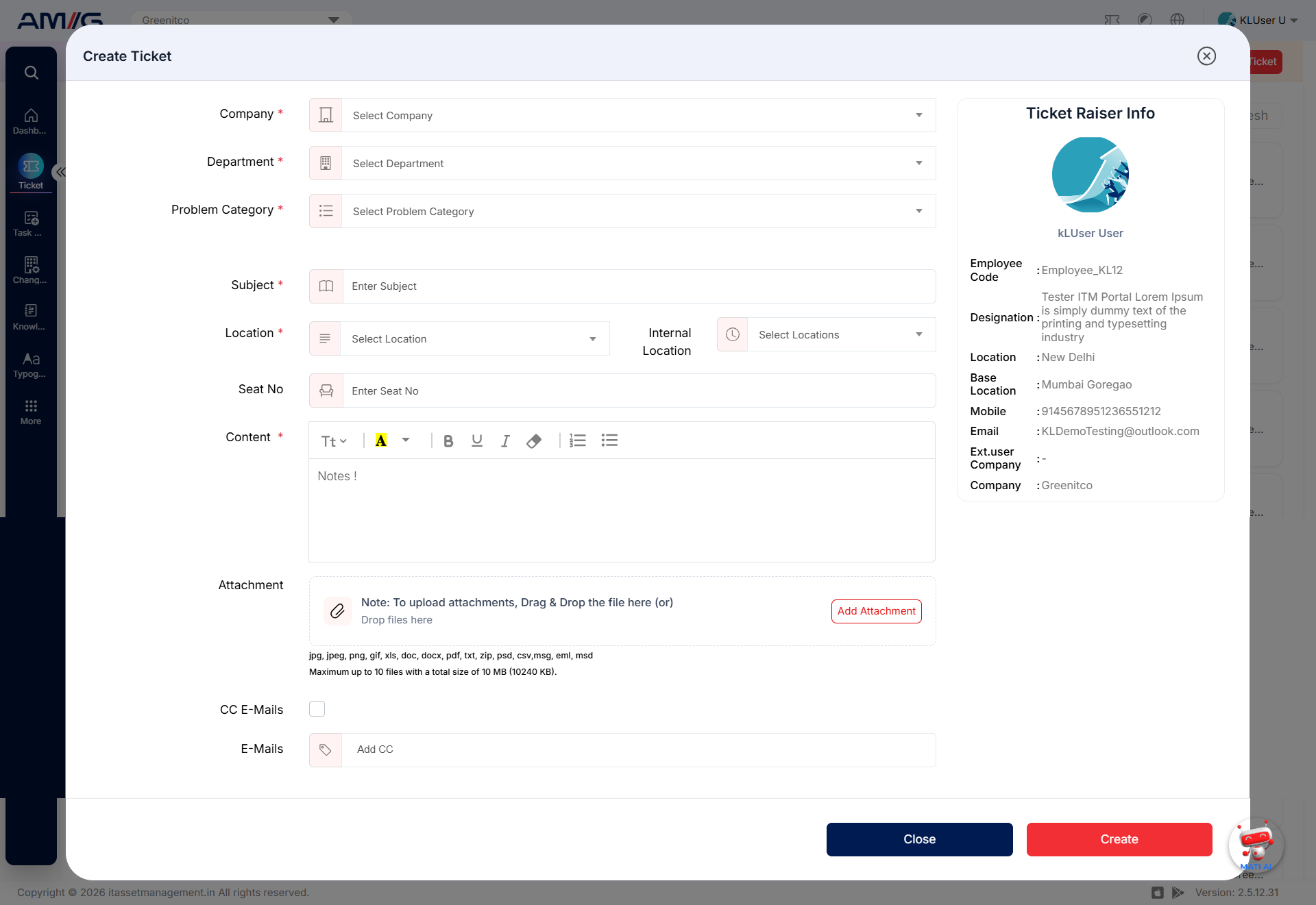
Figure: Create Ticket form
Table: Create Ticket form fields
| Field | Description |
|---|---|
| Company* | Select the company for the request. |
| Department* | Select the department associated with the request. |
| Problem Category* | Select the problem or request category. |
| Priority* | Set the request priority. It is filled in automatically based on the selected category; users with the required permission can change it. |
| TAT* | Enter the turnaround time in hours. This value is filled in automatically based on the selected category; users with the required permission can change it. |
| Device | Optionally link the request to a device. If selected, the request is associated with that device and can be viewed from the device information page. |
| Subject* | Enter a short title for the request. |
| Seat No | Optionally enter a seat number. |
| Content* | Enter the request description or supporting notes. |
| Attachment | Optionally attach supporting files. The screen notes a maximum of 10 files and a combined total size of 10 MB. |
| CC E-Mails / E-Mails | Use the CC option and Add CC field to include additional email recipients. CC recipients receive notifications about ticket/request actions and activity. |
| Ticket Raiser Info | Displays the selected creator user’s available profile details, such as name, designation, location, mobile, email, and company. |
Important: If the selected category requires approval, your request waits for the approvers’ decision before work starts.