

Introduction
The Custom Tax section allows administrators to define and manage tax structures used by the organization, such as GST or a combination of CGST and SGST. These tax structures act as master records that can be selected in the Procurement module while generating purchase orders (POs).
When a user selects a tax structure, the system loads its configured components. The user can enter the applicable tax percentages, and the system calculates the tax amounts accordingly.
Once configured, tax structures can be reused in Procurement, Config > Purchases and other supported financial records, ensuring consistent tax calculations across procurement activities.
This section explains how to view, create, edit, and delete tax records.
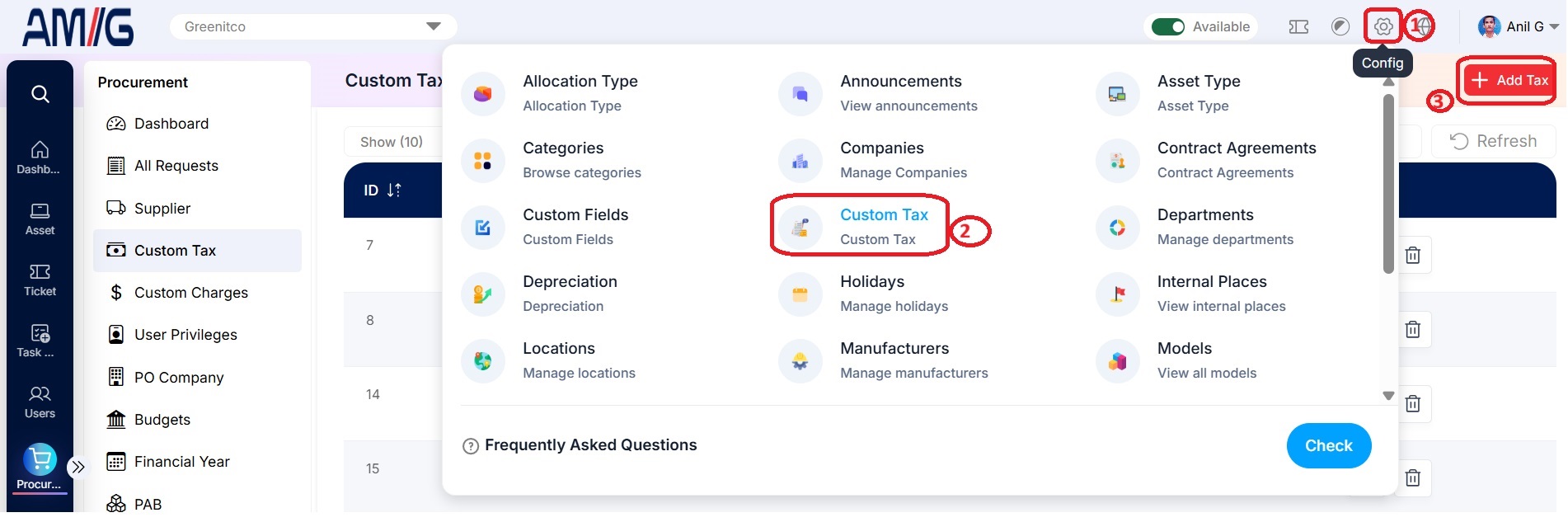
Navigation Path: Header > Config > Custom Tax
Viewing the Custom Tax List
Go to Header > Config > Custom Tax. You will see the list of all taxes set up so far.
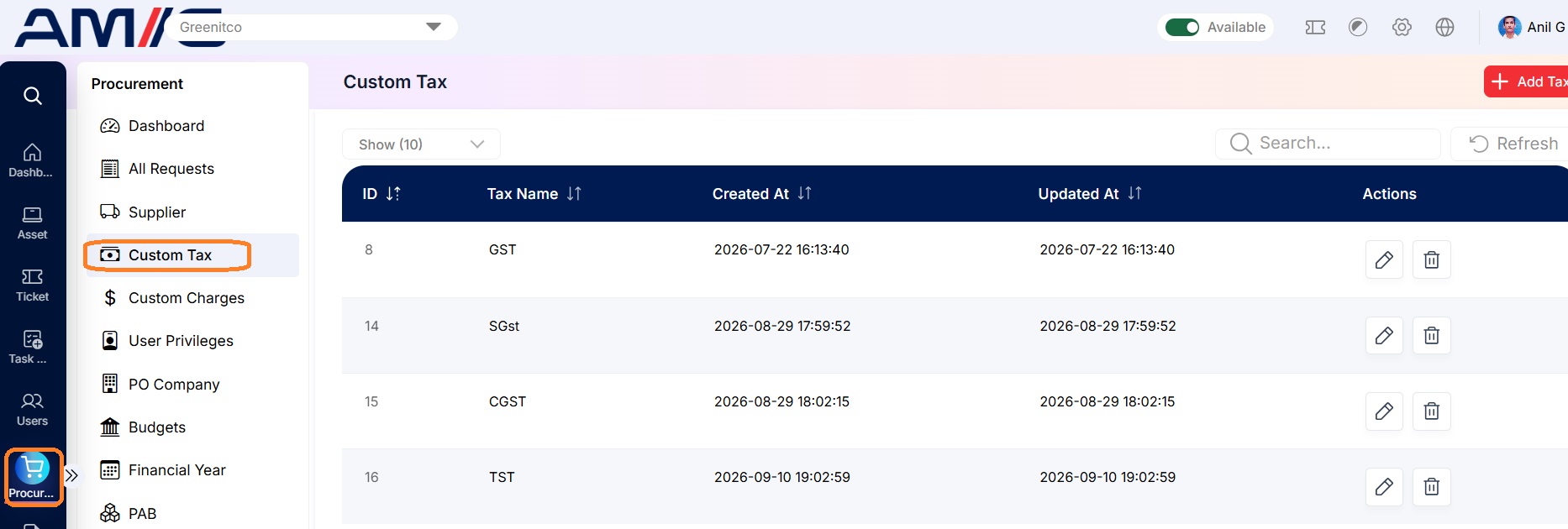
Understanding the Main Screen
Table: Custom Tax main screen elements
| Area | Description |
|---|---|
| Sub Header | Use Show (10) to choose how many records you see on one page. Type in the Search box to find a record quickly, or click Refresh to reload the list. |
| Add Tax Button | Click the red + Add Tax button in the top right corner to set up a new tax. |
| The Data Table | Shows all your taxes with their ID, Tax Name, Created At and Updated At. |
| Sorting | Click the small arrows beside a column name to sort the list (A to Z, Z to A, oldest or newest first). |
| Actions Column | Every row has two icons on the far right: Edit (pencil) to change that tax, and Delete (trash can) to remove it. |
| Pagination | The bottom of the page shows how many records you're looking at. Use Previous and Next to move between pages. |
How to Create a New Custom Tax
Adding a new tax structure only takes a minute. Here is how:
Step 1: On the Custom Tax screen, click the red + Add Tax button in the top right corner.
Step 2: The "Add Tax" pop-up window opens.
Step 3: Type the tax's name in the Name field (for example, "GST 18%"). This field is required, as shown by the red asterisk (*).
Step 4: If the tax is made up of parts, click the red + Add Option button under Tax Elements to add the first part.
Step 5: A new box appears. Type the name of this part (for example, "CGST"). Later, when someone picks this tax on an asset or purchase, they will see this name next to a box where they enter the tax percentage.
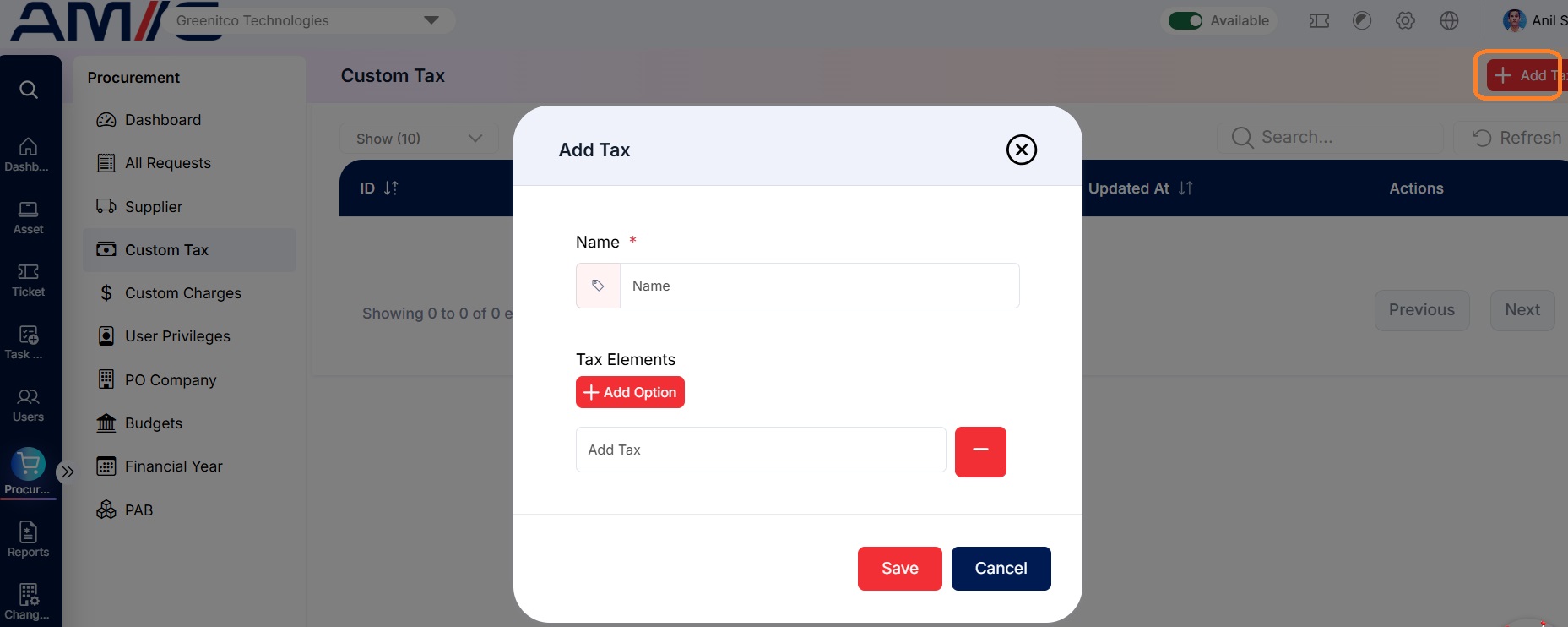 Figure: Add Tax Modal – With Element
Step 6: Add or remove parts as needed:
To add another part, click + Add Option again.
To remove a part, click the red Minus (-) button beside it.
Step 7: Click the red Save button. Your new tax is created and shows up in the list straight away.
Note: Changed your mind? Click the blue Cancel button or the X in the top right corner. Nothing will be saved.
Managing Existing Custom Taxes
Once a record exists, you can look after it straight from the Custom Tax list using the icons in the Actions column:
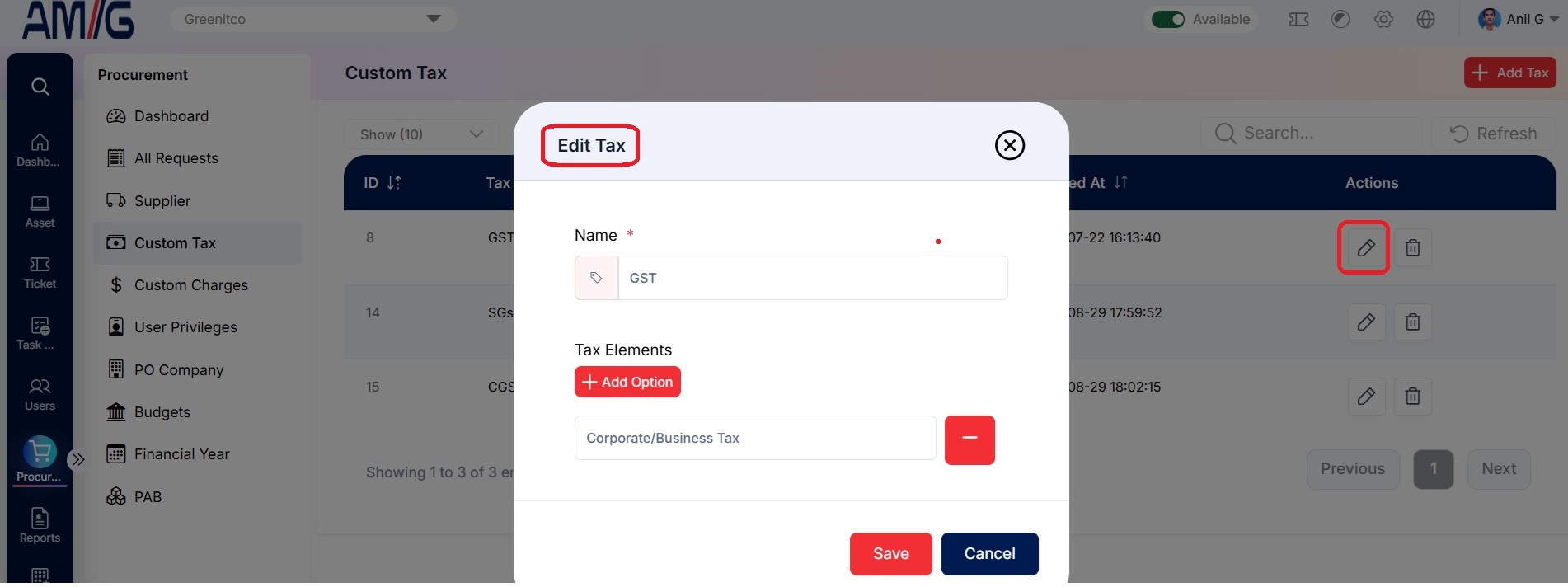
Edit a tax
Step 1: On the Custom Tax screen, locate the tax record you want to change.
Step 2: Click the Pencil (Edit) icon in the Actions column.
Step 3: Update the tax name or add/remove tax elements as required.
Step 4: Click Save to apply the changes.
Delete a tax
Step 1: Locate the tax record in the list.
Step 2: Click the Trash Can (Delete) icon for that record.
Step 3: Review the confirmation prompt and confirm the deletion.
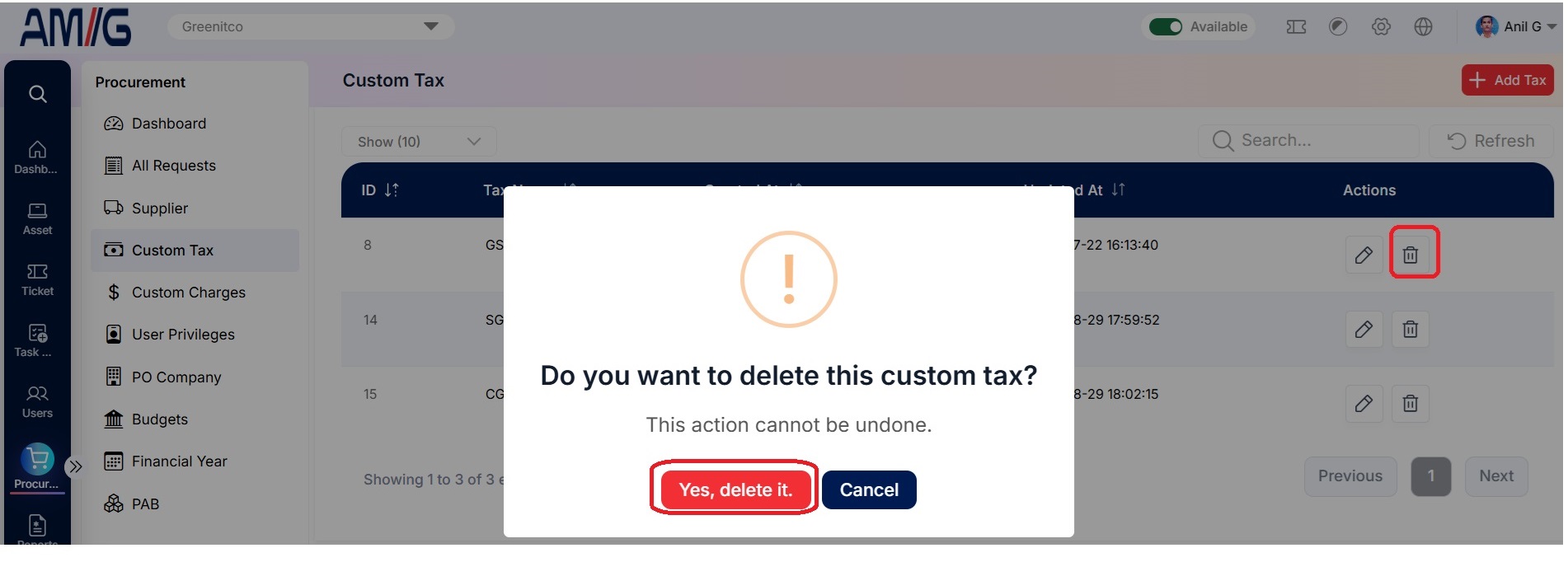
Important: Before deleting a tax, make sure it is not being used on any active procurement records.