

Introduction
The AI Assist feature helps technicians generate responses to users based on ticket information and the available knowledge base. It reduces manual typing and helps provide quick, relevant responses to common issues while the technician reviews and manages the ticket.
AI Assist is available in the Comment section of the Ticket Details page through the AI Assist button.
Navigation Path: Ticket Details > Comment section > AI Assist
When you click the button, the Let MATI Assist You! pop-up opens with two options:
Auto Response
The Auto Response option automatically analyses the ticket subject and description to understand the reported issue. Based on this information and the available knowledge base, it generates a relevant response.
The generated response is displayed for the technician and can be appended directly to the ticket's comment section, avoiding the need to manually draft a response.
Custom Response
The Custom Response option allows technicians to provide their own instructions or queries to the AI.
When selected, a text field appears where the technician can enter a prompt or specific question related to the ticket. Based on the entered query, AI generates a response that can be reviewed and appended to the ticket's comment section.
Using AI Assist
Step 1: Open the required ticket from the ticket list.
Step 2: Scroll to the Comment section on the Ticket Details screen.
Step 3: Click AI Assist.
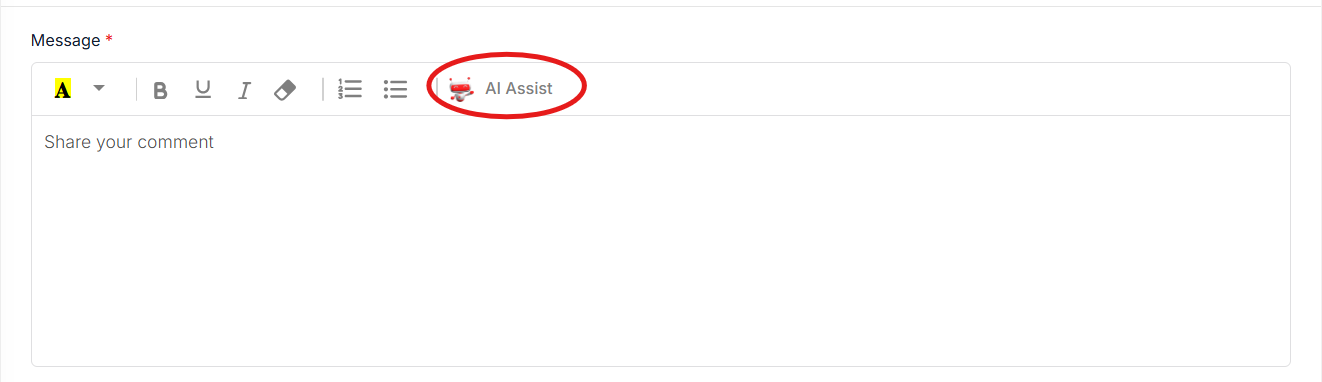
Figure 2.7.3: AI Assist button in the Comment section
Step 4: In the Let MATI Assist You! pop-up, choose one of the options:
-
Auto Response – generates a response from the ticket subject and description.
-
Custom Response – enter your prompt or question, then click Get AI Assist.
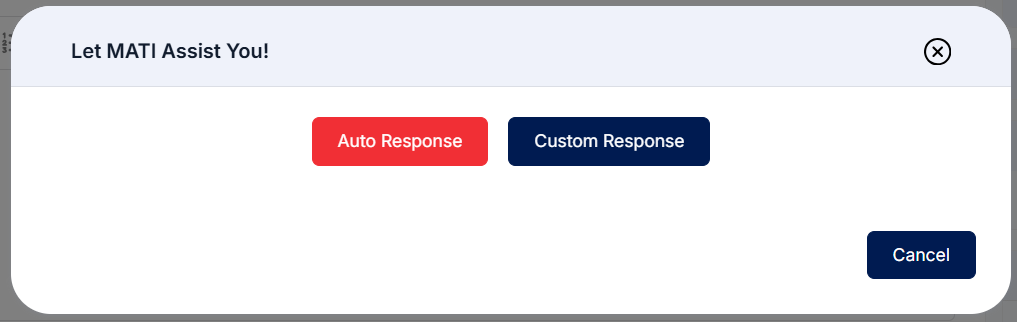
Figure 2.7.4: AI Assist options
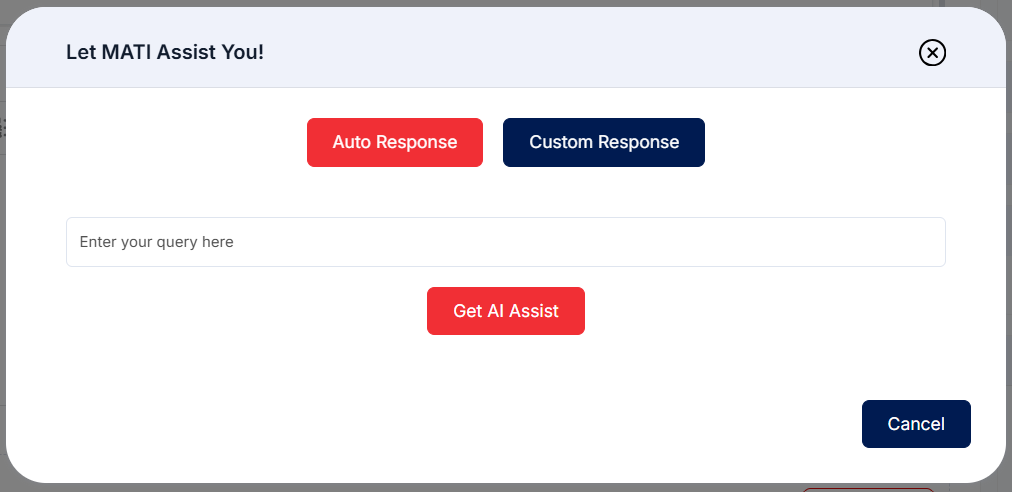
Figure 2.7.5: Custom Response – entering a query
Step 5: Review the AI-generated response.
Step 6: Append the response to the comment, edit it if needed, and click Save Comment to add it to the ticket.
Note: AI Assist only drafts the response. Always review and, where needed, edit it before you send it to the user.