

Introduction
The Spam Tickets section displays tickets that have been marked as spam. It helps keep unwanted or irrelevant tickets separate from regular service requests, allowing users to focus on genuine issues that require attention.
Each ticket card displays key information, including the ticket subject, ticket ID, requester, department, task count, turnaround time (TAT), status, location, company, timestamps, and available assignment details.
Users can click the ticket subject to view its details and use the available action icons to perform permitted operations. The actions available depend on the user's role and configured permissions.
This section helps users keep ticket worklists organized and prevents spam records from interfering with day-to-day service operations.
Marking a ticket as spam
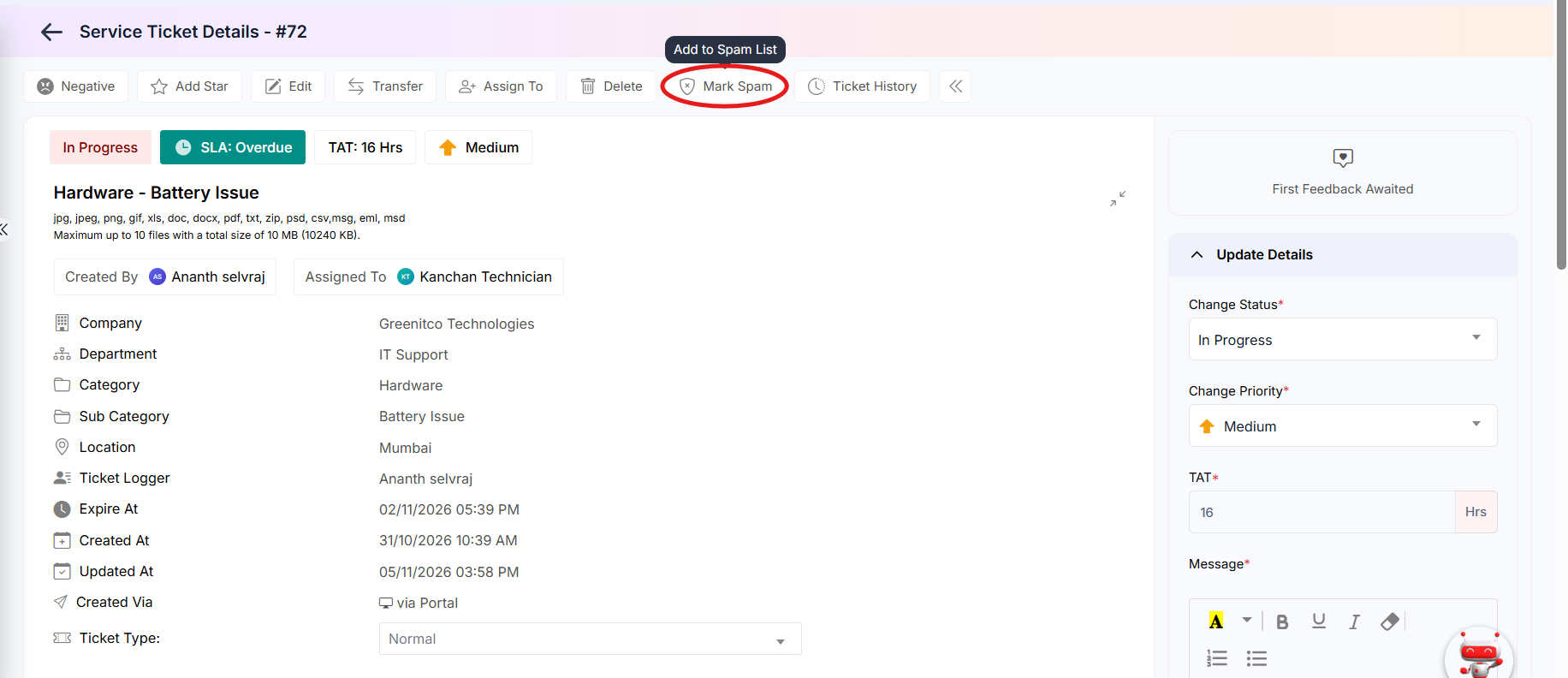
Step 1: Open the ticket and click Mark Spam in the action bar.
 Step 2: Confirm if prompted. The ticket moves to Sidebar > Ticket > Spam Tickets.
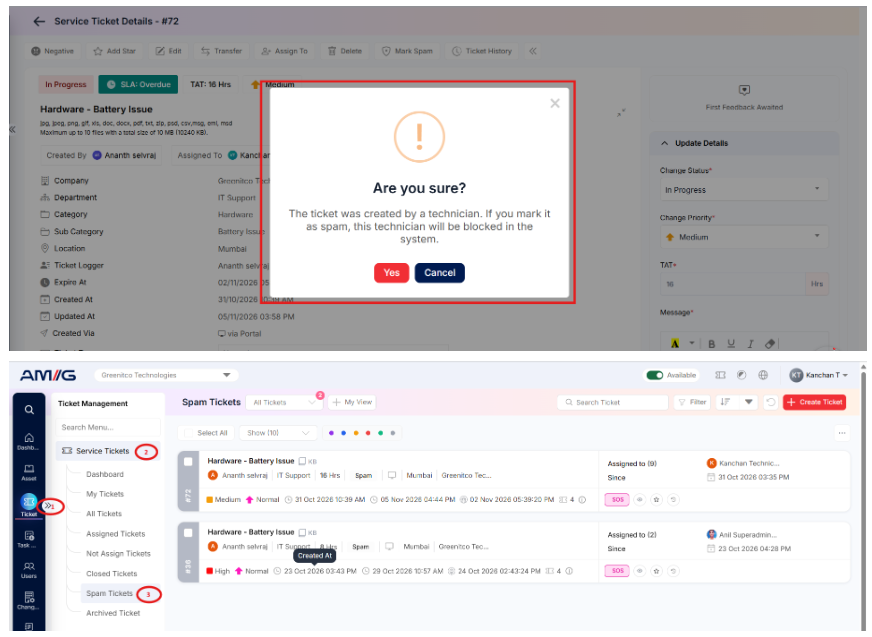
Reviewing spam tickets
Step 1: Open Sidebar > Ticket > Spam Tickets.
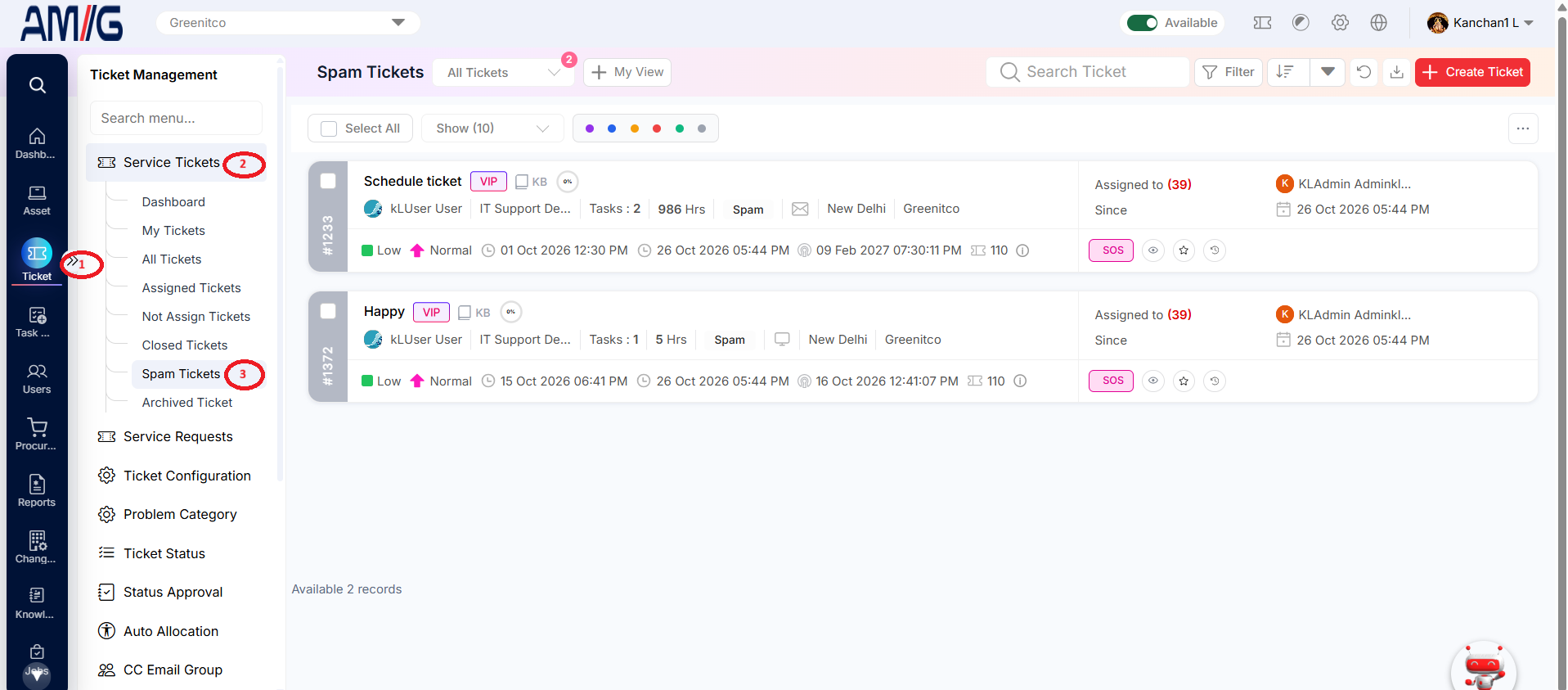
Step 2: Review the cards. Use Search, Filter, sorting and Refresh as on other lists. If "No tickets found" appears, clear the filters or refresh.
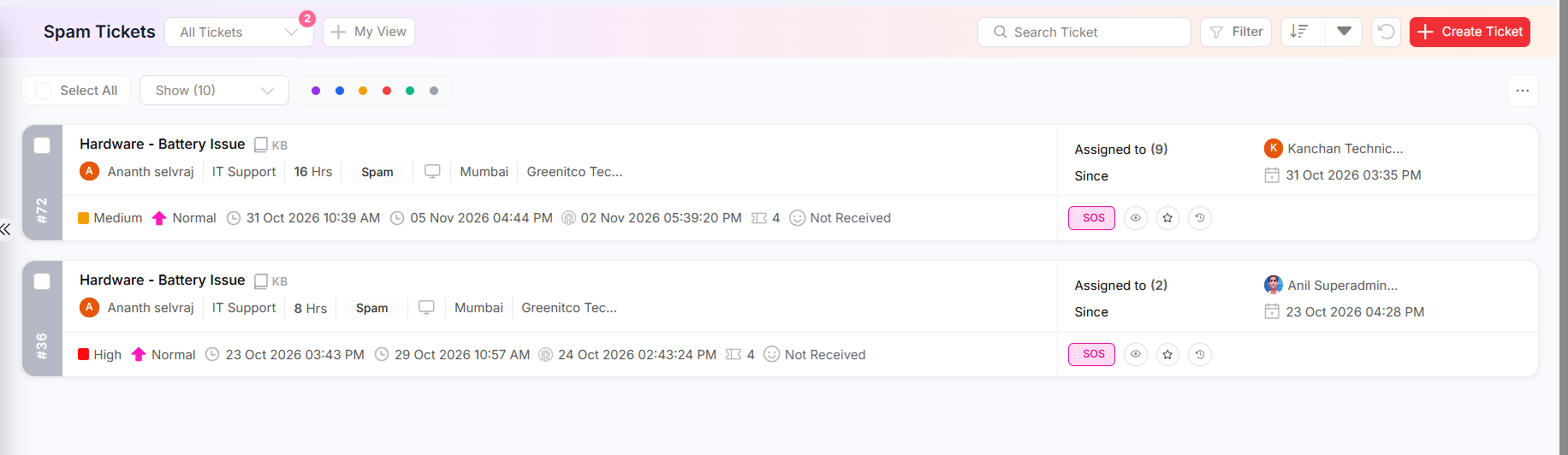
Figure 2.2.19: Spam Tickets list
Tip: If the same sender keeps creating spam tickets, ask your administrator to add a ticket trigger that deletes tickets from that address automatically.