

Introduction
Record a new incident when a major event occurs, and link the tickets it causes so they are tracked together.
Recording an incident
Step 1: Open Ticket Incident and click Add Incident. The form opens on the Basic tab.
Step 2: Select the Company, Department Impacted and Incident Reported By user.
Step 3: Enter the start and end date and time if known, and select the Problem Category and Priority.
Step 4: Set SLA Breached, enter the Service Impacted and Subject, and choose the Location. Select an Internal Place or related Ticket Number when applicable.
Step 5: Review the Incident Status, enter the Financial Loss Amount and Man Hour Loss, and describe the incident in Content.
Step 6: Open the Incident Management tab and complete RCA, Why Incident Happened and Preventive Measure Taken when known.
Step 7: Click Save.
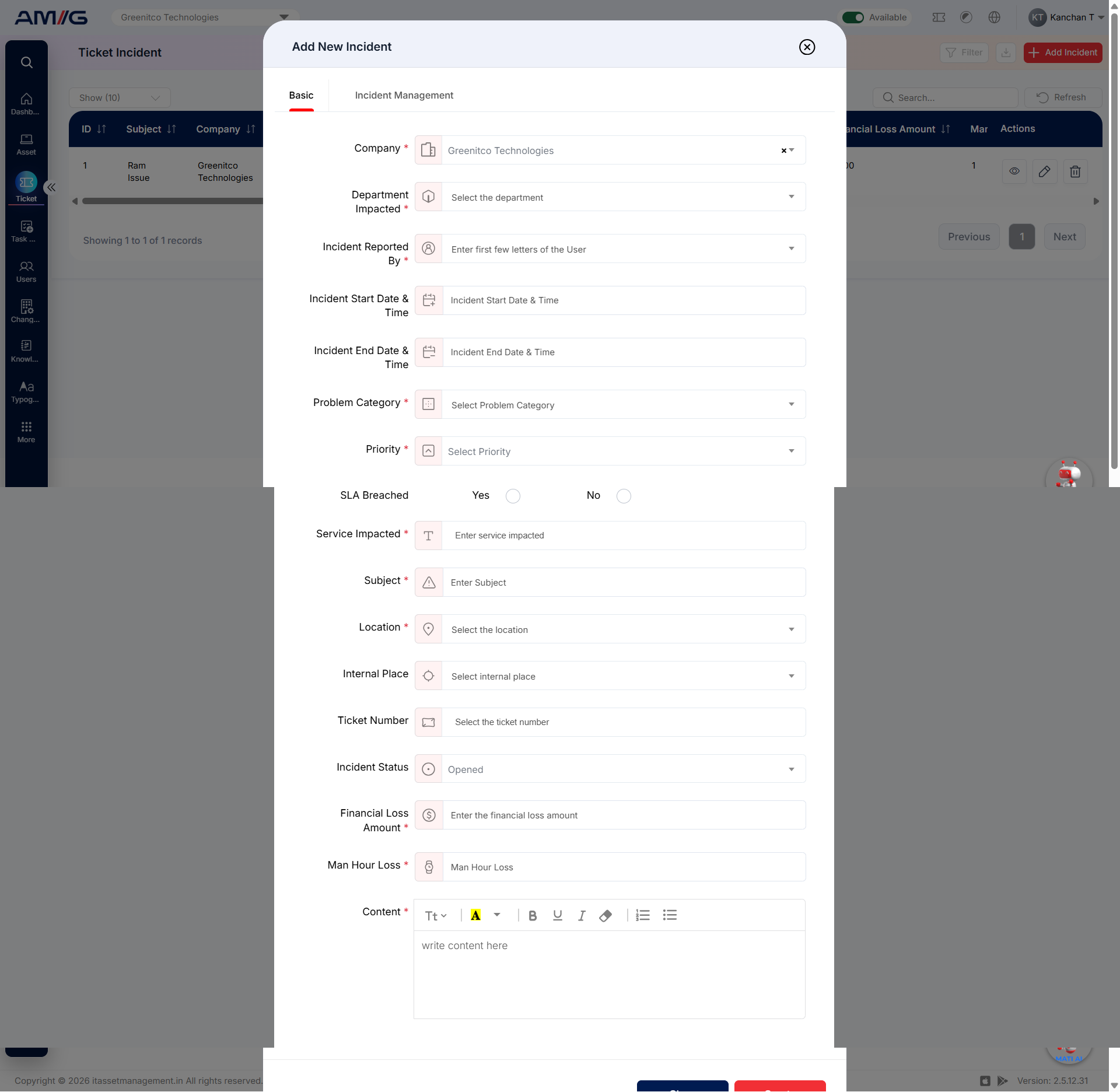
Figure 2.3.4: Add New Incident – Basic details
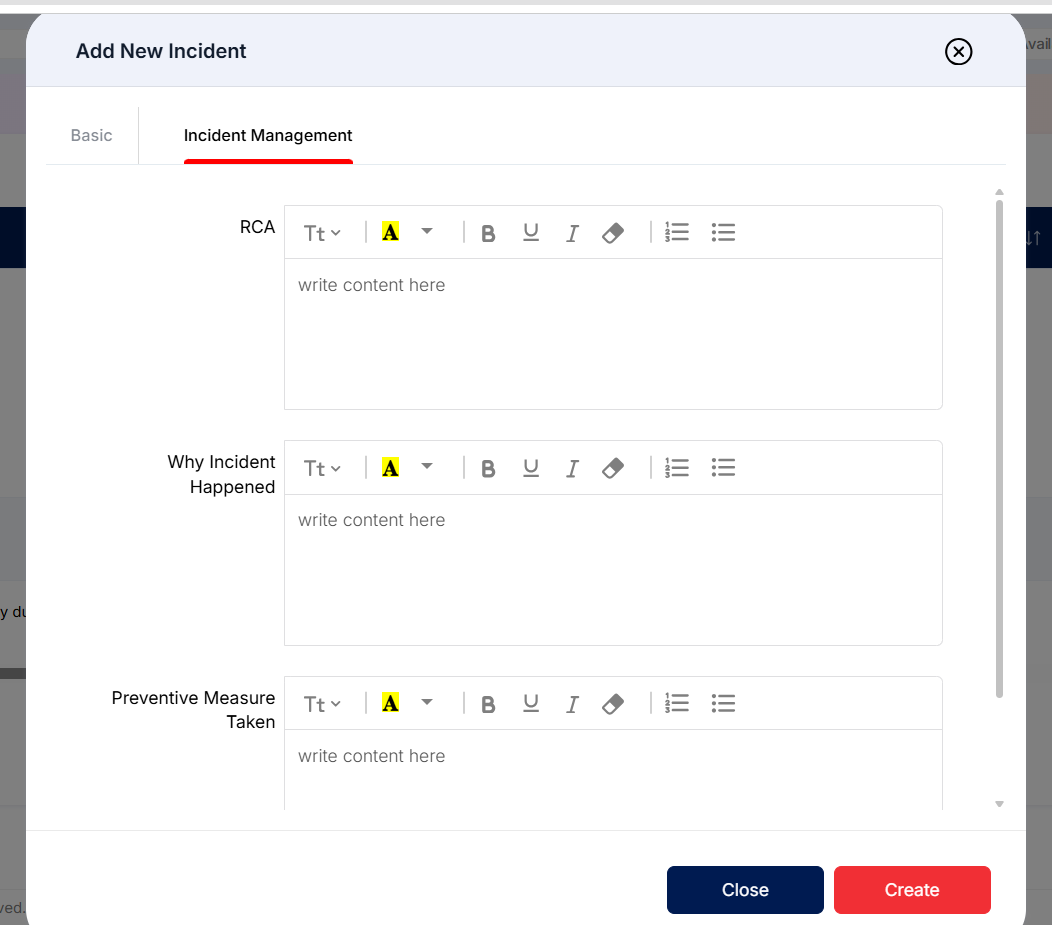
Figure 2.3.5: Add New Incident – Incident Management tab
Note: You can save the incident while it is still open and complete the RCA later by editing the record (Pencil icon).
Linking a ticket to an incident
Step 1: Open the ticket and select the Add to Incident Management checkbox.
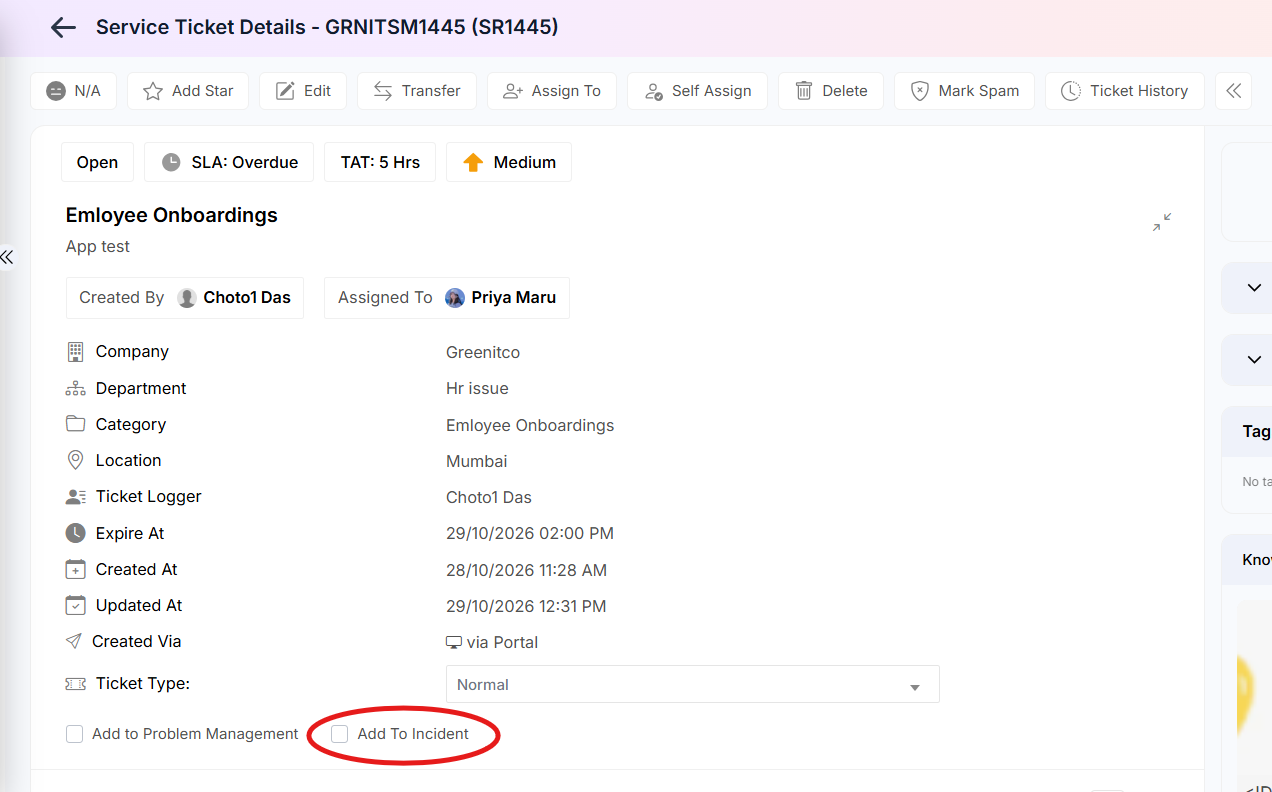
Step 2: In the pop-up, select the incident record from the drop-down.
Step 3: Click Save.
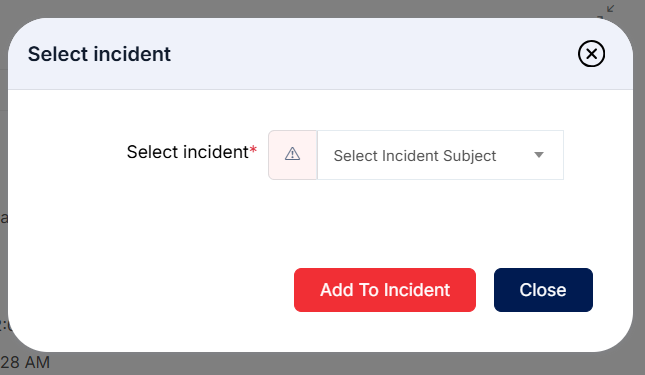
Figure 2.3.6: Select Incident dialog