

Introduction
The Ticket Handler Wise Report provides an overview of each ticket handler’s workload and performance. It helps management evaluate technician productivity by reviewing assigned and handled tickets, pending tickets, SLA breaches, feedback ratings, and ticket status distribution.
The report also helps identify workload distribution, monitor technician performance, and assess how effectively tickets are being handled and resolved.
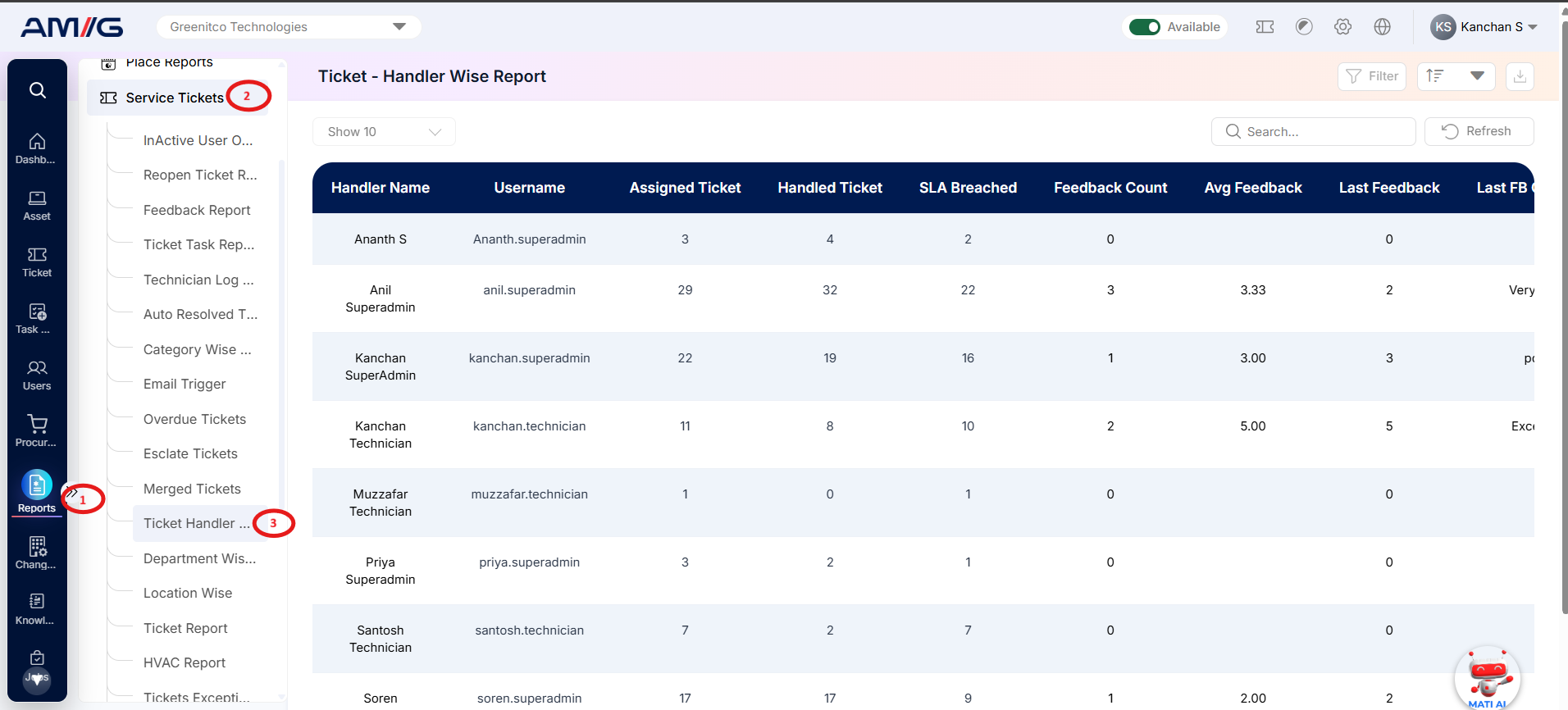
Navigation Path: Sidebar > Reports > Service Ticket > Ticket Handler Wise Report
Viewing the Report
Open Ticket Handler Wise Report from Sidebar > Reports > Service Ticket > Ticket Handler Wise Report. The report opens as a list.
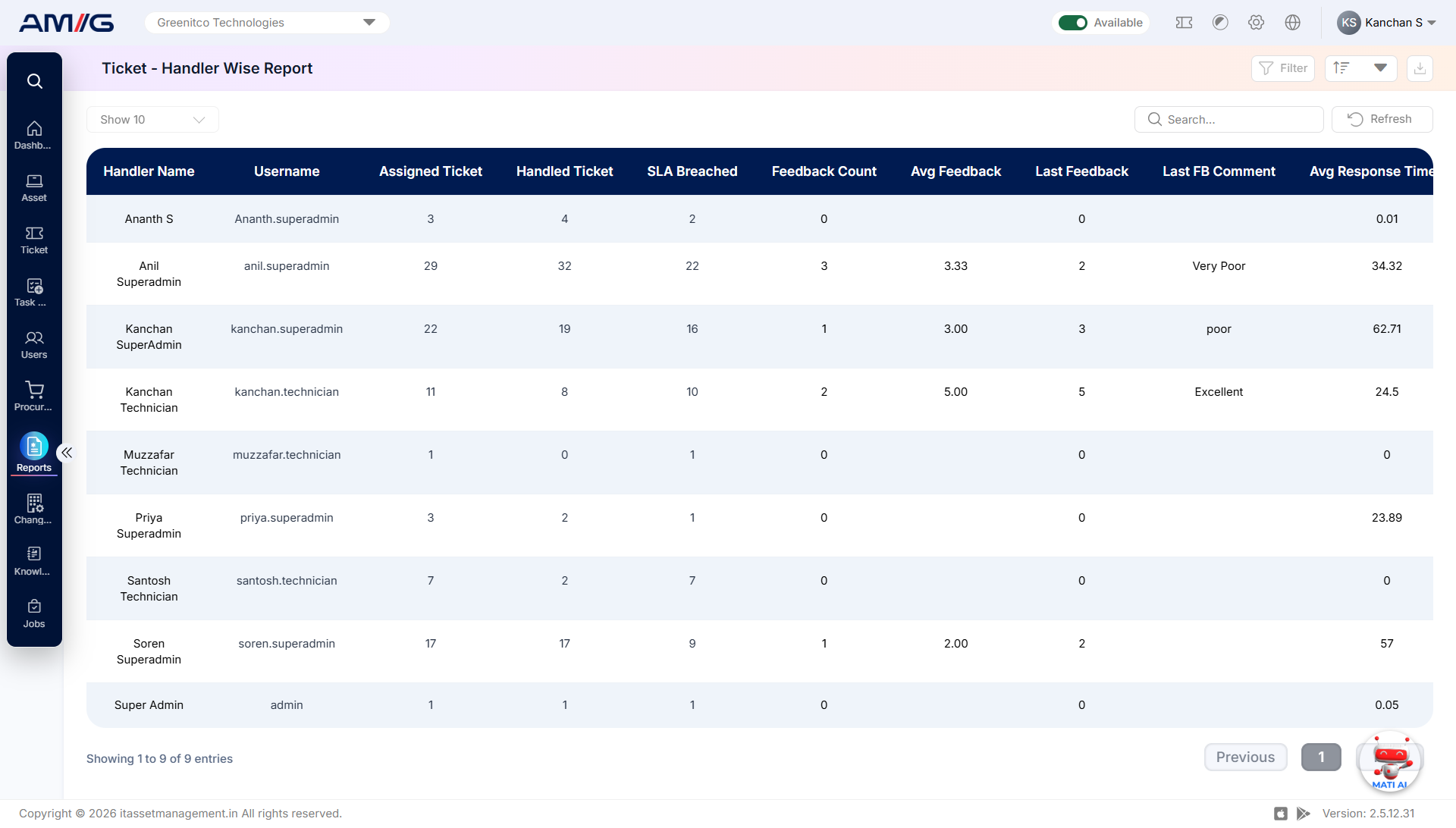
Figure 2.3.1: Ticket Handler Wise Report – report listing
Table 2.3.1: What each column shows
| Column | What it shows |
|---|---|
| Handler Name | The name of the technician or ticket handler. |
| Username | The username associated with the ticket handler’s AMG account. |
| Assigned Ticket | The number of tickets assigned to the ticket handler. |
| Handled Ticket | The number of tickets handled by the ticket handler. |
| SLA Breached | The number of tickets handled by the ticket handler that breached the applicable SLA. |
| Feedback Count | The number of feedback responses recorded for the ticket handler. |
| Avg Feedback | The average feedback rating received by the ticket handler. |
| Last Feedback | The most recent feedback rating recorded for the ticket handler. |
Further feedback columns are available by scrolling to the right.
Filtering the Report
Step 1: Click Filter at the top-right of the report. The filter panel opens.
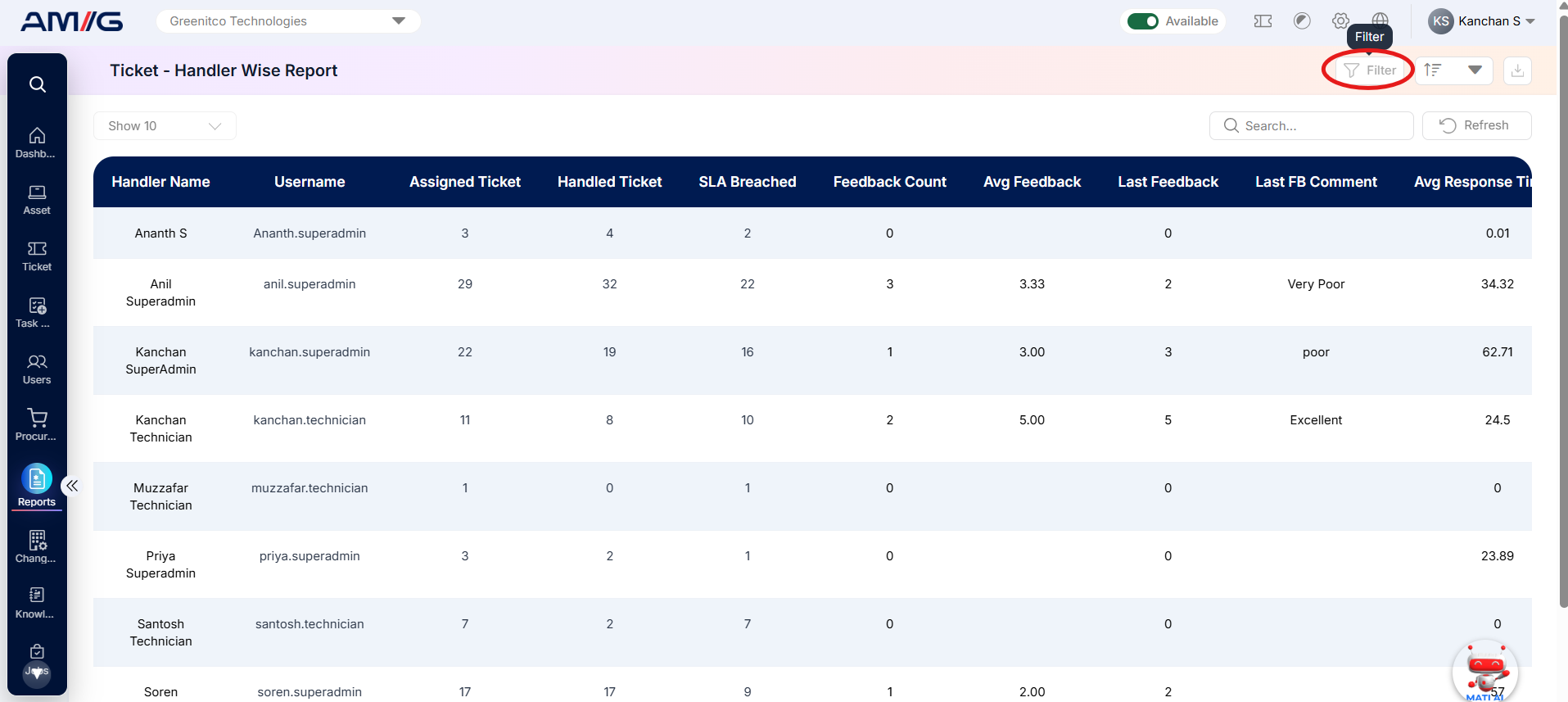 Step 2: Choose the values you need in one or more of the filters listed below.
Step 3: Click Filter (or Apply Filter) to update the report. Click Clear to remove all filters.
Table 2.3.2: Available filters
| Filter | What it does |
|---|---|
| Ticket Handler | Displays report records for the selected technician or ticket handler. |
| Location | Filters ticket handler records based on the selected location. |
| Date | Filters report data based on the selected date. |
| Date Range | Displays report data within the specified start and end dates. |
| Pending Ticket More Than Days | Filters ticket handlers based on tickets that have remained pending for more than the specified number of days. |
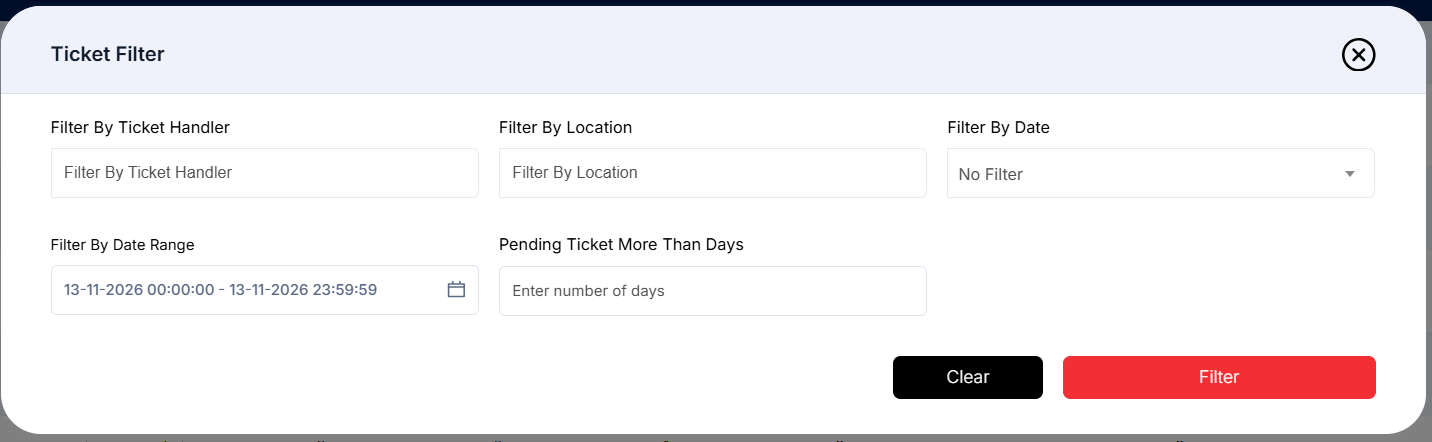
Figure 2.3.2: Ticket Handler Wise Report – filter panel
Sorting the Report
Click the Sort button at the top-right corner of the report to view the available sorting options. Select the desired column to sort the report records.
The available sorting options are:
Handler Name
Assigned Ticket
Username
Pending Ticket
The sorting options also include individual ticket status values, allowing you to sort the report based on the number of tickets in each status.
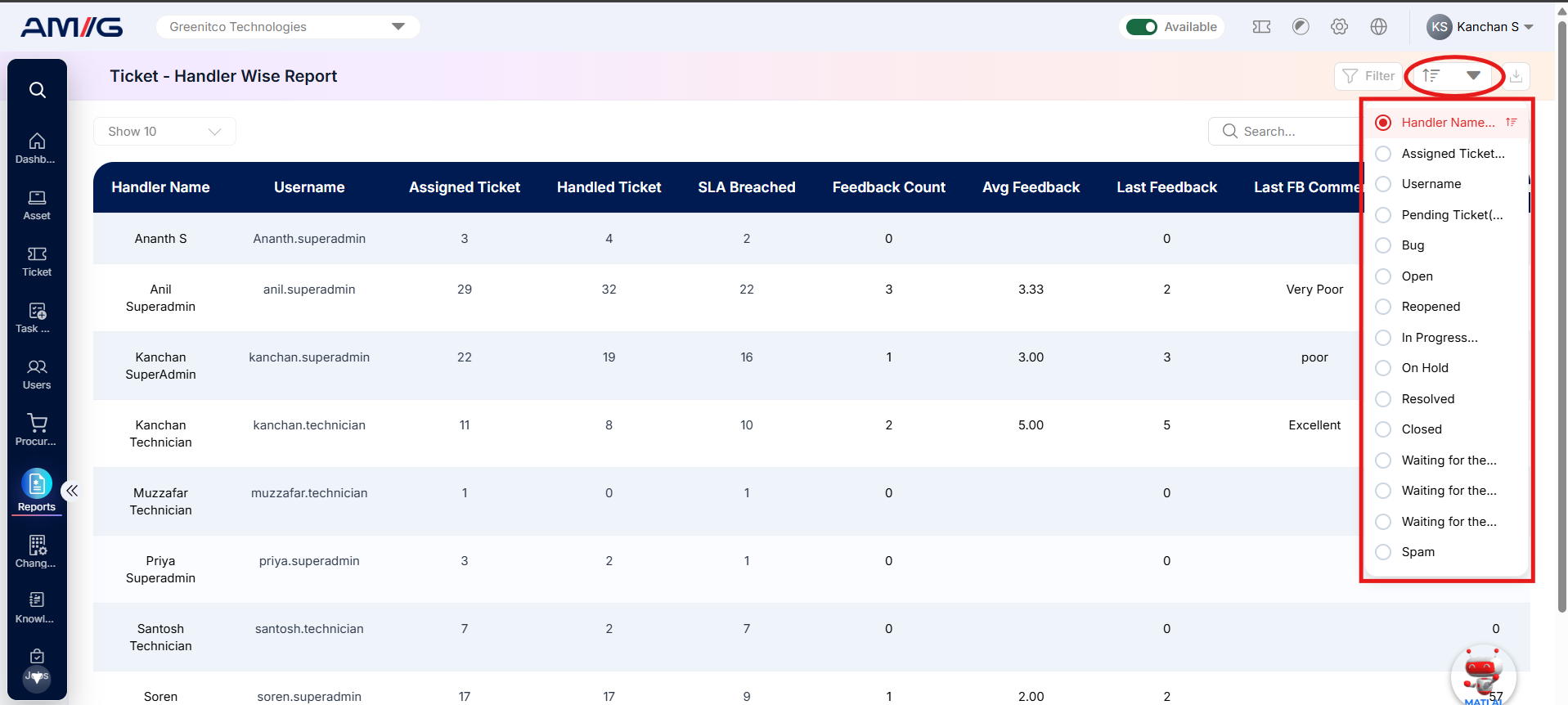
Figure 2.3.3: Ticket Handler Wise Report – sort options