

Introduction
A service request moves through the following stages:
Step 1: The request is submitted under a problem category that requires approval.
Step 2: It is routed to the Service Request Approval Team (SRAT) configured for that category. Approval can be by group, a minimum number of approvers, the manager or the department head.
Step 3: Approvers review the request in My Approvals and record their decisions with comments.
Step 4: When the required approvals are received, a service ticket is created and handled like any other ticket.
Tracking a request
Step 1: Open My Service Requests, All Service Requests or My Approvals. Each card shows the subject and ID, requester, department, date, company, approval requirement, Status, Authority Board and Last Update.
Step 2: Click View Details to open the request.
Step 3: Review the summary, then the Approvals tab (approver, decision, date, elapsed days, comments) and the Conversations tab.
Step 4: Use Service Ticket to open the ticket created after approval, History for the timeline, Print for a copy and View Form for the submitted dynamic form.
Figure 2.6.2: Service Request details and approvals
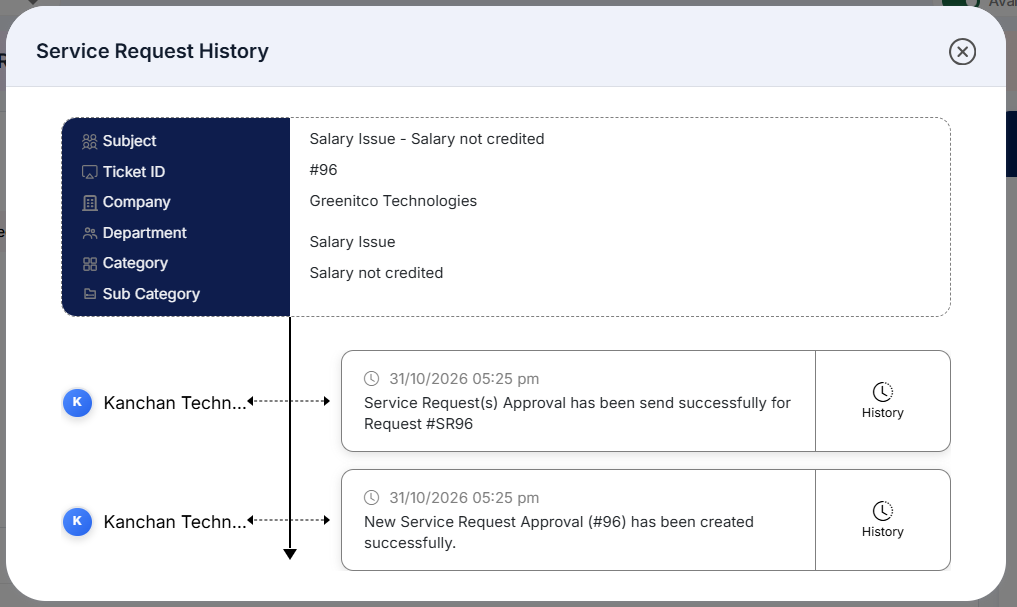
Figure 2.6.3: Service Request History timeline
Approving requests (SRAT members)
Step 1: Open My Approvals and click View Details on the request.
Step 2: Review the request, the submitted form and any earlier approvals.
Step 3: Record your decision with a comment.
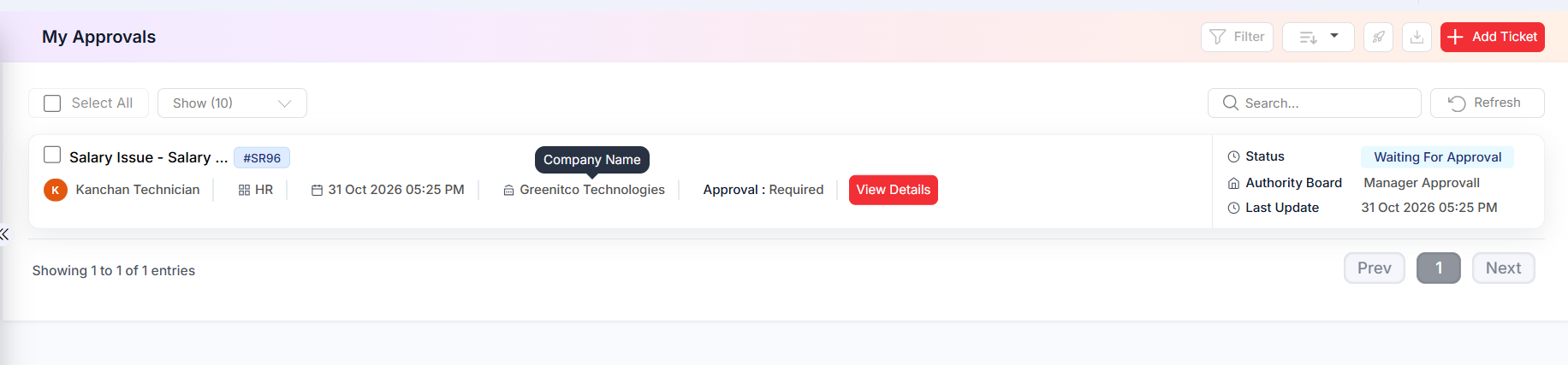
Figure 2.6.4: My Approvals list
To decide on several requests at once from All Service Requests, select them, open the bulk-decision action, check the listed approval IDs, select the status, enter the required comment and click Submit.
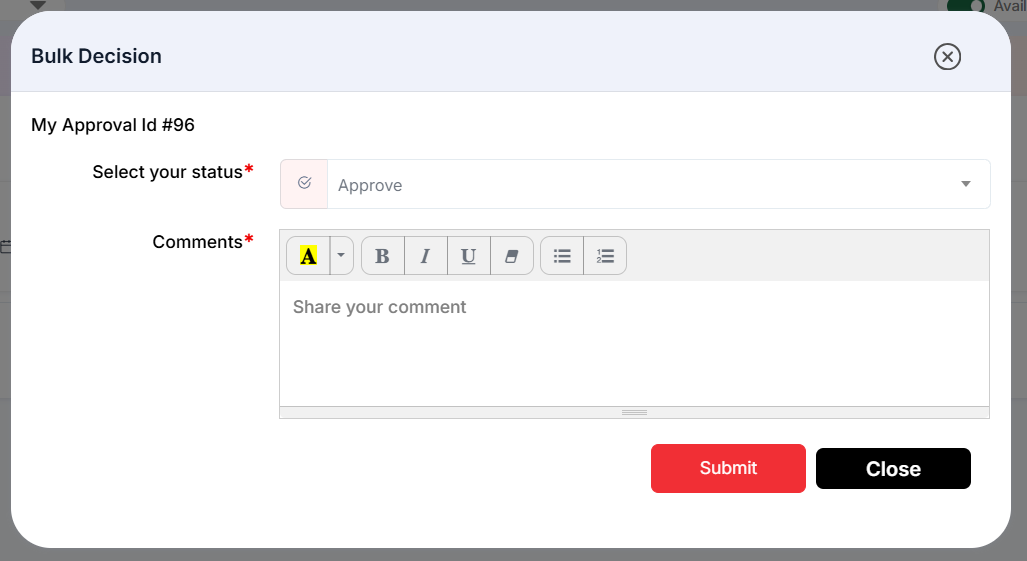
Figure 2.6.5: Bulk Decision dialog
Filtering requests
Click Filter on any request list to filter by status, department, problem category or subcategory, authority board, current authority board, approval mode, approver, VIP ticket, date or date range. Click Apply, or Clear to reset.
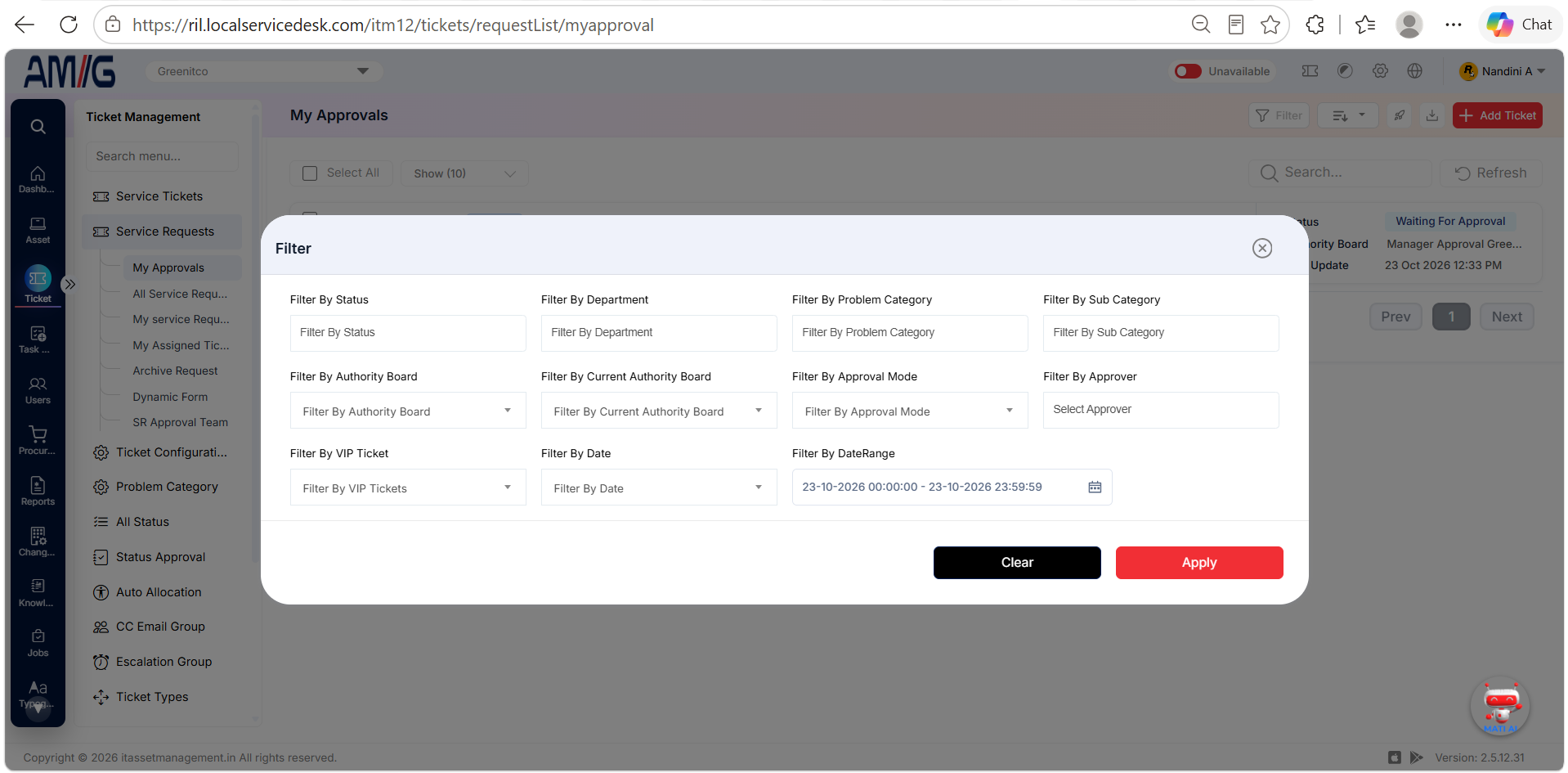
Figure 2.6.6: Service Request filter dialog