

Introduction
The Service Ticket section contains the tools found under Sidebar > Ticket. They control how tickets are raised, routed, approved, escalated, automated and reported, and most of them build on the companies, departments, locations, users and custom fields set up in Config (Section 2).
Together, these modules shape the full life of a ticket: how it is created (manually, by email or on a schedule), which category, status and type it carries, who it is assigned or escalated to, and how technician performance is measured.
Navigation Path: Sidebar > Ticket > Service Ticket > select the required ticket list
Table 2.2.1: Ticket lists
| List | What it contains |
|---|---|
| My Tickets | Tickets you have created, including those you logged on behalf of others. |
| All Tickets | Tickets across the organisation that you are authorised to see, including those available through your department access. |
| Assigned Tickets | Tickets assigned to you. This is usually your main working list. |
| Not Assigned Tickets | Tickets that do not yet have a technician. Pick up work from here. |
| Spam Tickets | Tickets that have been marked as spam. |
| Archived Ticket | Older, closed tickets that have been archived. |
Viewing a ticket list
Step 1: Open the required list, for example Sidebar > Ticket > Assigned Tickets. The ticket cards appear in the main work area.
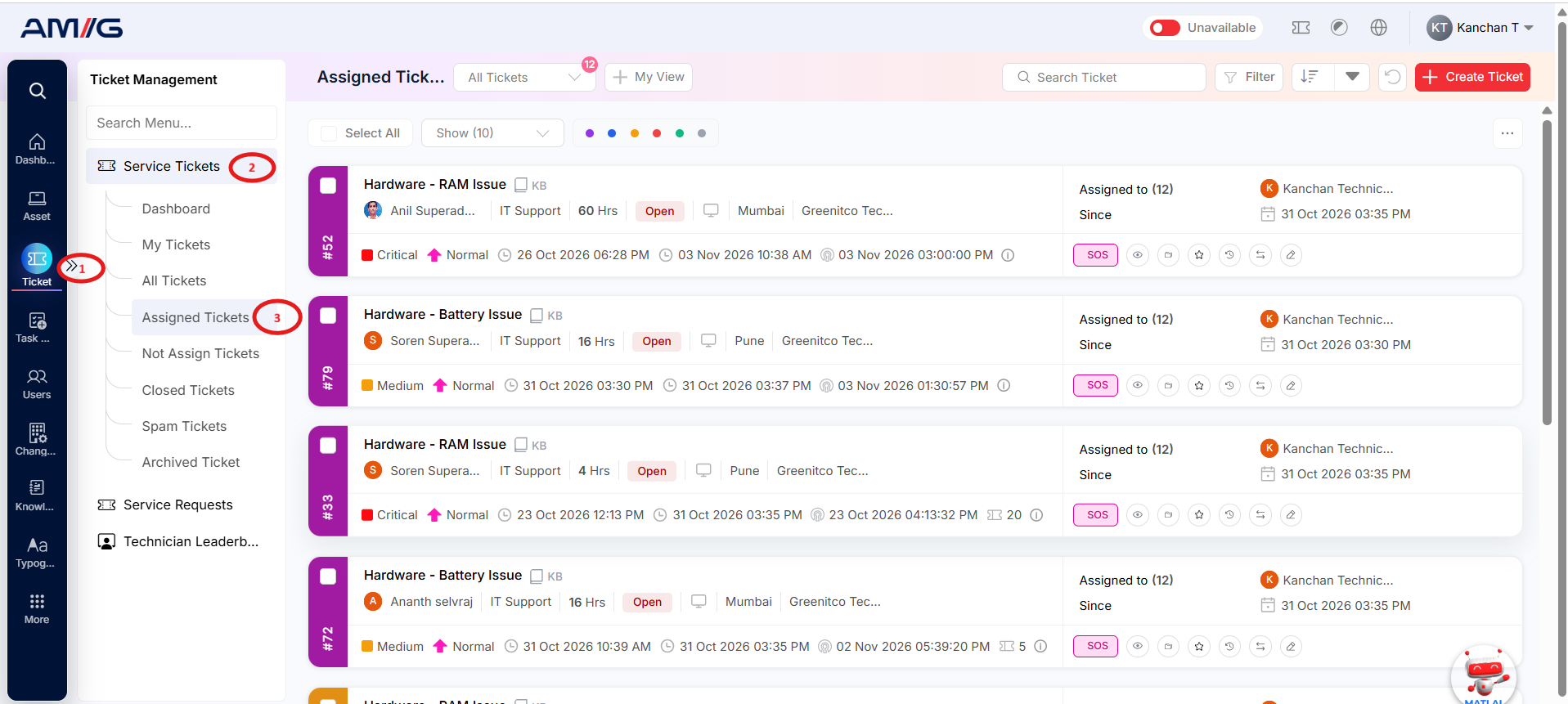
Step 2: Review each card for the ticket subject and ID, requester, department, task count, TAT, status, location, company and assignment details. On Assigned Tickets, the card also shows the assignee and the Since date.
Step 3: Use Search Ticket to find a ticket by a relevant term. Use Filter to narrow the list and the sorting controls to order it.
Step 4: Use the page-size selector, pagination and Refresh to navigate or reload the list. Use Select All or the checkboxes when you need to act on several tickets at once.
Step 5: Click the ticket subject to open the Ticket Details screen.
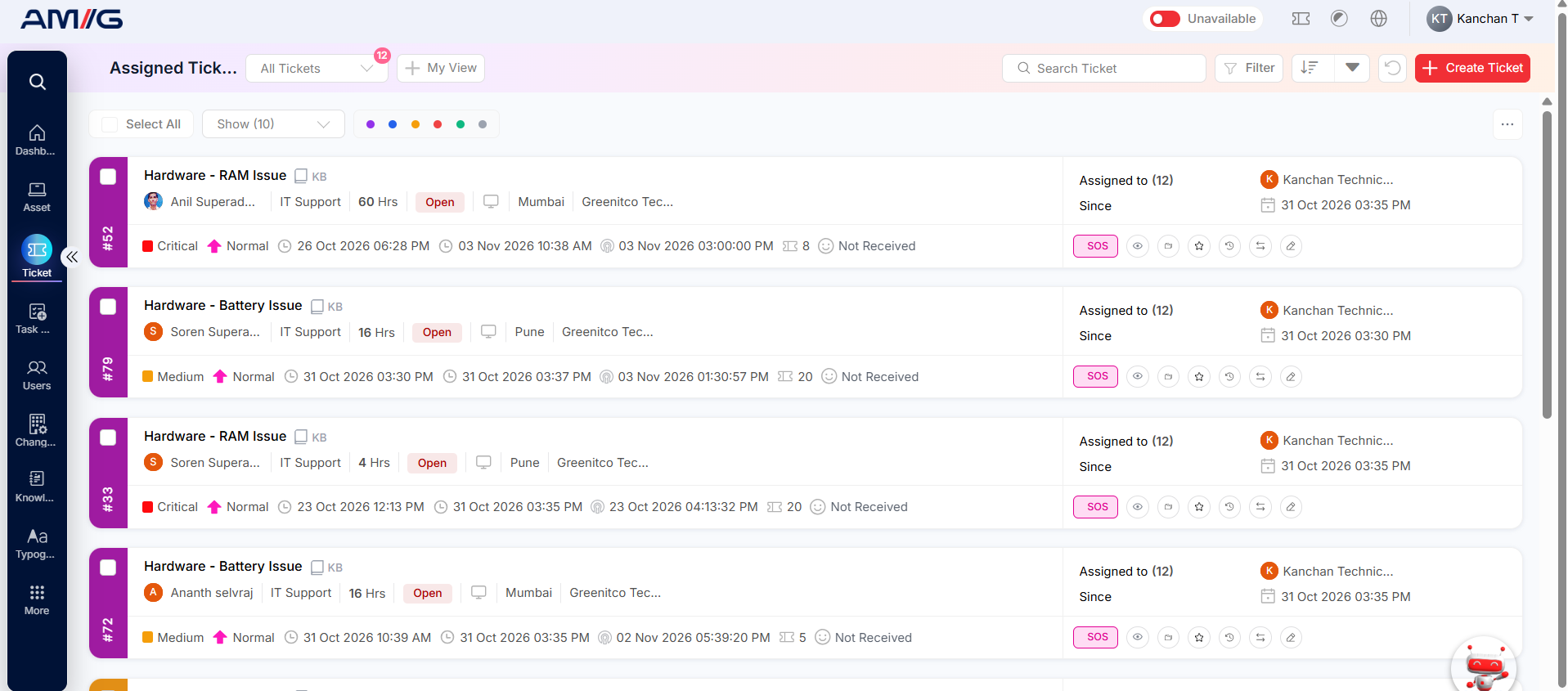
Figure 2.2.1: Assigned Tickets list
Table 2.2.2: Ticket list elements
| Element | Purpose |
|---|---|
| Ticket card | Shows the subject, ticket ID, requester, department, task count, TAT, status, device and channel indicators, location, company and activity timestamps. |
| Assignment area | Shows the assignee or Unassigned, the assignment count and the date from which the current assignment applies. |
| Search Ticket | Finds tickets that match the entered search term. |
| Filter and sorting controls | Narrow the list or order tickets using supported ticket attributes. |
| Card action icons | Open ticket details or perform available actions such as history, transfer or edit, subject to permissions. |
| Select All / checkboxes / More (...) | Select one or more tickets and open the bulk actions (assign, merge, delete). |