Introduction
The Service Request Report provides a consolidated view of service requests created through the AMG portal as part of the defined service request workflow. It lists submitted requests along with their classification details, including the associated department, problem category, subcategory, and the user who created the request.
The report helps management and administrators review service requests raised through the portal and understand the nature and distribution of requests across different departments and categories. By presenting request-related information in a structured format, it provides visibility into the types of services being requested, the departments associated with them, and the users initiating those requests.
This report supports the monitoring and review of service request activity within the organisation. It helps management analyse request volumes, identify commonly requested services, understand demand across departments, and review the overall service request records for appropriate follow-up and workflow management.
Overall, the Service Request Report offers a centralised view of service requests created in AMG, helping administrators and management maintain visibility into request activity and make informed operational decisions.
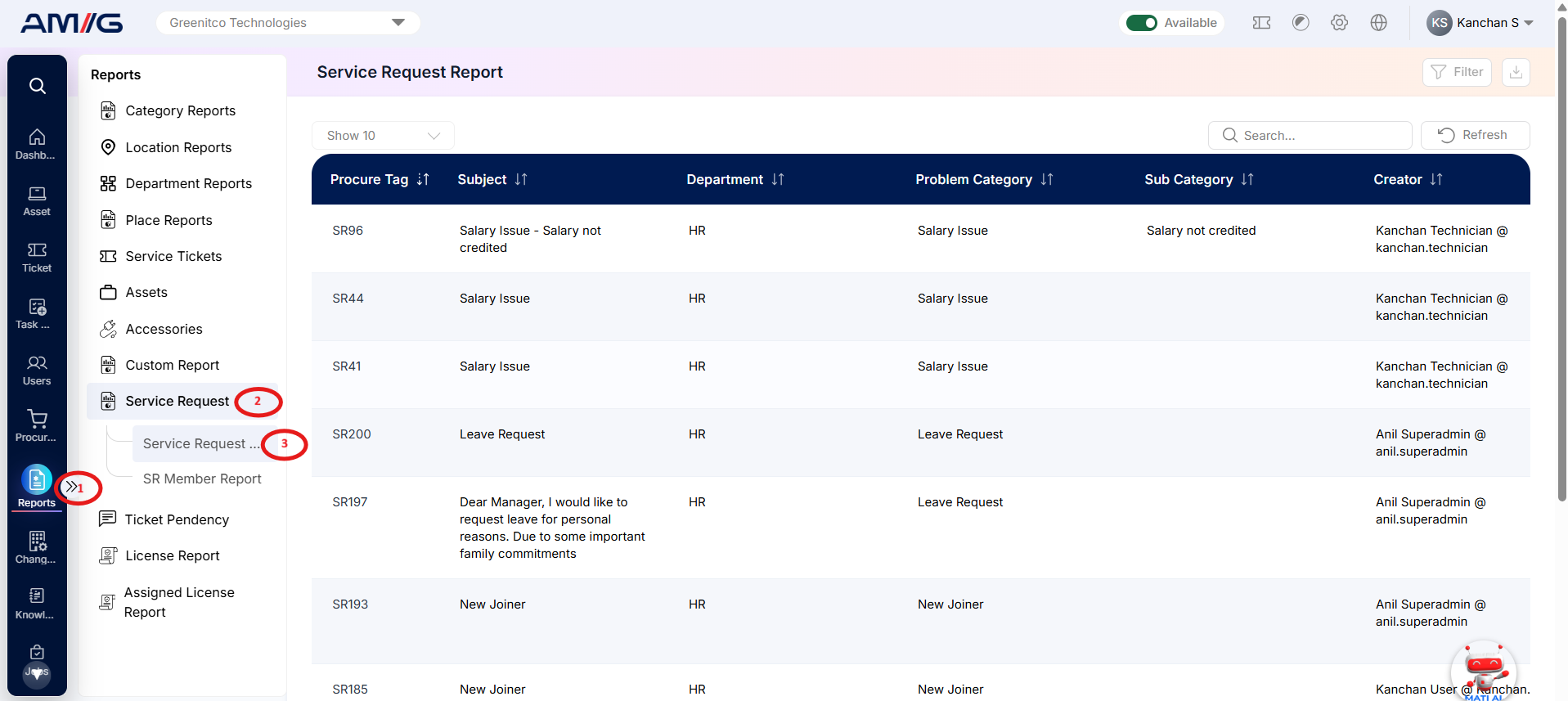
Navigation Path: Sidebar > Reports > Service Request > Service Request Report
Viewing the Report
Open Service Request Report from Sidebar > Reports > Service Request > > Service Request Report. The report opens as a list.
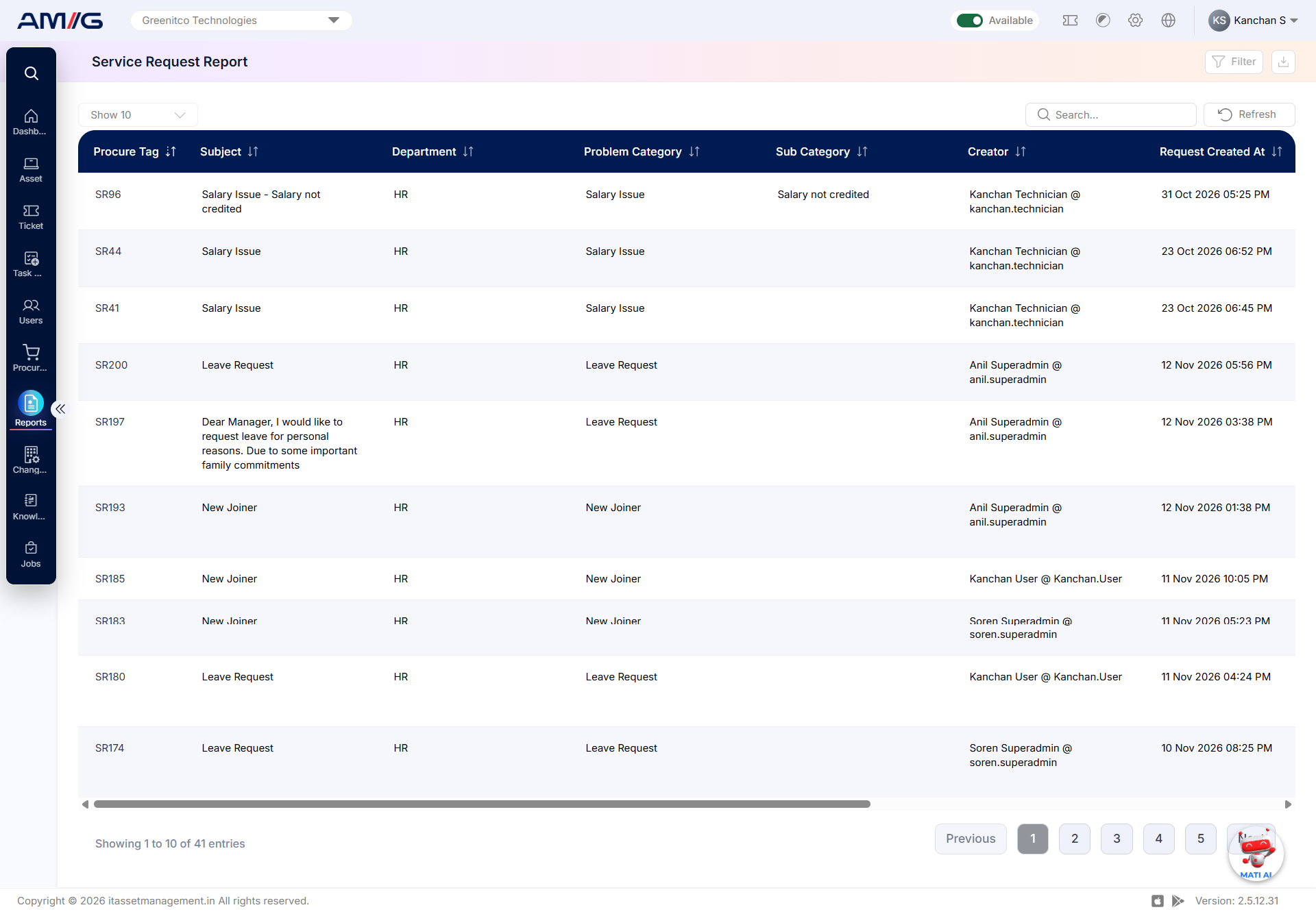
Figure 2.9.1: Service Request Report – report listing
Table 2.9.1: Report columns
| Column | What it shows |
|---|---|
| Procure Tag | Displays the procurement tag associated with the service request, helping identify requests related to procurement. |
| Subject | Displays the subject or title of the service request, providing a brief description of the requirement submitted. |
| Department | Displays the department associated with the service request. |
| Problem Category | Displays the primary problem category assigned to the service request for classification. |
| Sub Category | Displays the specific subcategory associated with the problem category, providing further classification of the request. |
| Creator | Displays the name of the user who created and submitted the service request through the AMG portal. |
Filtering the Report
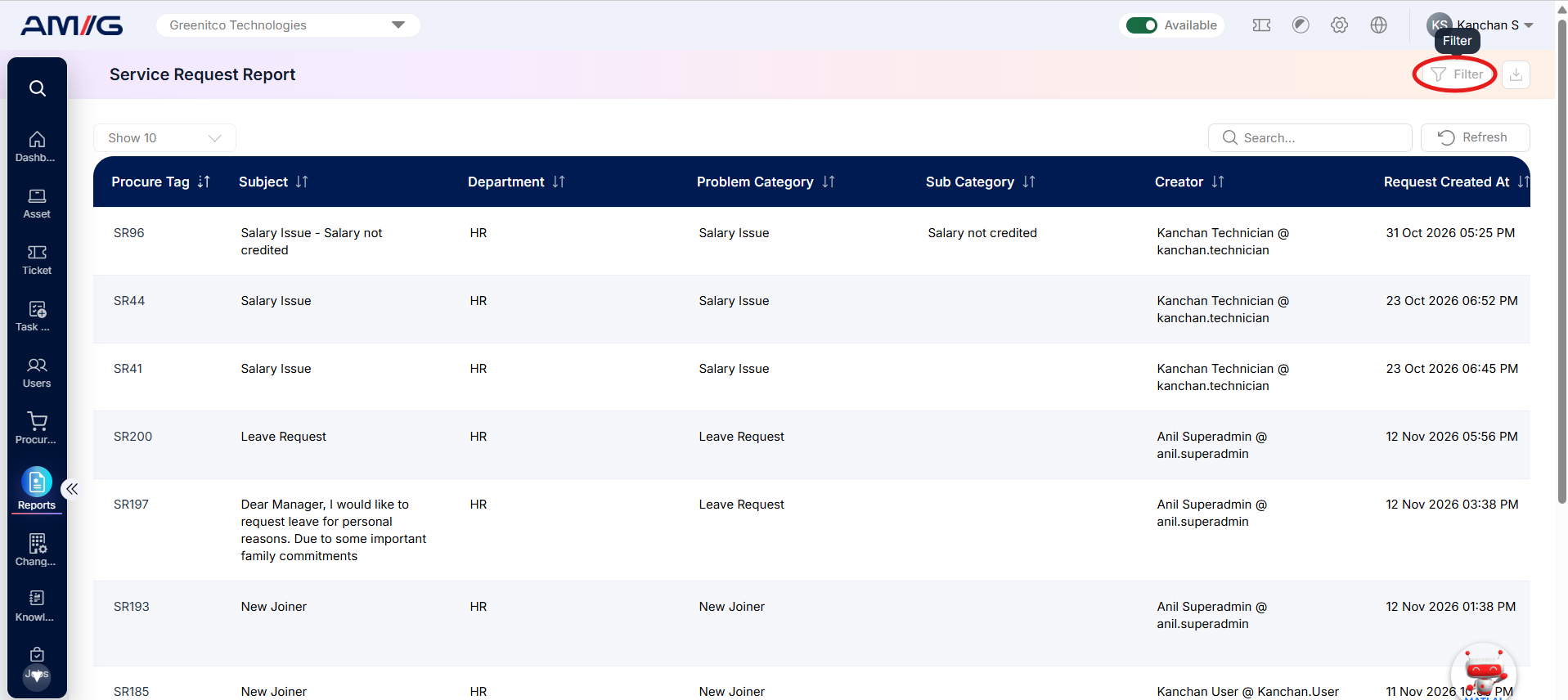
Step 1: Click Filter at the top-right of the report. The filter panel opens.
 Step 2: Choose the values you need in one or more of the filters listed below.
Step 3: Click Filter (or Apply Filter) to update the report. Click Clear to remove all filters.
Table 2.9.2: Available filters
| Filter | What it does |
|---|---|
| Department | Filters service requests based on the selected department. |
| Problem Category | Displays service requests classified under the selected problem category. |
| Sub Category | Narrows down the report to service requests associated with the selected problem subcategory. |
| Status | Filters service requests based on their current workflow status, helping users review requests at different stages of processing. |
| Ticket Creator | Displays service requests submitted by the selected user. |
| Authority Board | Filters service requests associated with the selected Authority Board, helping users review requests handled through a particular approval authority. |
| Date | Filters report records based on the selected date criteria. |
| Date Range | Displays service requests recorded within the specified start and end dates. |
Note: The Ticket Creator filter is used to identify requests based on the user who submitted them, while the Authority Board filter helps narrow the results based on the associated approval authority.
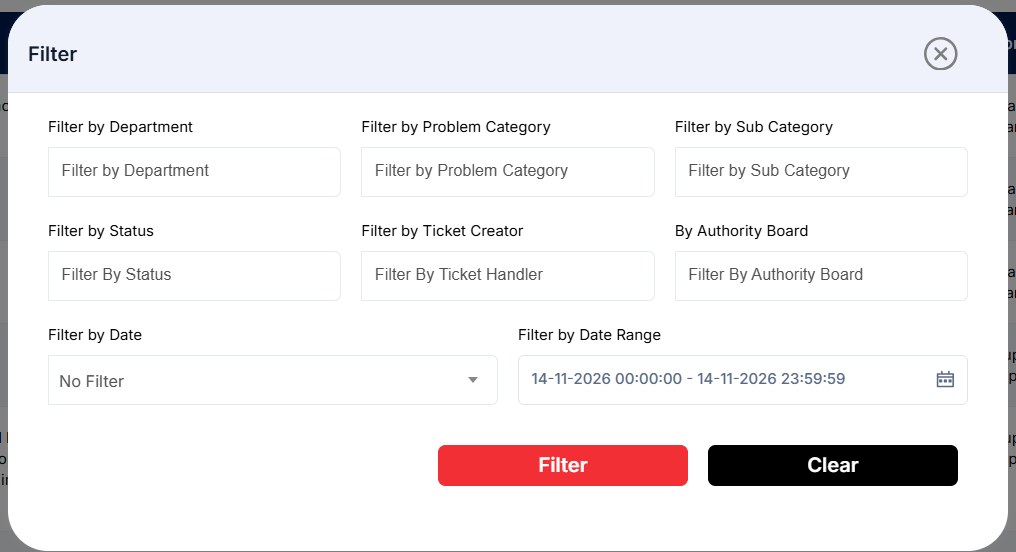
Figure 2.9.2: Service Request Report – filter panel
Sorting the Report
Click a column header to sort by Procure Tag, Subject, Department, Problem Category, Sub Category or Creator.