

Introduction
Merge tickets when several tickets describe the same issue, for example when a user emails twice or several people report the same fault. Merging keeps one primary ticket and combines the others into it, so the issue is handled once.
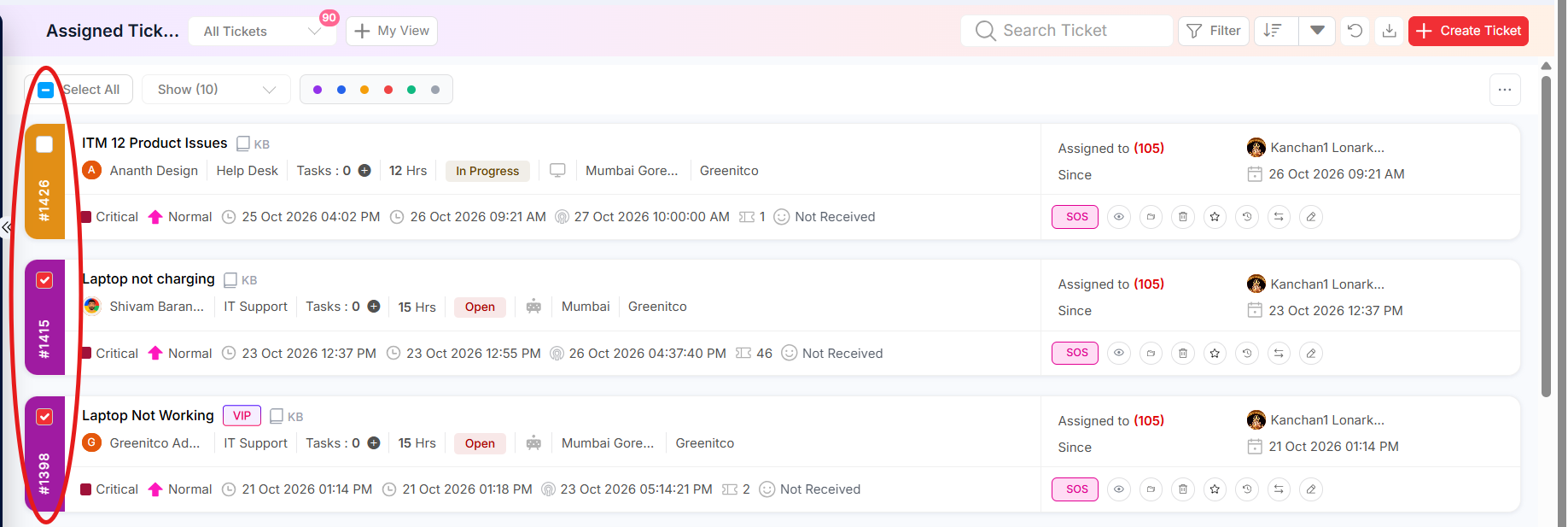
Step 1: In the ticket list, select the checkboxes beside the tickets you want to merge.
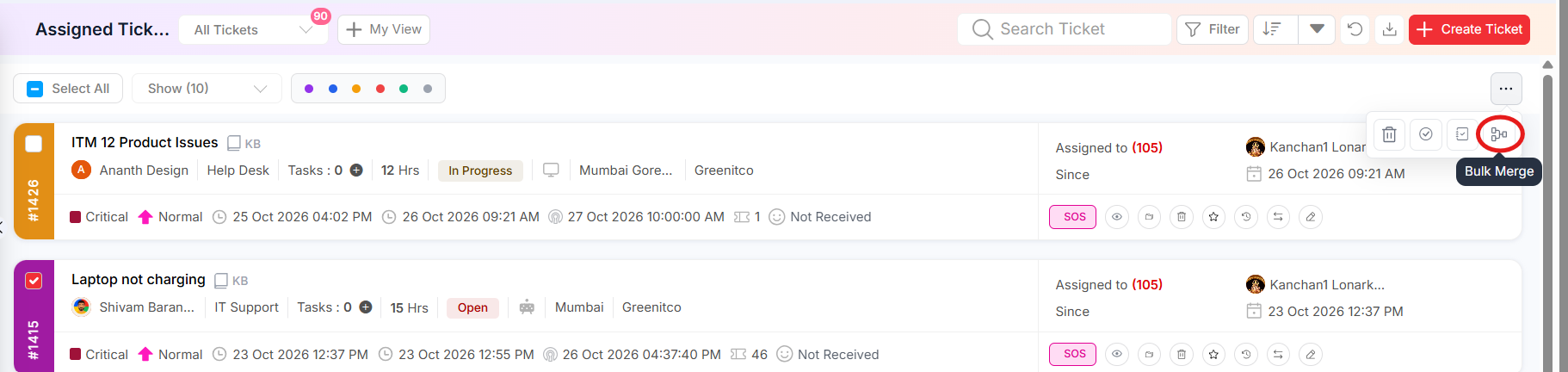
Step 2: Click the More (...) control to display the bulk-action toolbar.
Step 3: Click the Bulk Merge icon. The dialog shows the primary and secondary tickets.
Step 4: If needed, set a different ticket as the primary ticket. Usually this is the oldest ticket or the one with the most information.
Step 5: Confirm the merge and review the updated list.
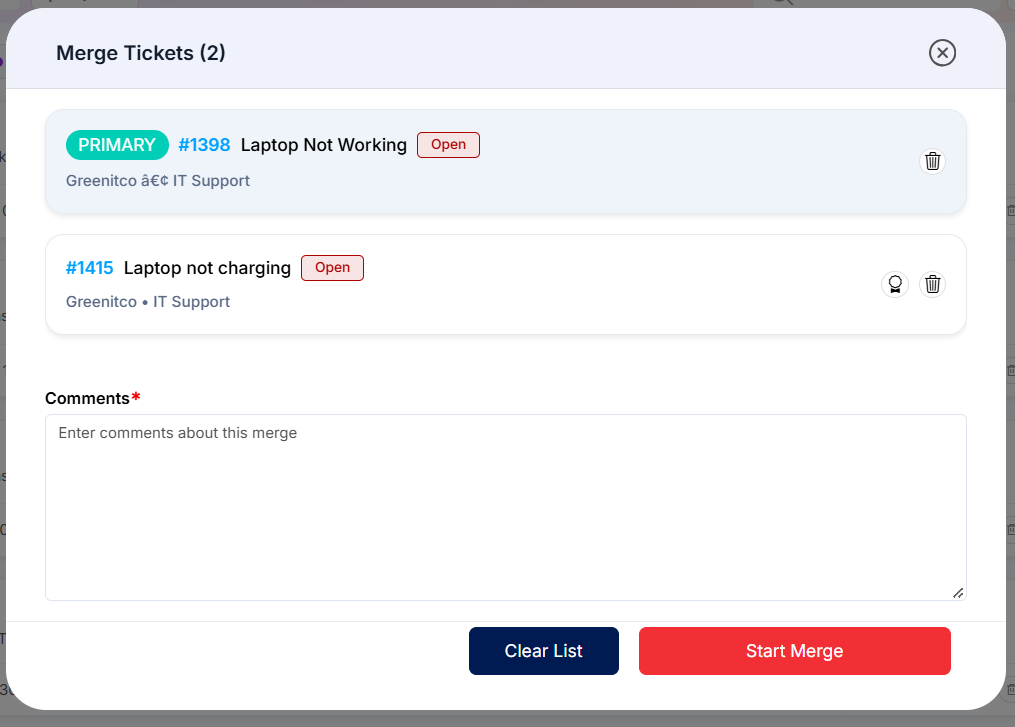
Figure 2.2.18: Merge Tickets dialog
Important: Check the selected tickets carefully before merging. Only merge tickets that really describe the same issue.