

Introduction
The Archived Tickets section provides access to older tickets that have been archived. It keeps archived records separate from active ticket lists while allowing authorized users to review ticket details and history when needed.
Resolved tickets are automatically closed after three days. You can configure when closed tickets should be archived by navigating to Sidebar > Ticket > Ticket Configuration and setting the Auto Archive Ticket After X Days option.
Once tickets meet the configured archival criteria, they are moved to the Archived Tickets section, helping keep active ticket lists organized and manageable.
Users can click a ticket subject to review its details and available history. Access to archived records and the actions available depend on the user's role and permissions.
Navigation Path: Sidebar > Ticket > Service Ticket > Archived Tickets
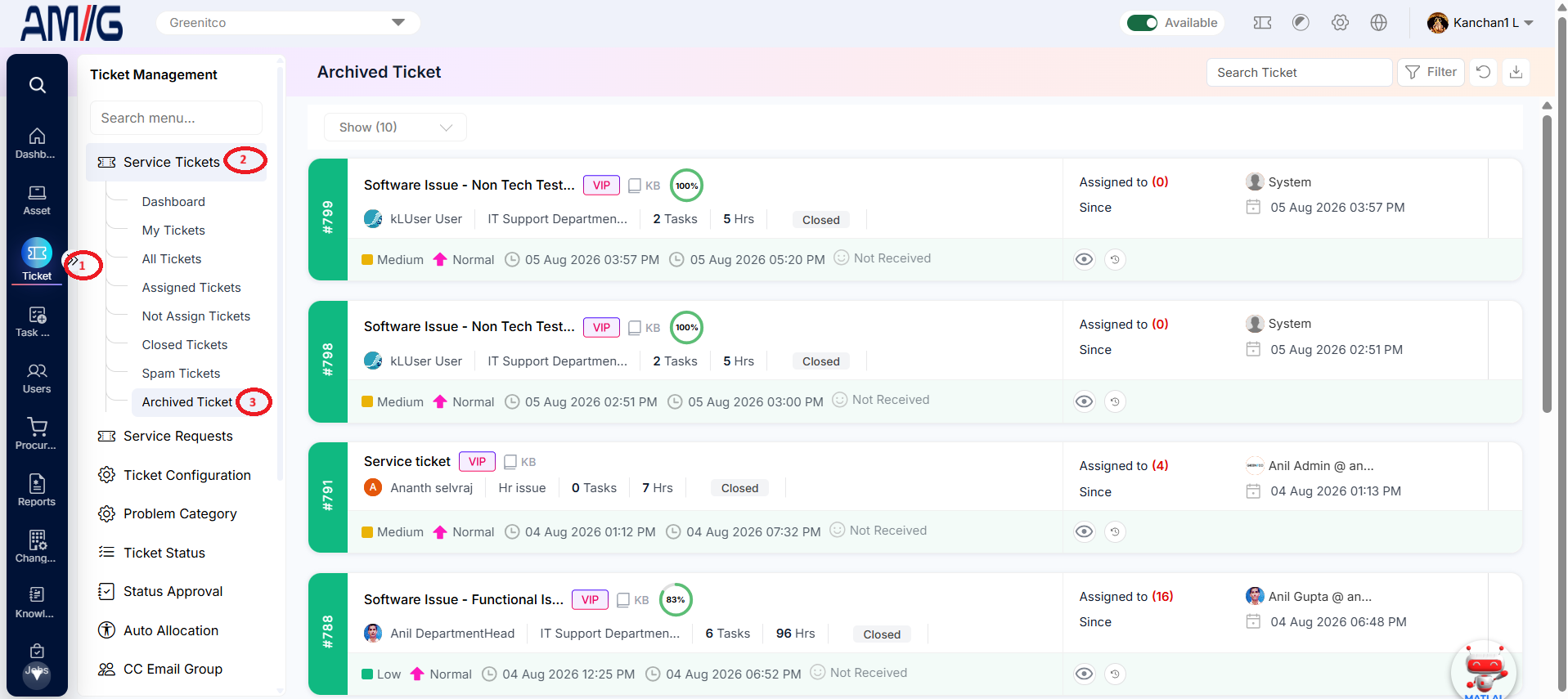
Viewing Archived Tickets
Step 1: Open Archived Ticket.
Step 2: Use Search Ticket or Filter to find the record. Cards show the ticket ID, subject, VIP and knowledge-base indicators, requester, department, TAT, status, timestamps and assignee.
Step 3: Click the View icon to open the ticket and review its summary, related tasks, conversation, feedback, tags, timeline and people.
Step 4: Click Ticket History for the full audit trail.
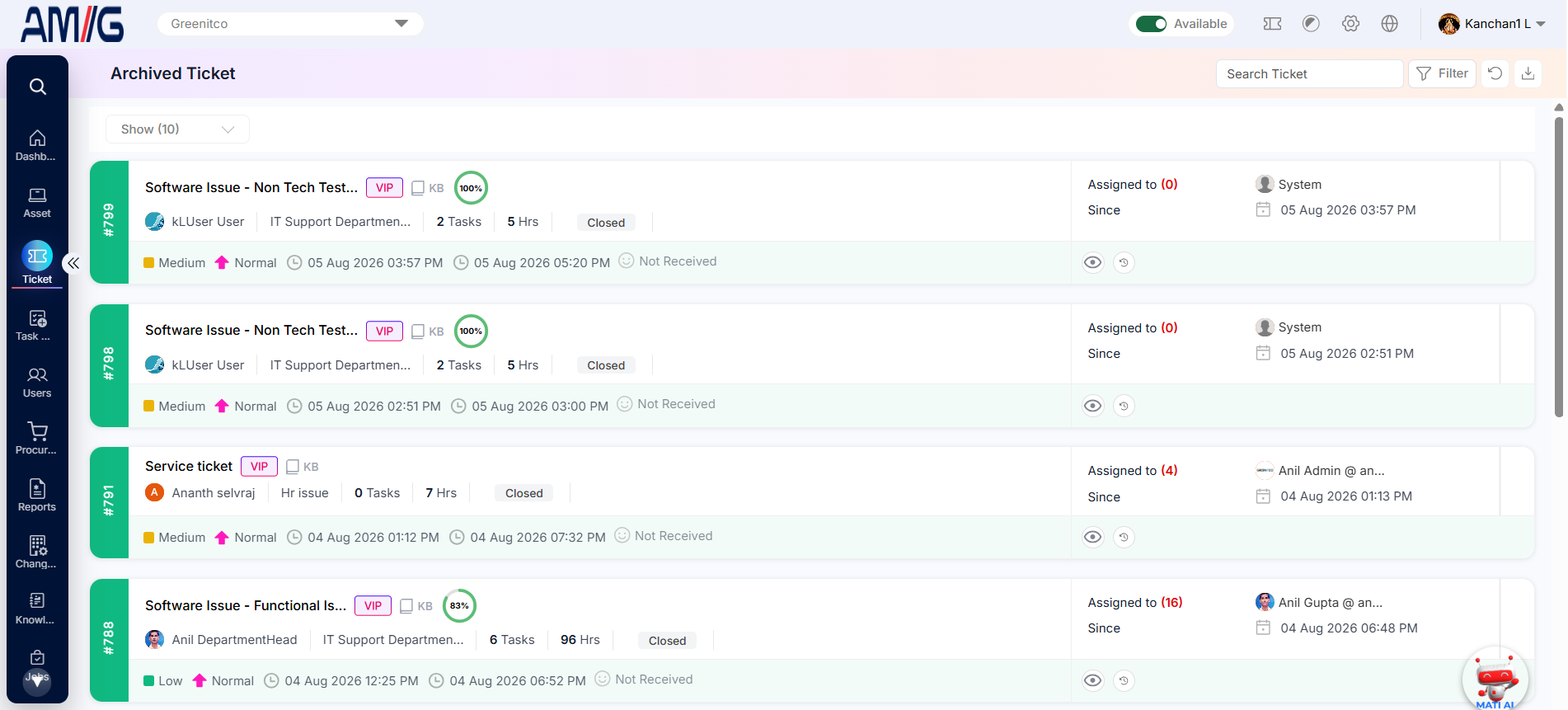
Figure 2.8.1: Archived Ticket list
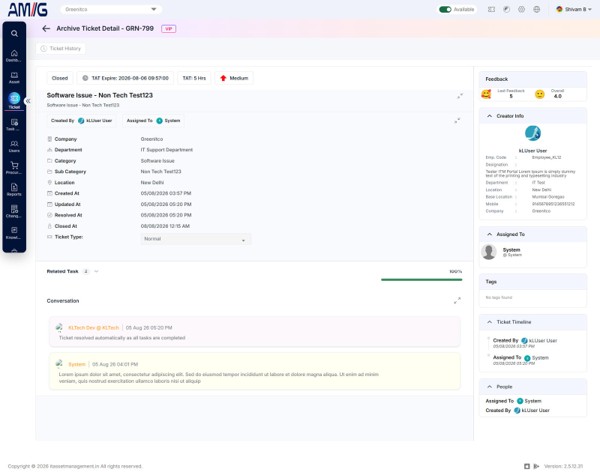
Figure 2.8.2: Archived Ticket details page
Archived tickets can also be exported (section 2.2.4) and converted to knowledge documents (section 2.2.14).
Tip: If a user reports the same issue again, search the archive for their earlier ticket. Its resolution may be the fastest fix.