

Introduction
The Auto Resolved Tickets Report provides a summary of tickets that have been automatically resolved or closed by the AMG system without manual intervention from a technician. These resolutions may be triggered by system bots, scheduled cron jobs, or different AI-based automation modes.
The report displays ticket details such as subject, department, category, and current status.
Use this report to:
-
Monitor the number of tickets resolved automatically by the system.
-
Identify tickets resolved through bots, cron jobs, and AI-driven automation.
-
Understand the contribution of different automation modes to ticket resolution.
-
Verify that tickets are not automatically resolved or closed before the reported issues are actually fixed.
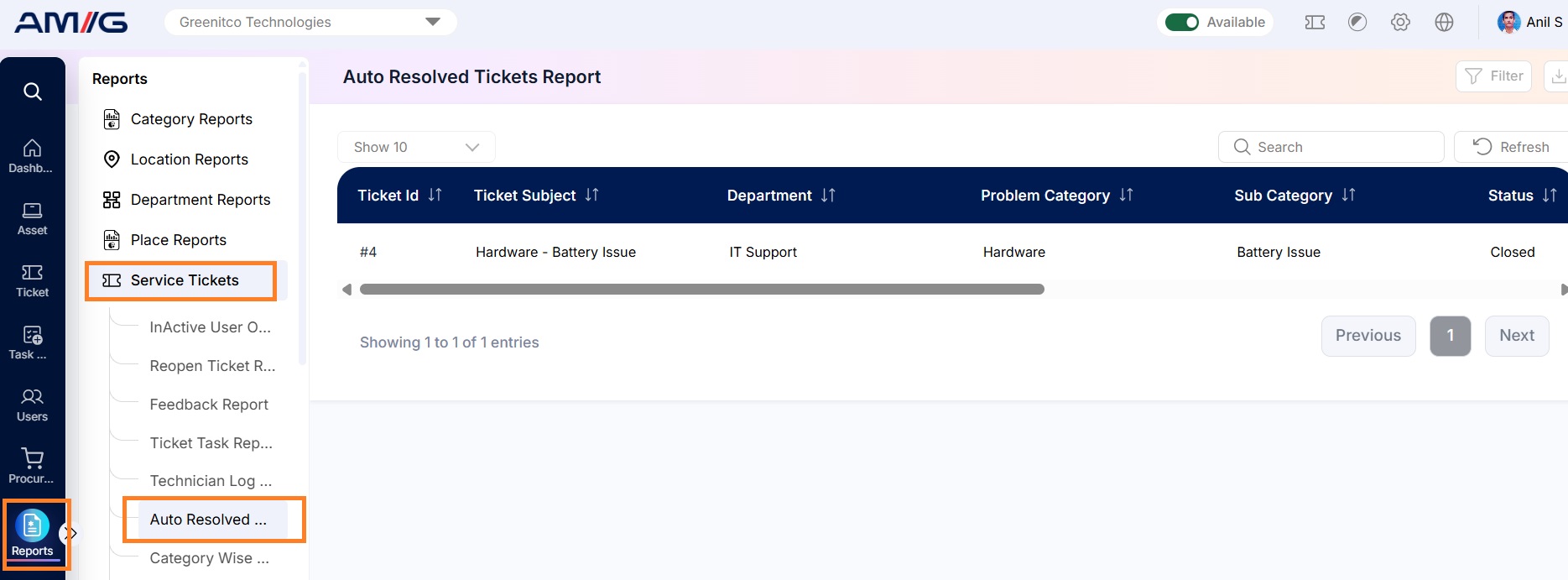
Navigation Path: Sidebar > Reports > Service Ticket > Auto Resolved Tickets Report
Viewing the Report
Open Auto Resolved Tickets Report from Sidebar > Reports > Service Ticket > Auto Resolved Tickets Report. The report opens as a list.
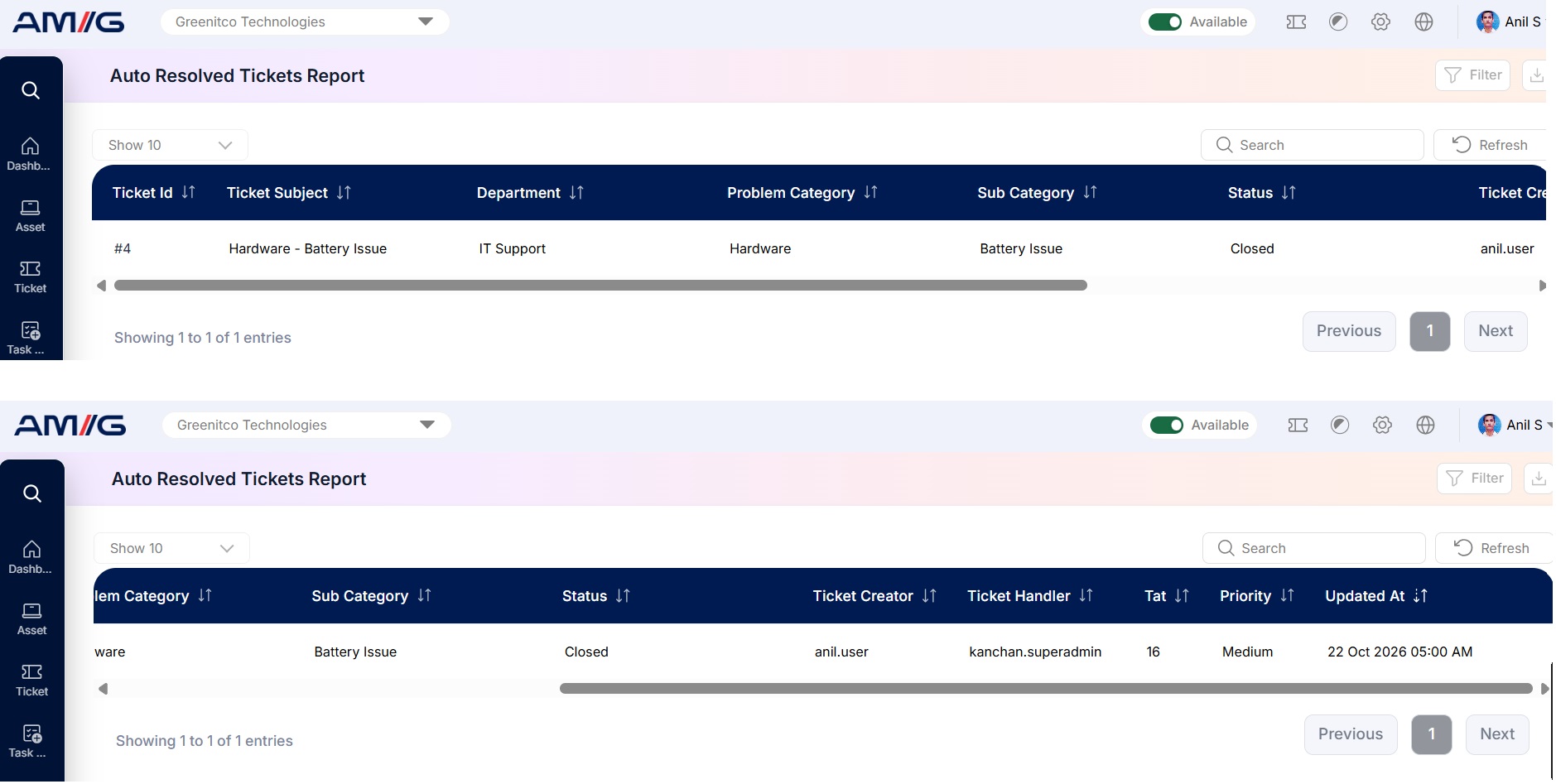 Figure 2.14.1: Auto Resolved Tickets Report – report listing
Table 2.14.1: What each column shows
| Column | What it shows |
|---|---|
| Ticket Id | The ticket number. |
| Ticket Subject | The title of the ticket. |
| Department | The department the ticket was raised for. |
| Problem Category | The main category of the issue. |
| Sub Category | The sub-category of the issue, if one was chosen. |
| Status | The current status of the ticket, such as Resolved or Closed. |
More columns are available by scrolling to the right. Click a column heading to sort the report by that column.
Table 2.14.2: Buttons and controls on the report
| Control | What it does |
|---|---|
| Show | Choose how many entries appear on each page (10 by default). |
| Search | Find entries by typing any value shown in the report. |
| Refresh | Reloads the report with the latest data. |
| Filter | Opens the filter panel so you can narrow down the report. |
| Download | The icon at the top-right. Downloads the report as a file. |
Filtering the Report
Step 1: Click Filter at the top-right of the report. The filter panel opens.
Step 2: Choose the values you need in one or more of the filters listed below.
Step 3: Click Filter to update the report. Click Clear to remove all filters.
Table 2.14.3: Available filters
| Filter | What it does |
|---|---|
| Department | Filter tickets based on the department associated with them. |
| Problem Category | Filter tickets by their assigned problem category. |
| Sub Category | Further narrow down tickets based on the selected subcategory. |
| Status | View tickets based on their current status. |
| Date | Filter tickets based on a specific date. |
| Date Range | Retrieve tickets within a selected start and end date. |
| Location | Filter tickets based on their associated location. |
| Priority | View tickets according to their assigned priority level. |
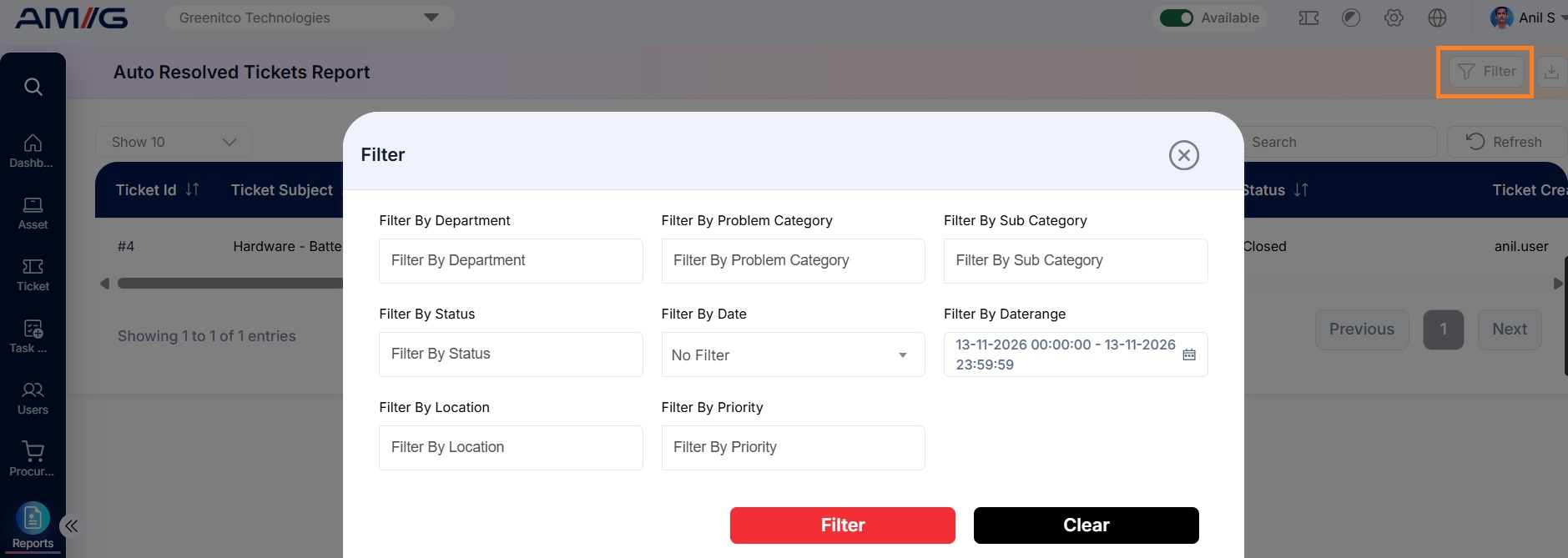 Figure 2.14.2: Auto Resolved Tickets Report – filter panel