

Adding lots of users? Instead of typing them in one by one, fill in an Excel template and upload it.
Step 1: On the Users List, click the import option in the toolbar to open the User Import screen.
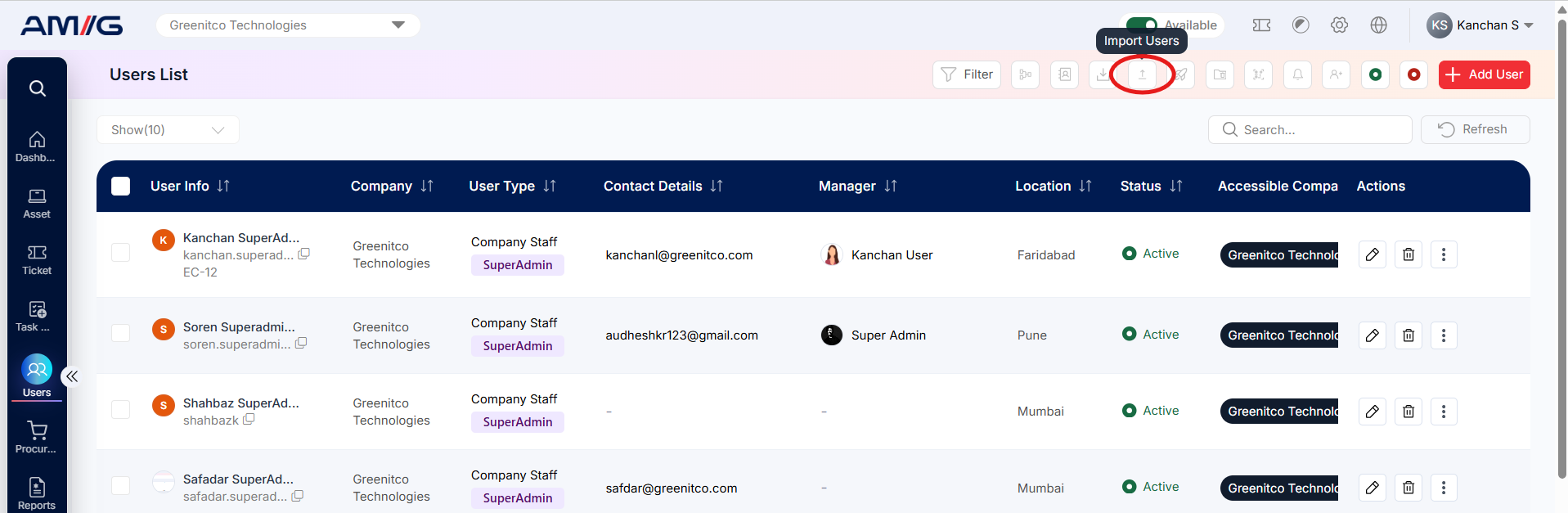
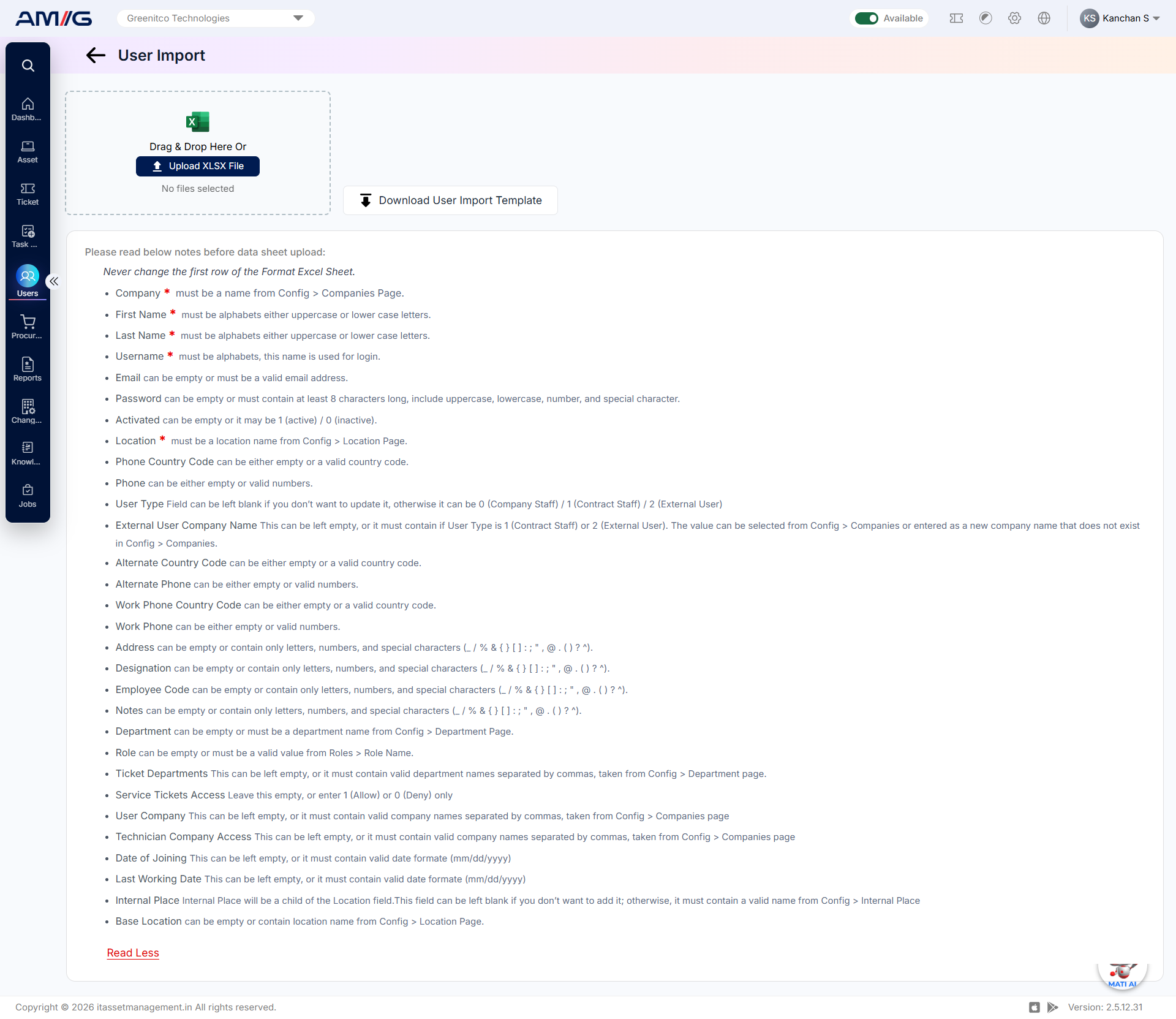
Figure: User Import screen
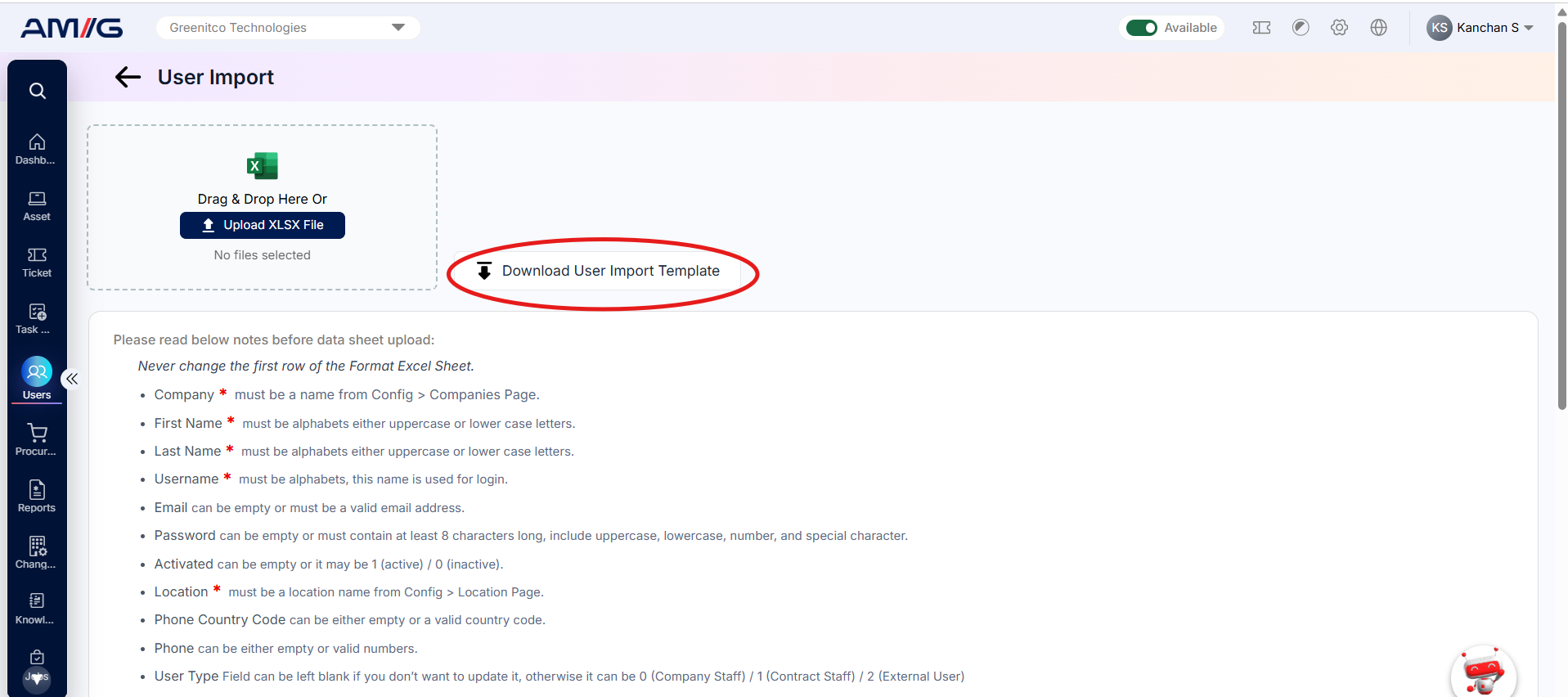
Step 2: Click Download User Import Template to get the Excel template.
 Step 3: Enter one user per row. Do not change the first row – it contains the column headings.
Step 4: Save the Excel file.
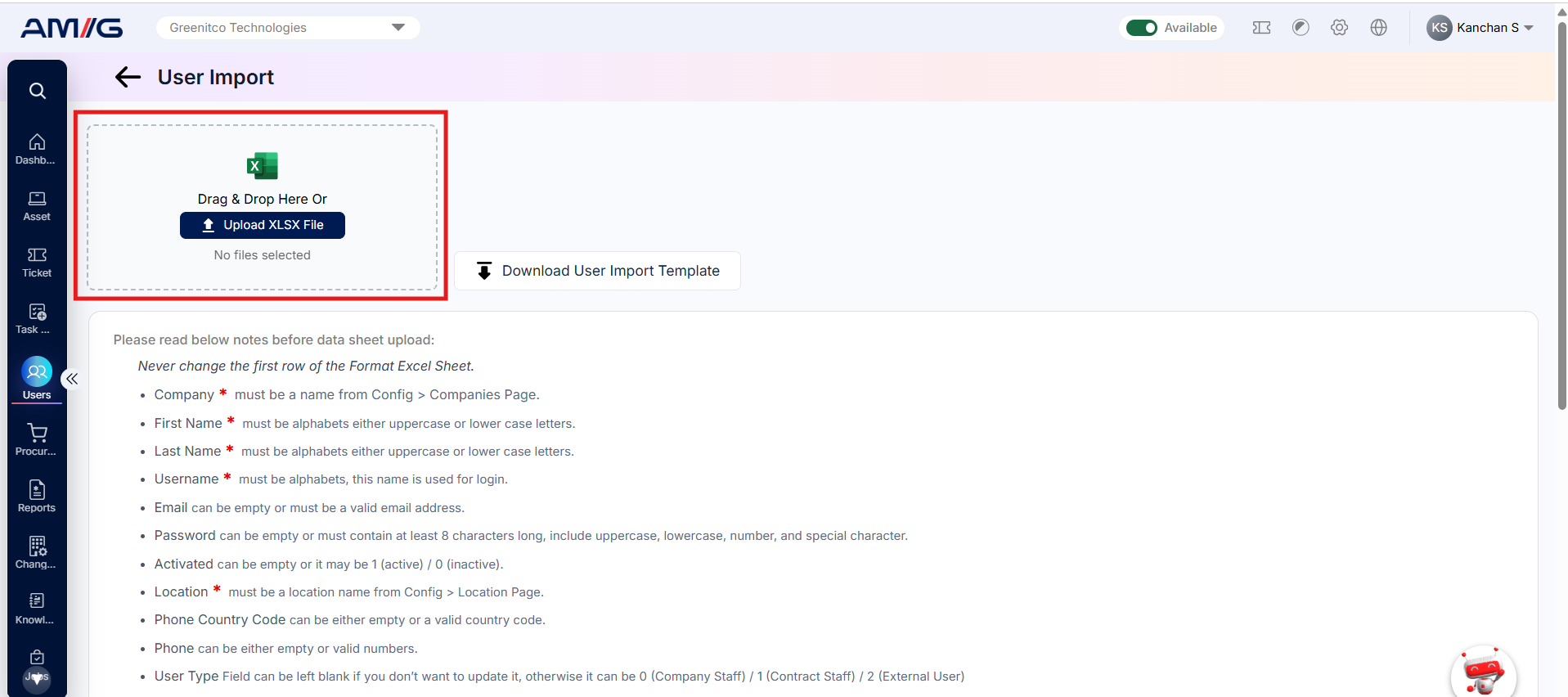
Step 5: Drag the file into the upload area, or click Upload XLSX File.
 Step 6: Follow the on-screen prompts to finish the import.
Rules for the Import File
Each column must follow the rules below, otherwise that row will not import. Names such as company, location, department and role must match exactly what is already set up in AMG.
Table: Import template rules
| Column | Rule |
|---|---|
| Company | Must match a company set up under Header > Config > Companies. |
| First Name / Last Name | Letters only. |
| Username | Letters only. This is what the user logs in with. |
| Leave blank or enter a valid email address. | |
| Password | Leave blank, or at least 8 characters with an uppercase letter, a lowercase letter, a number and a special character. |
| Activated | Leave blank, or enter 1 (Active) or 0 (Inactive). |
| Location | Must match a location set up under Header > Config > Location. |
| Phone Country Code / Phone | Leave blank or enter a valid country code and phone number. |
| User Type | Leave blank, or 0 (Company Staff), 1 (Contract Staff) or 2 (External User). |
| External User Company Name | For Contract Staff or External Users, enter an existing or new company name. Otherwise leave blank. |
| Alternate / Work Phone (and country codes) | Leave blank or enter a valid country code and phone number. |
| Address / Designation / Employee Code / Notes | Leave blank or enter text (letters, numbers and allowed special characters). |
| Department | Leave blank or match a department set up under Header > Config > Department. |
| Role | Leave blank or match an existing role name set up under Sidebar > User Management > Role and Permission |
| Seat No | Can be left blank. |
| Ticket Departments | Leave blank or enter department names separated by commas. |
| Service Tickets Access | Leave blank, or 1 (Allow) or 0 (Deny). |
| User Company / Technician Company Access | Leave blank or enter company names separated by commas. |
| Date of Joining / Last Working Date | Leave blank or use the mm/dd/yyyy format. |
| Internal Place | Leave blank or match an Internal Place set up under Config > Internal Place. |
| Base Location | Leave blank or match a location set up under Config > Location. |
Important: Never edit the first row of the template. Before uploading, check that every company, location, department and role name is spelled exactly as it is in AMG.