

Introduction
Create a ticket when you need to record an issue yourself, for example one you found during your work or one reported to you in person. The Create Ticket button is available on the ticket lists.
Step 1: Click Create Ticket. The Create Ticket form opens.
Step 2: Select the Company, Department, User (Ticket Raiser) and Problem Category. Priority and TAT are filled in from the category.
Step 3: If a custom field set is configured for the selected department, its fields load on the form automatically. Fill them in as required.
Step 4: Enter the Subject and Content. Add a device, reply-to account, seat number, tags, attachments or CC email addresses when needed.
Step 5: Review the information and click Create. Close the form without saving if you do not want to submit the ticket.
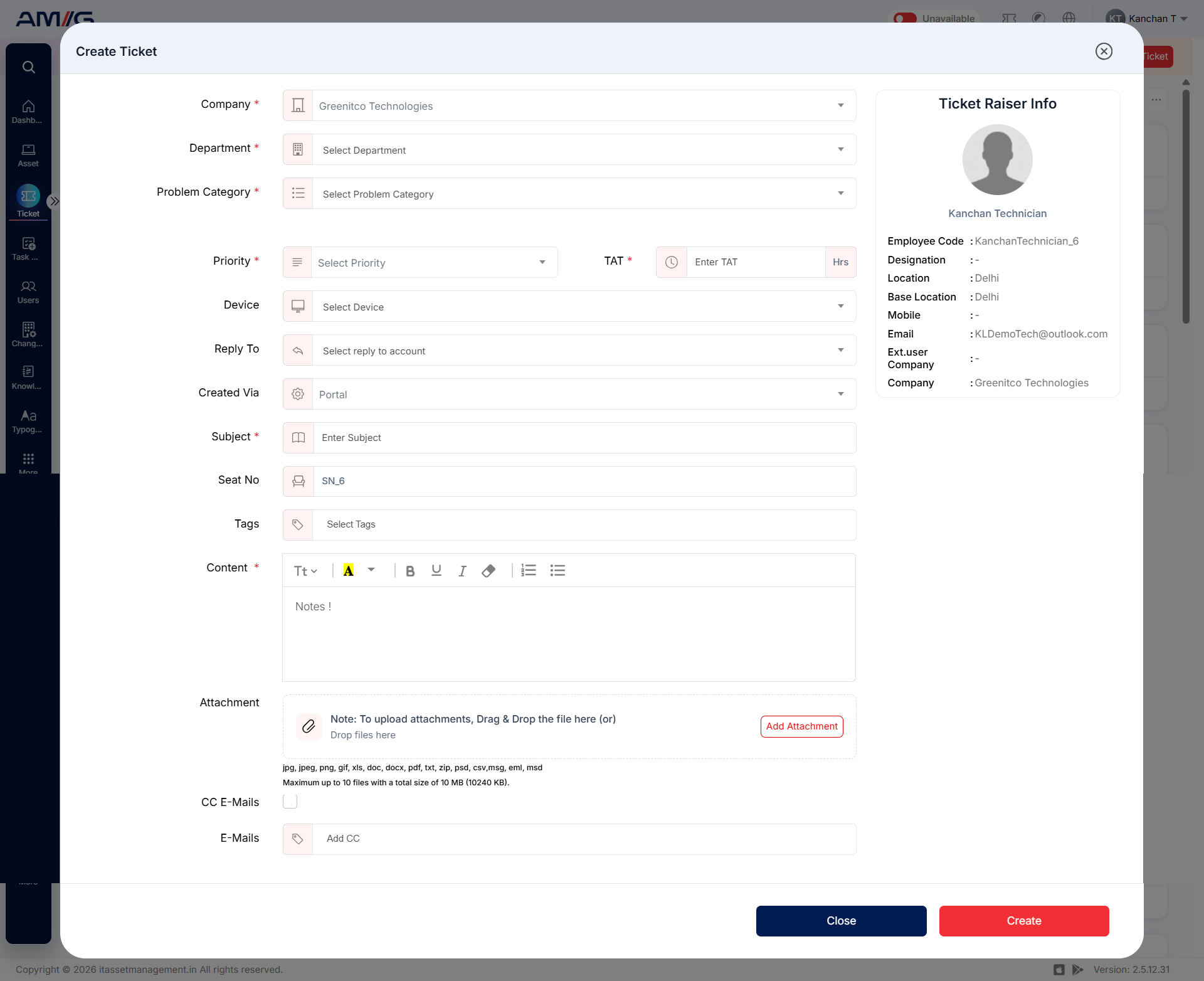
Figure 2.2.2: Create Ticket form
Table 2.2.3: Create Ticket fields
| Field | Mandatory | Description |
|---|---|---|
| Company | Yes | Company under which the ticket is raised. |
| Department | Yes | Department responsible for handling the ticket. Only departments enabled for tickets are listed. |
| User (Ticket Raiser) | Yes | User for whom the ticket is created. You can change it to the person on whose behalf you are raising the ticket if you have permission to create tickets for others. |
| Problem Category | Yes | Category used to classify and route the ticket. The list depends on the selected department. |
| Priority and TAT | Yes | Priority and target turnaround time (TAT) in hours, loaded from the problem category. You can change them only if your role has permission. |
| Device | No | Device associated with the issue. The ticket also appears on the Ticket tab of that device. |
| Reply To | No | Email account used for replies, where configured. |
| Reply To | No | Email account used for replies, where configured. |
| Created Via | No | Source of the ticket, such as Portal or Call. Tickets raised through the web form show Portal. |
| Subject | Yes | Short title that describes the issue or request. |
| Seat No | No | Seat or workstation reference of the user, when applicable. |
| Tags | No | Labels used to categorise or find the ticket. Existing tags are suggested and you can add new ones. |
| Content | Yes | Description of the issue or request. |
| Attachment | No | Supporting files. Follow the file types and size limits shown below the upload area. |
| CC E-Mails | No | Email addresses that should receive copies of ticket notifications. |