

Introduction
The Location Wise Report provides a location-based summary of tickets recorded in AMG. It groups ticket data by location and displays the total ticket count along with a status-wise breakdown for each location.
The report scope is determined by the filters applied. Users can narrow down the displayed information to a specific location or review ticket distribution across multiple locations for a selected date or date range.
Understanding the Report Scope
Location-wise coverage: Displays ticket counts separately for each location included in the filtered results.
Status-wise breakdown: Shows how tickets at each location are distributed across different statuses.
Date-based analysis: Allows users to review location-wise ticket distribution for the selected date criteria.
Comparative overview: Helps management compare ticket volumes and status distribution across locations.
Operational visibility: Helps identify locations with higher ticket volumes or a larger number of unresolved tickets that may require attention.
Note: The report provides an aggregated view of ticket counts by location and status. The displayed results depend on the filters applied.
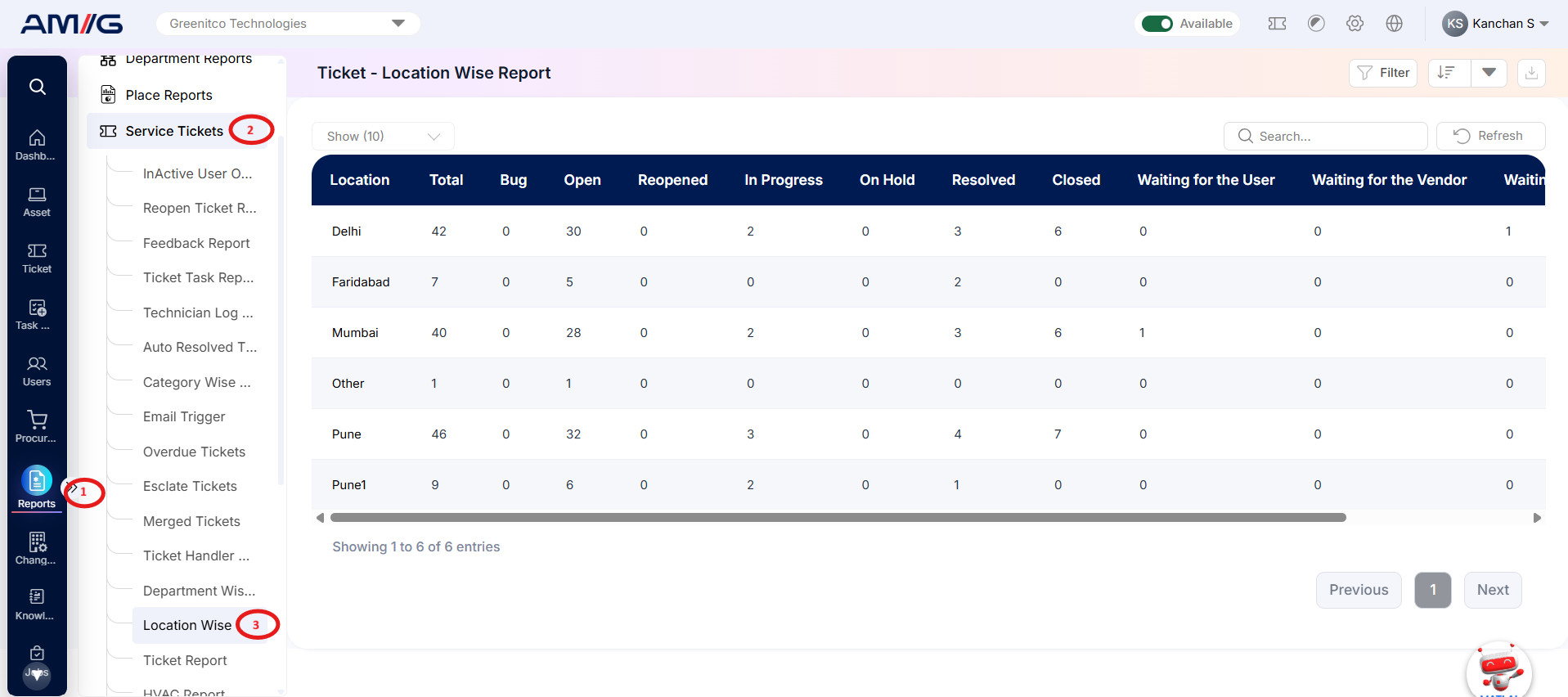
Navigation Path: Sidebar > Reports > Service Ticket > Location Wise Report
Viewing the Report
Open Location Wise Report from Sidebar > Reports > Service Ticket > Location Wise Report . The report opens as a list.
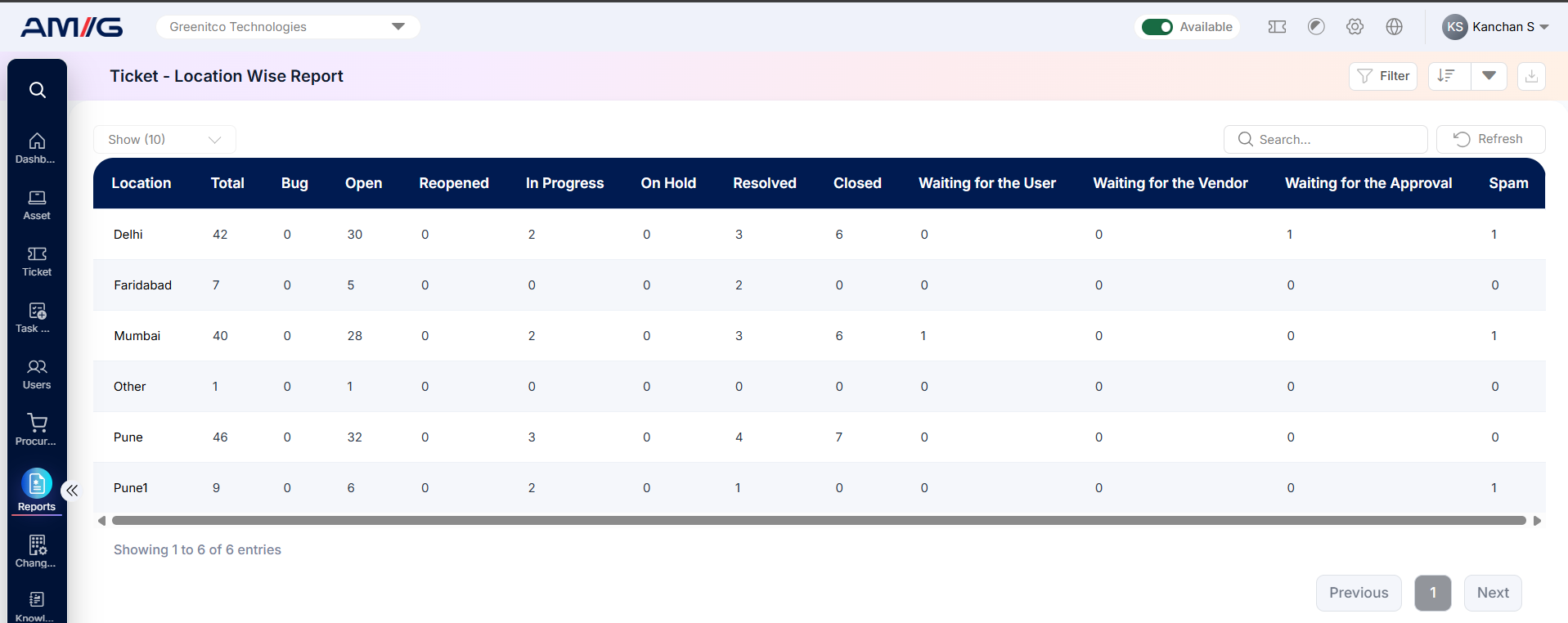
Figure 2.5.1: Location Wise Report – report listing
Table 2.5.1: Report columns
| Column | What it shows |
|---|---|
| Location | Displays the name of the location associated with the tickets. |
| Total | Displays the total number of tickets recorded for the respective location. |
The report also has one column for each ticket status, including Bug, Issue, QA Test, Open, Reopened, In Progress, On Hold, Resolved, Closed and the waiting statuses.
Filtering the Report
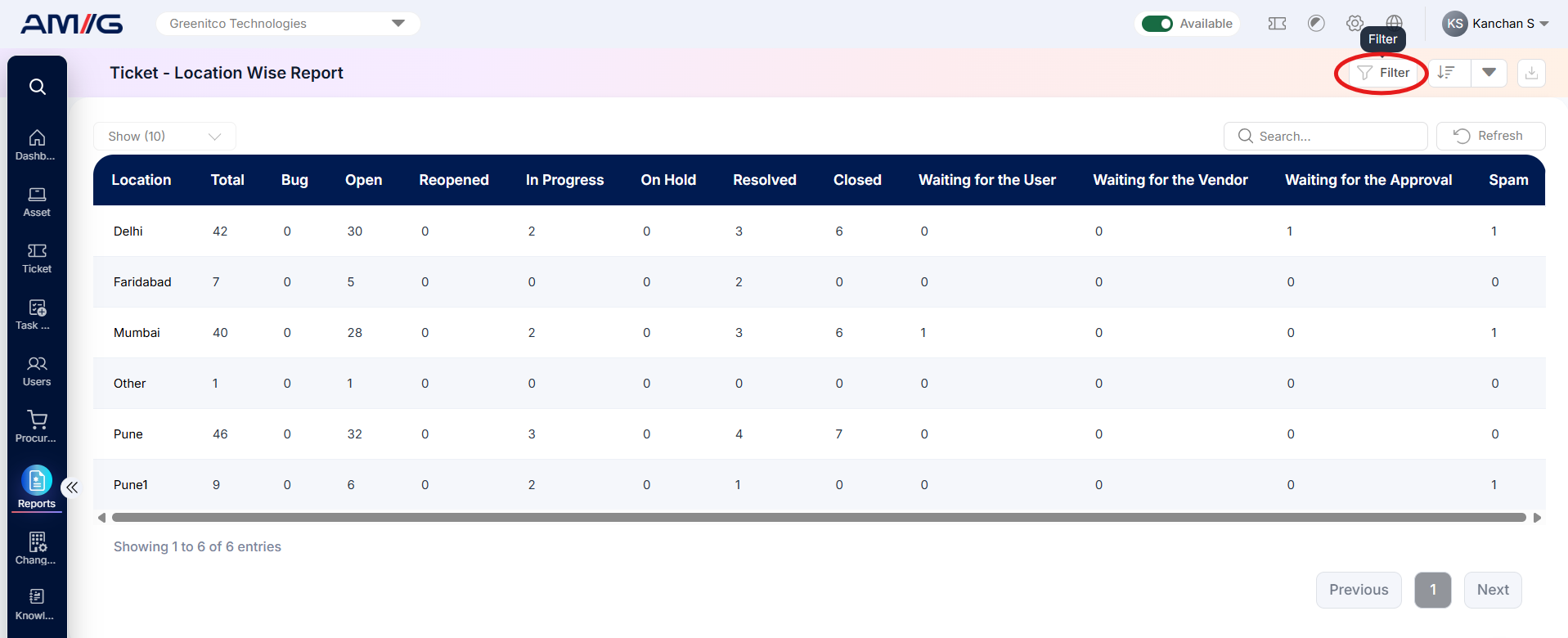
Step 1: Click Filter at the top-right of the report. The filter panel opens.
 Step 2: Choose the values you need in one or more of the filters listed below.
Step 3: Click Filter (or Apply Filter) to update the report. Click Clear to remove all filters.
Table 2.5.2: Available filters
| Filter | What it does |
|---|---|
| Location | Filters the report to display ticket counts for the selected location. |
| Date | Filters the report data based on the selected date criteria. |
| Date Range | Displays ticket information recorded within the specified start and end dates. |
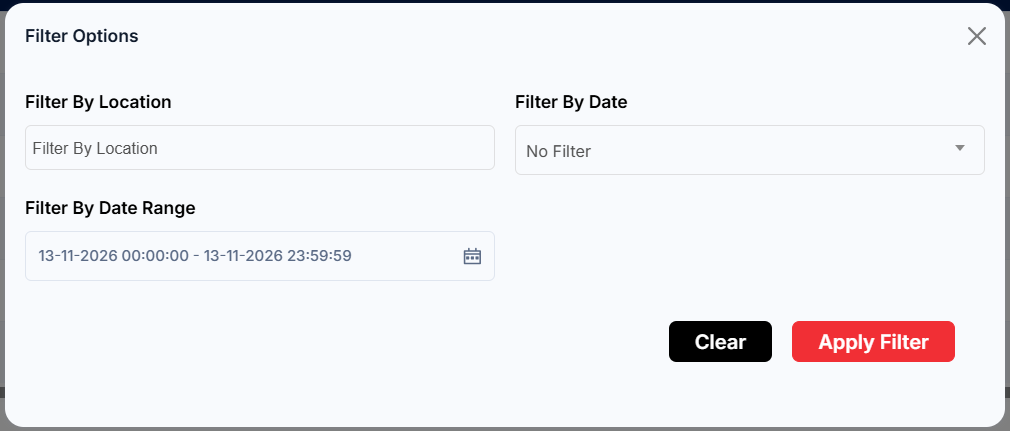
Figure 2.5.2: Location Wise Report – filter panel
Sorting the Report
Click the Sort button at the top-right corner of the report to view the available sorting options. Select the desired column to sort the report records.
The available sorting options are:
Location
Total
The sorting options also include individual ticket status values, allowing you to sort the report based on the number of tickets in each status for different locations.
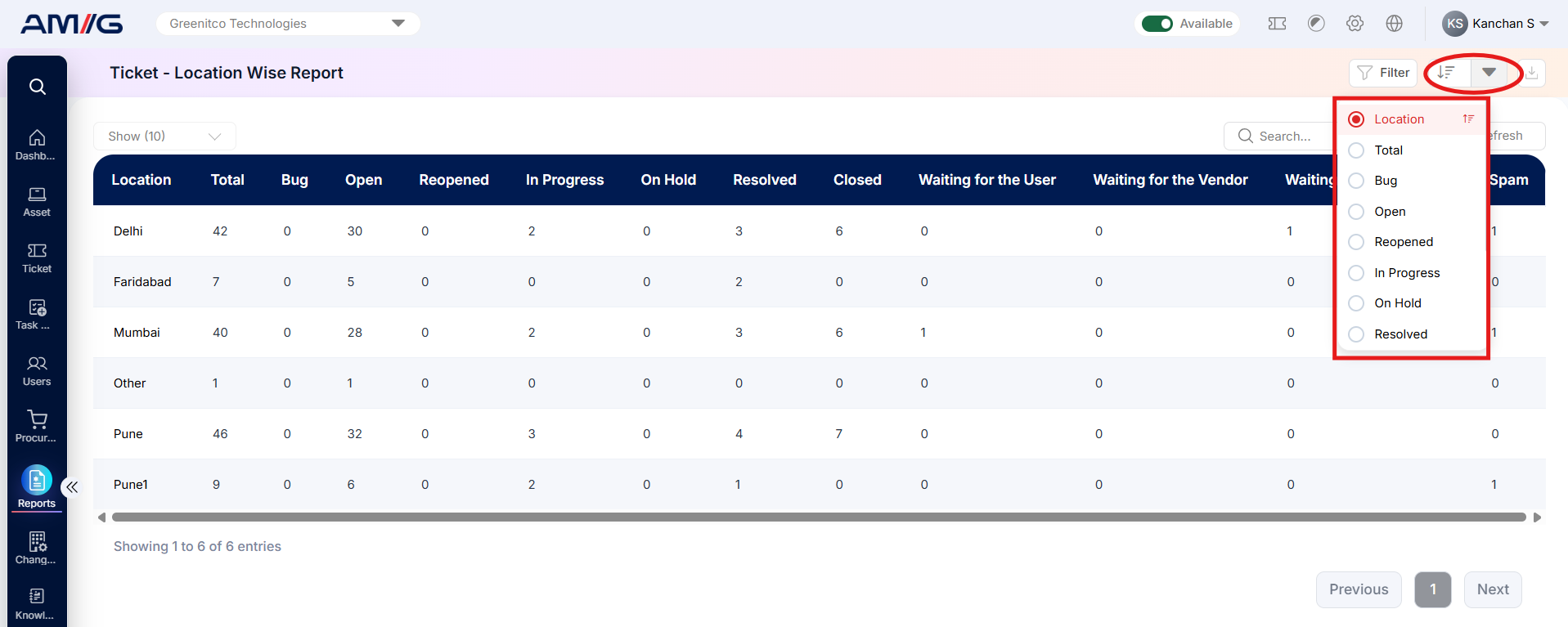
Figure 2.5.3: Location Wise Report – sort options