

Introduction
When a user phones the service desk, log the call as a ticket so that it is tracked, timed against the SLA and visible to the user. You create the ticket on the caller's behalf; the system records you as the Ticket Logger and the caller as the creator.
Step 1: While on the call, click Create Ticket on any ticket list.
Step 2: Select the caller's Company and Department, then select the caller in User (Ticket Raiser). The ticket raiser information panel shows the caller's details so you can confirm you have the right person.
Step 3: Set Created Via to Call so the ticket is reported against the correct channel.
Step 4: Select the Problem Category that matches what the caller describes, and enter a clear Subject.
Step 5: In Content, record what the caller reported, any error messages, and the steps already tried. Add the device and seat number if the caller can provide them.
Step 6: Click Create. Give the caller the ticket ID so they can follow up.
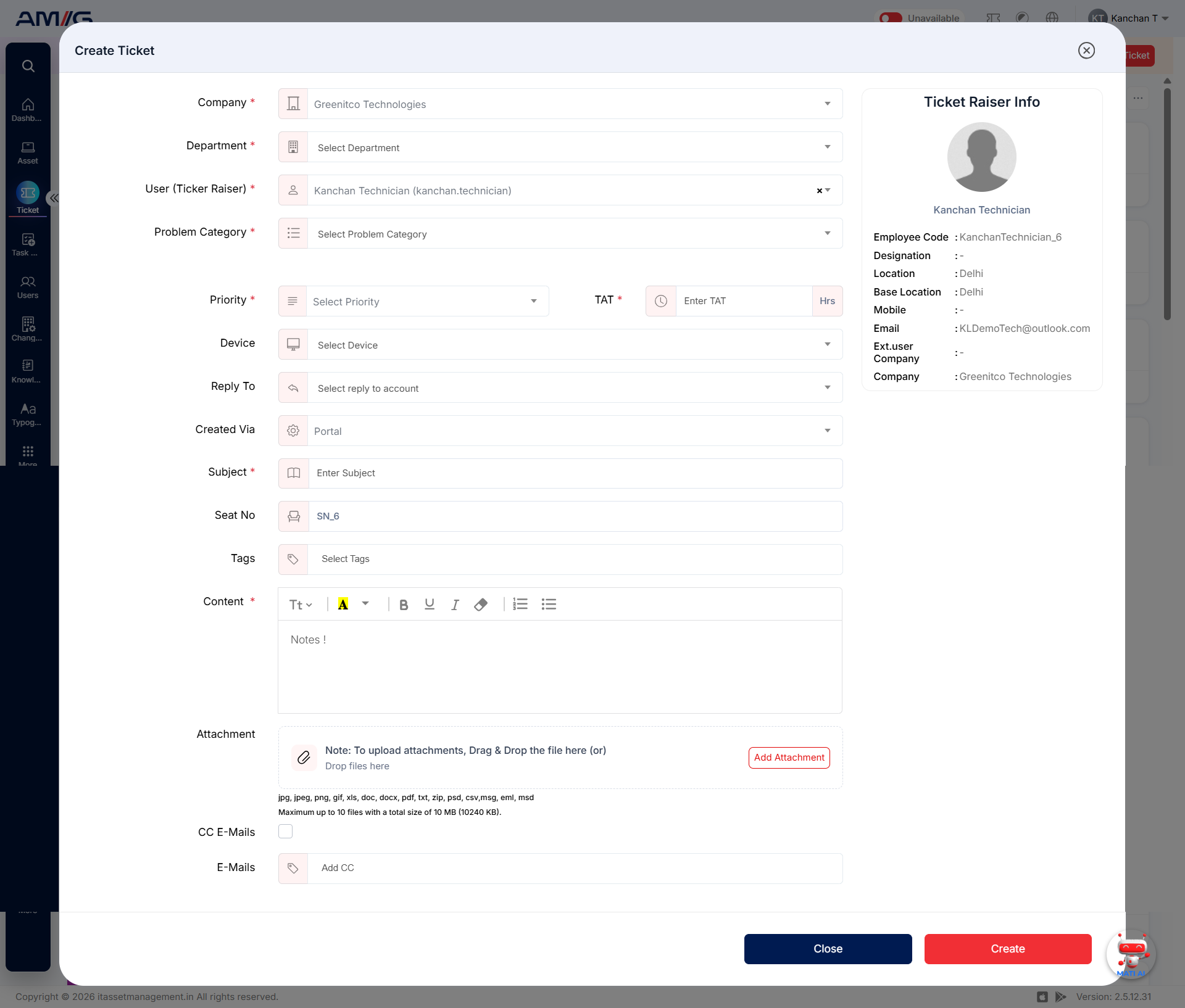
Note: The User (Ticket Raiser) field can be changed only if you have permission to create tickets for others, set under Sidebar > Ticket > Ticket Configuration. If you cannot change it, ask your administrator.
Tip: If you can fix the issue during the call, create the ticket anyway and resolve it straight away with a short comment. This keeps your workload and SLA figures accurate.