

Introduction
Delegation lets an approver pass a request to another person to decide, for example when the approver is on leave or another colleague is better placed to judge the request. The delegation is recorded in the request history so the approval trail stays complete.
Delegation is set up in your profile. Once a delegate is configured, requests that come to you for approval are also shared with the delegated user. When the delegated user approves a request, the approval is logged in the system.
Navigation Path: Header > Profile Name > Profile > Edit Profile > Delegation
Setting up delegation
Step 1: Open Header > Profile Name > Profile.
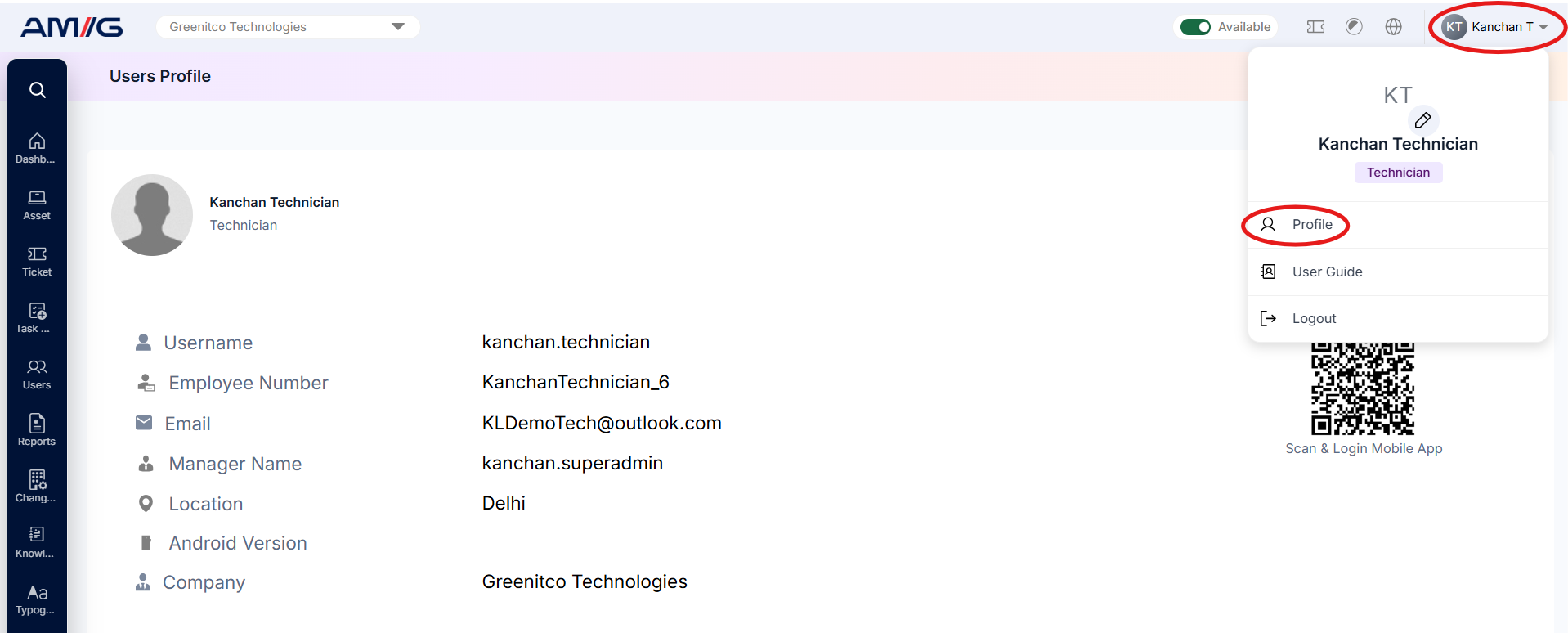
Figure 2.6.7: Profile menu in the header
Step 2: Your profile page opens. Click Edit Profile.
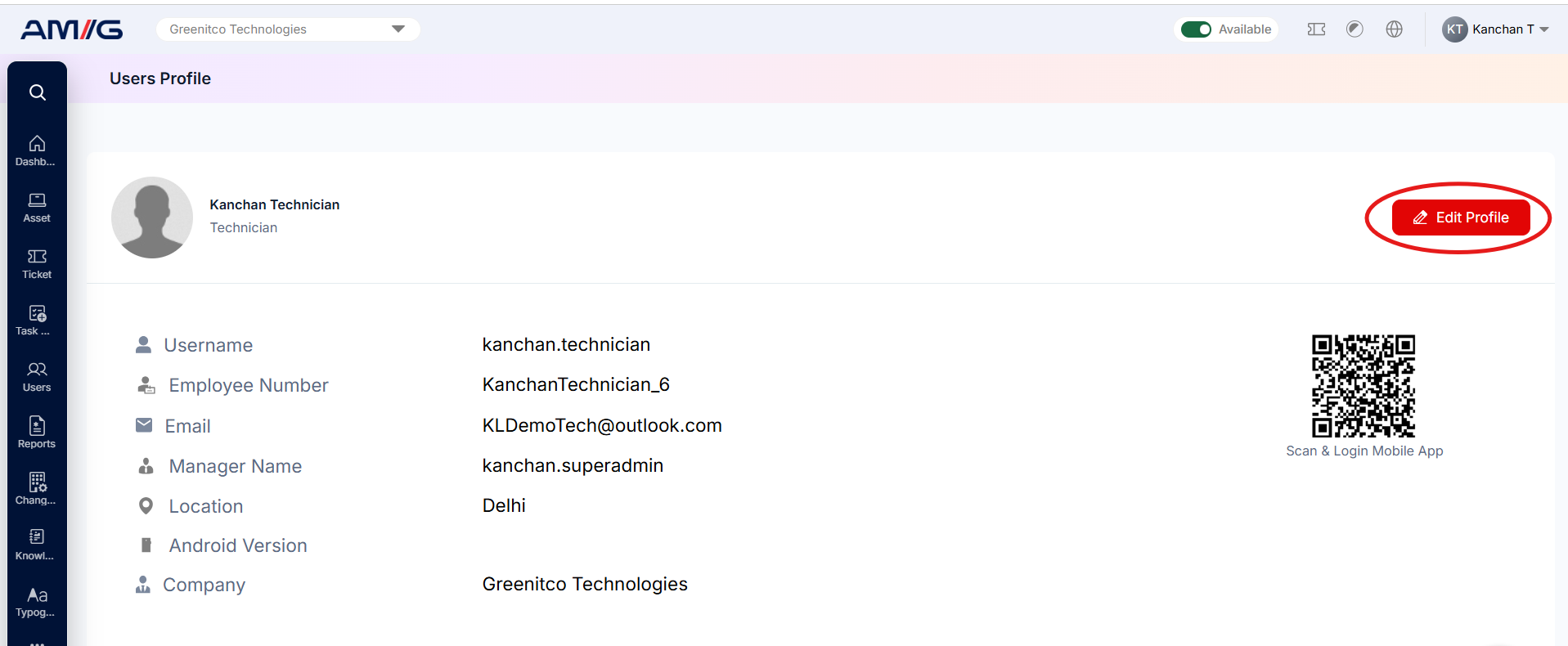
Figure 2.6.8: Profile page with the Edit Profile option
Step 3: On the Update Profile page, select the Delegation tab.
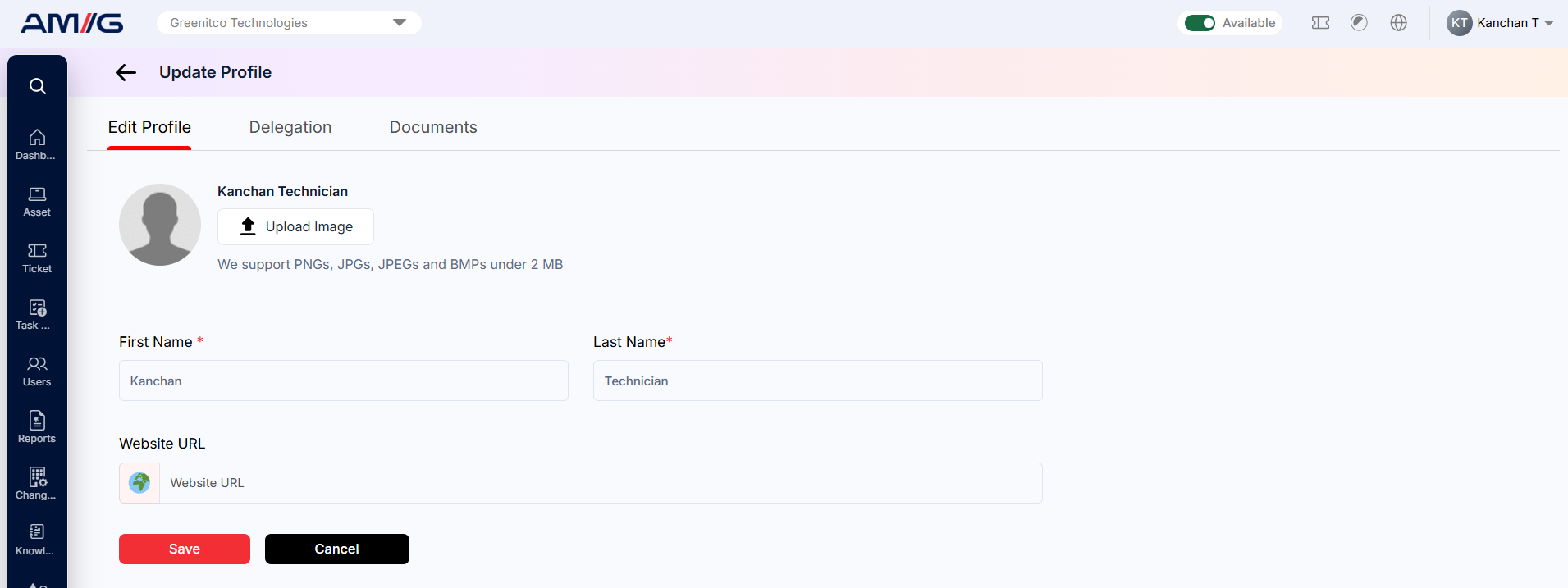
Figure 2.6.9: Update Profile page – Delegation tab
Step 4: In Service Request Delegation, select the user who should receive your approval requests, then click Save.
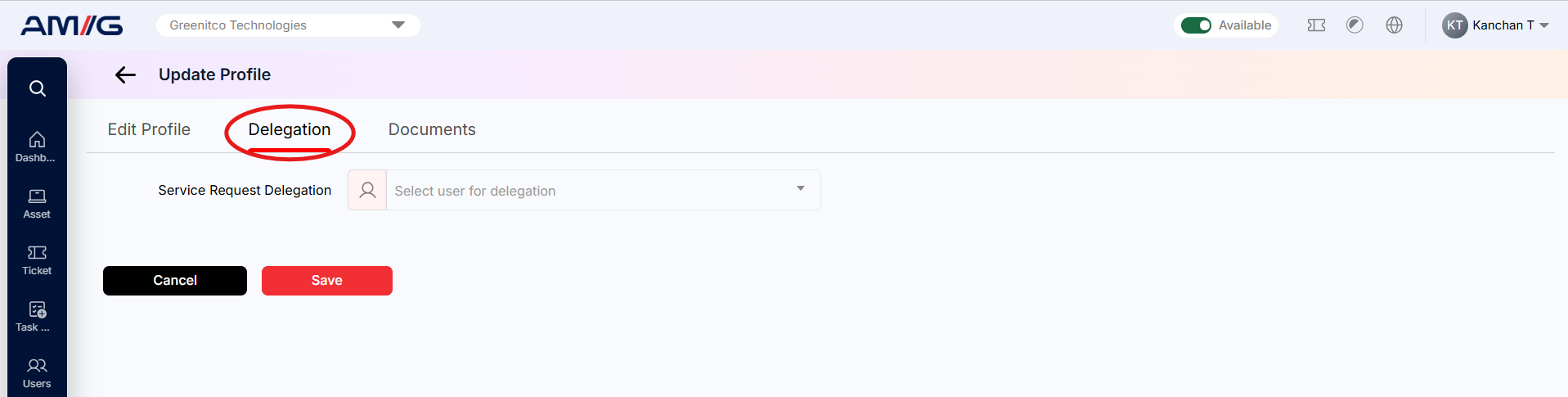
Figure 2.6.10: Service Request Delegation field
Note: Requests stay delegated until you remove the delegate from your profile.