How to Print Label ?
This feature allows print lable the multiple a component at the same time.
To Print Lable a Component
Go to the left sidebar and select Components > Choose the component to print a label > Click on the print icon > Select the select option > Select the option to include user/place name > Click on print to proceed.

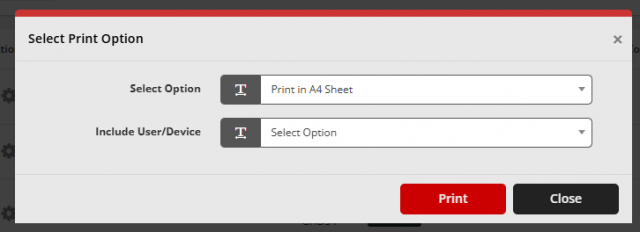
Choose the component to print a label:
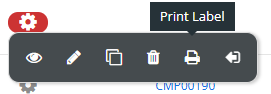
Go to the left sidebar and select Components > Click on the action control of the particular component > Click on the print icon.
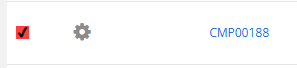
Go to the left sidebar and select Components > Click on the action control of the particular component > Click on the Checkbox icon.
We are continuously improving our documentation to ensure it meets your needs. This document will be updated regularly, so please check back for the latest information. If you have any questions or encounter any issues, feel free to reach out to us at support@itassetmanagement.in.