Mac_Agent Installation
Installing and Running the Mac Agent
This document provides step‑by‑step instructions to install and run the Mac Agent using the provided .dmg file. It also explains how to verify the agent installation through log files.
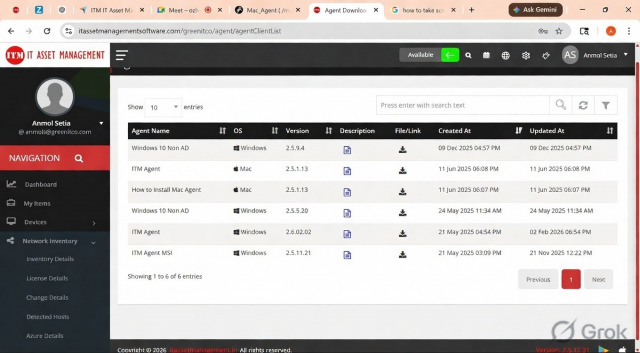
Step 1: Download the DMG File
Navigate to Network Inventory → Agent Download in the portal.
Download the Mac Agent .dmg file to your system.
Step 2: Open the DMG File
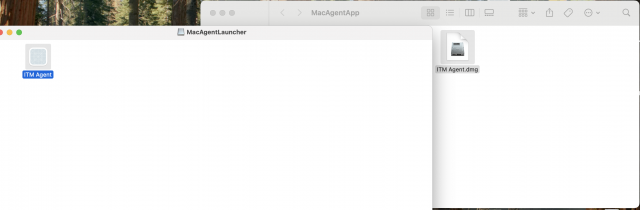
Locate the downloaded .dmg file.
Double‑click on the .dmg file to open it.
Step 3: Launch the Installer
Once the DMG file opens, you will see the Launcher inside.
Double‑click on the Launcher to start the installation process.
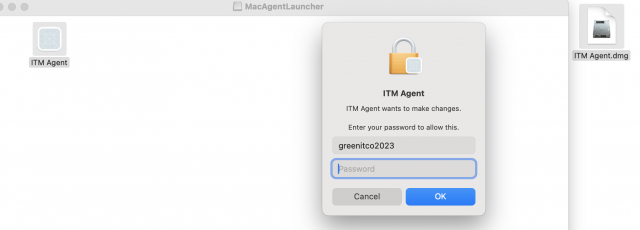
A prompt will appear asking for the system password.
Enter your Mac administrator password to proceed.
Step 5: Agent Installation & Execution
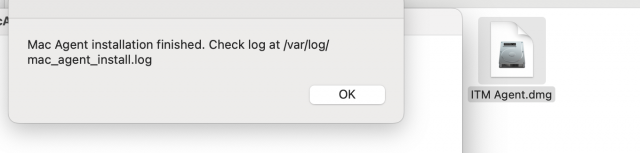
After entering the correct password, the Mac Agent will install and run automatically.
You will see a success message dialog confirming installation.
No further user action is required.
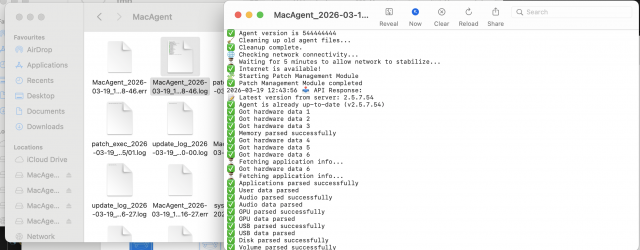
Step 6: Verify Agent Logs
To confirm that the agent is running successfully:
Open Finder.
Navigate to:
/Library/Logs/MacAgent/
Check the log files for recent activity.