Auto Allocation Member Import
Step 1: Auto Allocation – Member Import
The Auto Allocation module supports bulk member import using an Excel file to quickly configure allocation groups and reduce manual effort.
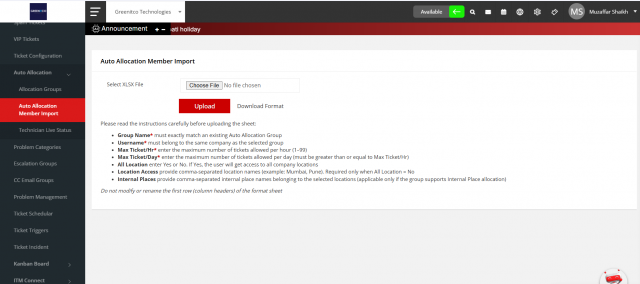
- Navigate to Auto Allocation → Member Import.
- Click on Download Format to get the Excel template.
- Fill in the required details in the template:
- Group Name
- Username
- Max Ticket/Hour
- Max Ticket/Day
- All Location (Yes/No)
- Location Access
- Internal Places
- Click on Choose File and select the completed Excel file.
- Click on Upload to import members into the system.
- The system will validate and assign members to the specified allocation group.
Validation Rules
- Group Name must match an existing allocation group
- Username must belong to the same company
- Max Ticket/Day ≥ Max Ticket/Hour
- Location Access required if All Location = No
- Do not modify column headers in the template
Key Notes
- Supports bulk import to save time
- Reduces manual configuration errors
- Ensures consistent allocation setup
We are continuously improving our documentation to ensure it meets your needs. This document will be updated regularly, so please check back for the latest information. If you have any questions or encounter any issues, feel free to reach out to us at support@itassetmanagement.in.