Escalate Ticket report
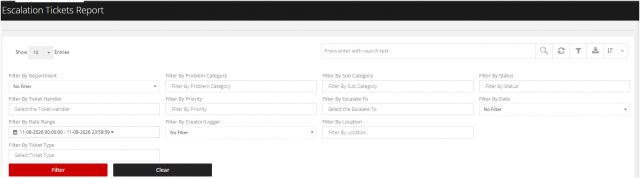
Go to the left sidebar and select Reports > Click on the Service Report > Escalate Ticket Report.**
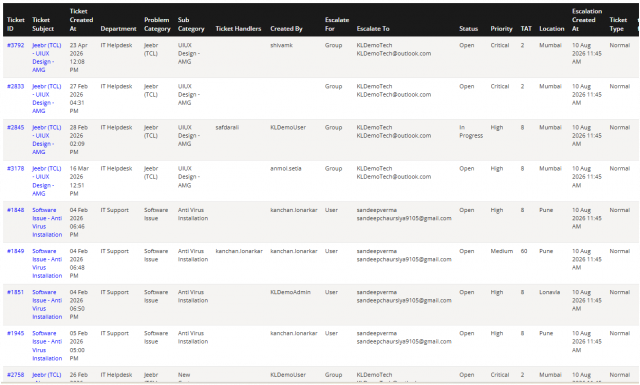
The Escalated Ticket Report provides a consolidated view of tickets that have been escalated from the assigned support team or technician to a higher-level support team, supervisor, or designated escalation group.
This report helps organizations monitor escalations, identify recurring issues, track resolution performance, and ensure that critical or overdue tickets receive appropriate attention.
!!Purpose!!
!!The Escalated Ticket Report is used to: !!
- Monitor all escalated tickets.
- Identify tickets requiring higher-level intervention.
- Track the reason and level of escalation.
- Monitor escalated tickets against SLA and TAT.
- Identify delayed or unresolved escalations.
- Analyze escalation trends across departments, categories, locations, or support teams.
- Improve ticket resolution and escalation management.
You can filter the reports in different way
1.Department Select a specific department to view escalated tickets associated with that department.
2.Problem Category Select the relevant problem category to filter tickets based on the type of issue reported.
3.Sub-Category Further refine the report by selecting a specific sub-category under the selected problem category. 4.Status**** Filter tickets based on their current status, such as Open, In Progress, Resolved, or Closed.
5.Ticket Handler Select a ticket handler to view the escalated tickets assigned to a particular technician or support representative.
6.Priority Filter tickets based on their priority level to identify critical or high-priority escalated tickets.
7.Escalate To Select the person or support team to whom the ticket has been escalated.
8.Date Select a predefined date filter to view tickets based on the required time period.
9.Date Range Specify a custom start and end date to generate the escalation report for a particular period.
10.Creator/Logger Filter tickets based on the user who created or logged the ticket.
11.Location Select a location to view escalated tickets associated with a specific site or branch.
12.Ticket Type Filter the report based on the type of ticket raised.