Merged Ticket report
Go to the left sidebar and select Reports > Click on the Service Report > Merged Ticket Report !!
The Merged Ticket functionality in the ITM Service Desk is used to consolidate multiple tickets that are related to the same issue, request, or incident into a single primary ticket. This helps the support team avoid duplicate efforts and maintain a clear history of communication and resolution.
Purpose of Merging Tickets !!
Consolidate duplicate tickets raised for the same issue.
Avoid multiple technicians working on the same problem.
Maintain all relevant information in one primary ticket.
Simplify ticket tracking and reporting.
Ensure communication and updates are managed from a single ticket.
Improve technician productivity and reduce duplicate work.
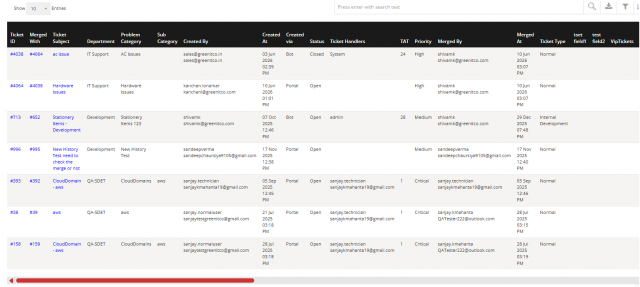
**How Merged Ticket Functionality Works
** Identify Duplicate or Related Tickets
The technician or support team identifies multiple tickets that relate to the same issue.
**Select the Primary Ticket
One ticket is selected as the parent/primary ticket, which will be used for further communication and resolution.
Merge Related Tickets
The duplicate or related tickets are merged with the primary ticket.
Ticket Information Consolidation
The system associates the selected tickets with the primary ticket so that the relationship between the tickets can be tracked.
Continue Resolution from the Primary Ticket
The support team continues working on the primary ticket instead of handling multiple duplicate tickets separately.
Maintain Ticket History
The merged ticket relationship helps maintain visibility of the related requests and their history for future reference and auditing.
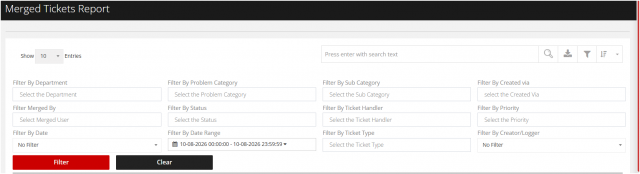
You can filter the reports in different way
Merged Tickets Report – Filter Options
1. Filter by Department
Use this filter to view merged tickets associated with a specific department.
2. Filter by Problem Category
This filter allows users to view merged tickets based on the Problem Category assigned to the ticket.
3. Filter by Sub Category
The Sub Category filter provides a more detailed view of merged tickets within a selected problem category.
4. Filter by Created Via
This filter allows users to identify merged tickets based on the channel through which the ticket was created.
5. Filter by Merged By
The Merged By filter helps identify the user who performed the ticket merge.
6. Filter by Status
Filter tickets based on specific statuses such as Open, In Progress, Pending, Resolved, Closed, etc.
7. Filter by Ticket Handler
This filter helps users identify merged tickets assigned to a specific Ticket Handler/Technician.
8. Filter by Priority
The Priority filter allows users to view merged tickets according to their assigned priority.
9. Filter by Date
The Date filter allows users to retrieve merged tickets based on a predefined date selection.
10. Filter by Date Range
The Date Range filter allows users to generate a report for a specific start and end date/time.
11. Filter by Ticket Type
Use this filter to view merged tickets based on the Ticket Type.
12. Filter by Creator/Logger
The Creator/Logger filter helps identify merged tickets based on the user who created or logged the ticket.