Accessories Management
Product: NEXTMEGABYTE (Greenitco ITAM) · Module: IT Asset Management (ITAM) · Audience: Administrator, Technician
Accessories are items tracked by quantity and issued to users, internal places or devices, for example keyboards, mice, headsets and docking stations. Tracking accessories helps control small but frequent expenses.
Menu path: left side menu → Accessories
Add an accessory
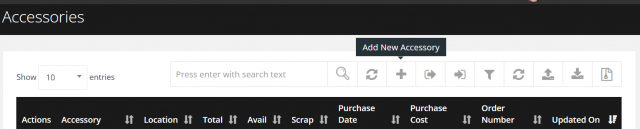
- Open Accessories and select Add (plus icon).
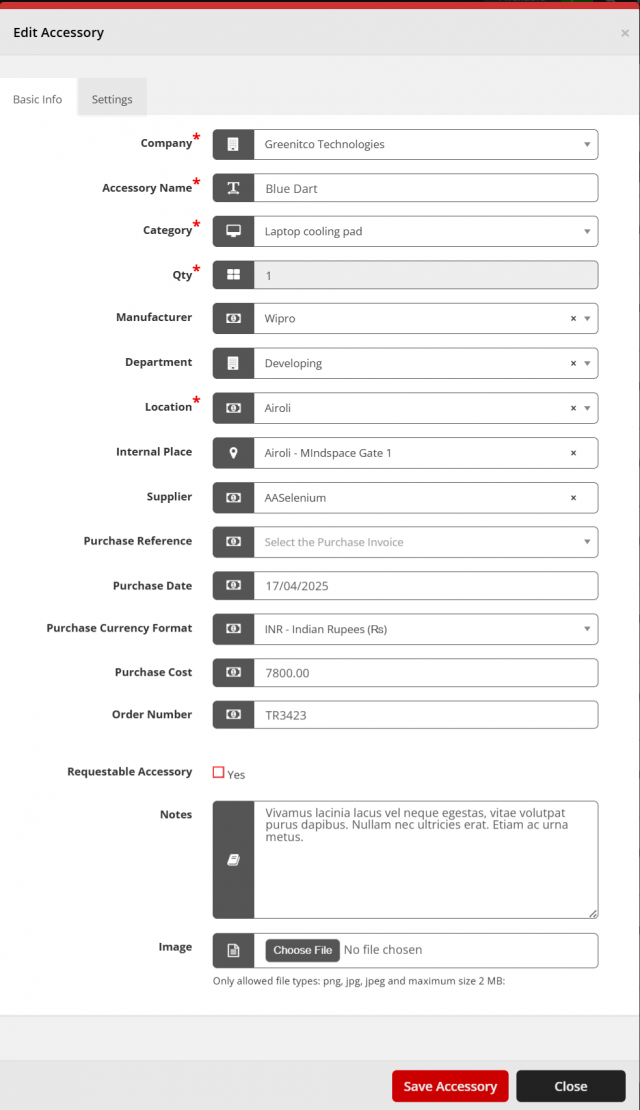
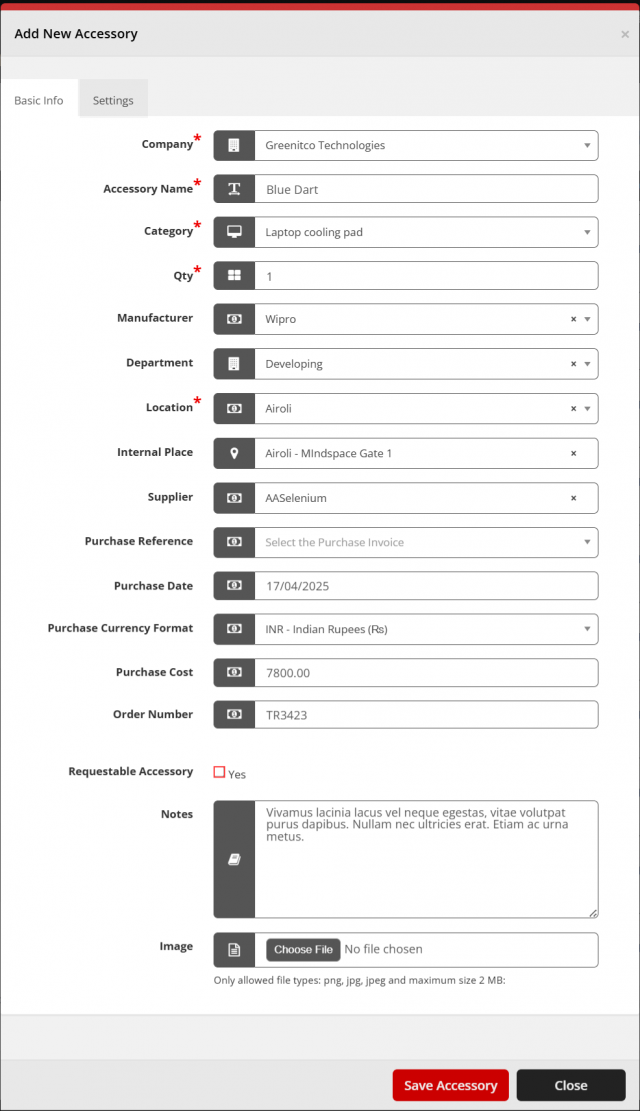
- Enter the details and select Save Accessory. A notification is sent to the alert email address in Settings.
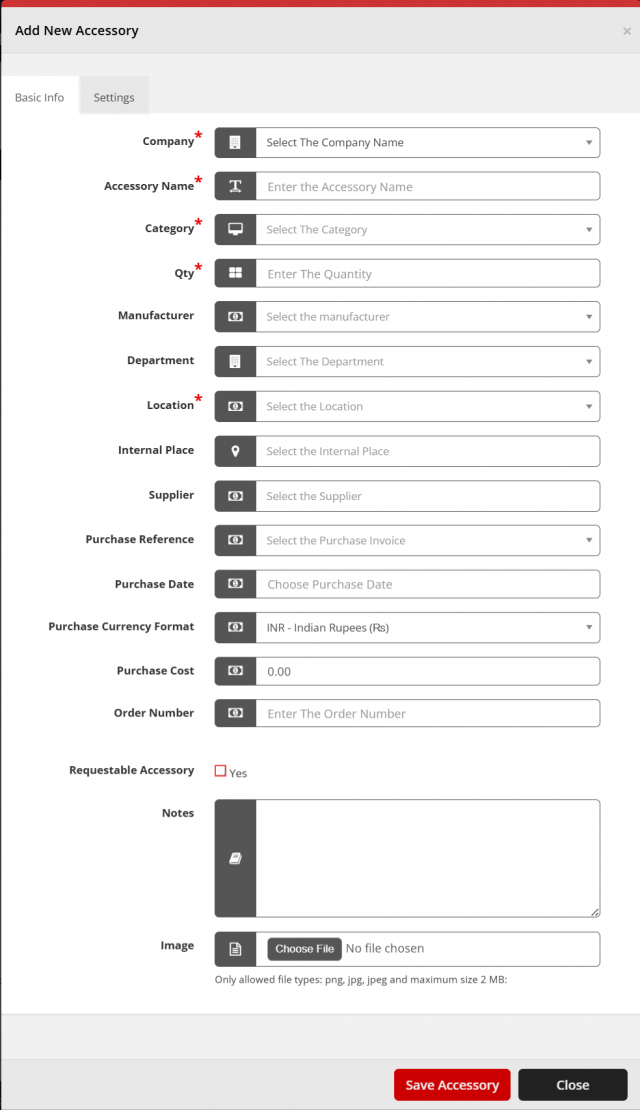
| Field | Reference |
|---|---|
| Company | Company Configuration |
| Category | Category Configuration (category type Accessory) |
| Manufacturer | Manufacturer Configuration |
| Department | Department Configuration |
| Location | Location Configuration |
| Supplier | Supplier Configuration |
| Purchase Reference | The purchase invoice. See Purchase Configuration |
| Quantity | Number of units |
| Threshold (Settings tab) | Low-stock limit and alert recipient. See Stock Thresholds |
Edit, clone or remove an accessory
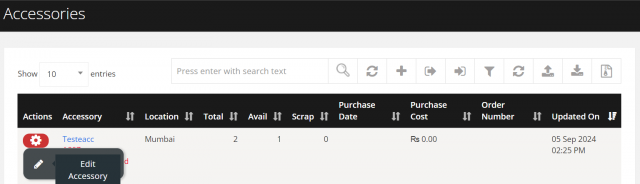
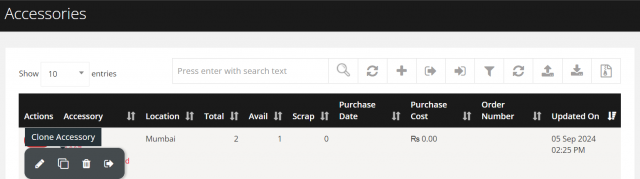
Open the accessory's action menu, then:
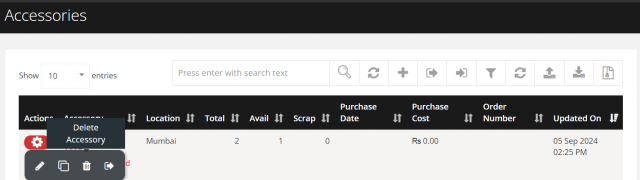
- Edit (pencil icon): update the details and select Save Accessory.
- Clone (copy icon): create a similar accessory, update the details and select Save Accessory.
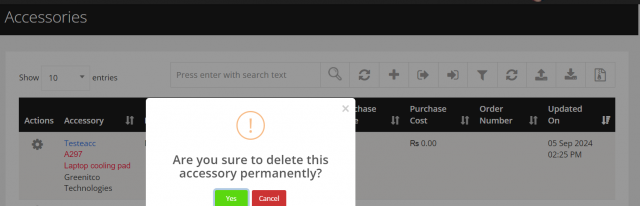
- Delete (trash icon): select Yes to confirm.
View accessory details
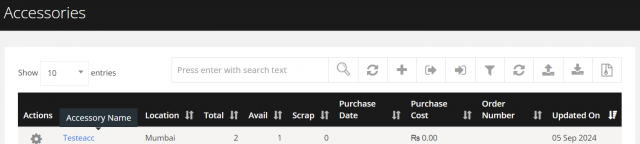
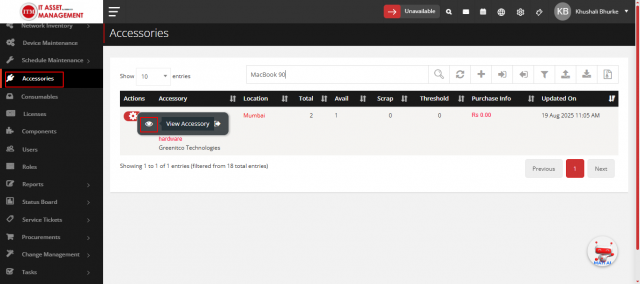
Select the accessory name. The information page has tabs for details, check-outs, purchases and documents.
Check out an accessory
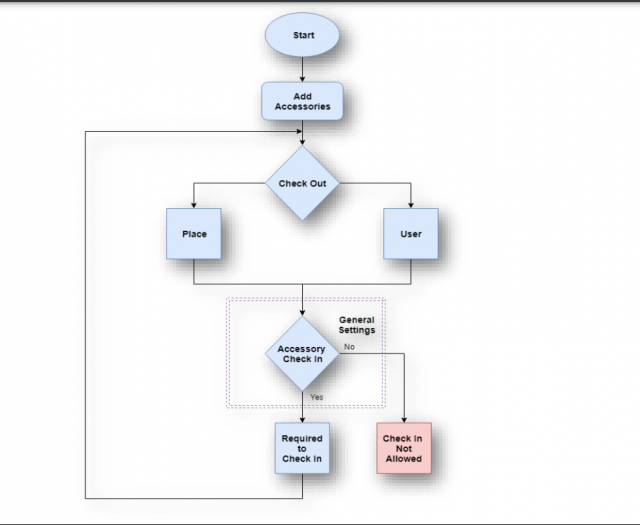
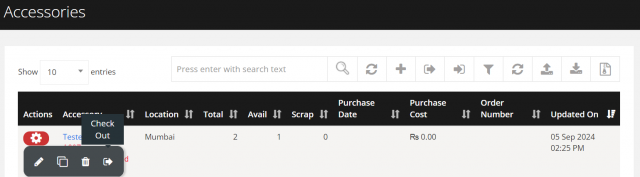
- Open the accessory's action menu and select Check Out (sign-out icon).
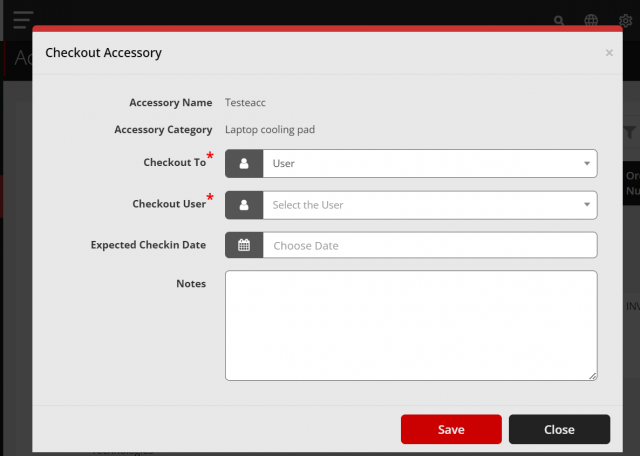
- Select Check Out To: a user, an internal place or a device.
- Enter the Expected Check-In Date if the item must be returned.
- Select Save.
Check in an accessory
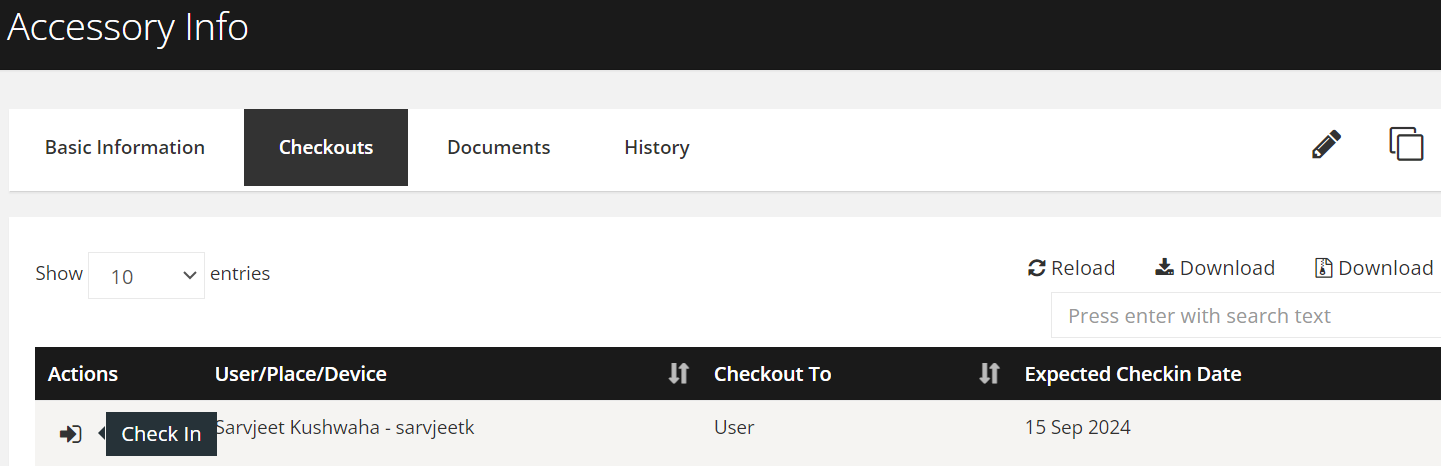
- Select the accessory name and open Checkouts.
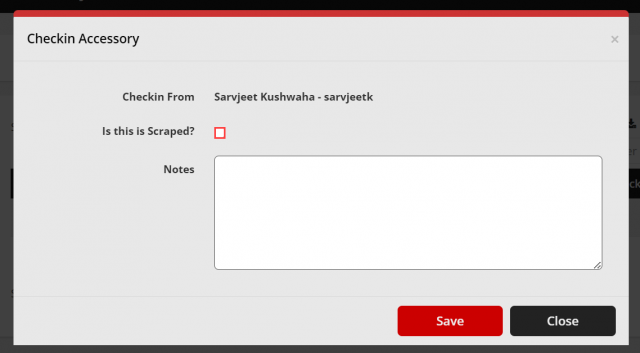
- On the user tab, select Check In (sign-in icon) for the assignment.
- Enter the details and select Save.
Bulk import accessories
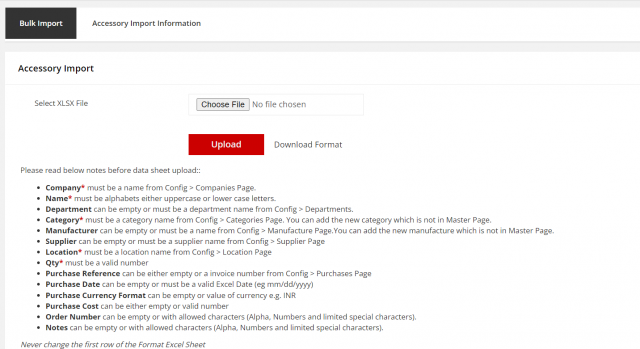
- Select Bulk Import (upload icon), download the format file and fill it in.
- Upload the file and review the Accessory Import Information tab.
| Column | Rule |
|---|---|
| Company * | A company name |
| Name * | Letters |
| Department | Empty or a department name |
| Category * | A category name |
| Manufacturer | Empty or a manufacturer name |
| Supplier | Empty or a supplier name |
| Location * | A location name |
| Qty * | A number |
| Purchase Reference | Empty or an invoice number (Config → Purchases) |
| Purchase Date | Empty or a valid Excel date (mm/dd/yyyy) |
| Purchase Currency | Empty or a currency code, for example INR |
| Purchase Cost | Empty or a number |
| Order Number, Notes | Empty or letters, numbers and limited special characters |
| Threshold | Optional low-stock limit; must not be greater than the quantity |

Bulk check out accessories
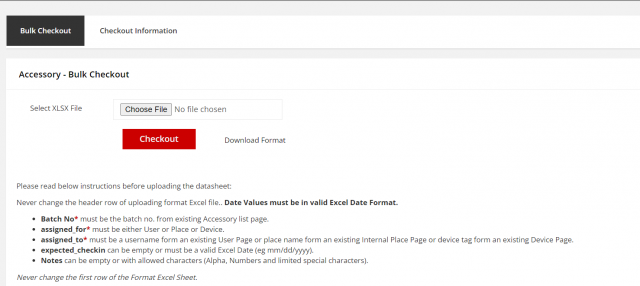
- Select Bulk Checkout (sign-out icon in the toolbar), download the format file and fill it in.
- Upload the file and select Checkout.
| Column | Rule |
|---|---|
| Batch No * | An existing accessory batch number |
| assigned_for * | User, Place or Device |
| assigned_to * | An existing username, internal place name or device asset tag |
| expected_checkin | Empty or a valid Excel date |
| Notes | Empty or letters, numbers and limited special characters |

Bulk check in accessories
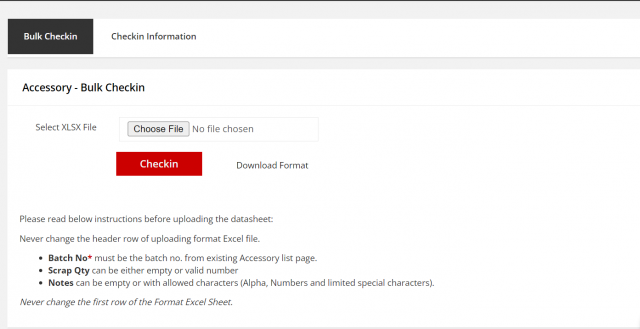
- Select Bulk Check-in (sign-in icon in the toolbar), download the format file and fill it in.
- Upload the file and select Checkin.
| Column | Rule |
|---|---|
| Batch No * | An existing accessory batch number |
| Scrap Qty | Empty or a number |
| Notes | Empty or letters, numbers and limited special characters |
Never change the first (header) row of any template. Each bulk tab (import, checkout, check-in) keeps a history of attempts with status counts and error messages.

Scrap accessories
The Scrap button is shown on the accessory information page only when the available quantity is greater than 0.
- Select Scrap.
- Enter the quantity to scrap and select Submit.
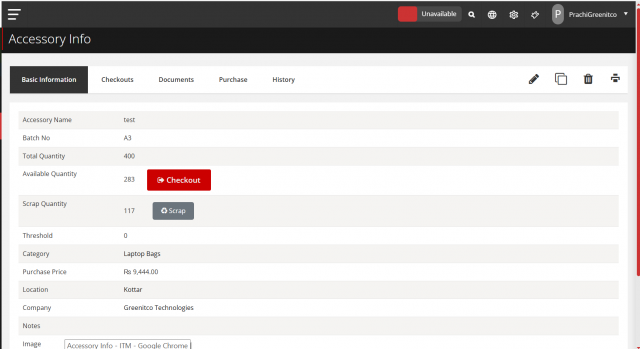
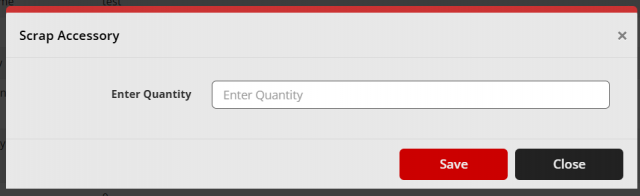
The scrapped quantity is deducted from available stock and added to scrap stock. A scrap can be reverted by users with the AccessoriesRevertScrap permission.
Record accessory purchases
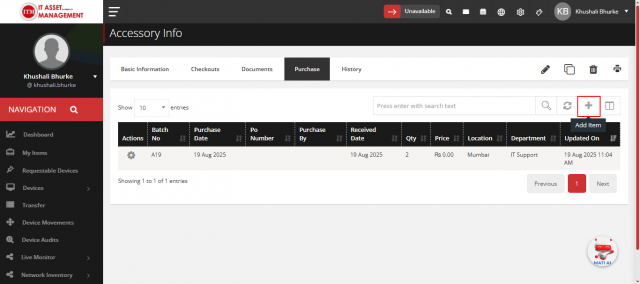
- Open the accessory (select its name, or View from the action menu).
- Open the Purchase tab and select Add Item (plus icon).
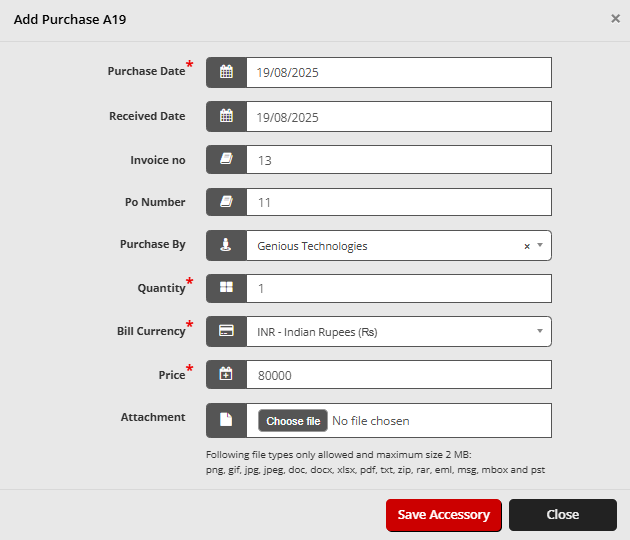
- Enter the purchase details and select Save.
- Use the action menu in the purchase list to edit or delete a purchase entry.
Purchases can also be created during bulk import by filling in the purchase columns.
Download the accessory list
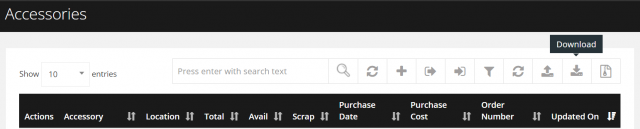
Select Download (download icon) to export accessories to Excel.