

Introduction
Check Out (also called Assign) is the operation that links a device to a specific user, department, or location, marking it as "in use." It is the moment a device leaves available inventory and becomes the responsibility of an individual or team. Checking out is the counterpart to Check In (return/unassign), and together they form the core of device custody tracking.
Navigation Path: Sidebar > Assets > Asset Details
Check out one asset
- Open the asset's action menu and select Check Out (sign-out icon).
- Fill in the details:
- Check Out To: a user or an internal place.
- Expected Check-In Date: the expected return date (optional).
- Select Save.
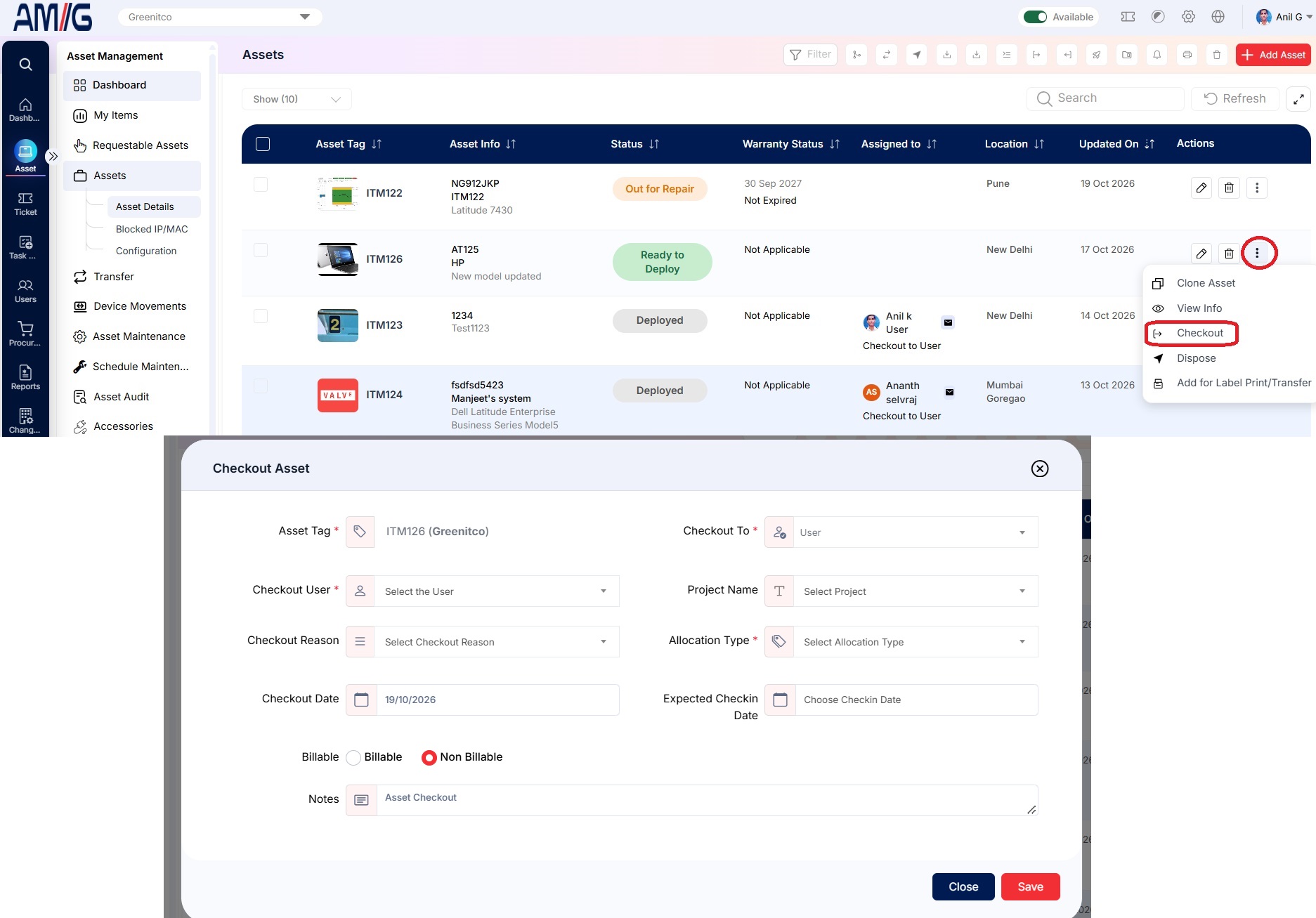
The user may need to accept the device (EULA acceptance, which can include OTP verification). Accepted and rejected Assets are visible to the user in My Items.
Check out many devices (bulk checkout)
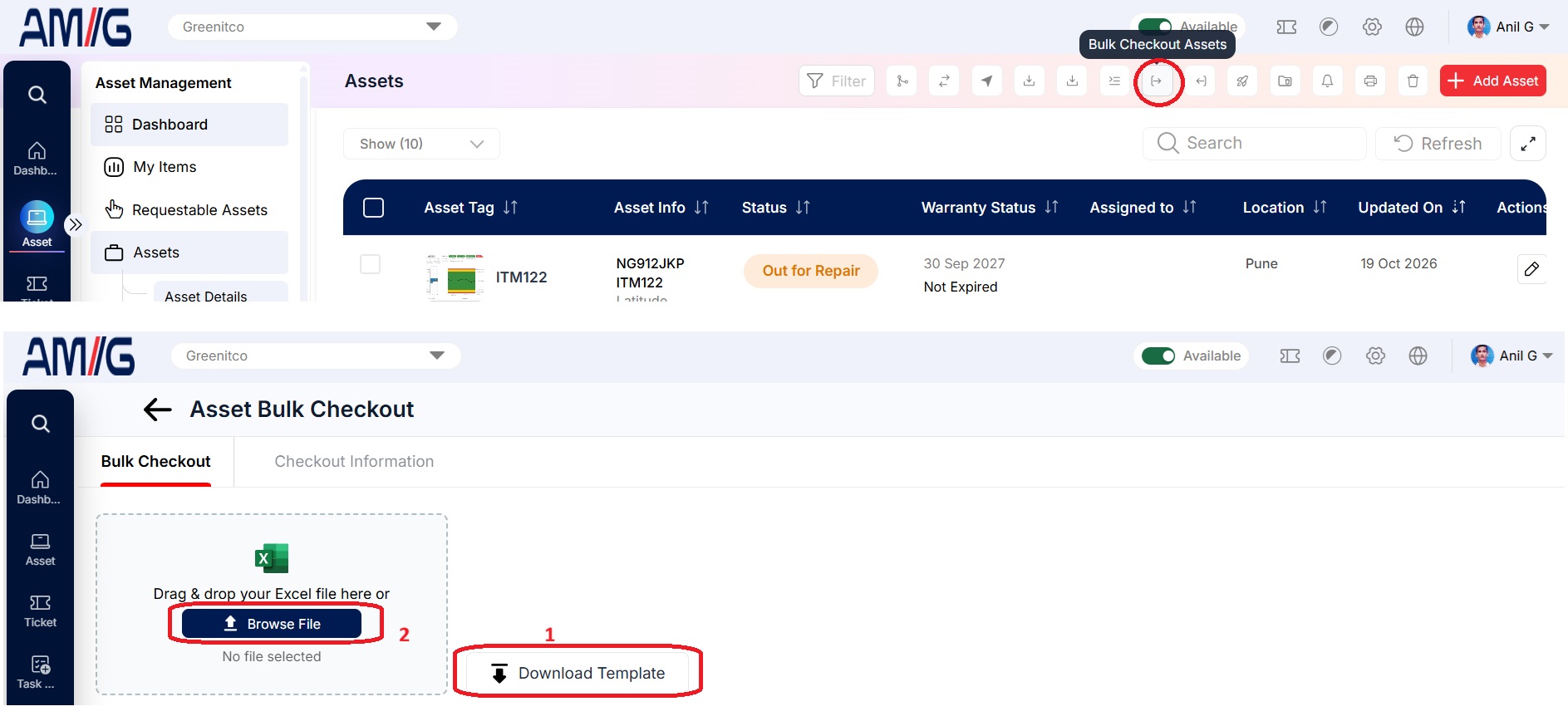
- Open Assets → Asset Details and select Bulk Checkout (sign-out icon in the toolbar).
- Select Download Format, fill in the template and upload it.
- Select Checkout.
| Column | Rule |
|---|---|
| Serial * | An existing Asset serial number |
| Name | Empty or a valid device name |
| Assigned For * | User or Place |
| Assigned To * | A valid username or place name |
| Last Checkout Project | Empty or a project name (Config → Projects) |
| Last Checkout | Empty or a valid Excel date (mm/dd/yyyy) |
| Expected Checkin | Empty or a valid Excel date (mm/dd/yyyy) |
| Notes | Empty or letters, numbers and limited special characters |
| Allocation Type * | An allocation type name (Config → Allocation Type) |
Never change the first (header) row of the template.
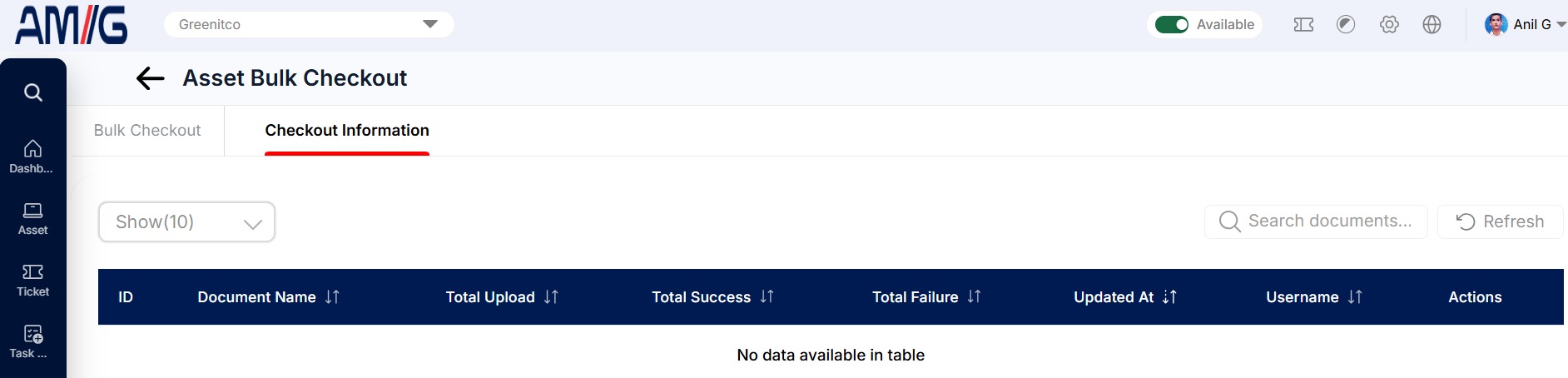
The Checkout Information tab lists each bulk attempt with its date, counts by status and error messages. Download the attempt file to correct failed rows.
Resend checkout acceptance emails
If users have not yet accepted devices checked out to them, send the acceptance email again in bulk:
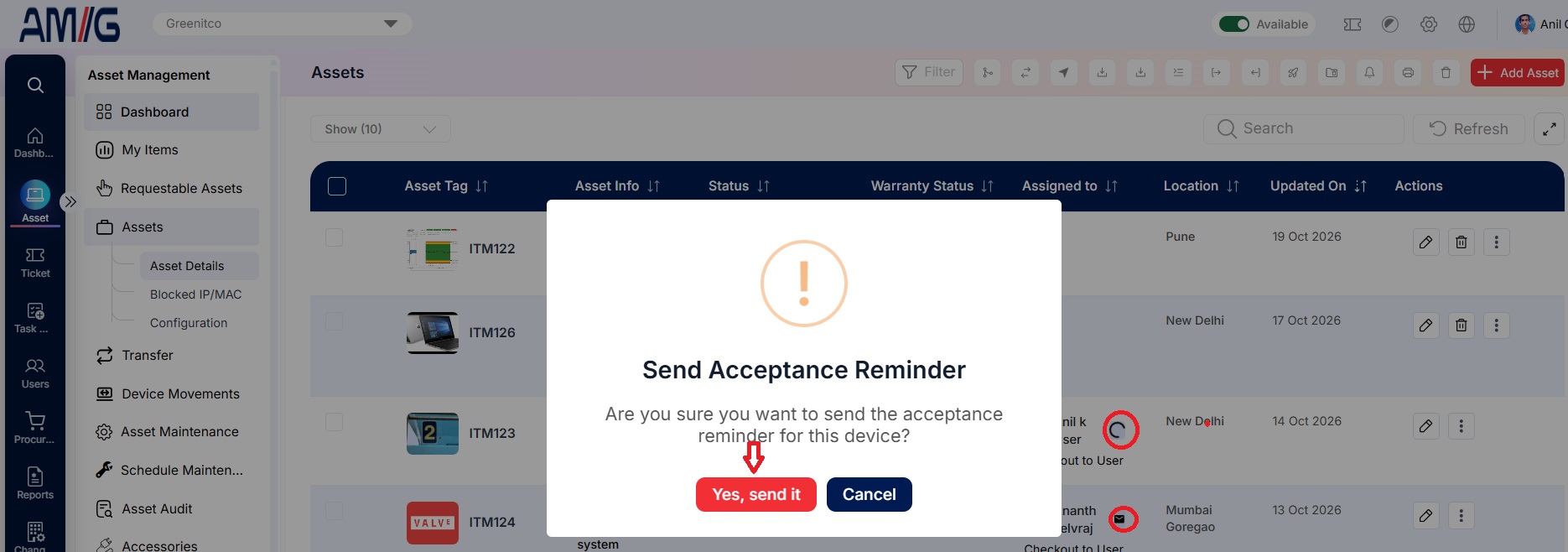
Menu path: Asset → Configuration → Send Bulk Checkout Acceptance Mail To Users For Pending Assets