Introduction
Ticket Scheduler allows authorised users to schedule tickets that are automatically created at predefined dates and times. You can configure recurring tickets for a selected company, department, user, and problem or service request category, reducing the need to create the same tickets manually.
For example, if your IT Support department needs a daily backup check at 1:00 AM, you can configure a scheduler for the Backup category. The system will automatically generate a ticket every day at the scheduled time, helping ensure that the task is not missed.
Using this section, you can:
-
Schedule Automatic Tickets: Configure tickets to be created automatically at a specified date and time.
-
Configure Recurrence: Set the schedule to repeat daily, weekly, monthly, yearly, or according to the available recurrence options.
-
Assign Ticket Details: Select the company, department, user, and problem or service request category for the scheduled ticket.
-
Define Ticket Content: Specify the ticket subject and description so that the required information is included when the ticket is generated.
-
Configure Email Details: Set the reply-to account, where applicable, for the scheduled ticket.
-
Add Attachments: Include relevant files with the scheduled ticket, where supported.
Once configured, the scheduler automatically generates a ticket whenever the defined schedule is due.
These settings help automate routine activities, ensure recurring tasks are tracked through tickets, and reduce manual effort in day-to-day operations.
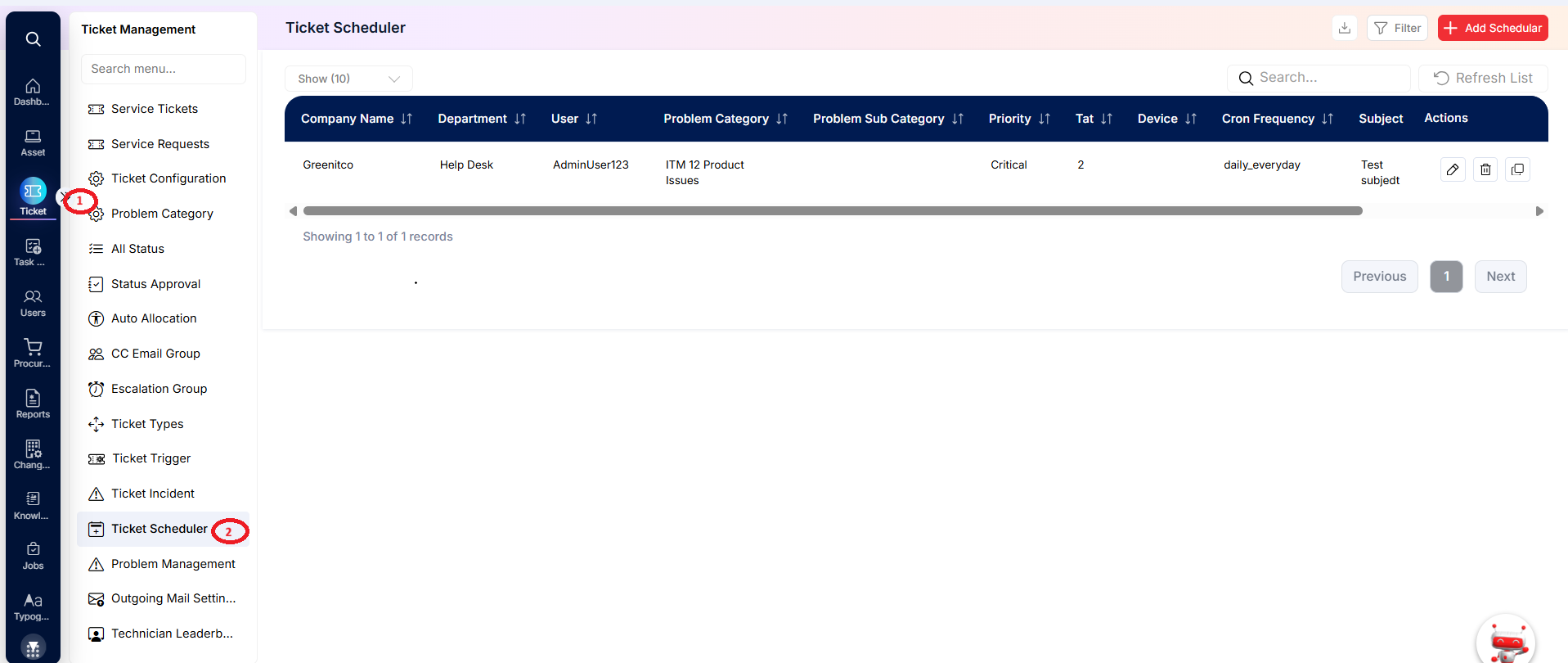
Navigation: Sidebar › Ticket › Ticket Scheduler
Viewing the Ticket Scheduler List
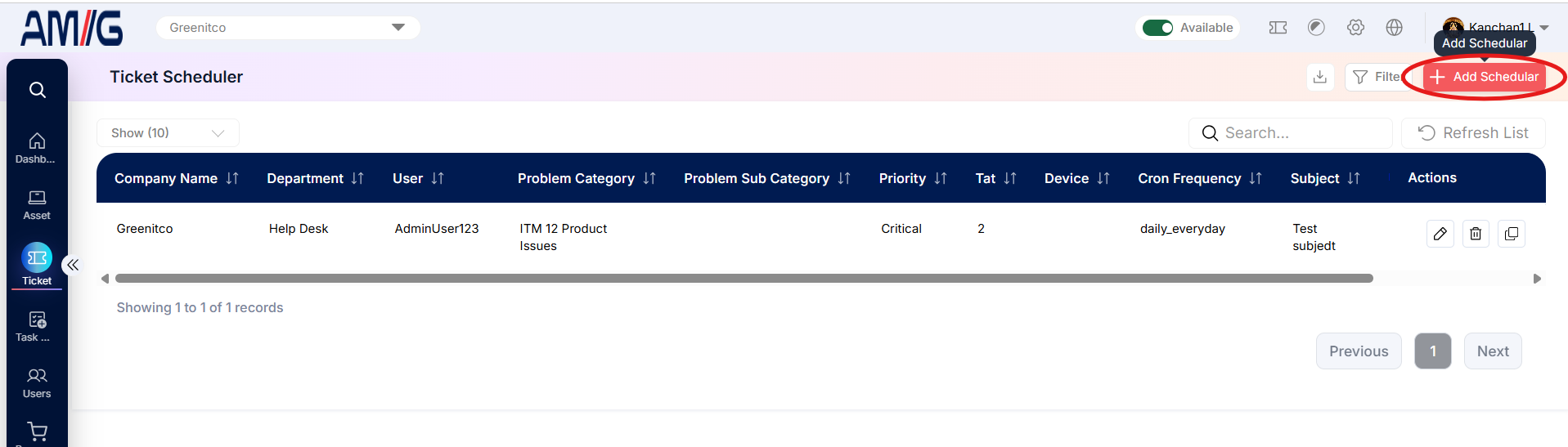
The scheduler list displays the main scheduling details and provides controls to edit, delete, or copy an entry. Use Search to locate a scheduler, Refresh List to reload records, and Filter to narrow the results.
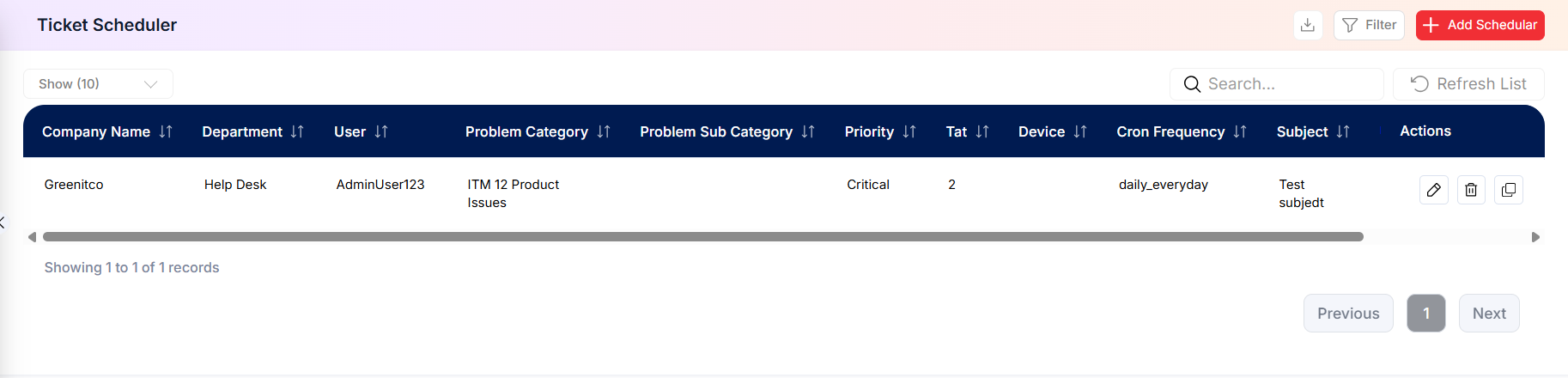
Figure: Ticket Scheduler list
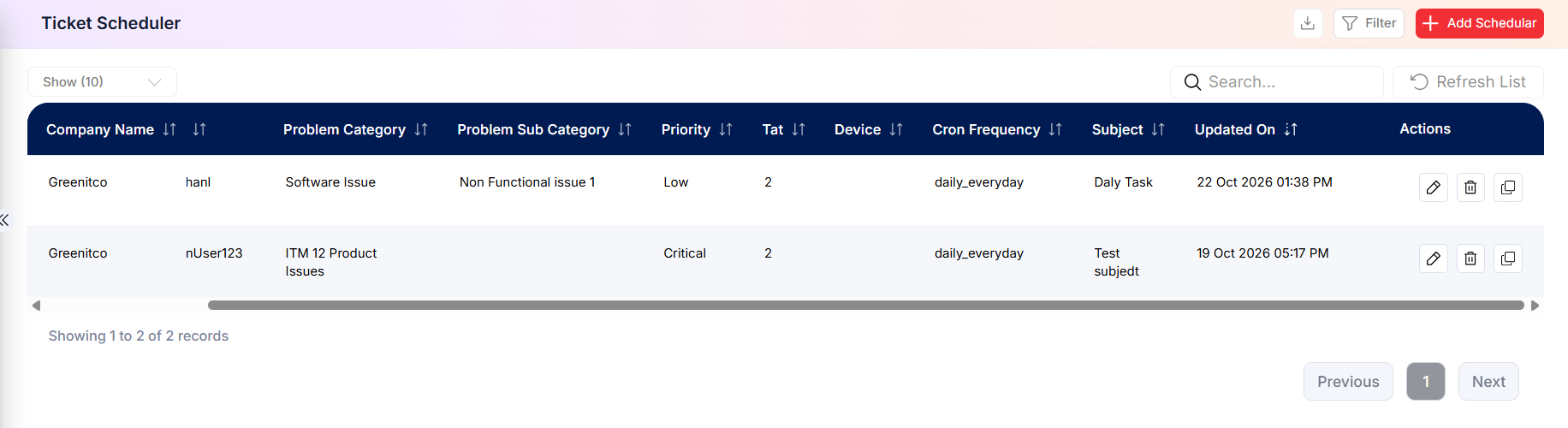 Figure: Ticket Scheduler list — extended columns
| Column | Description |
|---|---|
| Company Name | Company associated with the scheduler. |
| Department / User | Target department and ticket-raising user. |
| Problem Category / Problem Sub Category | Problem category and sub category classification for the scheduled ticket. |
| Priority / TAT | Priority and turnaround-time information displayed for the scheduled ticket. |
| Device | Device associated with the scheduled ticket, if selected. The ticket will be created against that specific device. |
| Cron Frequency | Recurrence pattern configured for the scheduler. |
| Subject | Subject line used for the scheduled ticket. |
| Updated On | Date and time of the last update. |
| Actions | Edit, Delete, and Copy/Duplicate controls, where available. |
Creating a Scheduler
Step 1 → On the Ticket Scheduler screen, click Add Scheduler.
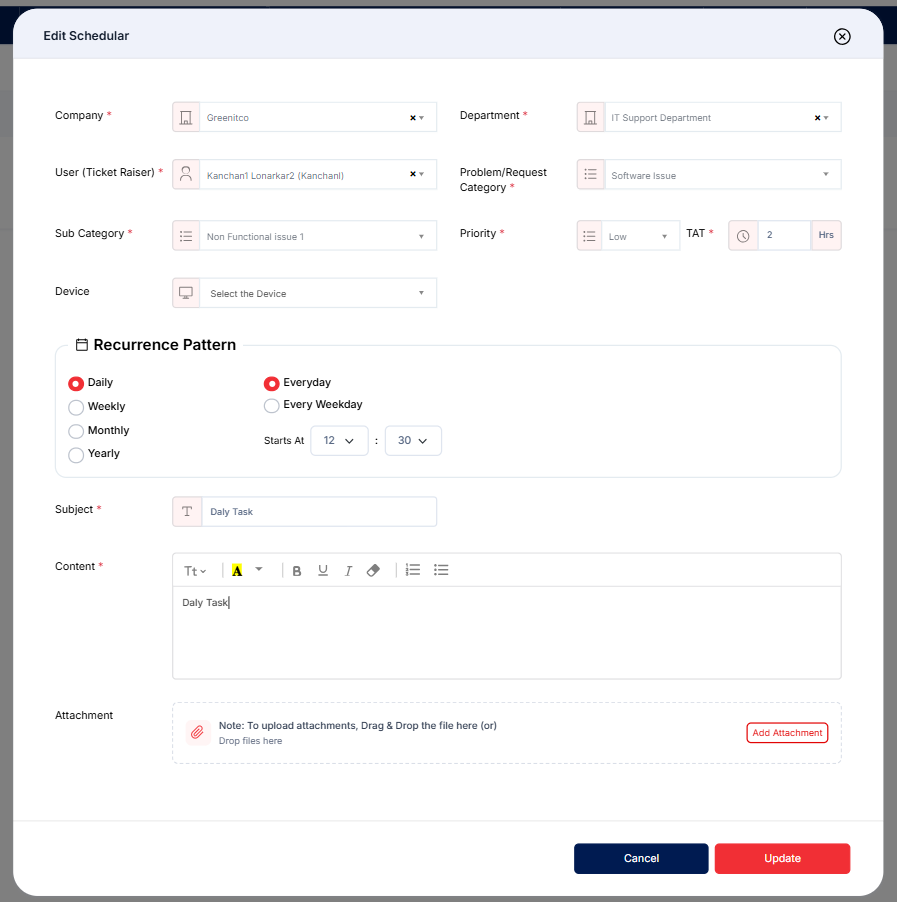
Step 2 → Select the Company, Department, User (Ticket Raiser), and Problem/Request Category. Select a Device if applicable.
Step 3 → Under Recurrence Pattern, choose Daily, Weekly, Monthly, or Yearly. Select the available cadence option, such as Everyday or Every Weekday, and set Starts At.
Step 4 → Enter the Subject and choose a Reply To account if required.
Step 5 → Enter the scheduled ticket Content. To include supporting files, drag and drop them into the attachment area or click Add Attachment.
Step 6 → Click Save to create the scheduler or Cancel to close the form without saving.
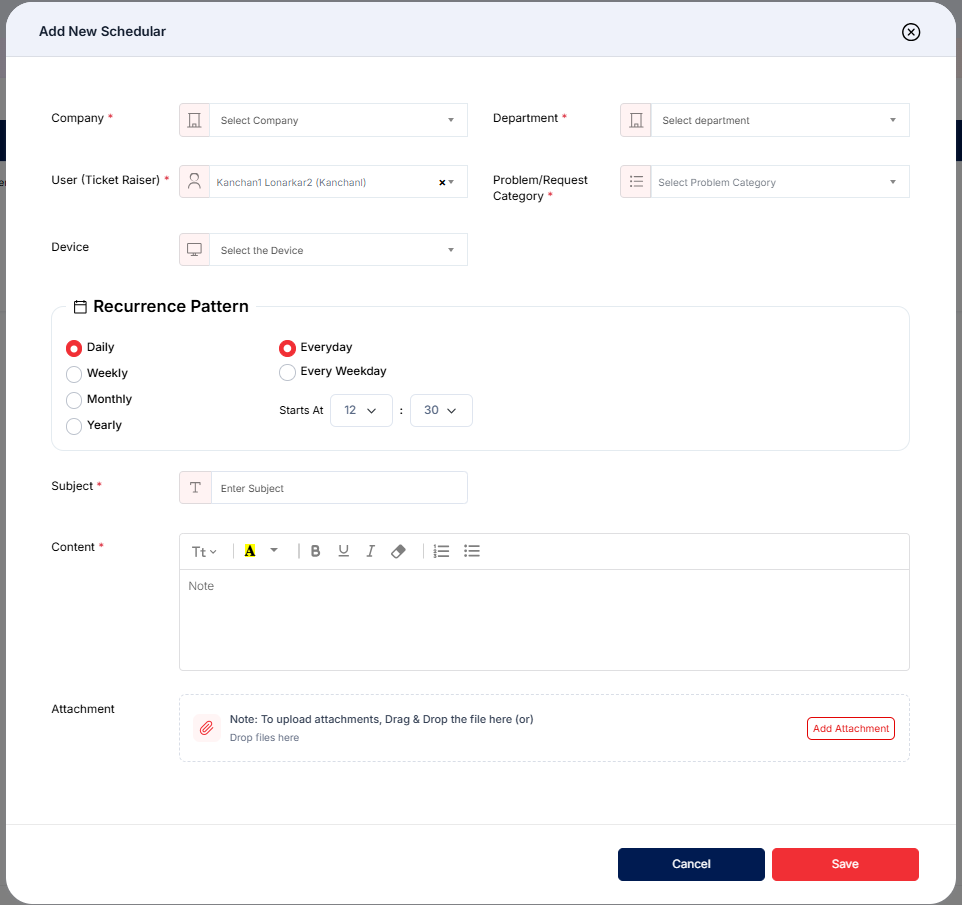
Figure: Add New Scheduler form
Ticket Scheduler form fields
| Field | Description |
|---|---|
| Company* | Company under which the scheduled ticket will be created. |
| Department* | Department associated with the scheduled ticket. |
| User (Ticket Raiser)* | User displayed as the ticket raiser. |
| Problem/Request Category* | Problem Category and subcategory used for the scheduled ticket. |
| Device | Optional. The device the ticket will be created against. |
| Recurrence Pattern | Choose how often the ticket is created: Daily – creates the ticket every day. Weekly – creates the ticket every week. Monthly – creates the ticket every month. Yearly – creates the ticket every year. Then choose the available cadence option. |
| Subject* | Subject used for the scheduled ticket. |
| Reply To | Reply-to email account, if configured. When someone replies to the ticket, the email is sent from this account. |
| Content* | Text or description to include in the scheduled ticket. |
| Attachment | Optional file attachments for the scheduled ticket. |
Configuring Recurrence
The available recurrence controls depend on the selected pattern. Choose the pattern and any displayed frequency option, then verify the start time before saving.
Recurrence options shown
| Option | Purpose |
|---|---|
| Daily | 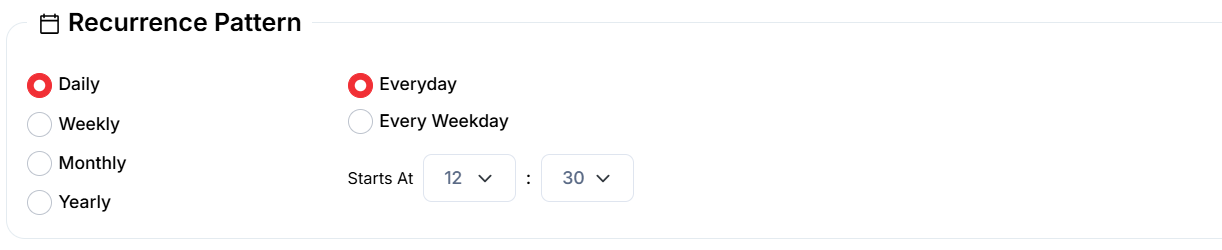 |
| Weekly |  |
| Monthly | |
| Yearly |  |
Filtering Schedulers
Step 1 → Click Filter on the Ticket Scheduler screen.
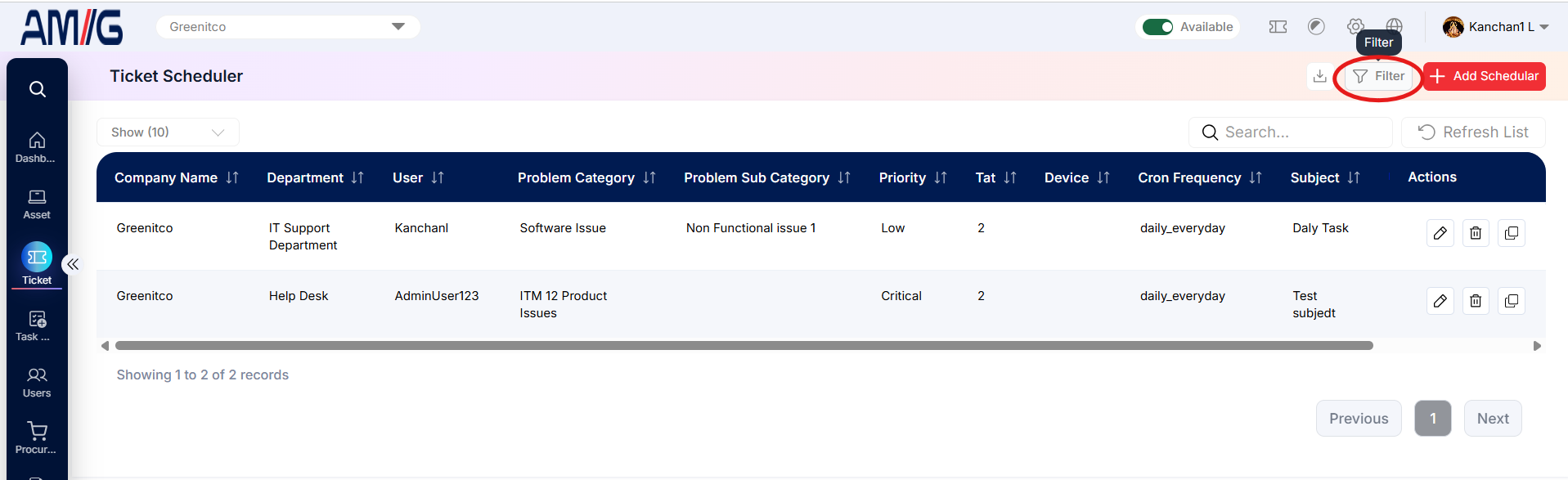 Step 2 → Choose any required criteria: Company Name, Department, User, Problem Category, Problem Sub Category, Priority, Device, TAT, Cron Frequency, Subject, date filter, or date/time range.
Step 3 → Click Apply to display matching schedulers. Click Reset to clear the filter selections.
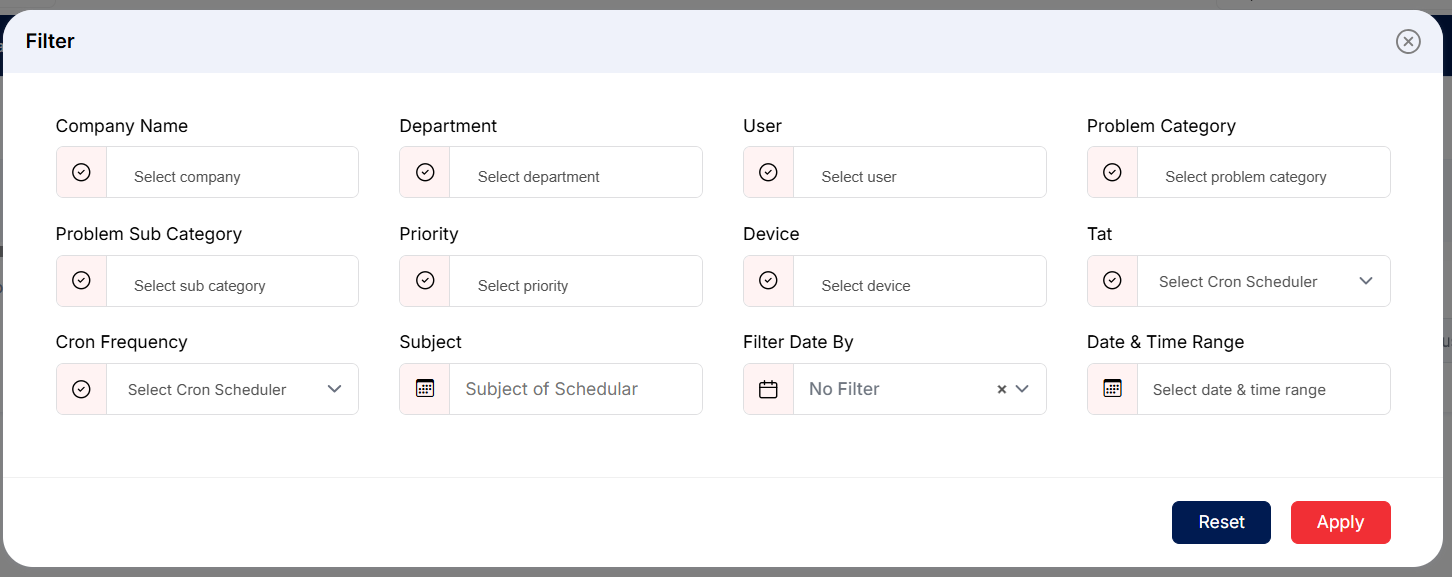
Figure: Ticket Scheduler filter dialog
Ticket Scheduler filter fields
| Filter | Purpose |
|---|---|
| Company Name / Department / User | Limit results to the selected organisation, team, or user. |
| Problem Category / Problem Sub Category | Filter by the scheduled ticket classification. |
| Priority / Device | Filter by priority or associated device. |
| TAT / Cron Frequency | Filter by the displayed turnaround-time or recurrence criteria. |
| Subject | Find schedulers by subject text. |
| Filter Date By / Date & Time Range | Apply a date filter or select a specific date/time range. |
Managing Existing Schedulers
Edit a scheduler
Step 1 → Find the required scheduler and click the Pencil (Edit) icon.
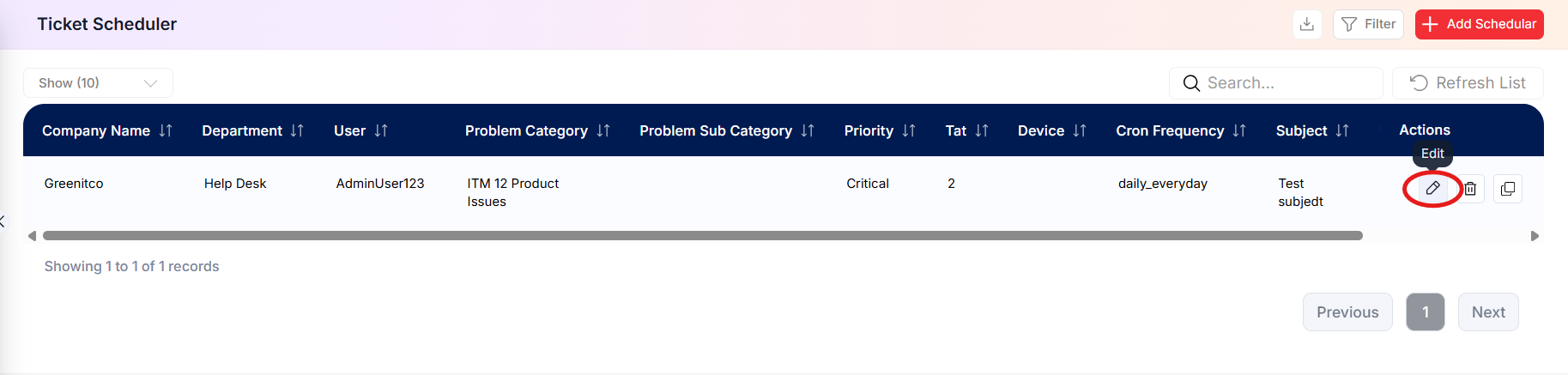 Step 2 → Update the scheduling, recurrence, content, or attachment details as required, then save the changes.
 Delete a scheduler
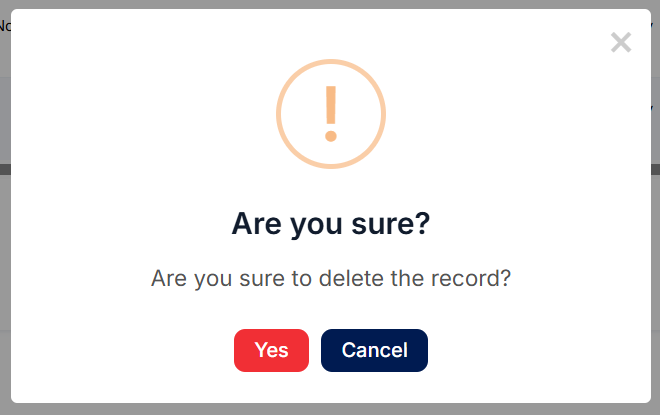
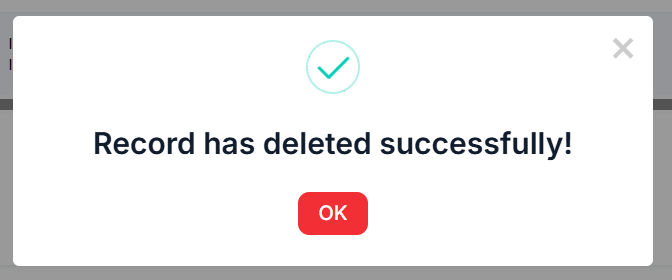
Step 1 → Click the Trash (Delete) icon for the scheduler.
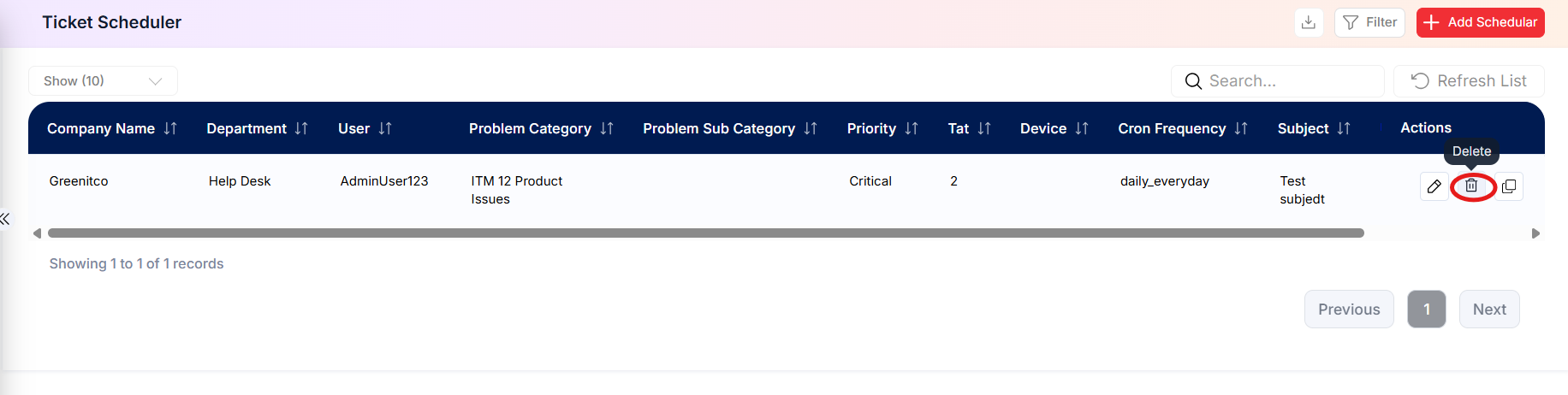 Step 2 → Review the confirmation prompt and confirm deletion if the scheduler should be removed.
Copy a scheduler
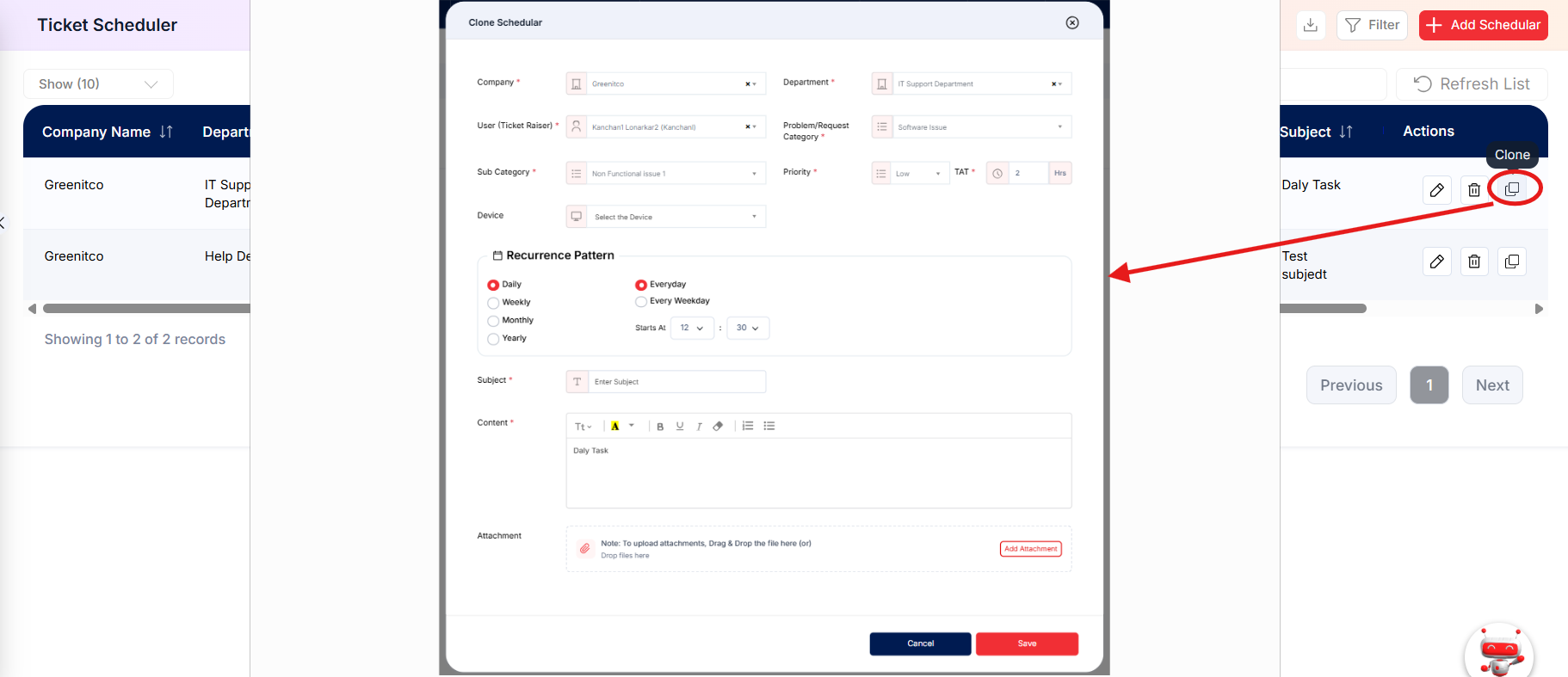
Step 1 → Use the Copy/Duplicate icon on the required row, where available, and review the new entry before saving it.