

Introduction
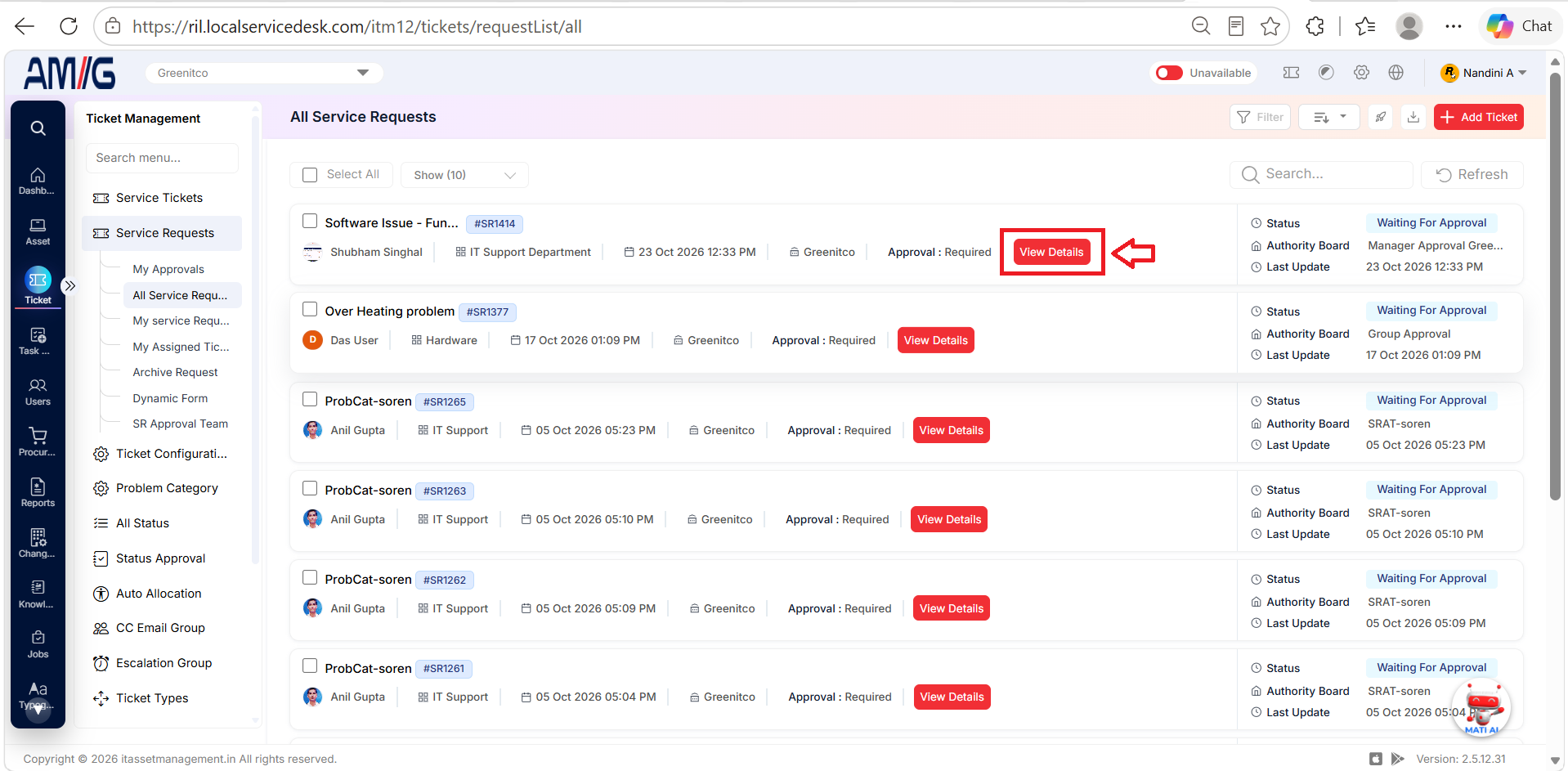
Archived Service Requests provides a list of service requests that have been automatically archived by the system. It allows users to access older request records for reference and review their details whenever needed.
Requests are archived based on the number of days configured in the Auto Archive Ticket after X Days setting under Sidebar > Ticket > Ticket Configuration.
Each archived request is displayed as a card containing the following details:
- Request Details: The subject and unique request ID.
- Requester Information: The name of the person who submitted the request.
- Department and Company: The department and company associated with the request.
- Submission Date and Time: When the request was created.
- Approval Requirement: The approval requirements associated with the request.
- Approval Status: The current status of the request's approval process.
- Authority Board: The approval authority details associated with the request.
- Last Updated: When the request was last updated.
This section helps users access and review previously archived service requests while keeping older records separate from active requests.
Navigation: Sidebar > Ticket > Service Request > Archived Service Requests
Viewing Archived Service Requests
Step 1: Open Archived Service Requests from the Sidebar > Service Ticket > Service Request area.
Step 2: Review the status and authority board shown on each card. Use Search, Refresh, page-size, and pagination controls as needed.
Step 3: Click View Details to review a request. The detail and history pages are the shared pages described.
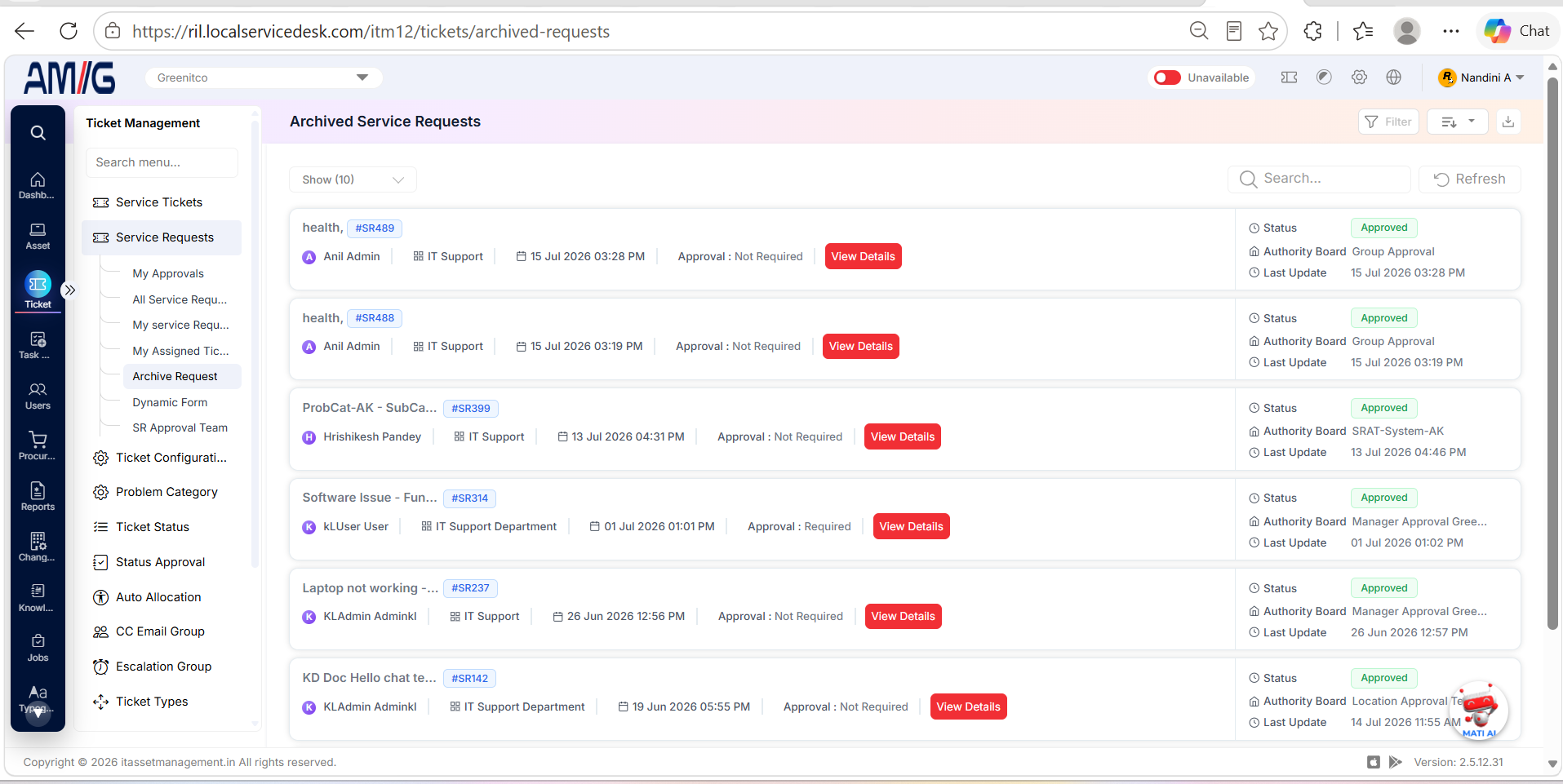 Figure: Archived Service Requests list
| Item | Description |
|---|---|
| Request subject and ID | Identifies the service request and its request number. |
| Requester / department | Shows who submitted the request and the associated department. |
| Submission date / company | Shows when the request was created and the company associated with it. |
| Approval requirement | Indicates whether approval is required for the request. |
| Status | Shows the current request status, such as Approved or Waiting for Approval. |
| Authority Board | Shows the authority board or approval group currently associated with the request. |
| Last Update | Shows the most recent recorded update time. |
| View Details | Opens the selected request details, including its approval information. |
Creating a Service Request
-
Step 1: Click Add Ticket to open the Create Ticket form. Fields marked with an asterisk (*) are required.
-
Step 2: Select the Company, Department, User (Ticket Raiser), and Problem Category. Select a Priority and enter the TAT in hours.
-
Step 3: If a dynamic form is configured for the selected Problem Category under Sidebar > Ticket > Problem Category, the form opens automatically. Complete the required fields before continuing. Dynamic forms are managed under Sidebar > Ticket > Service Request > Dynamic Form.
-
Step 4: Complete the Subject and Content fields. Add the device, reply-to account, seat number, tags, and CC email information where needed.
-
Step 5: Add supporting files by dragging them into the attachment area or clicking Add Attachment. Review the ticket-raiser information panel to confirm that the request is being raised for the intended user.
-
Step 6: Click Create to submit the request, or Close to exit without creating it.
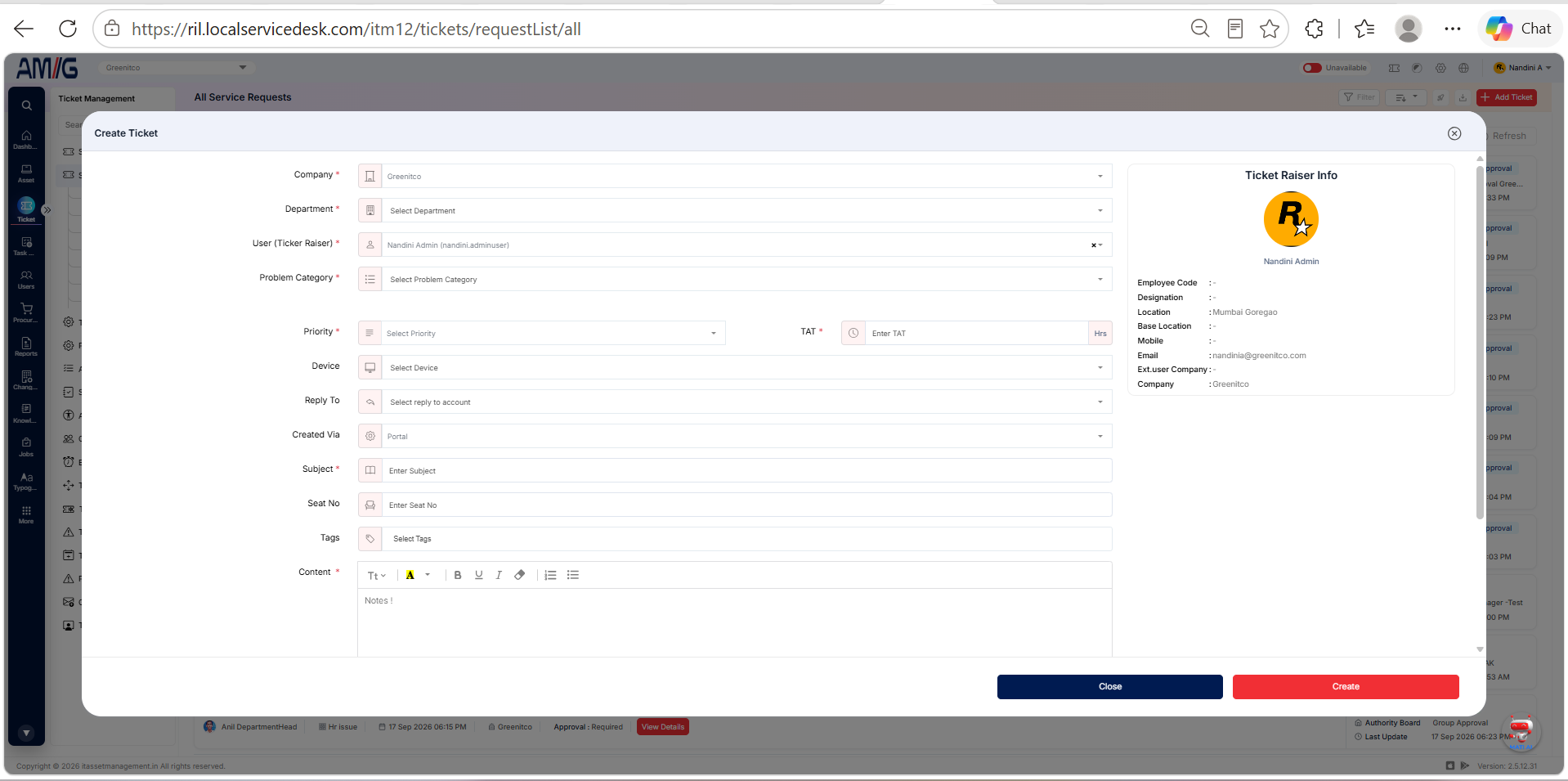 Figure: Create Ticket form
| Field | Description |
|---|---|
| Company | Select the company for the request. |
| Department | Select the department associated with the request. |
| User (Ticket Raiser) | Select the user on whose behalf the ticket/request is raised. |
| Problem Category | Select the problem or request category. |
| Priority | Set the request priority. It is filled in automatically based on the selected category; users with the required permission can change it. |
| TAT | Enter the turnaround time in hours. This value is filled in automatically based on the selected category; users with the required permission can change it. |
| Device | Optionally link the request to a device. If selected, the request is associated with that device and can be viewed from the device information page. |
| Reply To | Select the email account to use for replies, if configured. Replies use the account configured under Sidebar > Ticket > Outgoing Mail Settings. |
| Created Via | Shows the source used to create the request, such as Portal, Call, Email, or Bot. Available options depend on the configuration. |
| Subject | Enter a short title for the request. |
| Seat No | Optionally enter a seat number. Seat information is configured in the user details under Sidebar > Users. |
| Tags | Select one or more tags to help categorise the request and make it easier to find when filtering. |
| Content | Enter the request description or supporting notes. |
| Attachment | Optionally attach supporting files. The screen notes a maximum of 10 files and a combined total size of 10 MB. |
| CC E-Mails / E-Mails | Use the CC option and Add CC field to include additional email recipients. CC recipients receive notifications about ticket/request actions and activity. |
| Ticket Raiser Info | Displays the selected creator user’s available profile details, such as name, designation, location, mobile, email, and company. |
Reviewing Request Details
Step 1: Click View Details on the required request card.
Step 2: Review the request subject, status, creator, company, department, category, and creation/update timestamps. Select View More Information to inspect additional fields where available.
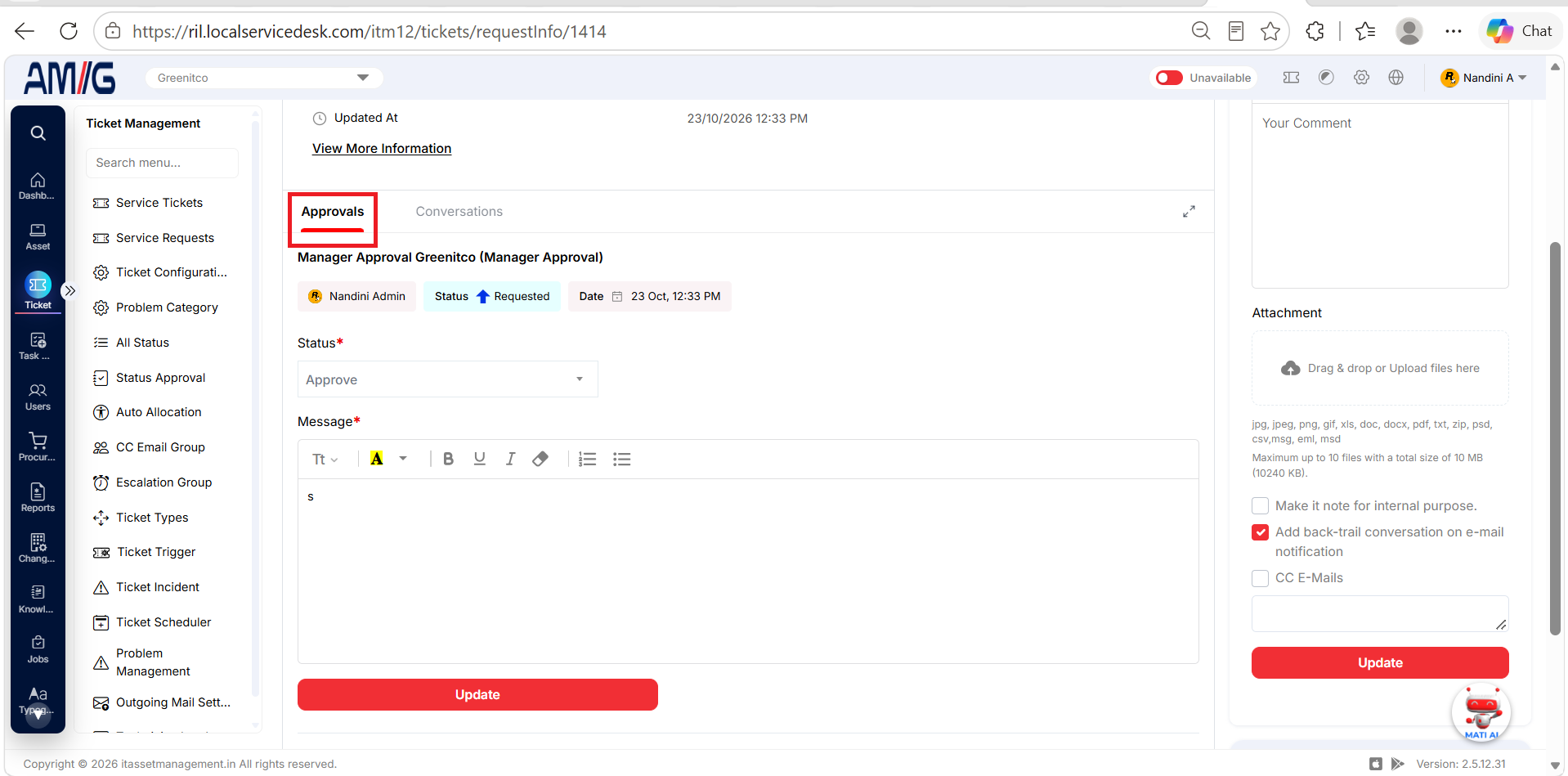
Step 3: In the Approvals tab, review each approval entry, including the approver, decision status, decision date, elapsed days, and comments.
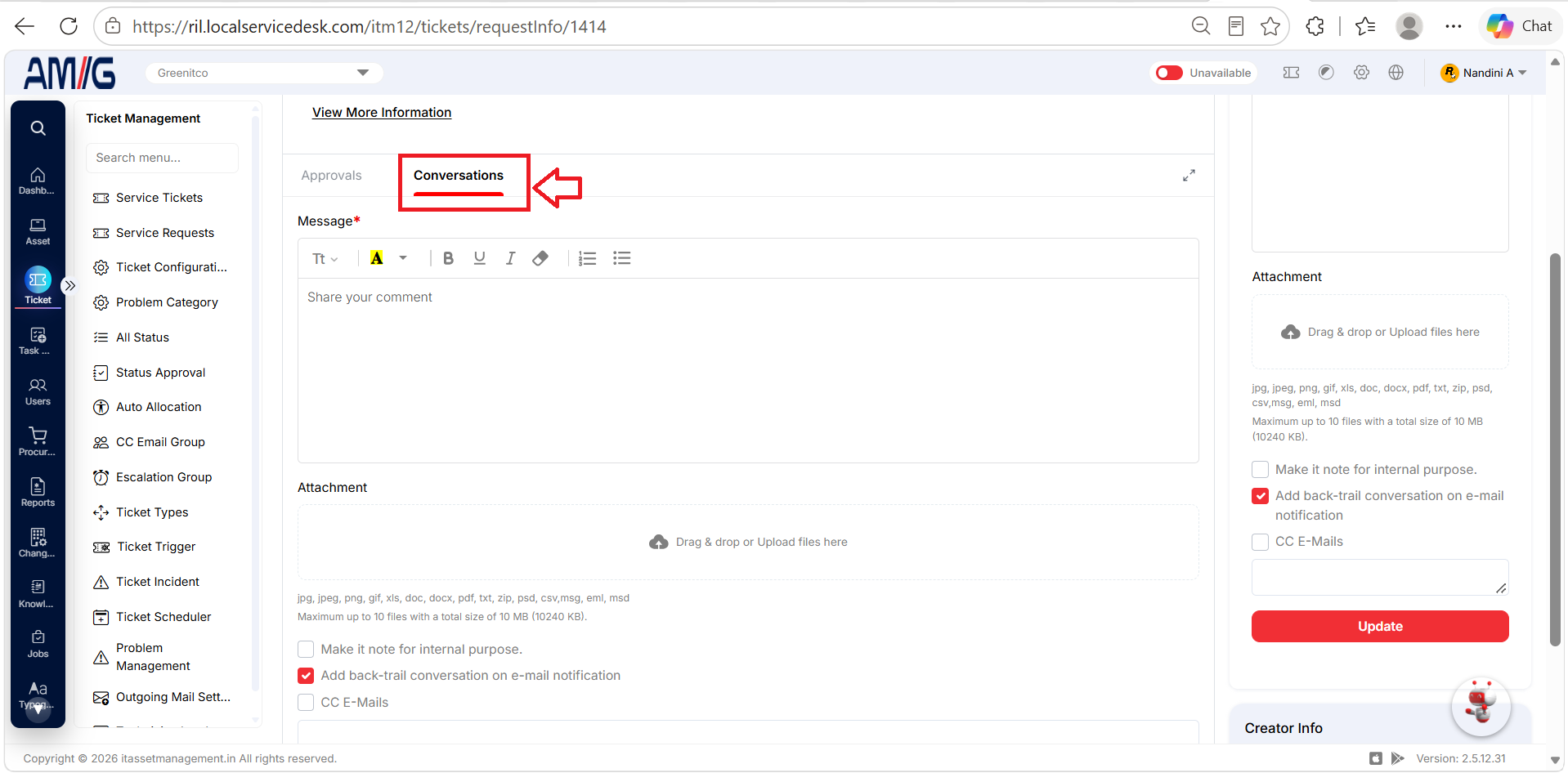
Step 4: Select Conversations to review the conversation thread associated with the request. The same details page is reused by All Service Requests, My Service Requests, and Archived Service Requests.
| Detail / Area | Description |
|---|---|
| Request summary | Displays the subject, current status, creator, company, department, category, and record dates. |
| Creator Info | Shows the request creator’s name, location, email, and company. |
| View More Information | Expands or opens additional request fields where available. |
| Approvals tab | Lists approval records, including the approver, status, date, duration, and comments. It shows who approved or reviewed the request and any comments they added. |
| Conversations tab | Displays the conversation information associated with the request. |
| Service Ticket / History / Print / View Form | Service Ticket: Opens the ticket created after the request is approved. History: Displays the request's history timeline. Print: Prints the request details for reference. View Form: Displays the dynamic form submitted when the request was created. |
Viewing Request History
Step 1: From the request details page, click History.
Step 2: Review the timeline from oldest to newest or scroll through the available events. Each event can show a timestamp, the person involved, the approval response or comment, and the associated action.
Step 3: Use the history to understand when a decision was recorded and whether comments were added to the request.
| Item | Description |
|---|---|
| Request summary | Shows the subject, ticket/request ID, company, department, and category. |
| Timestamp | Date and time of the recorded event. |
| Person / event | Identifies the user and action, such as an approval response or a comment. |
| Comment | Shows the comment associated with the event when one was recorded. |
| Approval information | May include approval mode and the number of days recorded for a decision. |
Filtering Service Requests
Step 1: Click Filter on a service-request list.
Step 2: Set one or more available filters. You can filter by status, department, problem category or subcategory, authority board, current authority board, approval mode, approver, VIP-ticket setting, date, or date range.
Step 3: Click Apply to display matching requests. Click Clear to remove the selected filters and start again.
The same filter fields and request detail page are used by All Service Requests, My Service Requests, and Archived Service Requests; the other sections refer back to this shared procedure.
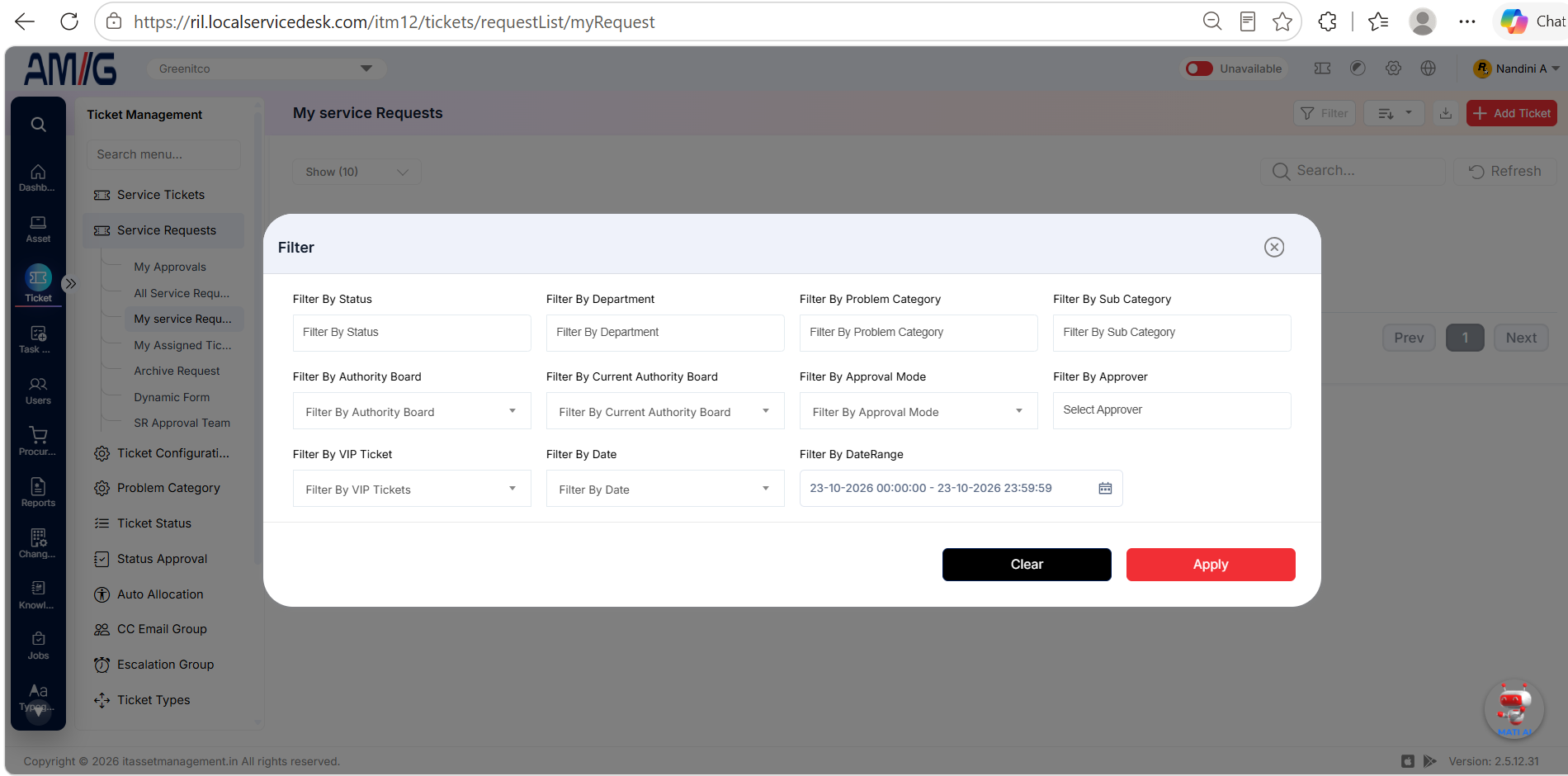
| Filter | Description |
|---|---|
| Status | Filter requests by their current status. |
| Department | Limit results to a selected department. |
| Problem Category / Sub Category | Filter by the selected category or subcategory. |
| Authority Board / Current Authority Board | Filter by the configured authority board or the current approval authority board. |
| Approval Mode / Approver | Filter by approval mode (Group, Minimum, Manager, or Department Head) or select a specific approver. |
| VIP Ticket / Date / Date Range | Filter by VIP-ticket setting, a selected date, or a start/end date-time range. Use Clear to reset filters and Apply to apply the selections. |