

When the list is long, use Filter to show only the users you are looking for.
Step 1: Click Filter on the Users List.
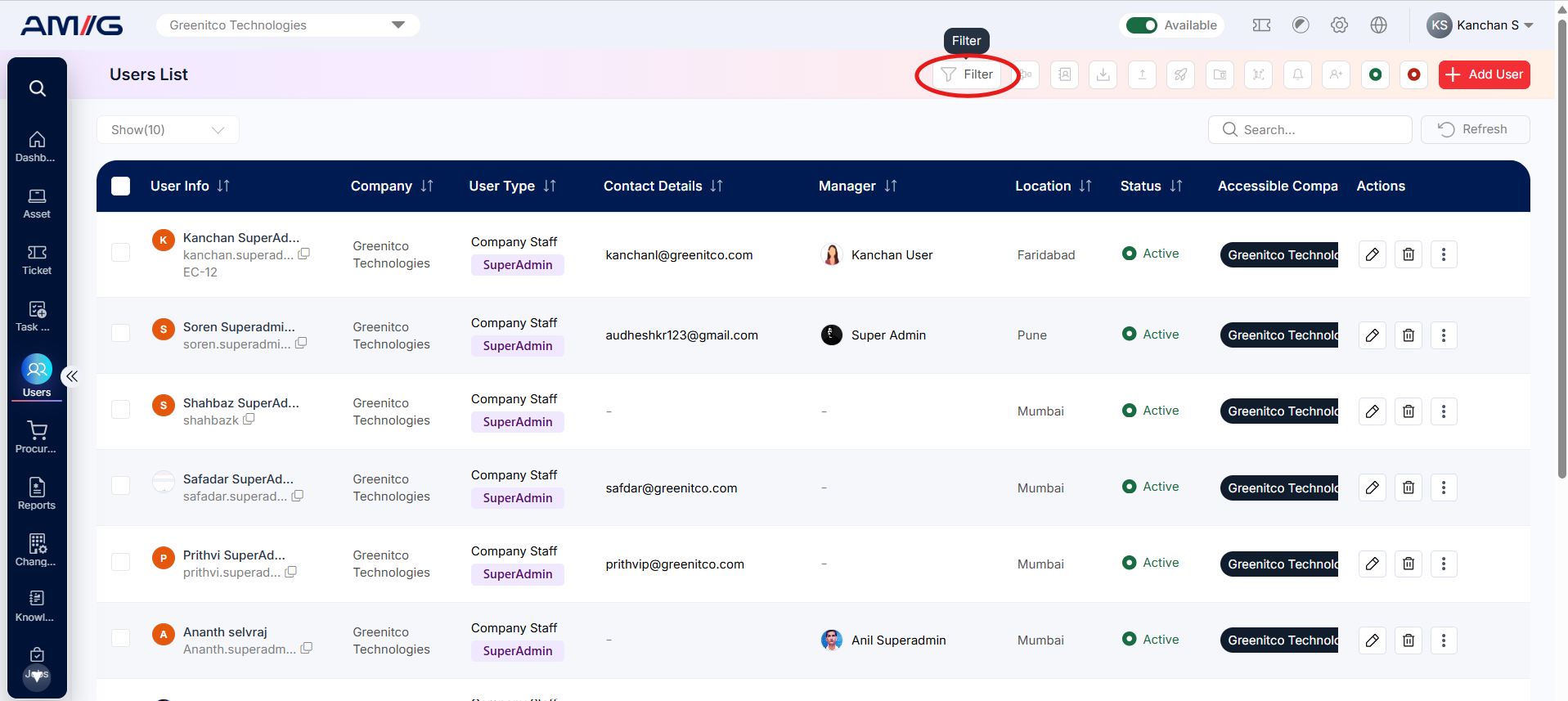
Table: Filter options
| Filter | Shows users who… |
|---|---|
| Company | Belong to the selected company. |
| User Type | Are Company Staff, Contract Staff or External Users. |
| Status | Are Active or Inactive. |
| Department | Belong to the selected department. |
| Location | Are based at the selected location. |
| Roles | Have the selected role. |
| Manager | Report to the selected manager. |
| Service Ticket Access | Are allowed or denied Service Ticket access. |
Step 2: Choose one or more filters.
Step 3: Click Apply Filter to see the matching users.
Step 4: Click Clear to remove the filters and see everyone again.
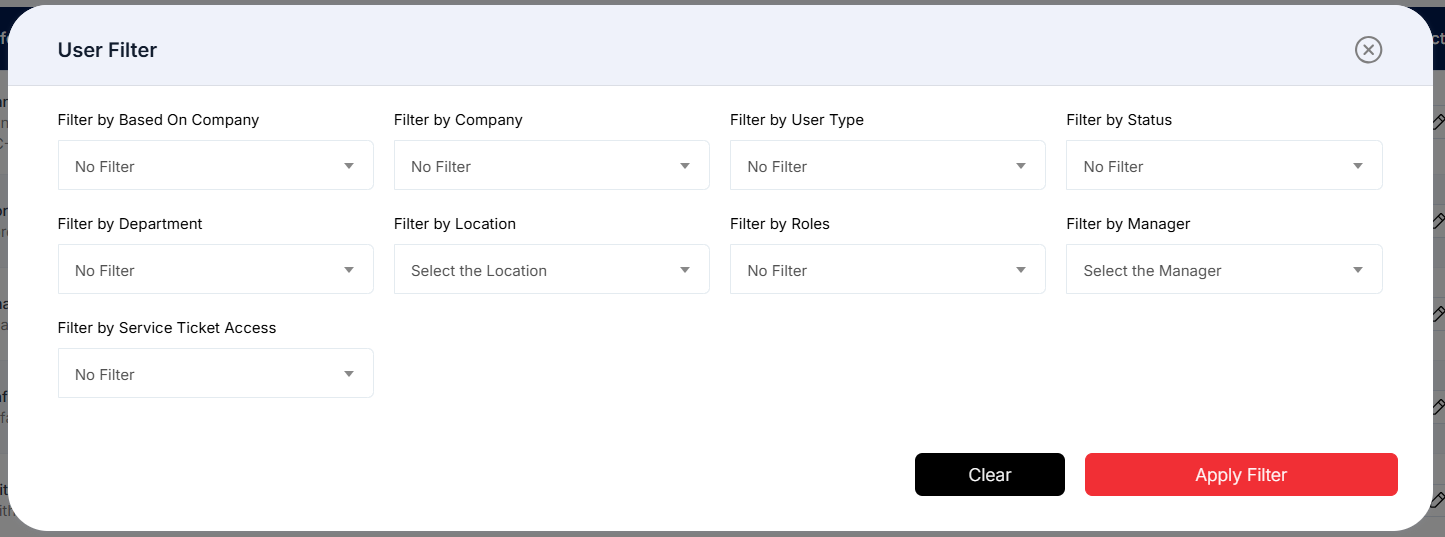
Figure: User Filter window
Tip: You can combine several filters – for example, all Active users in the IT department at one location.