Introduction
Tasks break work into steps. A task can stand alone or belong to a ticket, change request or project. The Kanban board shows tickets and tasks as cards in columns.
Task lists
Navigation Path: Sidebar > Task Management
Menu path: left side menu → Tasks
| List | Shows |
|---|---|
| Task List | All tasks you can access: ticket, change management, project and other tasks. Ticket tasks appear only for departments you have access to |
| My Task | Only tasks created by you |
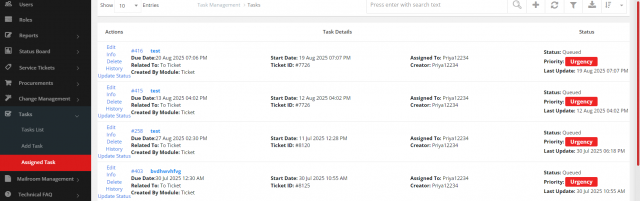
| Assigned Task | Only tasks assigned to you |
| Archived Task | Archived tasks. When a ticket is archived, its tasks are archived too |
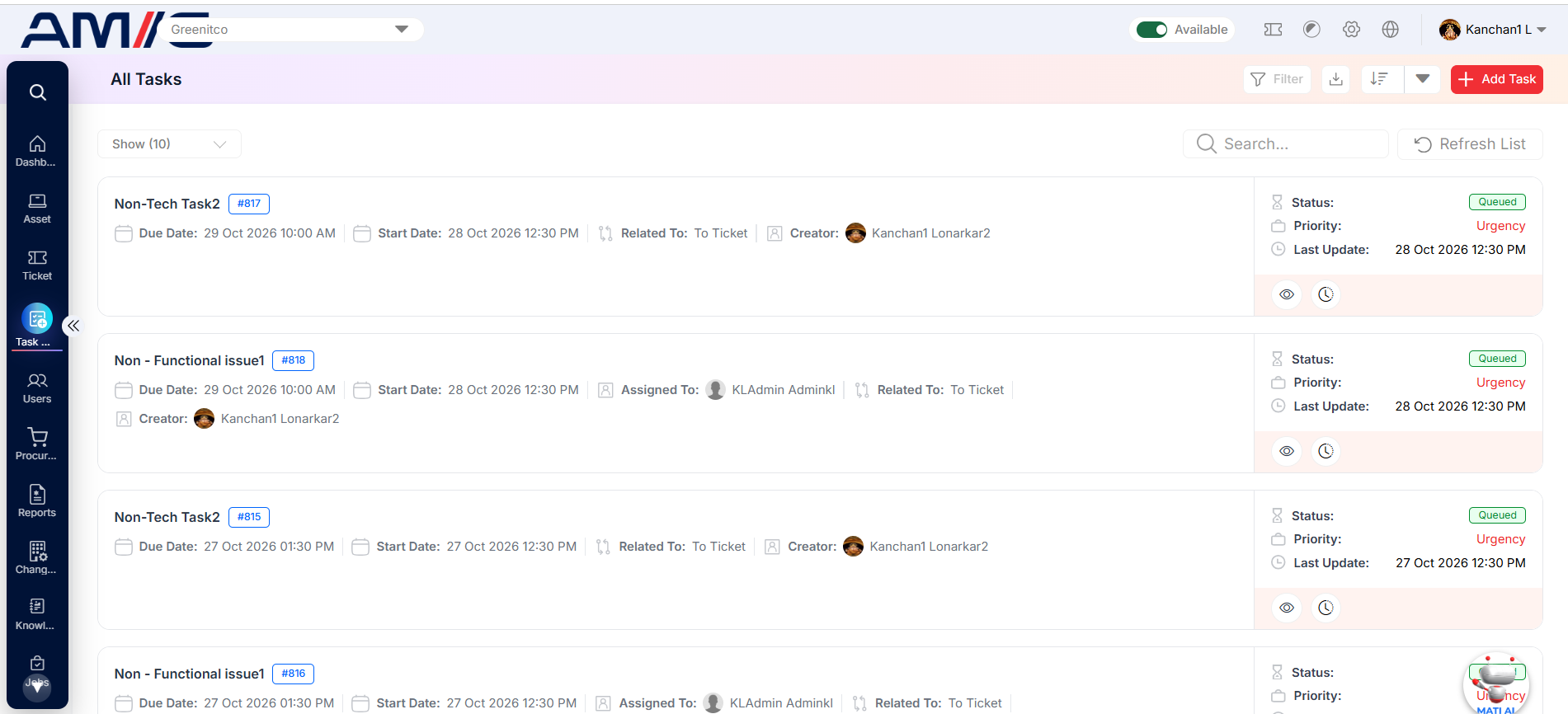
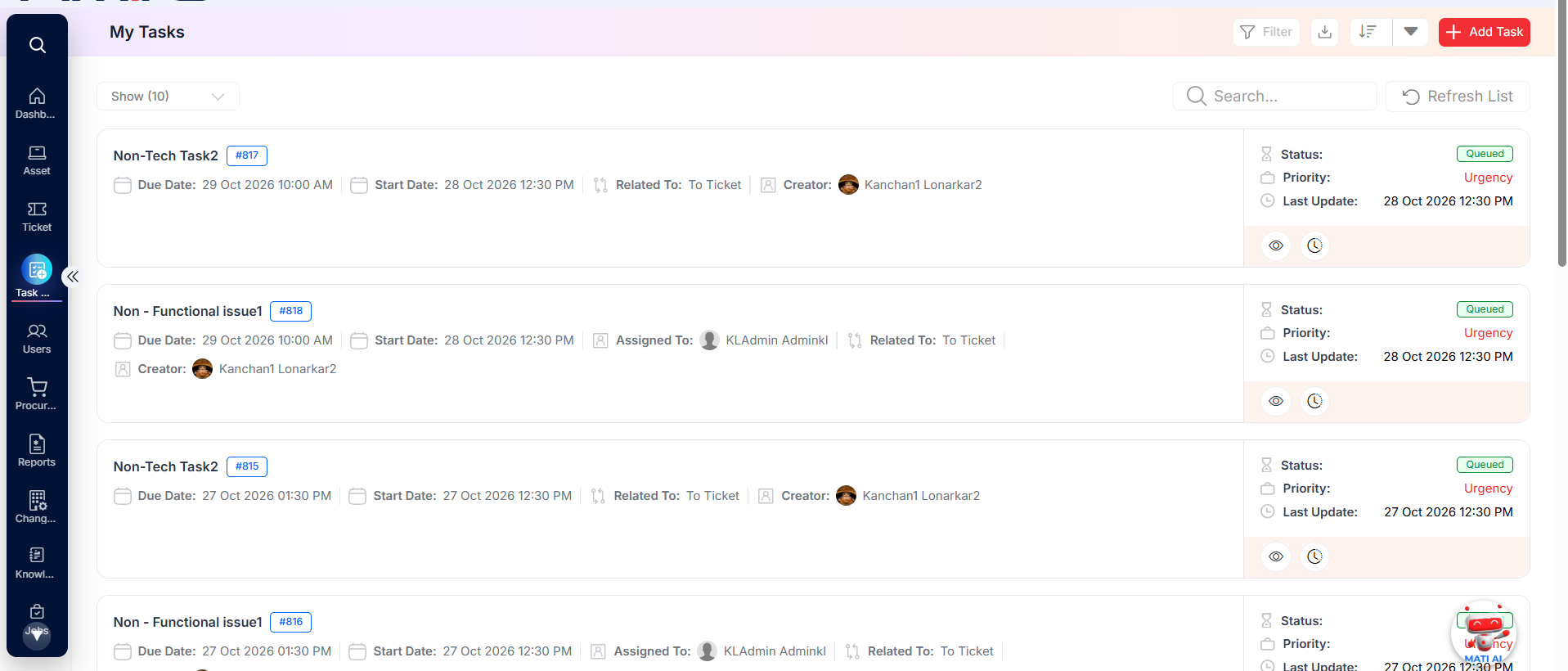
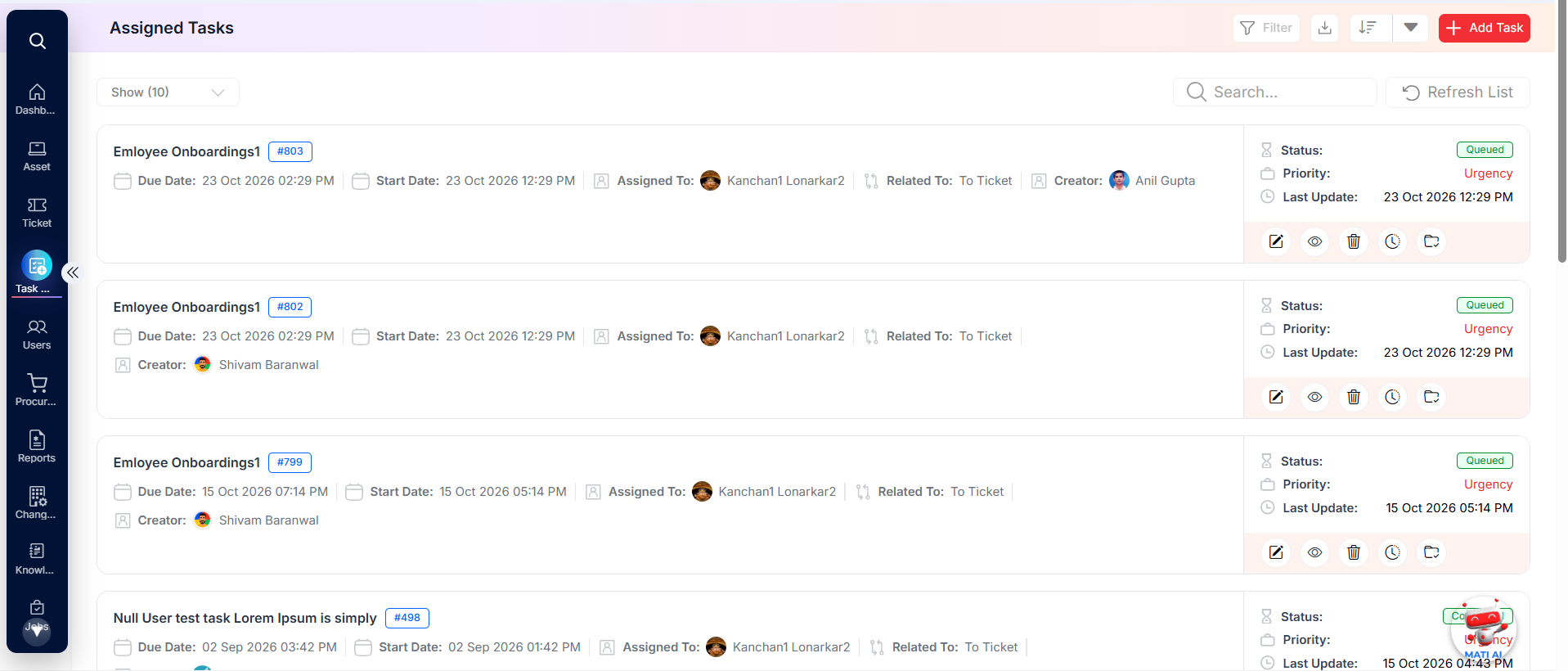
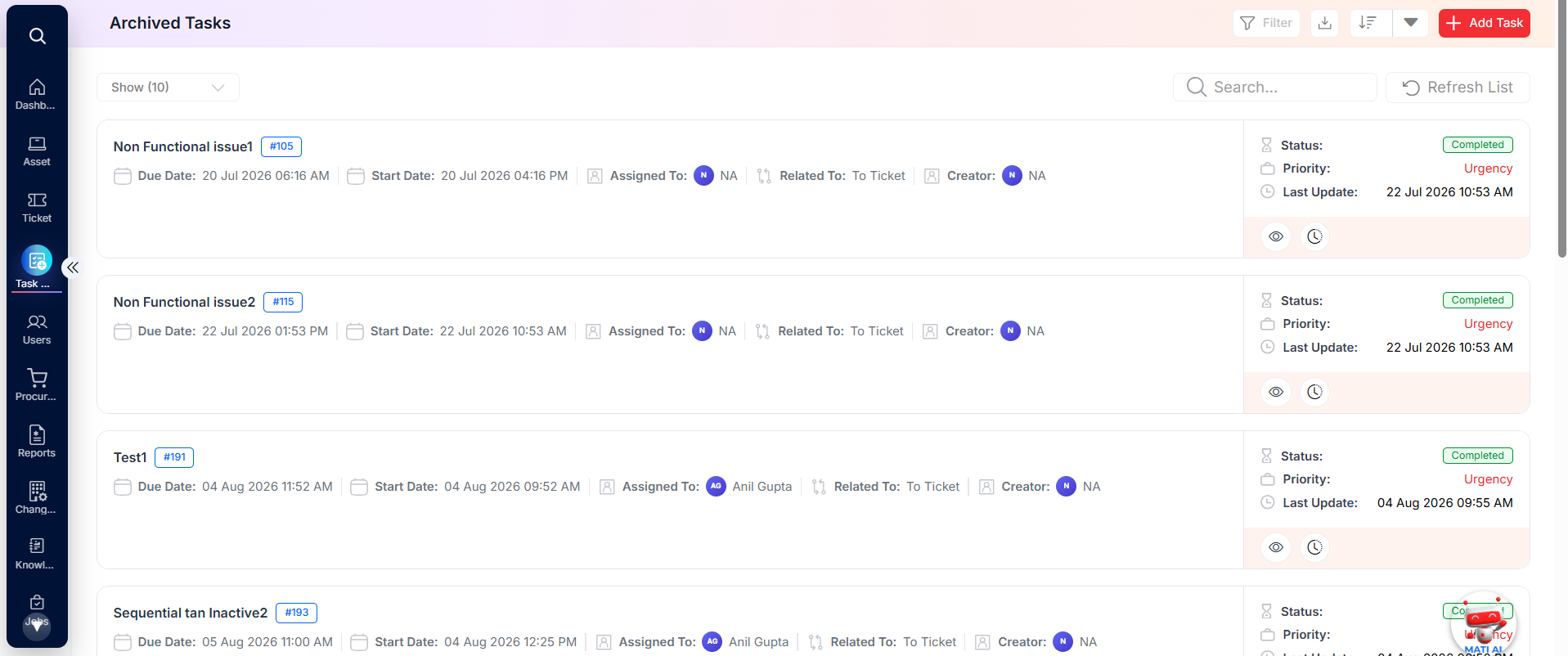
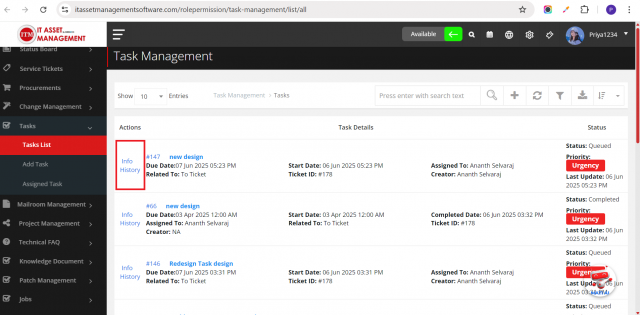
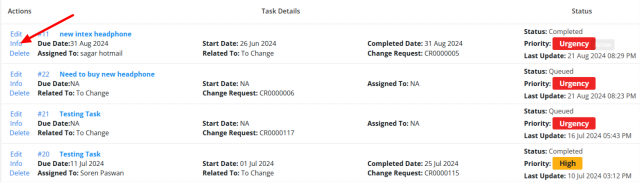
Use Download (download icon) to export tasks to Excel and Filter (for example Related To: Ticket Task). Select Info to open a task.

Add a task
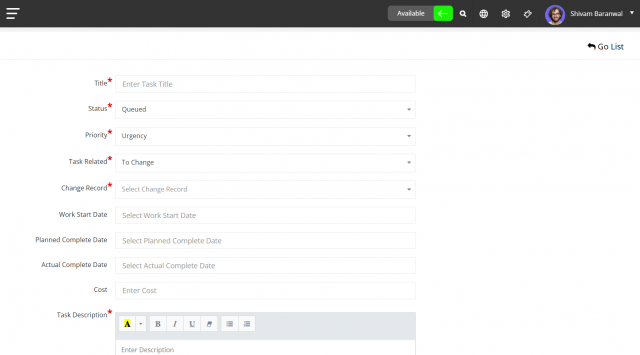
- Open Tasks → Add Task.
- Enter the Title, Status and Priority.
- In Task Related To, choose Ticket and select the ticket (or another related item).
- Select the Work Start Date, Planned Completion Date and Actual Completion Date.
- Enter the Cost (if any) and Description, and select the assignee.
- Select Add Task.
Work with tasks on a ticket
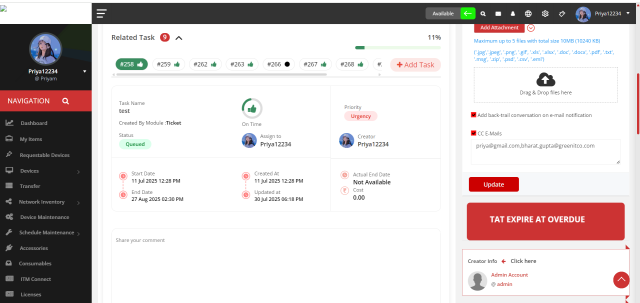
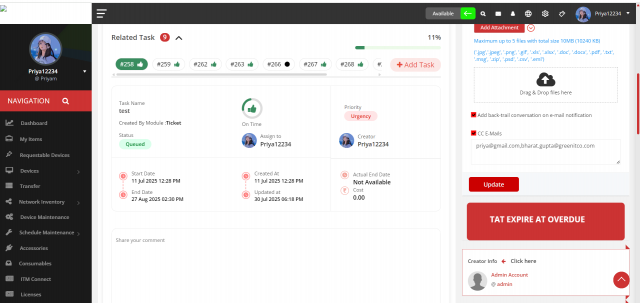
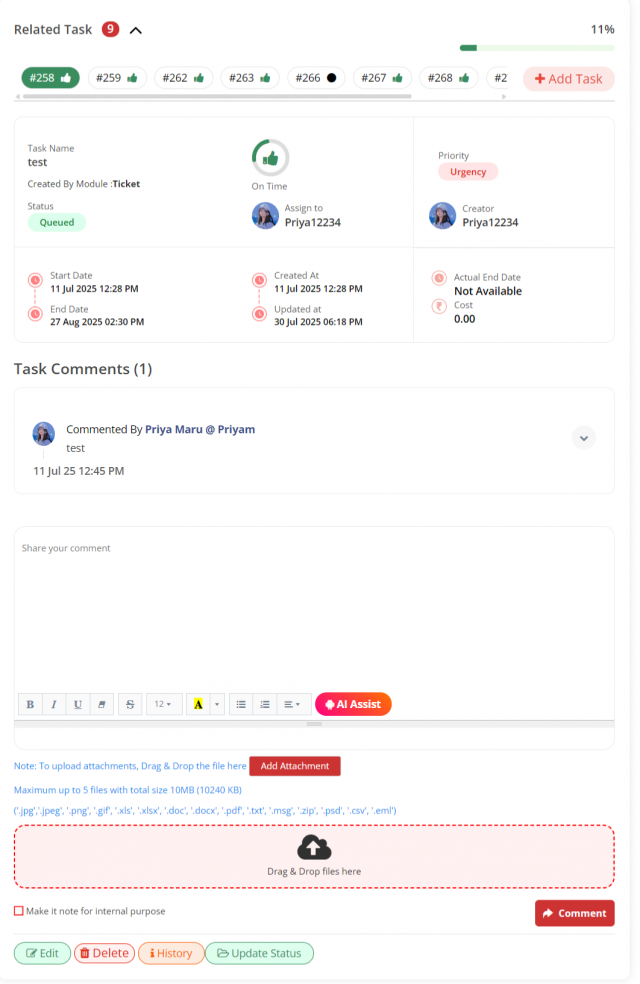
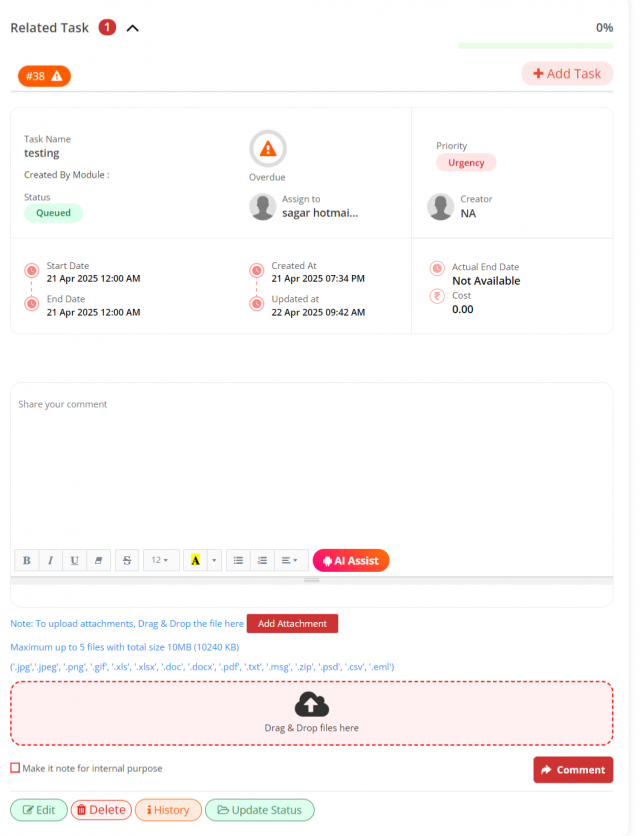
Open the ticket from Service Tickets → All Tickets and scroll to the Task section. You can view, add, edit and delete tasks, comment and view task history.
| Who | Can |
|---|---|
| Ticket attender | Add, edit and delete tasks on the ticket |
| Task assignee | Edit the task |
Comment on a task: select the task in the ticket's Task section, or open it from Tasks → Task List → Info, and add a comment.
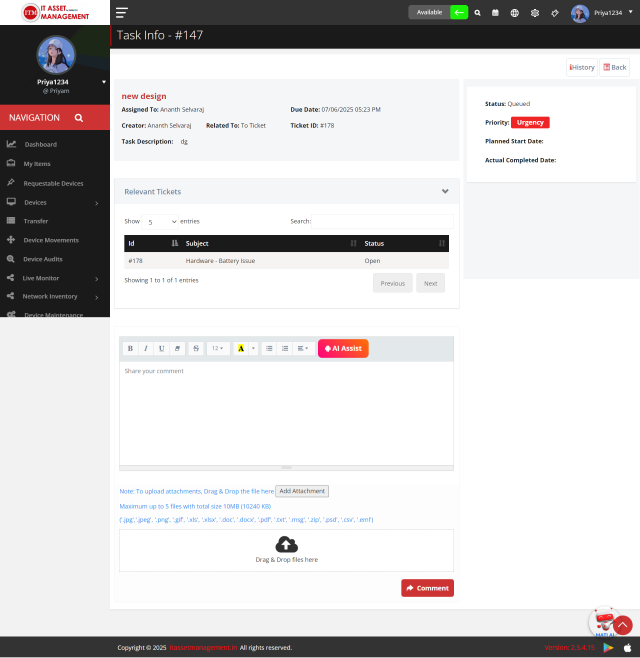
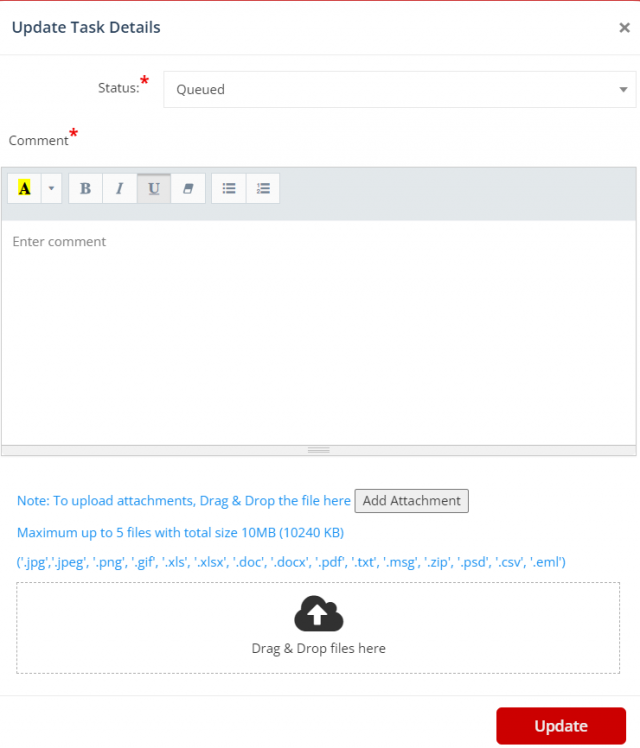
Update task status: if the task or ticket is assigned to you, select Update Status (in the ticket's Task section or in Tasks → Assigned Task), enter the status, comment and attachment, and save.
Define automatic tasks for a problem category
Tasks can be added to new tickets automatically.
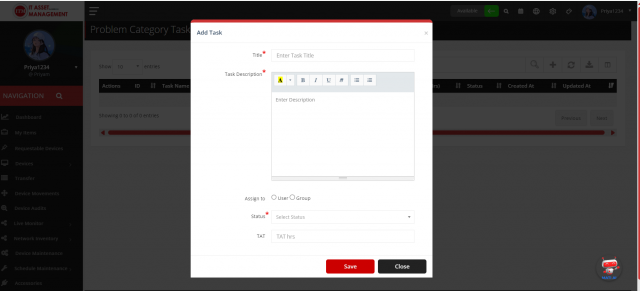
- Open Service Tickets → Problem Categories and select Define Task for the category.
- Add each task: Title, Description, Assign To (User, or Group = an auto allocation group of the same department), Status (Enabled or Disabled) and TAT Hours.
- Save.
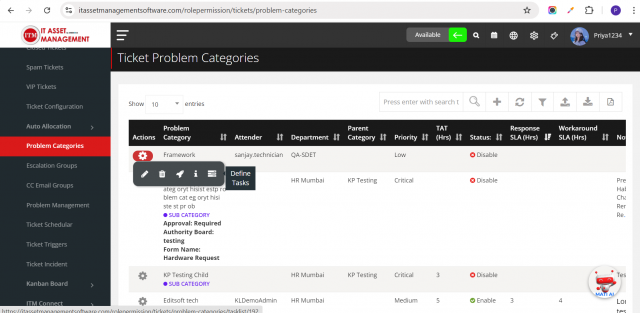
End date = task start date + TAT hours. When a ticket is created, the system adds the enabled tasks of the selected sub-category; if the sub-category has none, it uses the enabled tasks of the parent category. Disabled tasks are ignored.
Kanban board
Menu path: Service Tickets → Kanban Board → All Kanban
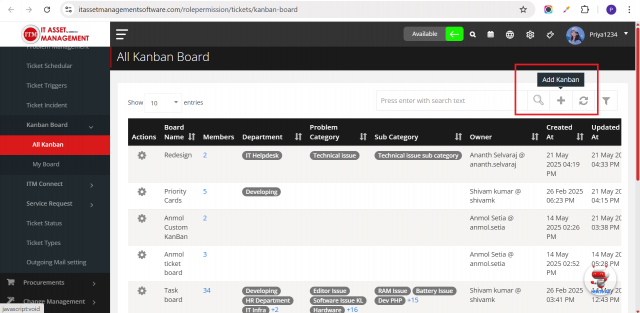
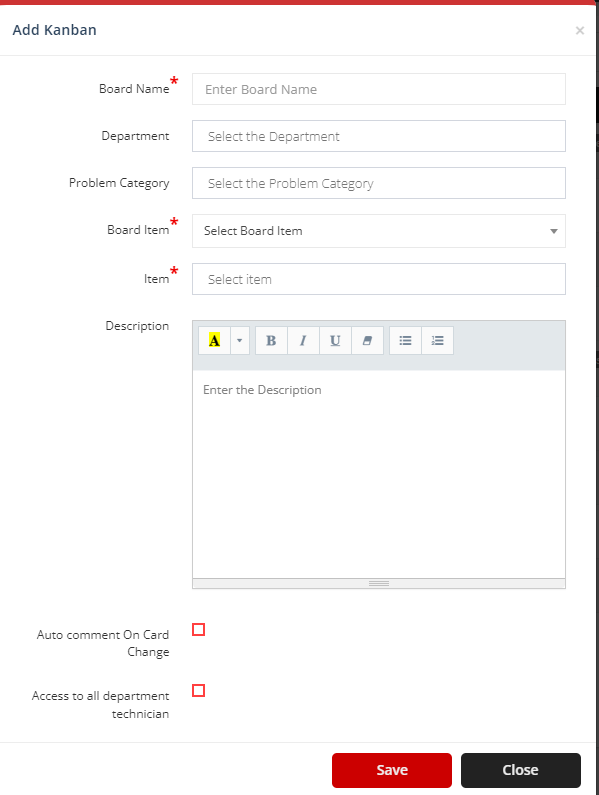
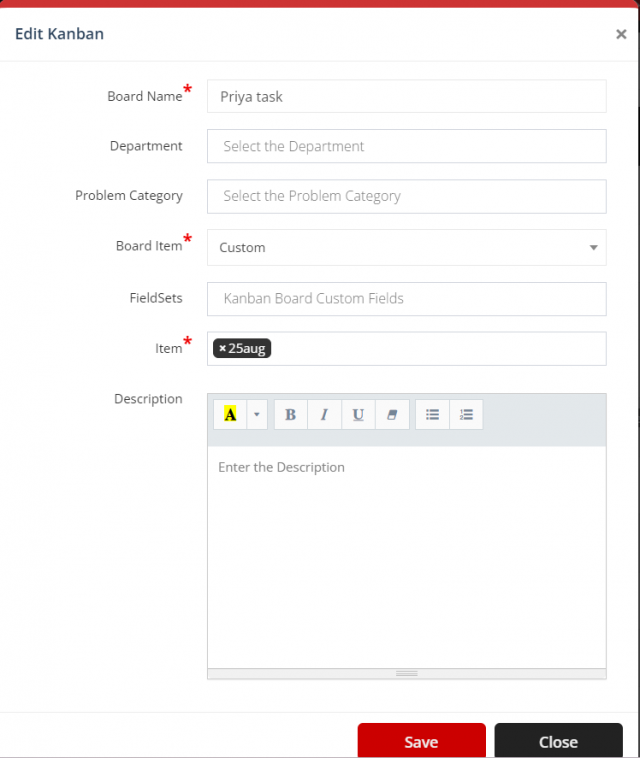
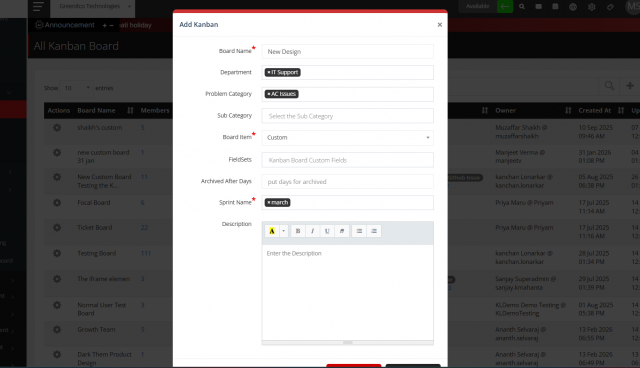
Create a board
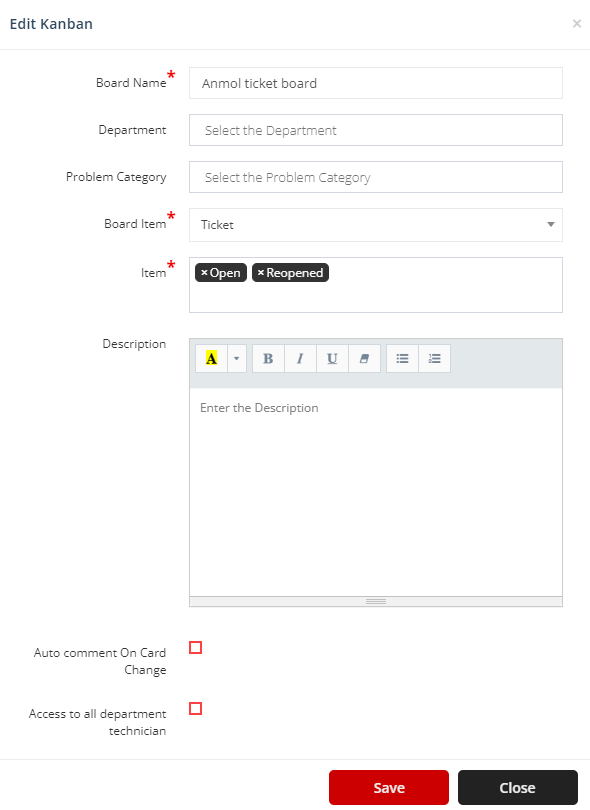
| Field | Description |
|---|---|
| Board Name | Name of the board |
| Department, Problem Category, Sub-Category | Scope of the board |
| Board Item | Ticket: columns are ticket statuses. Custom: you define the columns (for example by month or sprint) |
| Description | Short description |
| Auto Comment on Card Change | If selected, moving a card updates its status and adds a comment automatically. If not, a window asks for a comment first |
| Access to All Department Technicians | Give all technicians of the department access |
| Fieldset | Custom fieldset whose fields appear on the board's tasks |
Board members
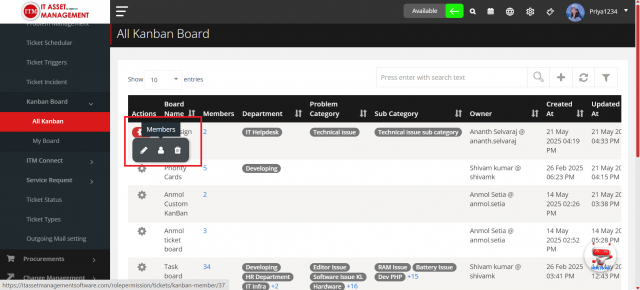
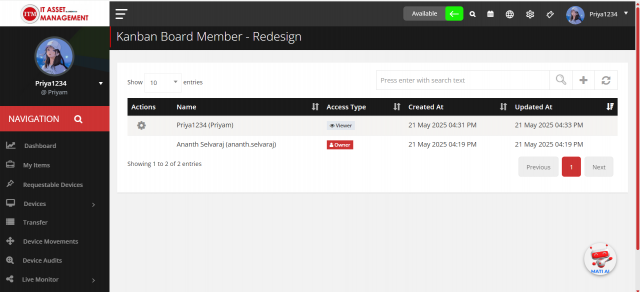
Select the Member icon and give each member an access level:
| Access | Can |
|---|---|
| Owner | Add, edit and delete tasks, and comment |
| Editor | Add and edit tasks, and comment |
| Viewer | View tasks and comment |
Add tasks to a custom board
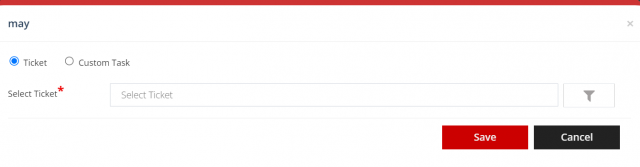
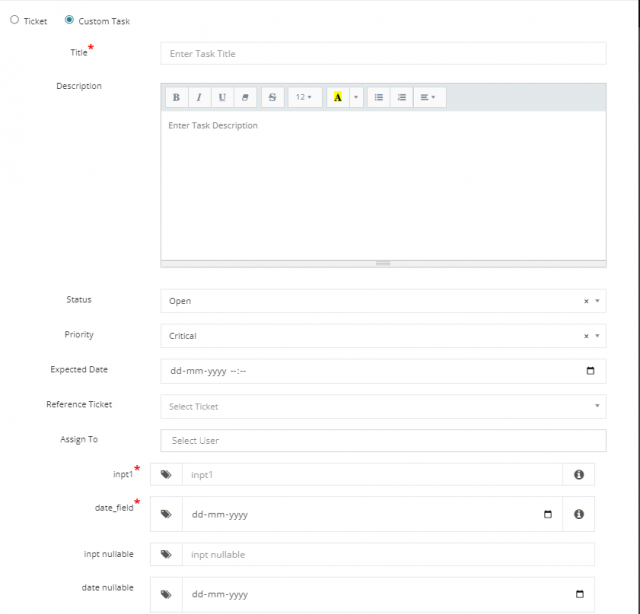
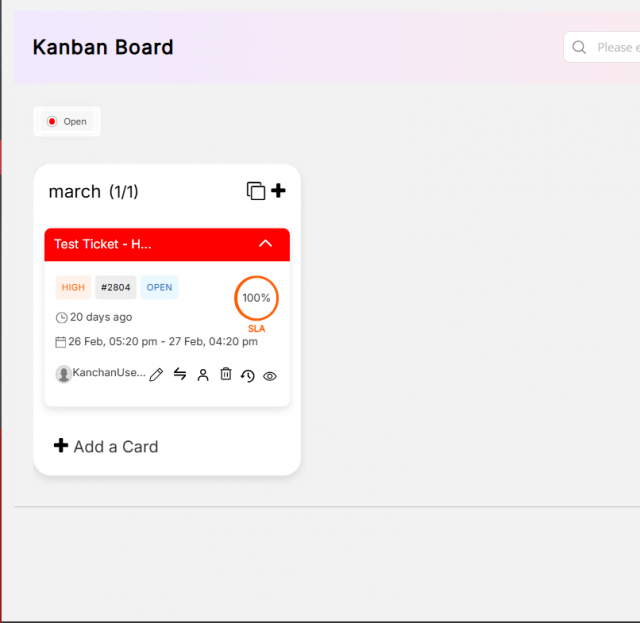
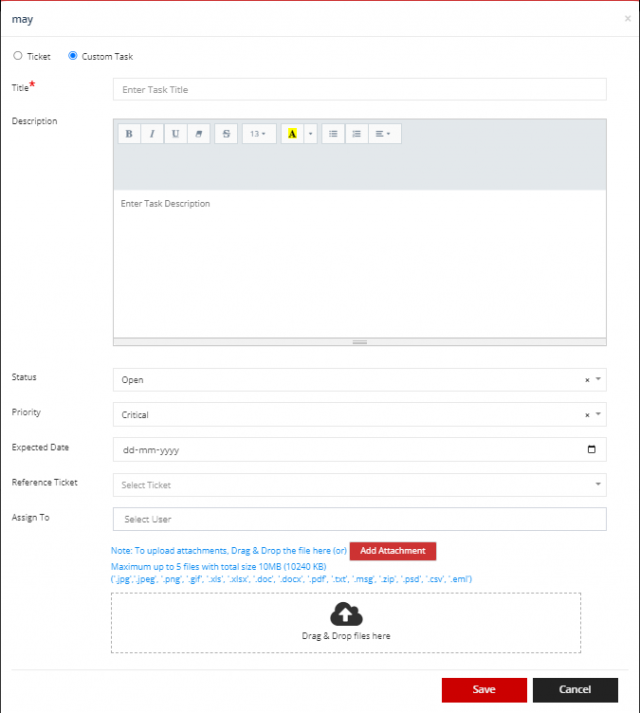
Open the board and select the plus icon on a column. Choose Ticket (link an existing ticket) or Custom Task (enter title, description, status, priority, expected date, reference ticket and assignee).
Use the board
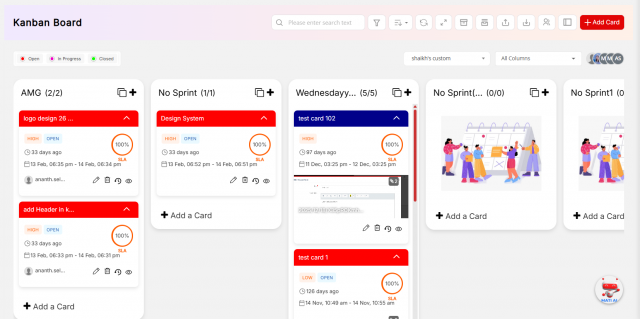
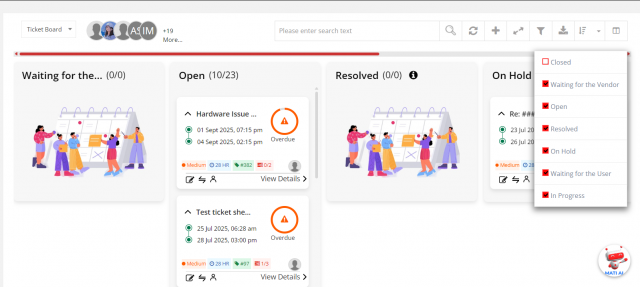
- Drag and drop: on custom boards, moving a card changes its column. On ticket boards, you can move only tickets assigned to you, and moving a card changes the ticket status.
- Group by: status, priority, assigned to, week, month or year.
- Import: select Import, download the Excel template, fill in tasks with the Sprint Name and upload.
- Clone a sprint: select the clone icon next to the sprint name and choose Clone Only Name (empty copy) or Clone With Task (copy with all tasks).
- Reorder sprints: drag sprints into the required order.
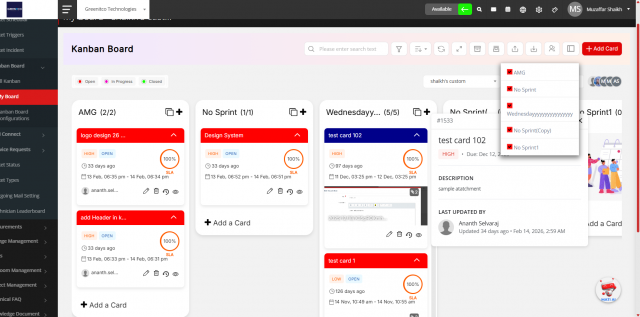
- Hide or show sprints: select the Hide/Show Sprint icon and select or clear sprint names.
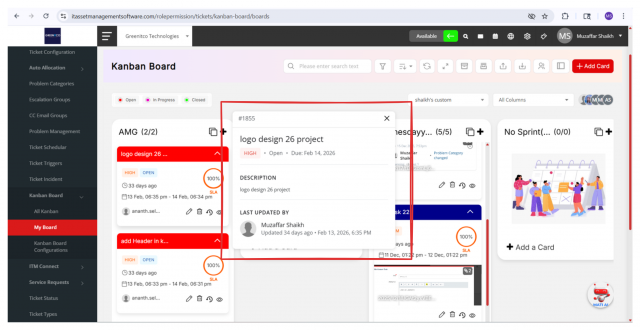
- Quick preview: hover over a card for about 3 seconds to see its title, priority, status, due date, description and last updated by.
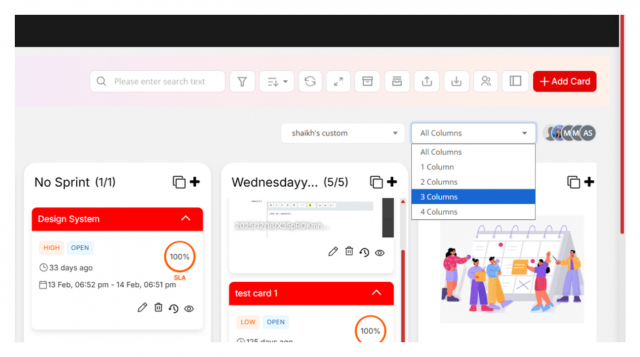
- Column count: choose 1, 2, 3, 4 or all columns in the toolbar.