

Introduction
The Service Request Approval Team (SRAT) defines the people and approval rules responsible for reviewing and approving service requests. It allows administrators to create approval teams and specify who should participate in the approval process when a service request is submitted under a particular category.
After creating an approval team, you can associate it with a problem category under Sidebar > Ticket > Problem Category by selecting the appropriate team as the Approval Board. This ensures that service requests raised under that category follow the configured approval process.
Each approval team is associated with a company and can use different approval methods depending on the organisation's requirements, including:
Group Approval: Defines a group of approvers who participate in the approval process.
Minimum Approval: Specifies the minimum number of approvals required for a request to proceed.
Level By Level Approval: Routes the request through approvers in a defined sequence.
Manager Approval: Routes the request to the requester's manager for approval.
Next Level Manager Approval: Routes the request to the next-level manager for approval.
Department Approval: Supports approval based on the relevant department.
Location Approval: Supports approval based on the relevant location.
System Approval: Supports approval by system when request is created.
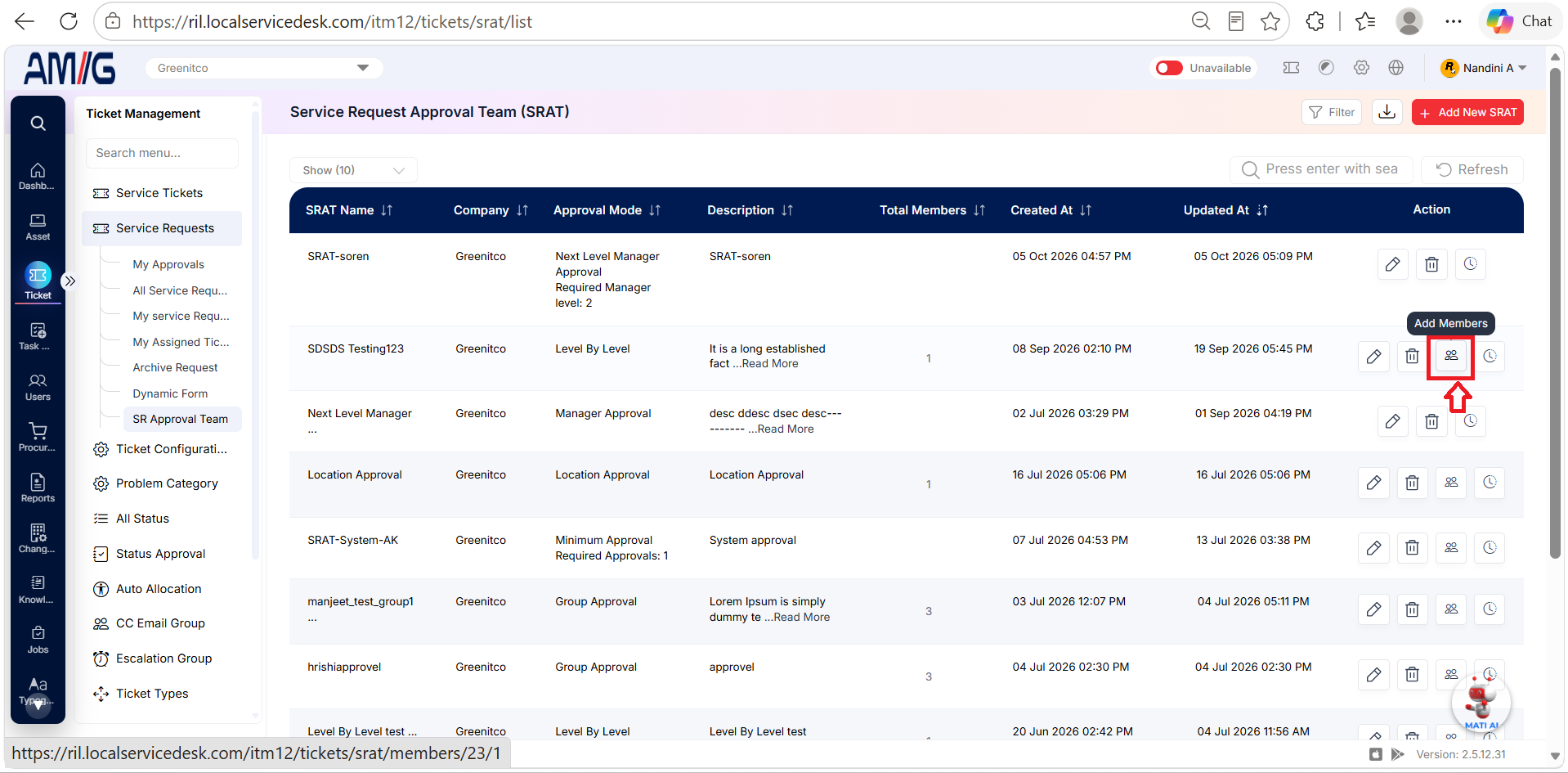
The SRAT list displays the approval teams configured in the system, along with their company and approval mode details.
By configuring SRAT, administrators can define clear approval responsibilities and ensure that service requests are reviewed by the appropriate people before proceeding.
Navigation : Sidebar > Ticket > Service Request > Service Request Approval Team (SRAT)
Viewing the SRAT List
Step 1: Open Service Request Approval Team (SRAT) from Sidebar > Ticket > Service Request.
Step 2: Review the SRAT Name, Company, Approval Mode, Description, Total Members, Created At, and Updated At columns.
Step 3: Use Search, Filter, Refresh, the page-size selector, and pagination controls to locate a team. Use the row actions to edit or delete a team, manage its members where available, or view its history.
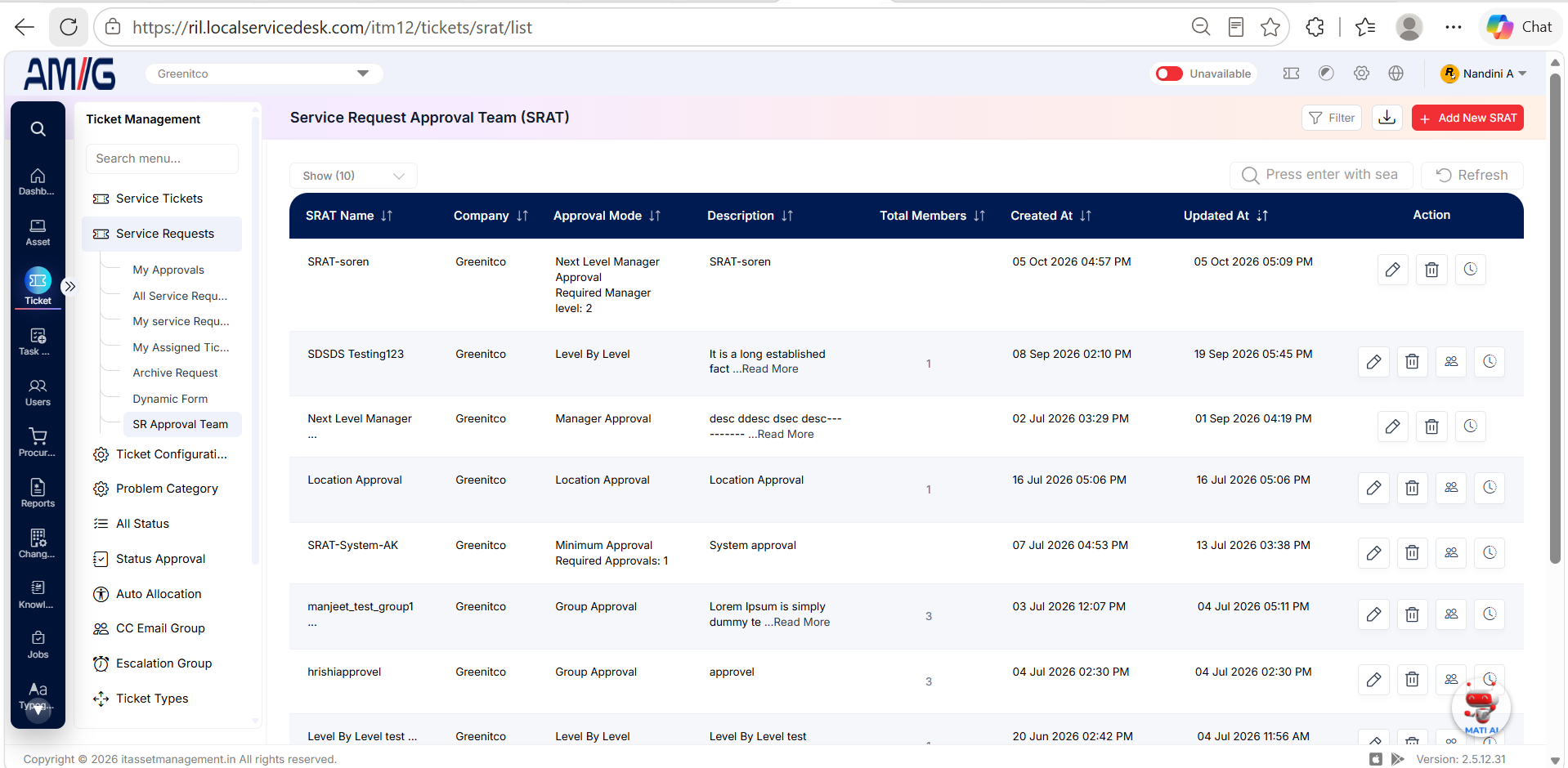
| Column / Action | Description |
|---|---|
| SRAT Name | Name of the approval team. |
| Company | Company associated with the team. |
| Approval Mode | Approval method configured for the team. |
| Description | Summary of the team or its approval purpose. |
| Total Members | Number of members assigned to the team, where shown. |
| Created At / Updated At | Creation and most recent update timestamps. |
| Edit / Delete | Modify team details or delete the team, where permitted. |
| Manage Members | Open the team’s member list where this action is displayed. |
| History | Open the record history where the action is available. |
Creating an SRAT
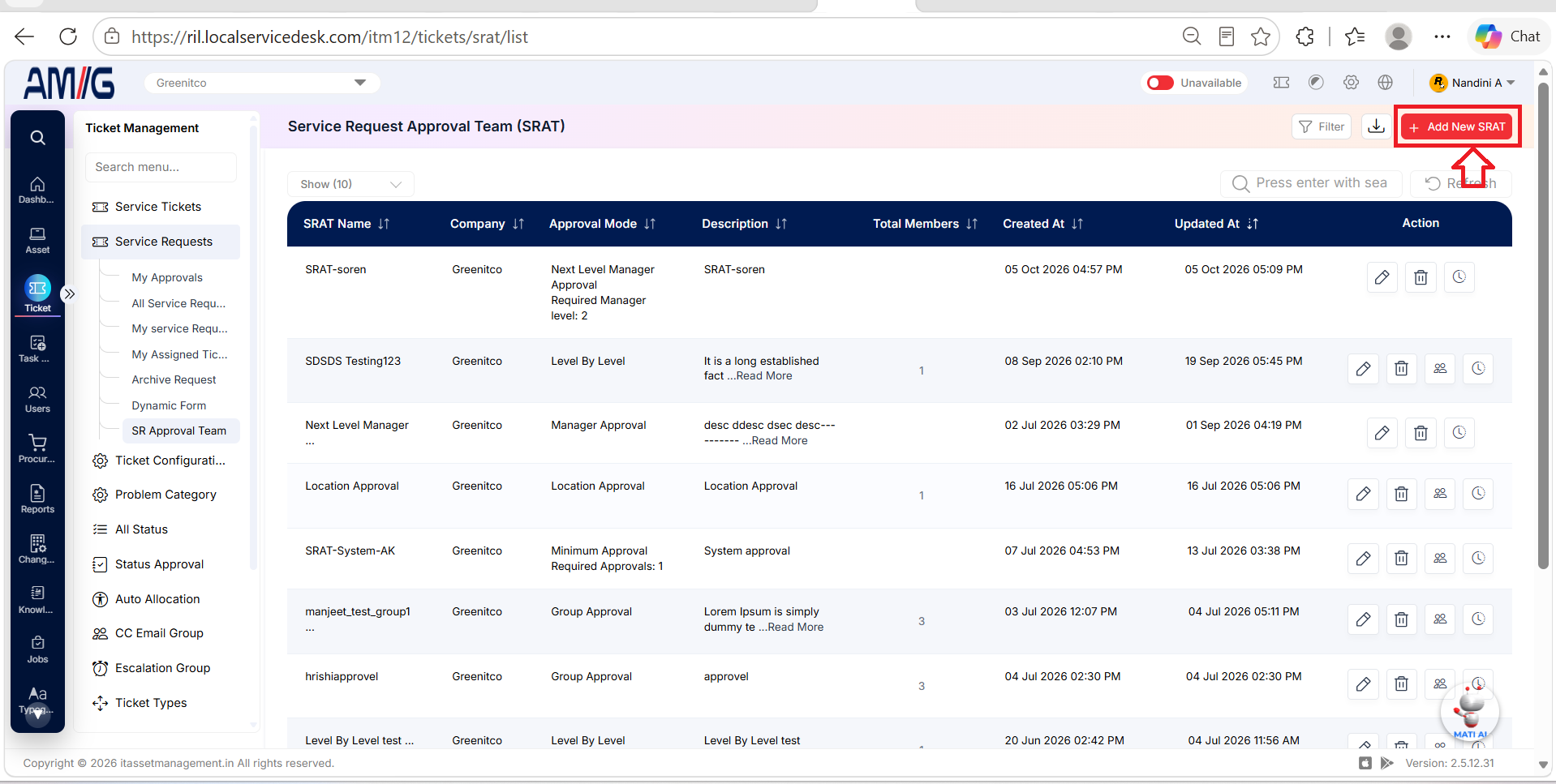
Step 1→ Click Add New SRAT.
Step 2: Select the Company, enter a Name and Description, and choose the Approval Mode.
Step 3: If Minimum Approval is selected, enter the Required Minimum Approvals value. This field is shown for the Minimum Approval mode.
Step 4: Click Create to save the team or Cancel to leave the form without saving.
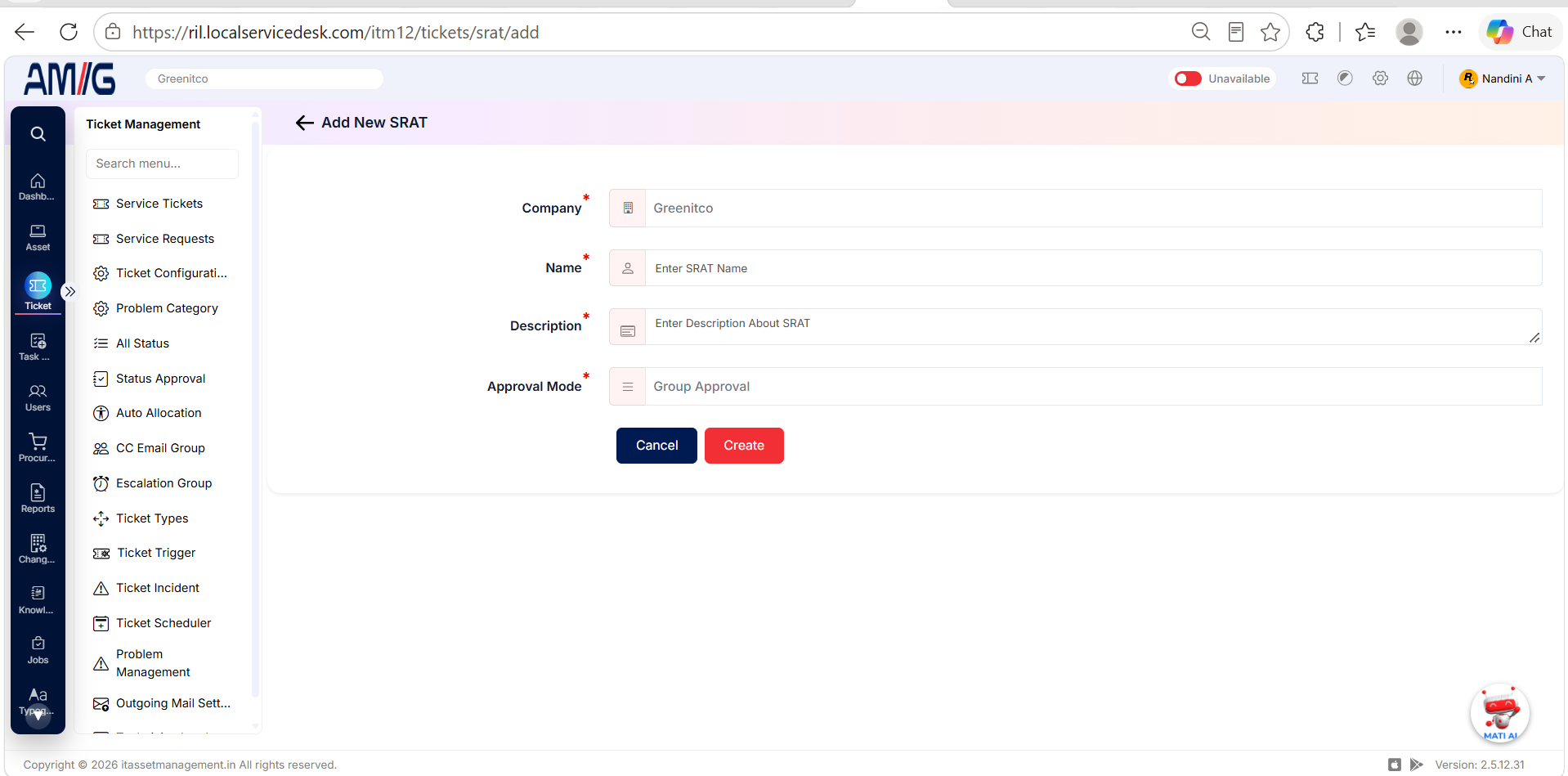
| Field | Description |
|---|---|
| Company | Select the company for which the team is configured. |
| Name | Enter the name of the SRAT. |
| Description | Enter a description of the approval team or workflow. |
| Approval Mode | Select the approval mode, such as Group Approval or Minimum Approval. Other available modes include Level By Level, Manager, Department, and System Approval. Group: Sends the request to the configured group of approvers. Minimum: Requires a specified minimum number of approvals before the request proceeds. Level By Level: Routes the request through members in the sequence and approval levels configured for the team. Manager: Sends the request to the creator's manager configured under Sidebar > Users. Department: Sends the request to the creator's department head configured under Header > Config > Departments. System Approval: Allows the system to approve the request automatically as part of the configured process. |
| Required Minimum Approvals | For Minimum Approval mode, enter the minimum number of approvals required. The request proceeds when that number of approvals has been received. |
| Create / Cancel | Create the team or cancel the operation. |
Filtering SRAT Records
Step 1: Click Filter on the SRAT list.
Step 2: Select a Company, Approval Mode, and/or SRAT Member as needed.
Step 3: Click Apply Filter to display matching teams or Clear to reset the selections.
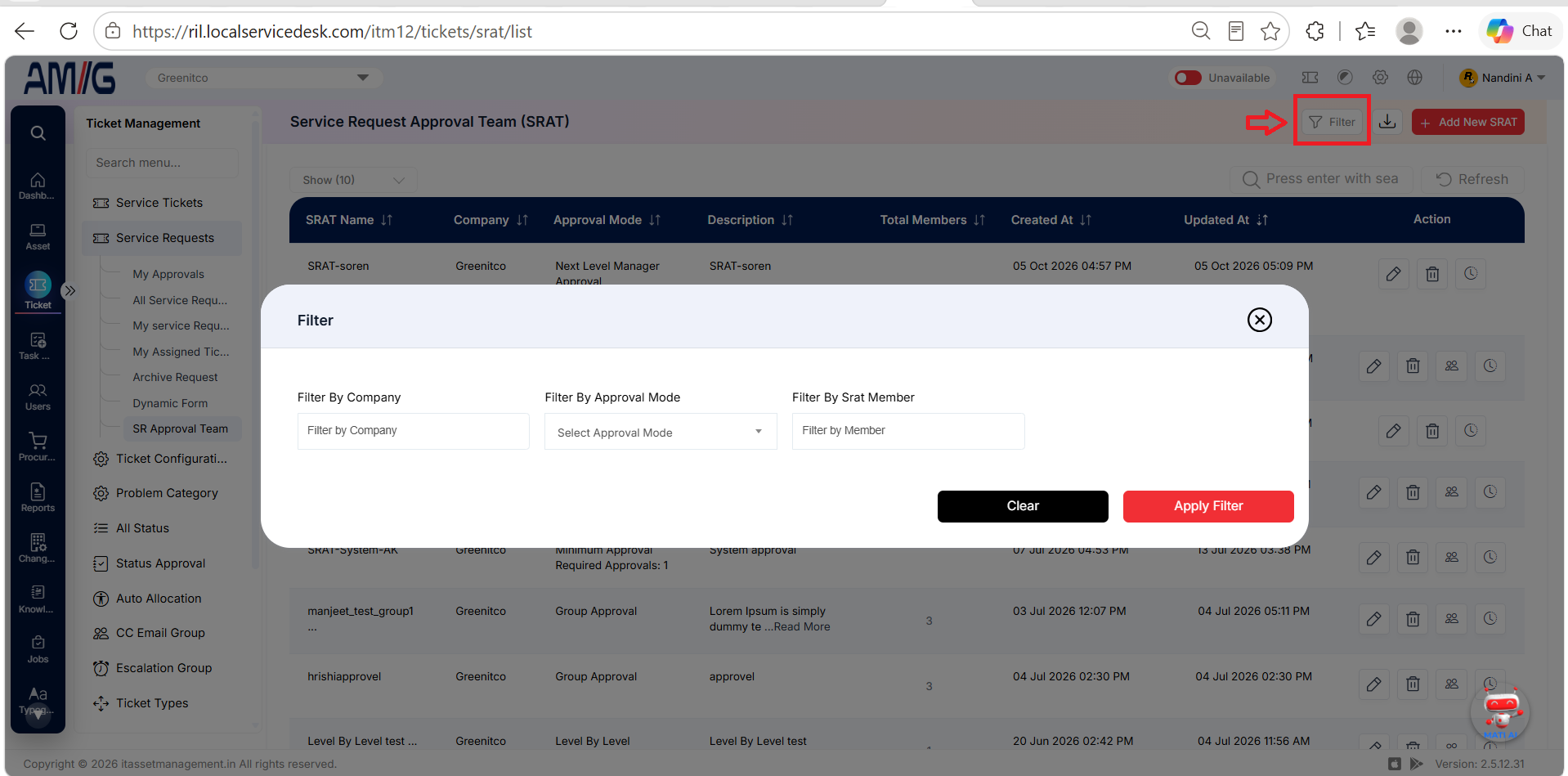
| Filter | Description |
|---|---|
| Company | Filter teams by company. |
| Approval Mode | Shows the approval modes available for filtering, including Group, Minimum, Manager, Department, and System Approval. |
| SRAT Member | Filter to teams associated with a selected member. |
| Clear / Apply Filter | Reset the filters or apply the selections. |
Managing Existing SRATs
Edit an SRAT
Step 1: On the SRAT list, locate the approval team you want to update.
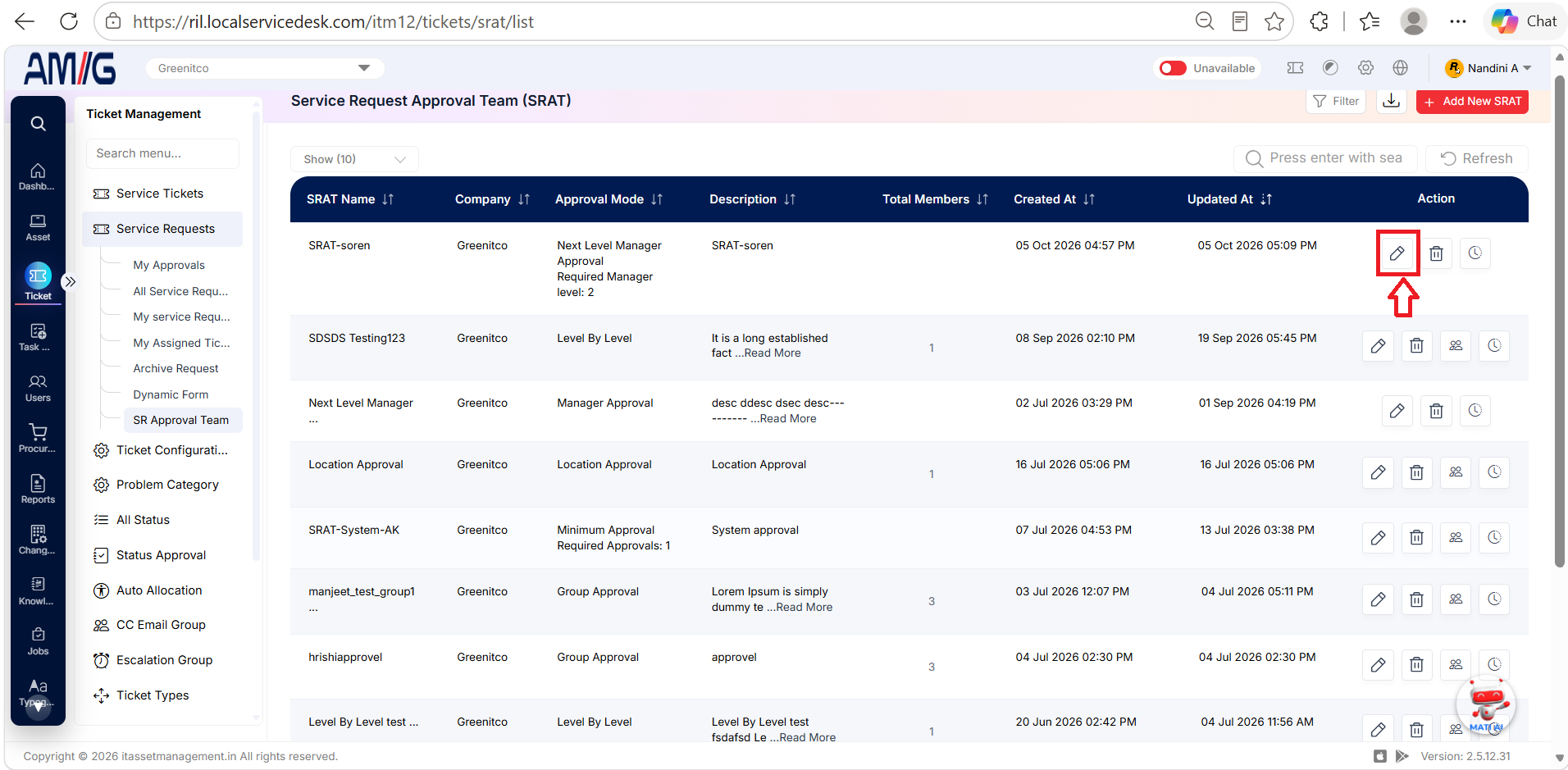
Step 2: Click the Edit (pencil) icon in the Actions column for that team.
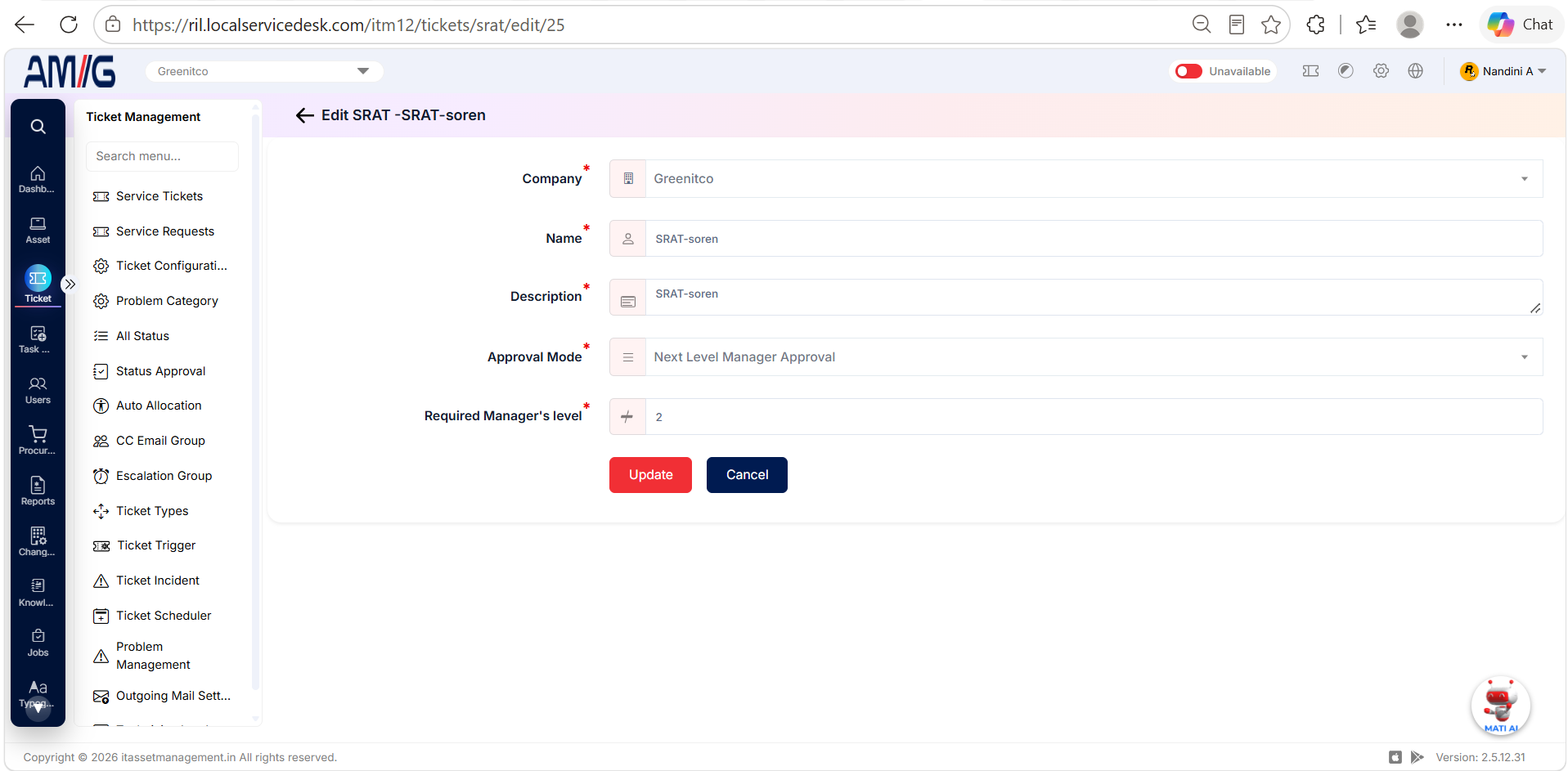
Step 3: Update the team name, description, approval mode, or other available fields as needed.
Step 4: Click the save/update button shown on the form to apply the changes.
Delete an SRAT
Step 1: On the SRAT list, locate the approval team you want to remove.
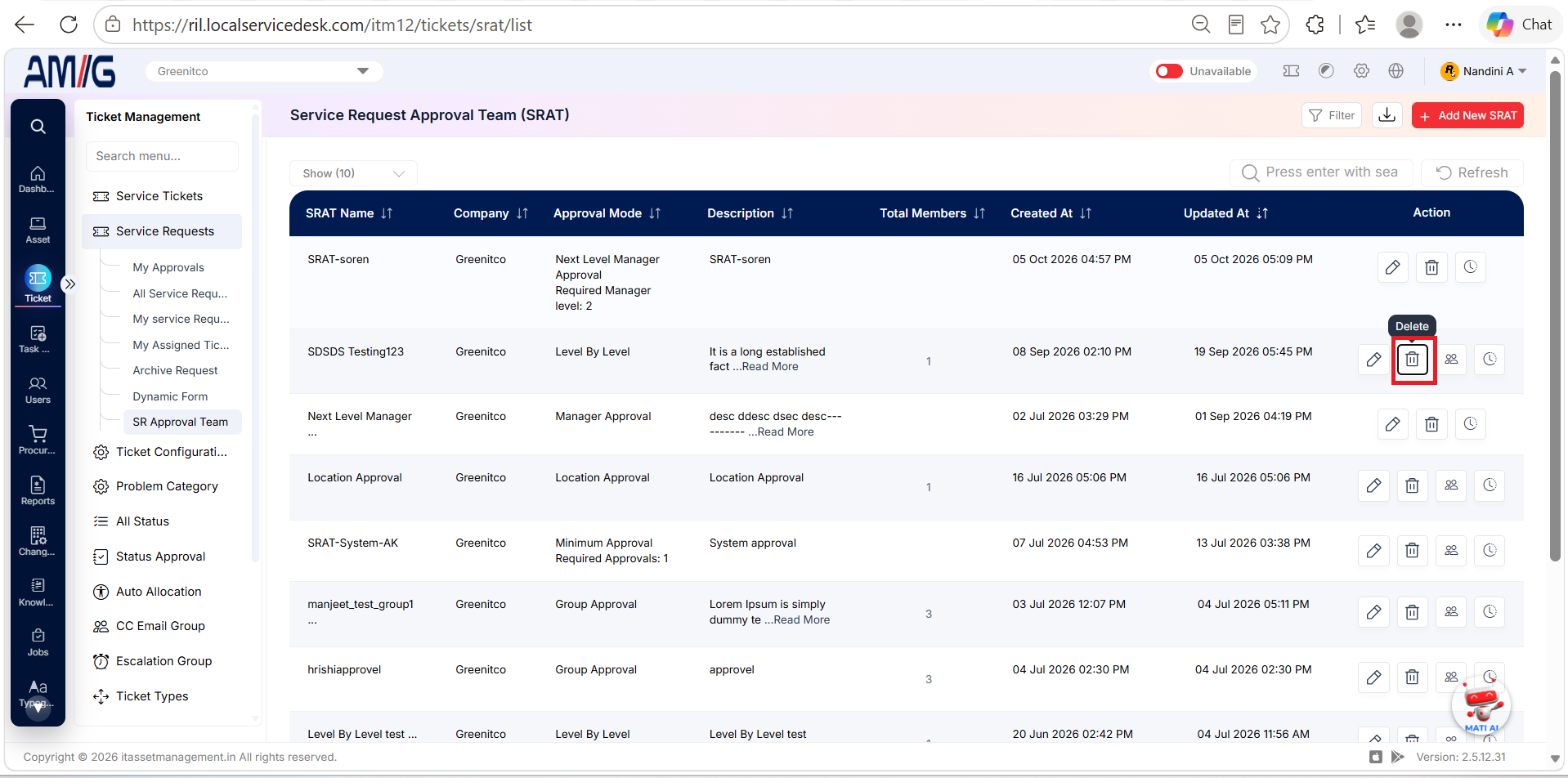
Step 2: Click the Delete (trash can) icon in the Actions column for that team.
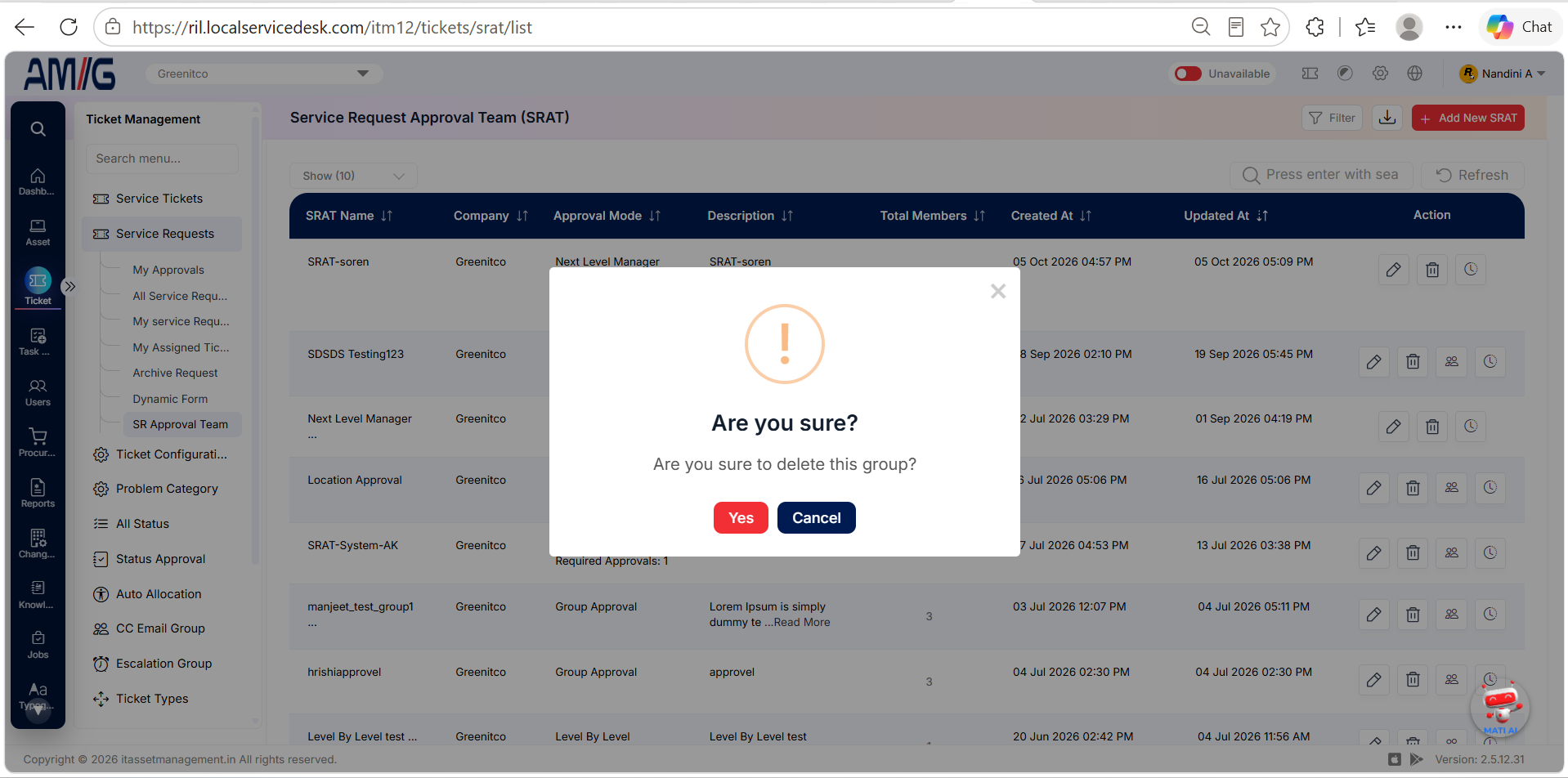
Step 3: Review the confirmation prompt and confirm only if the team is no longer required.
The selected approval team is removed from the SRAT list.
Managing SRAT Members
Step 1: From the SRAT list, open Manage Members for the required team.
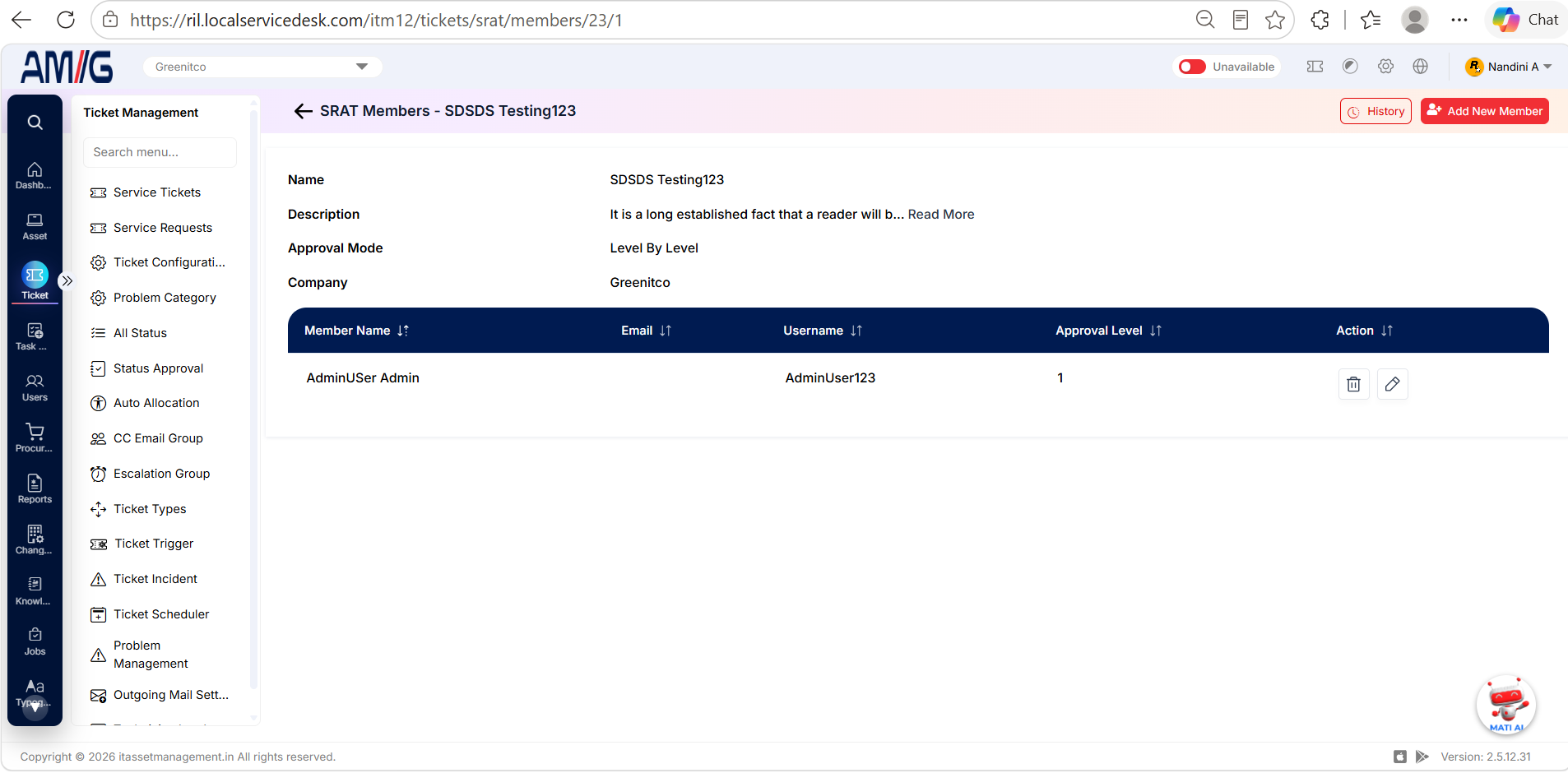
Step 2: Review the team name, description, approval mode, and company shown at the top of the Members page.
Step 3: Review the member table for Member Name, Email, Username, Approval Level, and available edit/delete actions. Use History to review recorded changes where needed.
| Column | Description |
|---|---|
| Member Name | Name of the user assigned to the approval team. |
| Member email address, where provided. | |
| Username | Account username associated with the member. |
| Approval Level | Approval level assigned to the member. |
| Action | Available edit or delete controls for the member. |
Adding an SRAT Member
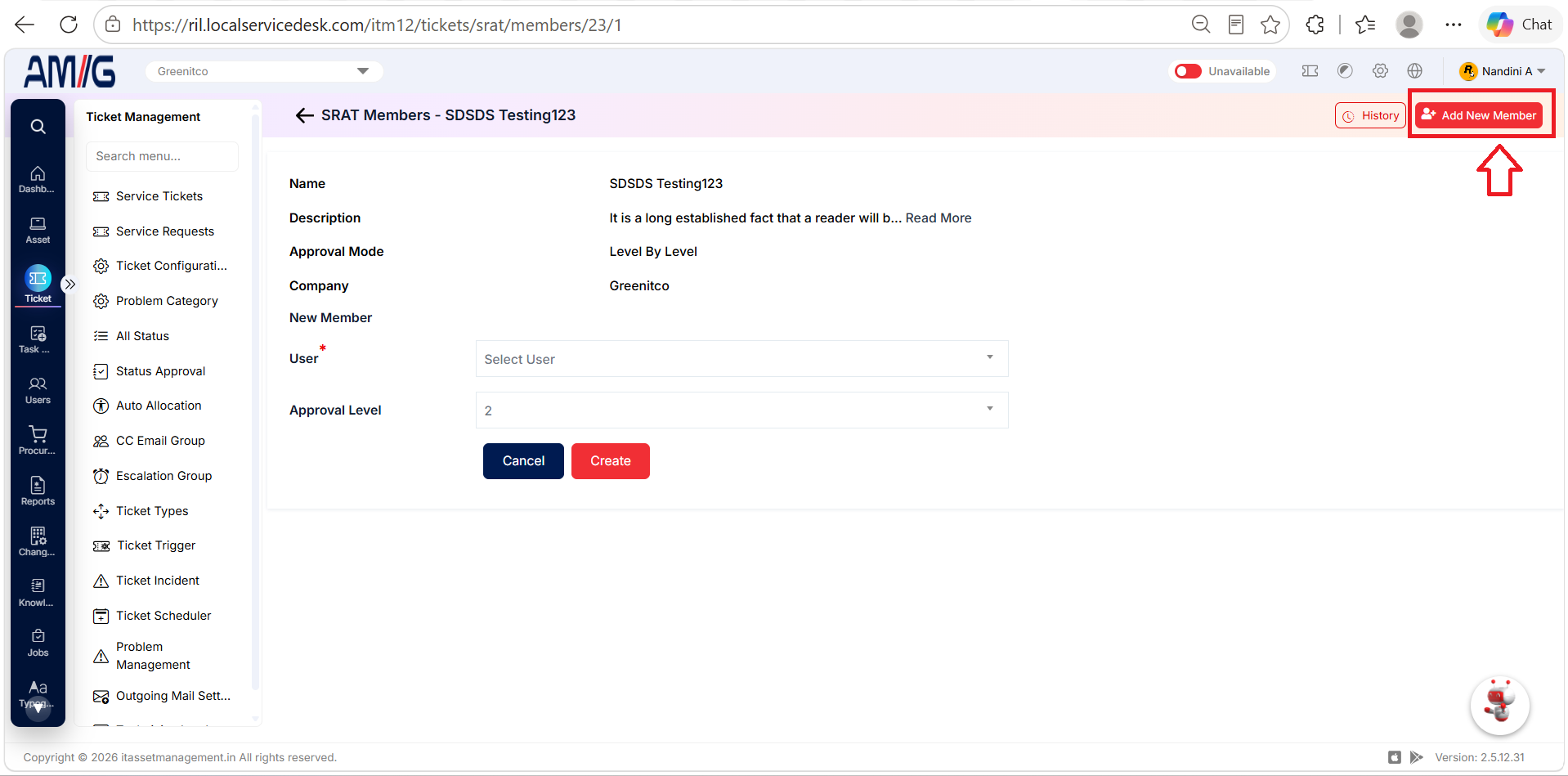
Step 1: Click Add New Member on the team’s Members page.
Step 2: Select the User and Approval Level. Choose the appropriate user and level for the selected approval mode.
Step 3: Click Create to add the member, or Cancel to exit without saving.
| Field / Control | Description |
|---|---|
| User | Select the user to add to the SRAT. |
| Approval Level | Select the approval level for the member. The available options depend on the configured approval mode. |
| Create / Cancel | Save the new member or cancel the operation. |
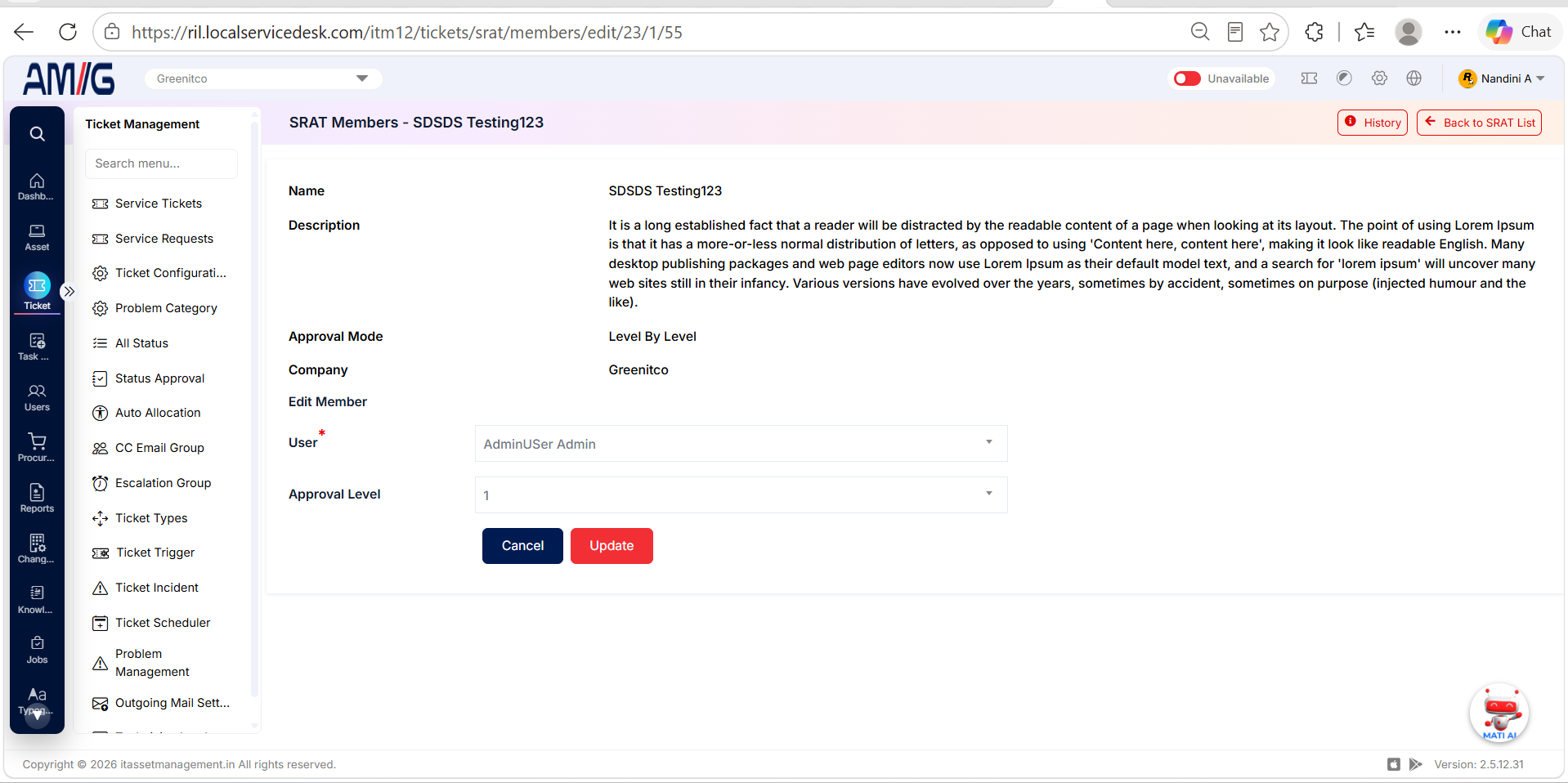
Editing an SRAT Member
Step 1: On the SRAT Members page, locate the member you want to update.
Step 2: Click the Edit action for that member.
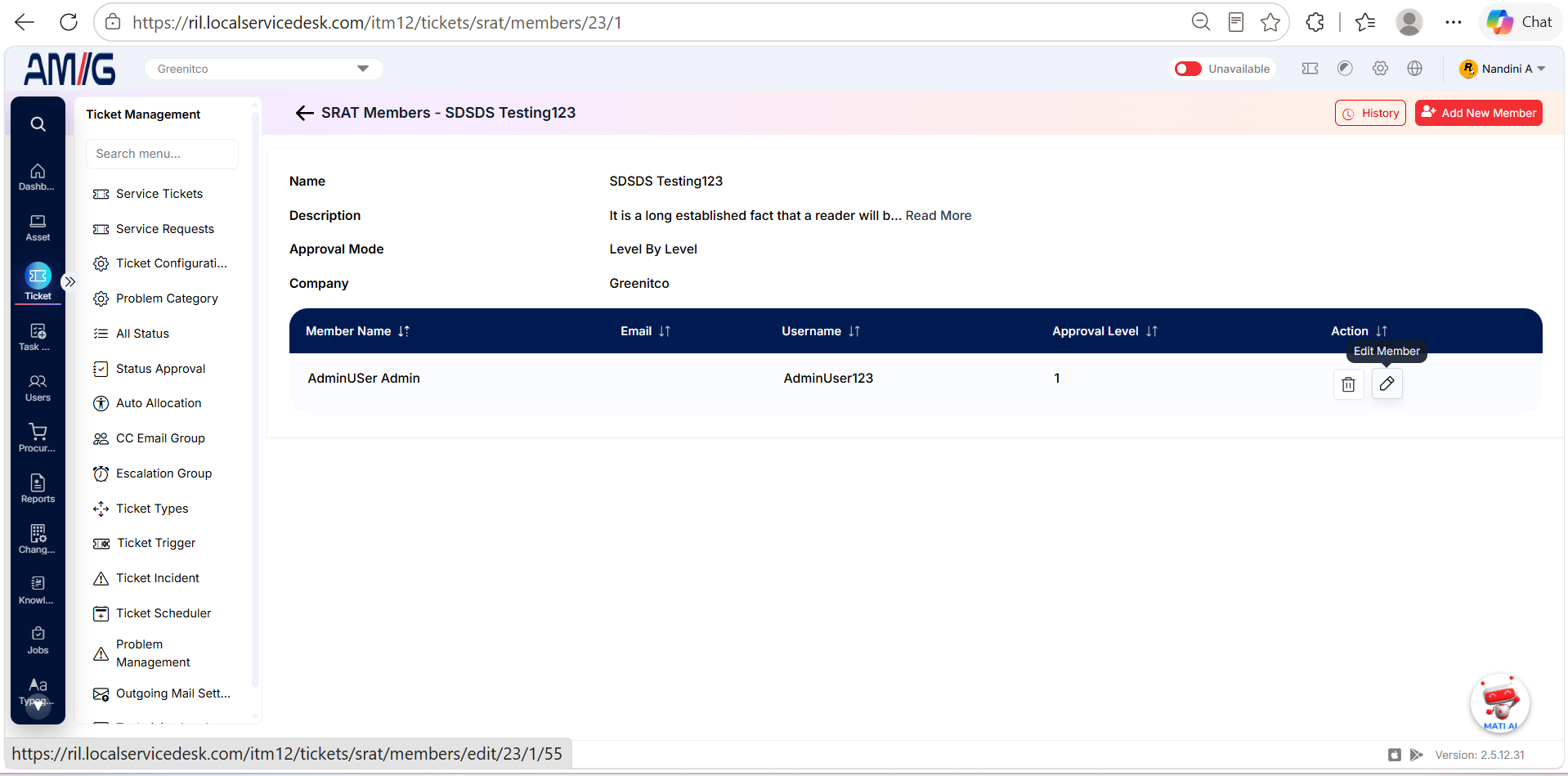
Step 3: Update the available member details as required.
Step 4: Save the changes to update the member information.
Deleting an SRAT Member
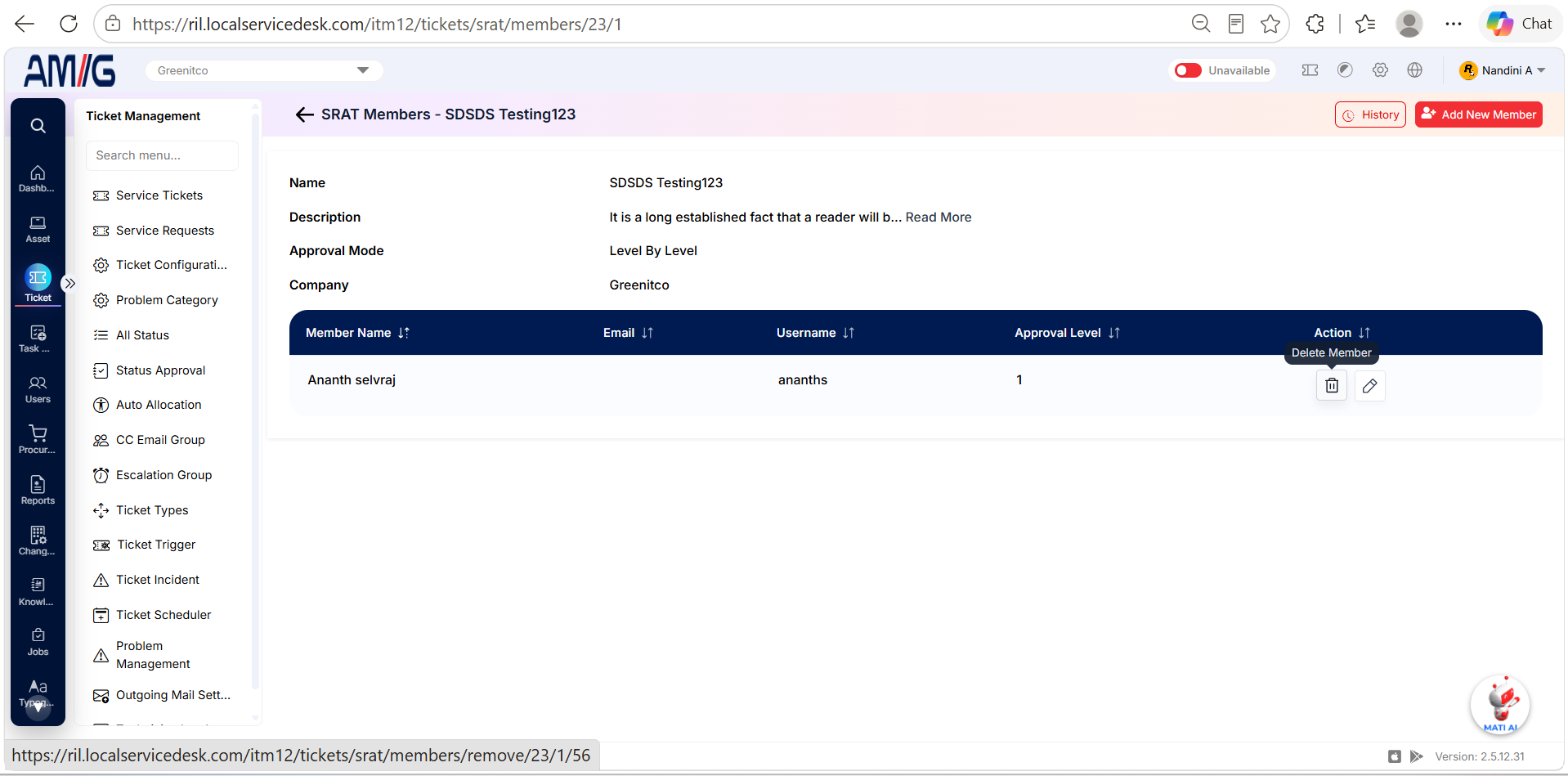
Step 1: On the SRAT Members page, locate the member you want to remove.
Step 2: Click the Delete (trash can) action for that member.
Step 3: Confirm the deletion if prompted.
The selected member is removed from the approval team.
Viewing SRAT Member History
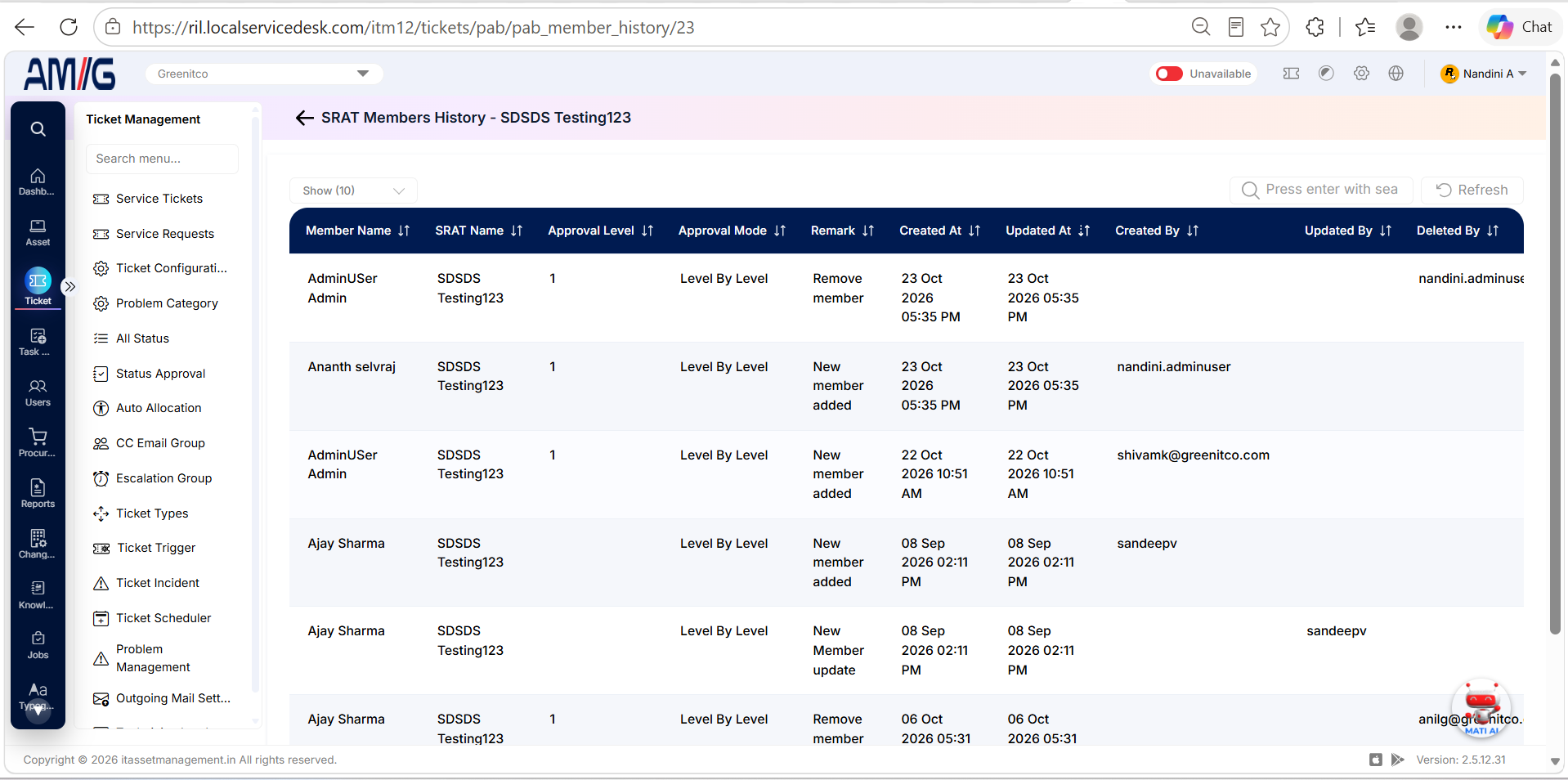
Step 1: From the SRAT Members page, click History where the action is available.
Step 2: Review the recorded changes for the selected team or member, as displayed by the application.
Step 3: Use the history to identify when the member details or approval-team information changed.
Configuring Location Approval
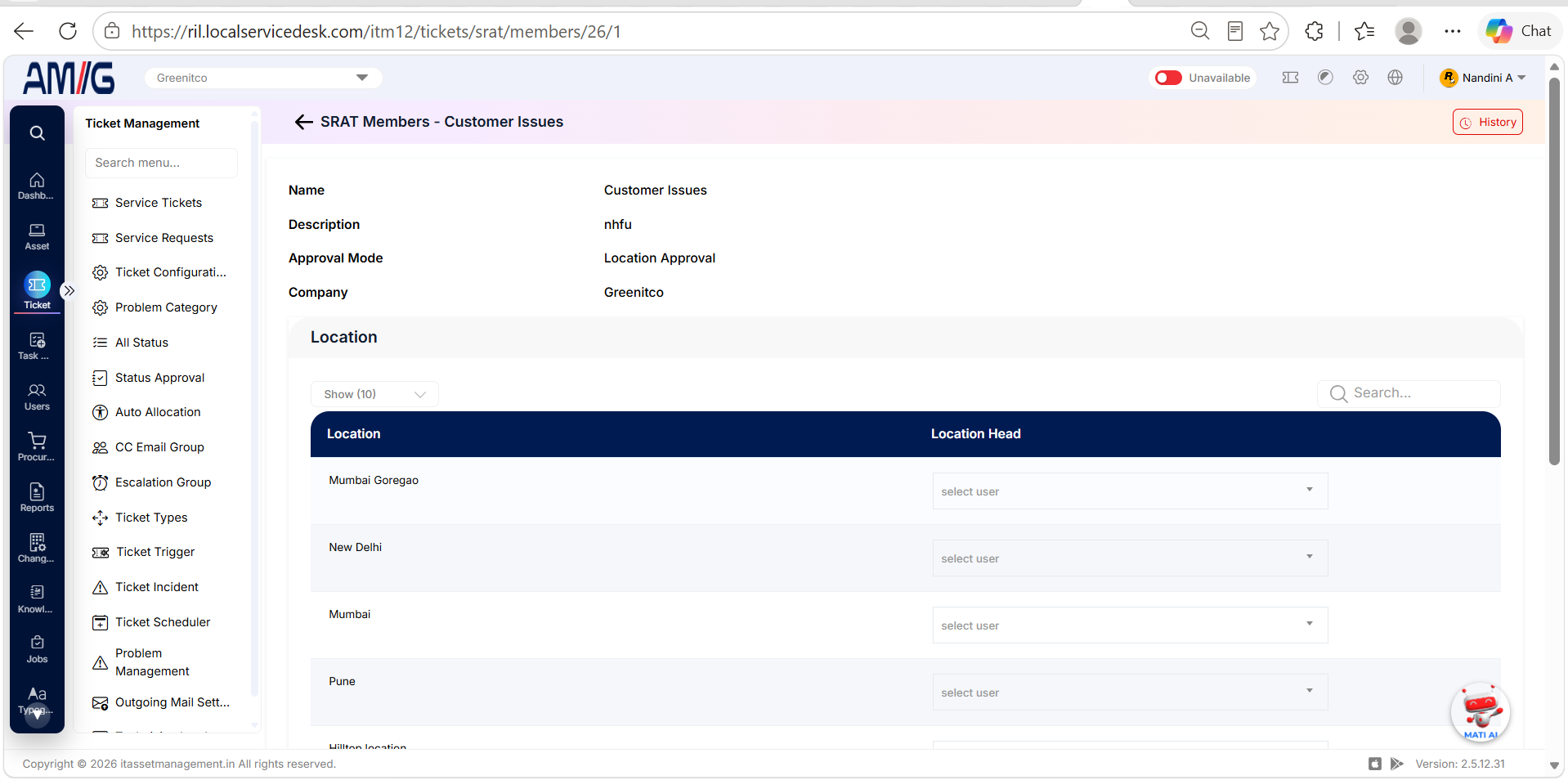
Step 1: Open an SRAT configured for Location Approval.
Step 2: In the Location table, find each location and select the user who should act as its Location Head.
Step 3: Repeat for each relevant location. Use the available History action to review changes when needed.
| Column | Description |
|---|---|
| Location | Location for which an approver can be assigned. |
| Location Head | Select the user responsible for approvals at that location. |
Reviewing SRAT History
If a History action is available, open it to review recorded changes for the selected SRAT or member record. The details shown depend on the selected record and are provided by the application.