

Introduction
Technician Leaderboard provides an overview of technician performance across your organisation. It helps managers understand how effectively technicians handle service tickets, meet service targets, and respond to user needs.
The leaderboard brings together key performance indicators (KPIs), customer feedback, and ticket-handling metrics to help identify high-performing technicians and areas where additional support or improvement may be needed.
Using this section, you can:
-
Review Technician Performance: View technician rankings and compare their performance during a selected reporting period.
-
Track Ticket Statistics: Review the number of tickets handled by each technician and their overall ticket-handling activity.
-
Monitor SLA Performance: Check SLA breaches and assess how effectively technicians meet response and resolution targets.
-
Review Response Metrics: Understand technician response times and how quickly they respond to service requests.
-
Analyse Customer Feedback: Review feedback received from users to understand their experience with the support provided.
-
Track Escalations: Review ticket escalations to identify areas that may require attention.
-
View AI-Generated Insights: Access AI-generated summaries and insights about individual technician performance and the tickets they handle.
-
Refresh Performance Data: Review performance information for a selected reporting period and refresh the data as needed.
These features help managers evaluate technician performance, recognise strong contributions, identify improvement opportunities, and make informed decisions to improve service quality.
📍 Navigation: Sidebar › Ticket › Technician Leaderboard
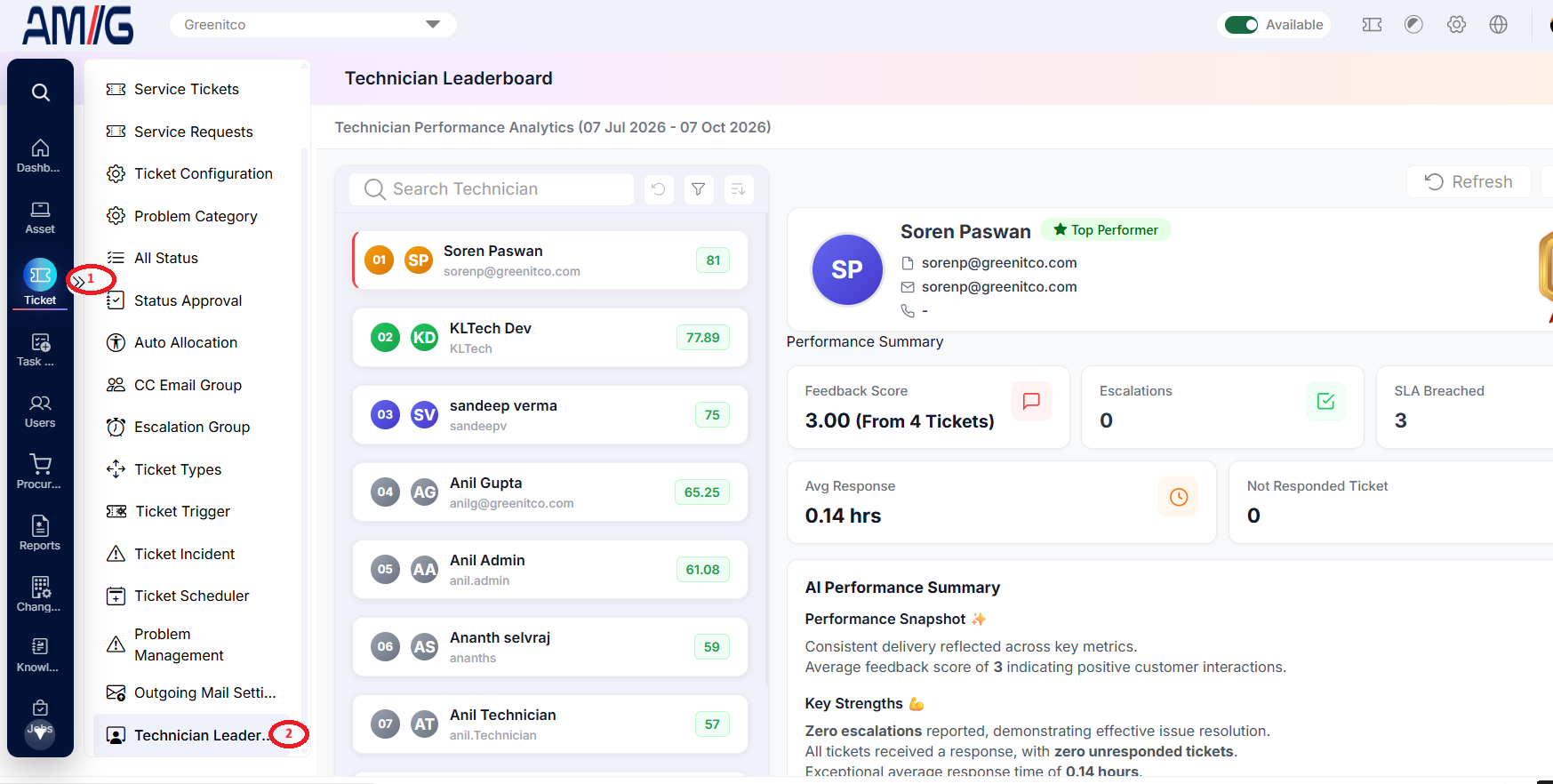
Viewing the Technician Leaderboard
Step 1 → Open Technician Leaderboard. The technician ranking list appears on the left, with the selected technician’s performance details on the right.
Step 2 → Use Search Technician to find a technician. Select a technician in the list to load their profile and performance metrics.
Step 3 → Use Refresh to reload the data or Print to print the displayed report.
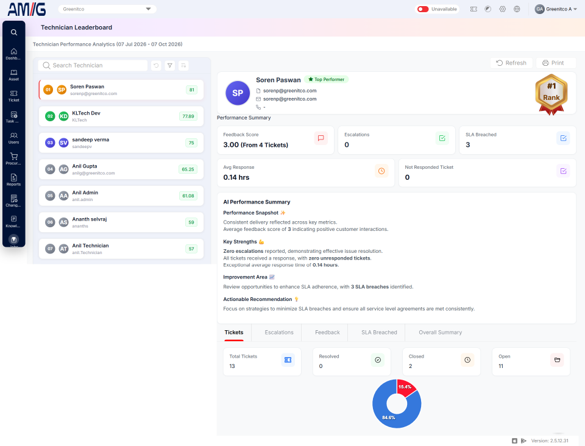
Figure: Technician Leaderboard main screen
Leaderboard performance indicators
| Indicator | Description |
|---|---|
| Ranking / Score | Position and performance score shown in the technician list. |
| Feedback Score | Average feedback rating, with the number of tickets included where shown. |
| Escalations | Escalation count for the selected technician and reporting period. |
| SLA Breached | Number of tickets recorded as breaching the SLA. |
| Average Response | Average response time displayed by the dashboard. |
| Not Responded Ticket | Count of tickets without a recorded response. |
| AI Performance Summary | System-generated summary of performance snapshot, strengths, improvement areas, and recommendations. |
Reviewing Ticket Metrics
Select the Tickets tab to review the ticket metrics and chart for the selected technician.
Step 1 → Review the Total Tickets, Resolved, Closed, and Open counts.
Step 2 → Use the displayed chart to understand the distribution of tickets by status for the selected period.
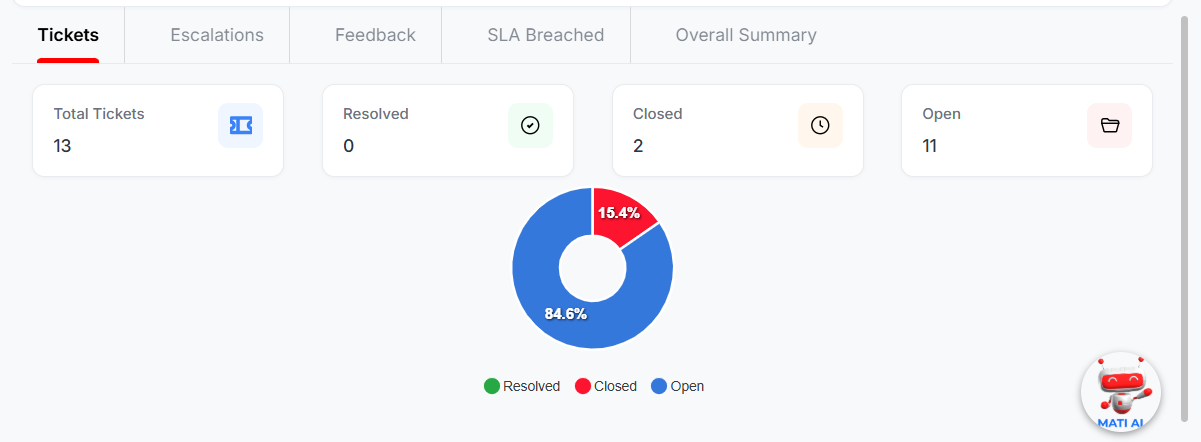 <sub Figure: Technician Leaderboard — Tickets tab
Ticket metrics shown
| Metric | Description |
|---|---|
| Total Tickets | Total number of tickets included in the current view. |
| Resolved | Number of tickets with Resolved status. |
| Closed | Number of tickets with Closed status. |
| Open | Number of tickets with Open status. |
Reviewing Escalations
Step 1 → Select the Escalations tab.
Step 2 → Review each escalation’s Ticket ID, Subject, Status, Created At, and Updated At values.
Step 3 → Use Search or Refresh to locate a record or reload the list, where available.
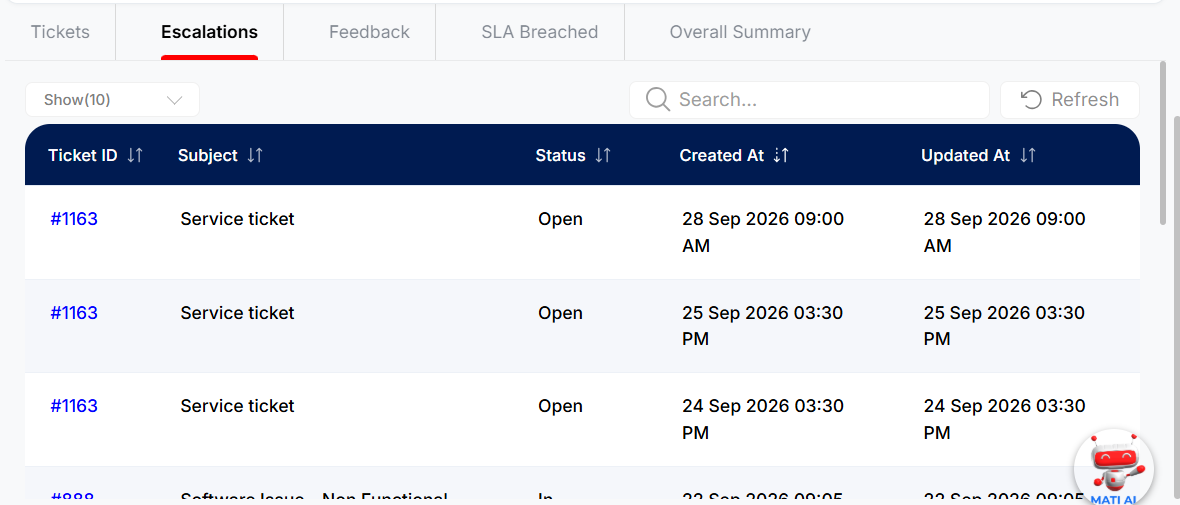
<sub Figure: Technician Leaderboard — Escalations tab
Escalations tab columns
| Column | Description |
|---|---|
| Ticket ID | Identifier of the ticket associated with the escalation. |
| Subject | Ticket subject. |
| Status | Current ticket status. |
| Created At / Updated At | Creation and last-update timestamps for the listed record. |
Reviewing Feedback
Step 1 → Select the Feedback tab.
Step 2 → Review the feedback provider, associated ticket ID, star rating, numeric score, comment, and date.
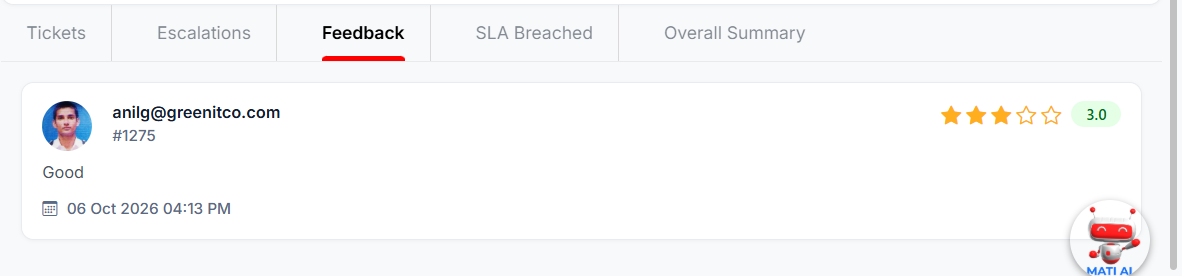
Figure: Technician Leaderboard — Feedback tab
Feedback card details
| Item | Description |
|---|---|
| User / Email | Feedback provider details displayed on the card. |
| Ticket ID | Ticket associated with the feedback. |
| Rating / Score | Star rating and numeric feedback score. |
| Comment | Feedback text submitted by the user. |
| Date | Date and time recorded for the feedback. |
Reviewing SLA Breaches
Step 1 → Select the SLA Breached tab.
Step 2 → Review the Ticket ID, Subject, Status, Created At, and Updated At information for the listed tickets.
Step 3 → Use the list to identify records requiring follow-up to improve SLA adherence.
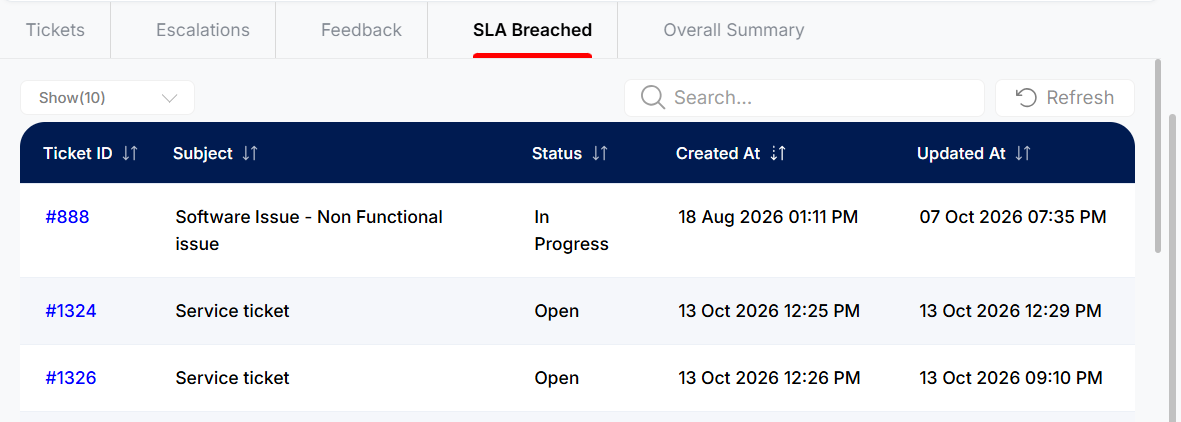 Figure: Technician Leaderboard — SLA Breached tab
Viewing the Overall Summary
Step 1 → Select Overall Summary to view the consolidated performance metrics.
Step 2 → Review average feedback, the latest feedback score and comment, average response time, average resolution time, pending ticket count, and counts for the displayed ticket statuses or types.
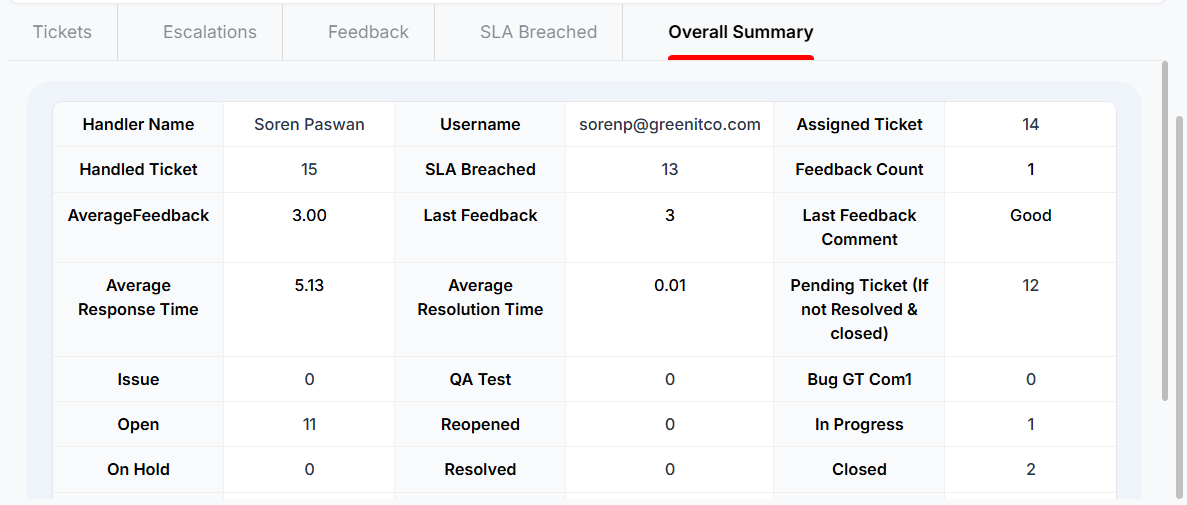
Figure: Technician Leaderboard — Overall Summary tab
Overall Summary metrics
| Metric | Description |
|---|---|
| Average Feedback | Average feedback score for the selected technician. |
| Last Feedback / Last Feedback Comment | Most recent feedback score and comment. |
| Average Response Time | Average time taken to respond to tickets. |
| Average Resolution Time | Average time taken to resolve tickets. |
| Pending Ticket (if not resolved and closed) | Count of tickets that are neither resolved nor closed. |
| Ticket Status/Type Counts | Counts for the statuses or ticket types displayed in the summary. |
Interpreting the AI Performance Summary
The AI Performance Summary displays a performance snapshot, key strengths, improvement areas, and an actionable recommendation based on the metrics shown. Review the underlying ticket, feedback, escalation, and SLA data when deciding on follow-up actions.