Introduction
- Create tickets easily — Any user can raise a ticket to report an issue, ask a question, or request information.
- Technicians and administrators handle it — Once submitted, tickets are picked up by the technical team for resolution.
- Two entry points — Use My Tickets to view and manage your own tickets, or All Tickets to manage the organisation's tickets (administrators and ticket handlers).
- Track everything in one place — Monitor status, priority, TAT, comments, CC recipients, and conversation history from a single ticket view.
- Work faster with built-in tools — Star important tickets, transfer across departments, assign to technicians, reply with AI Assist, and download ticket data.
- Stay informed — CC recipients and back-trail emails keep everyone in the loop on ticket updates.
Navigation Path: Sidebar > Ticket > Service Ticket > My Tickets/All Tickets
Create a Ticket
Follow these steps to raise a new ticket:
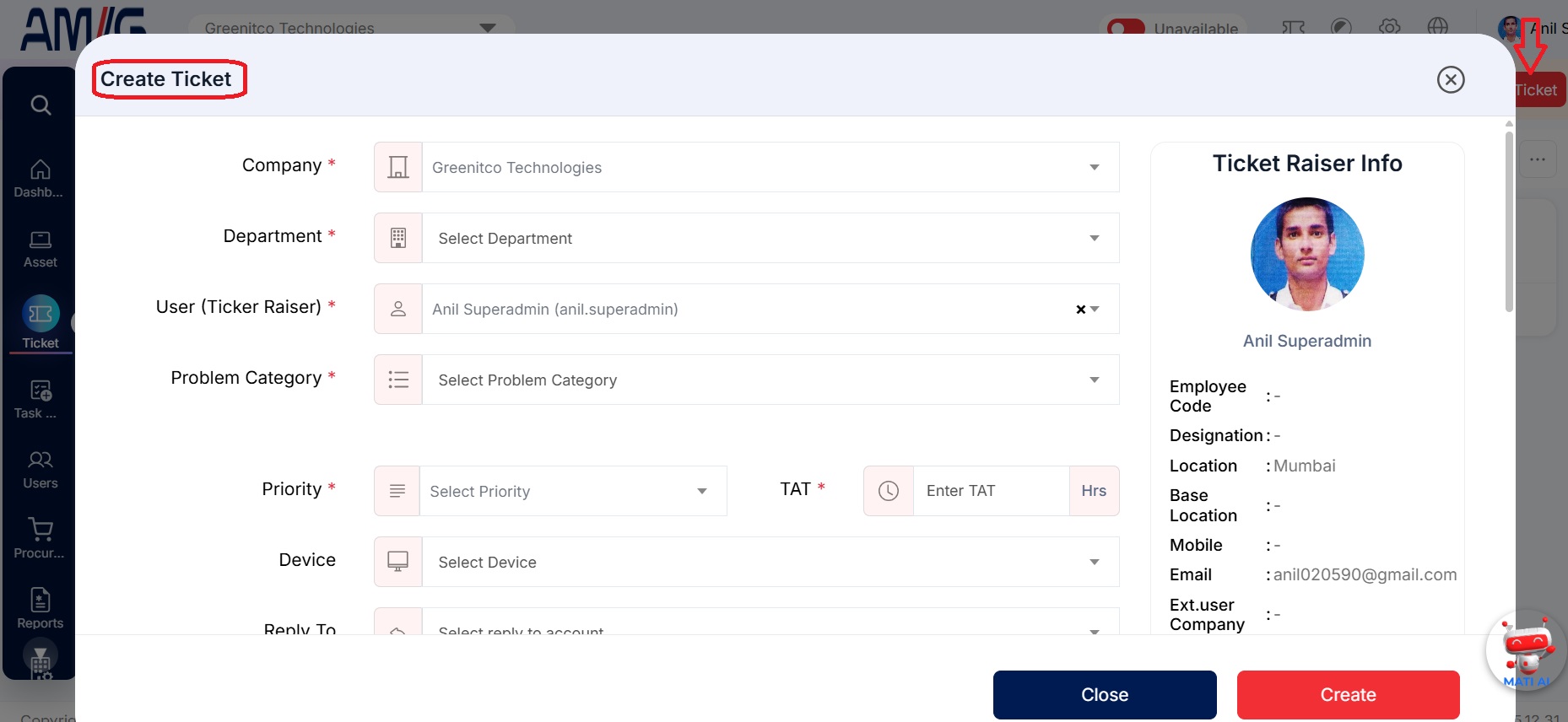
- Open the ticket page — Go to Service Tickets → My Tickets (or All Tickets) and select Create (the plus icon). You can also select Log Ticket from the header or the dashboard.
- Choose the category — Select the Department and Problem Category (and sub-category). If the category has a dynamic form, the form loads automatically.
- Fill in the details — Enter the Subject and a clear description of the issue. Attach any supporting files and add CC recipients if needed. Your Seat No is filled in automatically from your profile.
- Submit the ticket — Select Create to raise the ticket.

Create a Ticket for Someone Else
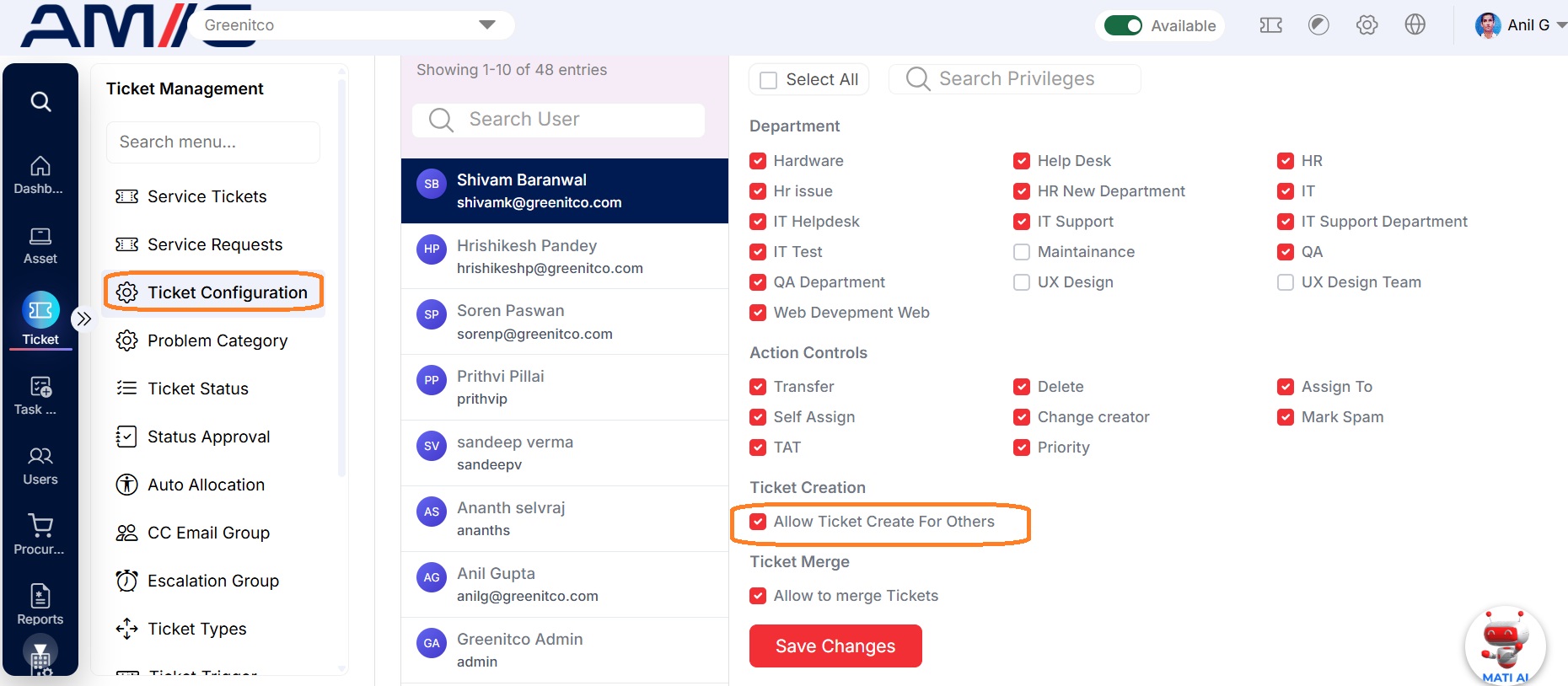
The Create a Ticket for Someone Else feature lets a technician raise a ticket on behalf of another user — useful when an issue is reported by phone, email, or in person. It ensures every issue is logged and tracked, even when the affected user cannot raise the ticket themselves. By default, this is disabled; an administrator must enable it per technician before use.
- Who can do this? By default, users cannot create tickets for others. An administrator must enable this per technician.
- Where to enable it? Go to Service Tickets → Ticket Configuration → Ticket Handler Limits and select the ticket creation check box.
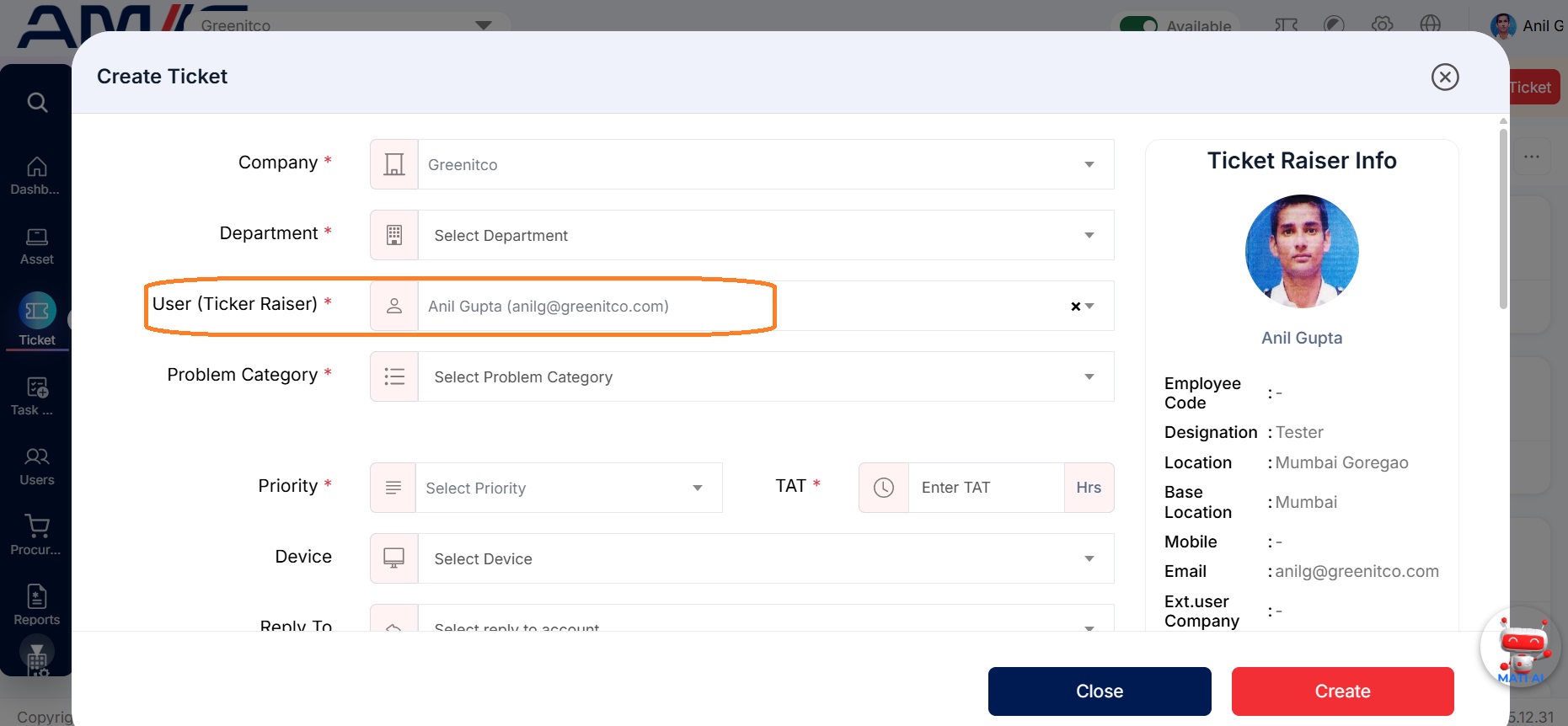
- What to fill in? When creating a ticket for someone else, also enter the Ticket Raiser, Priority, and TAT — in addition to the standard ticket details.
Priority and TAT
Priority tells the team how urgent a ticket is. TAT (turnaround time) is the time allowed to resolve it — and a ticket not resolved within its TAT becomes Overdue.
Choose the right priority:
| Priority | Use when | Example |
|---|---|---|
| Critical | The issue stops business operations | Email server is down for the whole company |
| High | Major impact on business efficiency | A key application is slow or partially unavailable |
| Medium | Moderate impact | A single user cannot access a shared folder |
| Low | Minor impact | A cosmetic issue or a general question |
Priority and TAT Edit
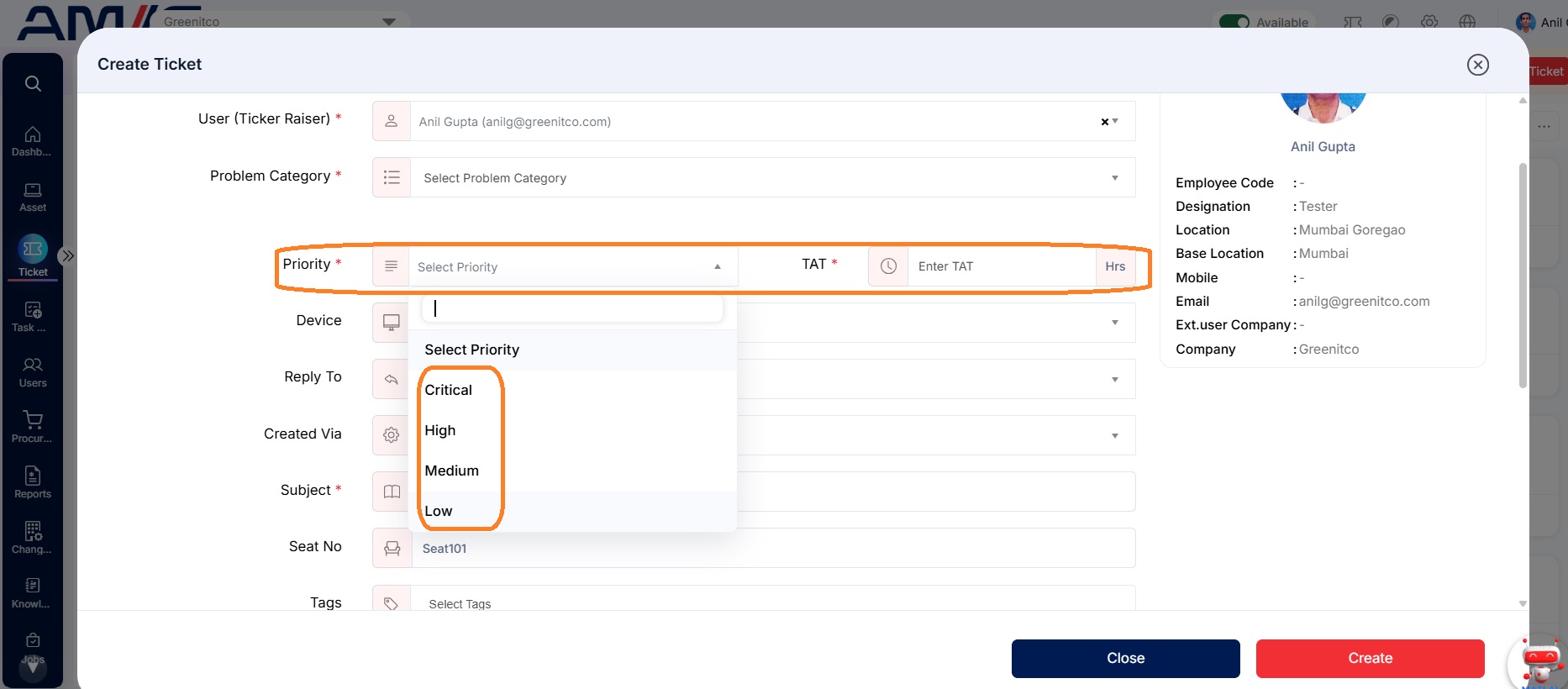
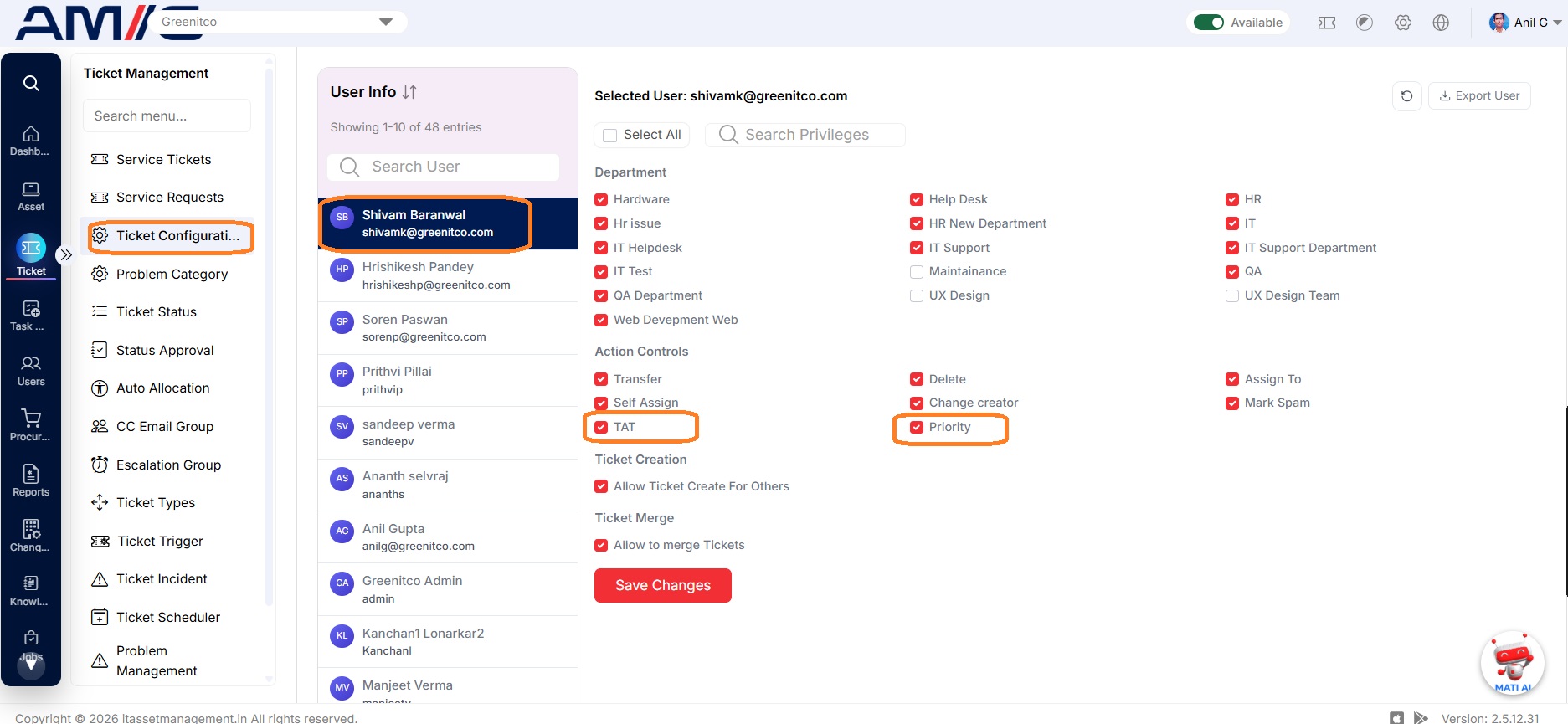
Editing a ticket's Priority and TAT is permission-based. By default, technicians cannot change these fields; an administrator must grant the appropriate permission first.
Mark a Ticket with a Star
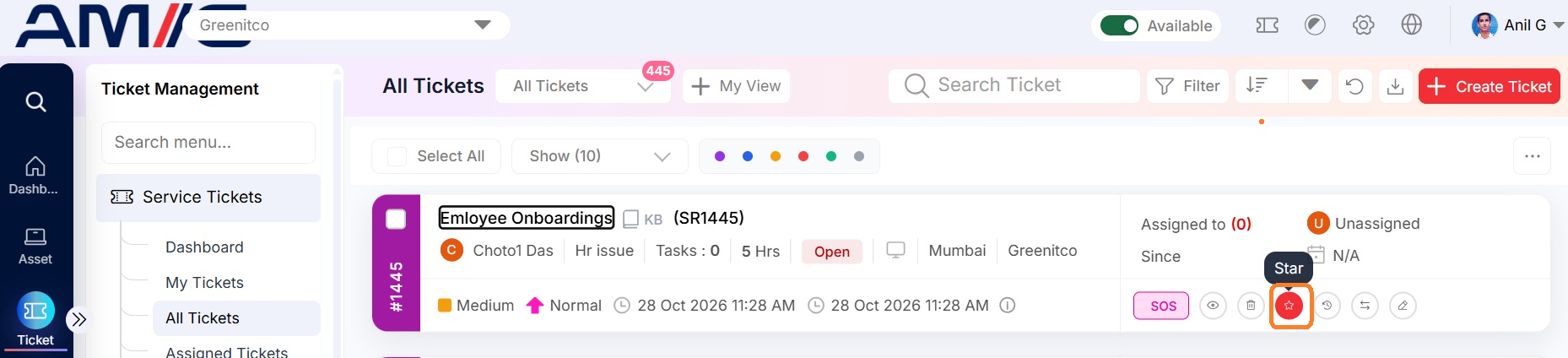
You can star a ticket from two places — the ticket listing page or the ticket detail page. Starred tickets are marked as important for quick reference later.
Option 1 — From the listing page:
- Open My Tickets.
- Select the star icon on the ticket row.
- Select OK to confirm.
Option 2 — From the detail page:
- Open the ticket (select its subject line).
- Select the star icon on the ticket.
- Select OK to confirm.

Transfer a Ticket to Another Department
Move a ticket to a different department when it belongs there — for example, when it was raised under the wrong category or needs another team's expertise.
- Open the ticket — Select the ticket's subject line to open it.
- Start the transfer — Select Transfer.
- Choose the destination — Select the new Department, Problem Category, and any other required details.
- Confirm — Select Transfer to complete the move.
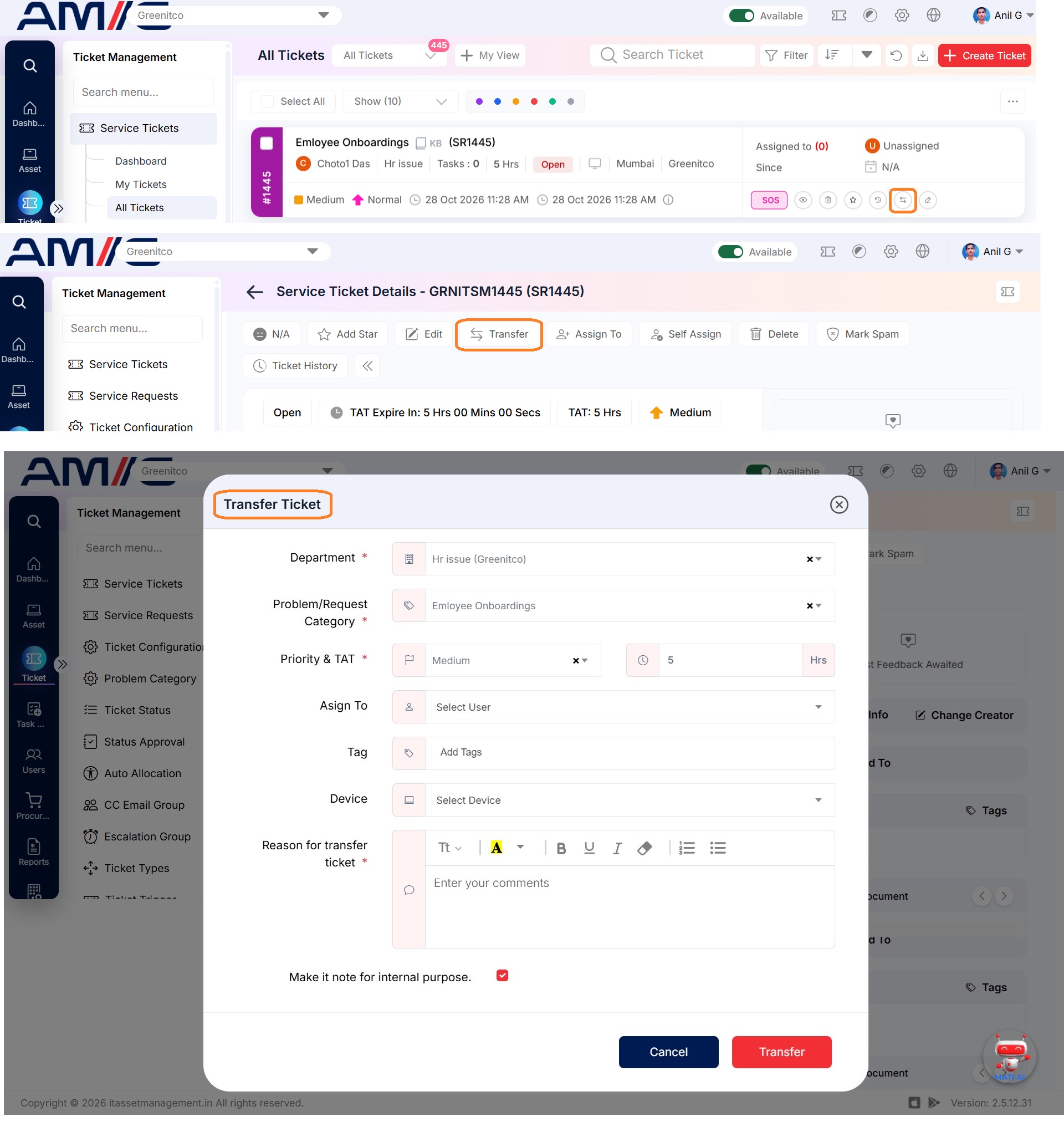
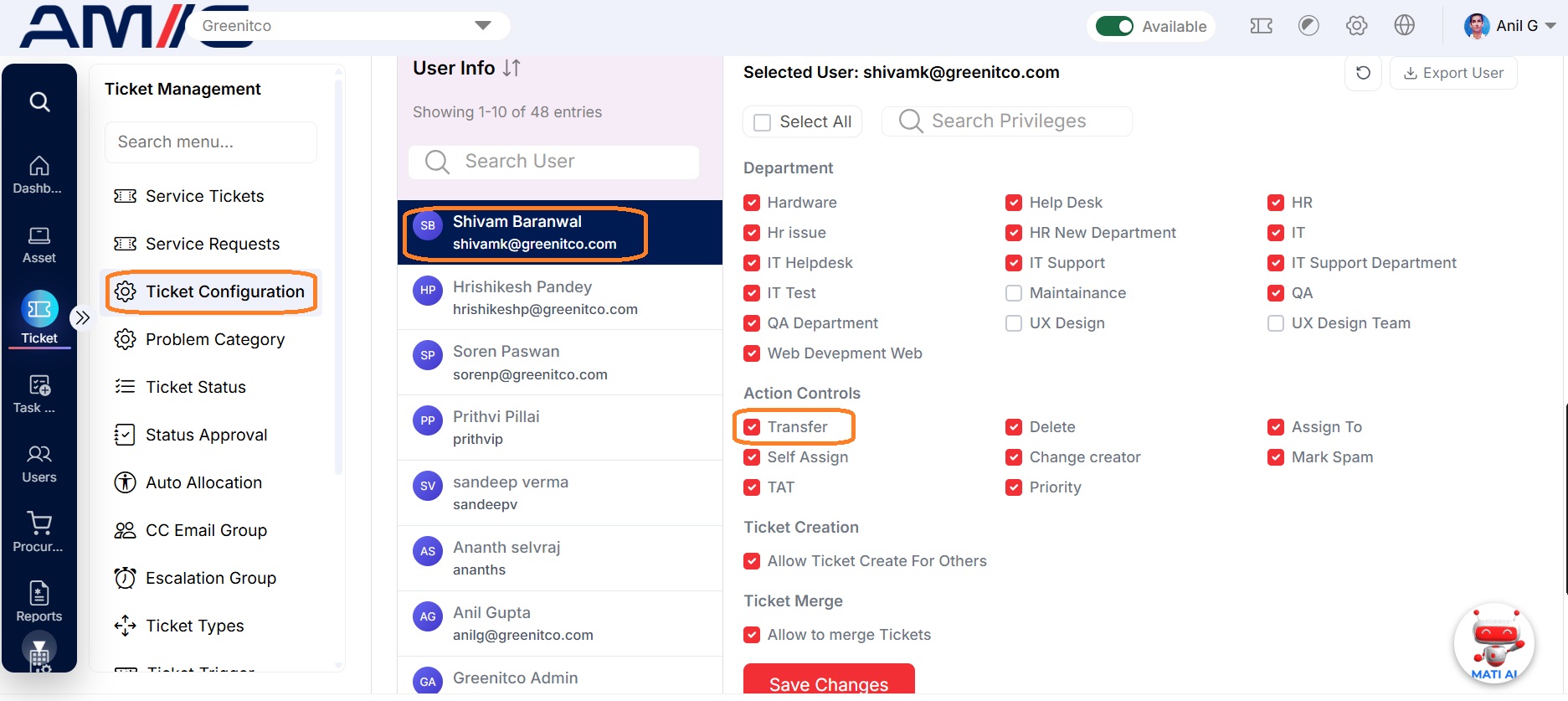
Note — Permission required: The ticket transfer flow is permission-based. By default, a user cannot transfer a ticket. An administrator must grant the appropriate transfer permission before the Transfer option is available. Until then, the Transfer action is hidden or disabled on the ticket.
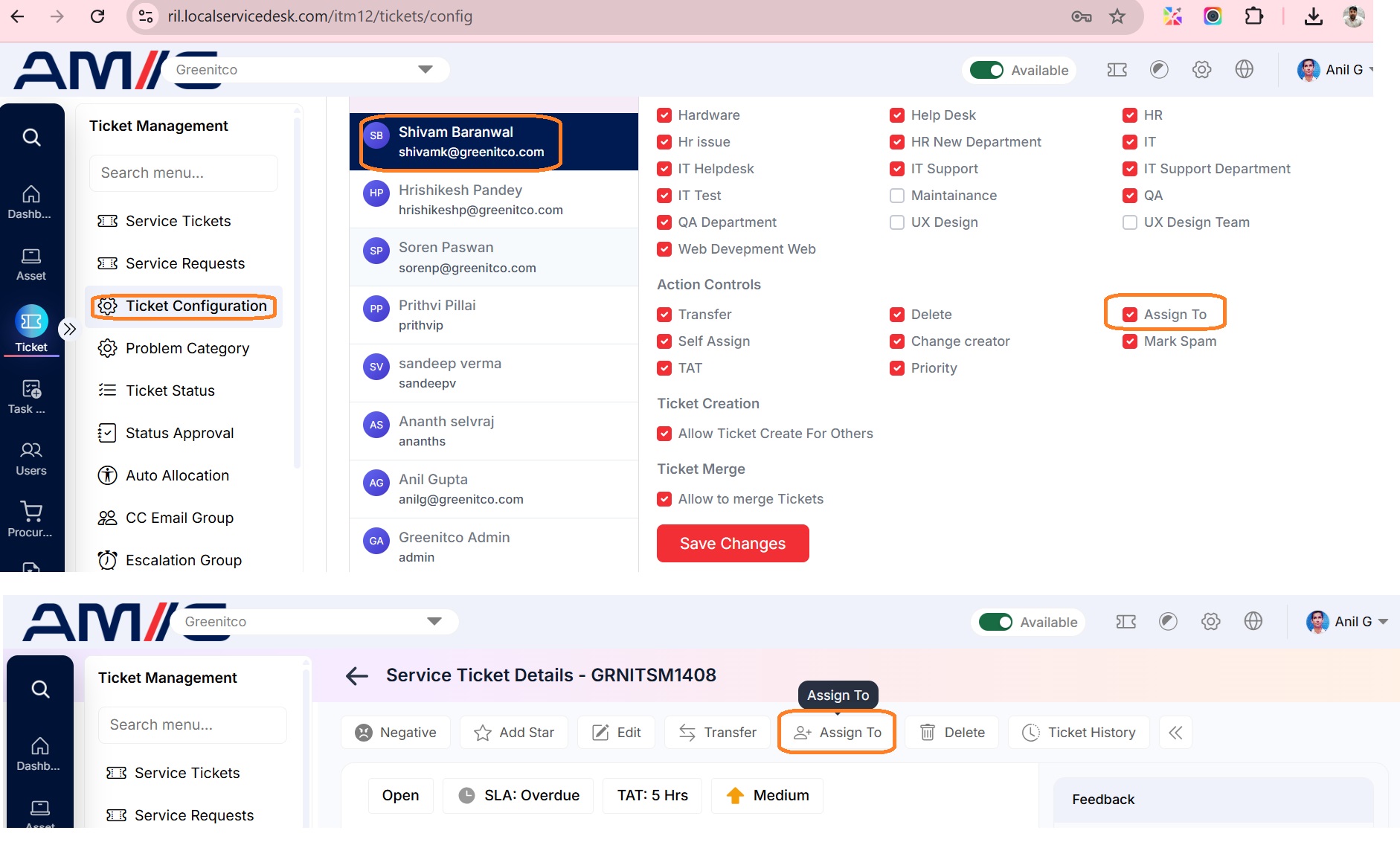
Assign a Ticket to Another Technician
Hand a ticket over to another technician when it needs their skills, availability, or department expertise.
- Open the ticket — Select the ticket's subject line to open it.
- Start the assignment — Select Assign To.
- Choose the technician — Select the technician you want to assign the ticket to.
- Confirm — Select Assign to complete the handover.
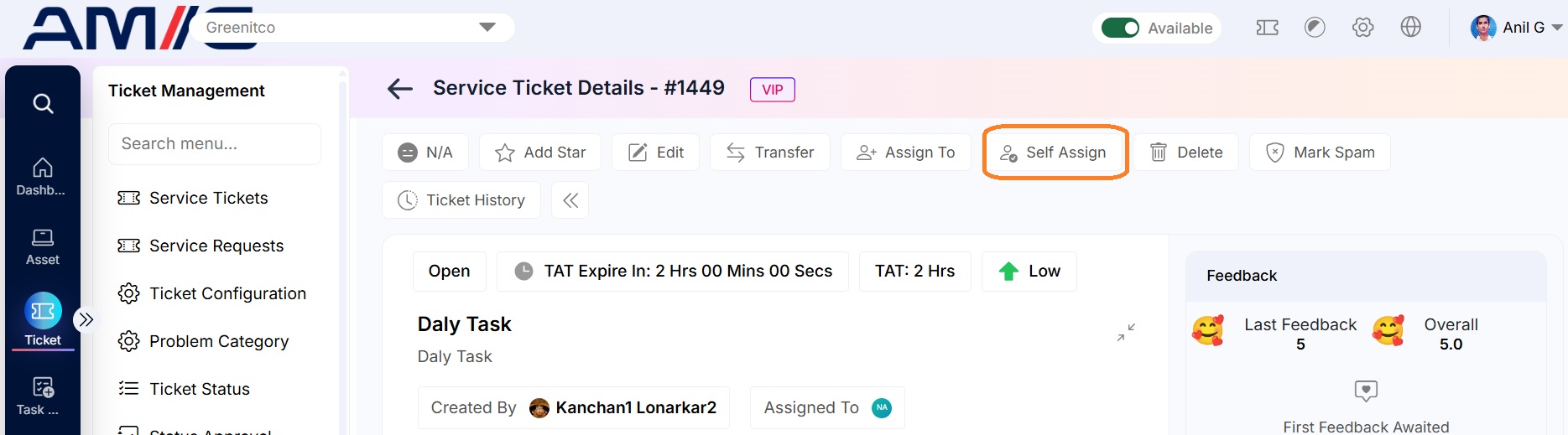
Self-assign a ticket
Open the ticket, select Self Assign and select OK. You take full responsibility for the ticket.
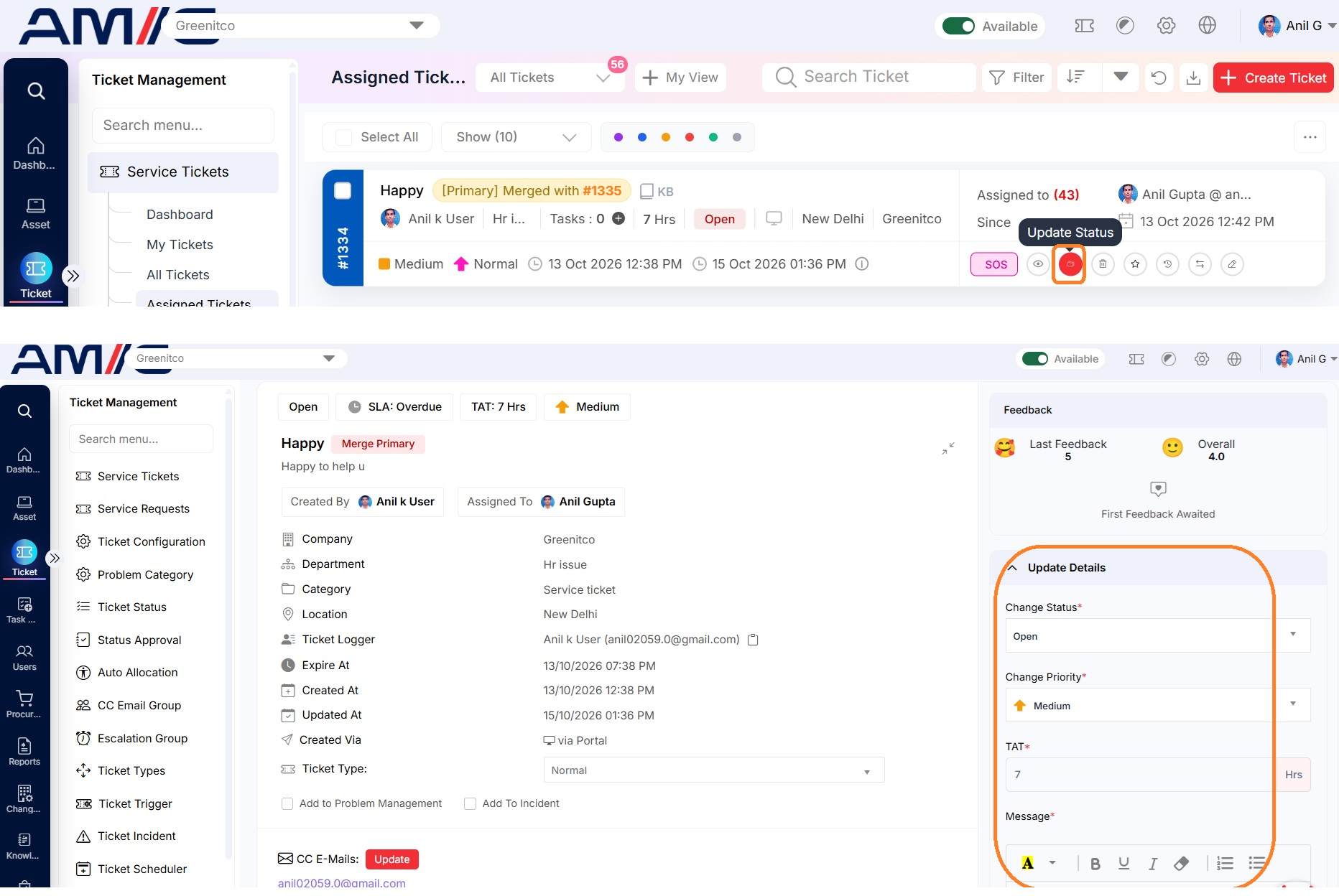
Update the status, TAT or priority
Open the ticket, update the status, TAT or priority and select Update. Some statuses need approval or load a form; see
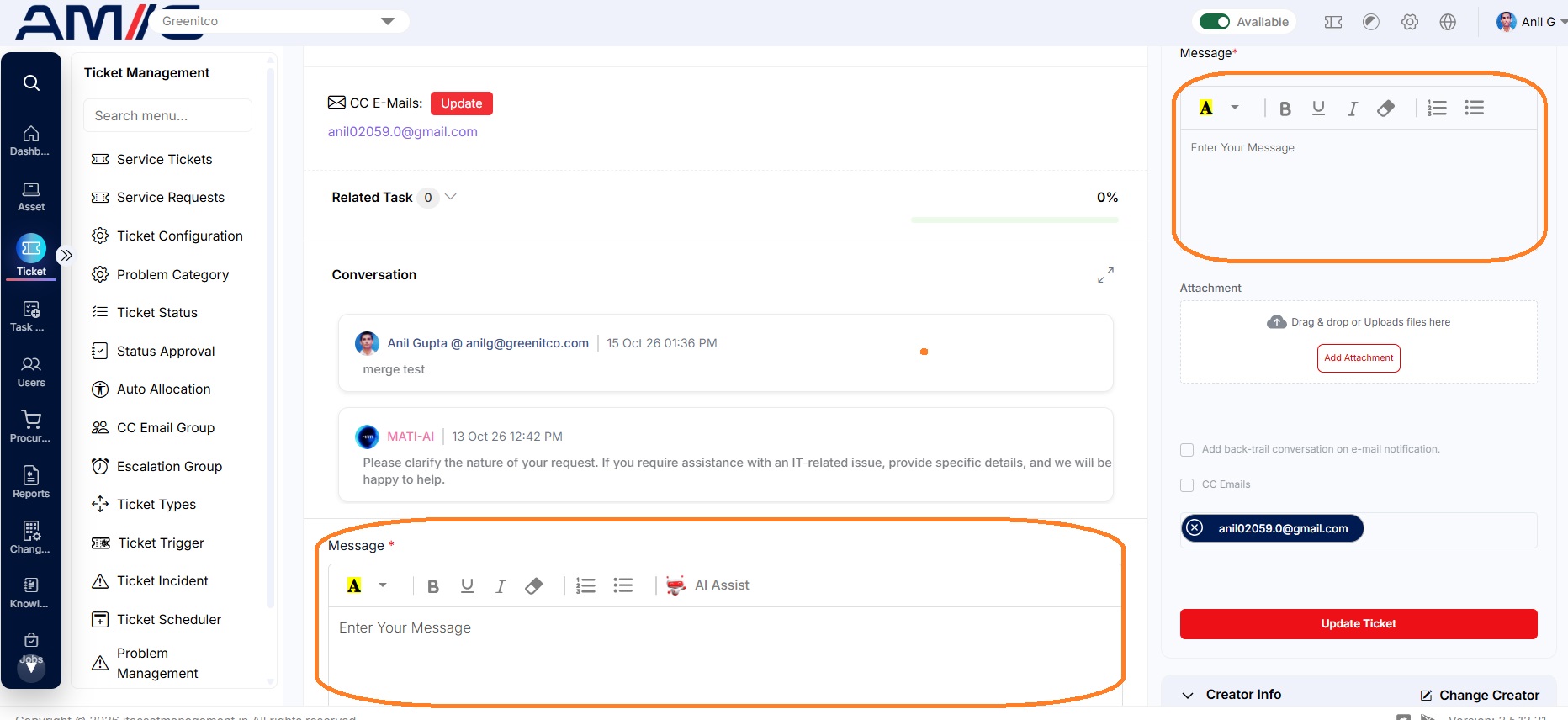
Comment on a ticket
Open the ticket, enter your comment and select Comment. Comments are used to communicate between the user and the technical team. When the user comments, the assigned technician receives an email.
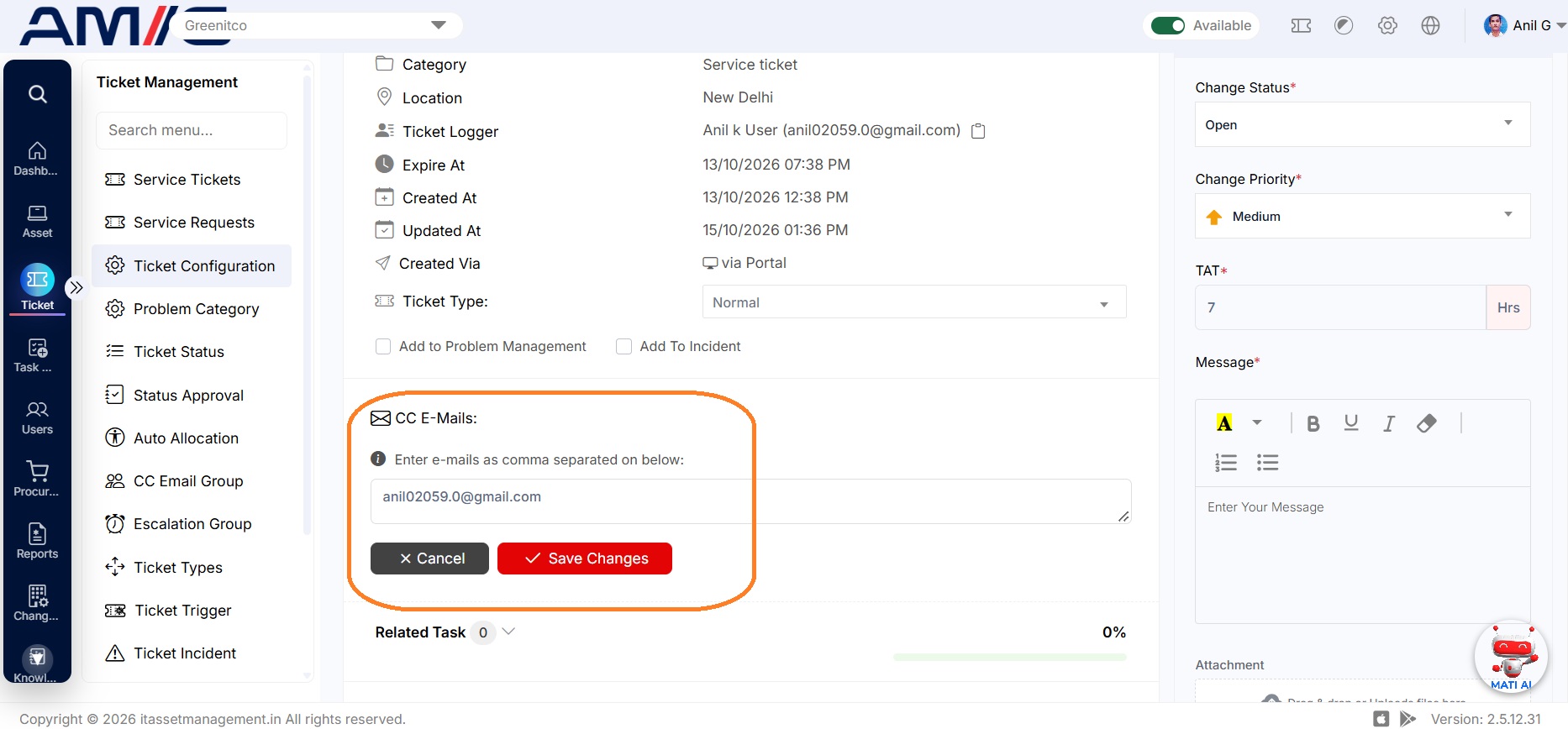
Notify CC recipients (master CC list)
Each ticket can have a master CC list: people who receive the same notifications as the ticket creator. Any user can create it.
- Open the ticket from All Tickets, Assigned Tickets or My Tickets and select Update.
- Enter the recipients' email addresses separated by commas.
- Select Save Changes.
When commenting or changing the status, select the CC E-Mails check box to notify the master list, and add or remove addresses for that update.
- Adding an address during an update adds it to the master list.
- Removing an address during an update does not remove it from the master list.
- Clear the CC E-Mails check box to not notify the CC recipients.
- When tickets are merged, the primary ticket's CC list remains; CC recipients of secondary tickets are informed of the merge.
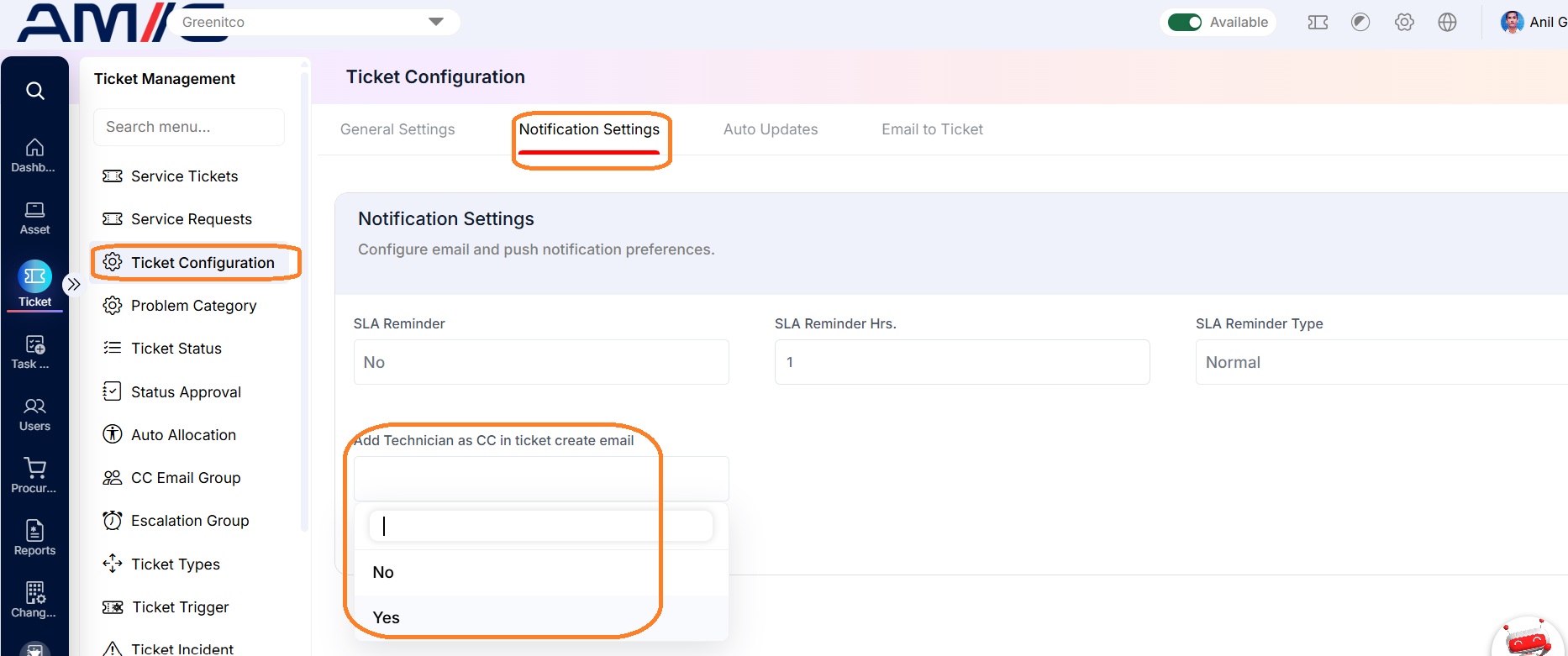
To have the CC check box selected by default everywhere, enable CC Email Reminder in ticket configuration
Include the conversation history in emails (back trail)
When commenting or changing the status, select Add back trail conversation on email notification. The email then includes all previous comments and changes since the ticket was created. The back trail is sent to the ticket creator and CC recipients; clear the CC check box to not share it with CC recipients.
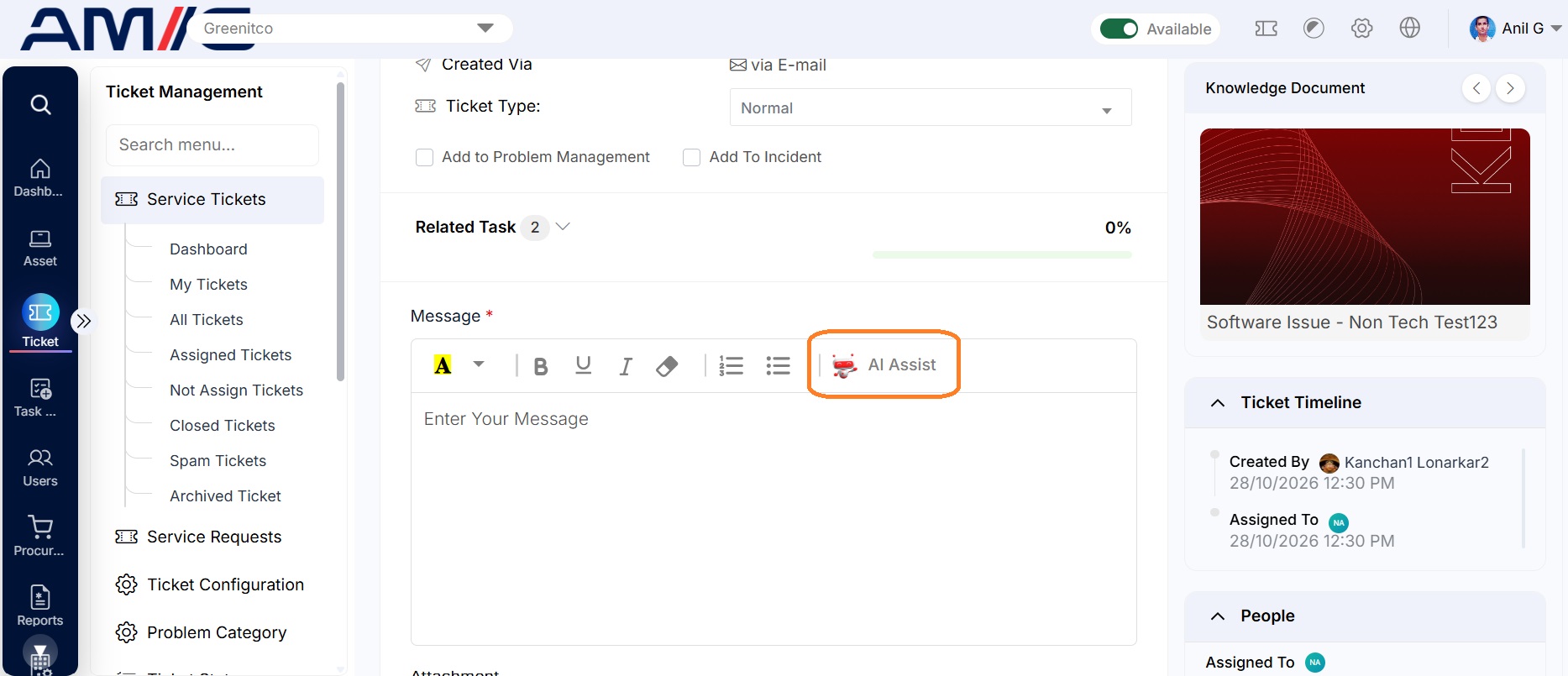
Reply faster with AI Assist
AI Assist is available in the comment section of the Ticket Details and Task Details pages.
- In the comment section, select AI Assist. The Let MATI Assist You! window opens.
- Select Auto Response to generate a reply from the ticket, or Custom Response, enter your question and select Get AI Assist.
- The response is placed in the comment box. Review it and select Comment.
Download tickets
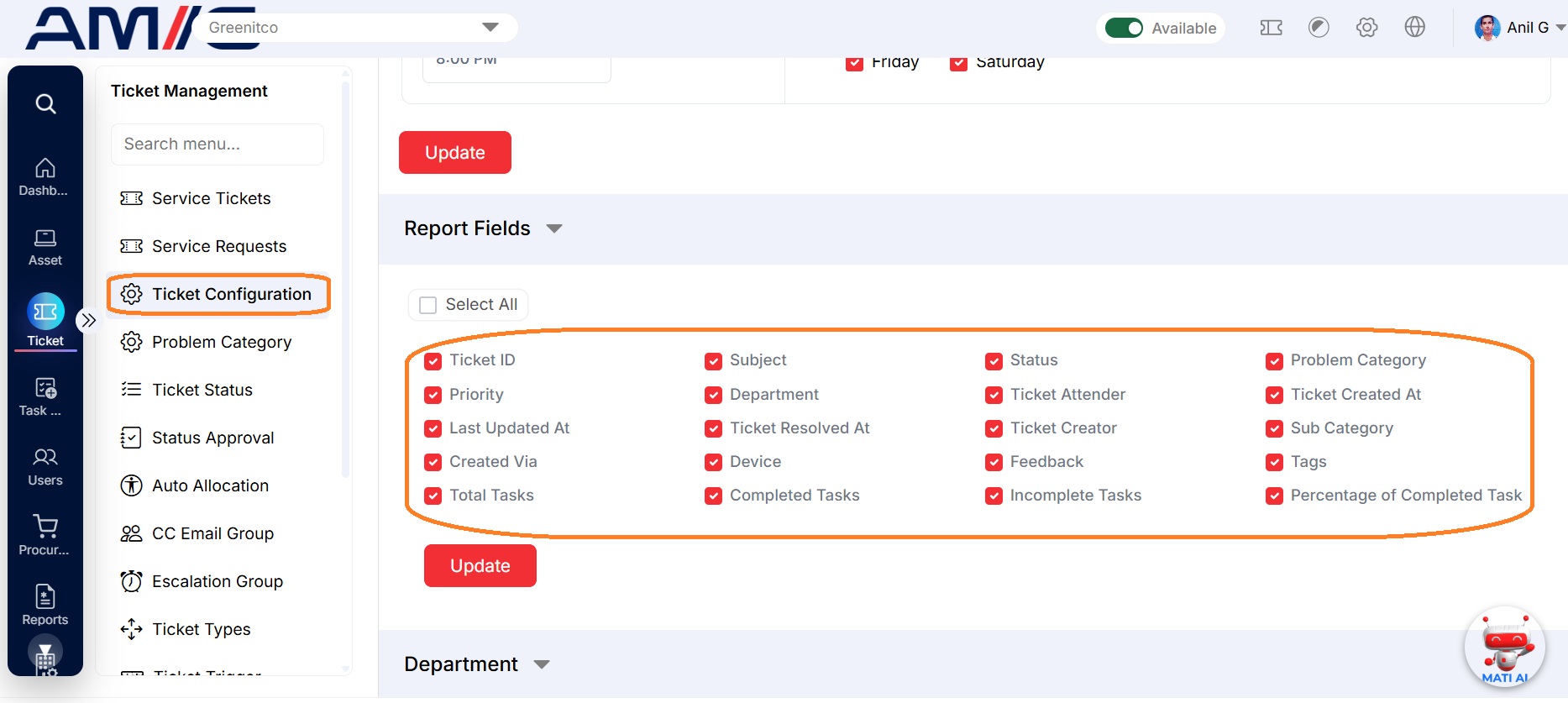
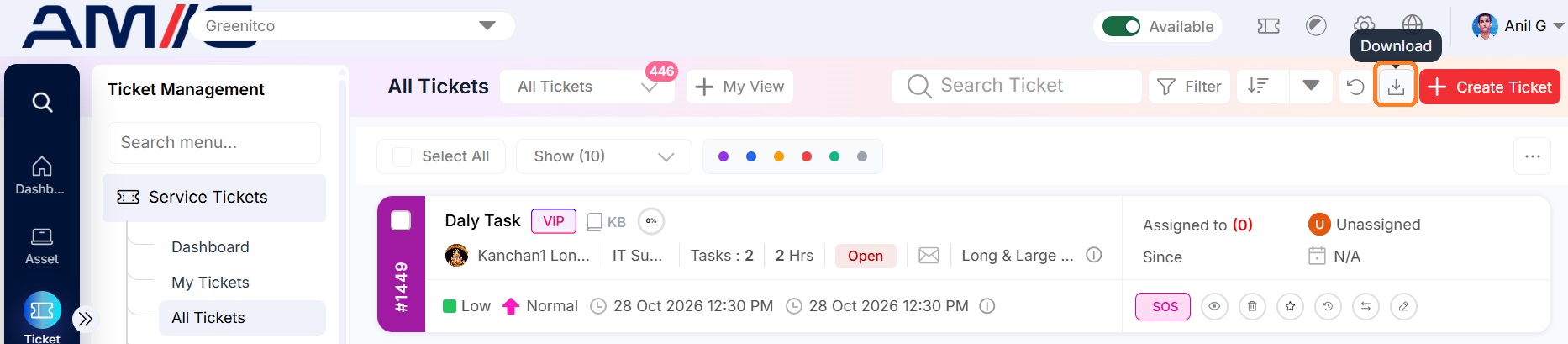
In My Tickets or All Tickets, select Download (download icon). The export contains tickets from the last 6 months. To export older tickets, apply a date filter first. Columns in the export are set in Ticket Configuration → Report Fields.