Custom Reports
Product: NEXTMEGABYTE (Greenitco ITAM) · Module: Reports and Analytics · Audience: Administrator
Custom reports let each team build the report it needs from ticket or device data.
Create a custom report definition
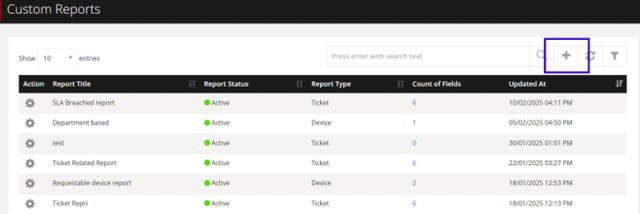
Menu path: Reports → Custom Reports → Custom Report Definition
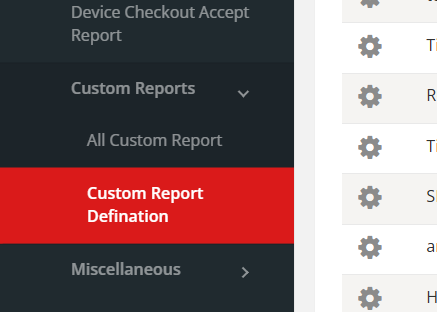
- Select Add (plus icon).
- Enter the Report Name, set the Status (enabled or disabled) and choose the Report Type: Device or Ticket.
- Save.
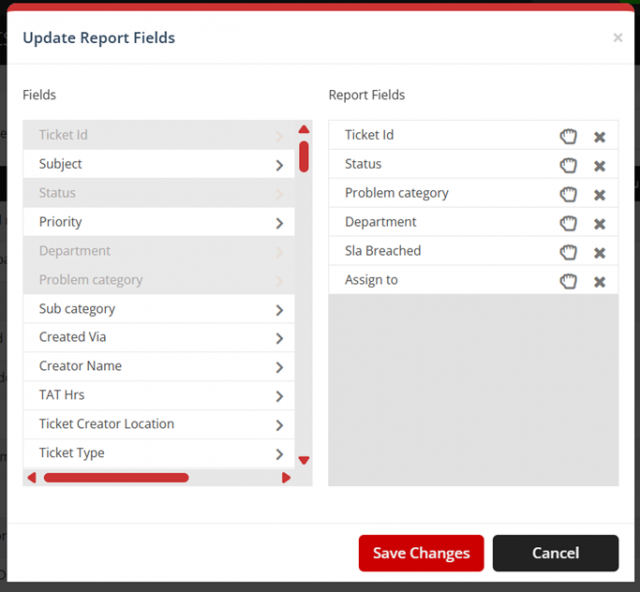
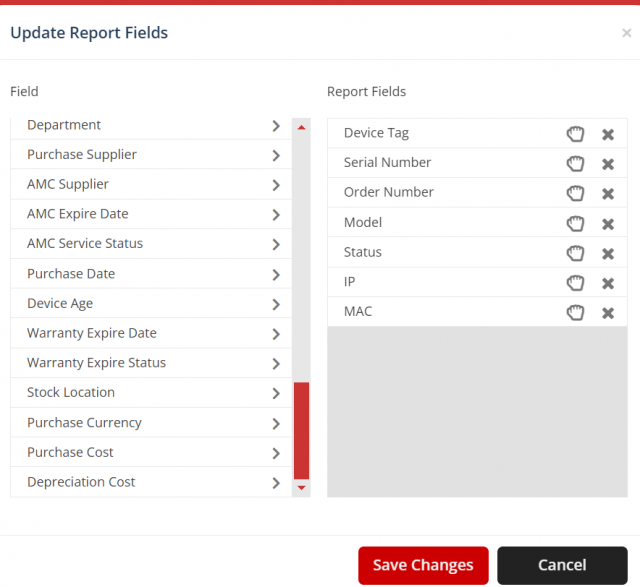
- Use Column to add, remove or reorder the report's columns.
- Optionally use Formula to add calculated fields (for example totals or averages).
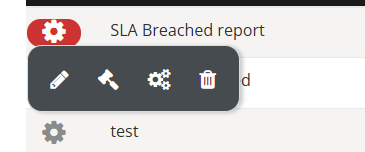
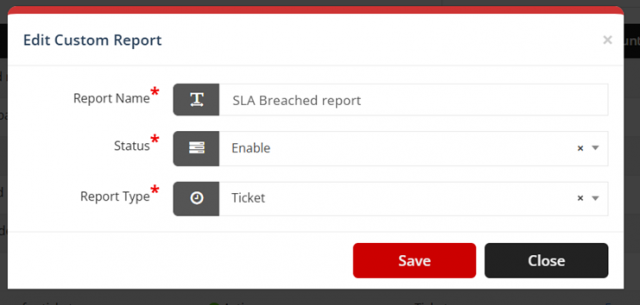
Edit the name, status or type with Edit, or remove the report with Delete.
Add rules (filters) to a report
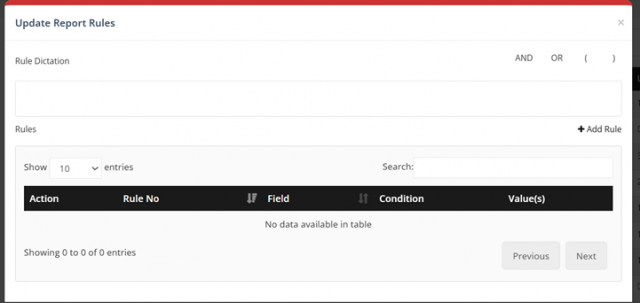
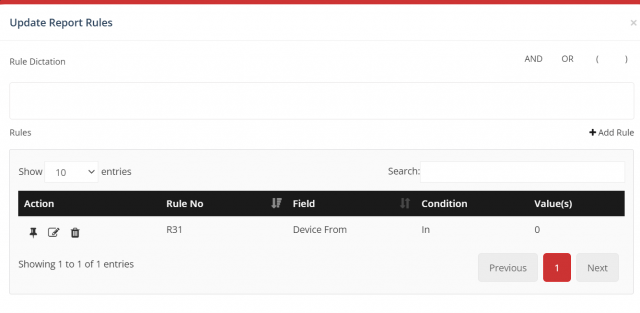
- Open the report's rules and select Add Rule.
- Select the field, condition and value, and select Save Changes.
- Combine rules with the pin (thumb-tack) icon and AND / OR, for example (R1 AND R2) OR R3.
- Select Save Changes.
View and export a custom report
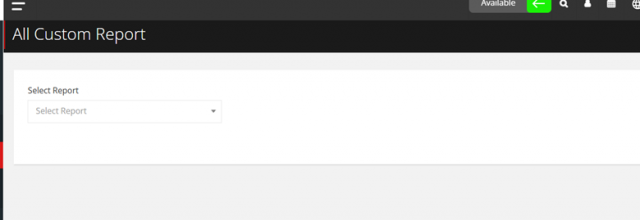
Menu path: Reports → Custom Reports → All Custom Reports
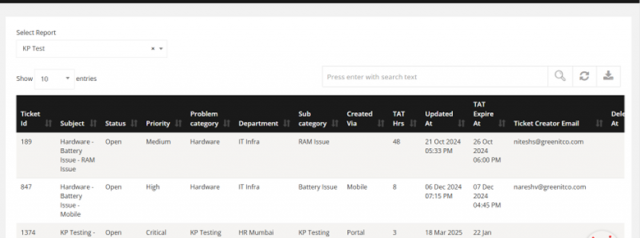
- Select the report in the dropdown. The data is displayed.
- Select Export (or the download icon) to download it.
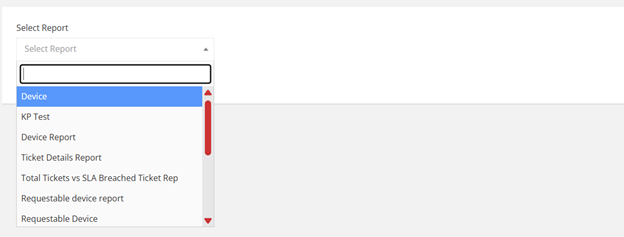
Only enabled reports that you have permission for are listed.