

Introduction
Announcements allow you to share important information with employees across your organisation. You can use this section to communicate planned downtime, policy changes, office closures, maintenance schedules, or other important updates.
You can publish announcements for the entire company or target specific departments, locations, individual users, or groups of users. You can also define the date and time period during which an announcement should be displayed.
Using this section, you can:
- Create Announcements: Add important messages to keep employees informed about organisational updates and activities.
- Target Specific Audiences: Share announcements with the entire company or select specific departments, locations, individual users, or groups.
- Schedule Announcements: Define the date and time period during which an announcement should be active.
- Manage Communication: Ensure that relevant information reaches the appropriate employees based on their department, location, or user group.
Example: If maintenance work is planned for the Mumbai office, you can create an announcement specifically for users at that location and schedule it to be displayed during the required period.
These features help ensure that important information reaches the right people at the right time, improving communication and keeping employees informed of relevant updates.
Navigation Path: Header > Config > Announcements
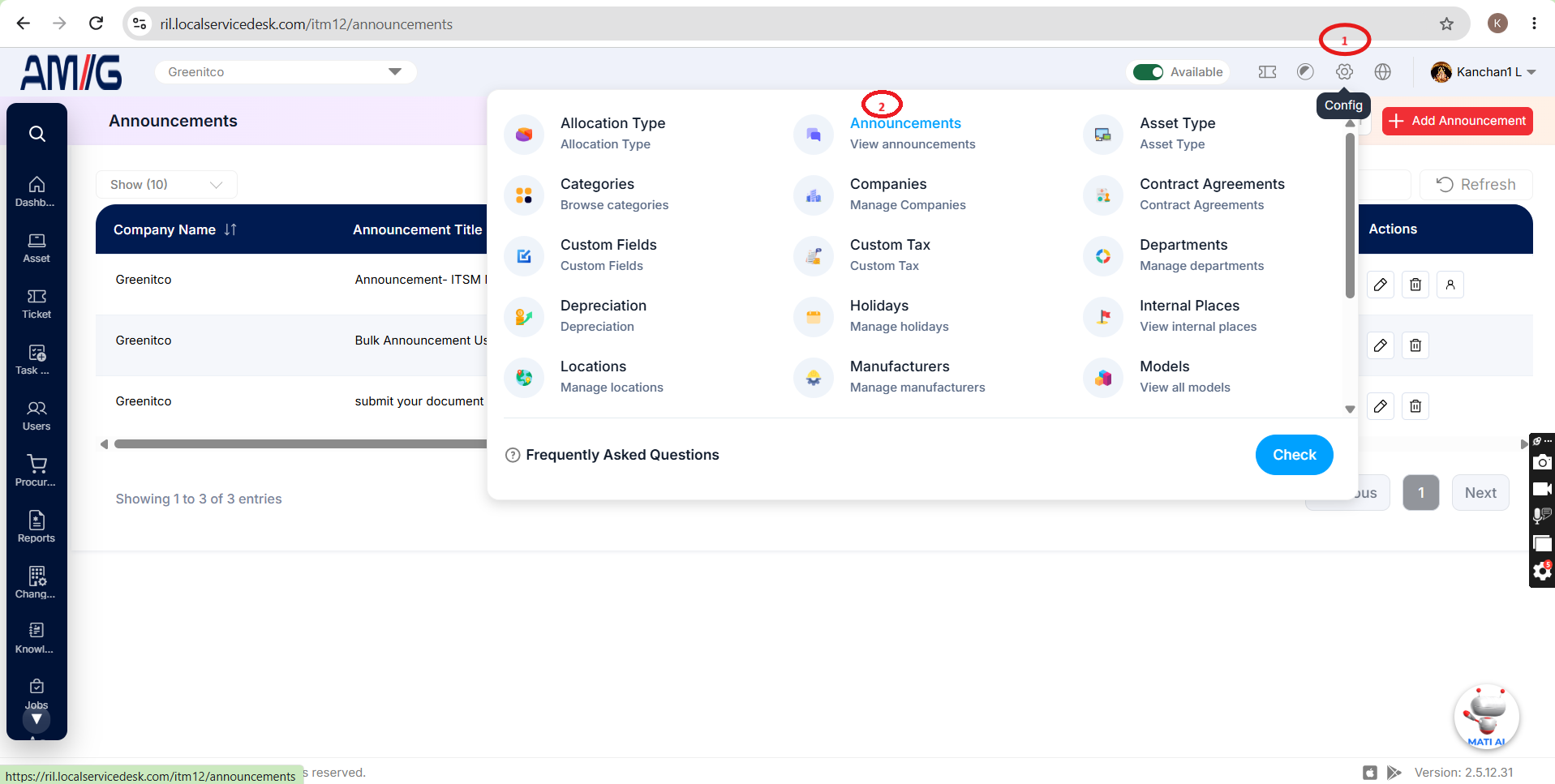
Viewing the Announcements List
Go to Header > Config > Announcements. You will land on the main list showing all existing announcements.
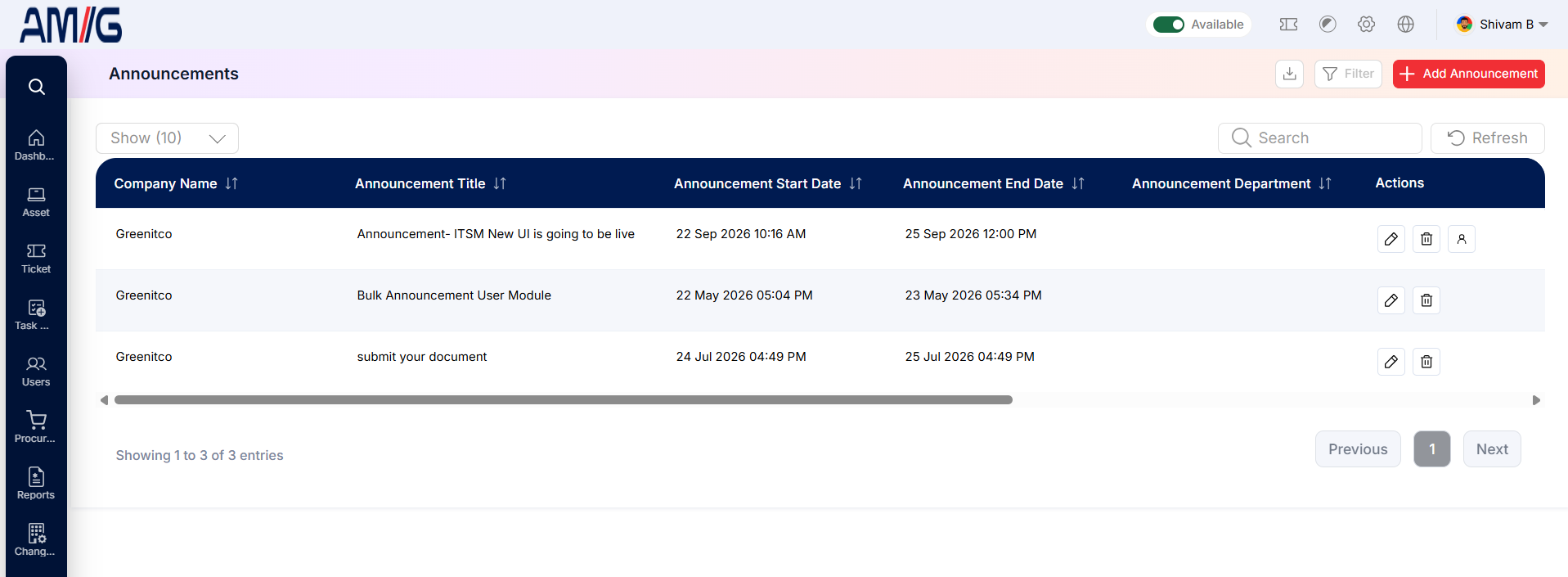 Figure: Announcement Main Screen
Understanding the Main Screen
Table: Announcements main screen elements
| Area | Description |
|---|---|
| Sub Header (Top) | Use Show (10) to choose how many records you see on one page. Type in the Search box to find a record quickly, or click Refresh to reload the list. |
| Filter Button | Click the Filter button (funnel icon) in the top right to narrow the list down by company, user, department, location or date. |
| Add Announcement Button | Click the red + Add Announcement button to write a new announcement. |
| The Data Table | Shows all your announcements with their Company Name, Announcement Title, Start Date, End Date and Department. |
| Sorting | Click the small arrows beside a column name to sort the list (A to Z, Z to A, oldest or newest first). |
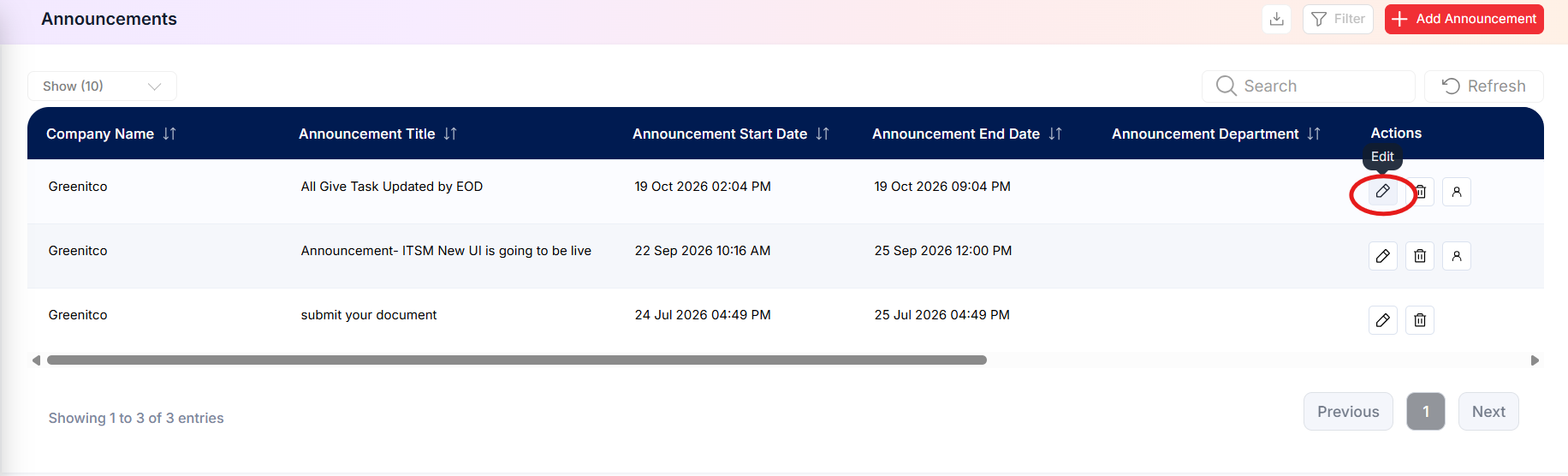
| Actions Column | Each row has three icons on the far right: Edit (pencil), Delete (trash can) and Manage Members (person icon). |
| Pagination | The bottom of the page shows how many records you're looking at. Use Previous and Next to move between pages. |
How to Create a New Announcement
Ready to share some news? Follow these steps:
Step 1: On the Announcements screen, click the red + Add Announcement button in the top right corner.
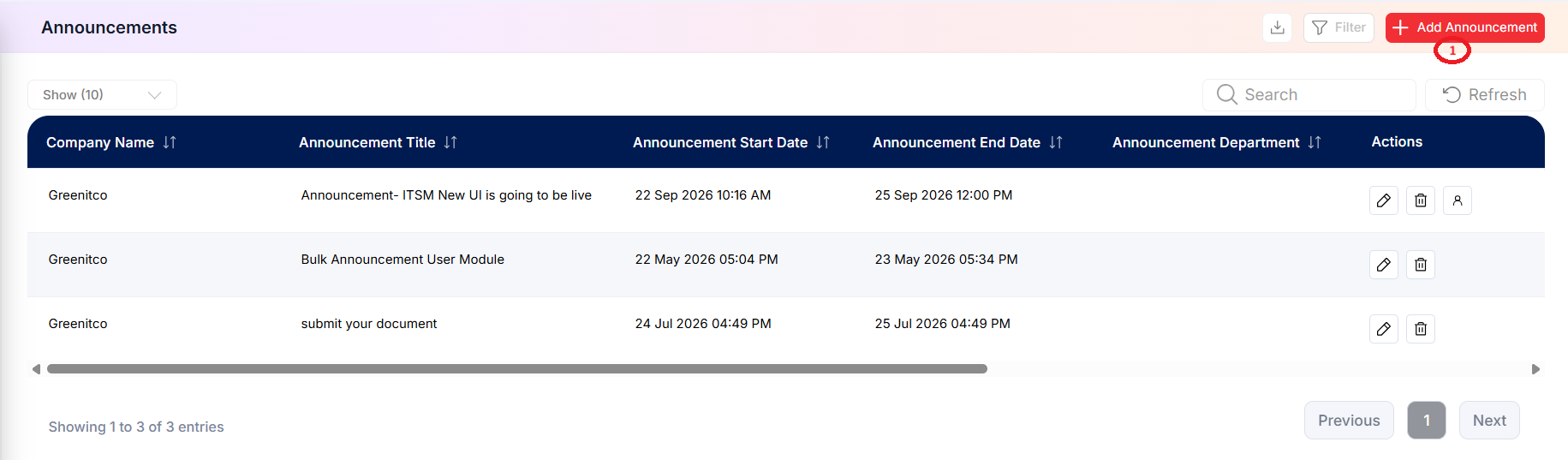 Step 2: The "Add Announcement" pop-up window opens.
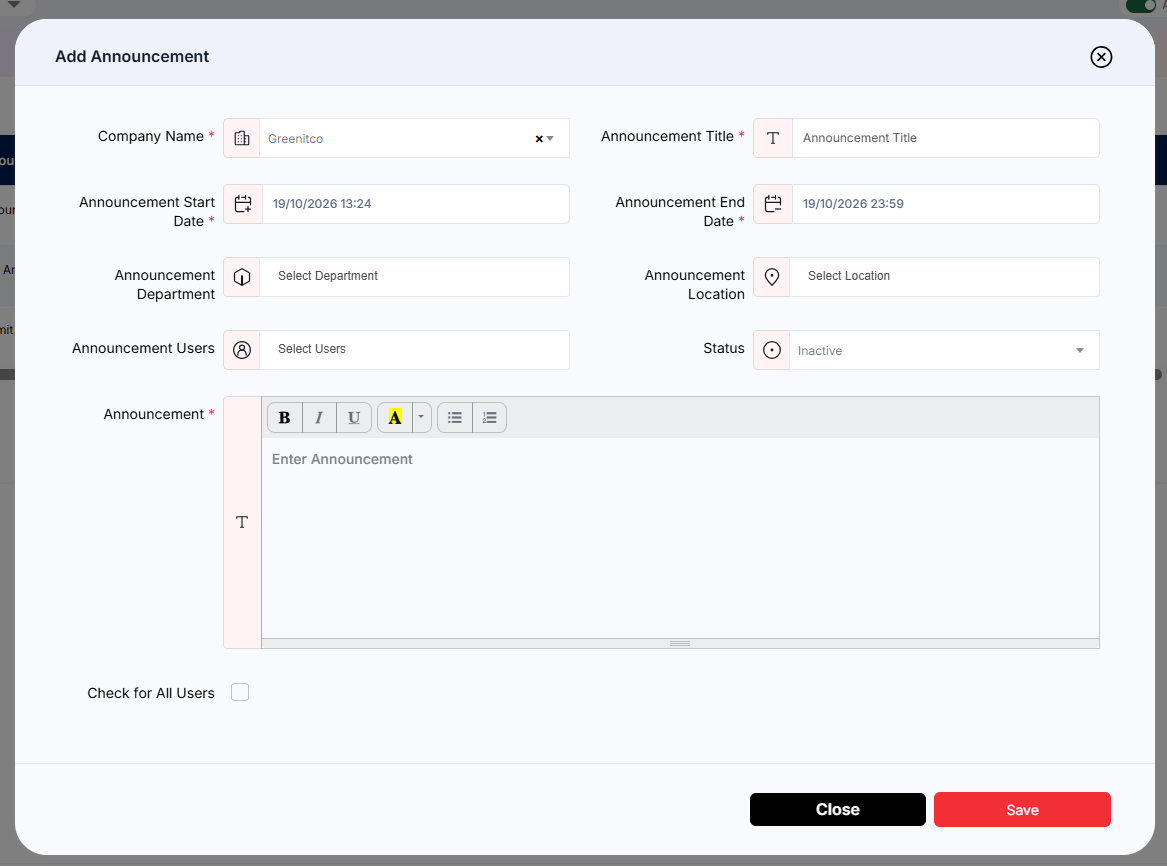 Figure: Add Annoucement Modal
Step 3: Fill in the required fields. They are marked with a red asterisk (*), and the form will not save without them:
Table: Add Announcement – required fields
| Field | Description |
|---|---|
| Company Name | Choose the company this announcement is for. |
| Announcement Title | Give it a short, clear title so people know what it is about at a glance (for example, "Office closed on Friday"). |
| Announcement Start Date | Pick the date and time the announcement should start showing. |
| Announcement End Date | Pick the date and time it should stop showing. After that, it disappears on its own. |
| Announcement | Type your message here. You can use bold, italic, underline, highlighting and bullet or numbered lists to make it easy to read. |
| Status | Choose Active to switch the announcement on, or Inactive to keep it saved but hidden. |
Step 4: Decide who should see it (these fields are optional):
Table: Add Announcement – optional targeting fields
| Field | Description |
|---|---|
| Announcement Department | Pick a department if the message is only for that team. Leave it blank to include all departments. |
| Announcement Location | Pick a location if the message is only for one office. Leave it blank to include all locations. |
| Announcement Users | Pick individual people who should receive the announcement. |
Step 5: Want everyone to see it? Tick Check for All Users at the bottom of the form.
 Step 6: Click the red Save button. Your announcement is published and will show for the chosen people from the start date.

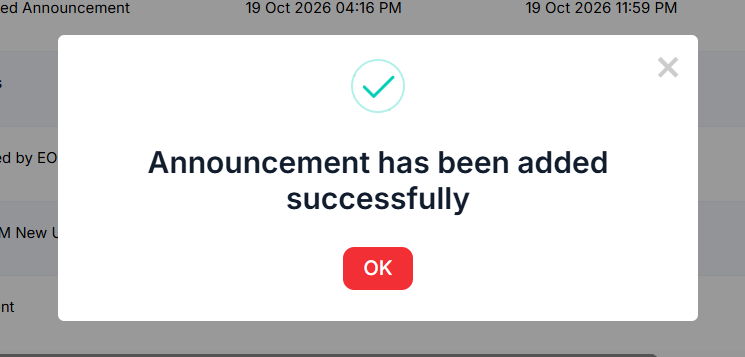

Note: Changed your mind? Click the black Close button or the X in the top right corner. Nothing will be saved.
Filtering Announcements
When your list gets long, the Filter tool helps you find the announcement you need in seconds.
Step 1: On the Announcements screen, click the Filter button in the top right corner.
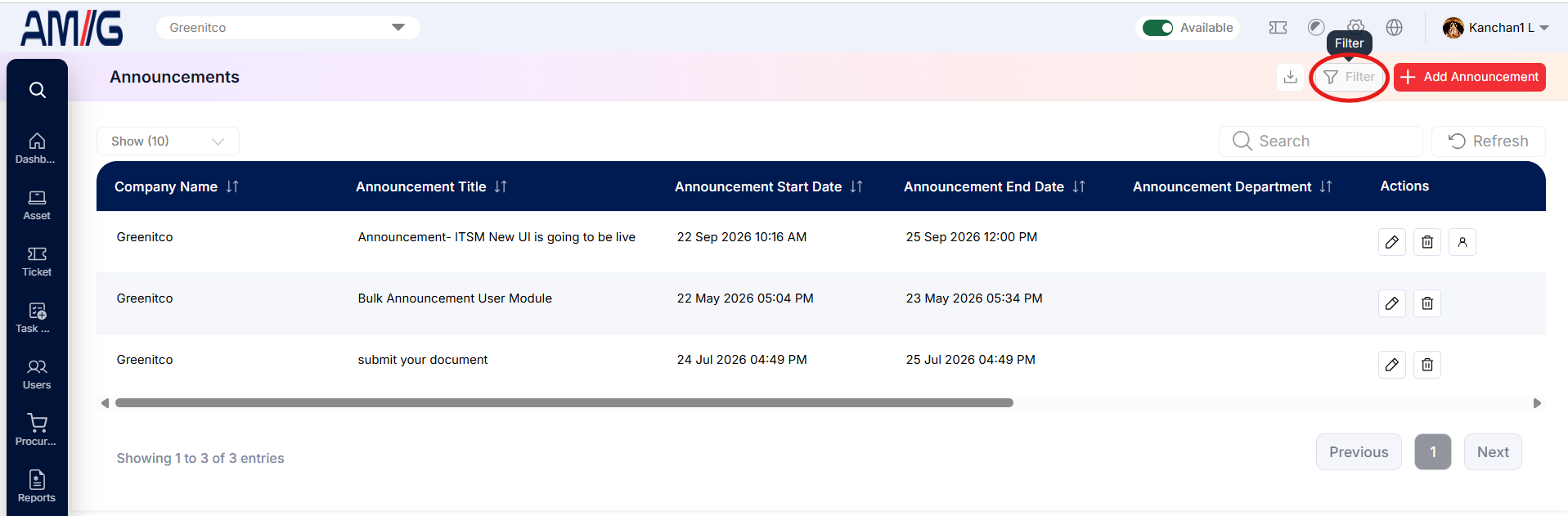 Step 2: The "Announcement Filter" pop-up window opens.
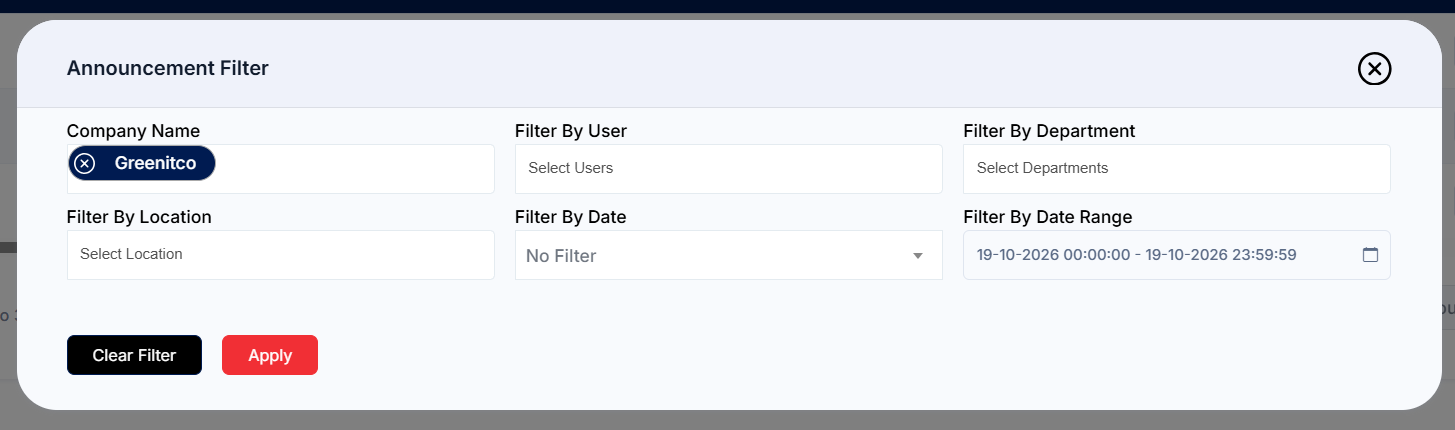
Step 3: Choose one or more filters. You can combine them to narrow the list even further:
Table: Announcement filter options
| Filter | Description |
|---|---|
| Company Name | Pick one or more companies. Each one you pick shows up as a blue tag. |
| Filter By User | Show only announcements sent to a particular person. |
| Filter By Department | Show only announcements for a particular department. |
| Filter By Location | Show only announcements for a particular location. |
| Filter By Date | Pick a ready-made time period, such as Today or This Week. |
| Filter By Date Range | Pick your own start and end date and time. |
Step 4: Click the red Apply button. The list now shows only the matching announcements.
Note: To go back to the full list, click the black Clear Filter button.
Managing Announcement Members
The Member List shows everyone who receives a particular announcement. From here you can add people you missed or remove people who do not need it.
Viewing the Member List
Step 1: On the Announcements screen, find the announcement you want and click its Manage Members icon (the person icon) in the Actions column.
_Announcement.png) Step 2: The "Announcement Member List" screen opens.
Step 2: The "Announcement Member List" screen opens.
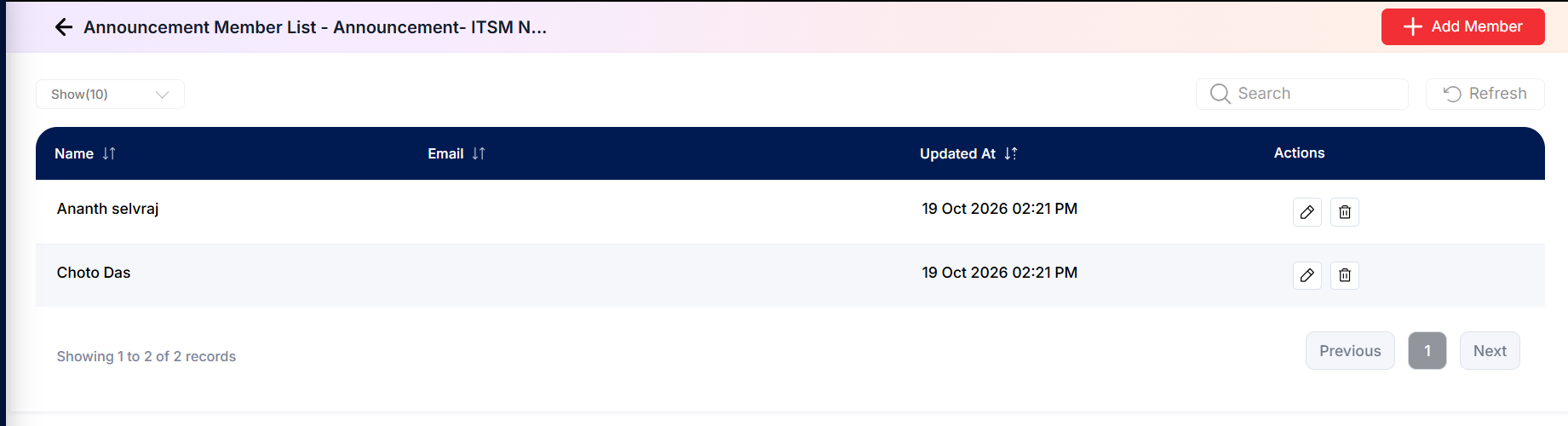
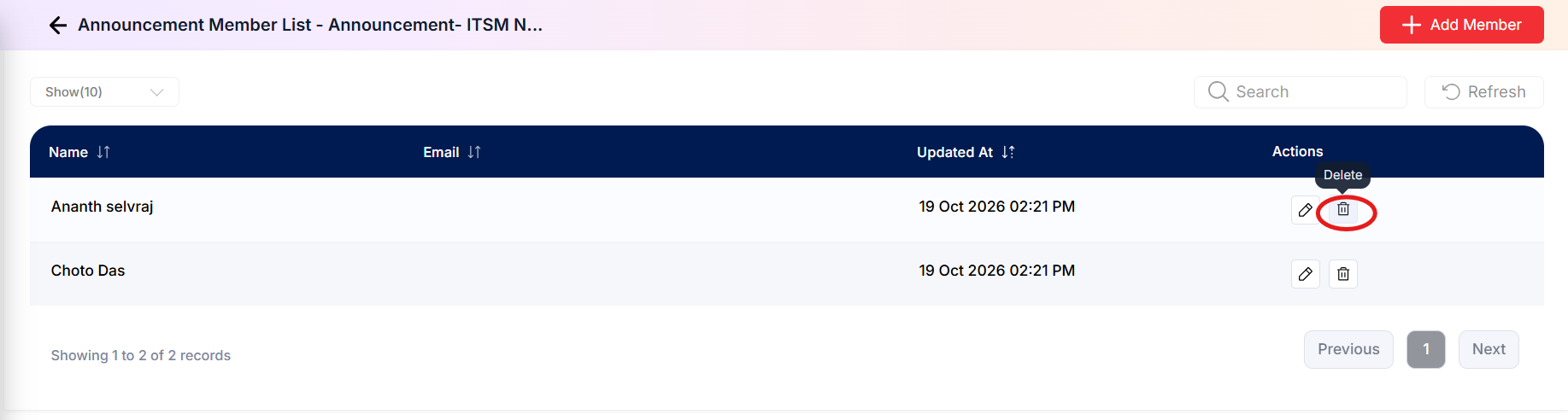
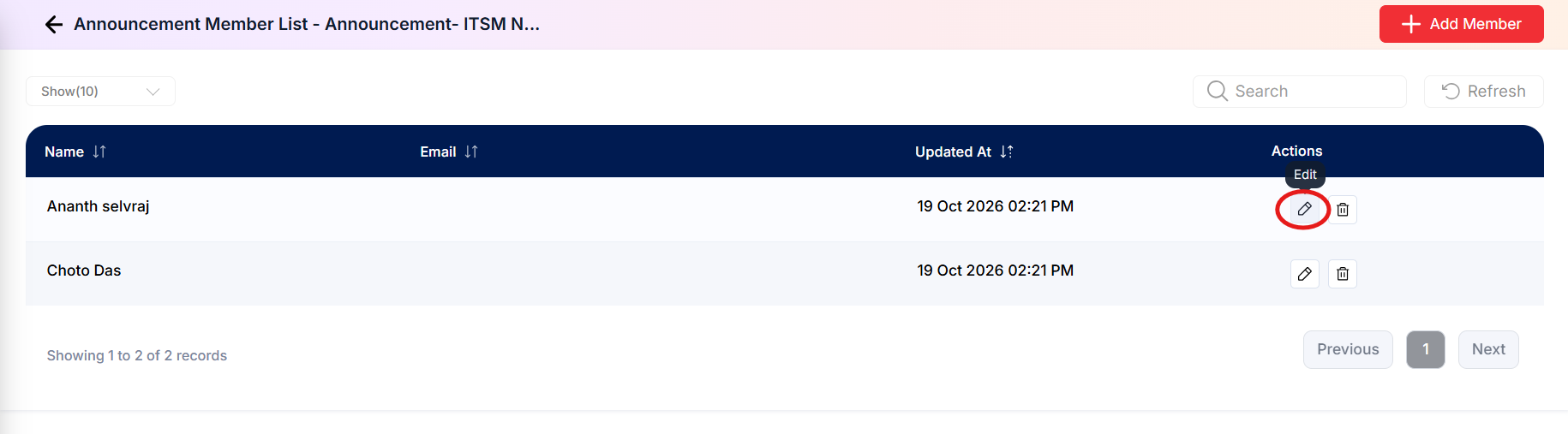
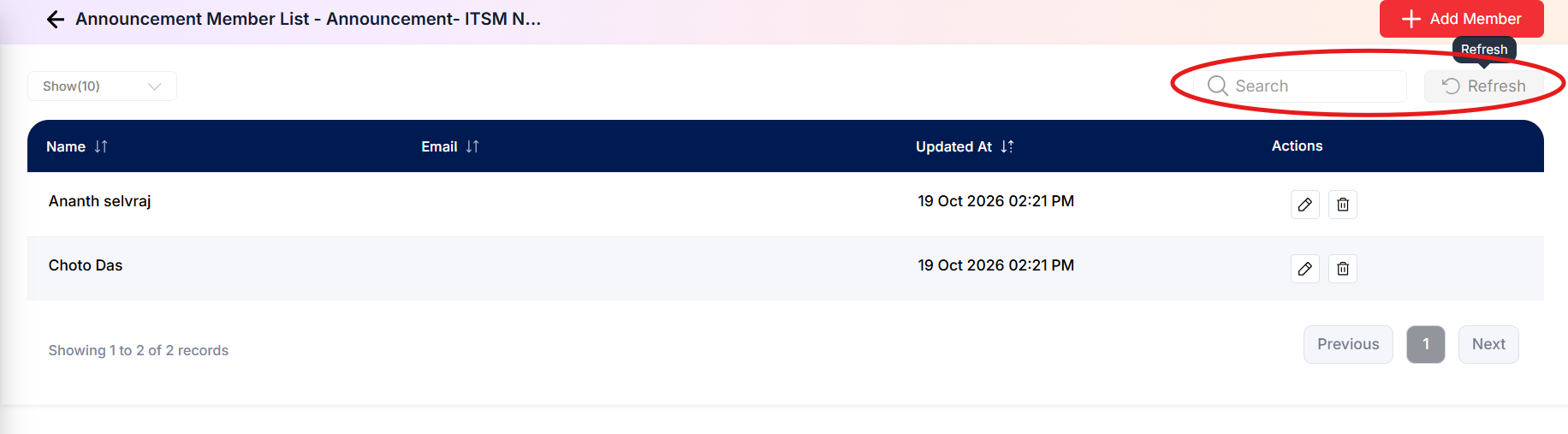
Step 3: You will see the Name, Email and Updated At date for everyone currently on the list. From here you can:
Remove someone by clicking the Trash Can icon on their row.
 Change someone's details by clicking the Pencil icon.
 Find a person quickly with Search, or click Refresh to reload the list.
Adding Members Manually
Step 1: On the Announcement Member List screen, click the red + Add Member button in the top right corner.
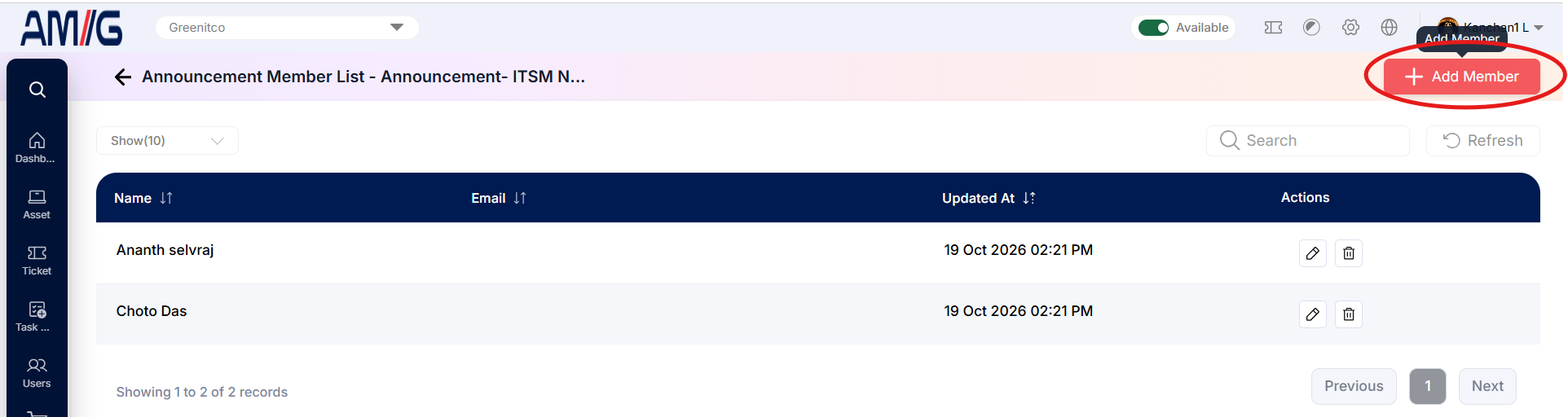 Step 2: The "Add Member" pop-up window opens.
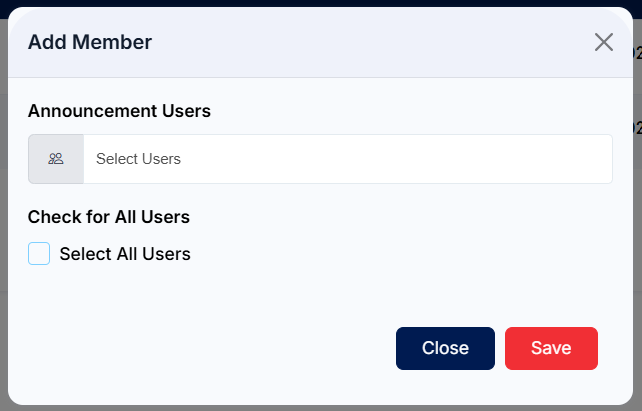
Step 3: Choose the people to add:
Pick specific people from the Announcement Users dropdown, or
Tick Select All Users to add everyone in the system at once.
Step 4: Click the red Save button. The people you picked are added to the announcement straight away.
Note: Changed your mind? Click the blue Close button and nothing will be saved.
Managing Existing Announcements
Once a record exists, you can look after it straight from the Announcements list using the icons in the Actions column:
Edit an existing announcement
Step 1: On the Announcements screen, find the announcement you want to change. Use Search or Filter if needed.
Step 2: In the Actions column, click the Pencil (Edit) icon for that announcement.
 Step 3: Review the existing details and update the fields that need to change.
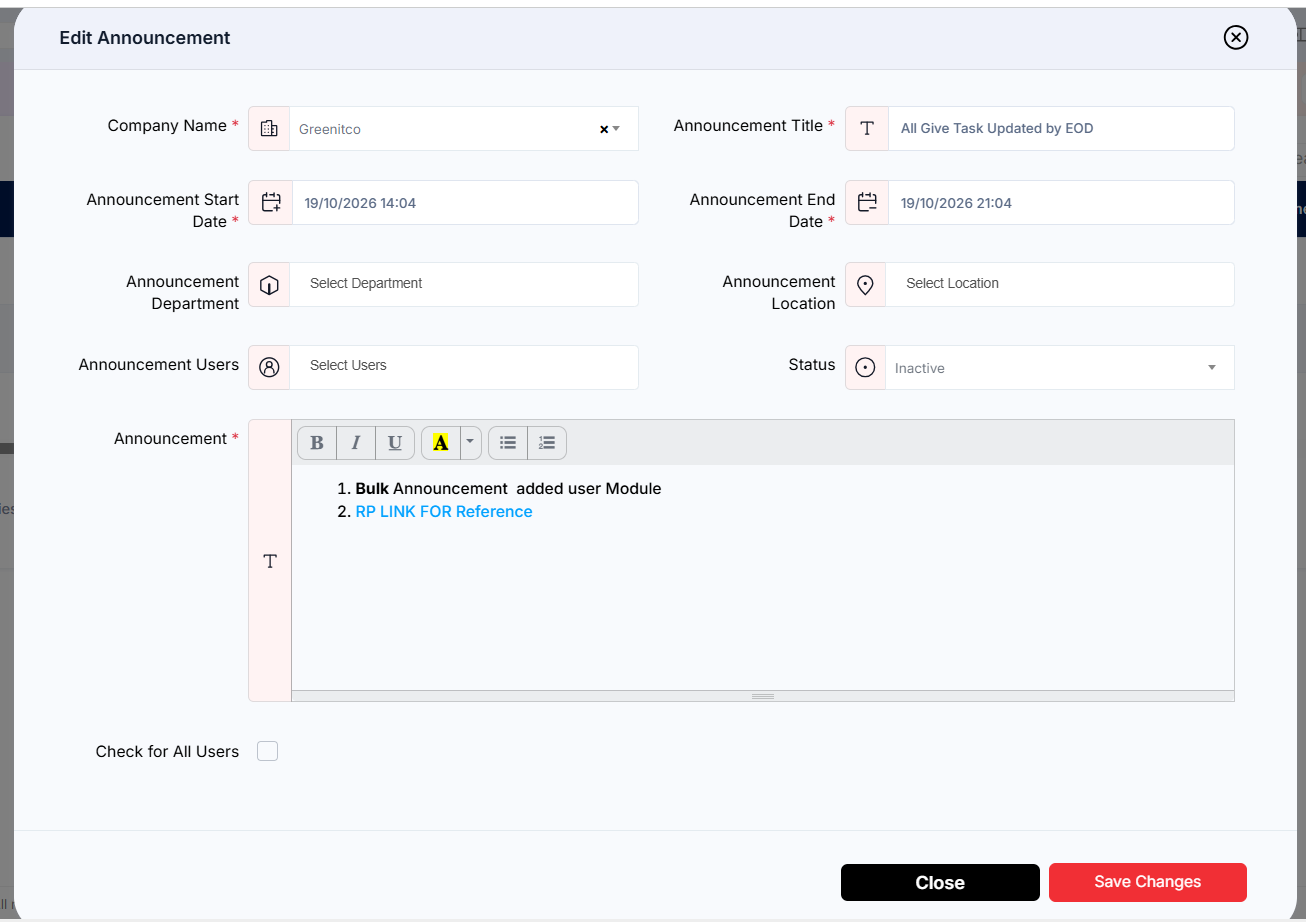 Step 4: Click Save to apply the changes.

Delete an announcement
Step 1: Find the announcement in the Announcements list.
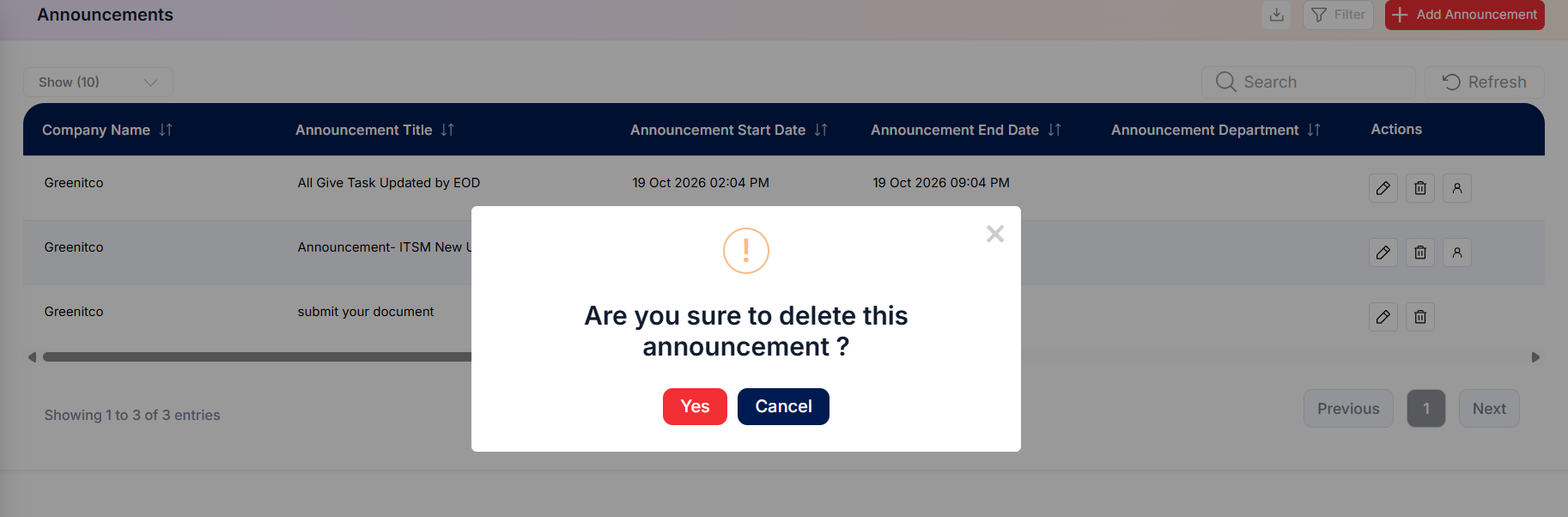
Step 2: Click the Trash Can (Delete) icon in that row.
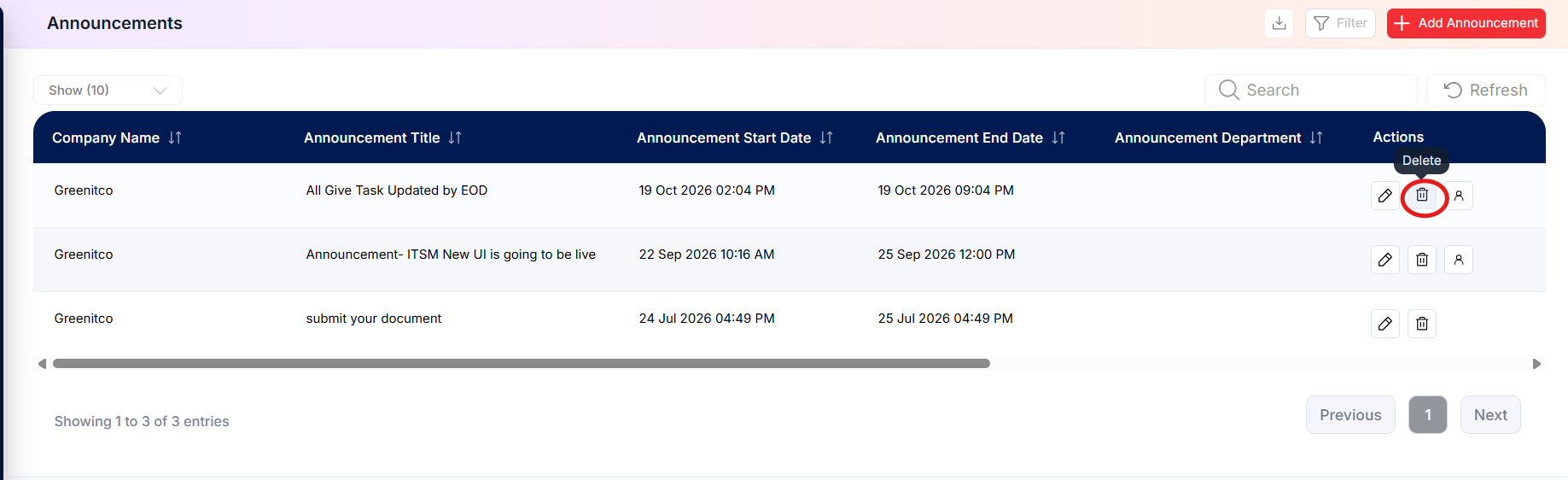 Step 3: Review the confirmation prompt and confirm the deletion. The announcement is removed permanently.
Manage announcement members
Step 1: Click the Person (Manage Members) icon in the Actions column.
Step 2: Add or remove recipients as described in Section 2.5, then save the changes.
Tip: Want to stop an announcement showing without deleting it? Edit it and set its Status to Inactive. You can switch it back on at any time.