

Introduction
Auto Allocation Groups help organise technicians into groups so that tickets can be assigned automatically to the appropriate team members. This section allows administrators to create and manage allocation groups based on company, department, and location.
Once an allocation group is configured, it can be associated with a problem category under Sidebar > Ticket > Problem Category. When a ticket is created under that category, the system uses the configured allocation rules to determine the appropriate group for assignment.
Using this section, you can:
- Create Allocation Groups: Set up groups based on company, department, and location to manage ticket assignments.
- Configure Location-Based Allocation: Assign tickets based on the location associated with the ticket and the locations accessible to technicians.
- Manage Group Members: Add or remove technicians from an allocation group to control who can receive tickets.
- Set Ticket Limits: Configure limits on the number of tickets assigned to group members.
- Import Members in Bulk: Add multiple technicians to an allocation group using bulk import.
- Monitor Technician Availability and Activity: Track technician availability and activity to support effective ticket distribution.
Example: Suppose an allocation group contains technicians who have access to specific office locations. If a ticket is raised for Location X, the system can assign it to an eligible technician who has access to Location X, based on the configured allocation rules.
These settings help ensure that tickets are routed to the right technicians based on their department, location access, and group configuration.
Navigation:
Sidebar › Ticket › Auto Allocation
Viewing Auto Allocation Groups
The list displays each allocation group, company, department, member count, location type, location-approval setting, and latest update. Use Search, Filter, or Refresh to locate a group.
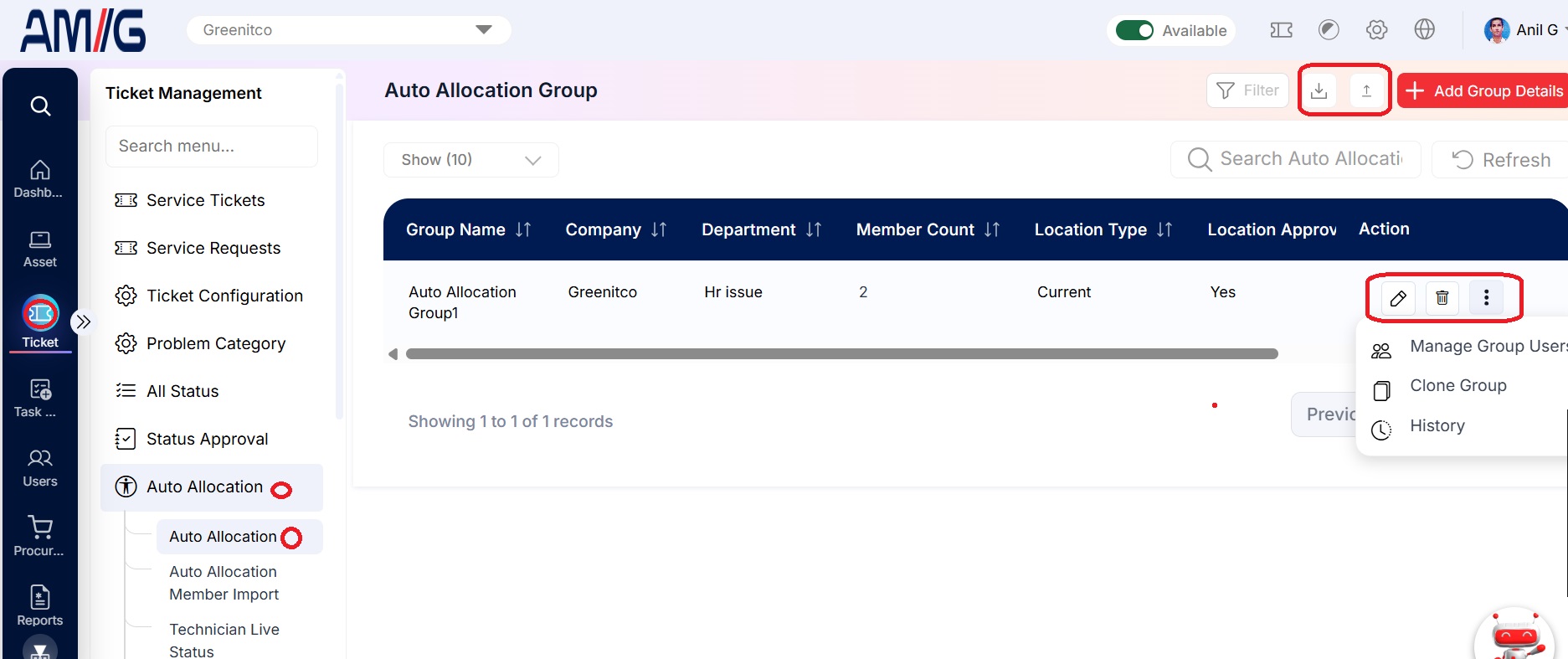
Auto Allocation Group List
Auto Allocation Group list columns
| Column | Description |
|---|---|
| Group Name | Name assigned to the allocation group. |
| Company / Department | Company and department associated with the group. |
| Member Count | Number of technicians currently assigned to the group. |
| Location Type | Indicates the configured location mode, such as Current. |
| Location Approval Required | Shows whether location approval is required. |
| Updated At | Date and time of the latest recorded update. |
| Actions | Edit, Delete and the additional-actions menu. |
Creating or Editing an Auto Allocation Group
Step 1 → On the Auto Allocation Group screen, click Add Group Details to create a group, or click the Pencil icon to edit an existing group.
Step 2 → Enter the group name and description, then select the company and department.
Step 3 → Set whether location approval is required. If required, select the applicable approval scope shown in the form.
Step 4 → Click Save to create the group or Save Changes to update it. Close the form to cancel without saving.
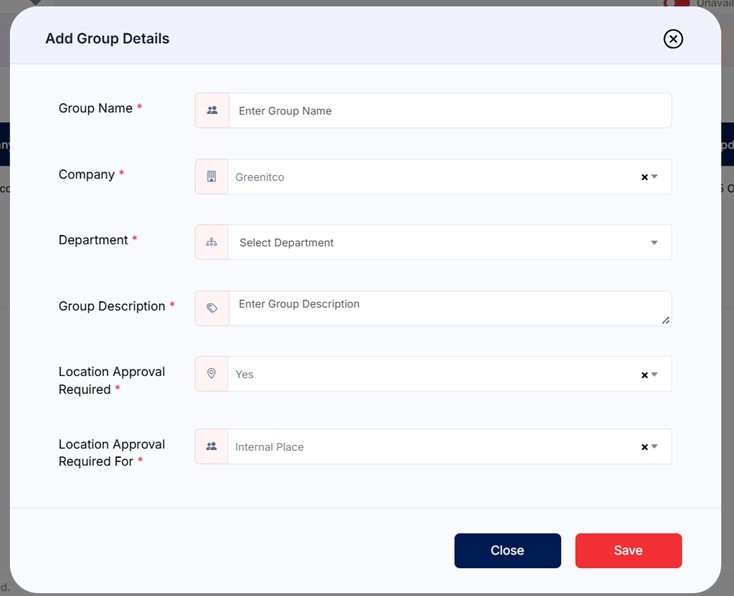
Add Group Details Form
Auto Allocation Group configuration fields
| Field | Description |
|---|---|
| Group Name | Enter a name for the allocation group. Required. |
| Company | Select the company the group belongs to. Required. |
| Department | Select the department the group applies to. Required. |
| Group Description | Describe the group or its allocation purpose. Required. |
| Location Approval Required | Choose Yes or No to indicate whether location approval applies. When enabled, the approval-scope setting is available. |
| Location Approval Required For | If shown, select the location-approval scope, such as Internal Place, Base Location, or Current Location. This setting helps determine which technician can be allocated to a ticket based on its location. |
Using Group Actions
Open the three-dot Actions menu for a group to access additional group-management options.
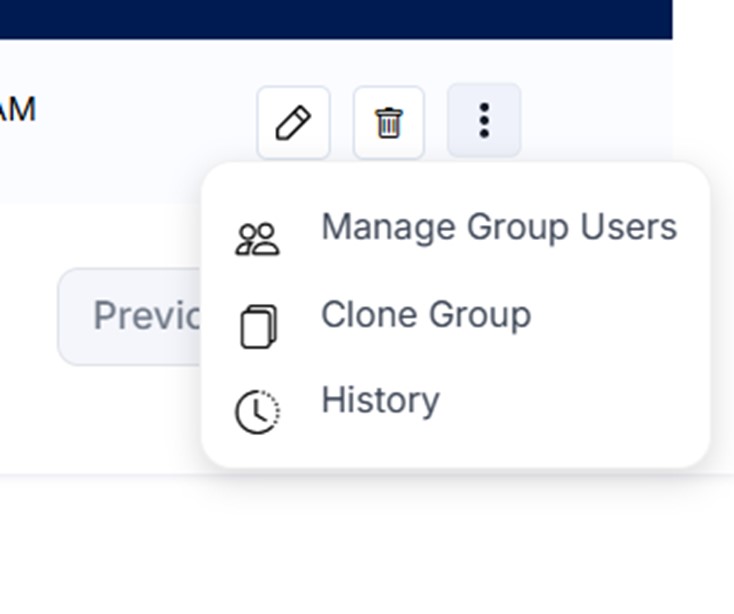
Auto Allocation Group Actions Menu
Available group actions
| Action | Purpose |
|---|---|
| Manage Group Users | Open the member list to add, edit or remove technicians and review their allocation limits. |
| Clone Group | Create a group based on the selected group, using a new group name and description. |
| History | Review recorded changes to the group. |
Managing Group Users
Select Manage Group Users from the group Actions menu. The member list shows each technician, configured locations, hourly and daily ticket limits, status, and available row actions.
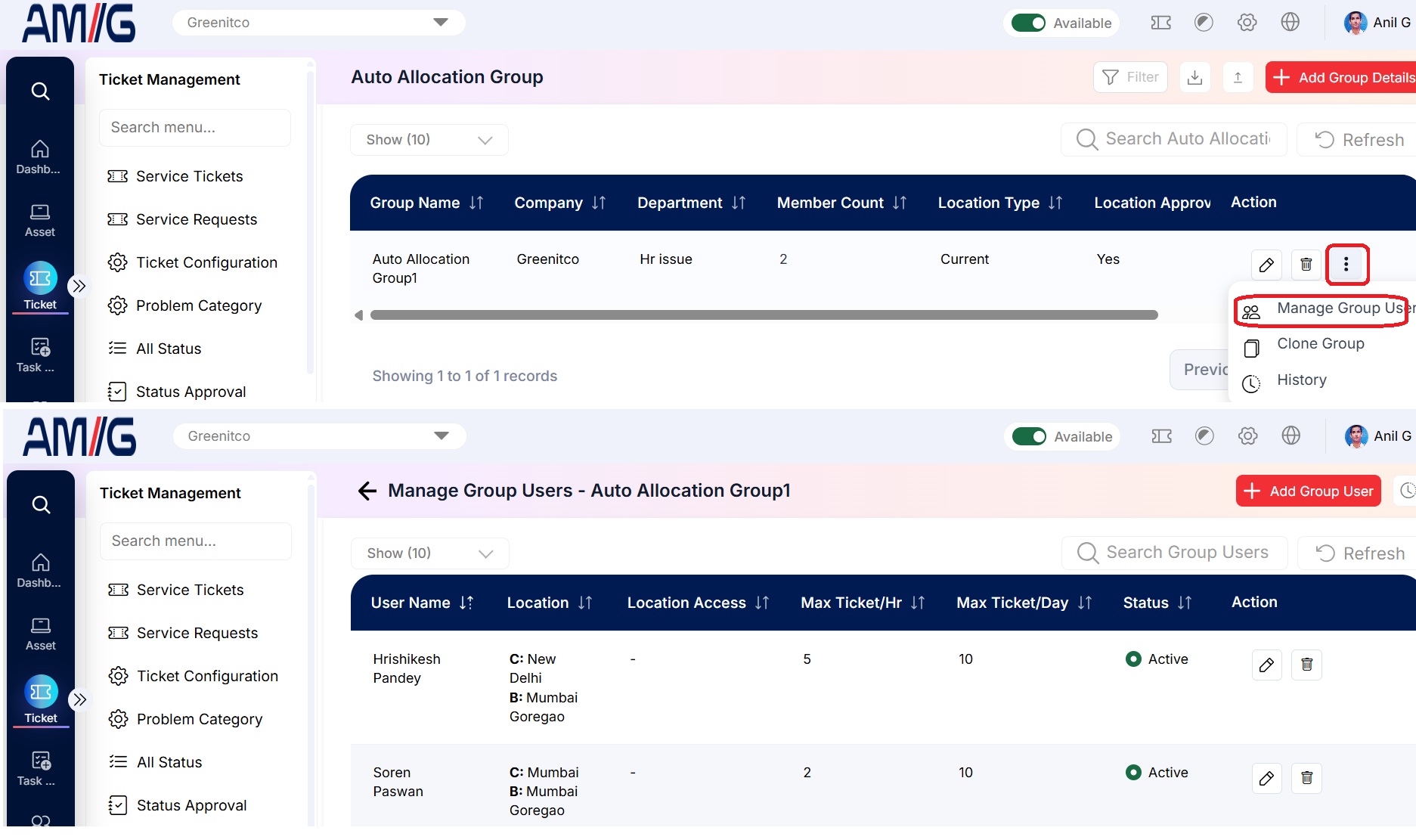
Manage Group Users List
Group user list columns
| Column | Description |
|---|---|
| User Name | Technician assigned to the group. |
| Location | Displays the technician’s current and base locations, as configured under Sidebar > Users. |
| Location Access | Displays any additional locations the technician can access beyond the base and current locations. |
| Max Ticket/Hr | Maximum number of tickets that can be allocated to the technician per hour. Once the limit is reached, additional tickets are not assigned to the technician. |
| Max Ticket/Day | Maximum number of tickets that can be allocated to the technician per day. Once the limit is reached, additional tickets are not assigned to the technician. |
| Status | Shows whether the group member is active, based on the technician’s availability status. |
| Action | Edit or remove the group member. |
Adding a Group User
Step 1 → From the group-user list, click Add Group User.
Step 2 → Select the user to add to the allocation group.
Step 3 → Set the maximum number of tickets that can be allocated per hour and per day.
Step 4 → Select specific locations under Location Access, or use the checkbox to grant access to all company locations, where applicable.
Step 5 → Click Save to add the user.
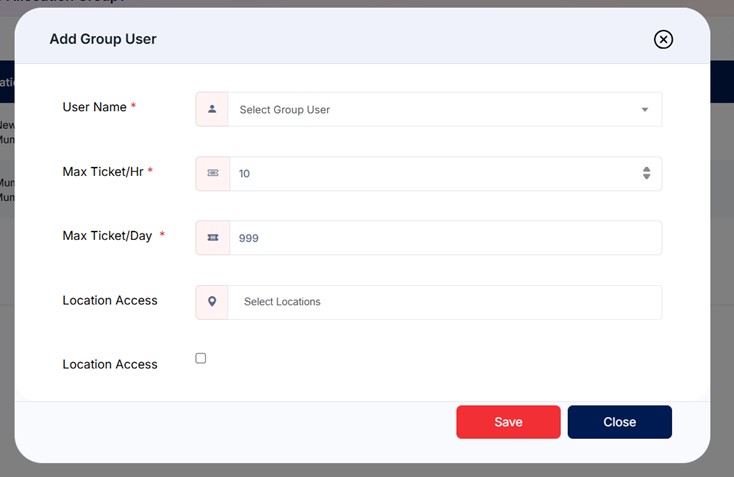
Add Group User Form
Add Group User fields
| Field | Description |
|---|---|
| User Name | Select the technician to add to the group. Required. |
| Max Ticket/Hr | Set the maximum number of tickets that can be allocated per hour. Required. |
| Max Ticket/Day | Set the maximum number of tickets that can be allocated per day. Required. |
| Location Access | Select the locations from which tickets may be assigned to the technician. |
| Location Access checkbox | Select the checkbox to grant access to all company locations, where applicable. |
Viewing Auto Allocation Group Member History
Step 1 → From Manage Group Users, click the History (clock) icon for the required member.
Step 2 → Review each recorded member change, including location access, hourly and daily ticket limits, remarks, and audit timestamps.
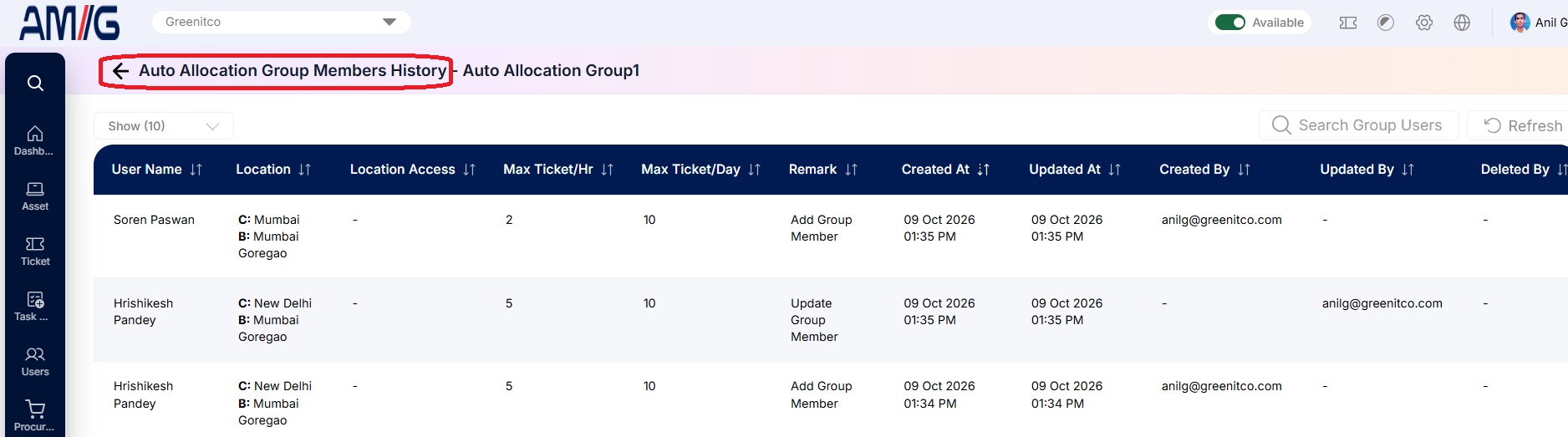
Auto Allocation Group Member History
Group member history columns
| Column | Description |
|---|---|
| User Name | Member associated with the history record. |
| Location / Location Access | Location values and access saved for the member. |
| Max Ticket/Hr / Max Ticket/Day | Allocation limits recorded for that history entry. |
| Remark | Type of change, such as Add Group Member or Update Group Member. |
| Created At / Updated At | Timestamps for the recorded change. |
| Created By / Updated By / Deleted By | User audit details recorded where applicable. |
Cloning an Auto Allocation Group
Step 1 → Open the group action menu and select Clone Group.
Step 2 → Enter a new group name and group description in the Clone Group dialog.
Step 3 → Click Save to create the cloned group, or Close to cancel.
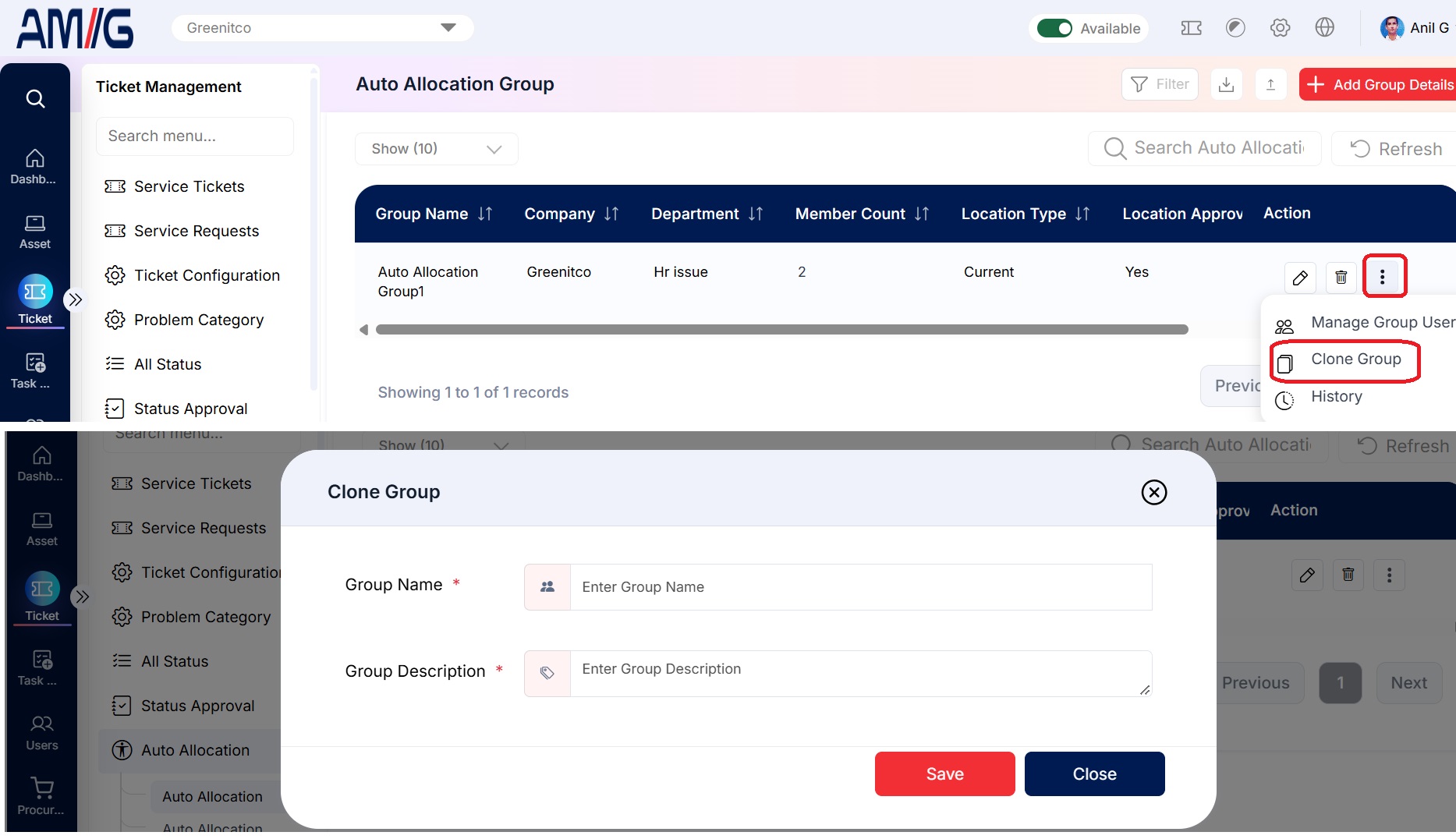
Clone Group Form
Clone Group fields
| Field | Description |
|---|---|
| Group Name | Enter a name for the new group. Required. |
| Group Description | Enter a description for the new group. Required. |
After saving, the group is duplicated with its members and other settings retained.
Viewing Auto Allocation Group History
Step 1 → Open the group Actions menu and select History.
Step 2 → Review each entry, including group details, remarks, timestamps, and deleted-by information where shown.
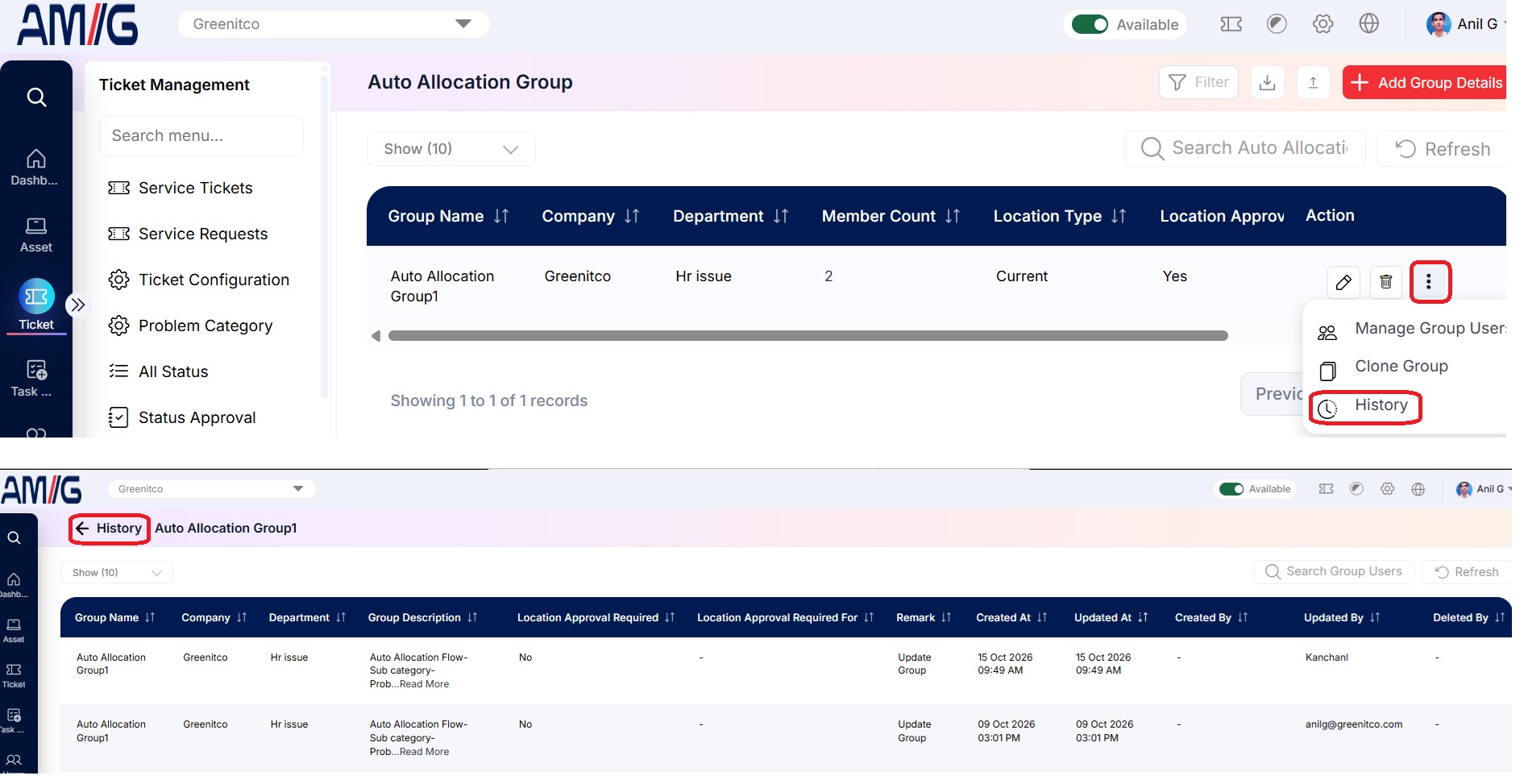
Auto Allocation Group History
Group history columns
| Column | Description |
|---|---|
| Group Name / Company / Department | Group identity and organisational association recorded in that version. |
| Group Description | Description saved for the group at that point. |
| Location Approval fields | Location approval settings recorded in the history. |
| Remark | Indicates the type of change, such as Add Group or Update Group. |
| Created At / Updated At | Timestamps recorded for the history entry. |
| Deleted By | User recorded as deleting the group, if applicable. |
Importing Auto Allocation Members
Step 1 → Open Auto Allocation Member Import from the import control.
Step 2 → Click Download Auto Allocation Member Template and populate the workbook without changing its header row.
Step 3 → Complete the required company, department, group, username, hourly and daily ticket limits, and location-access fields.
Step 4 → Drag and drop the completed XLSX file, or click Upload XLSX File to select it, then follow the on-screen instructions.
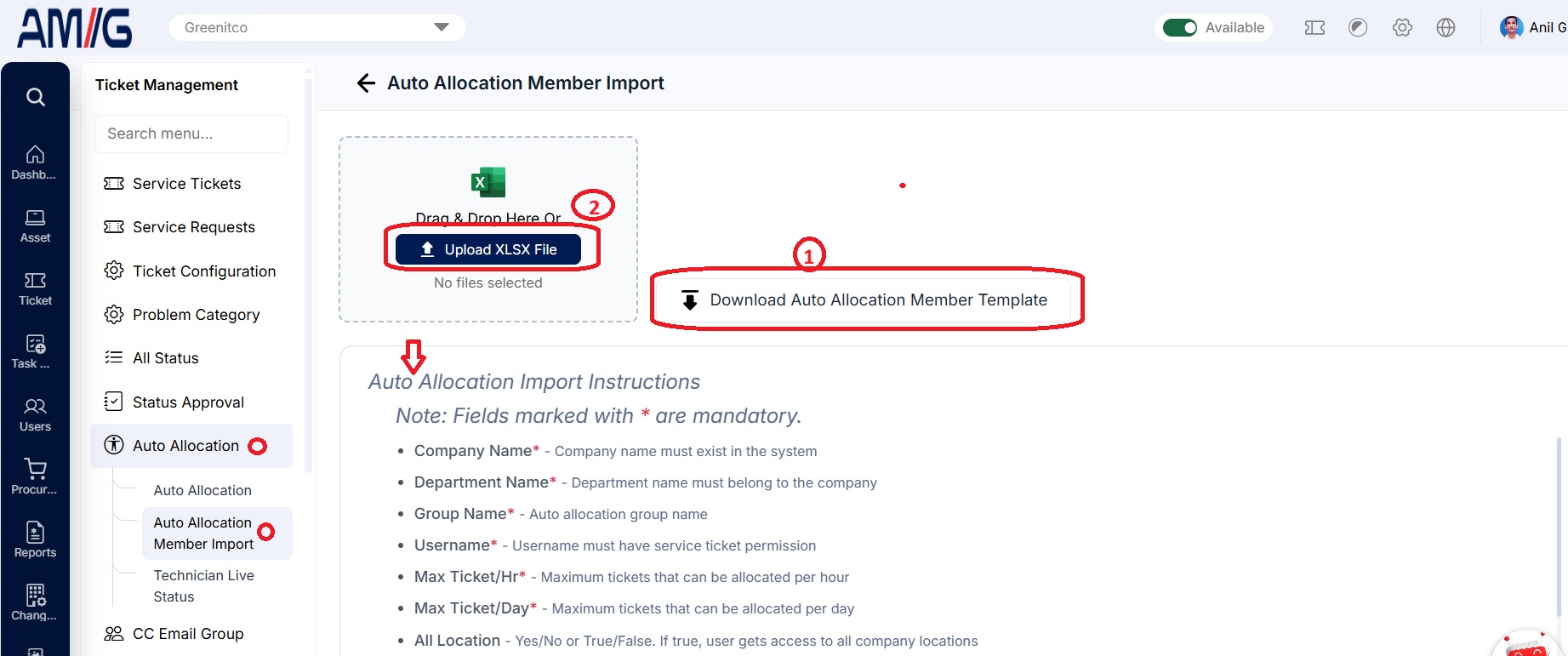
Auto Allocation Member Import and Instructions
Auto Allocation import fields
| Field | Requirement |
|---|---|
| Company Name | Required; company must exist in the system. |
| Department Name | Required; department must belong to the company. |
| Group Name | Required; name of the auto allocation group. |
| Username | Required; user must have Service Ticket permission. |
| Max Ticket/Hr | Required; enter the maximum number of tickets that may be assigned per hour. |
| Max Ticket/Day | Required; enter the maximum number of tickets that may be assigned per day. |
| All Location | Use Yes/No or True/False. When true, the user receives access to all company locations. |
| Location Access | Enter comma-separated location names the user can access. |
| Internal Places | Enter comma-separated internal place names assigned to the user. |
Viewing Technician Live Status
Technician Live Status provides a current view of technician names, departments, status, comments, locations, and the latest update time. Use Search and Refresh to find records; the screen also provides an Active User control and Bulk Status Change. Technician log reports provide additional details, including breaks and activity times.
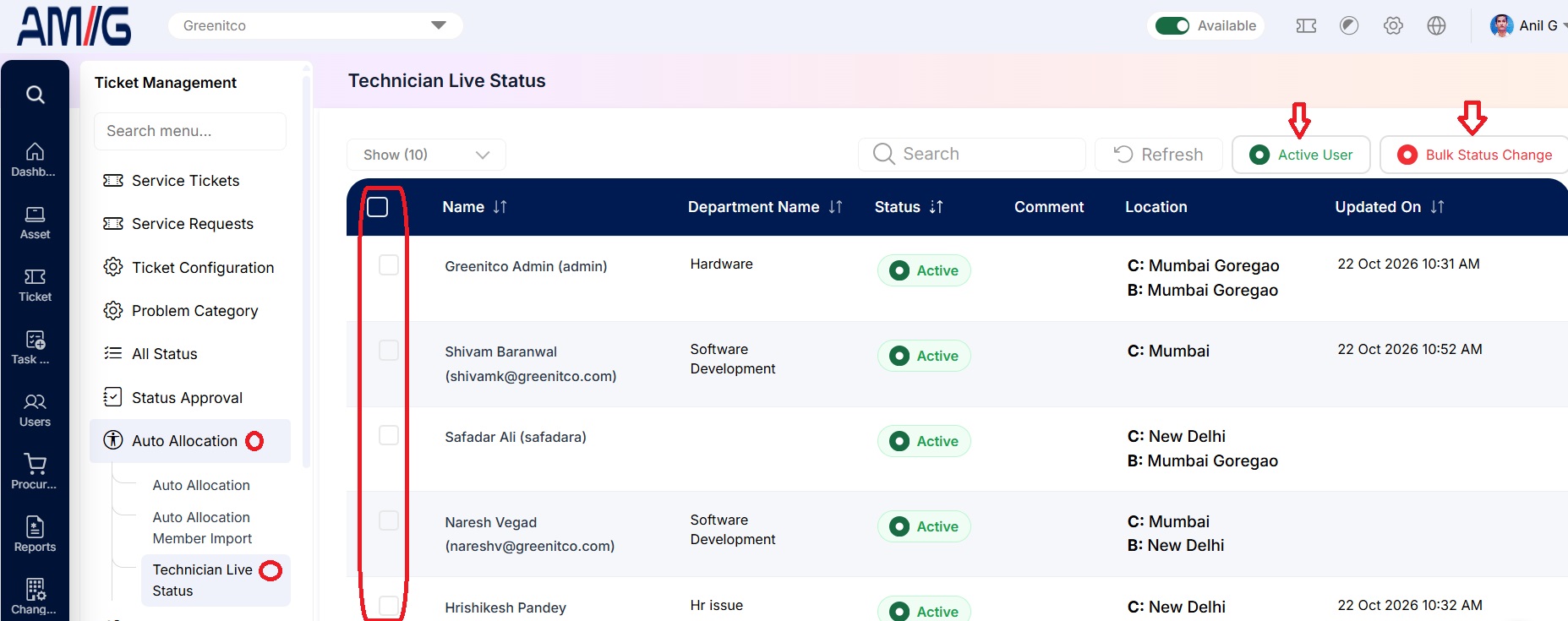
Technician Live Status
Technician Live Status columns
| Column | Description |
|---|---|
| Name | Technician name and login/email where displayed. |
| Department Name | Department associated with the technician. |
| Status | Current technician status, such as Active or Break. |
| Comment | Comment associated with the status, if present. |
| Location | Current location of the technician. |
| Updated On | Time of the latest status update. |
Step 1 → Use Search to find a technician, or click Refresh to reload the list.
Step 2 → Use the status and selection controls to review active users or perform a bulk status change.
Reviewing Technician Log Reports
Technician Log Report displays work sessions and their activity details. Expand a row to review the date, start and end times, total work, total break, total duration, and individual activity records.
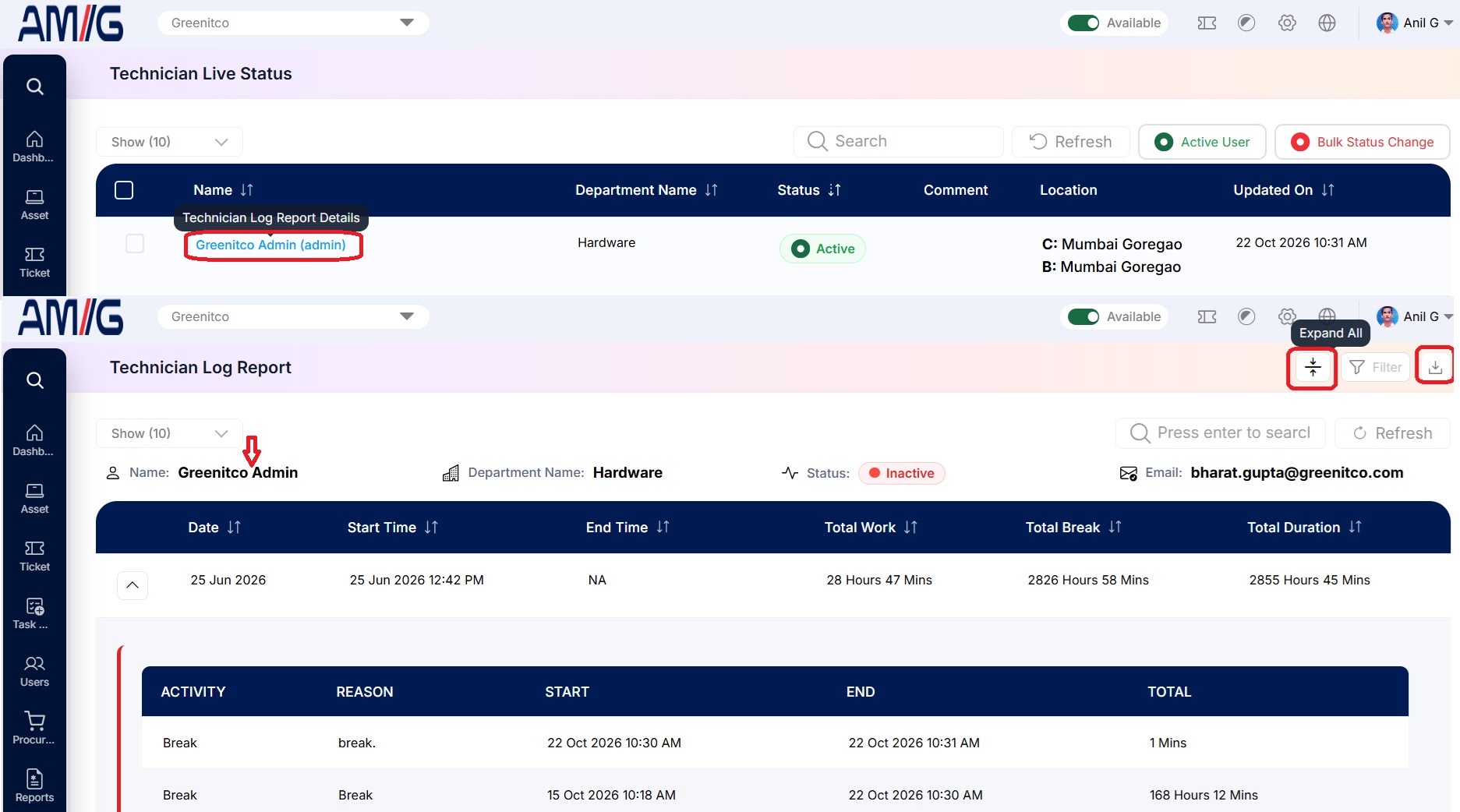
Technician Log Report with Expanded Activity
Technician Log Report fields
| Field | Description |
|---|---|
| Technician summary | Displays the technician name, department, status and email. |
| Date | Date associated with the work-session record. |
| Start Time / End Time | Recorded start and finish times. An end time may show NA when not recorded. |
| Total Work | Total work time recorded for the technician on the selected date. |
| Total Break | Total break time recorded for the technician on the selected date. |
| Total Duration | Overall duration recorded for the technician on the selected date. |
| Activity details | Expanded rows display activity, reason, start, end and total time. |
Managing Existing Auto Allocation Groups
Edit a group
Step 1 → Find the group in the Auto Allocation Group list. Use Search or Filter if needed.
Step 2 → Click the Pencil icon, update the group details, and save the changes.
Delete a group
Step 1 → Locate the group and click the Trash icon in the Actions column.
Step 2 → Review the confirmation prompt and confirm deletion if the group is eligible for removal.
Manage group members or review history
Step 1 → Open the three-dot Actions menu and select Manage Group Users or History.
Step 2 → Update the member list as needed, or review the saved history entries.