

Introduction
Status labels describe a device’s current state, such as Ready to Deploy, Out for Repair, Lost-Stolen, or Sold. Each label is linked to a status type—Deployable, Undeployable, Pending, or Archived—which determines how the system treats the device. Consistent labels make asset statuses easier to understand across the organisation.
| Navigation Path | Header > Config > Status Labels |
Viewing the Status Labels List
Go to Header > Config > Status Labels to see all labels set up so far.
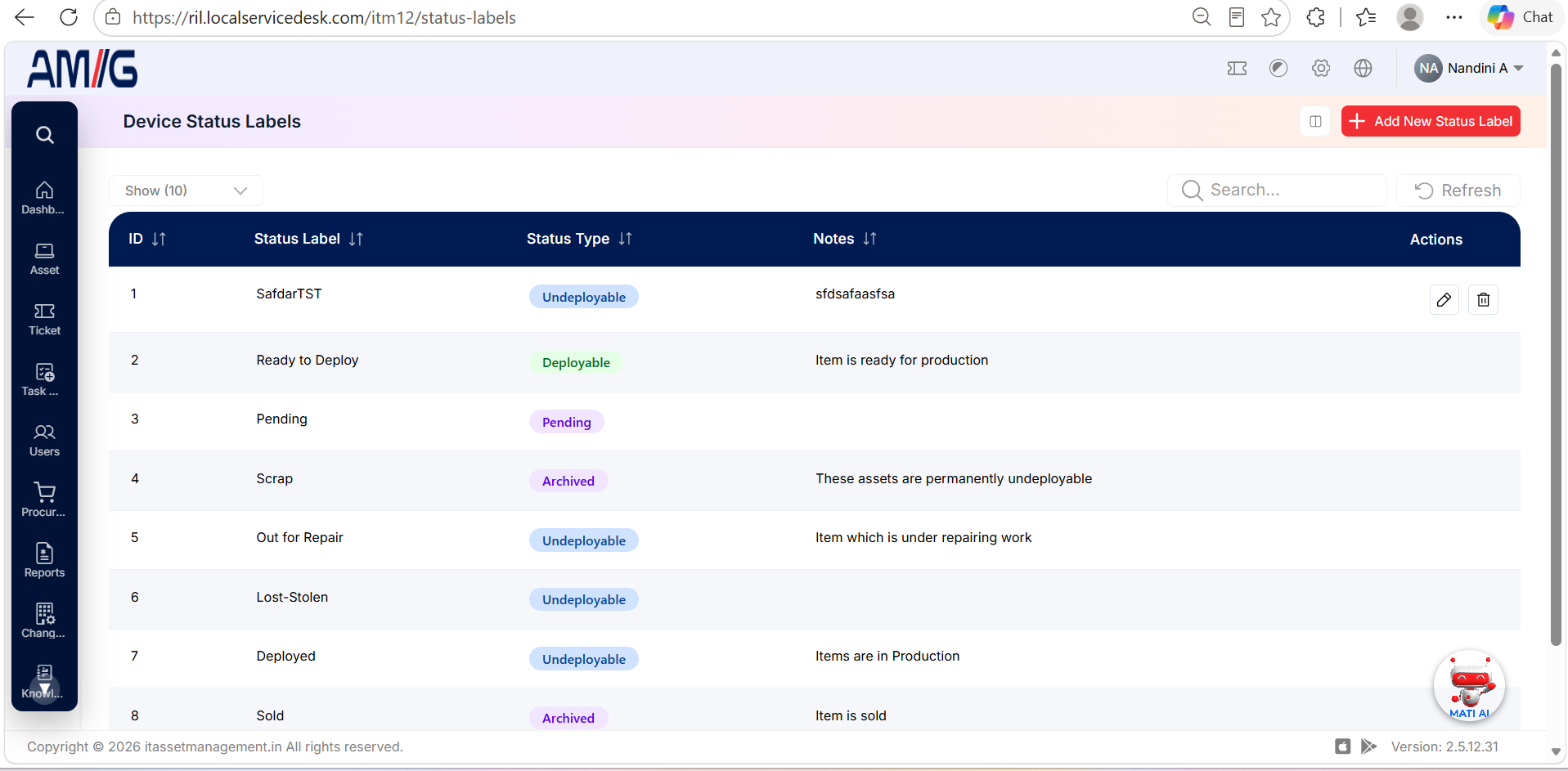
Figure: Status Labels List
Understanding the Main Screen
Table: Status Labels main screen elements
| Area | Description |
|---|---|
| Sub Header | Use Show (10) to choose how many records you see on one page. Type in the Search box to find a record quickly, or click Refresh to reload the list. |
| Action Buttons | In the top right corner you will find a column icon (choose which columns are shown) and the red + Add New Status Label button. |
| The Data Table | Shows each label with its ID, Status Label, Status Type and Notes. The status type is shown as a coloured tag. |
| Sorting | Click the small arrows beside a column name to sort the list (A to Z, Z to A, oldest or newest first). |
| Actions Column | Labels you can change have Edit (pencil) and Delete (trash can) icons. Built-in labels may not show these icons. |
Creating a Status Label
To create a status label, follow these steps:
Step 1: Click the red + Add New Status Label button in the top right corner.
Step 2: Type the Status Label name. This is what users will see.
Step 3: Choose the Status Type, and add Notes if it helps others understand when to use the label.
Step 4: Click the red Save button. (Click Close to cancel.)
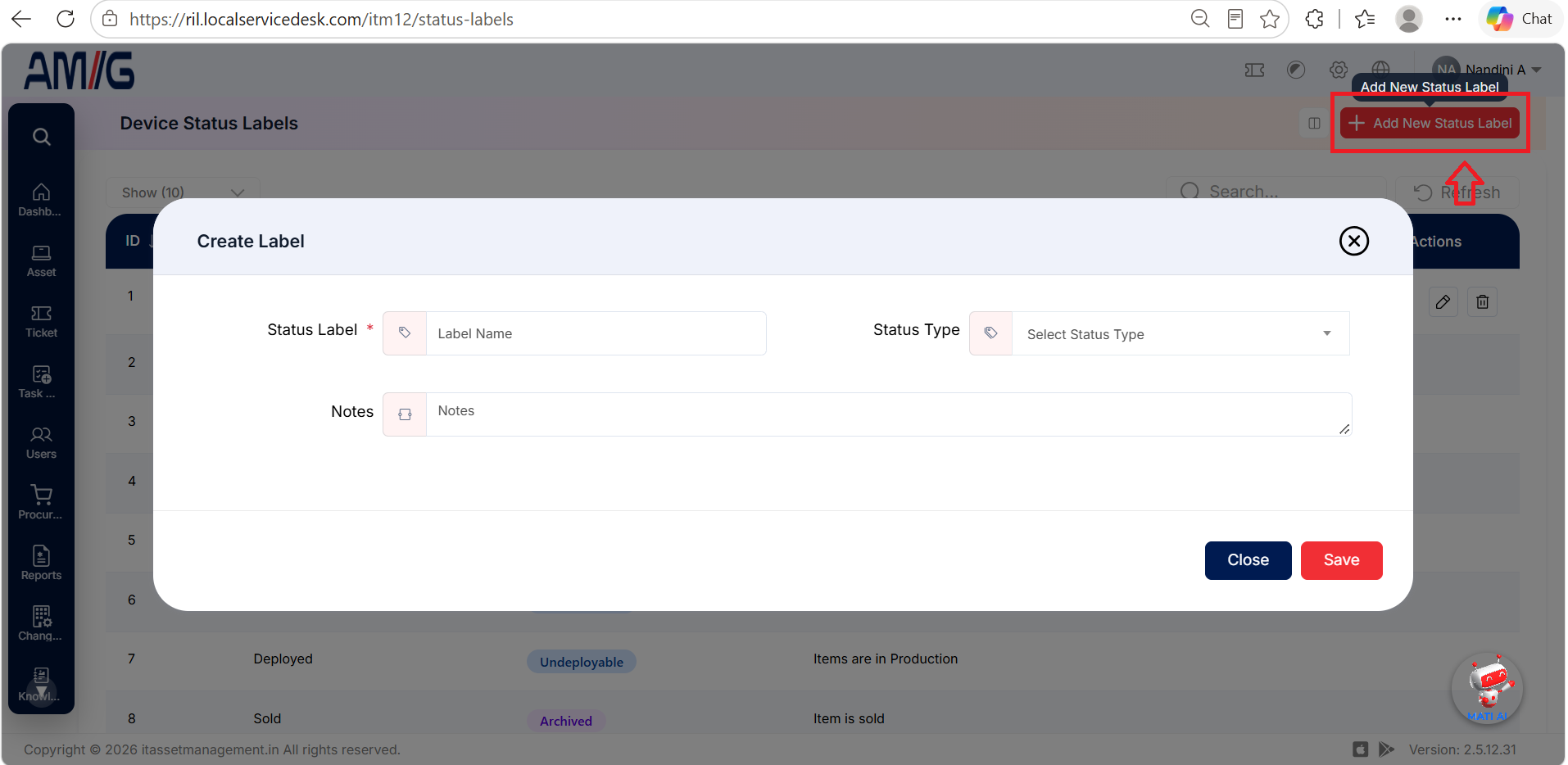
Figure: Create Label
Table: Create Label fields
| Field | Description |
|---|---|
| Status Label * | Enter the label users will see (for example, "Out for Repair"). |
| Status Type | Choose the type that matches the label: Deployable, Undeployable, Pending or Archived. The type decides whether an asset can be deployed while it has this status. For example, with Undeployable, users cannot deploy the asset; with Deployable, they can. |
| Notes | Optional. Explain when this label should be used. |
Managing Existing Labels
You can manage the labels you have created using the icons in the Actions column:
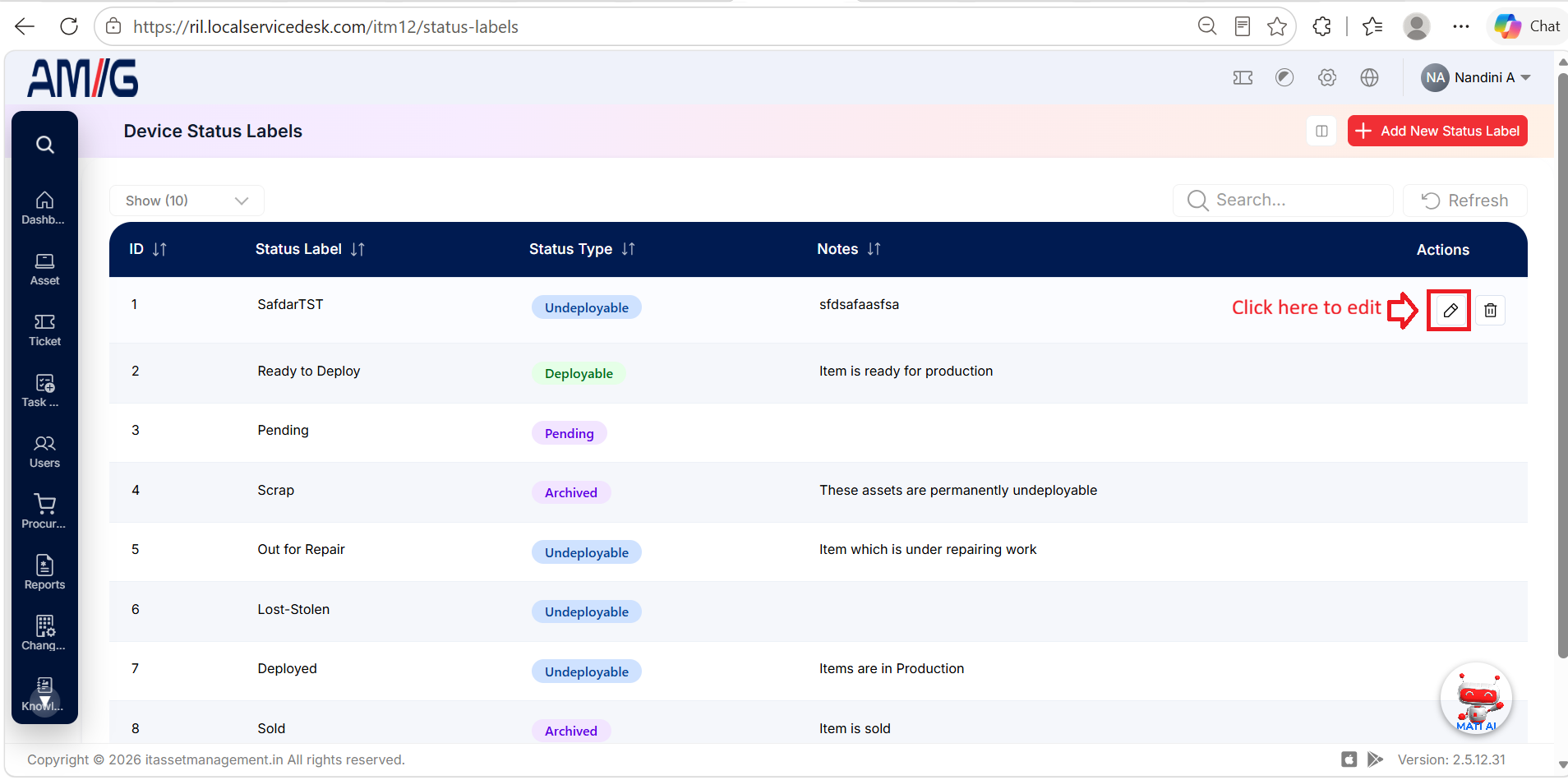
Edit a status label
Step 1: On the Status Labels screen, locate the label you want to change.
Step 2: Click the Pencil (Edit) icon in the Actions column.
Step 3: Update the label name, type, or notes.
Step 4: Click Save to apply the changes.
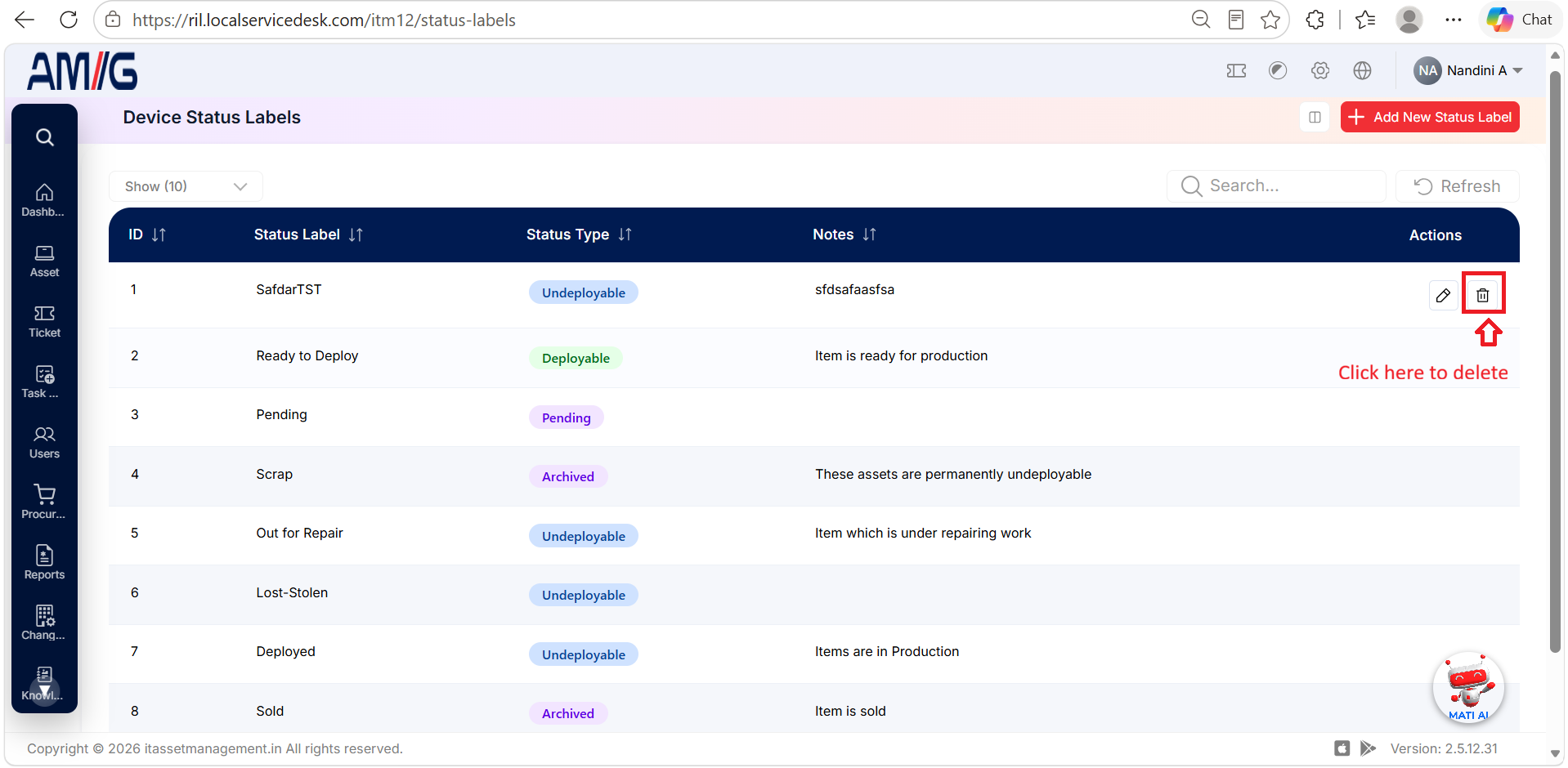
Delete a status label
Step 1: Check whether any devices or workflows are using the label before deleting it.
Step 2: Locate the label and click its Trash Can (Delete) icon.
Step 3: Review the confirmation prompt and confirm the deletion.
Important: Before changing or deleting a label, check whether any devices or workflows are currently using it.