Introduction
Status Approval Configuration allows you to control which ticket status changes require approval before they can be completed. You can define approval rules based on the company, department, problem category, and ticket status.
For example, if a ticket needs approval before it can be moved to On Hold, you can configure a rule that requires approval from designated users or a group of approvers.
Using this section, you can:
-
Configure Approval Rules: Define which ticket status changes require approval based on your organisation's requirements.
-
Assign Approvers: Select an individual user or a group responsible for approving the status change.
-
Manage SLA Calculation During Approval: Decide whether the SLA timer should continue running or pause while the ticket is awaiting approval.
-
Set a Fallback Status: Define the status to which the ticket should return if approval is not received within the configured time limit.
These settings help ensure that important ticket status changes follow your organisation's approval process while maintaining control over SLA calculations and ticket progress.
Navigation:
Sidebar › Ticket › All Status › Status Approval
Viewing the Status Approval List
The list displays existing approval rules and provides controls to filter, search, refresh, export, and add a rule.
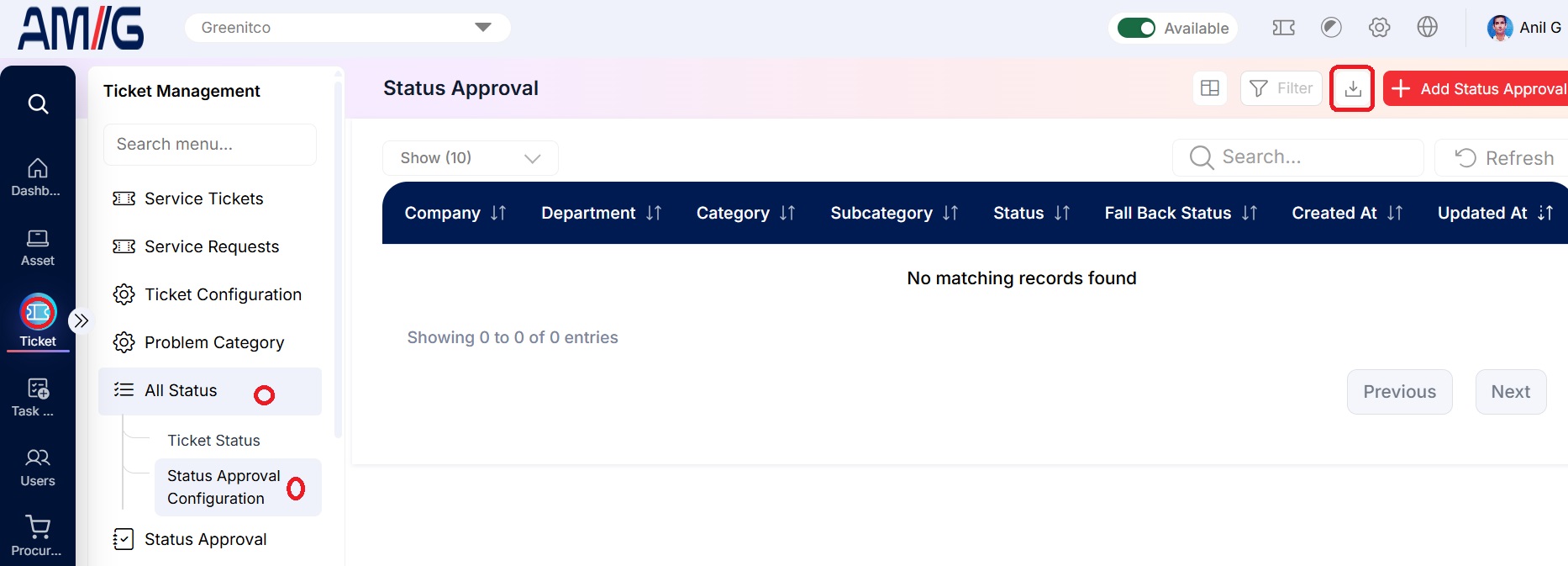
Status Approval List
Status approval list columns
| Column | Description |
|---|---|
| Company | Company associated with the approval rule. |
| Department | Department to which the rule applies. |
| Category / Subcategory | Problem Category: The category for which approval applies. Subcategory: The subcategory for which approval applies, if configured. |
| Status / Fall Back Status | Status: The ticket status that triggers approval. Fallback Status: The status to which the ticket returns if the approval period expires. |
| Created At / Updated At | Timestamps for the rule. |
| Action | Available row actions, where configured. |
Creating a Status Approval Rule
Step 1 → Click Add Status Approval.
Step 2 → Select the company, department, problem category, status, and fallback status.
Step 3 → Optionally enable time tracking. Select User or Group as the approval source, then choose the relevant approver.
Step 4 → Click Create to save the rule, or Close to cancel.
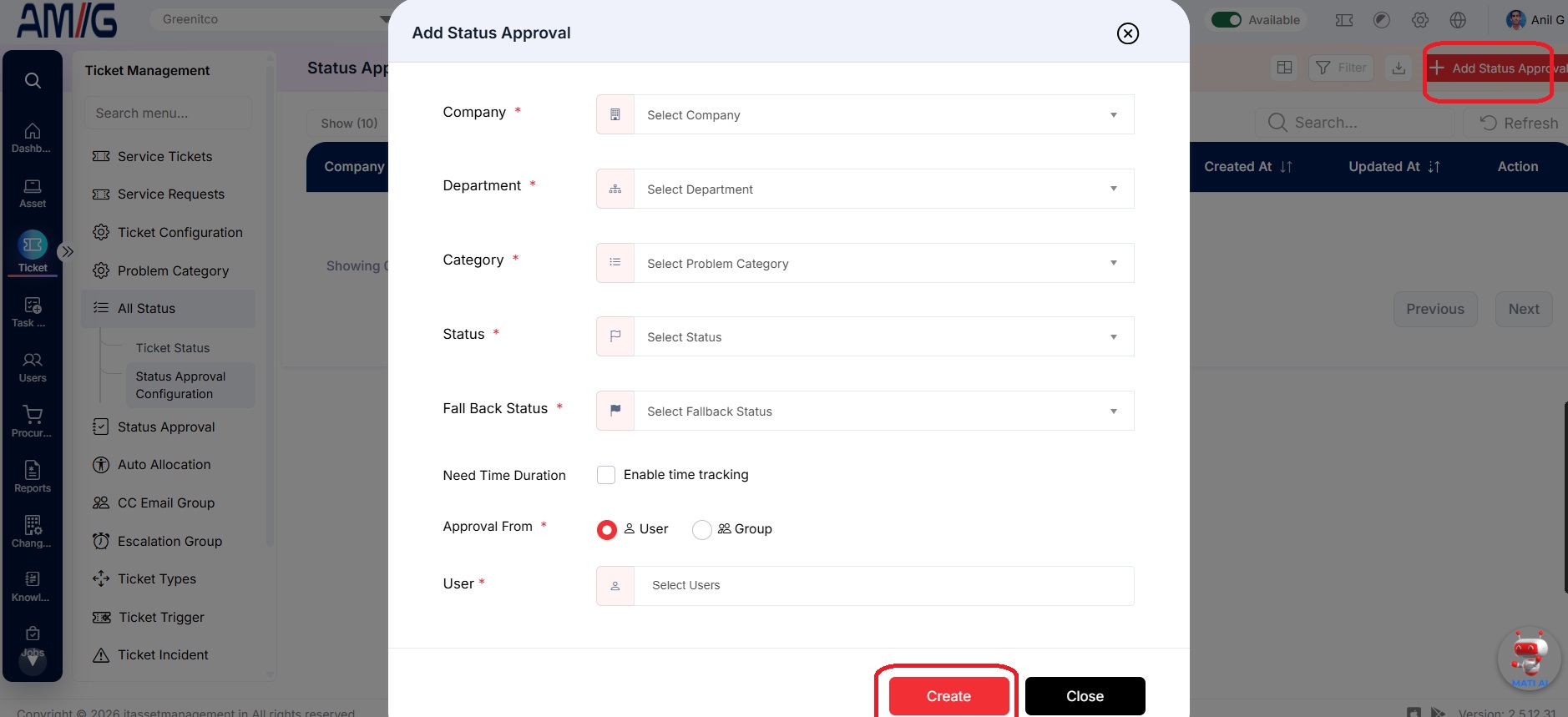
Add Status Approval Form
Status approval form fields
| Field | Description |
|---|---|
| Company | Select the company to which the approval rule applies. Required. |
| Department | Select the department to which the approval rule applies. Required. |
| Category | Select the problem category to which the approval rule applies. Required. |
| Status | Select the ticket status requiring approval. Required. |
| Fall Back Status | Select the fallback status used if the approval period expires. Required. |
| Need Time Duration | Enable time tracking if the approval process must record a duration. When enabled, the approver can specify the time by which the status must be set. |
| Approval From | Choose User or Group as the source of approval. Required. |
| User / Group selection | Select the user or group responsible for approval. Groups can be configured under Sidebar > Ticket > CC Email Group. Required. |
Managing Status Approval Rules
Manage an existing status approval rule
Step 1 → Open Sidebar > Ticket > All Status > Status Approval and locate the rule using Search or Filter.
Step 2 → Review the company, department, category, status, fallback status, and approval source.
Step 3 → If an Edit action is available, open the rule, update the required fields, and save the changes.
Step 4 → Use the filter or export control to review the rules as needed.
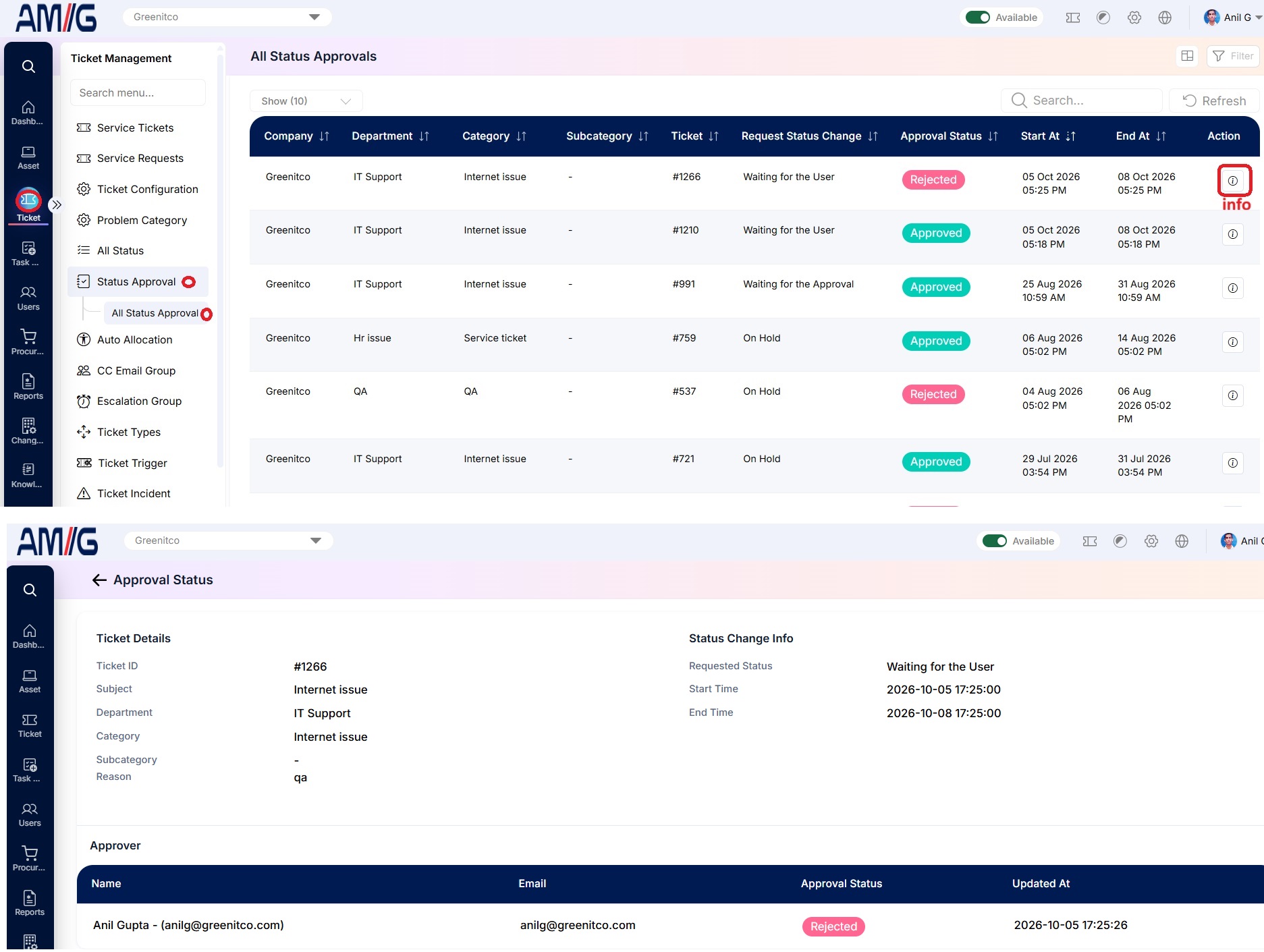
List of Requests for status change
Displays the list of status change requests in ITSM that require approval. Users can review the requested changes and track their approval status.