Introduction
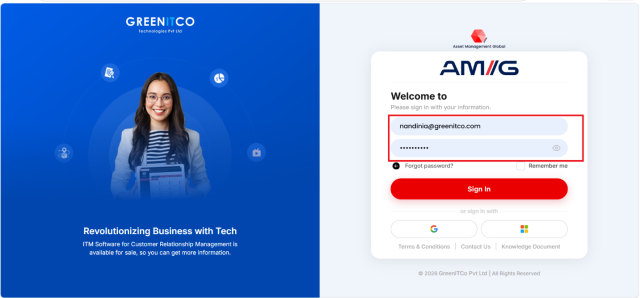
The User Login page allows users to access the application using their login credentials or the supported Microsoft sign-in option. It also provides password recovery, a remember-me option, and links to supporting information.
Supported sign-in methods
The sign-in options shown on your login page depend on the integrations your organization has enabled:
| Method | When it is available |
|---|---|
| Single sign-on (SSO) | When your organization has configured SSO |
| Microsoft company account | When Microsoft 365 / Azure AD sign-in is enabled |
| Google Workspace | When Google Workspace sign-in is enabled |
| Zoho | When Zoho sign-in is enabled |
| Username and password | Always available; can be protected with two-factor authentication (2FA) |
Sign in with a username and password
- Open your organization's portal URL in a supported browser.
- Enter your registered Username.
- Enter your Password.
- Select Sign In.
- If two-factor authentication (2FA) is enabled, enter the verification code sent to your email, phone or authenticator app.

Sign in with a Microsoft company account or Google Workspace
- Open your organization's portal URL.
- Select Sign in with Microsoft or Sign in with Google.
- Choose your work account and complete your organization's sign-in steps.
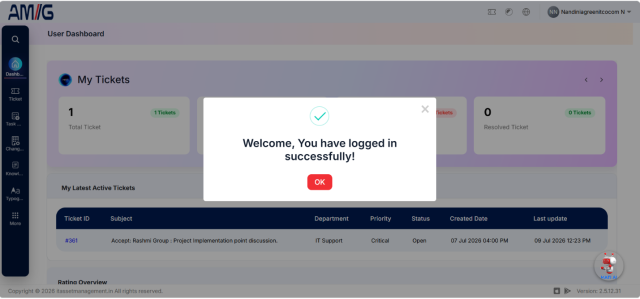
After a successful sign-in, the portal opens your dashboard.
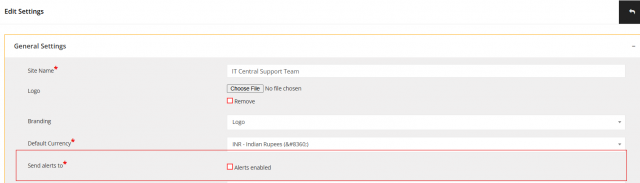
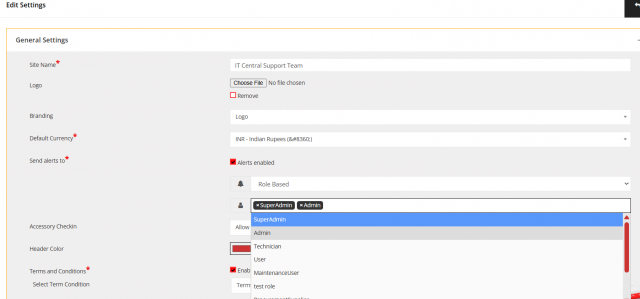
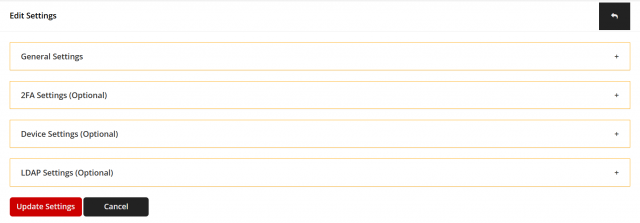
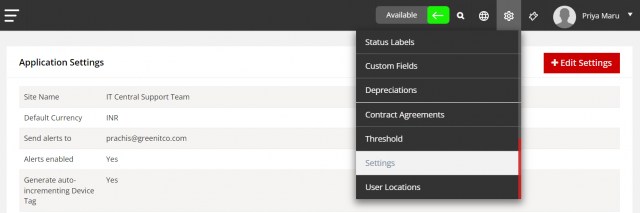
Administrators enable or disable 2FA and its methods (email, phone, authenticator app) in Setting Configuration. LDAP sign-in is configured on the same page.
Sign in on the mobile app
Install the IT Asset Management (ITM) app from Google Play or the App Store, enter your Site URL (portal address), then sign in with your credentials, your Microsoft account or a QR code from your profile in the web portal. See Install and Sign In to the Mobile App.
Sign in through the API
Applications authenticate with POST /api/login (email and password) and receive an access_token. See Authentication and Login API.
Common questions
I do not know my portal address. Where do I sign in? Each customer has a separate portal URL. Ask your NEXTMEGABYTE administrator or IT team for it.
I did not receive my login details. An administrator can resend them. See Send credentials.