

Introduction
Account types are the labels your team uses to classify procurement spending (for example, "Procurement account"). They appear in procurement forms and on categories, so keeping the list short, clear and consistent helps everyone pick the right one.
| Navigation Path | Header > Config > Procurement Account Types |
Viewing the Account Types List
Go to Header > Config > Procurement Account Types to see all account types set up so far.
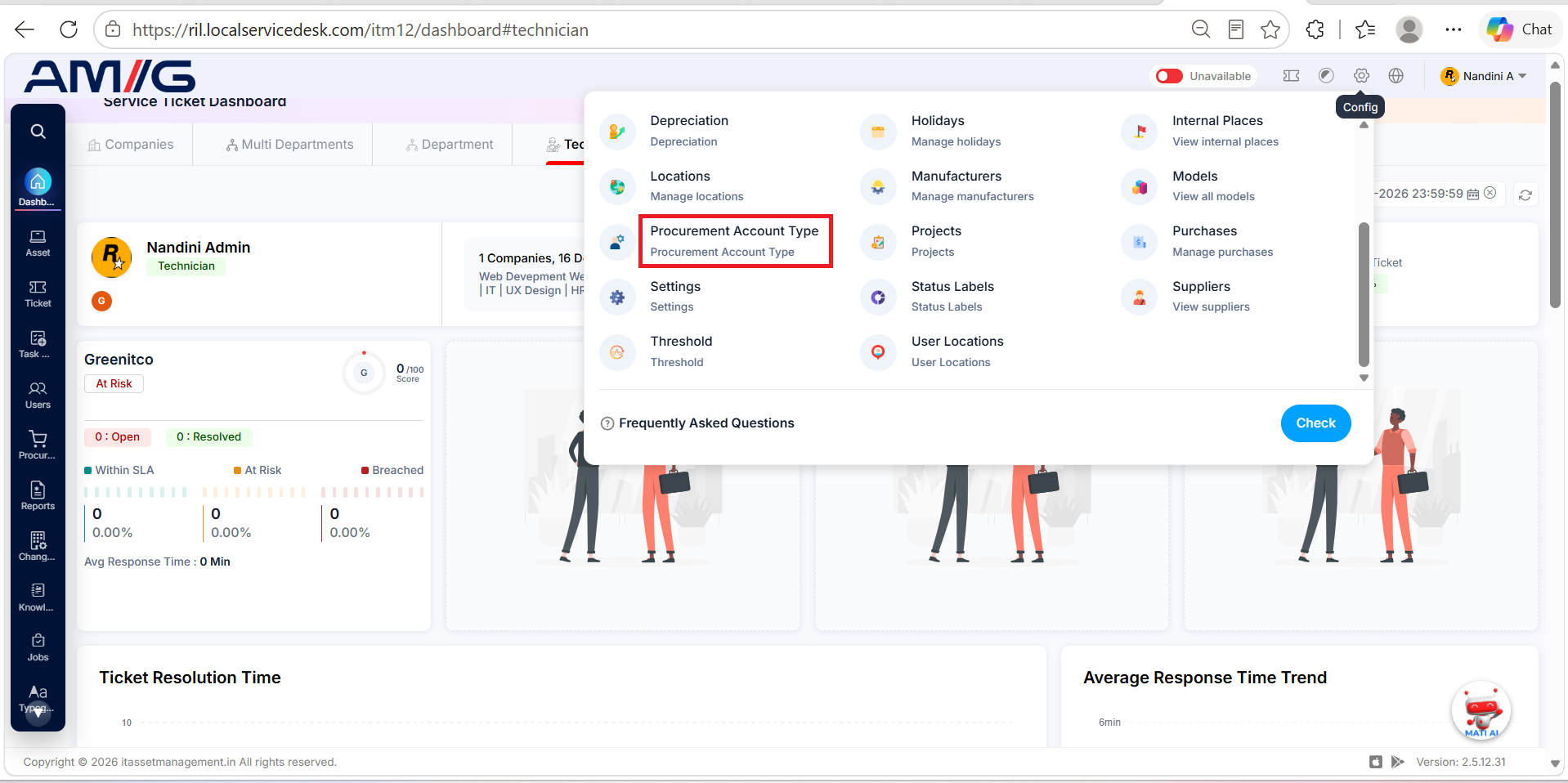
Figure: Procurement Account Types List
Understanding the Main Screen
Table: Procurement Account Types main screen elements
| Area | Description |
|---|---|
| Sub Header | Use Show (10) to choose how many records you see on one page. Type in the Search box to find a record quickly, or click Refresh to reload the list. |
| Action Buttons | In the top right corner you will find the Download icon (export the list) and the red + Add Account Type button. |
| The Data Table | Shows all your account types with their Company, Name and Updated At. |
| Sorting | Click the small arrows beside a column name to sort the list (A to Z, Z to A, oldest or newest first). |
| Actions Column | Each row has two icons: Edit (pencil) and Delete (trash can). |
| Pagination | The bottom of the page shows how many records you're looking at. Use Previous and Next to move between pages. |
Creating an Account Type
To create an account type, follow these steps:
Step 1: Click the red + Add Account Type button in the top right corner.
Step 2: Choose the Company the account type is for.
Step 3: Type the account type's Name.
Step 4: Click Save. The account type appears in the list. To cancel, click Close.

Figure: Add Account Type
Table: Add Account Type fields
| Field | Description |
|---|---|
| Company | Choose the company this account type is for. |
| Name | Enter a clear name for the account type. |
Managing Existing Account Types
You can manage existing account types straight from the list using the icons in the Actions column:
Edit an account type
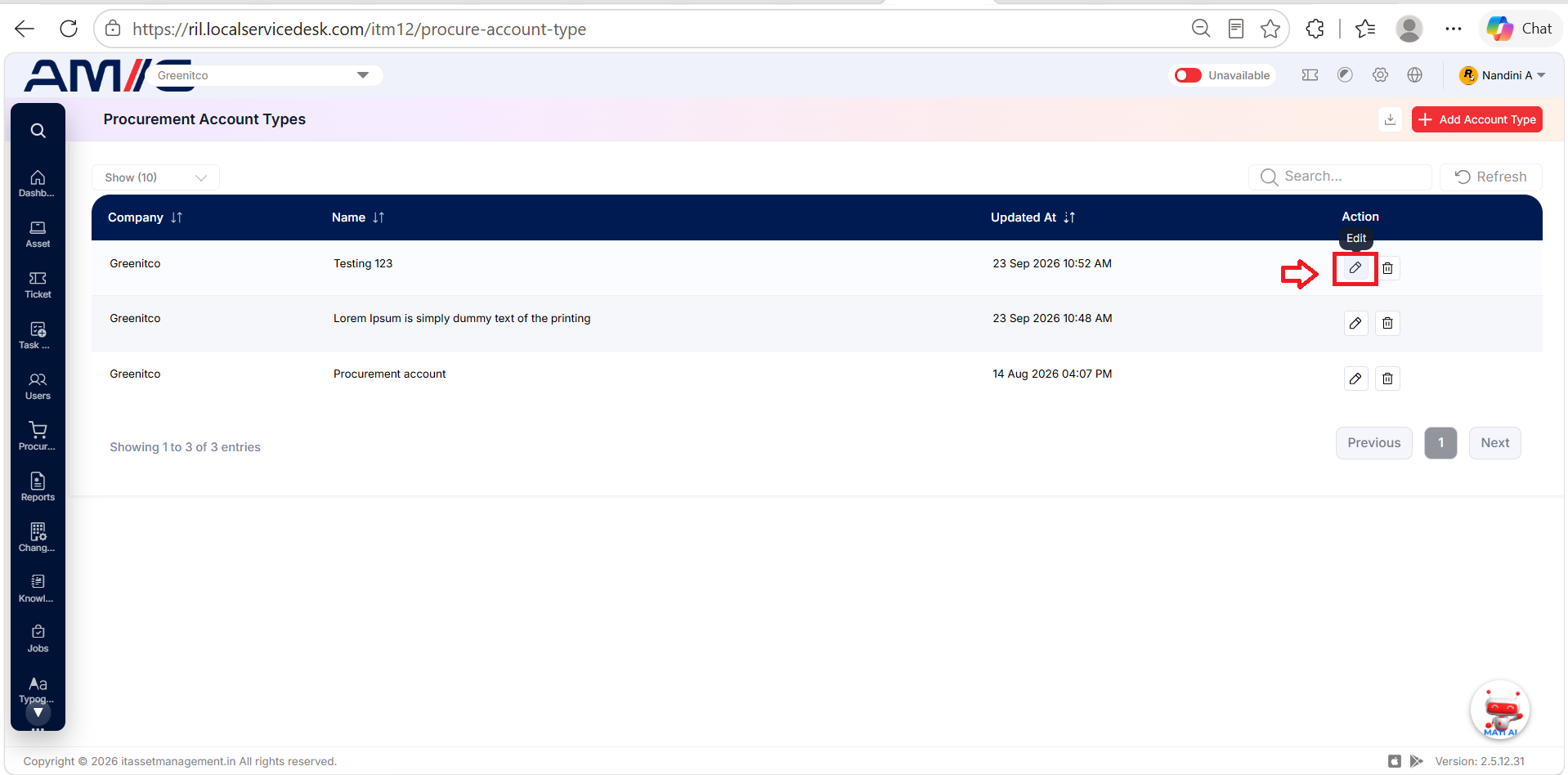
Step 1: On the Procurement Account Types screen, locate the account type.
Step 2: Click the Pencil (Edit) icon in the Actions column.
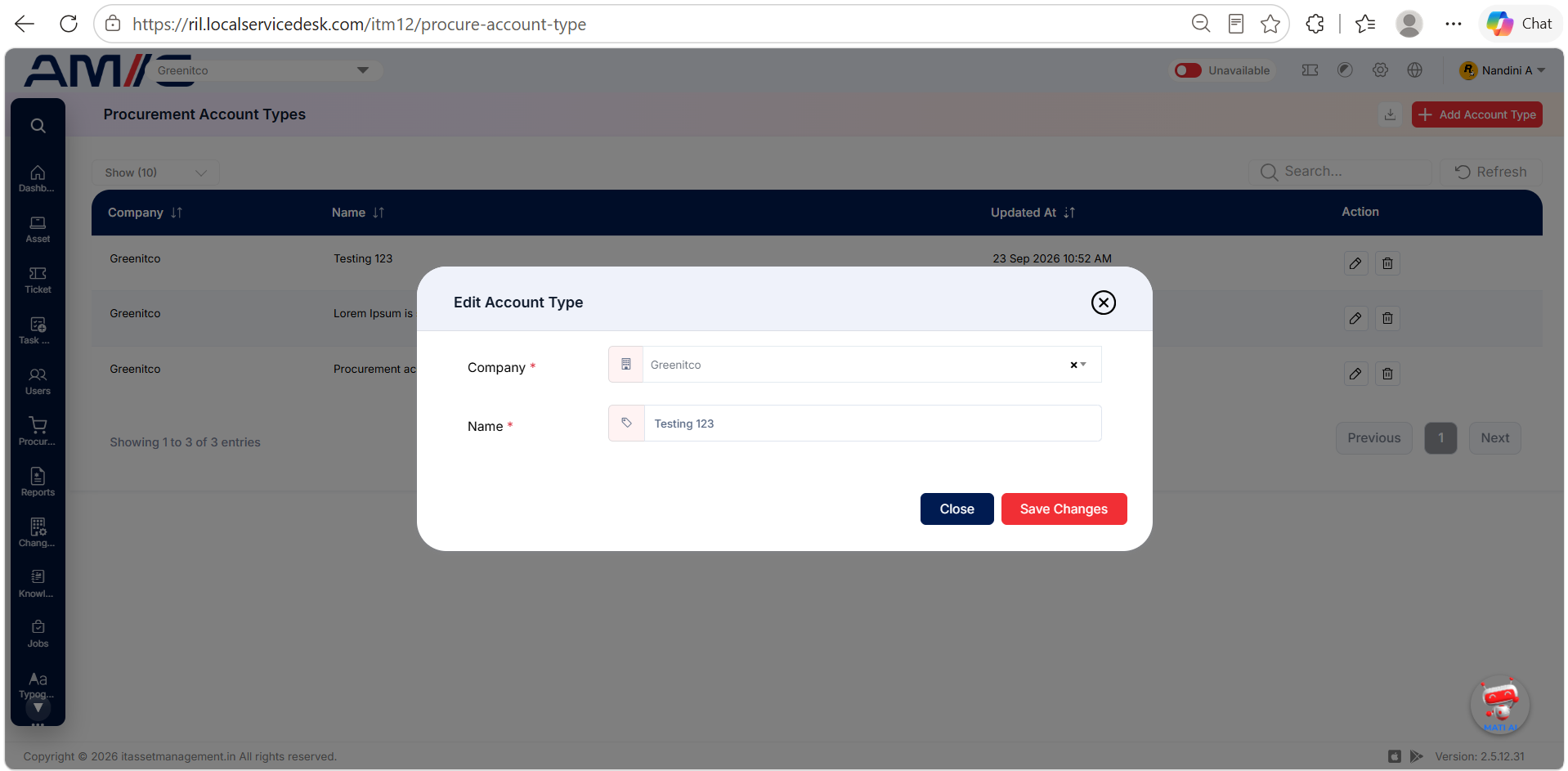
Step 3: Update the company or account type name.
Step 4: Click Save to apply the changes.
Delete an account type
Step 1: Check that the account type is not already used by procurement records or categories.
Step 2: If it is in use, rename it instead of deleting it.
Step 3: If it is not in use, click the Trash Can (Delete) icon and confirm the deletion.

Important: Do not delete an account type that is already used on procurement records or categories. If the wording needs to change, edit (rename) it instead.