

Introduction
Holidays module allows you to define and manage your organisation's holidays. You can configure holidays for the entire organisation or limit them to specific countries, locations, or groups of locations, depending on your organisation's requirements.
Holiday settingsThe play an important role in calculating Service Level Agreement (SLA) timelines and task deadlines. By accounting for holidays, the system can calculate working time more accurately and avoid counting non-working days when determining whether a ticket has breached its SLA, where the configured SLA rules exclude those days.
Using this section, you can:
-
Add and Manage Holidays: Create holidays and update or delete existing holiday records as required.
-
Configure Location-Based Holidays: Define holidays that apply across the organisation or only to selected countries and locations.
-
Support Accurate SLA Calculation: Ensure that configured holidays are considered when calculating ticket response and resolution timelines.
-
Manage Task Deadlines: Account for holidays when calculating deadlines for tasks that follow the configured working-day rules.
Example: If a ticket's SLA is calculated using working days and a public holiday falls during the SLA period, the system can exclude that holiday from the calculation according to the configured SLA rules.
These settings help maintain accurate SLA calculations and task deadlines while accounting for differences in holidays across offices and locations.
In this section, you will learn how to view, add, edit, and delete holidays.
Navigation Path: Header > Config > Holidays
Viewing the Holidays List
Open Header > Config > Holidays. The main list displays all existing holidays.
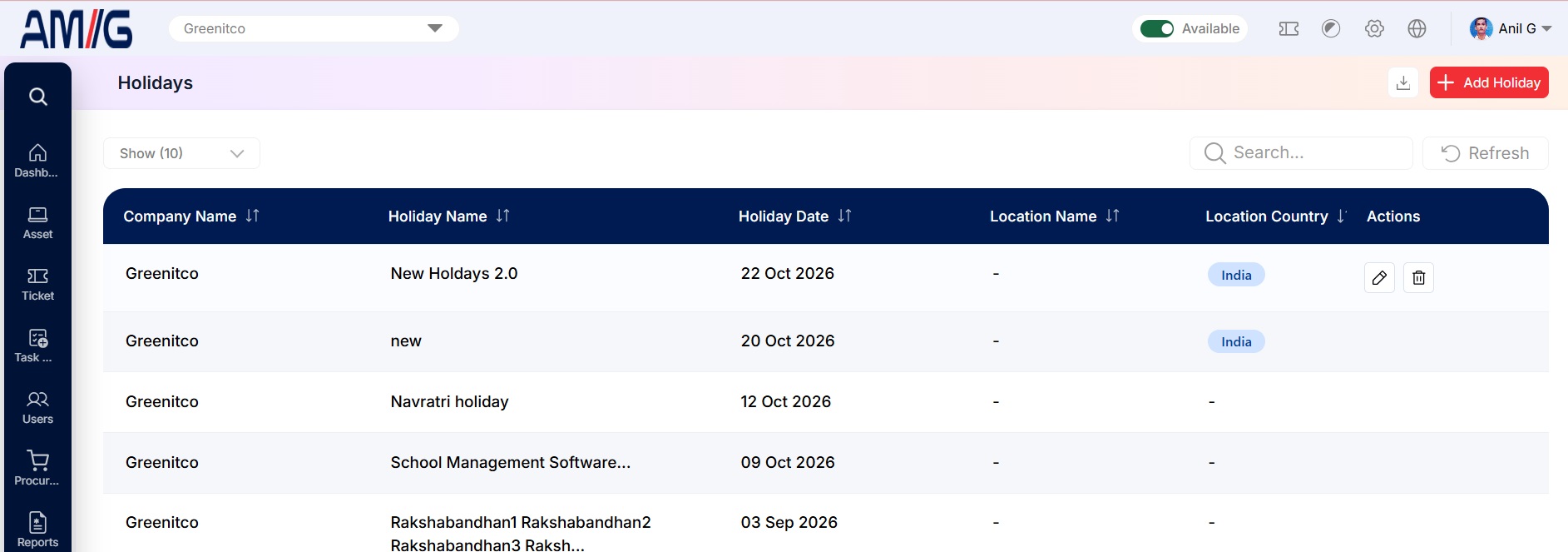 Holidays Main Screen
Understanding the Main Screen
Holidays main screen elements
| Area | Description |
|---|---|
| Sub Header | Use Show (10) to choose how many records you see on one page. Type in the Search box to find a record quickly, or click Refresh to reload the list. |
| Action Buttons | In the top right corner you will find the Download icon (export the list) and the red + Add Holiday button. |
| The Data Table | Shows all your holidays with their Company Name, Holiday Name, Holiday Date, Location Name, Location Country, Created By, Created At and Updated At. |
| Sorting | Click the small arrows beside a column name to sort the list (A to Z, Z to A, oldest or newest first). |
| Actions Column | Every row has two icons on the far right: Edit (pencil) to change that holiday, and Delete (trash can) to remove it. |
| Pagination | The bottom of the page shows how many records you're looking at. Use Previous and Next to move between pages. |
How to Create a New Holiday
To create a holiday, follow these steps:
Step 1 → On the Holidays screen, click the red + Add Holiday button in the top right corner.
Step 2 → The "Add Holiday" pop-up window opens.
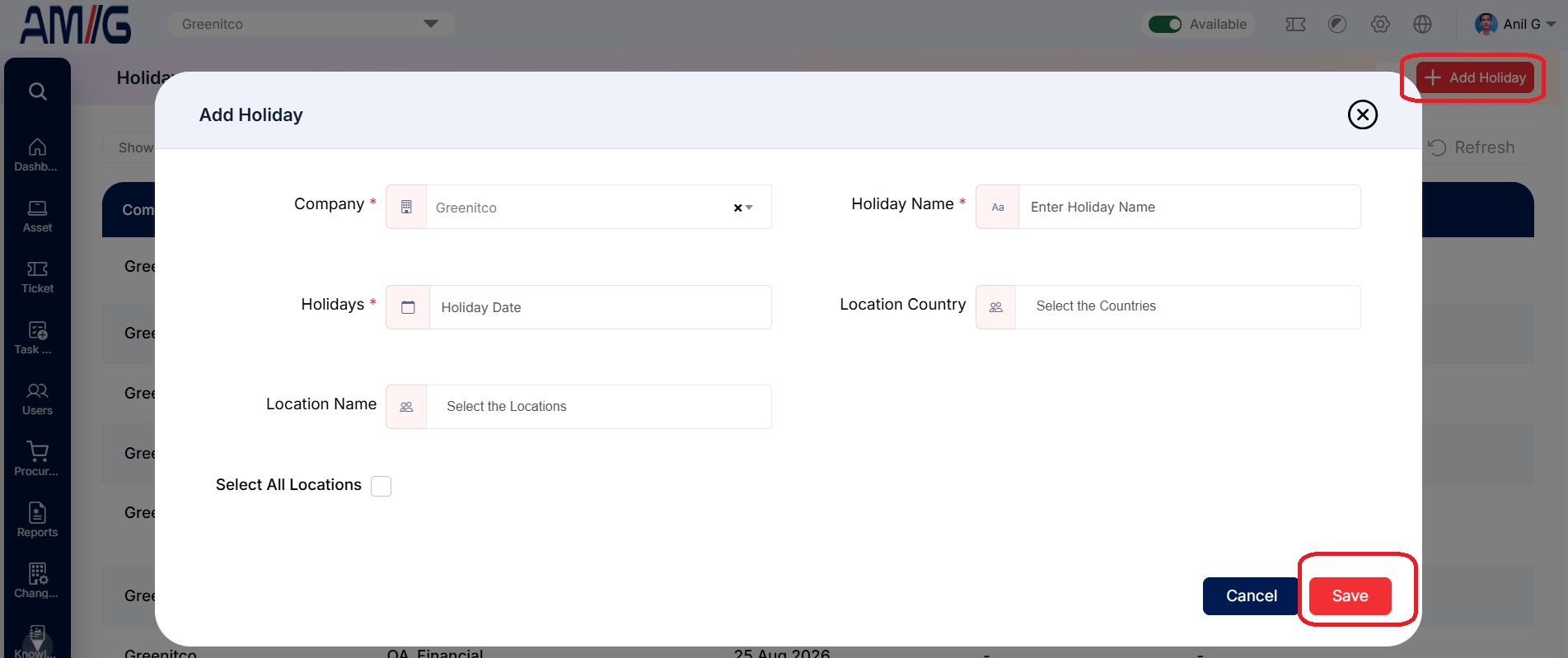 Add Holiday Modal
Step 3 → Fill in the required fields. They are marked with a red asterisk (*), and the form will not save without them:
Add Holiday – required fields
| Field | Description |
|---|---|
| Company | Choose the company this holiday applies to. |
| Holiday Name | Enter the name of the holiday (for example, "Independence Day"). |
| Holidays | Pick the date of the holiday from the calendar. |
Step 4 → If the holiday is only for some places, choose them here. Leave these blank to apply it everywhere:
Add Holiday – optional targeting fields
| Field | Description |
|---|---|
| Location Country | Choose the country the holiday applies to (for example, India or USA). |
| Location Name | Choose the specific offices the holiday applies to (for example, Mumbai). The list comes from Header > Config > Locations. |
Step 5 → To apply the holiday to every location in the chosen country, tick Select All Locations. All locations are selected for you.
Step 6 → Click Save. The holiday is created and appears in the list.
📝 Note: To cancel without saving, click Cancel or the X in the top-right corner.
Managing Existing Holidays
Once a record exists, you can manage it directly from the Holidays list using the icons in the Actions column:
Edit a holiday
Step 1 → On the Holidays screen, locate the holiday you want to change.
Step 2 → Click the Pencil (Edit) icon in the Actions column.
Step 3 → Update the holiday name, date, or location targeting.
Step 4 → Click Save to apply the changes.
Delete a holiday
Step 1 → Locate the holiday in the list.
Step 2 → Click the Trash Can (Delete) icon for that holiday.
Step 3 → Review the confirmation prompt and confirm the deletion.
📝 Note: When you add a holiday, the SLA times of existing tickets are recalculated automatically to take the new day off into account.
💡 Tip: Add the coming year's holidays as soon as your holiday calendar is announced, so SLA timers and deadlines are always right.