License Management (Software Asset Management)
Product: NEXTMEGABYTE (Greenitco ITAM) · Module: IT Asset Management (ITAM) · Audience: Administrator, Technician
License management (software asset management, SAM) gives a clear picture of purchased versus installed licenses. It helps asset managers act on unauthorized software and reduces the risk, cost and complexity of license compliance. Installed software discovered by agents is shown in Network Inventory → License Details.
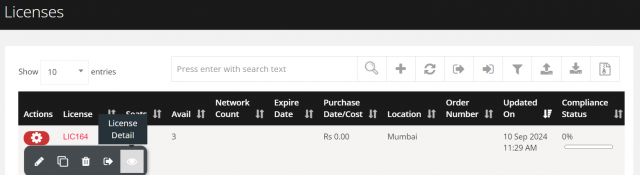
Menu path: left side menu → Licenses
Add a license
- Open Licenses and select Add (plus icon).
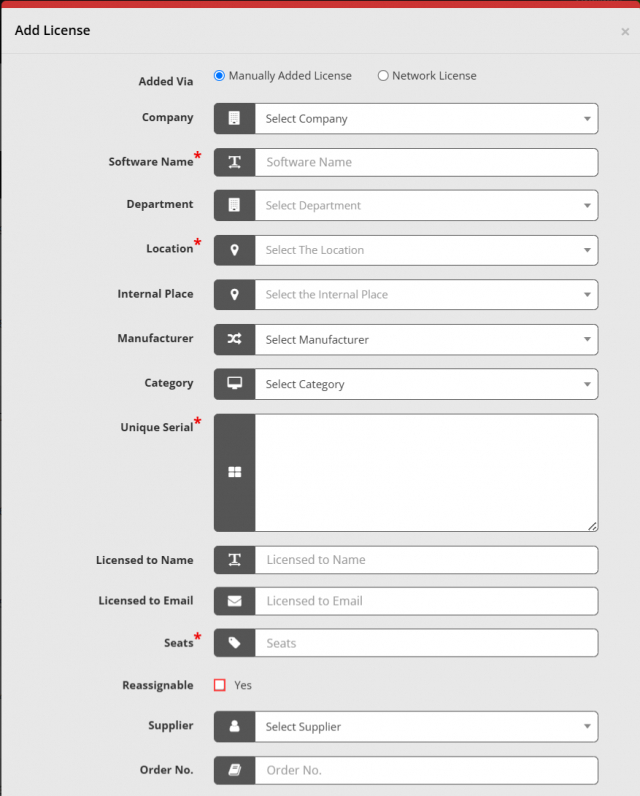
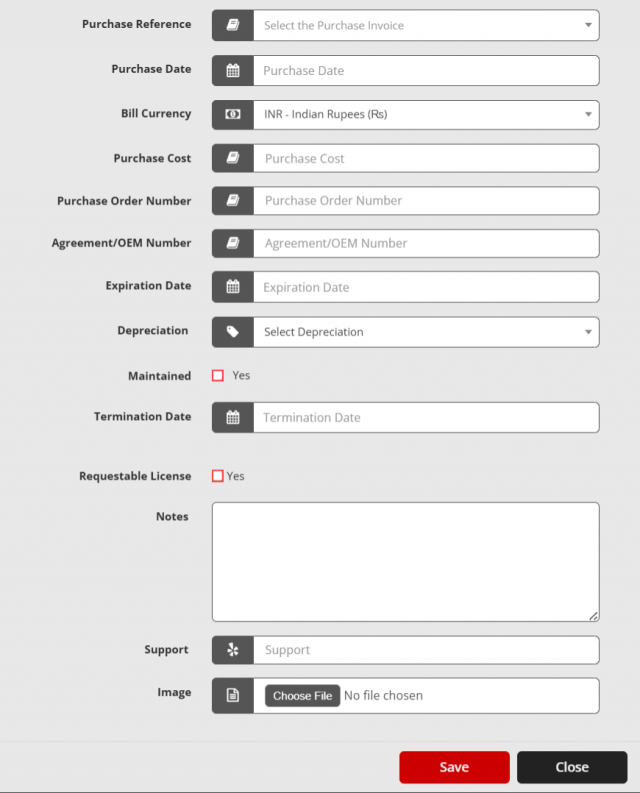
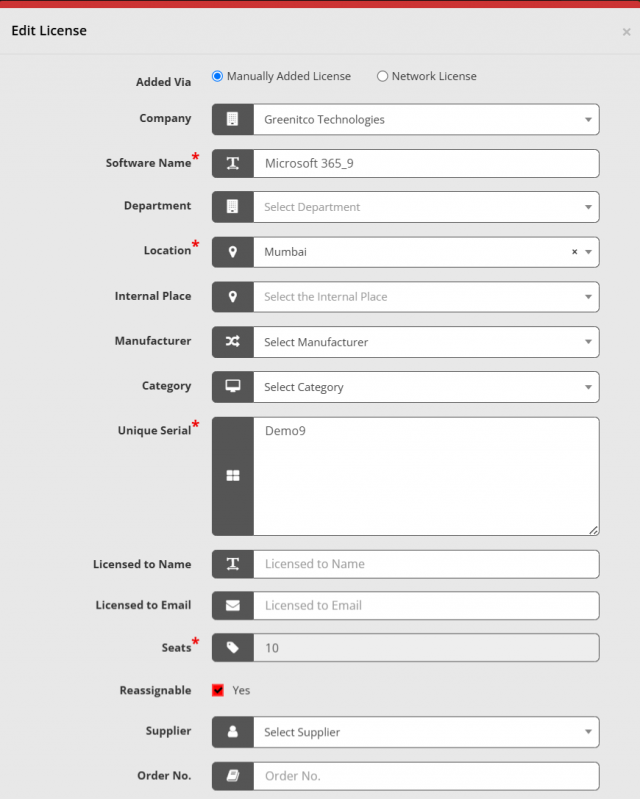
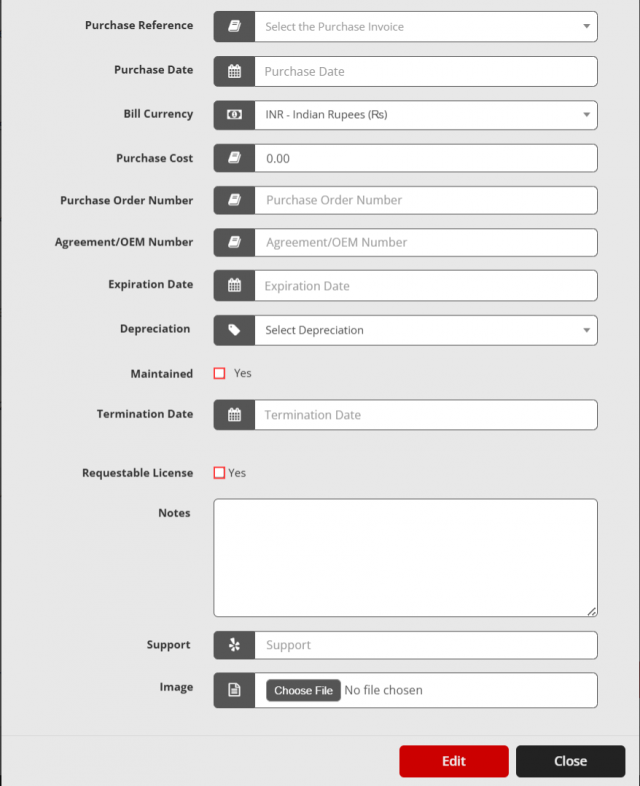
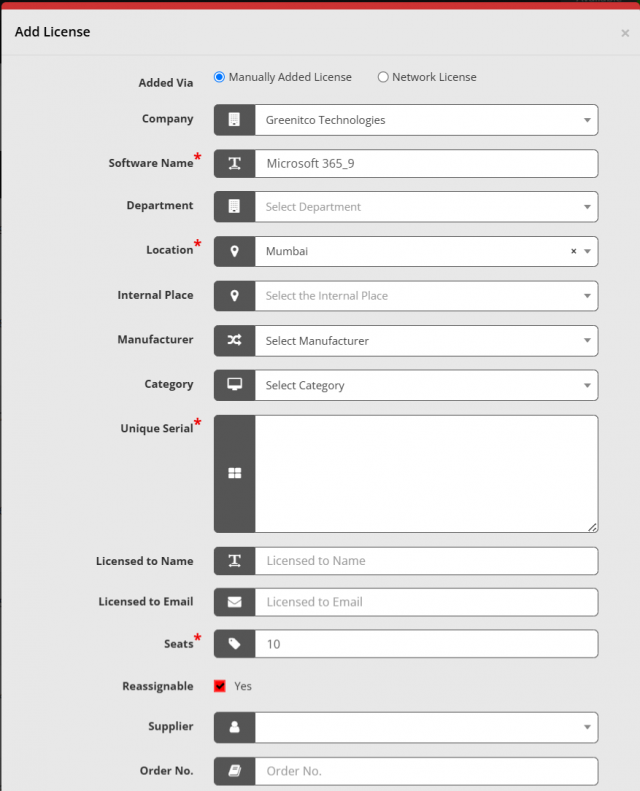
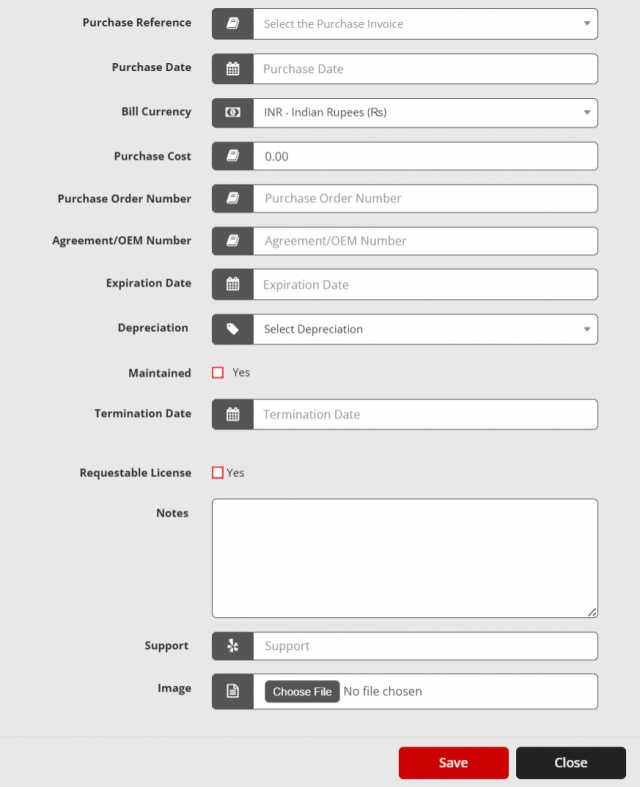
- Enter the details and select Save. A notification is sent to the alert email address in settings.
| Field | Description |
|---|---|
| Software Name | Name of the software |
| Company, Department, Location, Category, Manufacturer, Supplier | The matching configuration records |
| Depreciation | See Depreciation Configuration |
| Purchase Reference | The purchase invoice |
| Seats | Number of seats (installations or users) purchased |
| Serial / product key | Default serial number for all seats |

Edit, clone or remove a license
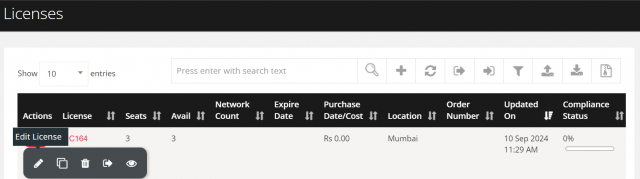
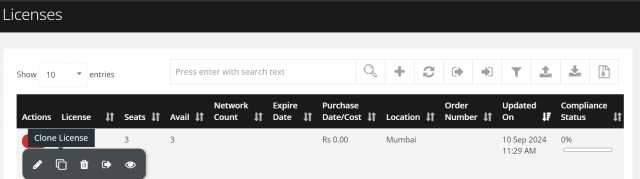
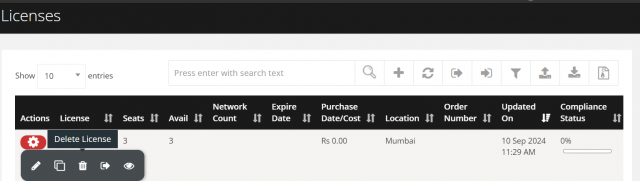
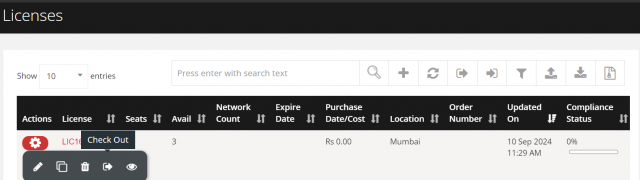
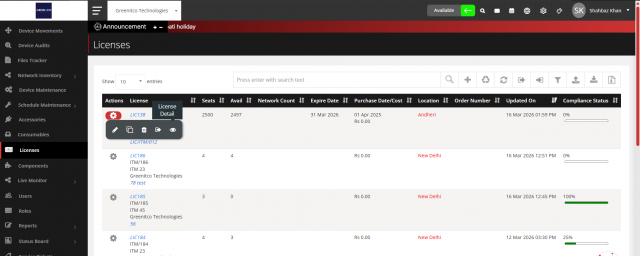
Open the license's action menu, then:
- Edit (pencil icon): update the details and select Edit.
- Clone (copy icon): update the details for the new license and save.
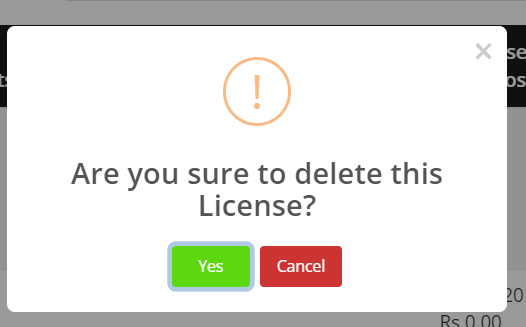
- Delete (trash icon): select Yes to confirm.
View license details
Open the action menu and select View (eye icon). Use the tabs, including License Seats and Purchase.
Check out a license seat
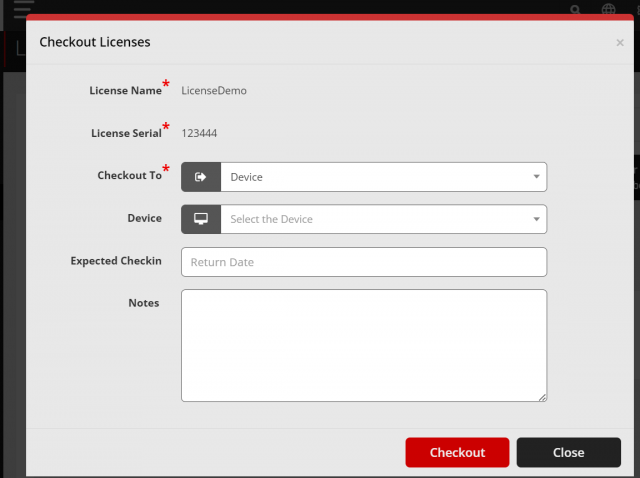
- Open the license's action menu and select Check Out (sign-out icon).
- Select a device, or select Check Out To a user (for a selected device, choose the right user).
- Enter the Expected Check-In Date if required.
- Select Checkout.
Check in a license seat
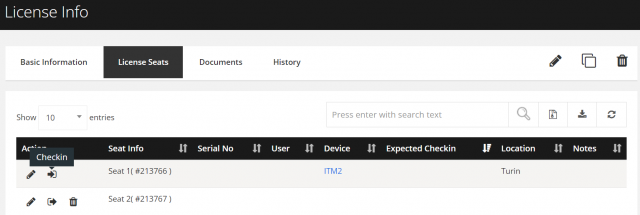
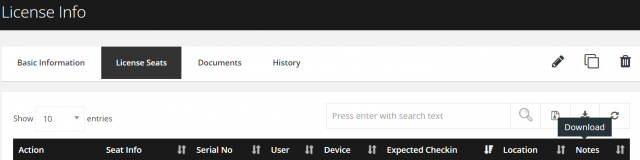
- Open the license with View (eye icon) and select the License Seats tab.
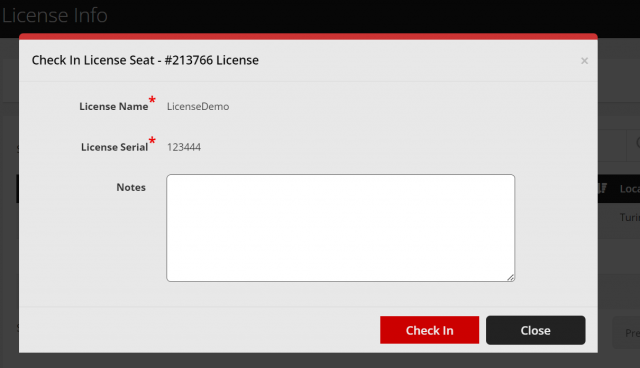
- Select Check In for the seat, update the notes and select Check In.
Update the serial number of individual seats
- Open the license with View and select the License Seats tab.
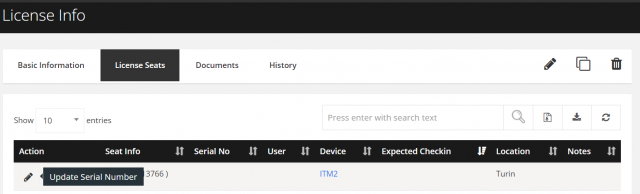
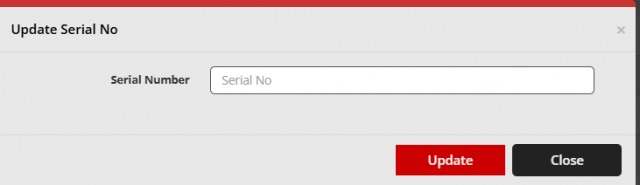
- Select Edit (pencil icon) for the seat and enter its serial number.
- Select Export (download icon) on this tab to download seat-wise license details.
If a seat's serial number is not updated, the default serial number entered when the license was added is used for that seat.
Add seats to an existing license
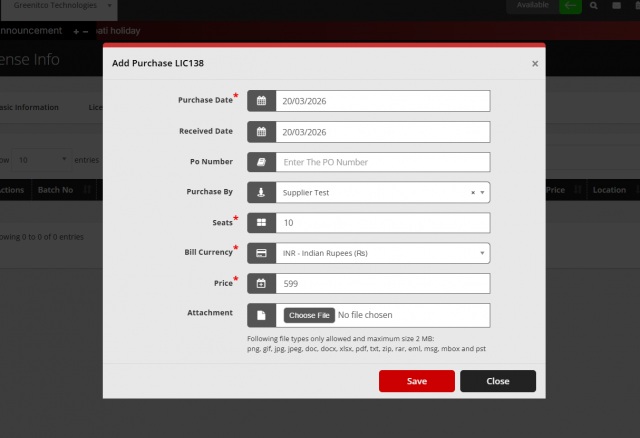
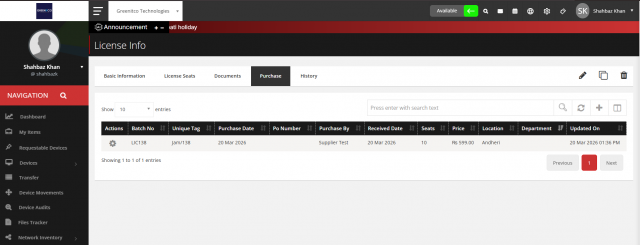
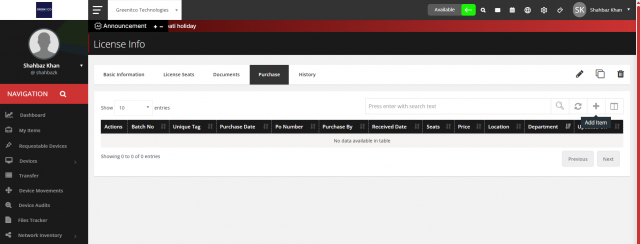
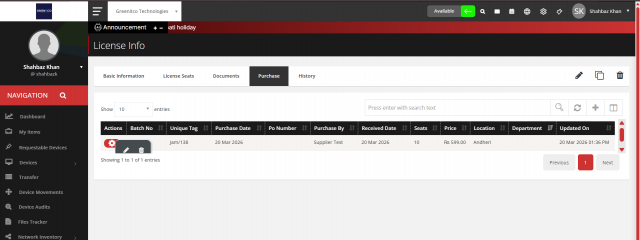
- Open the license details page and select the Purchase tab.
- Select Add Item (plus icon).
- Enter the purchase details and select Save. The new seats are added.
| Field | Description |
|---|---|
| Purchase Date | Date the license was purchased |
| Received Date | Date the license was received |
| PO Number | Purchase order number |
| Purchase By | Who purchased it |
| Seats | Number of seats purchased |
| Bill Currency | Purchase currency |
| Price | Price of the seats |
| Attachment | Invoice or other documents |
To edit or delete a purchase entry, select the gear icon in the first column of the purchase table.
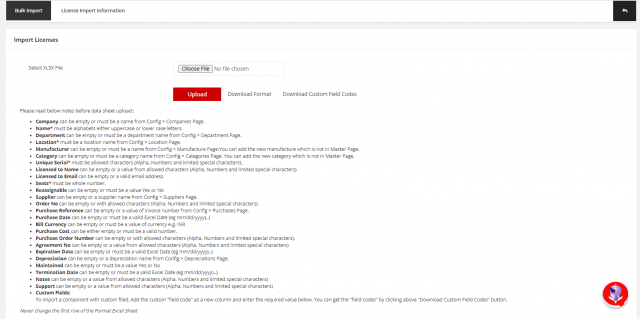
Bulk import licenses
| Column | Rule |
|---|---|
| Company | Empty or a company name |
| Name * | Letters |
| Department | Empty or a department name |
| Location * | A location name |
| Manufacturer, Category | Empty or existing names |
| Unique Serial * | Letters, numbers and limited special characters |
| Licensed to Name | Empty or letters, numbers and limited special characters |
| Licensed to Email | Empty or a valid email address |
| Seats * | A whole number |
| Reassignable | Empty, Yes or No |
| Supplier | Empty or a supplier name |
| Order No, Purchase Order Number, Agreement No | Empty or letters, numbers and limited special characters |
| Purchase Reference | Empty or an invoice number |
| Purchase Date, Expiration Date, Termination Date | Empty or valid Excel dates (mm/dd/yyyy) |
| Bill Currency | Empty or a currency code |
| Purchase Cost | Empty or a number |
| Depreciation | Empty or a depreciation name |
| Maintained | Empty, Yes or No |
| Notes, Support | Empty or letters, numbers and limited special characters |
| Custom fields | Add the custom field code as a column header |

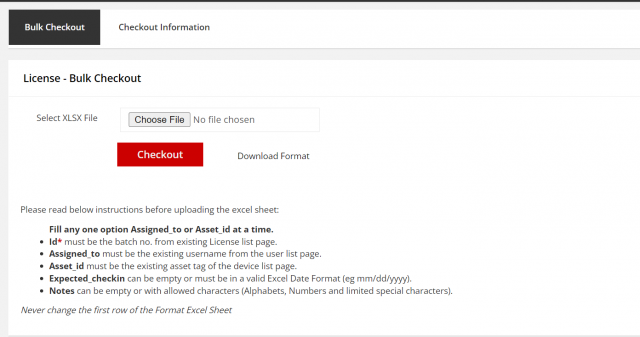
Bulk check out licenses
Fill in either Assigned_to or Asset_id in each row, not both.
| Column | Rule |
|---|---|
| Id * | An existing license batch number |
| Assigned_to | An existing username |
| Asset_id | An existing device asset tag |
| Expected_checkin | Empty or a valid Excel date |
| Notes | Empty or letters, numbers and limited special characters |

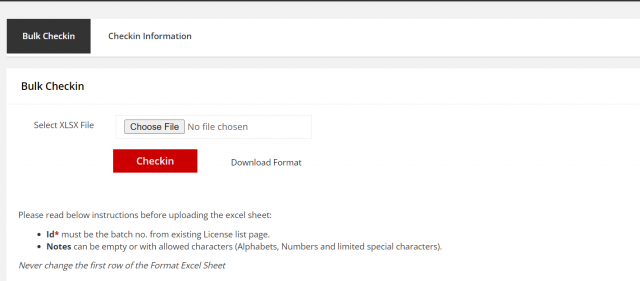
Bulk check in licenses
| Column | Rule |
|---|---|
| Id * | An existing license batch number |
| Notes | Empty or letters, numbers and limited special characters |
Never change the first (header) row of any template.

Download the license list
Select Download (download icon) at the top right of the page.

Common questions
How do I see which computers have a software installed? Open Network Inventory → License Details and filter by the software.
How do I add more seats to a license I already have? Open the license, go to the Purchase tab and add a purchase item with the new number of seats.