

Introduction
Ticket Configuration allows you to manage how tickets work in your organisation. It brings together all the settings needed to control ticket behaviour, notifications, automatic updates, duplicate tickets, and ticket creation from incoming emails.
Using this section, you can:
-
Manage Ticket Fields: Choose which fields users can see when viewing a ticket.
-
Configure Notifications: Decide when notifications should be sent during ticket activities.
-
Set Up SLA Calculation: Choose whether ticket response and resolution times are calculated based on your organisation's working hours or 24 hours a day.
-
Configure Working Days: Define the working days of your organisation for accurate SLA calculations.
-
Manage Departments: Enable or disable departments for ticket handling.
-
Control Technician Access: Decide which actions technicians can perform on tickets and which departments they can access.
-
Manage Ticket Automation: Configure automatic ticket updates, handle duplicate tickets, and enable ticket creation from incoming emails.
-
Email to Ticket: Configure the email to ticket setting so that a user can email a specific email ID and a ticket would be generated in the portal.
To save your changes, click the Update button in the relevant configuration section.
📍 Navigation:
Sidebar › Ticket › Ticket Configuration
Viewing Ticket Configuration
Open Ticket Configuration from Sidebar > Ticket > Ticket Configuration. The main screen includes General Settings, Notification Settings, Auto Updates, and Email to Ticket tabs.
General Settings
Step 1 → Open General Settings and review the ticket behaviour and work-schedule options.
Step 2 → Configure the available fields and selections to match your organisation’s ticketing process.
Step 3 → Click Update in the relevant panel to save the changes.
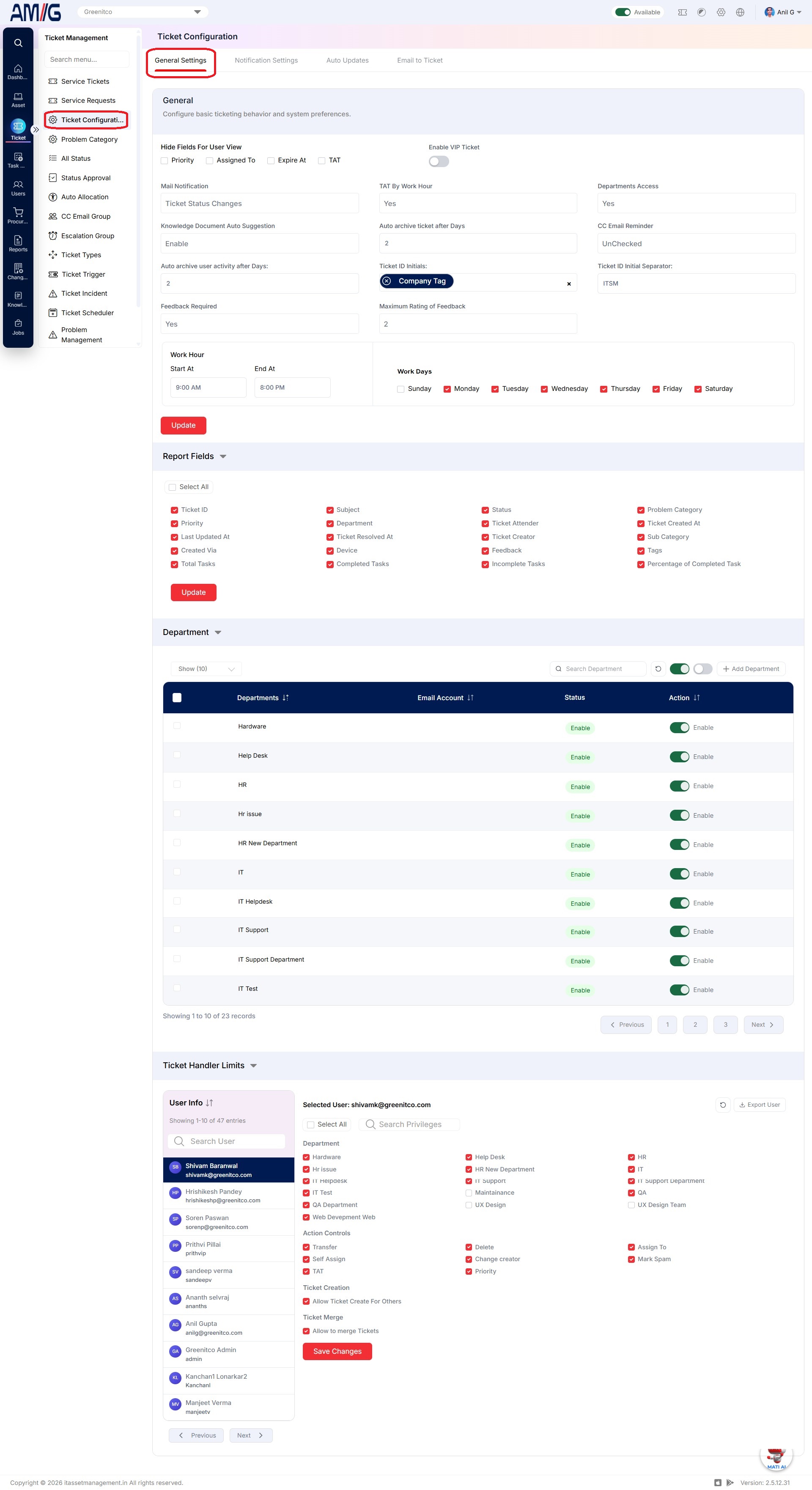 Ticket Configuration – General Settings
General settings areas
| Area | Options visible on screen |
|---|---|
| User-facing ticket fields | Choose which fields—Priority, Assigned To, Expire At, and TAT—are hidden from the user view. A field is visible to users only when enabled. |
| Ticket behaviour | 1. Enable or disable VIP ticket handling. When enabled, tickets from VIP users are displayed at the top of the list. To mark a user as VIP, edit the user record and select Is VIP User. 2. Configure ticket ID initials using the initials defined for the company, department, or category. 3. Set the separator used between ticket ID components. 4. Choose whether users are prompted to provide feedback when a ticket is resolved. 5. Set the maximum feedback rating available to users. |
| Mail and knowledge assistance | • Configure when email notifications are sent, such as when a ticket status changes or a ticket is resolved. Notifications are sent only for the configured events. • Enable Knowledge Document Auto Suggestion to display relevant knowledge-base articles when a user creates a ticket in a category with matching articles. |
| Time and archiving | • Set TAT by Work Hour to determine whether turnaround time is calculated using the configured work schedule or 24-hour days. • Set the number of days after which tickets are automatically archived. • Set the number of days after which user activity is automatically archived. |
| Work schedule | • Set the start time for the workday. • Set the end time for the workday. • Select the working days used for work-hour-based TAT calculations. |
| Report fields | Select which ticket fields appear in reports; the screen provides a Select All option and an Update button. |
| Department settings | Review department access and enable or disable individual departments. Enabled departments are available to users when creating tickets. |
| Ticket handler limits | Select technicians and configure their department access and action permissions, including transfer, self-assignment, deletion, creator changes, assignment, priority changes, and spam marking. These settings apply to users with technician access. |
Notification Settings
Use Notification Settings to configure SLA reminders and, where required, a technician email address to copy on ticket-creation messages.
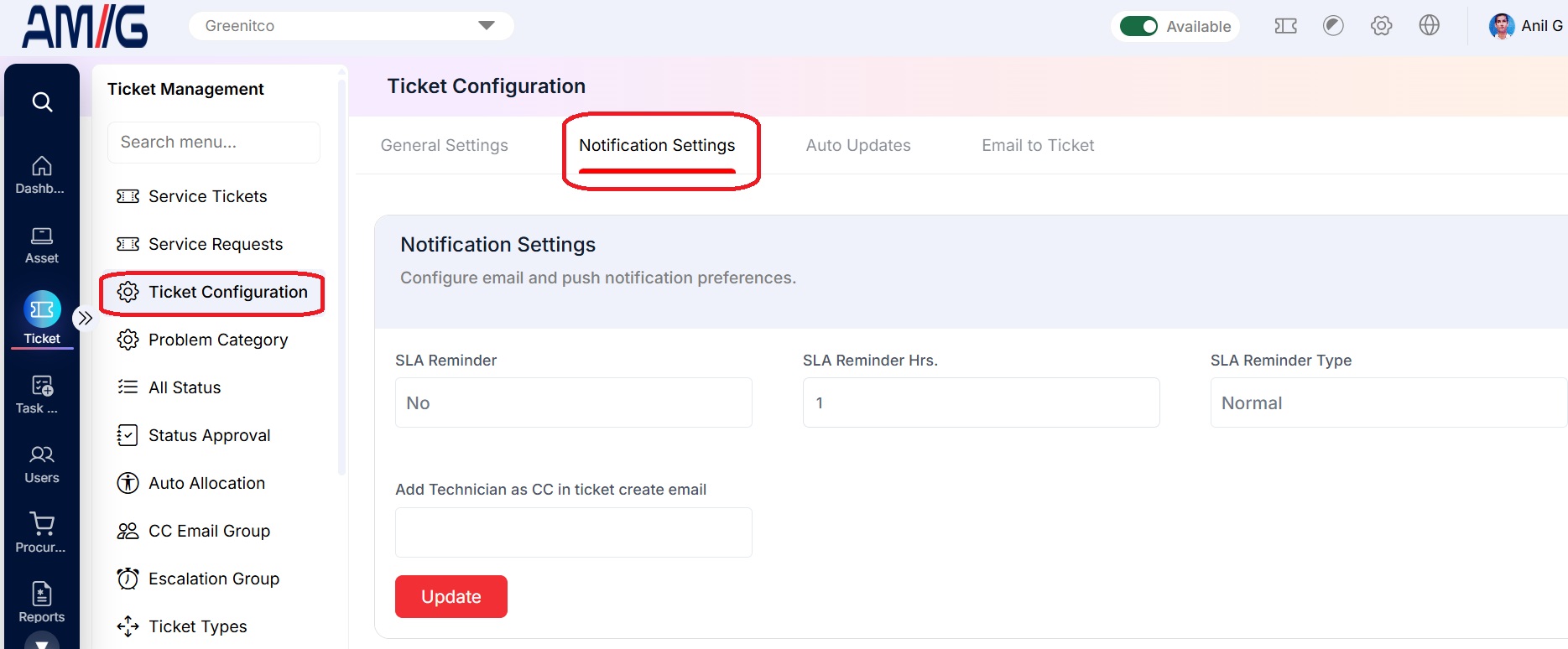 ▲ Ticket Configuration – Notification Settings
Notification settings fields
| Field | Description |
|---|---|
| SLA Reminder | Choose whether SLA reminders are enabled. When enabled, reminders are sent to the user and technician. |
| SLA Reminder Hrs. | Set the number of hours before an SLA reminder is triggered. |
| SLA Reminder Type | Select Normal or Buzzer. Buzzer uses a buzzer notification; Normal sends a standard email reminder. |
| Add Technician as CC in ticket create email | Enter the technician email address to copy on ticket-creation emails, where required. The address is added to the CC field for notification. |
| Update | Save the notification settings. |
Auto Updates and Duplicate Ticket Settings
The Auto Updates tab contains time thresholds for escalation, SLA-breach handling, ticket closure, and automation options. The Duplicate Ticket panel controls how duplicate issues are handled.
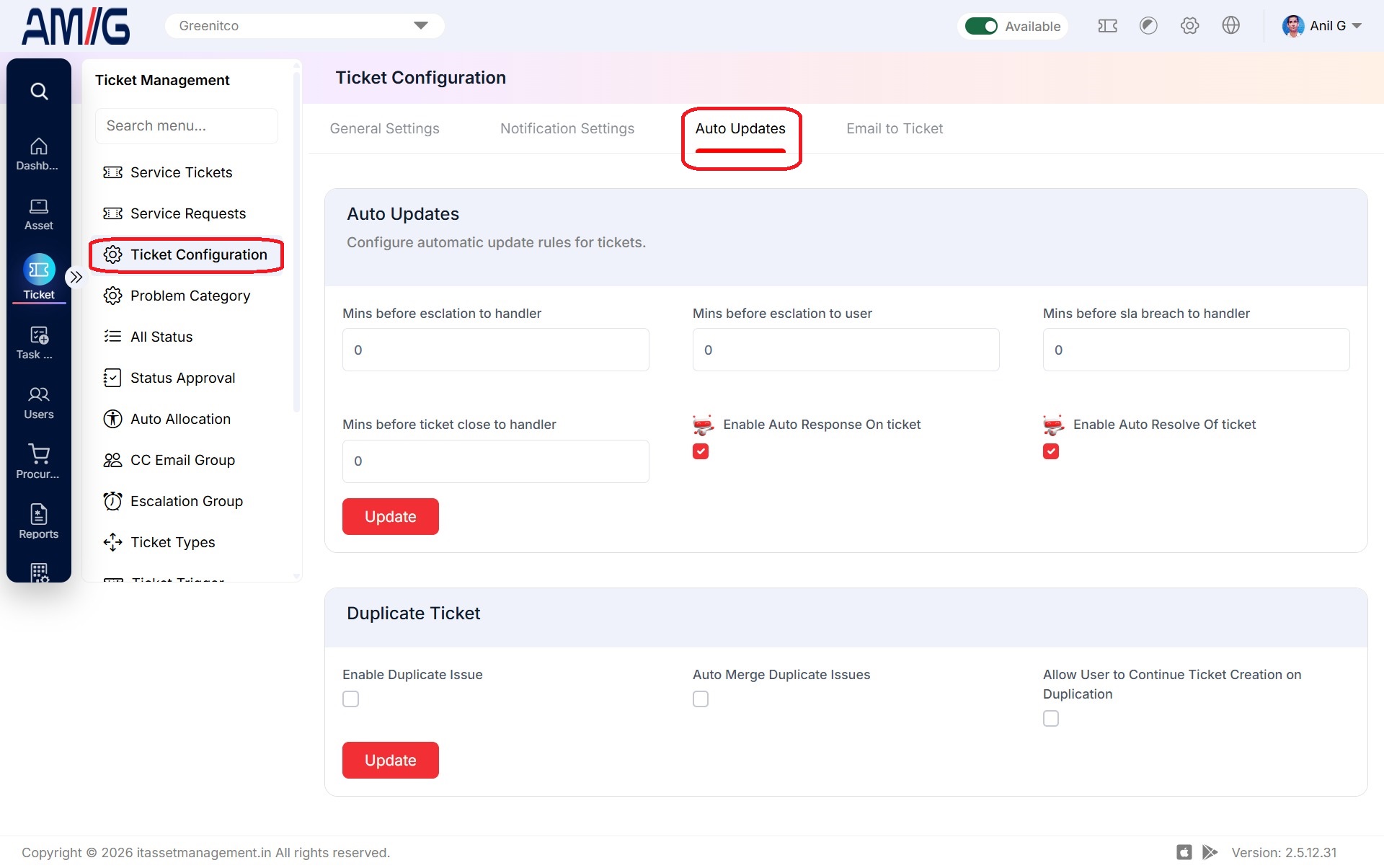 Ticket Configuration – Auto Updates and Duplicate Ticket Settings
Auto update options
| Setting | Purpose |
|---|---|
| Mins before escalation to handler | Set how many minutes before escalation the notification is sent to the technician or handler. |
| Mins before escalation to user | Set how many minutes before escalation the notification is sent to the user. |
| Mins before SLA breach to handler | Set how many minutes before an SLA breach a notification is sent to the handler. |
| Mins before ticket close to handler | Set how many minutes before a ticket is closed the handler is notified. |
| Enable Auto Response On ticket | Enable or disable automatic ticket responses. When enabled, MATI AI can generate a response and add it to the ticket as a system comment. |
| Enable Auto Resolve Of ticket | Enable or disable automatic ticket resolution. When enabled, the system analyses the ticket tone and can resolve the ticket automatically. |
| Enable Duplicate Issue | Enable or disable duplicate-issue handling to detect duplicate tickets and apply the configured duplicate-handling rules. |
| Auto Merge Duplicate Issues | Choose whether detected duplicate issues are merged automatically. |
| Allow User to Continue Ticket Creation on Duplication | Choose whether users can continue creating a ticket after a duplicate is detected. If disabled, ticket creation cannot continue for a detected duplicate. |
| Update | Save the corresponding panel after changing its values. |
Email to Ticket
The Email to Ticket feature automatically converts incoming emails into service tickets. It allows users to report issues by sending an email to a configured email account, without needing to log in to the ITSM application. This cam be configured through Sidebar > Ticket > Ticket Configuration under Email to Ticket tab
The screen contains two sections: Email-Based Ticket Generation and Alias Accounts.
Email-Based Ticket Generation This section allows administrators to configure email accounts used to create tickets automatically. The system checks configured accounts every five minutes and converts new incoming emails into tickets. When a user sends an email to a configured account, the system creates a ticket using the email details. If the user replies to an existing ticket notification, the reply is added as a comment to the corresponding ticket, keeping the conversation together.
Alias Accounts
This section allows administrators to configure email aliases associated with ticket generation. These aliases can provide additional email addresses through which users can submit service requests, depending on the configured setup.
This feature simplifies ticket creation, keeps email conversations linked to the relevant tickets, and helps ensure that service requests received by email are tracked within the ITSM system.
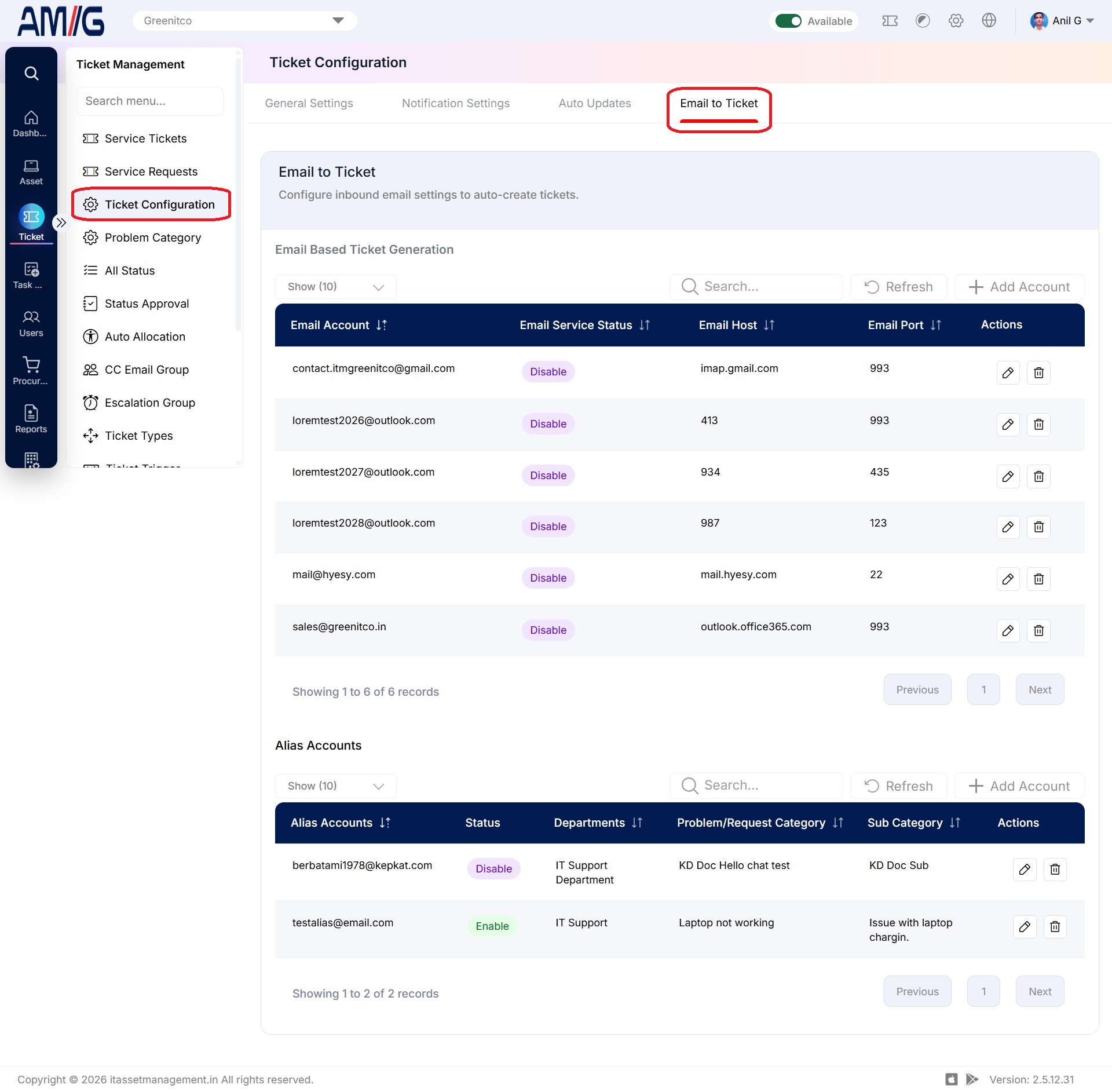 Email to Ticket – Email Accounts and Alias Accounts
Email to Ticket list columns
| Area | Information shown |
|---|---|
| Email Based Ticket Generation | Email Account, Email Service Status, Email Host, Email Port, and row actions for editing or deleting an account. |
| Alias Accounts | Alias email, Status, Departments, Problem/Request Category, Sub Category, and row actions. |
| List controls | Show entries, Search, Refresh, and Add Account controls are available for the relevant list. |
Adding an Email Account for Email to Ticket.
Step 1 → In Email to Ticket, click Add Account in the Email Based Ticket Generation section.
Step 2 → Complete the required company, connection, account, and ticket-routing fields.
Step 3 → Review the inbound-email restrictions and outgoing-mail selection, then click Save.
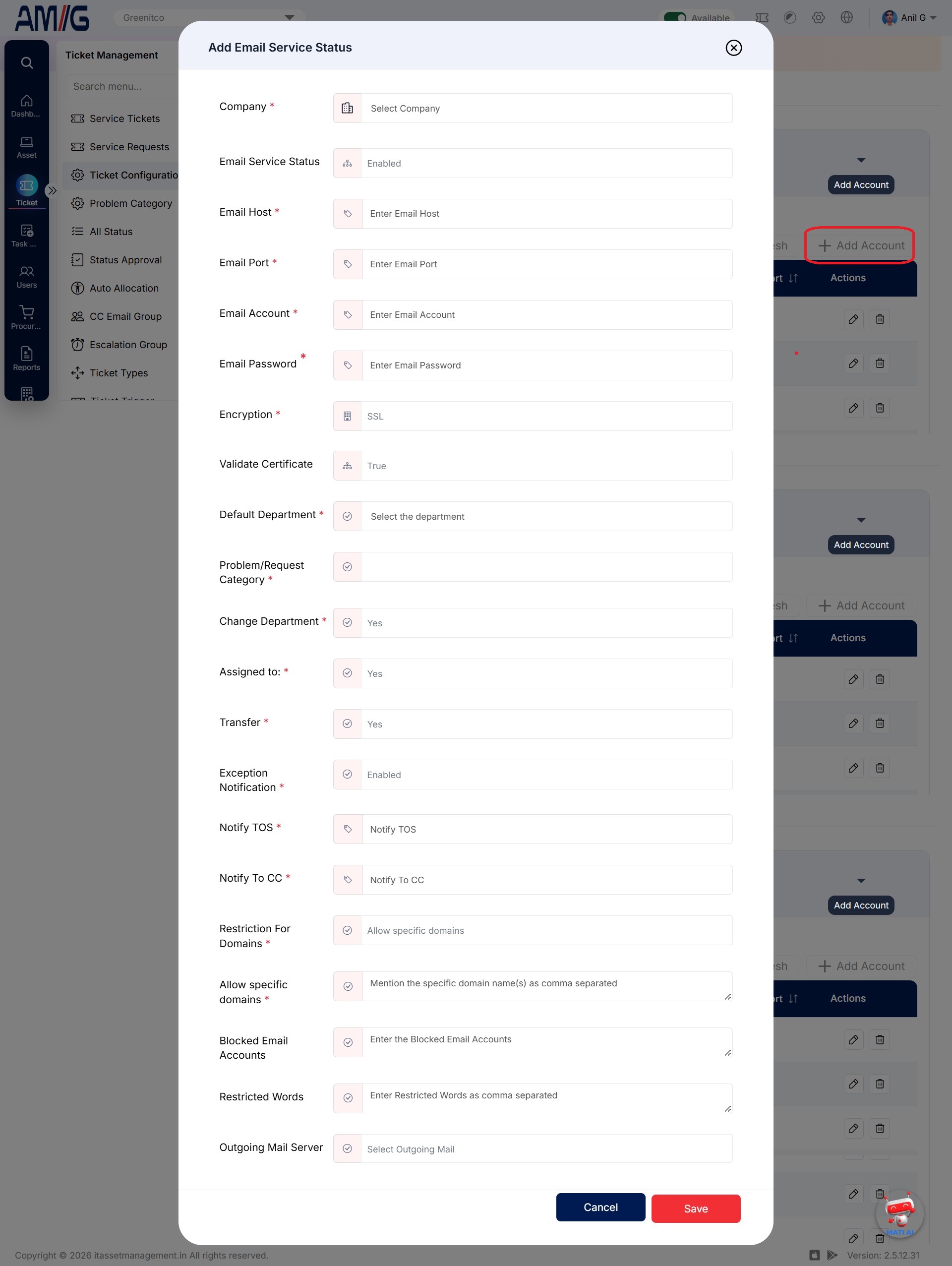 Add Email Service Status – Account Configuration
Email account configuration fields
| Field | Description |
|---|---|
| Company | Select the company for the account. |
| Email Service Status | Choose whether the inbound email service is enabled. If disabled, the account will not retrieve email to generate tickets. |
| Email Host / Email Port | Enter the inbound email server host and port. |
| Email Account / Email Password | Enter the email account credentials. |
| Encryption / Validate Certificate | • Choose the encryption method, such as TLS or SSL, and whether to validate the server certificate. • When certificate validation is enabled, the server certificate is checked before the account processes incoming email. |
| Default Department | Select the default department for tickets created from this account. |
| Problem/Request Category | Select the default problem/request category and subcategory for tickets created from this account. |
| Change Department / Assigned to / Transfer | • Change Department: Allow the ticket to be moved to a different department when it is created from this email account. • Transfer: Configure whether tickets created from this email account can be transferred. • Assigned To: Select the default user to whom tickets created from this email account are assigned. |
| Exception Notification | Choose whether exception notifications are enabled. |
| Notify TOS / Notify To CC | Configure the To and CC notification values. |
| Restriction For Domains | Choose the domain restriction mode. |
| Allow specific domains / Restricted domains | Enter comma-separated allowed or restricted domains, according to the selected domain-restriction mode. This controls which domains may create tickets by email. |
| Restricted Words | Enter comma-separated restricted words. If an incoming email contains one of these words, the system records it in Reports > Service Ticket > Exception Report. |
| Outgoing Mail Server | Select the outgoing mail configuration from Sidebar > Ticket > Outgoing Mail. This configuration is used to send replies from the system. |
Adding an Alias Account
Step 1 → In the Alias Accounts section, click Add Account.
Step 2 → Select the company and status, enter the alias email address, and choose the default department and problem/request category.
Step 3 → Click Save to create the alias account.
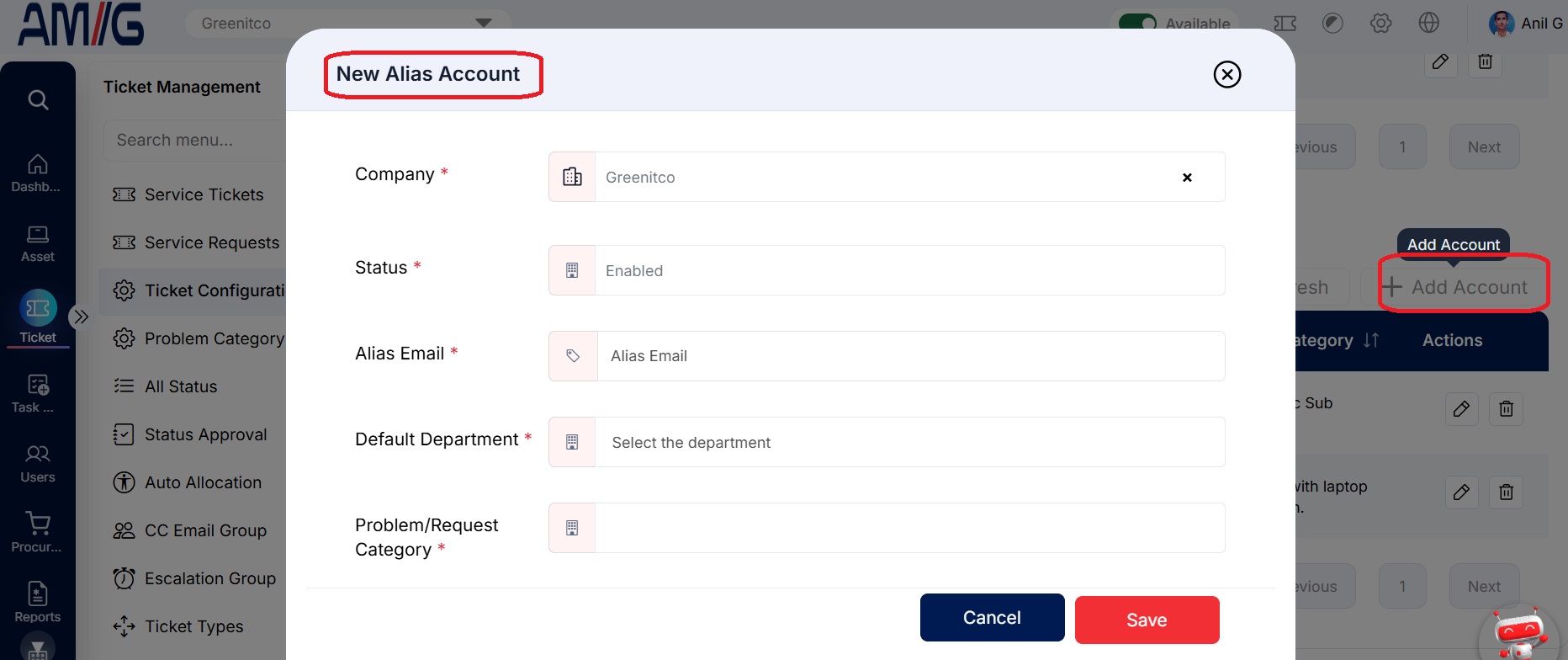 New Alias Account Form
Alias account fields
| Field | Description |
|---|---|
| Company | Select the company associated with the alias. |
| Status | Set the alias status to Enabled or Disabled. When enabled, the alias is checked and incoming messages are routed to the configured Email to Ticket account. |
| Alias Email | Enter the alias email address that should be recognised. |
| Default Department | Choose the default department for tickets generated from this alias. |
| Problem/Request Category | Choose the default category associated with this alias. |