Tickets and Service Requests on Mobile
Product: NEXTMEGABYTE (Greenitco ITAM) · Module: Mobile App · Audience: All users
Create a ticket
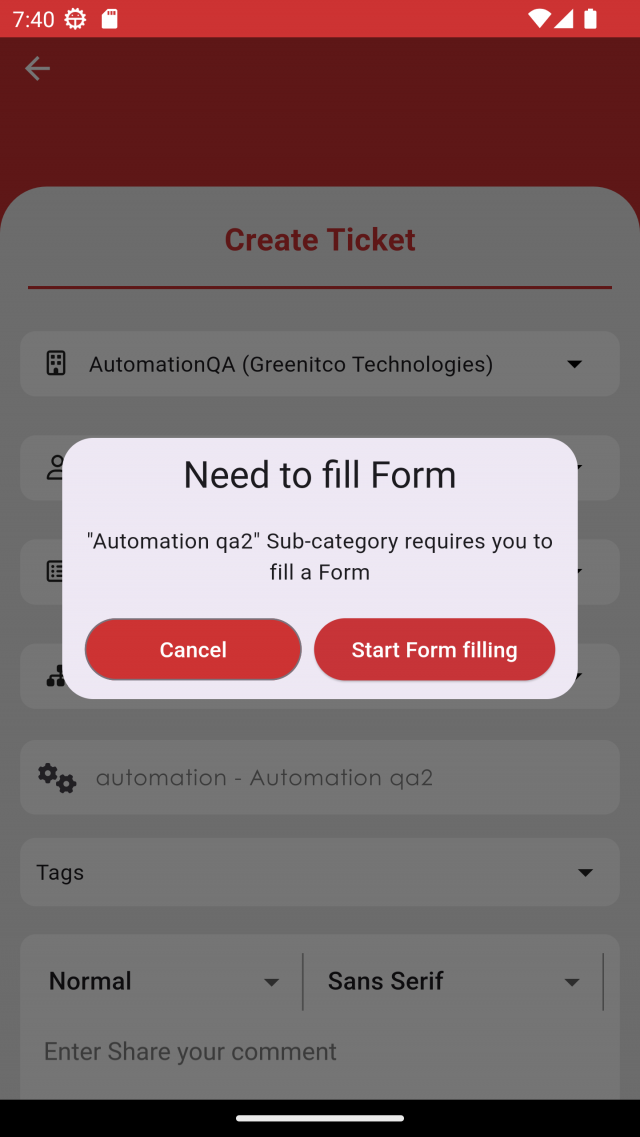
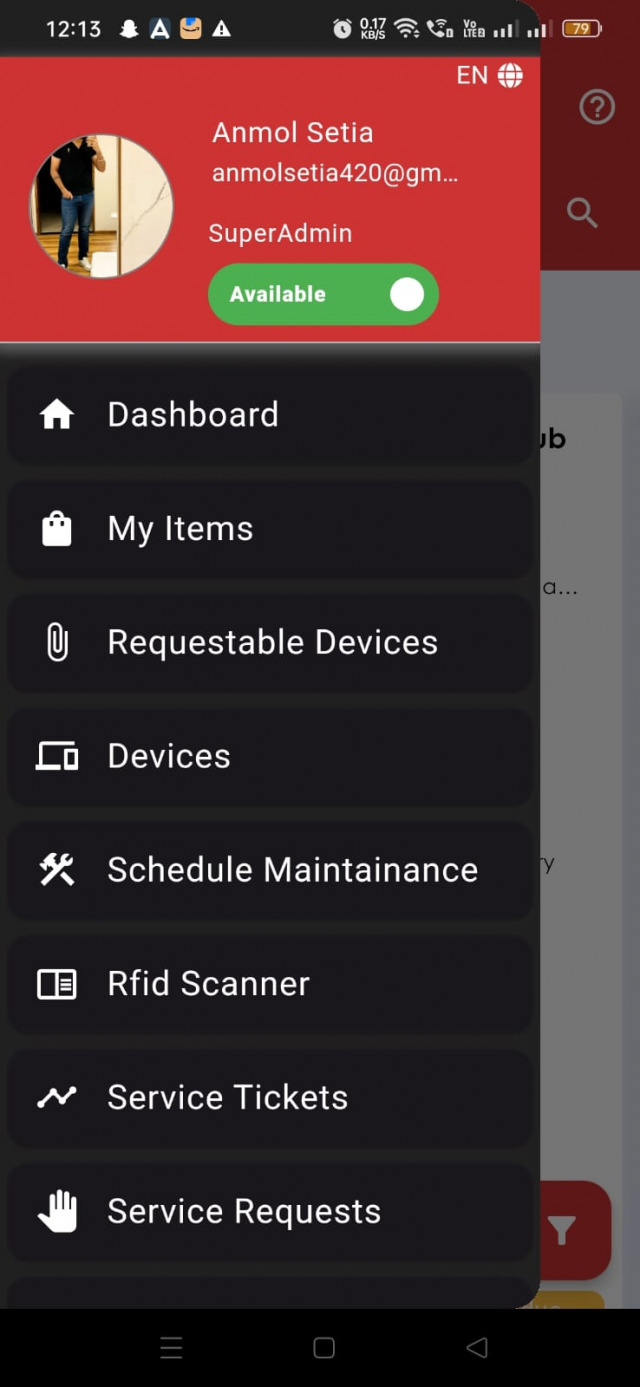
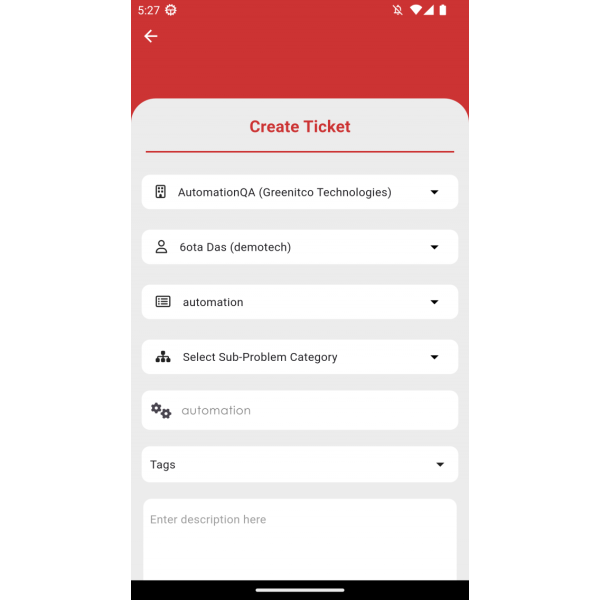
Tap + on the dashboard, or open Service Ticket and tap +, then Create.
| Field | Description |
|---|---|
| Company | Shown when you have several companies; departments are filtered by it |
| Department | Department for the ticket |
| Problem Category / Sub Problem Category | Filtered by the selected department and category |
| Creator | Defaults to you; change it to raise the ticket for someone else |
| Subject | Filled from the category if left empty |
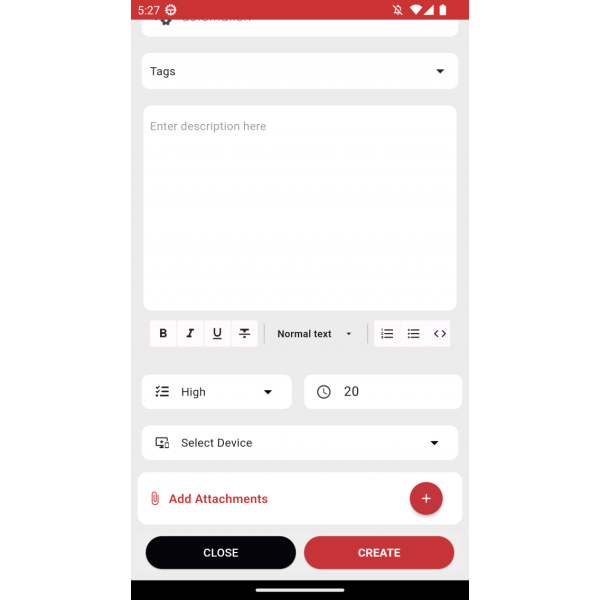
| Description | Details of the issue |
| Priority and TAT | Filled from the category or default values |
| Attachment | From storage or the camera |
| Device | Your assigned devices |
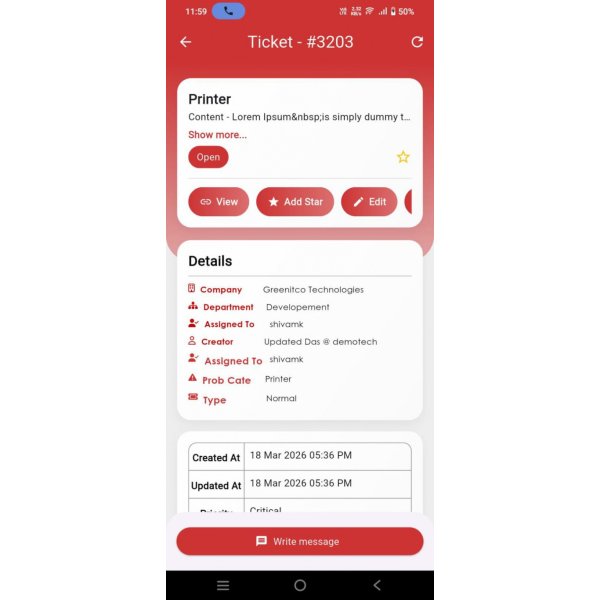
You receive a notification on your phone. For High or Critical priority, a buzzer notification is sent.
Edit or delete a ticket
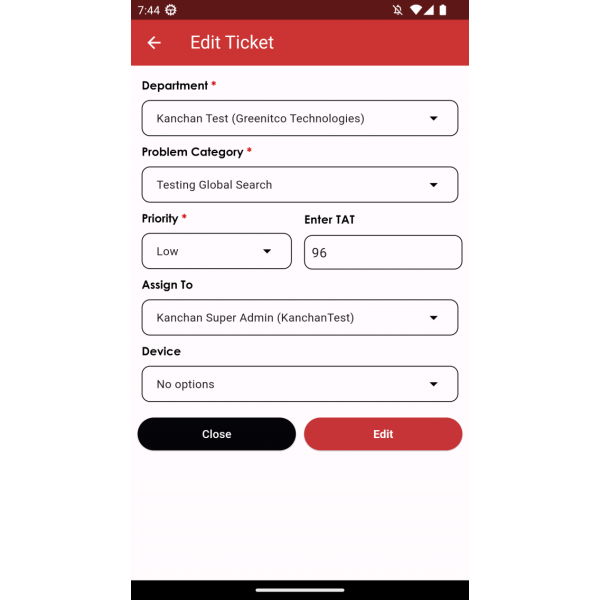
- Edit: open the ticket, tap Edit Ticket, change the department, category, priority, TAT, assignee or device, and save.
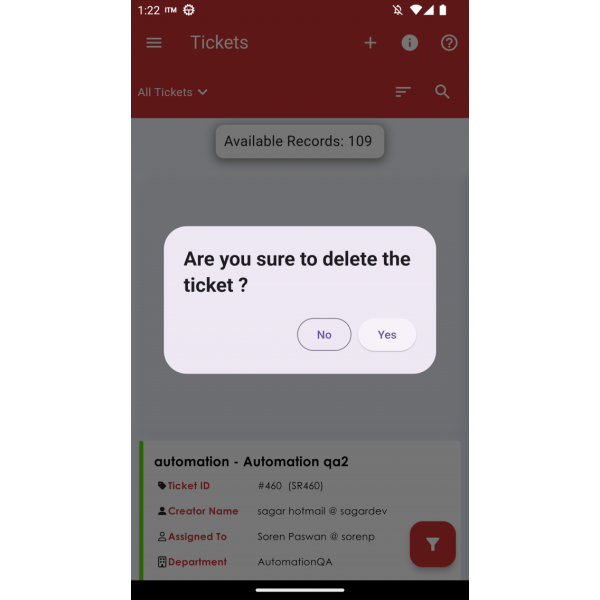
- Delete: swipe the ticket left or right in the list and tap Yes.
Ticket actions (technicians)
Open the ticket and tap:
| Button | Result |
|---|---|
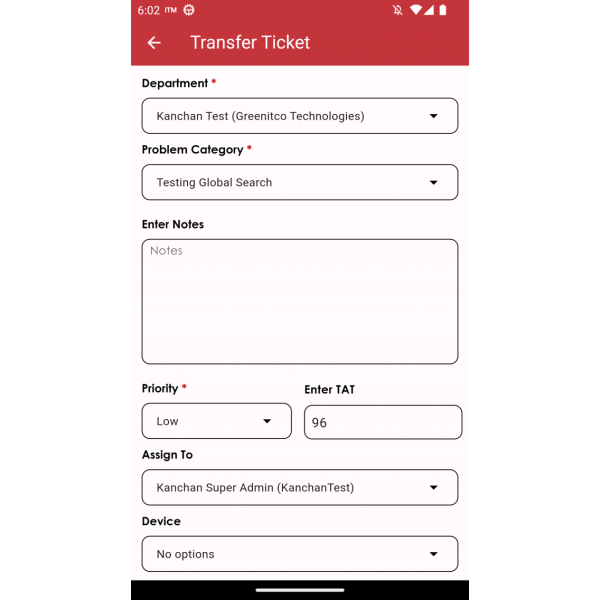
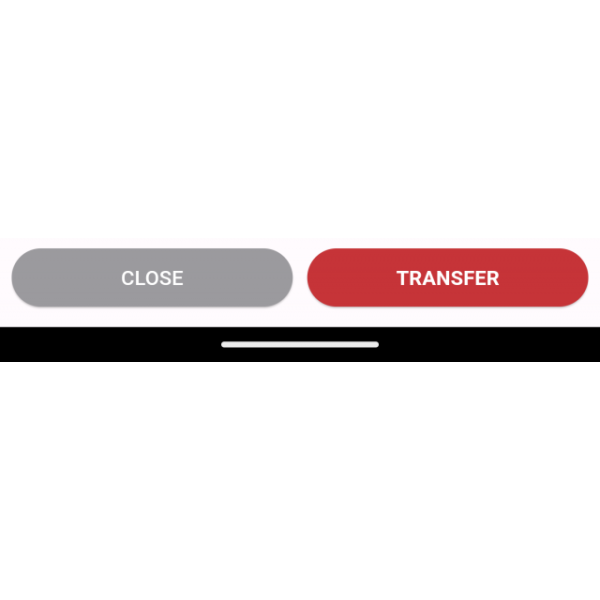
| Transfer | Choose the new department, category, priority, TAT, assignee and device, then Transfer |
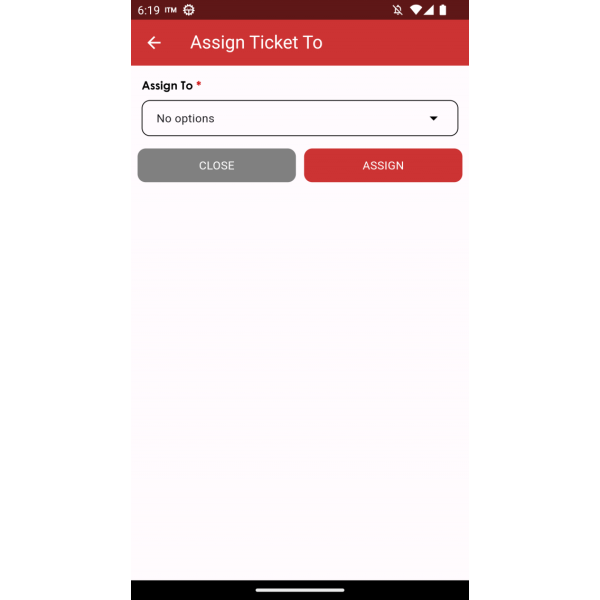
| Assign | Select a technician, then Assign |
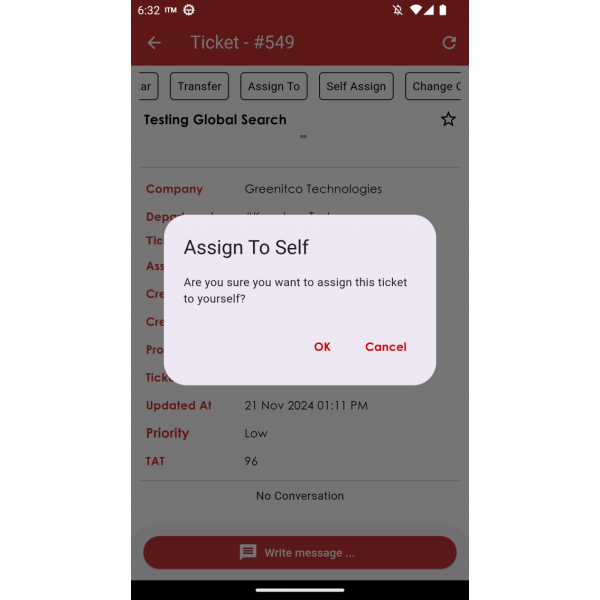
| Self Assign | Assign the ticket to yourself, then OK |
| Star | Mark the ticket as starred |
| Mark Spam | Mark as spam (the button changes to Mark Not Spam) |
| Change Creator | Select another user as the creator, then Update |
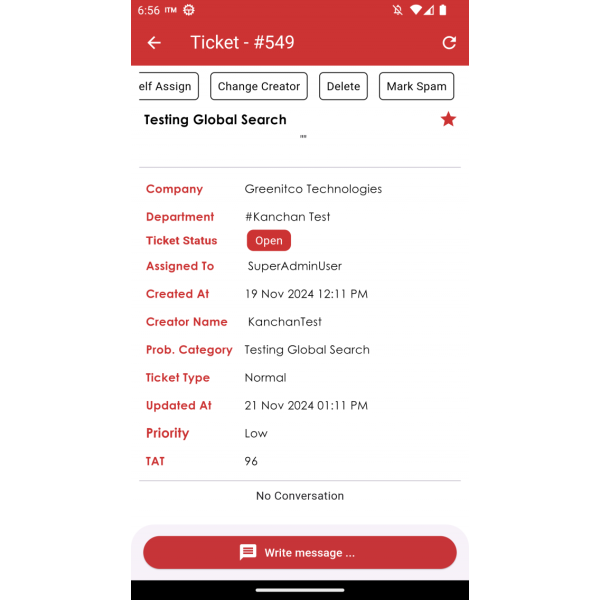
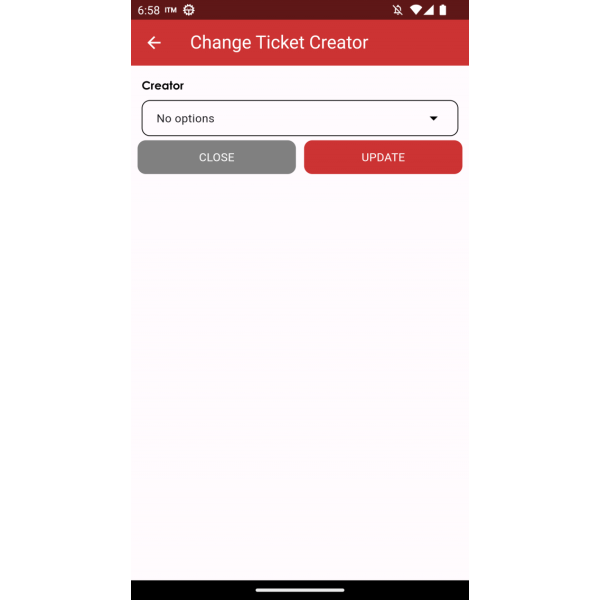
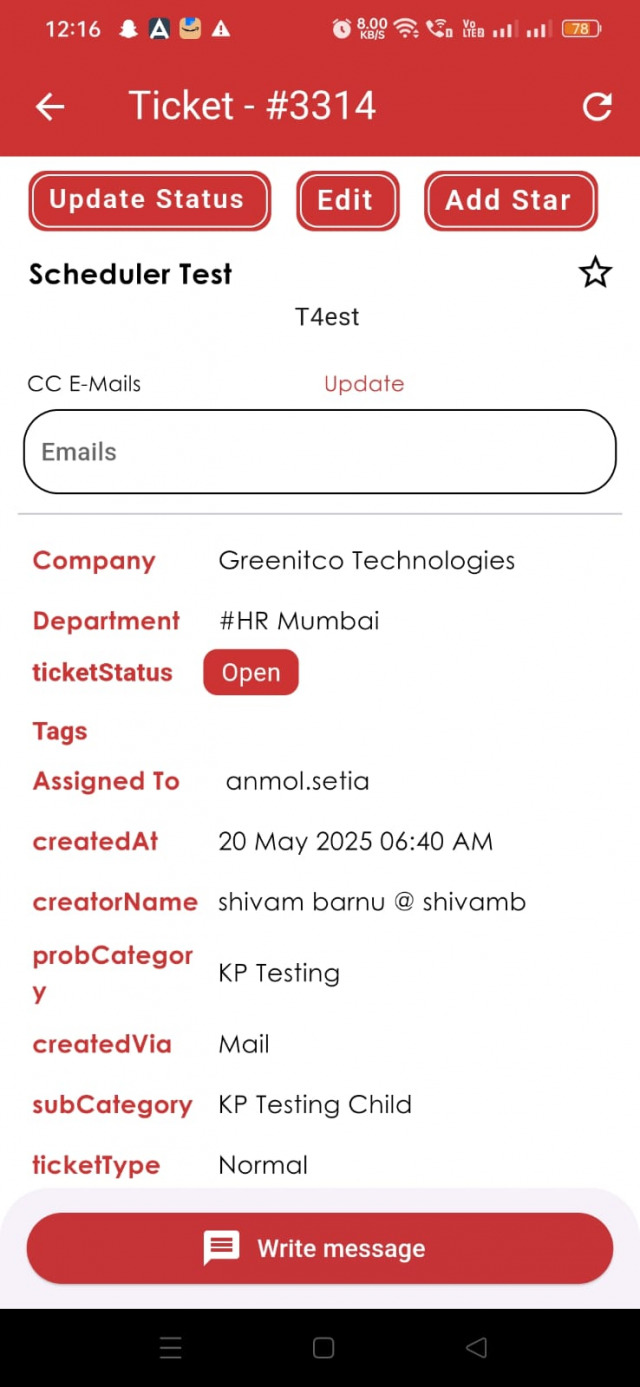
The assigned technician is notified; High and Critical tickets trigger a buzzer notification.
Comment on a ticket
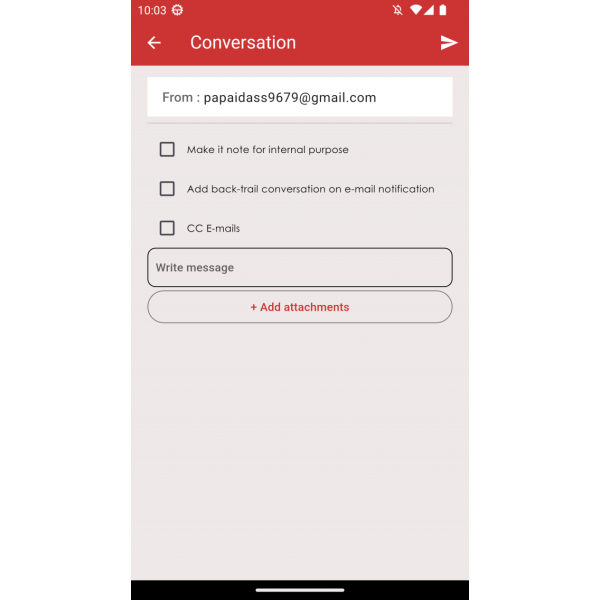
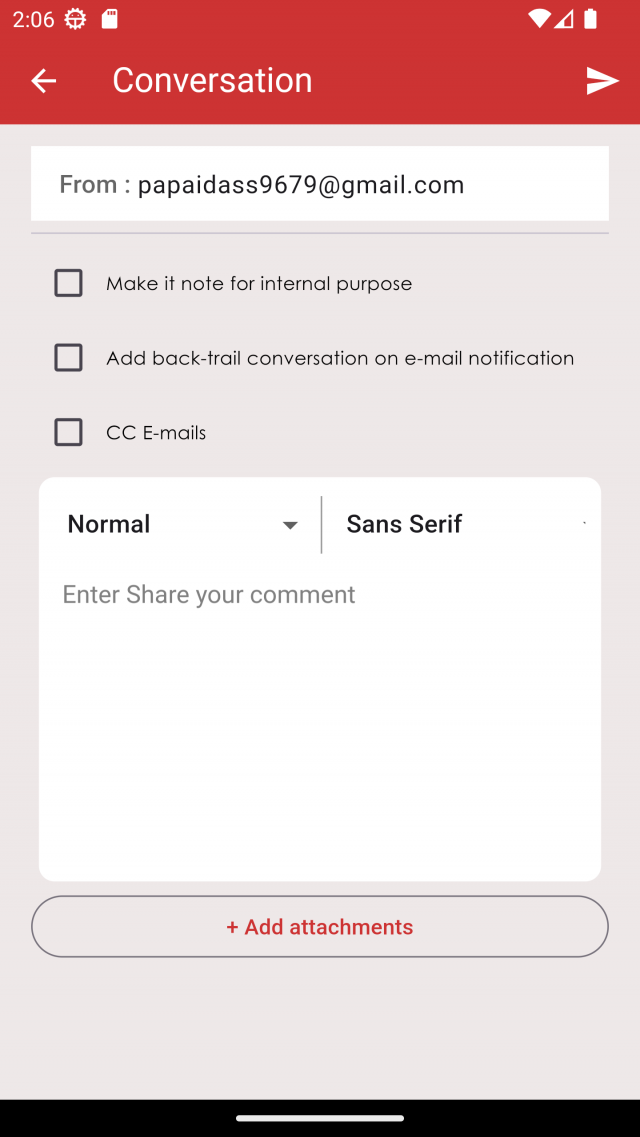
Open the ticket, tap Write Message, type the message, add attachments and CC emails if needed, select Internal Purpose to make the comment internal (not visible to the user), and tap Send.
Update status with GPS location
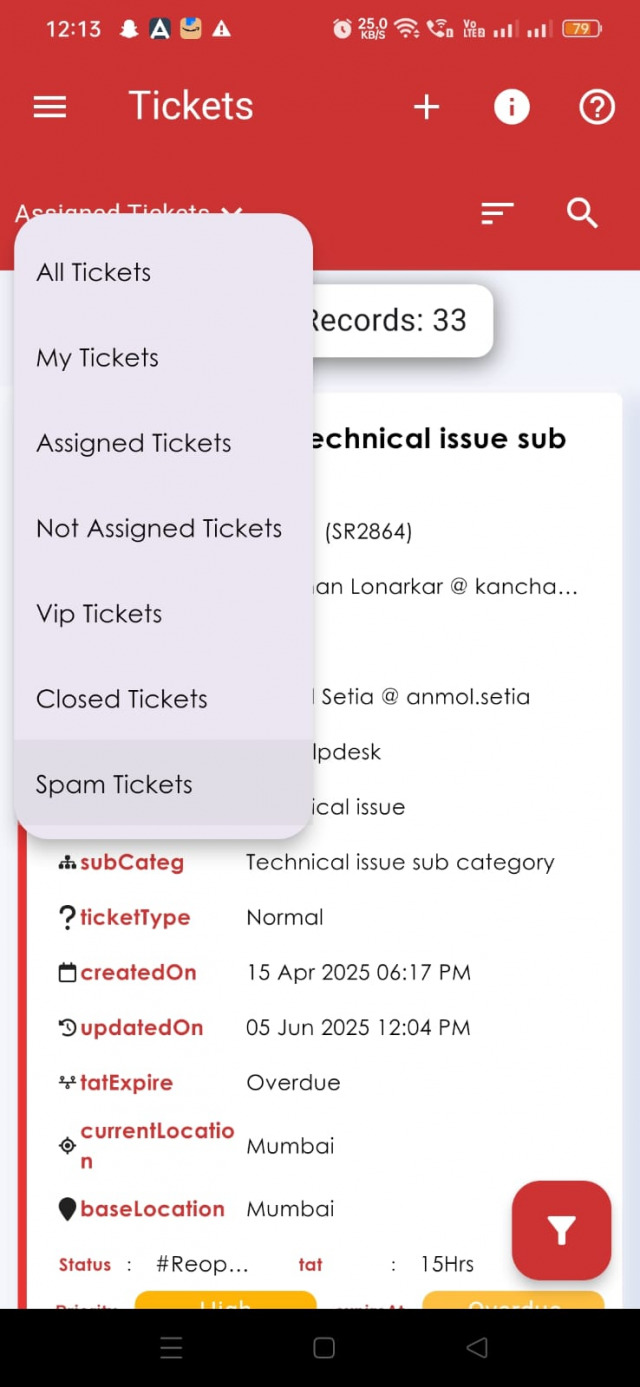
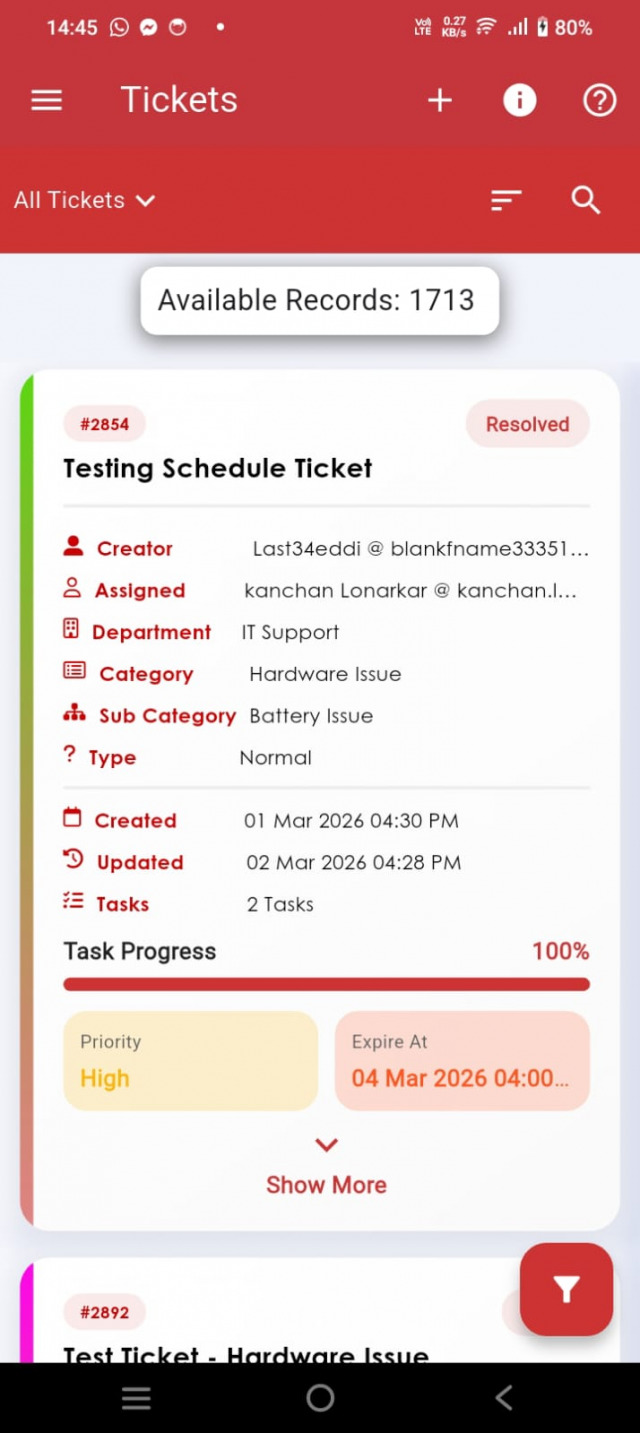
- Open Service Ticket, choose Assigned Ticket in the dropdown and open the ticket.
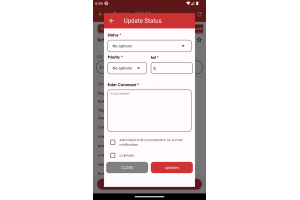
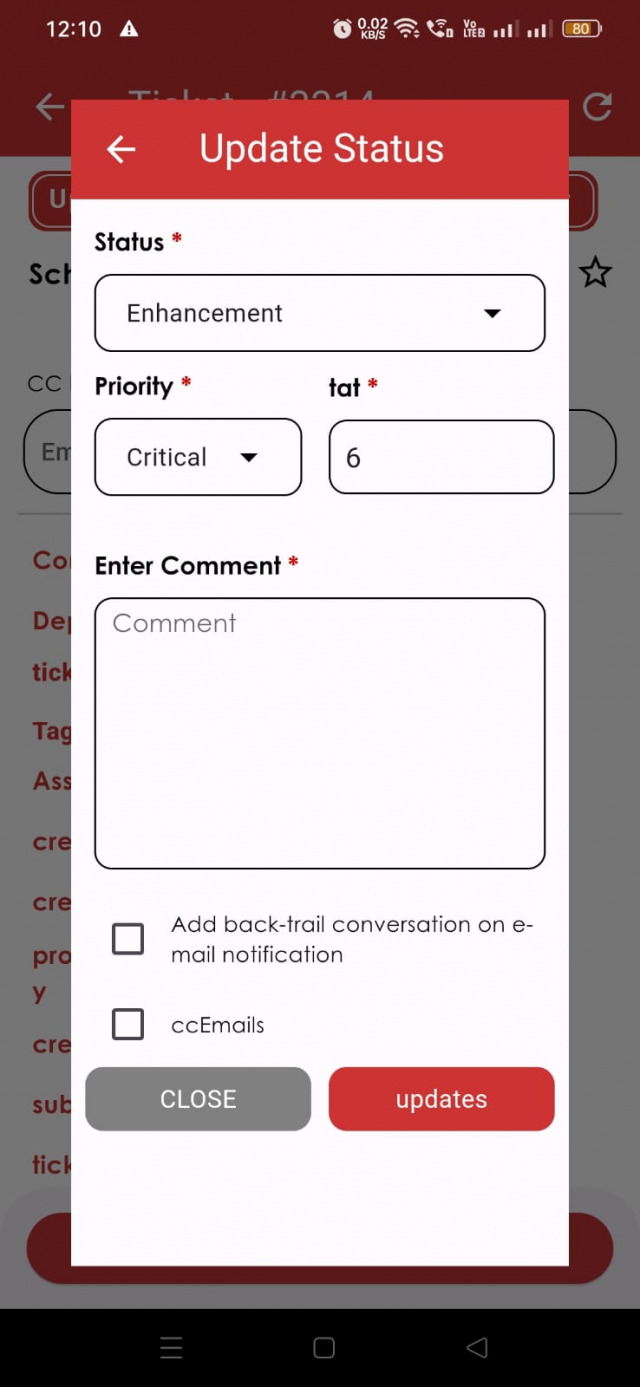
- Tap Update Status.
- Select the Status, Priority and TAT.
- For On Hold or Resolved, tap Get Location to record your current location (required for these statuses).
- Enter a comment, optionally add the back-trail conversation and CC emails, and tap Update.
Status forms
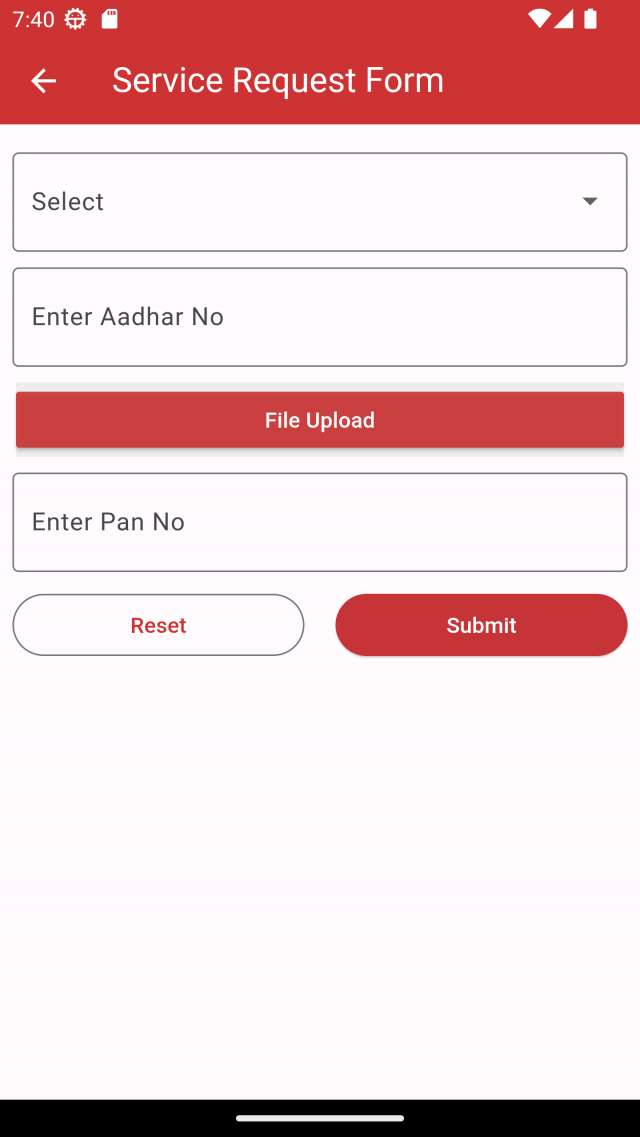
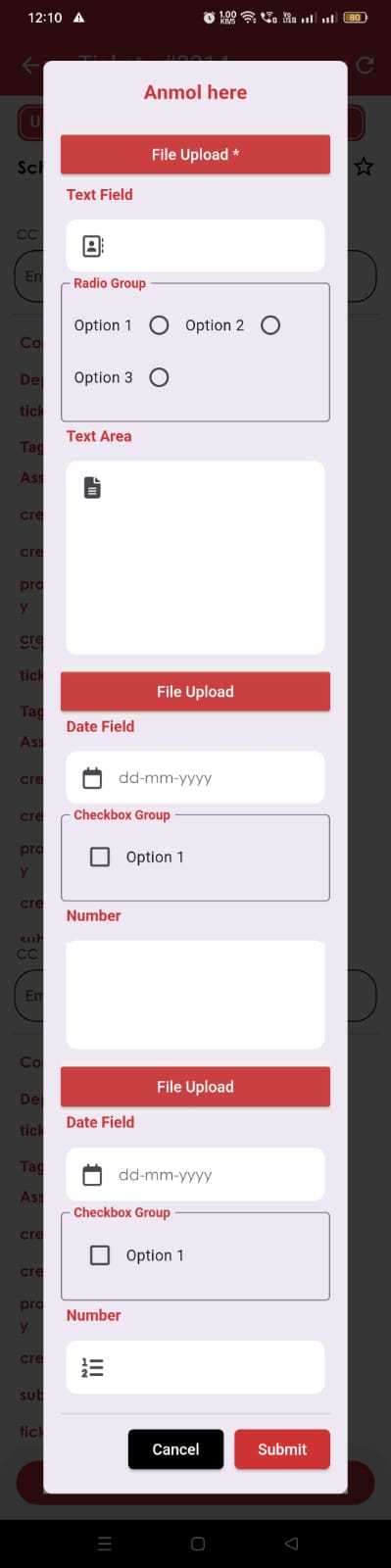
If a status form is set for the ticket's category and status in the portal, selecting that status in Update Status opens the form. Fill in all required fields and submit; the status cannot be changed until the form is completed. See Ticket Statuses.
Filter tickets
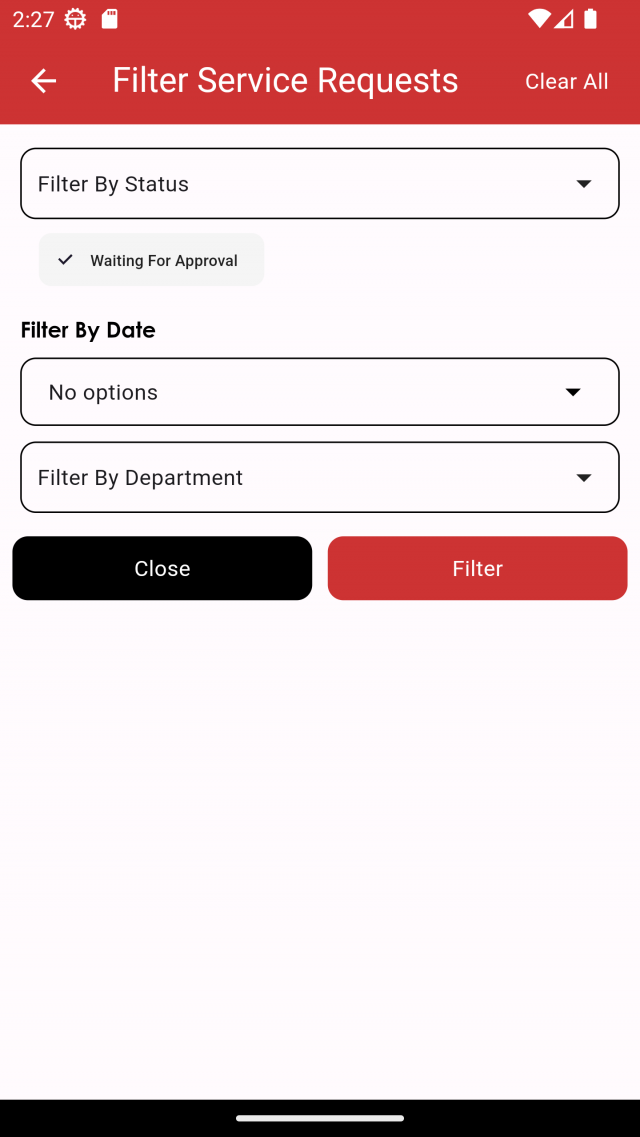
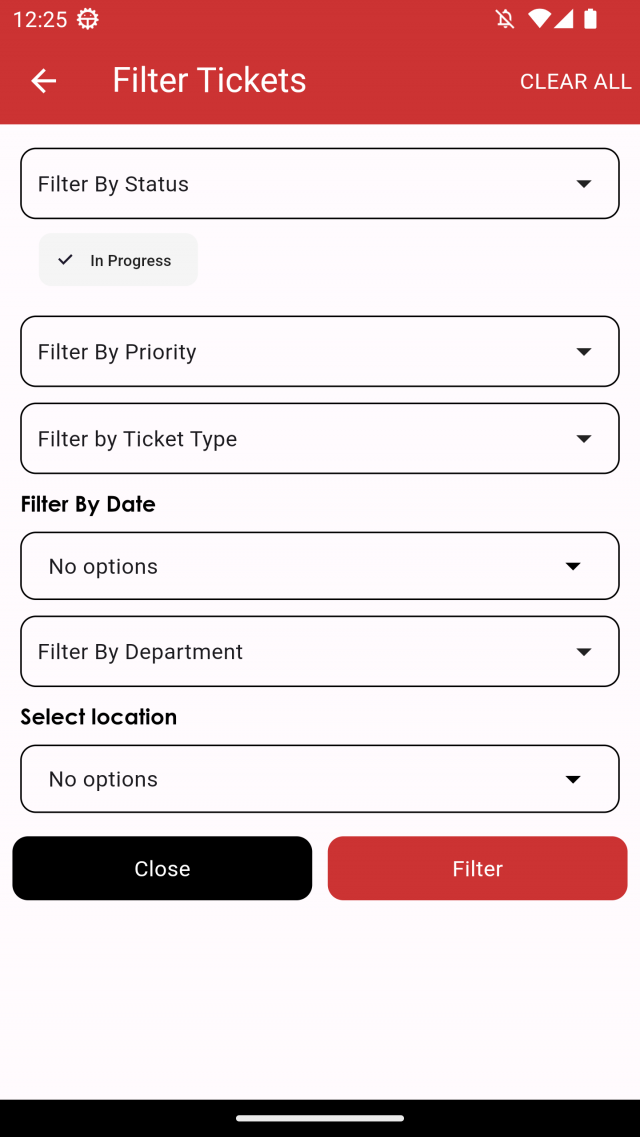
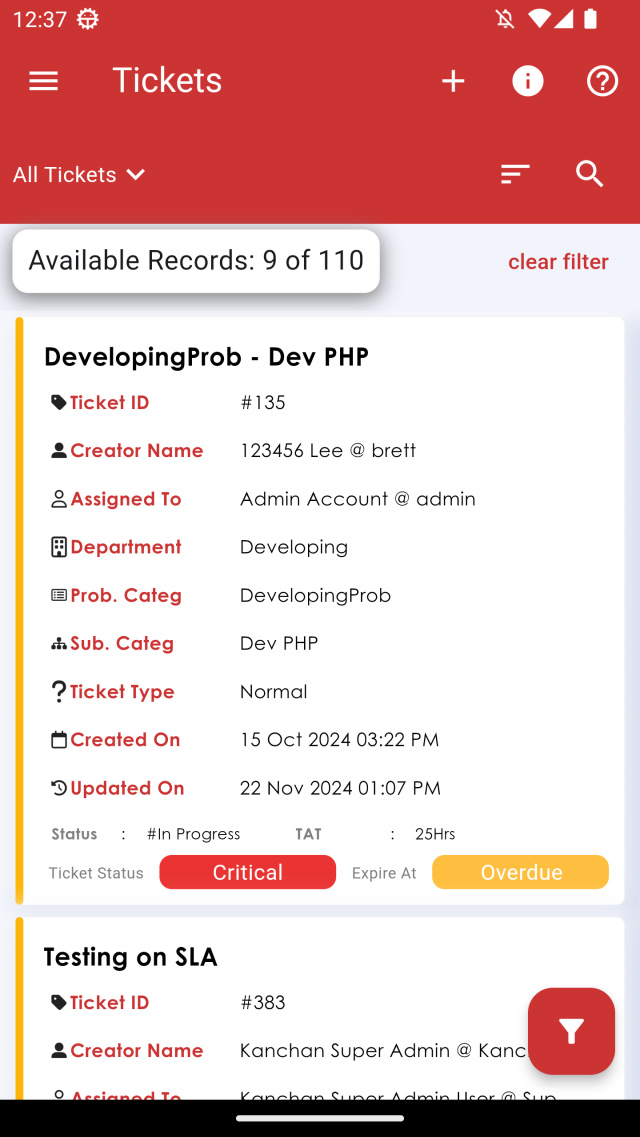
Tap the filter icon, choose values and tap Filter. Filters are remembered; tap Clear All to reset.
Service requests
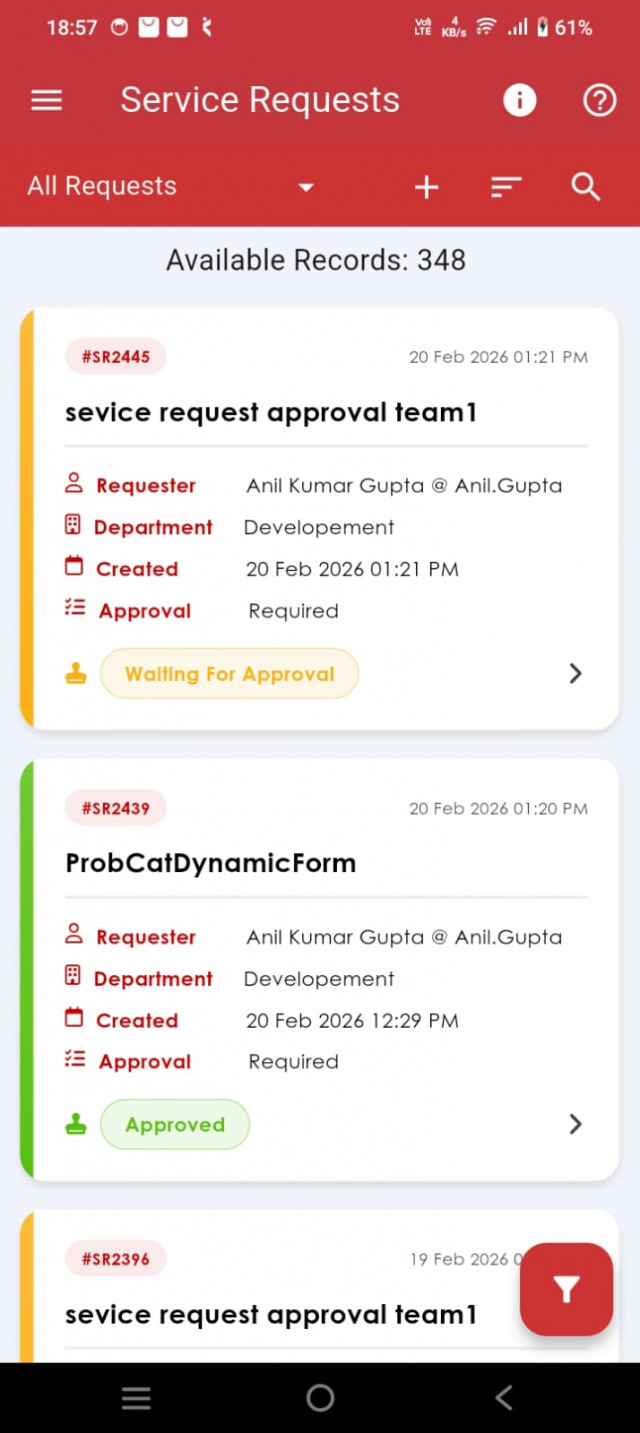
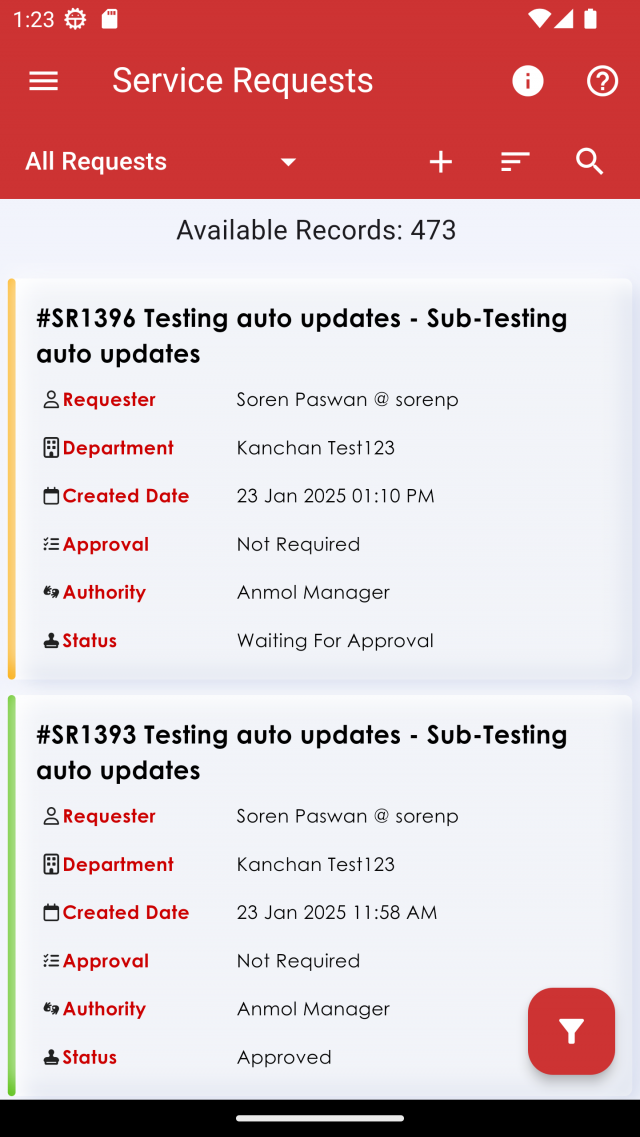
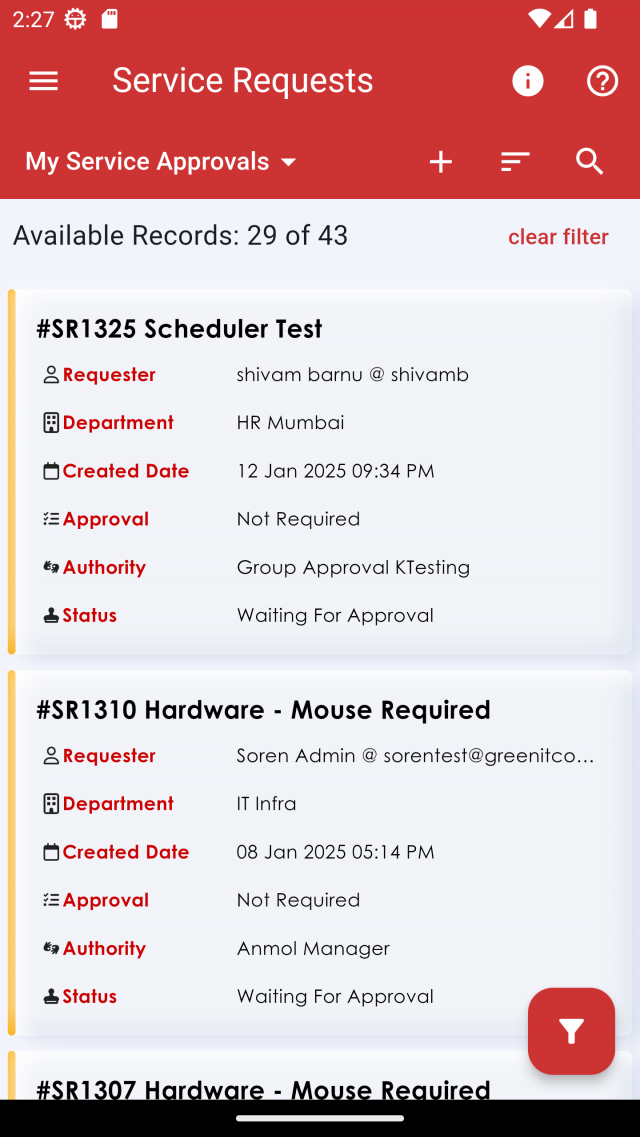
- Create: tap + on the dashboard or in Service Request. The request or dynamic form for the category is shown; fill it in and tap Submit. Use the edit icon at the top right to change the form before creating.
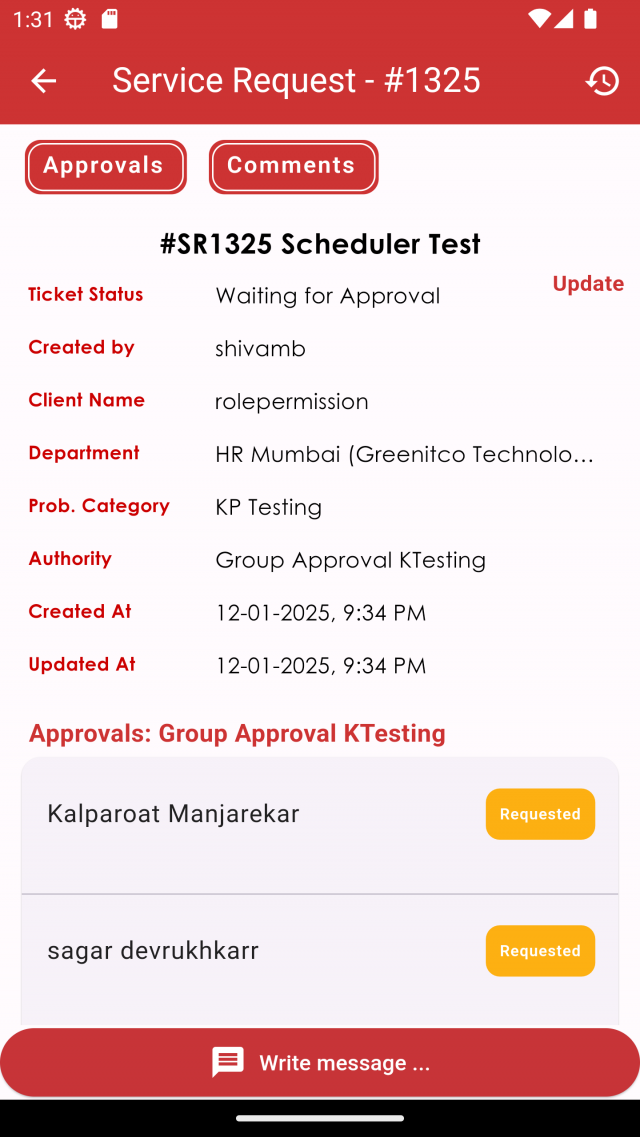
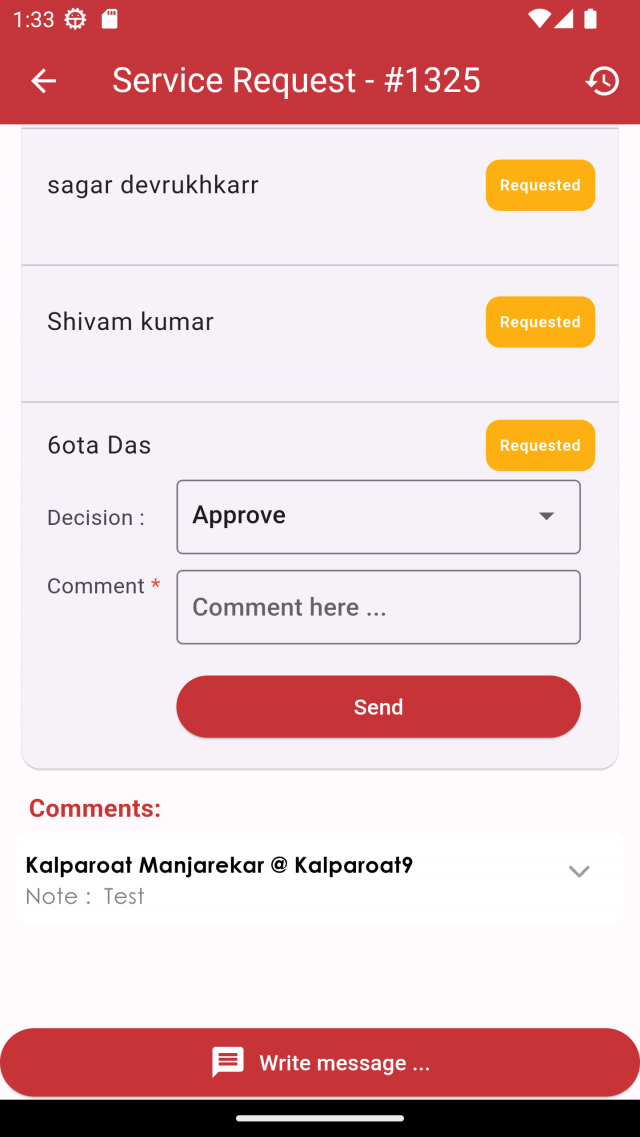
- Approve: open the request, select Approve or Reject in the dropdown, enter a comment and tap Send.
- Comment: tap Write Message, add text, attachments, CC emails or mark as internal, and tap Send.
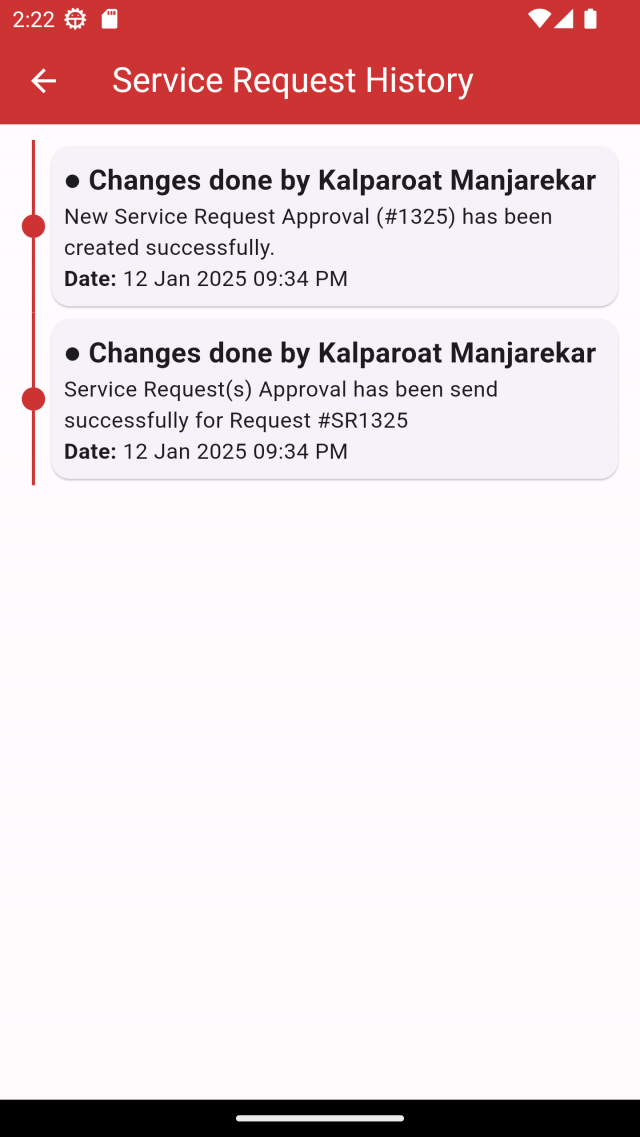
- History: tap the History icon.
- Filter: tap the filter icon; Clear All resets filters.