

Introduction
Asset List and Filters work together as the primary workspace: the list provides a structured table of asset records, while filters let you narrow that table down to only the assets relevant to your current task. The exact capabilities vary by platform, but the core pattern is consistent—a paginated, sortable table paired with simple keyword search and more structured, condition-based filtering.
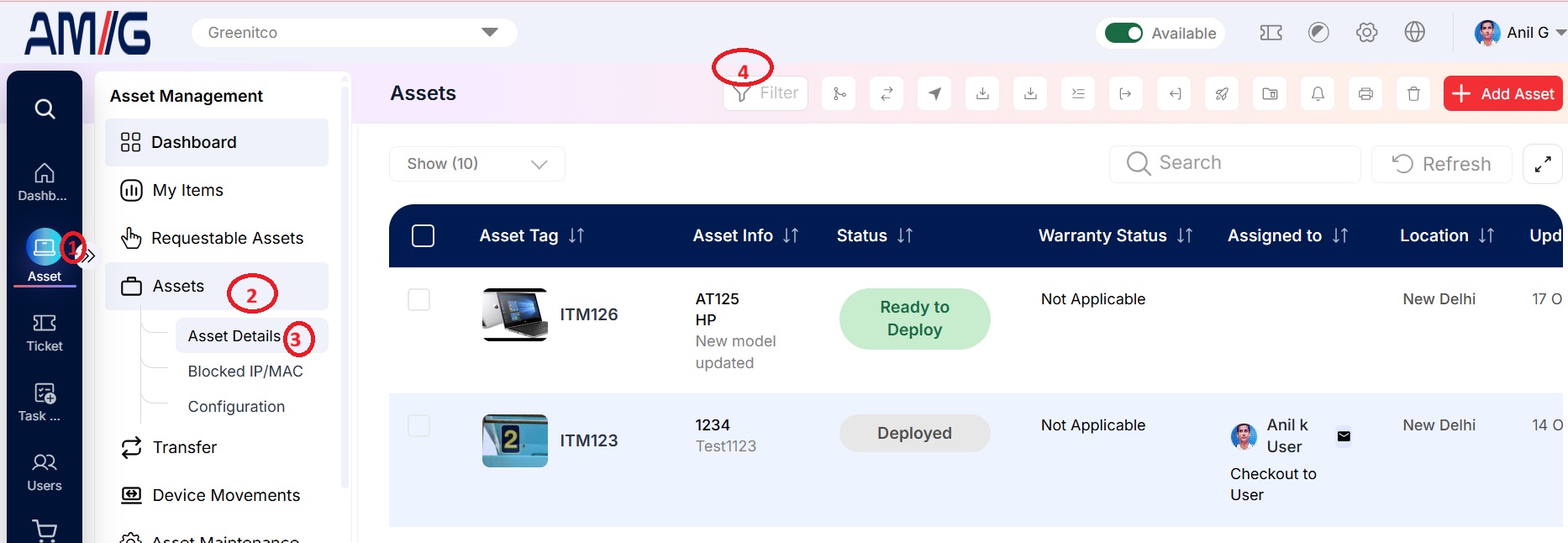
Navigation Path: Sidebar > Asset > Assets > Asset Details
Filter the Asset list
- Open Asset → Assets→Asset Details.
- Select the Filter button.
- Choose one or more filters and apply them.
The number of active filters is shown on the filter icon. Select Clear to remove all filters.
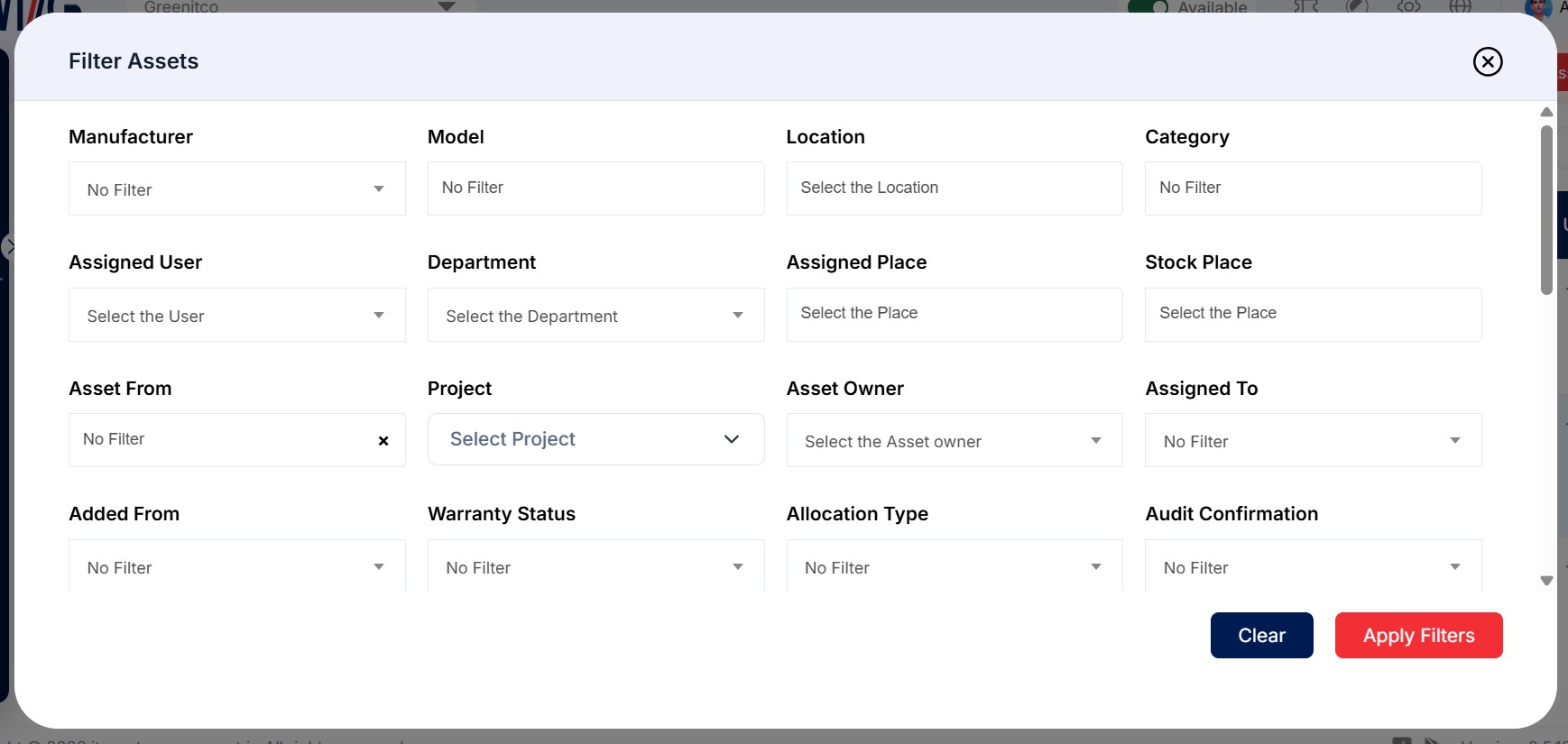
Asset Listing – Filter Reference
| Filter By | Description |
|---|---|
| Manufacturer | Displays assets manufactured by the selected manufacturer. |
| Model | Displays assets associated with the selected model. |
| Category | Displays assets belonging to the selected category, such as Laptop or Desktop. |
| Asset Type | Displays assets matching the selected Asset type. |
| Location | Displays assets registered at the selected location. |
| Internal Place | Displays assets located in the selected internal area, such as a floor or section. |
| Stock Location / Stock Place | Displays assets stored at the selected stock location or stock place. |
| Department | Displays assets assigned to or used by the selected department. |
| Assigned User | Displays assets assigned to the selected user. |
| Assigned Place | Displays assets assigned to the selected place. |
| Assigned To | Displays assets assigned to a user or place. |
| Assigned User Location | Displays assets assigned to users whose assigned location matches the selected location. |
| Assigned User Internal Place | Displays assets assigned to users associated with the selected internal place. |
| User Base Location | Displays assets assigned to users whose base location matches the selected location. |
| User Department | Displays assets assigned to users belonging to the selected department. |
| Total Assigned Devices by User | Displays the total number of devices assigned to each user. |
| User Assign Condition | Filters assets according to the specified user assignment conditions. |
| Asset Owner | Displays assets owned by the selected company or individual user. |
| Asset Tag | Displays assets matching the specified asset tag. |
| Asset From | Displays assets based on their source, such as Purchase Asset, Project Asset, Rental Asset, or Customer Owned. |
| Project | Displays assets linked to the selected project. |
| Device Added By | Displays assets added through manual entry, network inventory, Azure, or the network scanner. |
| Detected On | Displays assets based on the date they were first detected. |
| NI Detected Location | Displays assets detected by Network Inventory at the selected location. |
| Date / Date Range | Filters assets by a specified date or date range, such as the purchase date. |
| Warranty Status | Displays assets with an active or expired warranty. |
| Allocation Type | Displays assets based on their allocation type, such as Permanent or Temporary. |
| Audit Confirmation | Displays assets according to their latest audit status: Accepted, Rejected, or Pending. |
| Custom Field / Custom Field Value | Filters assets by the selected custom field or its corresponding value. |
| RDP Status | Displays assets according to whether Remote Desktop Protocol (RDP) is enabled or disabled. |
| High Priority | Displays assets marked as high priority. |
| Under Transfer | Displays assets currently undergoing a transfer. |
| Requestable | Displays assets available for user requests. |
| SEZ | Displays assets designated as Special Economic Zone (SEZ) devices. |
| RFID | Displays assets based on their RFID tag information. |
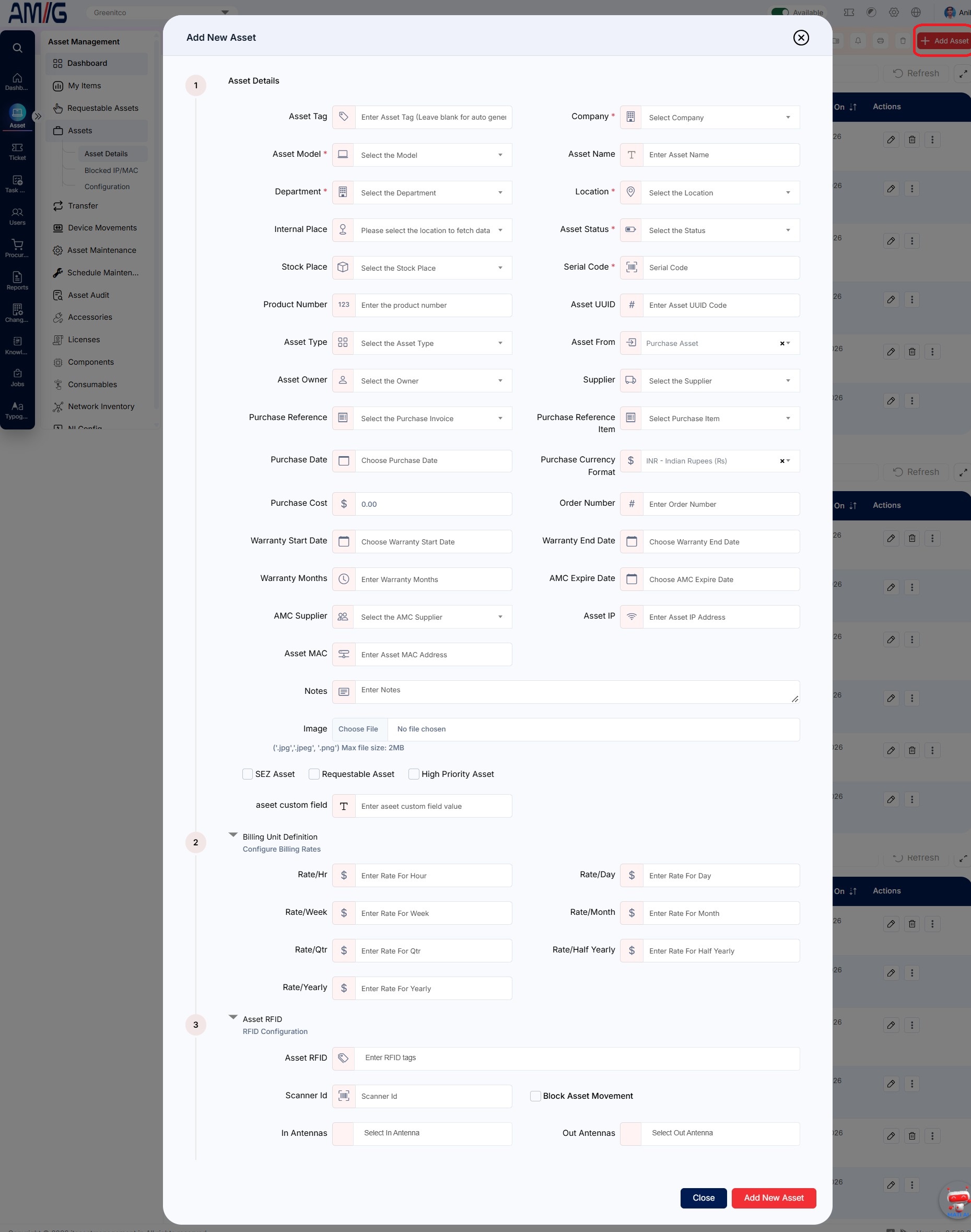
Add Asset
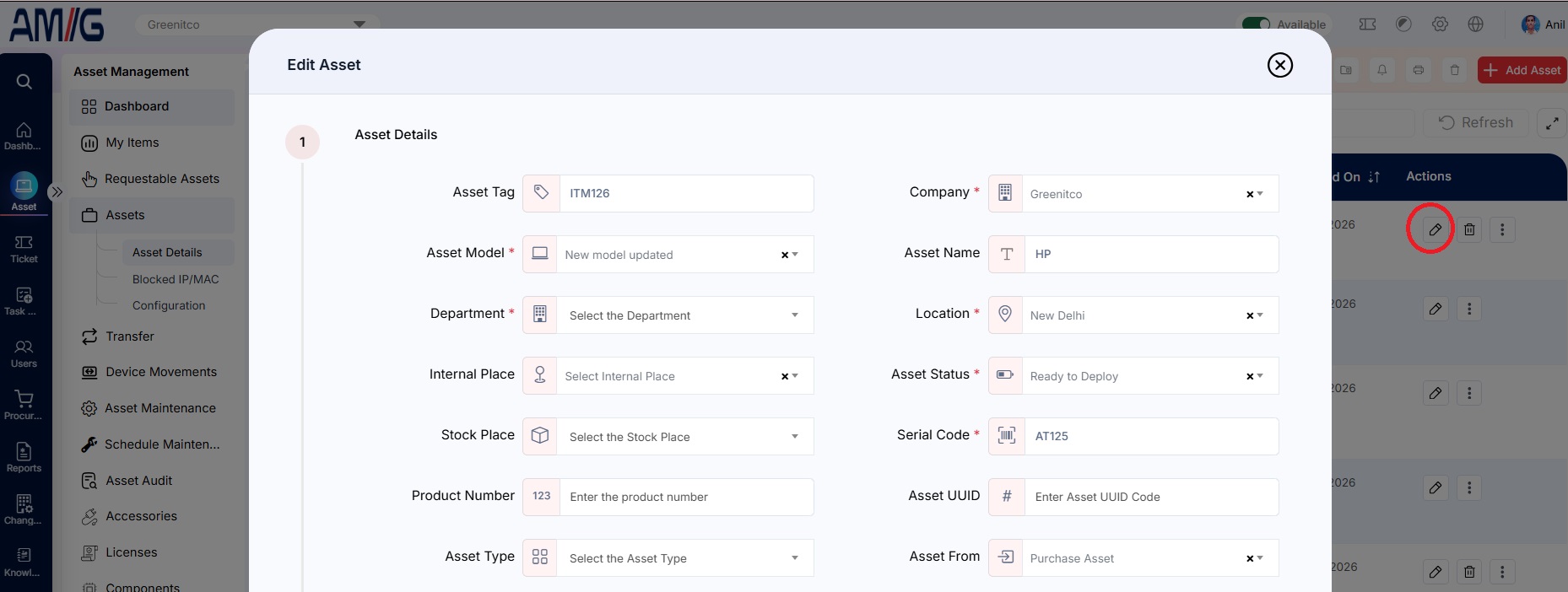
Edit Asset
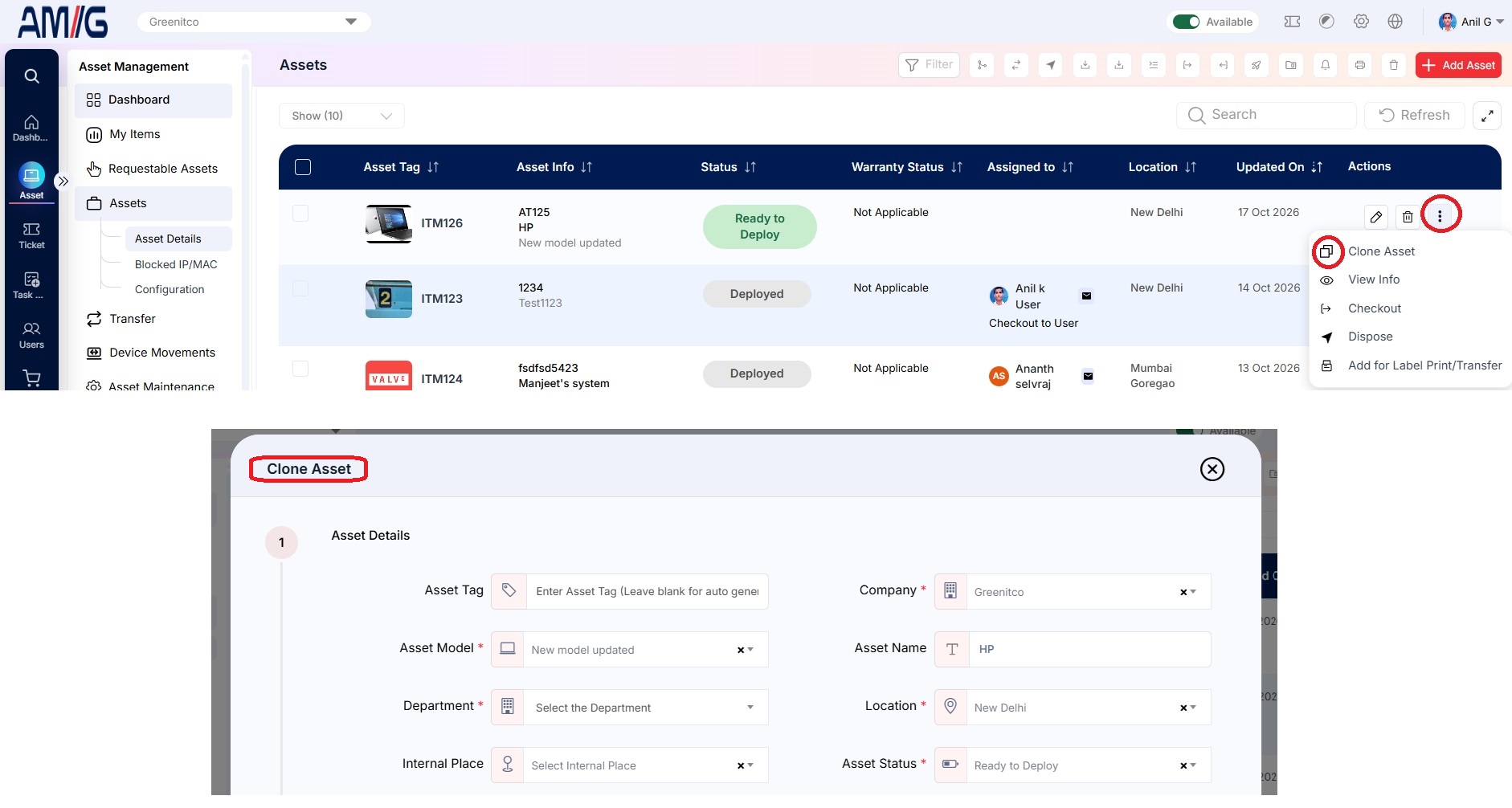
Clone Asset
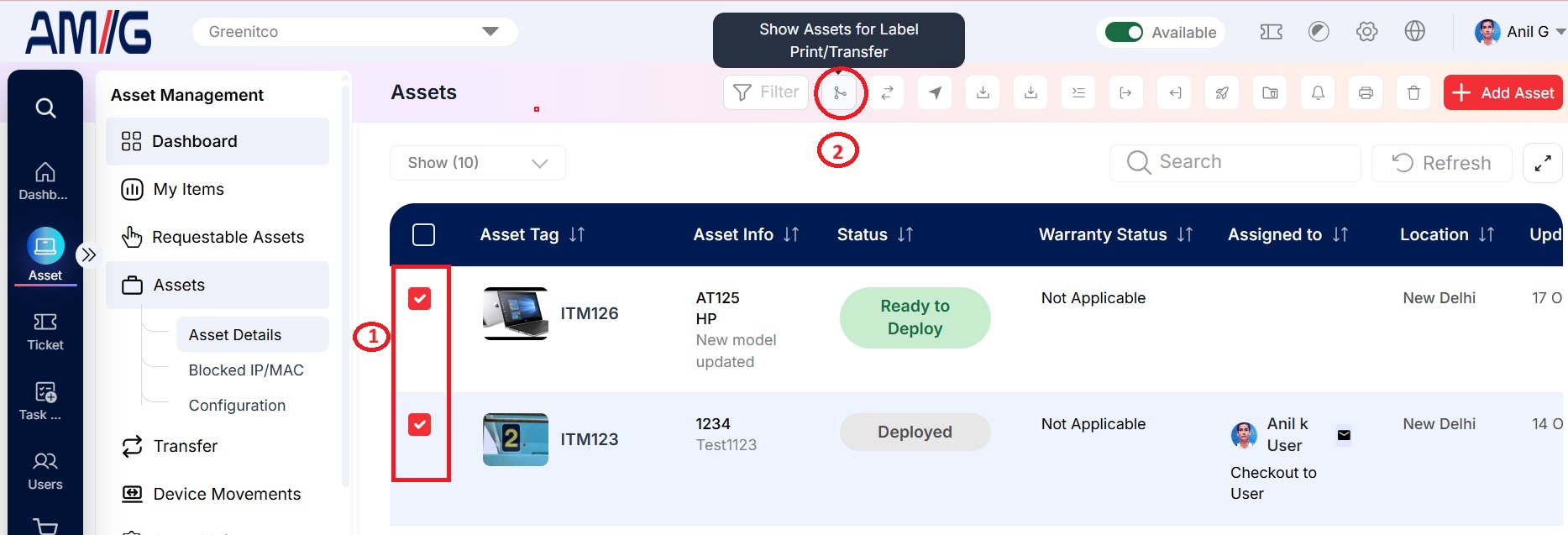
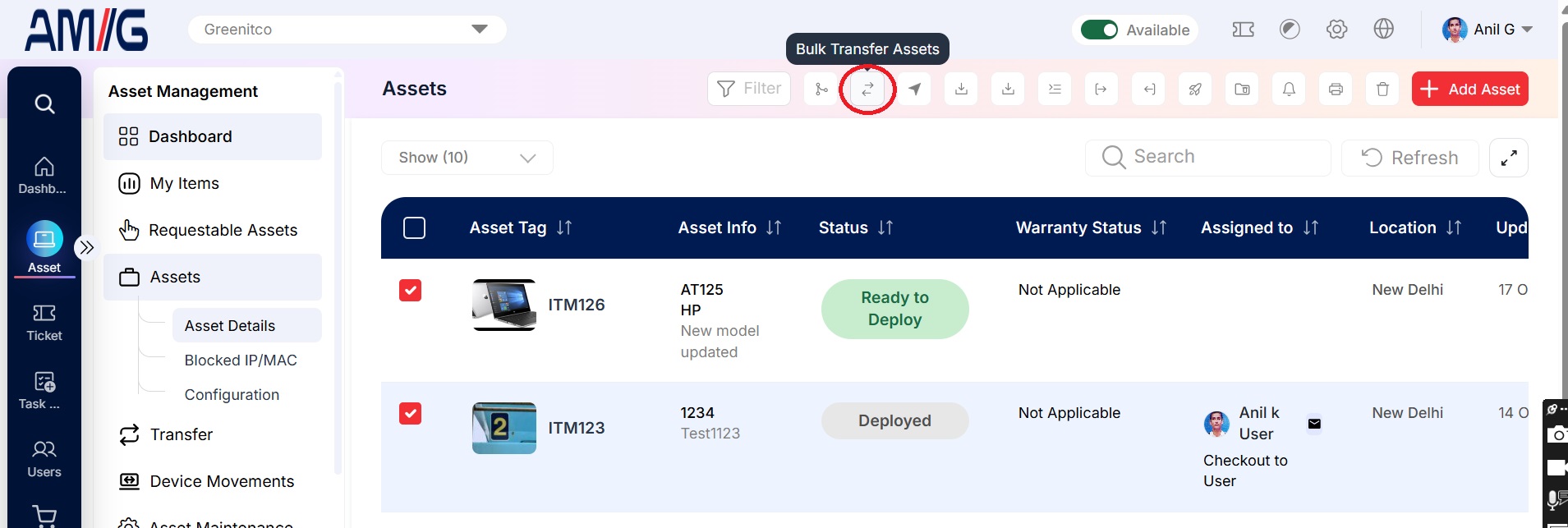
Add Assets for bulk Label Print or Bulk Transfer
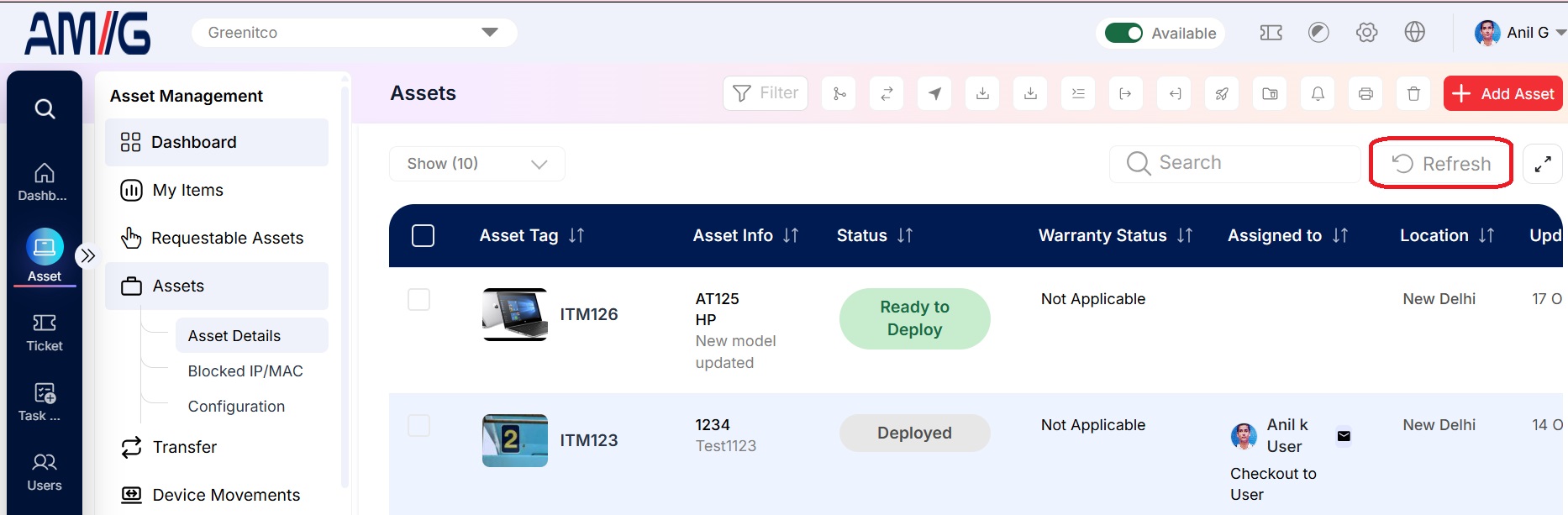
Refresh the Asset list
Select Refresh (refresh icon) to reload the list.
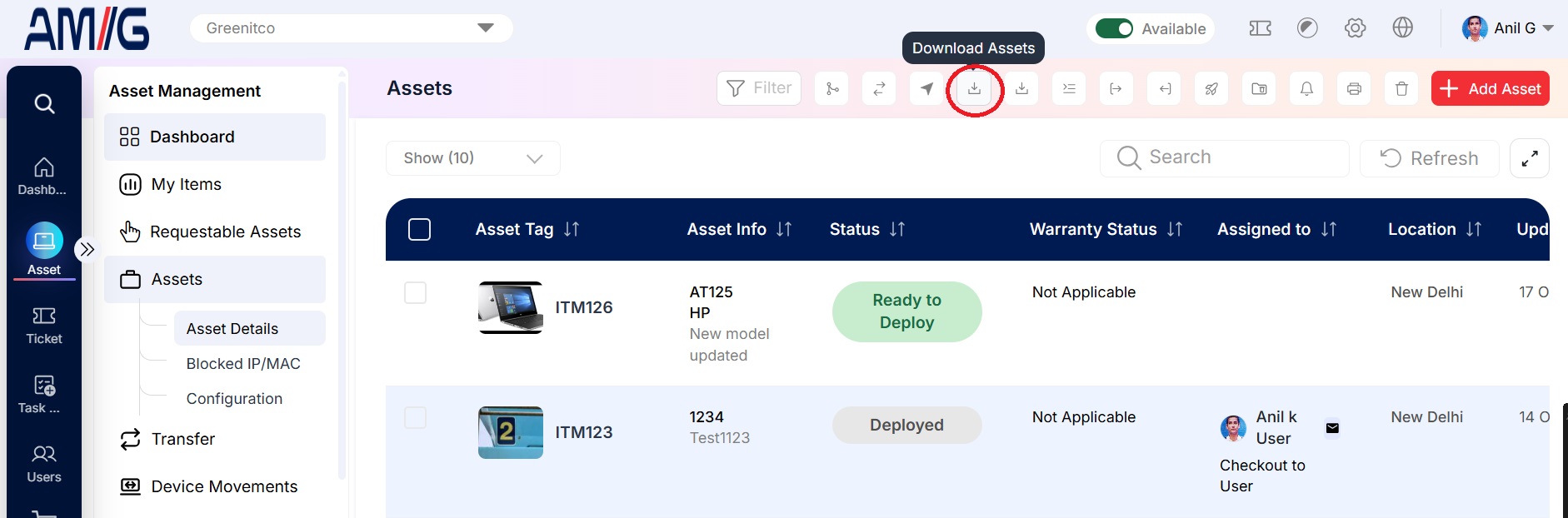
Download the Asset list
Select Download Assets : To export the Asset to Excel.
Check whether a device is in network inventory
If a device was also discovered by an agent or scan, a network inventory (sitemap) icon appears in its action menu. Select it to open the device's inventory details. If the icon is not shown, the device has no network inventory record.