

Go to Sidebar > Users > All Users. The Users List opens and shows every user along with their key details.
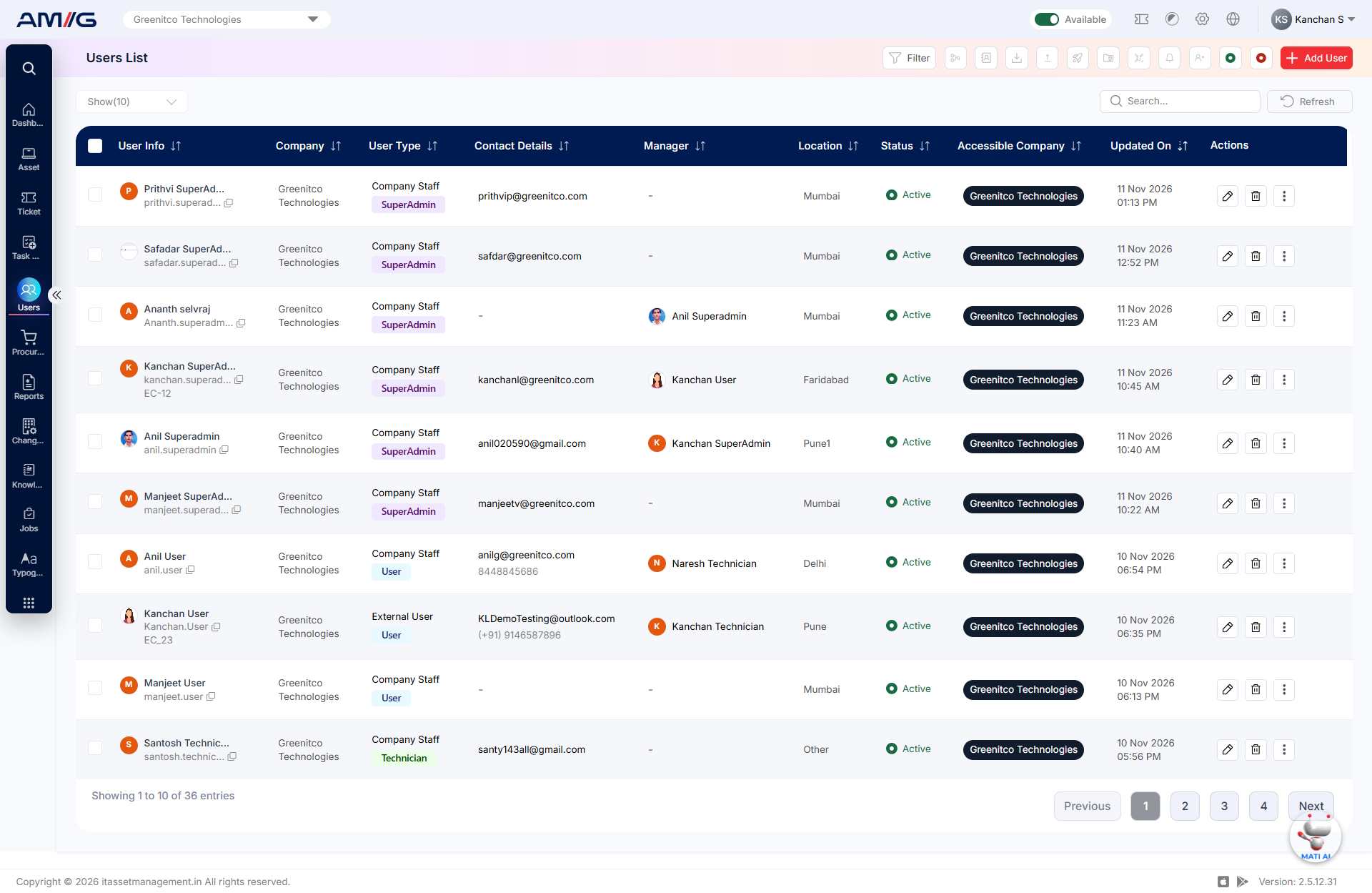
Figure: Users List screen
Table: What each column shows
| Column | What it shows |
|---|---|
| User Info | The user’s name, profile picture and account details. |
| Company | The company the user belongs to. |
| User Type | Whether the person is Company Staff, Contract Staff or an External User. |
| Contact Details | The user’s email address and phone number (if added). |
| Manager | The person this user reports to. |
| Location | Where the user is based. |
| Status | Active (can log in) or Inactive (cannot log in). |
| Accessible Company | The companies this user is allowed to work with. |
| Updated On | When the user’s record was last changed. |
| Actions | Buttons to edit or delete the user, plus a three-dot menu with more options. |
Table: Buttons and controls on the Users List
| Control | What it does |
|---|---|
| Show Entries | Choose how many users appear on each page. |
| Filter | Opens the filter panel so you can narrow down the list. |
| Search | Find a user by typing a name or other detail. |
| Refresh | Reloads the list to show the latest changes. |
| Add User | Opens the form to create a new user. |
| Pagination | Moves between pages of the list. |
| Selection checkbox | Selects users so you can apply an action to several at once. |