

Introduction
CC Email User Groups allow you to create and manage groups of users based on a company, department, and problem category. These groups can be used across different modules to select the appropriate users for task assignments and other activities.
Using this section, you can:
-
Create User Groups: Define groups based on a company, department, problem category, and subcategory.
-
Manage Group Members: Add or remove users from a group through the member list.
-
Reuse Groups Across Modules: Use the configured groups in different workflows, including Tasks and Scheduled Maintenance, wherever group selection is supported.
For example, you can create a group for the IT department's hardware-related issues and use it to select the relevant users when assigning tasks or scheduling maintenance activities.
These settings help simplify user management and ensure that the appropriate users can be selected consistently across different modules.
Navigation:
Sidebar › Ticket › CC Email Group
Viewing CC Email User Groups
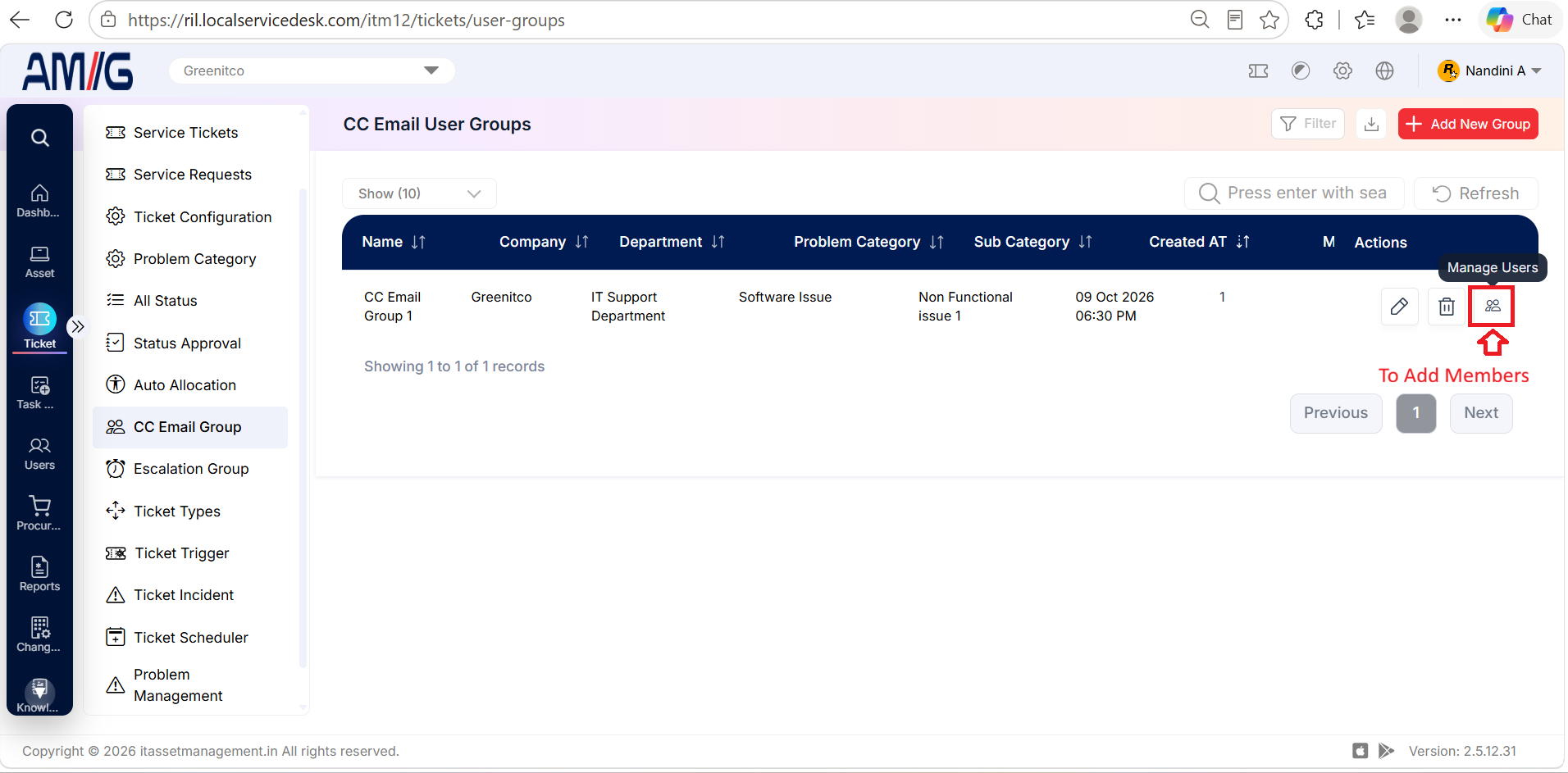
The list displays each group’s name, company, department, problem category, subcategory, creation time, and member count. Use Filter, Search, and Refresh to locate a group.
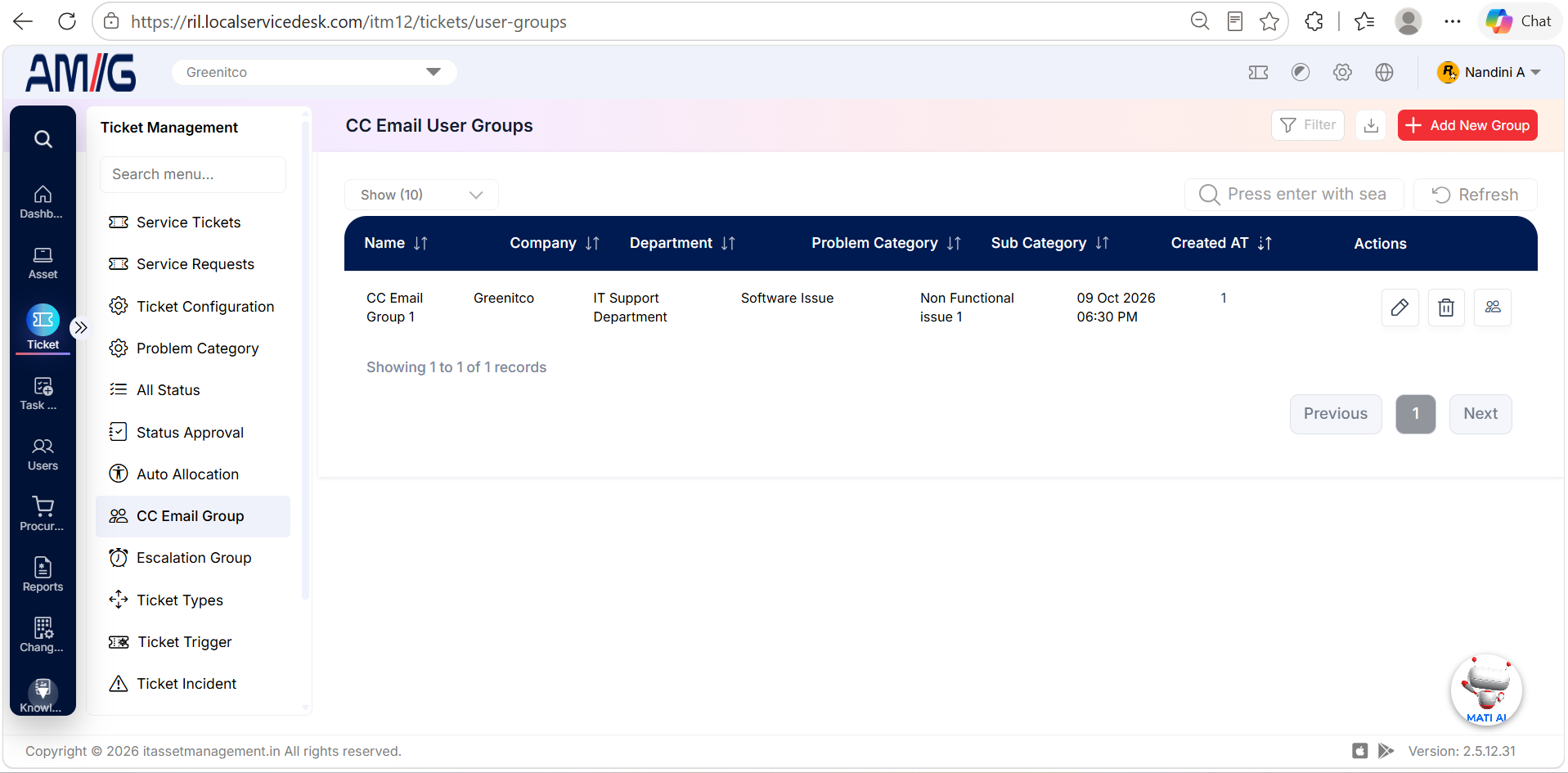 CC Email User Groups List
CC Email User Groups list columns
| Column | Description |
|---|---|
| Name | Name assigned to the CC email group. |
| Company / Department | Company and department associated with the group. The group is available within the configured department. |
| Problem Category / Sub Category | Problem category and subcategory associated with the group. The group is available for the configured category context. |
| Created At | Date and time when the group was created. |
| Member Count | Number of users in the group. |
| Actions | Edit, Delete and Manage Members controls. |
Creating a CC Email User Group
Step 1 → On the CC Email User Groups screen, click Add New Group.
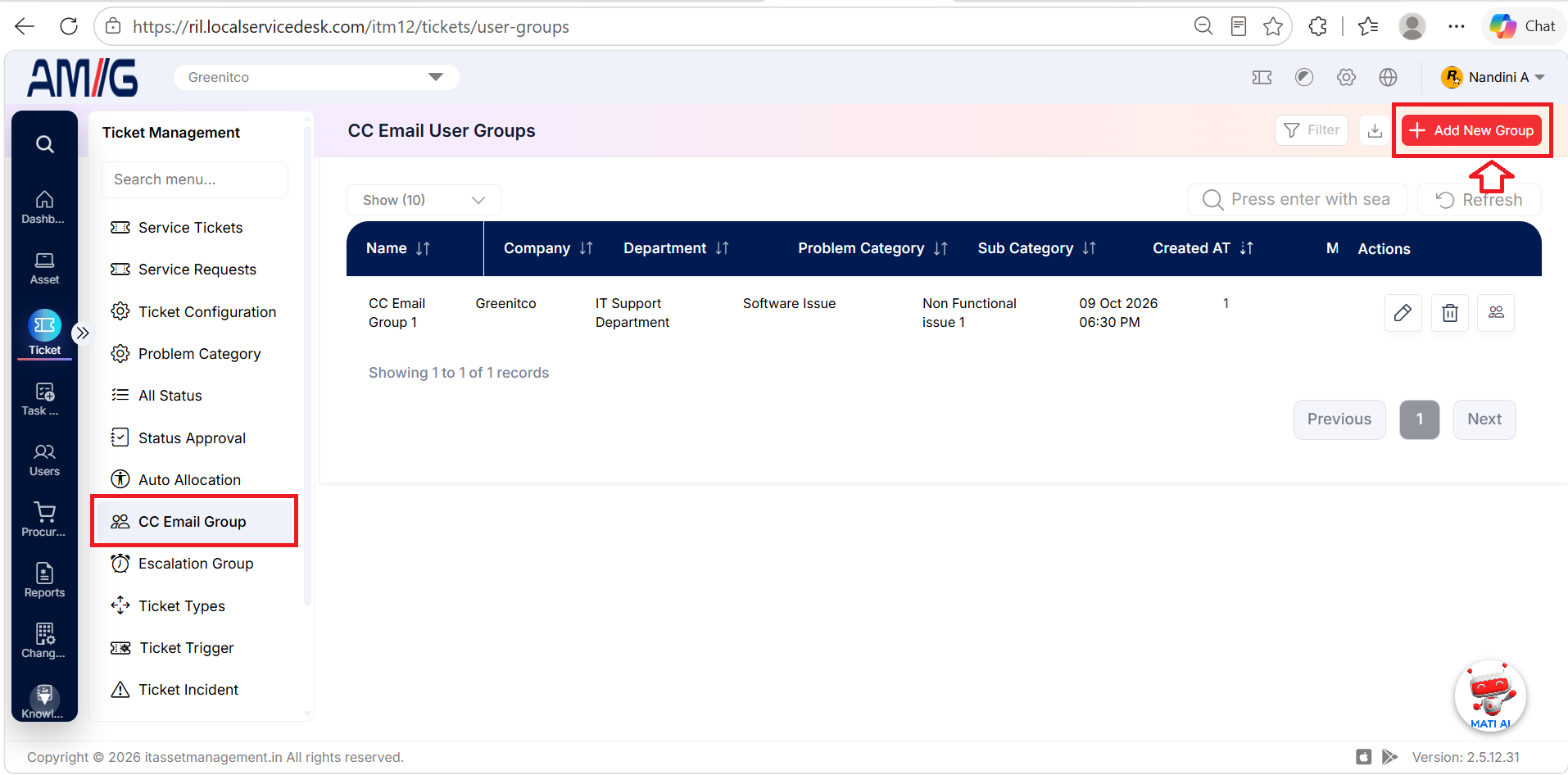
Step 2 → Select the company and department, enter the group name, and choose the Problem Category.
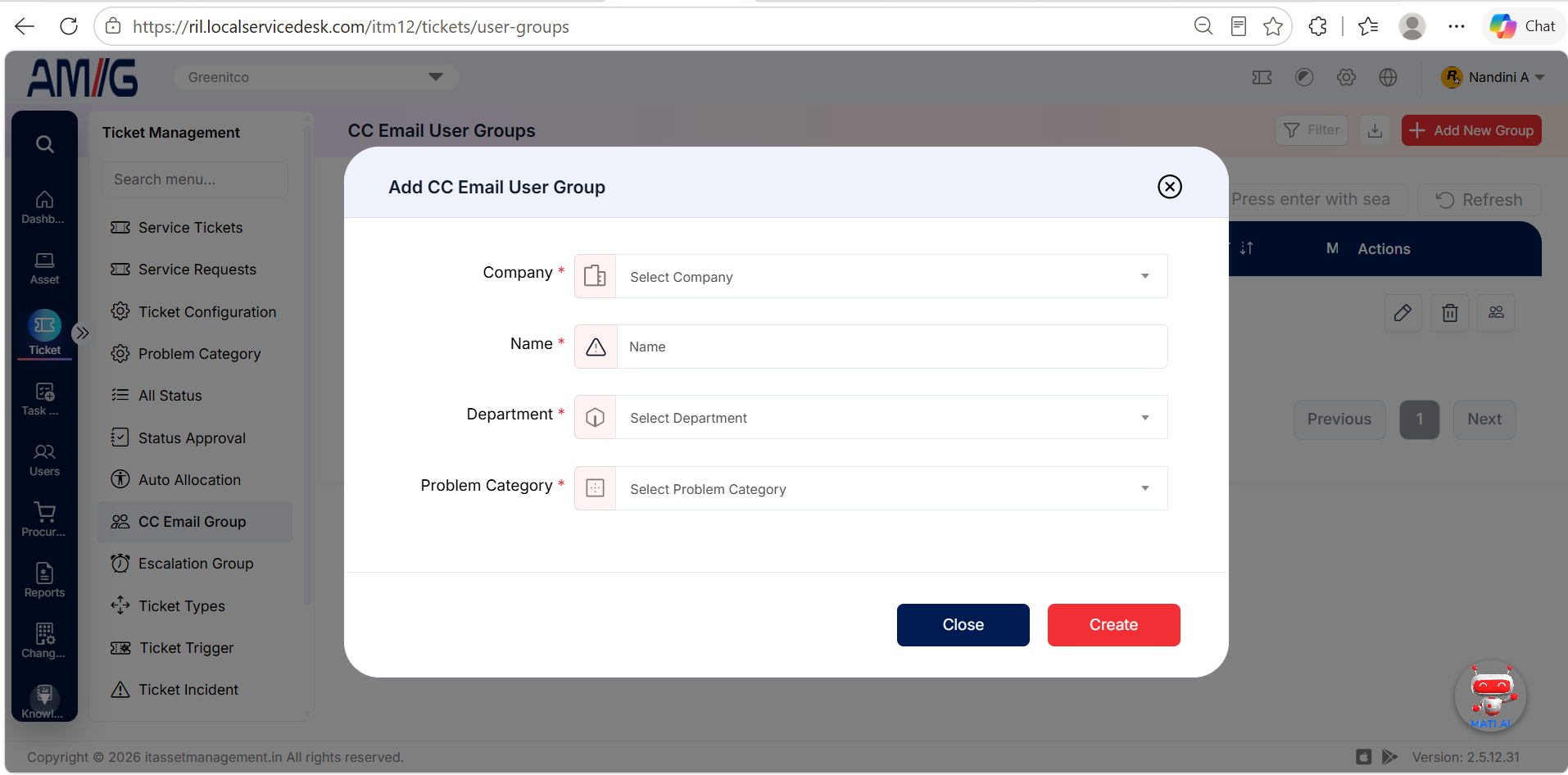
Step 3 → Click Create to save the group, or Close to cancel.
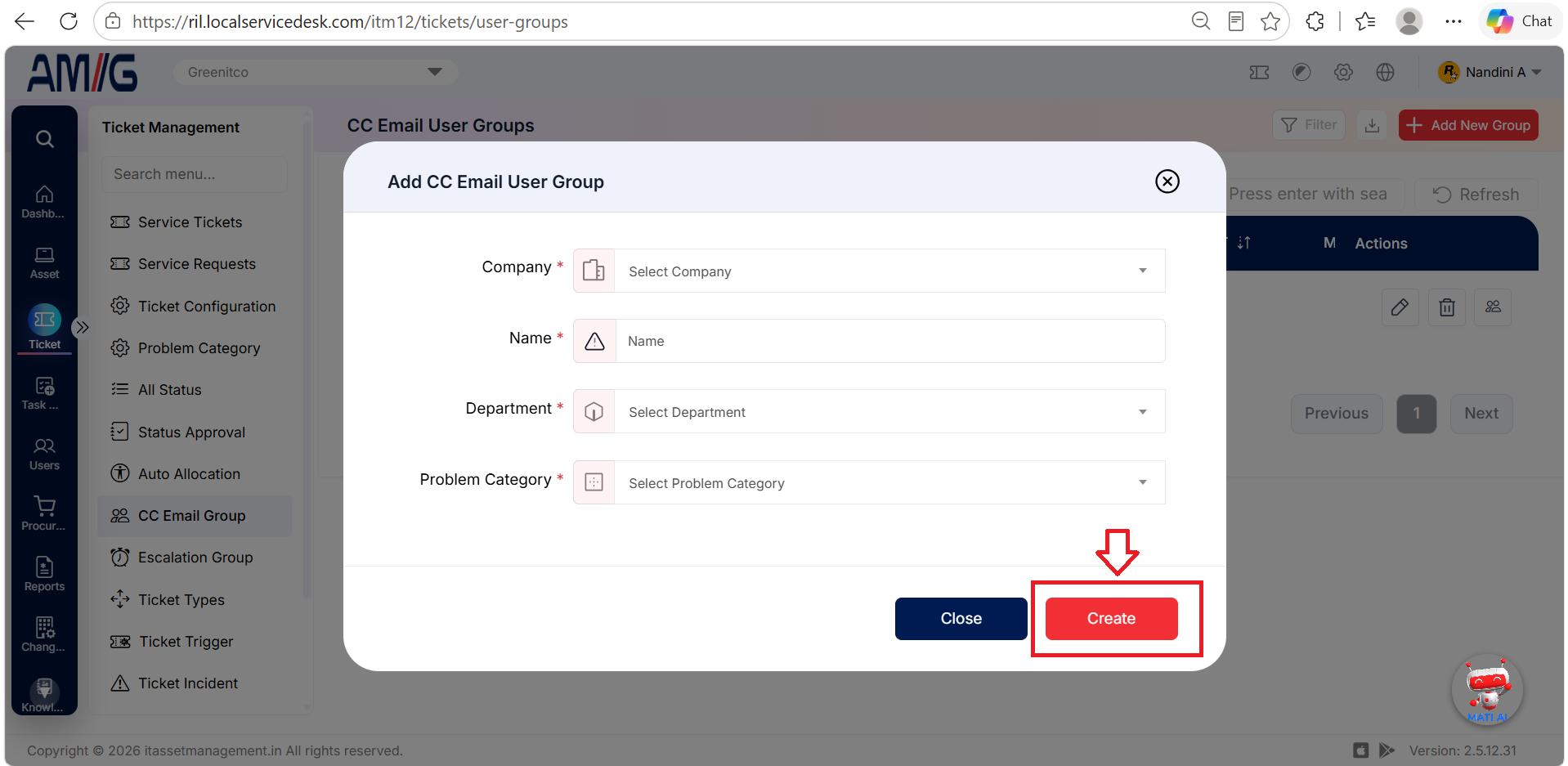 Add CC Email User Group Form
CC Email User Group fields
| Field | Description |
|---|---|
| Company | Select the company for the group. Required. |
| Name | Enter a name for the CC email user group. Required. |
| Department | Select the department the group belongs to. The group is available only within this department. Required. |
| Problem Category | Select the problem category the group applies to. The group is available only for this category. Required. |
Managing Group Members
Step 1 → In the CC Email User Groups list, click the Manage Members icon for the required group.
Step 2 → Review the member names, email addresses, creation dates, and update dates shown in the list.
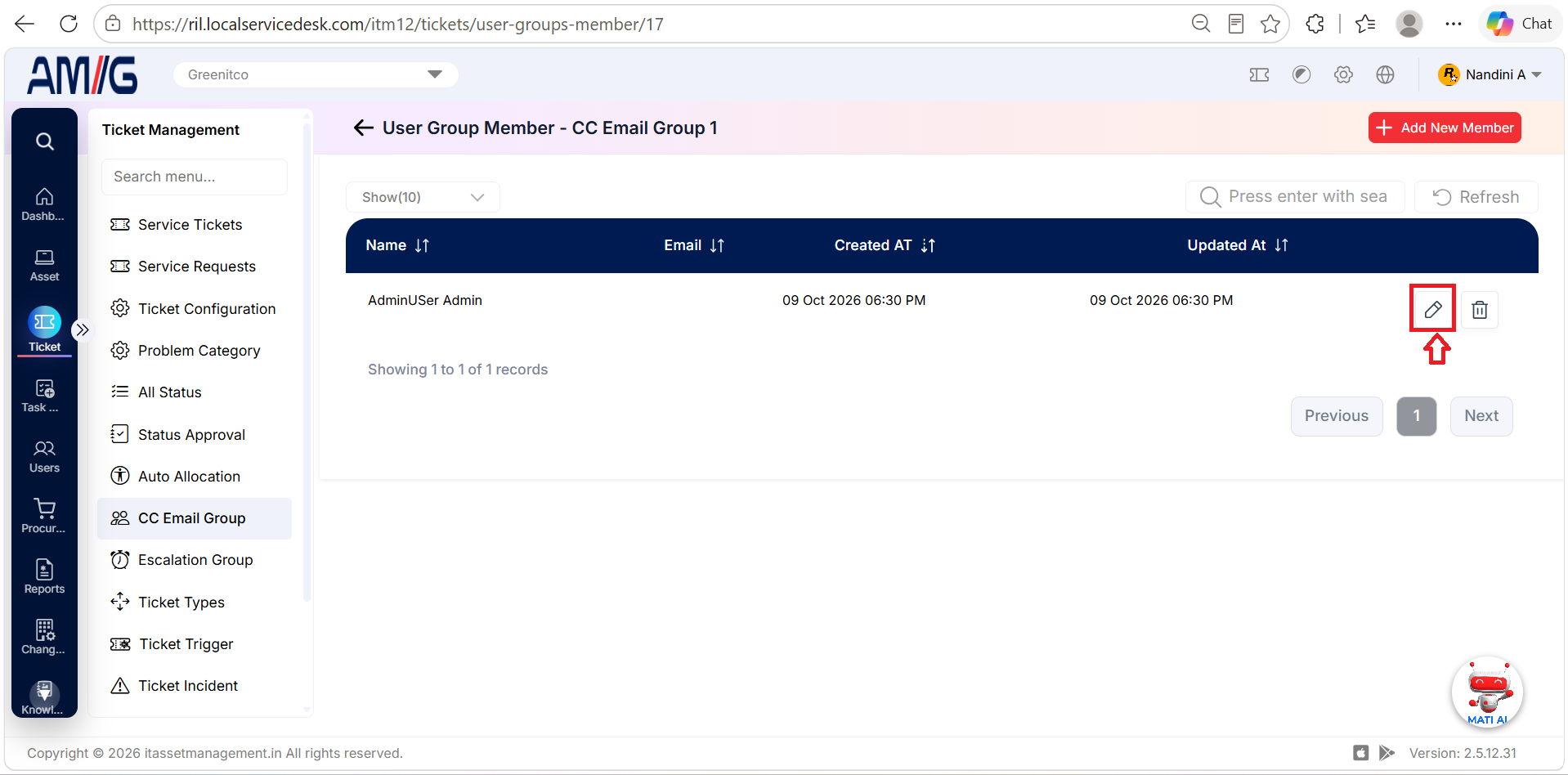 CC Email Group Member List
Group member list columns
| Column | Description |
|---|---|
| Name | Name of the member assigned to the group. |
| Email address associated with the member, when populated. | |
| Created At / Updated At | Timestamps for the member record. |
| Actions | Edit or remove the member. |
Adding a Group Member
Step 1 → From the member list, click Add New Member.
Step 2 → Select a user in the Users field.
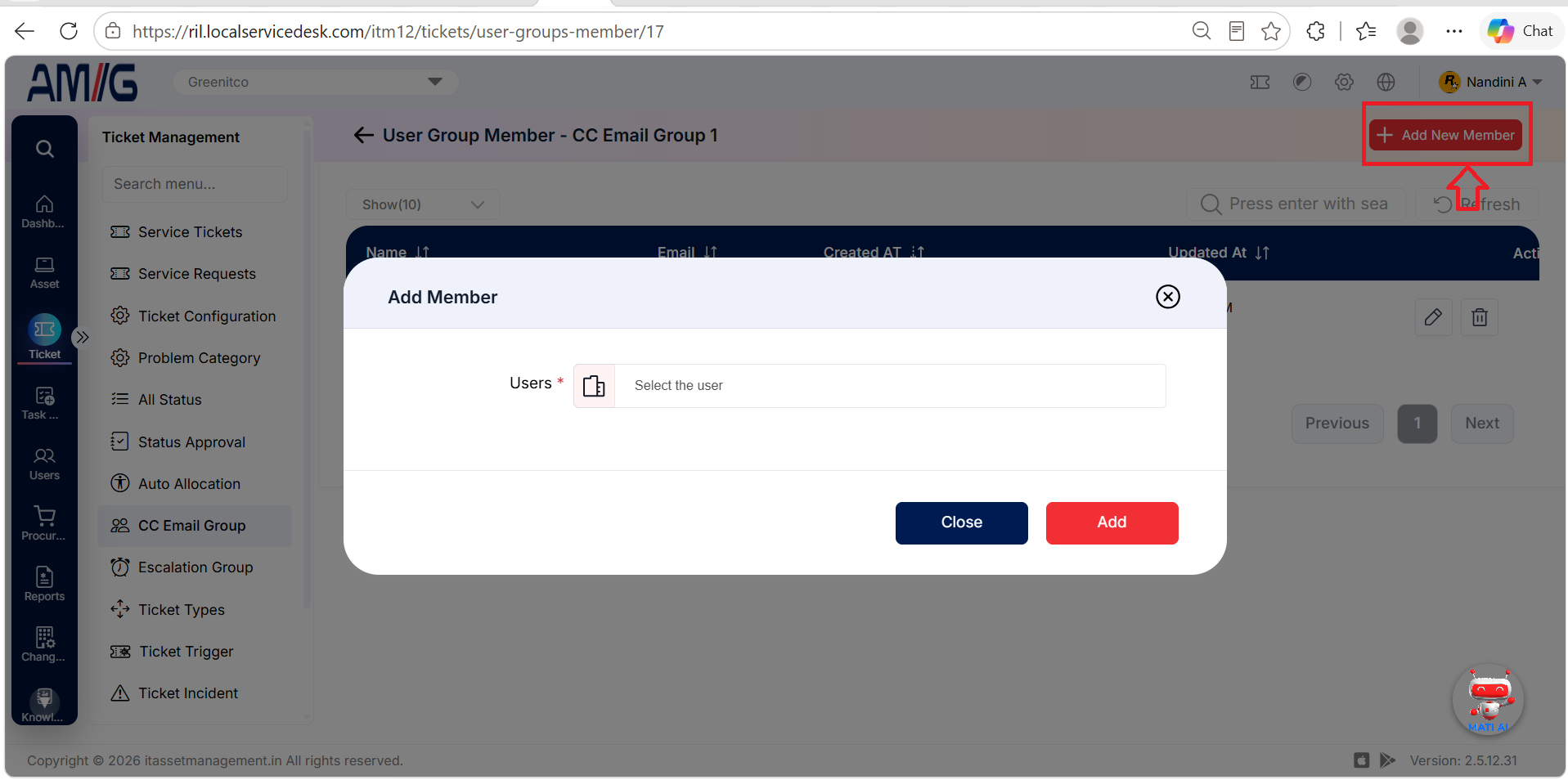 Add CC Email Group Member Form
Step 3 → Click Add to add the user to the group, or Close to cancel.
Add Member field
| Field | Description |
|---|---|
| Users | Select the user to add to the CC email group. Required. |
Managing Existing CC Email Groups
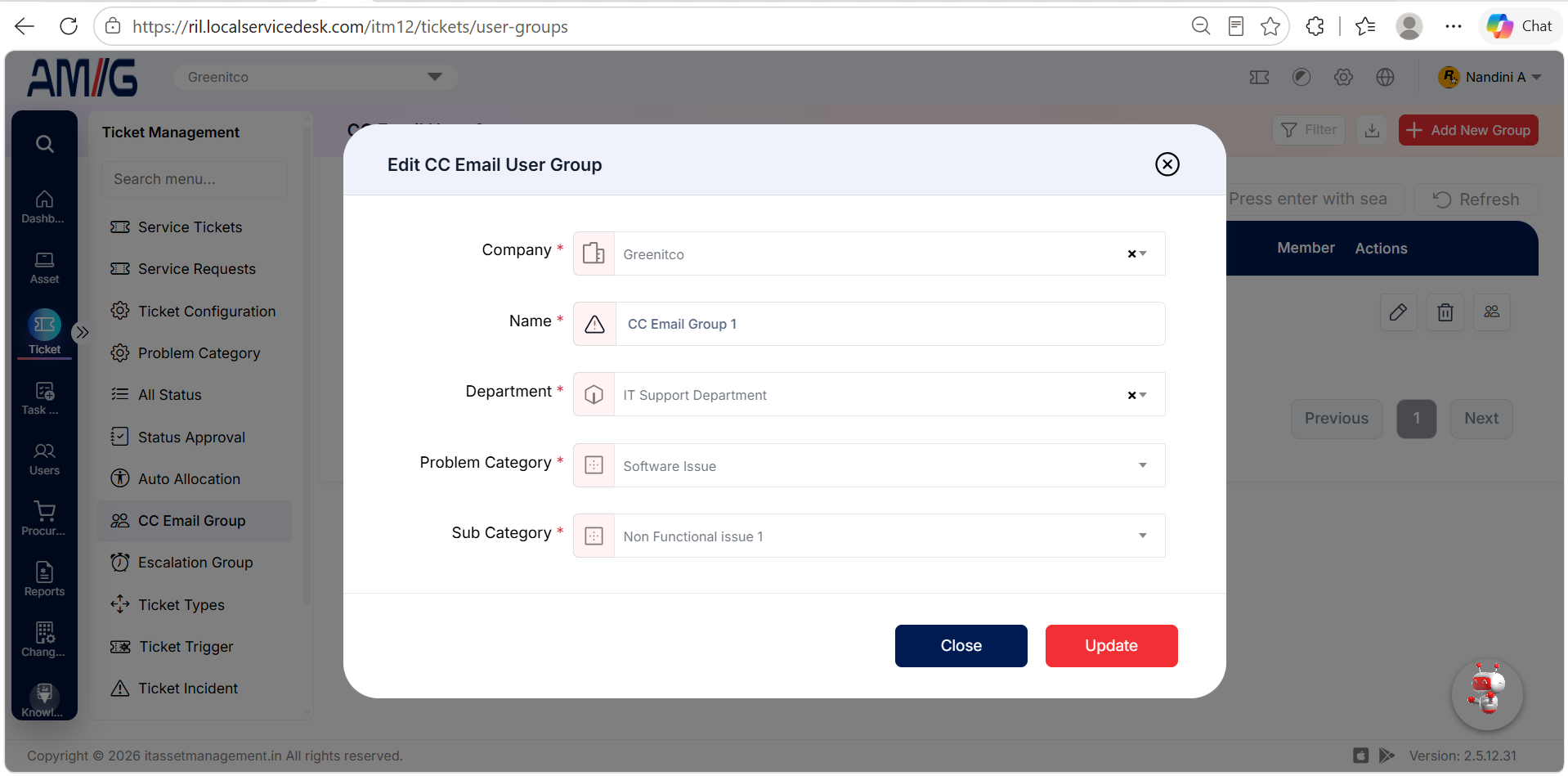
Edit a group
Step 1 → Locate the group and click the Edit icon.
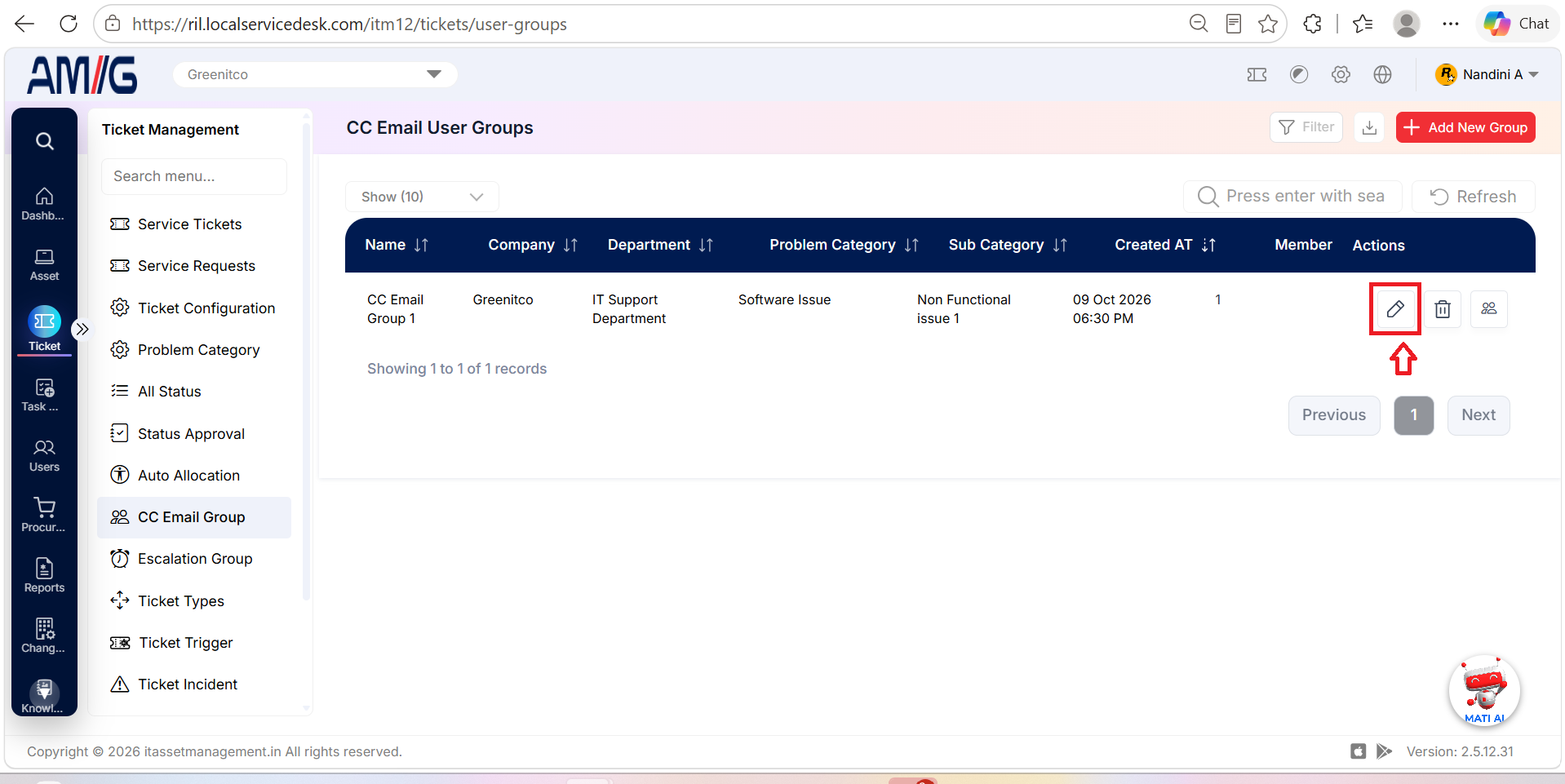
Step 2 → Update the group name, company, department, or problem category as needed, then save the changes.
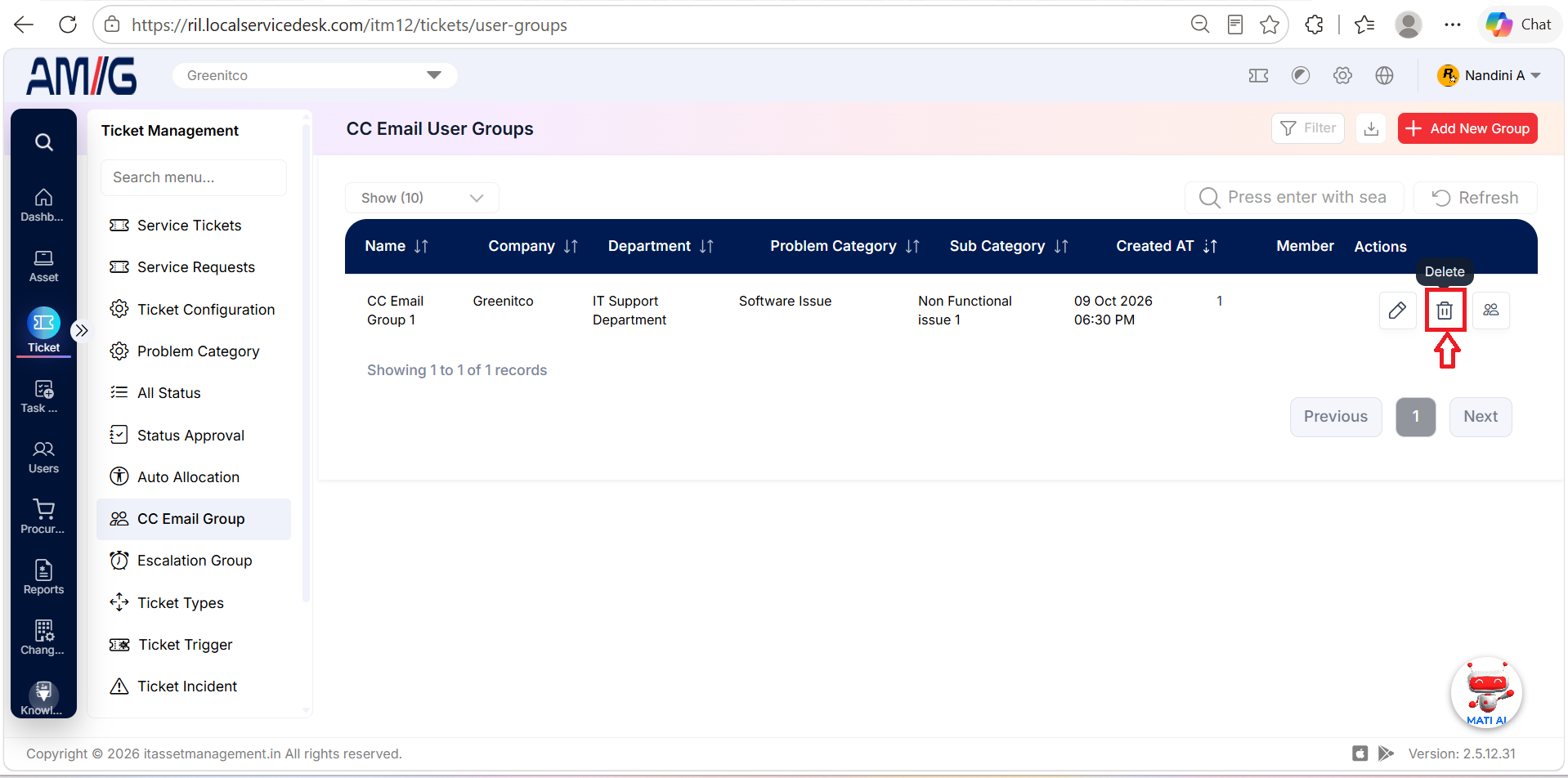
Delete a group
Step 1 → Locate the group and click the Trash icon.
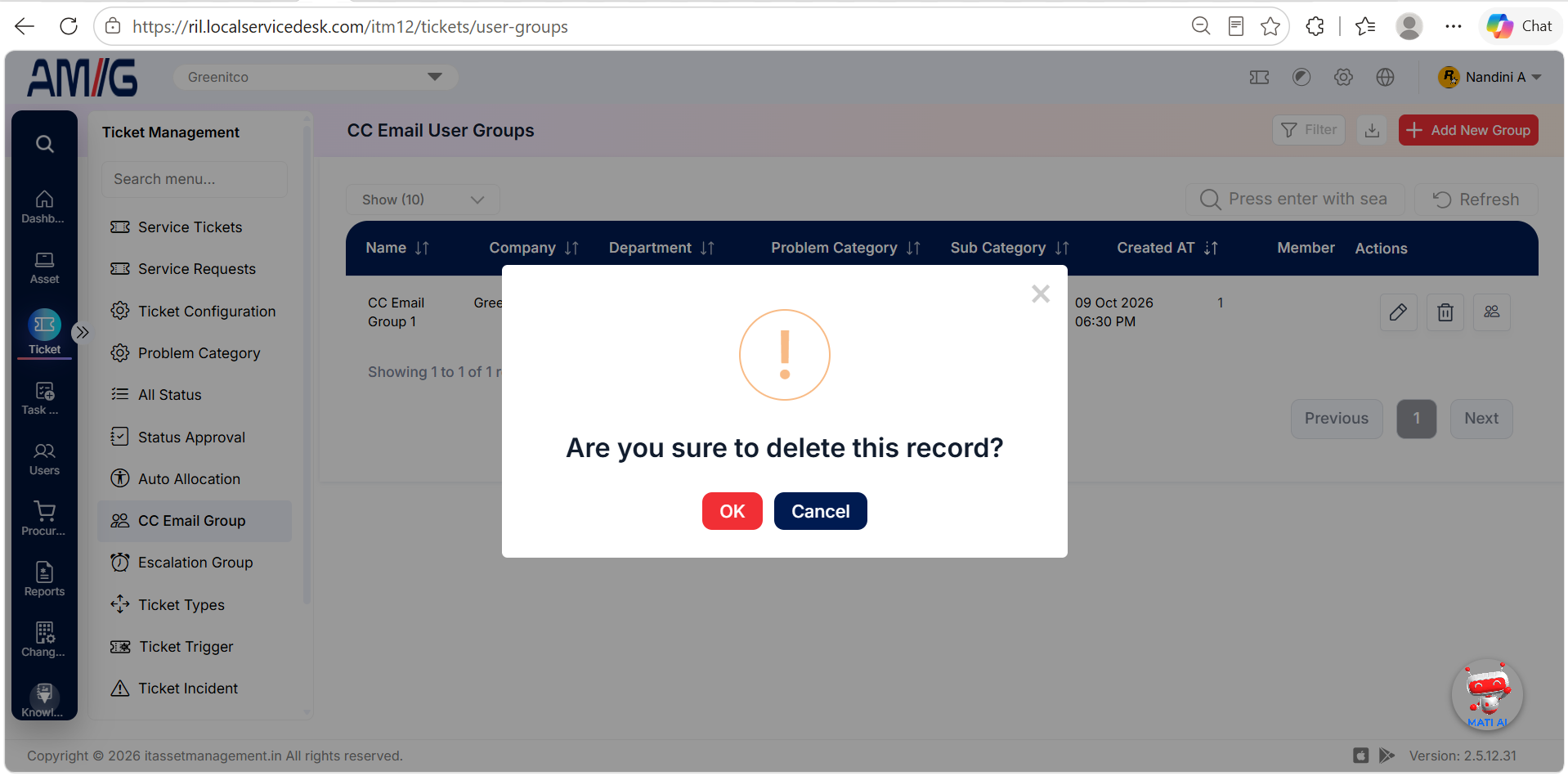
Step 2 → Confirm the deletion when prompted.
 Change group members
Step 1 → Open Manage Members.
Step 2 → Use the row-level Edit or Delete action, or click Add New Member to add another user.