macOS Agent: Install, Verify, Update and Uninstall
Product: NEXTMEGABYTE (Greenitco ITAM) · Module: IT Asset Management (ITAM) · Audience: Administrator, Technician
The macOS agent collects hardware and software inventory from Mac computers and sends it to the portal.
Install the macOS agent
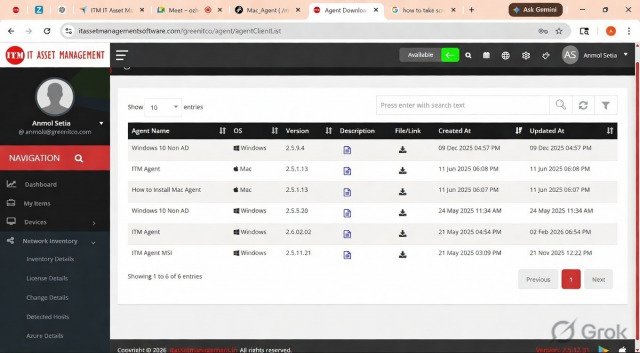
- In the portal, open Network Inventory → Agent Download and download the macOS agent (.dmg).
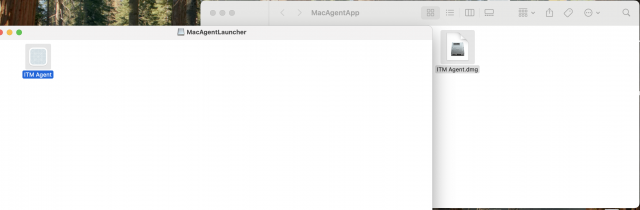
- Double-click the downloaded
.dmgfile to open it. - Double-click Launcher.
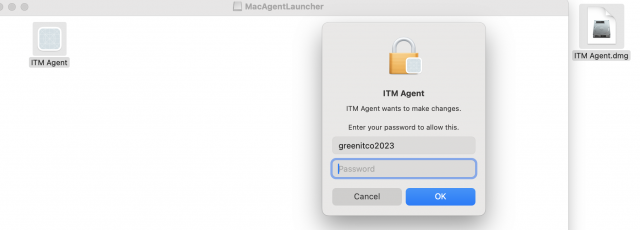
- When macOS asks for administrator credentials, enter the administrator password.
- The agent installs, configures its service and starts collecting inventory. A success message is displayed.
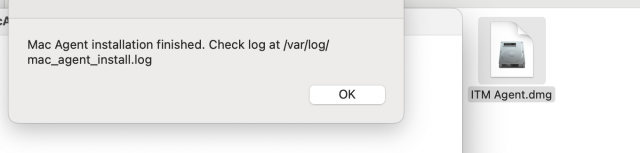
Installation complete: no further action is required. Inventory collection starts automatically.
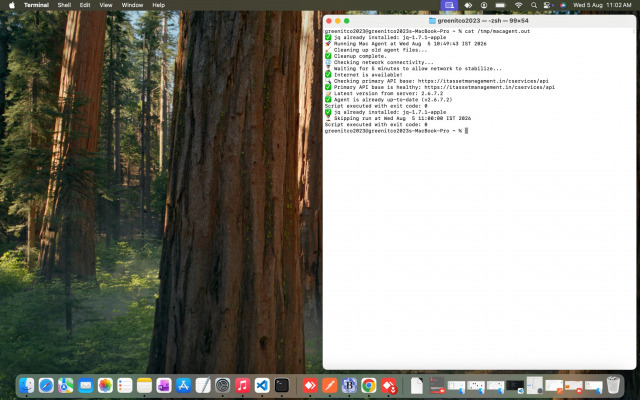
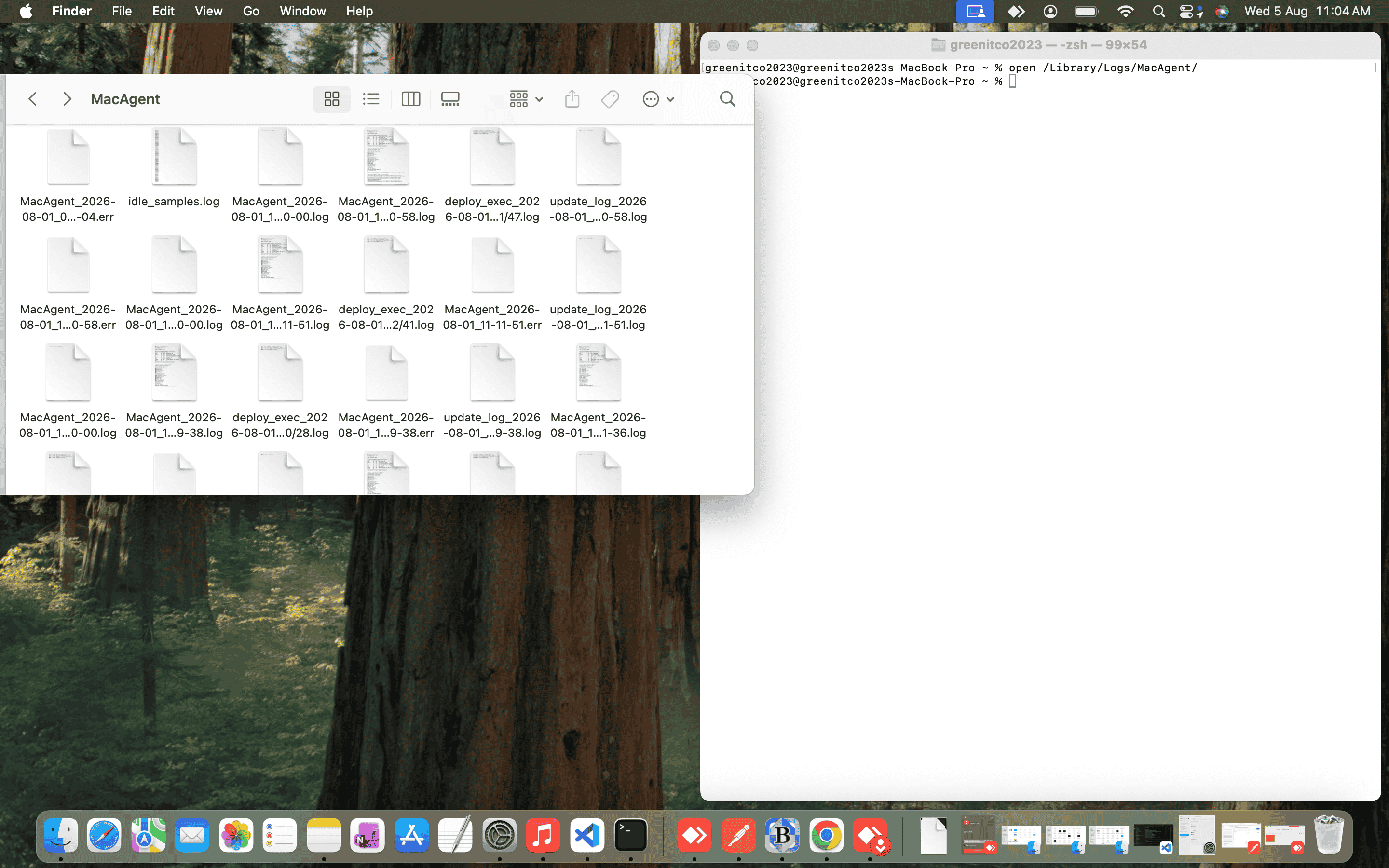
Verify the agent logs
| Log | Location or command | Use |
|---|---|---|
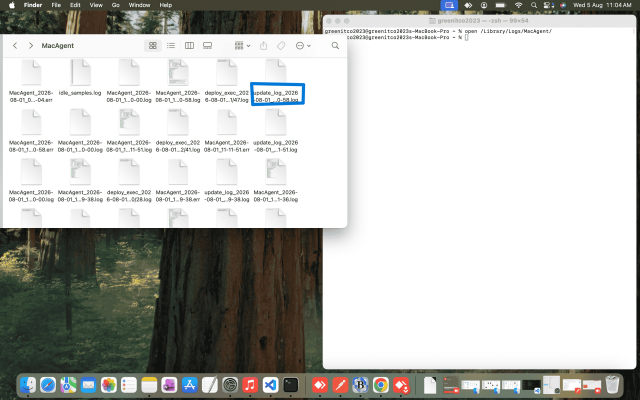
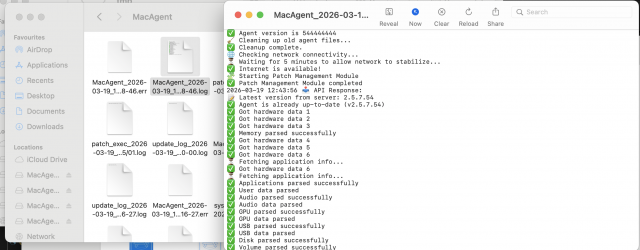
| Log folder | /Library/Logs/MacAgent/ (open in Finder) |
Full log history |
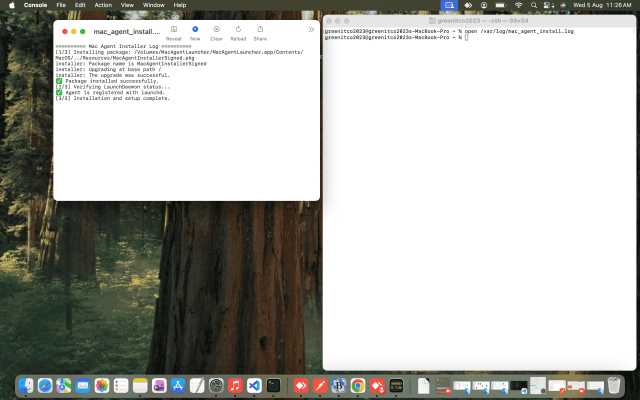
| Installation log | cat /var/log/mac_agent_install.log |
Installation status and setup details |
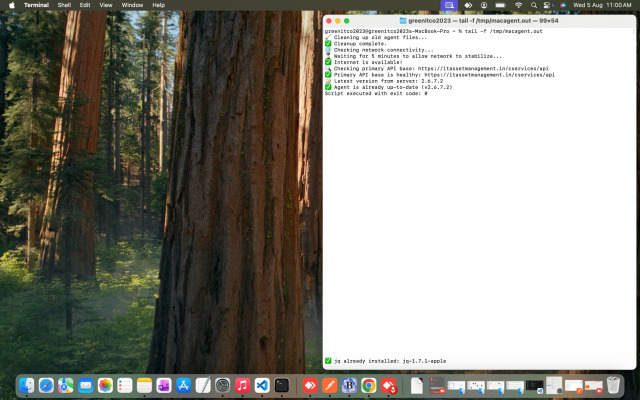
| Live output | tail -f /tmp/macagent.out |
Watch agent activity in real time |
| Recent output | cat /tmp/macagent.out |
Latest agent output |
Confirm the device in the portal
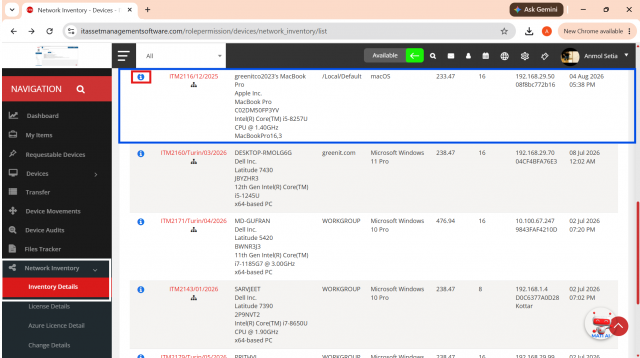
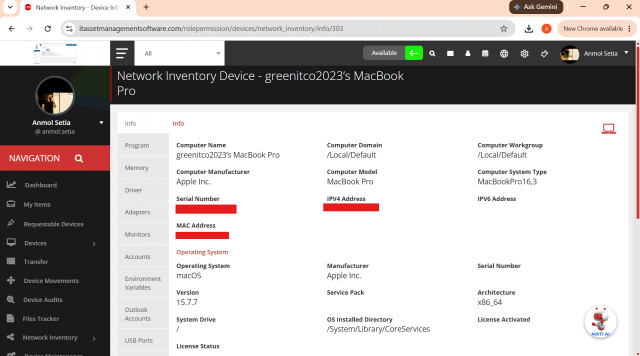
- Sign in to the portal and open Network Inventory → Inventory Details.
- Find the device and select the info icon to see system, hardware, storage, applications, memory, operating system and network information.
Data normally appears within 3 to 5 minutes: about 1–2 minutes to collect local information and 2–5 minutes to upload and process it.
Troubleshoot the macOS agent
| Problem | Likely cause | Fix |
|---|---|---|
| Agent is not running | The LaunchDaemon is not loaded | Check with sudo launchctl list \| grep com.mac.agent. Start it with sudo launchctl bootstrap system /Library/LaunchDaemons/com.mac.agent.plist |
| Logs are not updating | The agent cannot reach the portal | Check internet access, firewall, proxy settings and that the portal address is reachable |
| Duplicate installation | More than one agent is installed | Uninstall the agent, restart the Mac and install the latest version |
| High CPU or memory use | Large inventory or a stuck sync | Restart the agent service; reinstall if the problem continues |
| Files remain after removal | Incomplete uninstall | Check /usr/local/bin and /Library/LaunchDaemons and delete leftover agent files |
| Data is not shown in the portal | Asset license expired or licensed asset count exceeded | Renew or upgrade the asset management license |
| Data is not shown in the portal | Service stopped, log errors, firewall restrictions, corrupted installation or low system resources | Check the service status and logs in /Library/Logs/MacAgent/, allow outbound access to the portal, reinstall if needed, and restart the Mac |
Troubleshooting tip: always check the agent logs first. Most installation, communication and synchronization problems are visible in /Library/Logs/MacAgent/.
Update the macOS agent
Automatic updates: when a newer version is available, the agent downloads it and installs it during the next scheduled synchronization. No user action is needed.
Force an immediate update:
sudo rm /tmp/macagent_last_run
sudo launchctl bootout system /Library/LaunchDaemons/com.mac.agent.plist
sudo launchctl bootstrap system /Library/LaunchDaemons/com.mac.agent.plist
Update logs are written to /Library/Logs/MacAgent/.
Uninstall the macOS agent
Run these commands in Terminal:
# 1. Stop the service
sudo launchctl bootout system /Library/LaunchDaemons/com.mac.agent.plist

# 2. Remove the LaunchDaemon configuration
sudo rm -f /Library/LaunchDaemons/com.mac.agent.plist

# 3. Delete the agent files
sudo rm -f /usr/local/bin/system-agent
sudo rm -f /usr/local/bin/script.sh.enc
sudo rm -f /usr/local/bin/agent-config.sh

# 4. Remove temporary logs
sudo rm -f /tmp/macagent.out
sudo rm -f /tmp/macagent.err

# 5. Remove the service registration
sudo launchctl remove com.mac.agent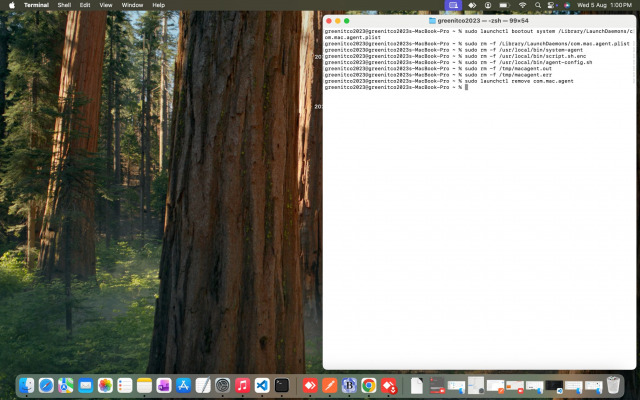
Common questions
How long does it take for a Mac to appear in the portal? Usually 3 to 5 minutes after installation, if the Mac has internet access.
Do I need to reinstall the agent for new versions? No. The agent updates itself automatically. You can force an update with the commands above.